7 Site Progress
Workbook synopsis
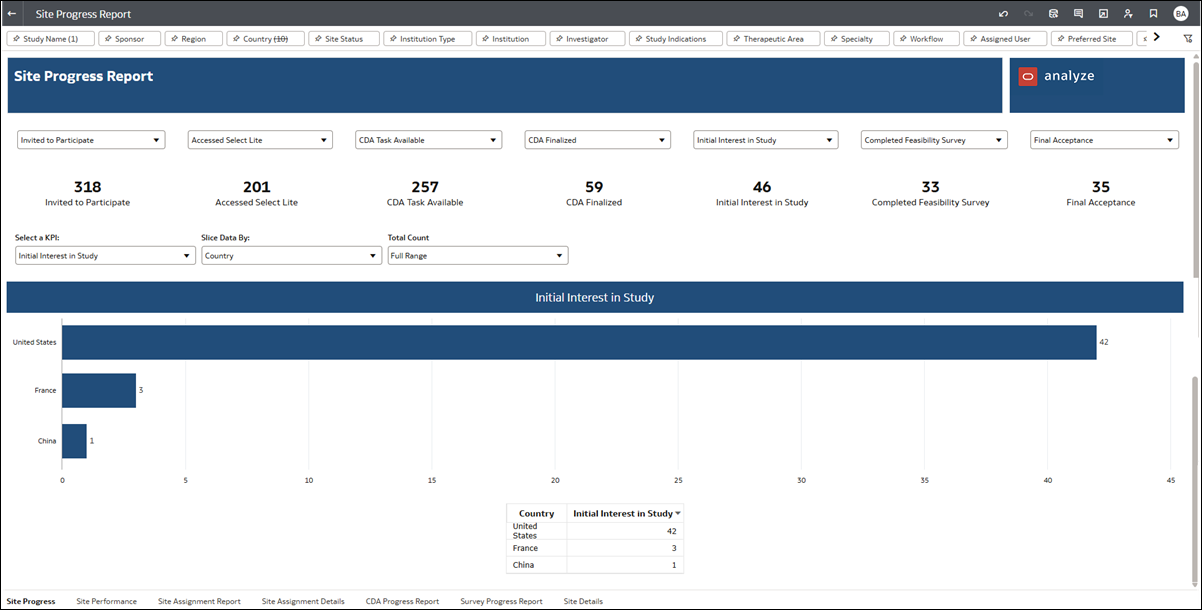
The Oracle Site Analyze Site Progress report, intended for Oracle Site Select customers, allows you to view a summary of where sites are in the selection process and helps you to identify barriers to site progress.
Dashboards and sheets
Site Progress KPI
- Invited to Participate
- Accessed Select LITE
- CDA Task Available
- CDA Final Review
- CDA Finalized
- Agreed to Confidentiality
- Initial Interest in Study
- Final Interest in Study
- Completed Feasibility Survey
- Final Acceptance
- N/A
- Bucket – Back up
- Bucket – Declined
- Bucket – Do not invite
- Bucket – Final acceptance
- Bucket – Final decline
- Bucket – Invited
- Bucket – Master list
- Bucket – Nominated
- Bucket – Not interested
- Bucket – On hold
- Bucket – Selected
- Bucket – Short list
For the lower section of the worksheet, you can also specify the KPI/bucket state shown in the bar graphs. To further refine the view for this visualization, use the “Slice Data By” filter to slice by study, region, or country. Use the“Total Count” filter to control the displayed range (Start/End/Full range).
Site Performance
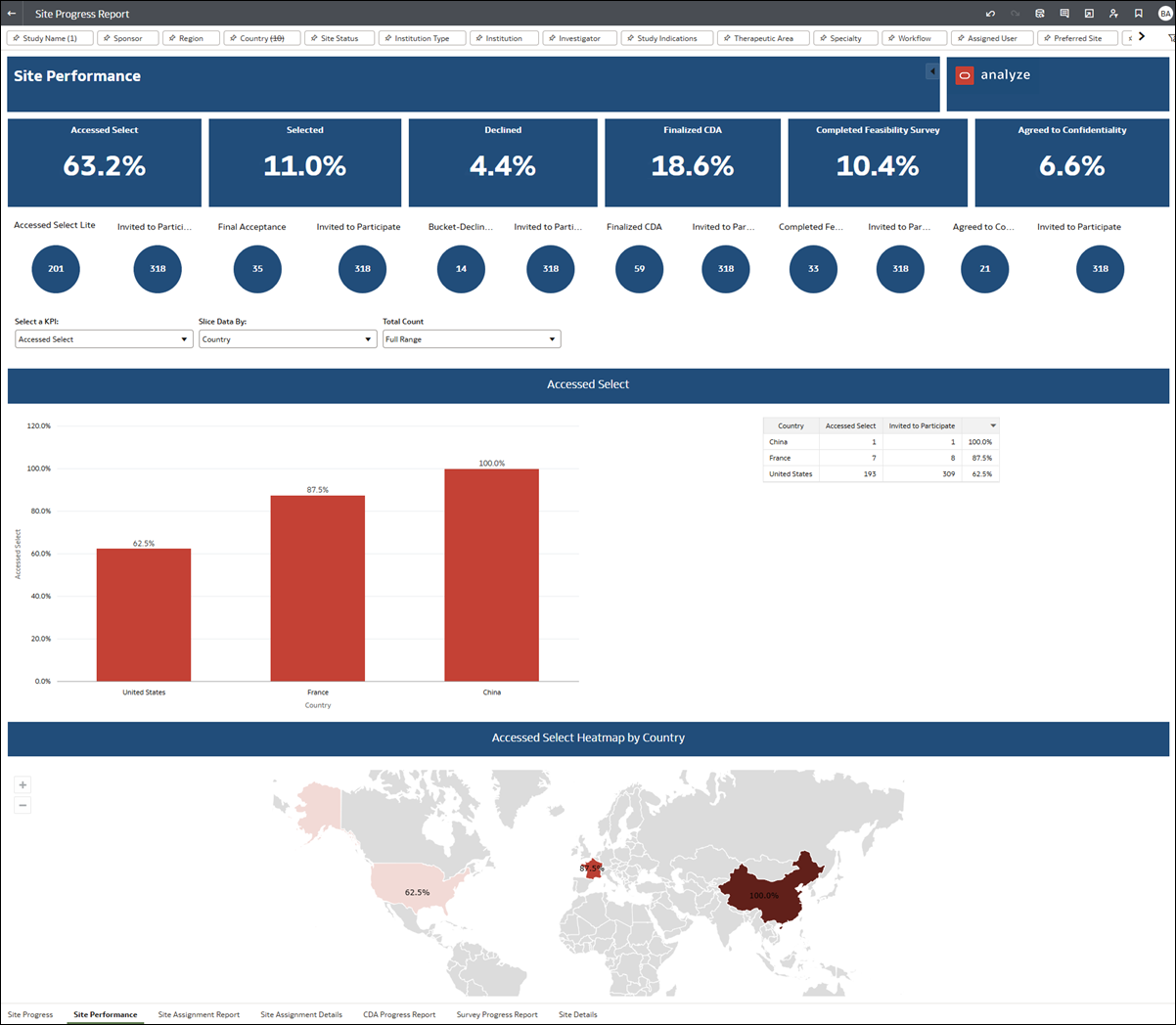
- Accessed Select – number of sites that accessed Oracle Site Select LITE divided by the number of sites invited to participate
- Selected – number of sites selected divided by the number of sites invited to participate
- Declined – number of sites who declined to be in the study divided by the number of sites invited to participate
- Finalized CDA – number of sites that have completed the CDA divided by the number of sites invited to participate
- Completed Feasibility Survey – number of sites that have completed a survey divided by the number of sites invited to participate
- Agreed to Confidentiality - number of sites that have completed the confidentiality agreement.
Metric calculation sources (e.g., “number of sites selected divided by the number of sites invited to participate”) display in circular graphics below the metrics.
The center section of the Site Performance dashboard shows a breakdown of a selected KPI with a bar chart to the left and a table to the right. Slice the data as you prefer – by Assigned user, Study, Region, or Country. You can also adjust the data using the Total Count filter.
The dashboard’s lower section is a geographical heat map that reflects countries for which KPI data exist. The map reflects the KPI selected in the center section of the dashboard, and the map displays percentage results in gradient blue (lighter blue, lower percentage through darker blue, higher percentage). When a country has no site data, the map reflects the country in light gray. Click a country to drill to the Site Details worksheet to view site information that made up that country metric.
As with all Oracle Site Analyze reports, a broad range of filters are available at the top of this worksheet that allow you to limit the scope of the data included in the dashboard.
Site Assignment Report
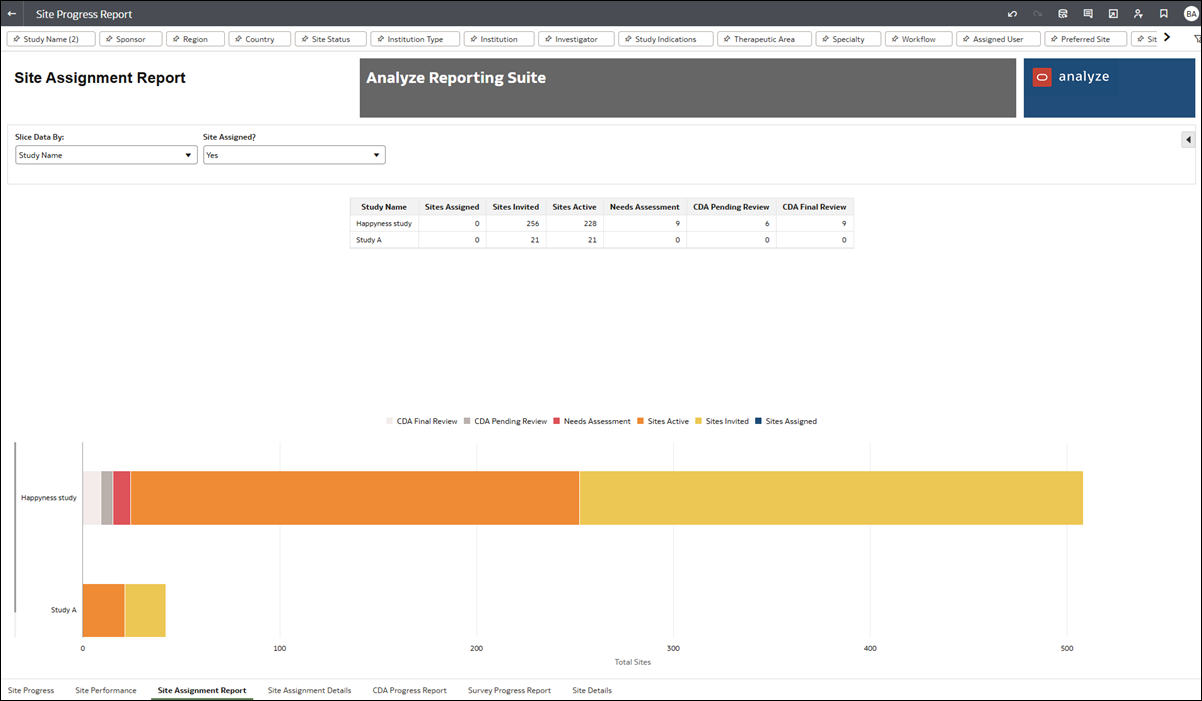
- Study
- Sites Assigned = Number of sites assigned
- Site Invited = Number of sites invited
- Sites Active = Number of sites active (invited but not in a dropped bucket state)
- Needs Assessment = Number of sites with all tasks complete and still in the invited bucket
- CDA Pending Review = Number of CDA uploaded pending review
- CDA Final Review = CDA uploaded final review
- Selecting both will include sites that were assigned and sites that were not assigned.
- Selecting Yes will only include sites that are assigned,
- Selecting No will only include sites that are unassigned.
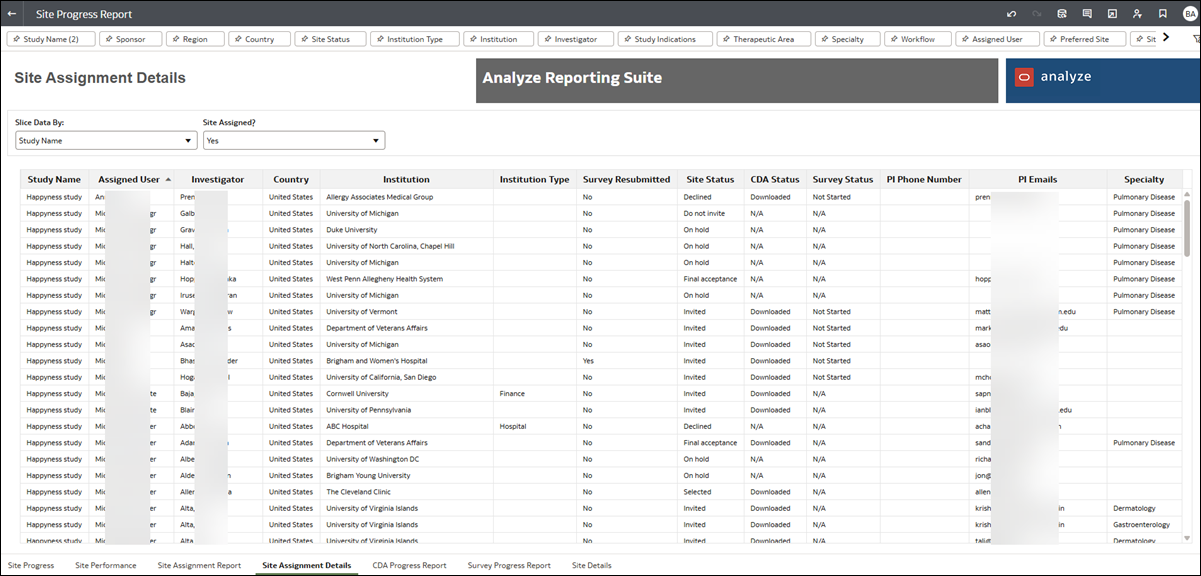
Site Assignment Details
- Selecting both will include sites that were assigned and sites that were not assigned.
- Selecting Yes will only include sites that are assigned,
- Selecting No will only include sites that are unassigned.
To export the worksheet, you can use Oracle Analytics Cloud standard export controls. Click the Export icon at the top right of the workbook or right click anywhere on the sheet and select File. Then choose your preferred export options (format, orientation, etc.).
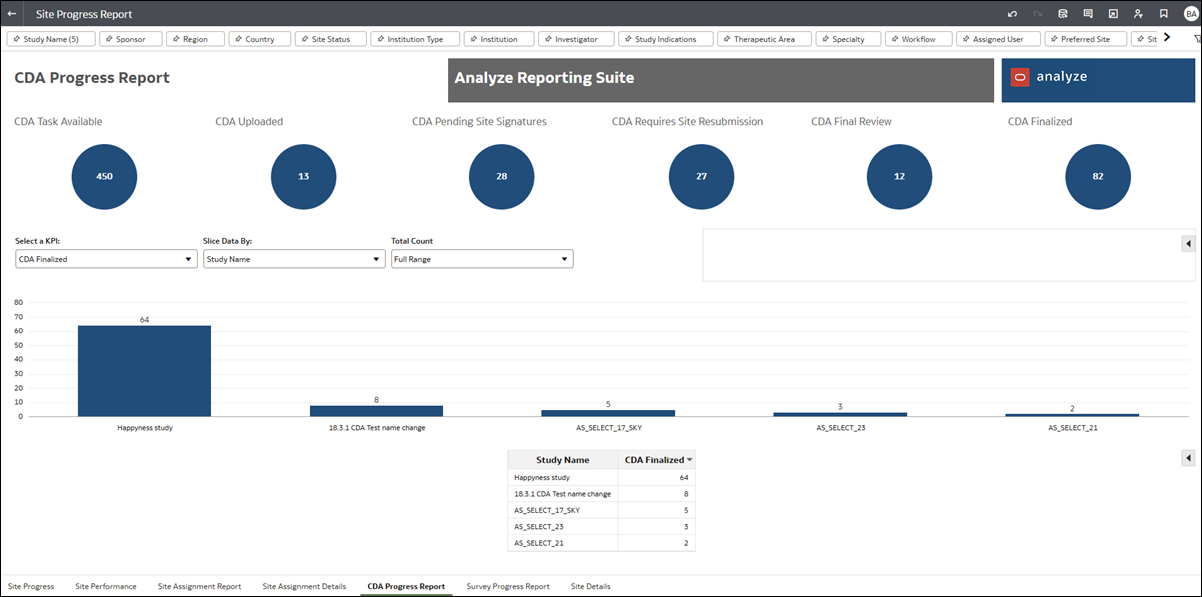
CDA Progress Report
- CDA Task Available
- CDA Uploaded
- CDA Pending Site Signatures
- CDA Requires Site Resubmission
- CDA Final Review
- CDA Finalized
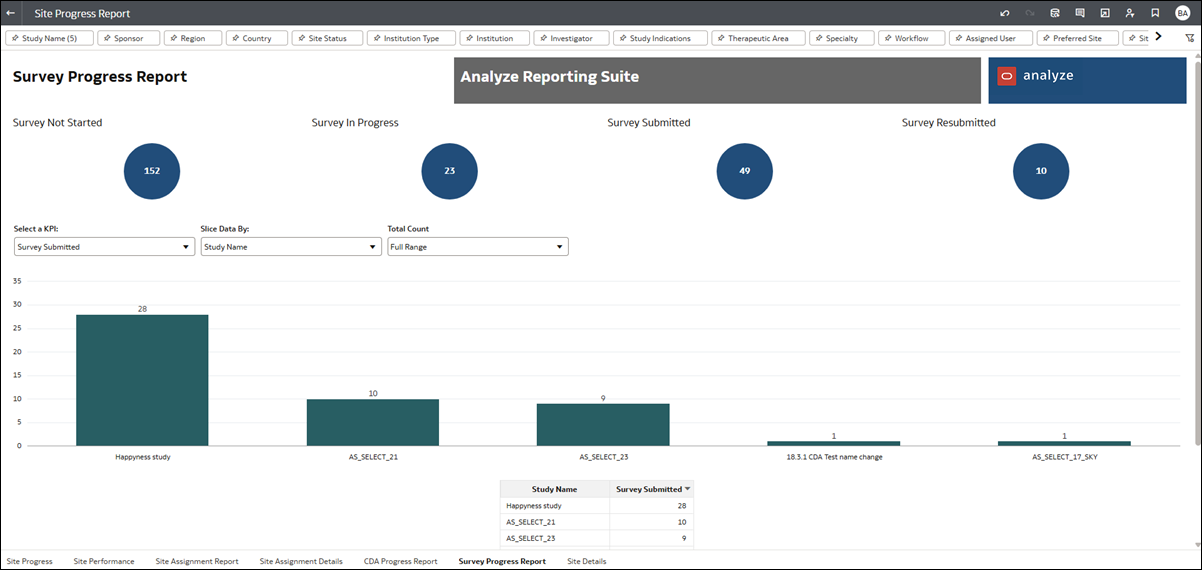
Survey Progress Report
- Not started (when the site has reached the feasibility survey workflow task)
- In Progress
- Submitted
- Resubmitted
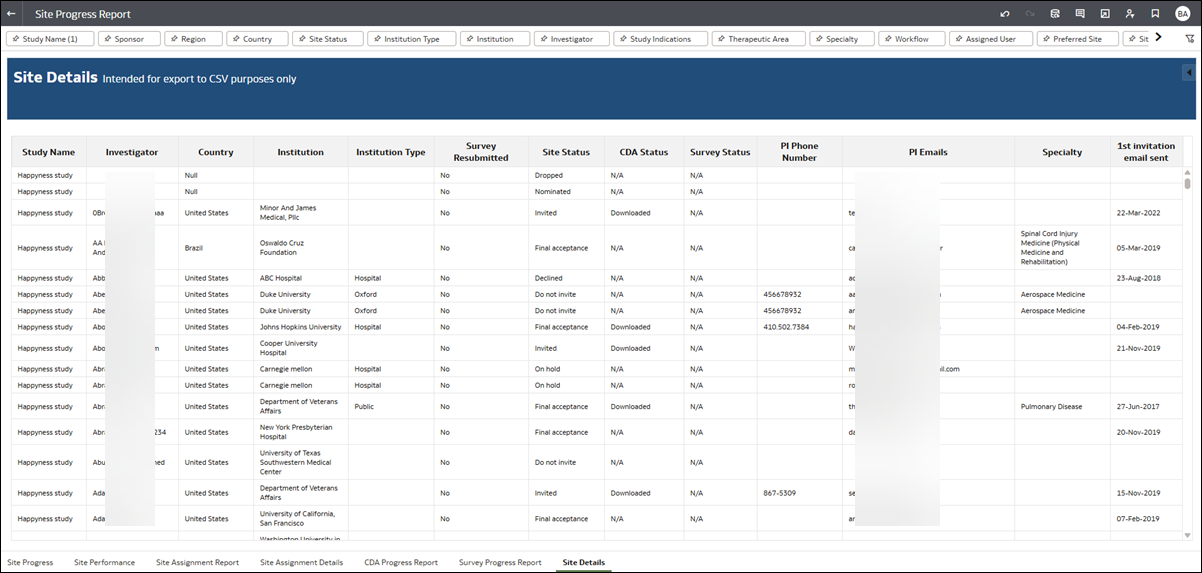
Site Details
- Study Name
- Investigator
- Country
- Institution
- Institution type
- Survey Resubmitted
- Site Status
- CDA Status
- Survey Status
- PI Phone Number
- PI Emails
- Specialty
- 1st invitation email sent
To export the worksheet, you can use Oracle Analytics Cloud standard export controls. Click the Export icon at the top right of the workbook or right click anywhere on the sheet and select File. Then choose your preferred export options (CSV format, orientation, etc.).