3 Data Export Utility
The Data Export Utility for Oracle Site Activate is a self-service export that allows permissioned Oracle Site Activate users to design a CSV extract with selected data columns and filters. The utility includes data columns for study sites, study level documents, study notes, milestones, submissions, artifacts, and activities.
Permission required to access the utility
You must have at least one business role with “Enable access to the Data Export Utility” permission to access the export utility from the Oracle Site Activate Reports menu. The Data export option does not display in the Reports drop-down menu if you do not have permission. Contact your super user or administrator to request access for your user account.
Data extract cubes, columns, and filters
You can create new extracts, for one or more studies, based on:
- Cube – You'll select one cube per extract. The data cubes are:
- Study Notes
- Study Sites
- Study Level Documents
- Study Submission
- Study Artifact
- Study Milestones and Submissions
- Study Activity
- Columns (dimensions) – You can add columns in any order
- Filters – You can add filters in any order
You'll see columns categorized into groups in each data cube. For instance, the Study Sites cube groups columns into Study, Site, Date, and Principal Investigator categories. When you create or edit a report, available columns display in alphabetical order within grouped categories.
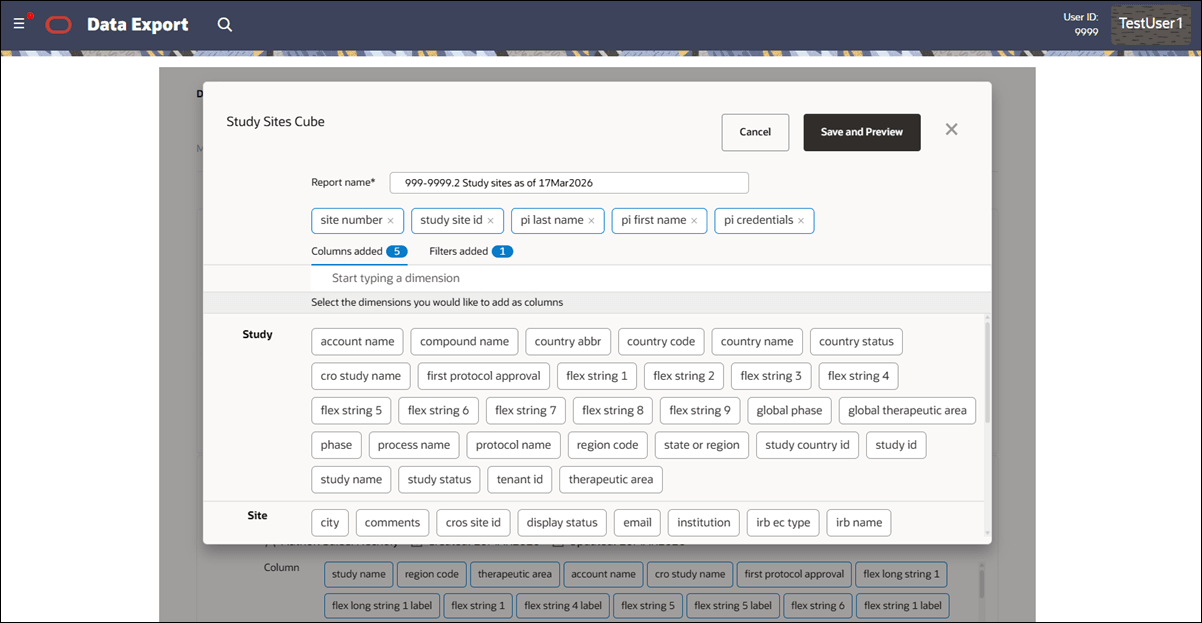
The utility's Filter list sorts alphabetically so you can quickly find your preferred filters. For study name, you can select one, multiple, or all studies. For other filters, select a field from the drop-down menu, an operator (e.g., Contains, Equals, etc.) and enter a text value for an individual filter you would like to find. If you add a date or timestamp filter, specify the start and end dates for the date range. All text values are wildcard matches and case sensitive. To add multiple filters, click Add to add a new field.
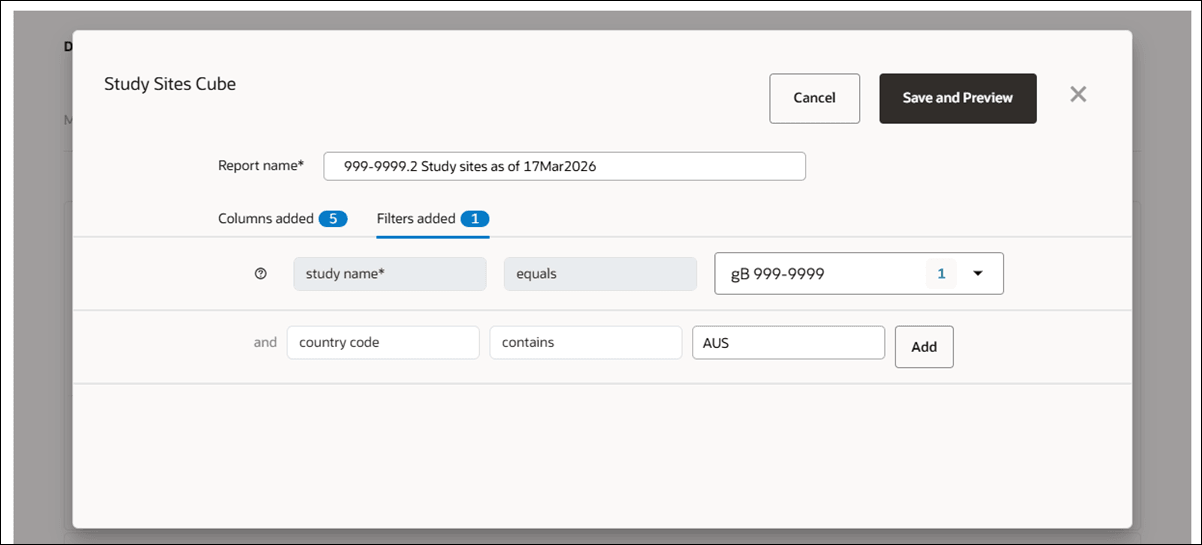
The utility displays a "No matching records found" message if the columns and filters you selected for the export will not return any data. In this case, update your selections to refine the data included in the export.
You'll see report data only from those studies to which you currently have access. The Data Export Utility "Study" filter hides a study when you no longer have explicit access to it and will also hide any deleted study. Existing Data Export Utility reports are still available to you, even when created with a study to which you no longer have access. When you access or preview the report again (after initial creation), the report's study filter automatically updates to exclude any unavailable study and its data. This applies reports you create and to those reports that have been shared with you.
Asynchronized report download
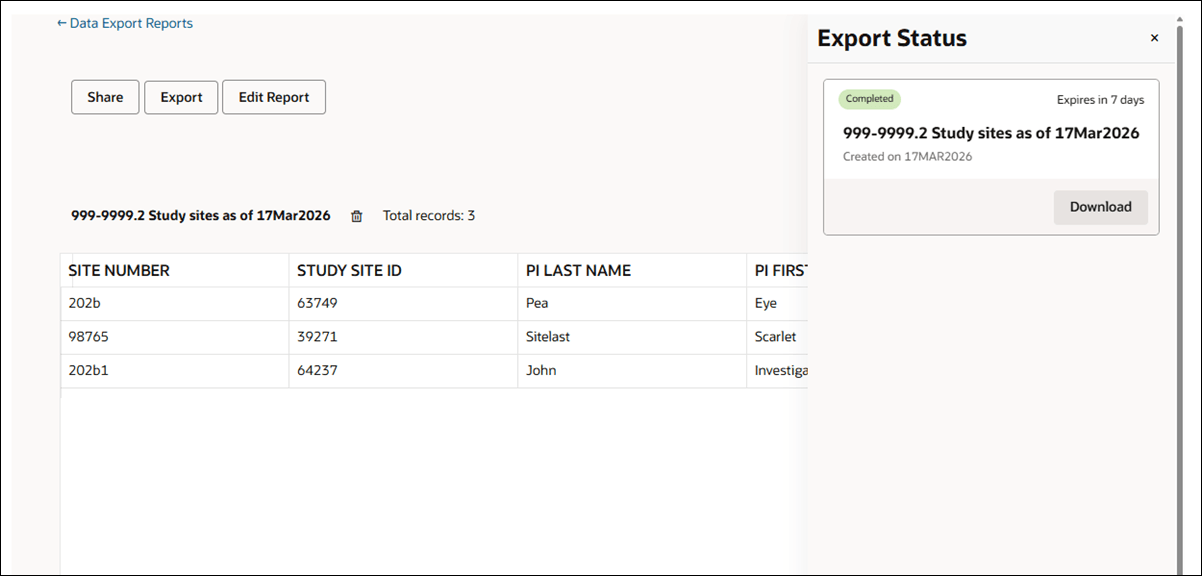
You can download entire Data Export Utility reports asynchronously, whether you are viewing your own or shared reports. On both the homepage and the Preview page, you’ll see an Export button. When you click Export, the system generates a ZIP or CSV file containing all report data, not just the information on the current page.
Export features include both individual user and account-level limits to ensure efficient operation. You may have up to two exports in progress at a time, while your organization’s account can support up to 10 at once. If you reach either limit, or if an export is already running for the specific report, the Export button is disabled. When you hover over the disabled button, a tool tip appears, explaining the reason, such as an export queue limit or a running export for that report.
- no icon when no export is running or available for download
- a spinner icon when at least one export is in progress
- a badge showing the number of exports available for download when no export is running but some are ready
Click Export Status to open a drawer showing any exports in progress or available downloads. Export Status displays all your exports, including both your reports and shared reports. Every successful export file you generate is available for download for seven days before expiring. If an error occurs during report generation, an error message displays that you must acknowledge, and the failed export will not be listed in the Export Status drawer.
Share exports with other users
- My Reports: lists all reports you created
- Shared Reports: lists all report shared with all Data Export Utility users in the account
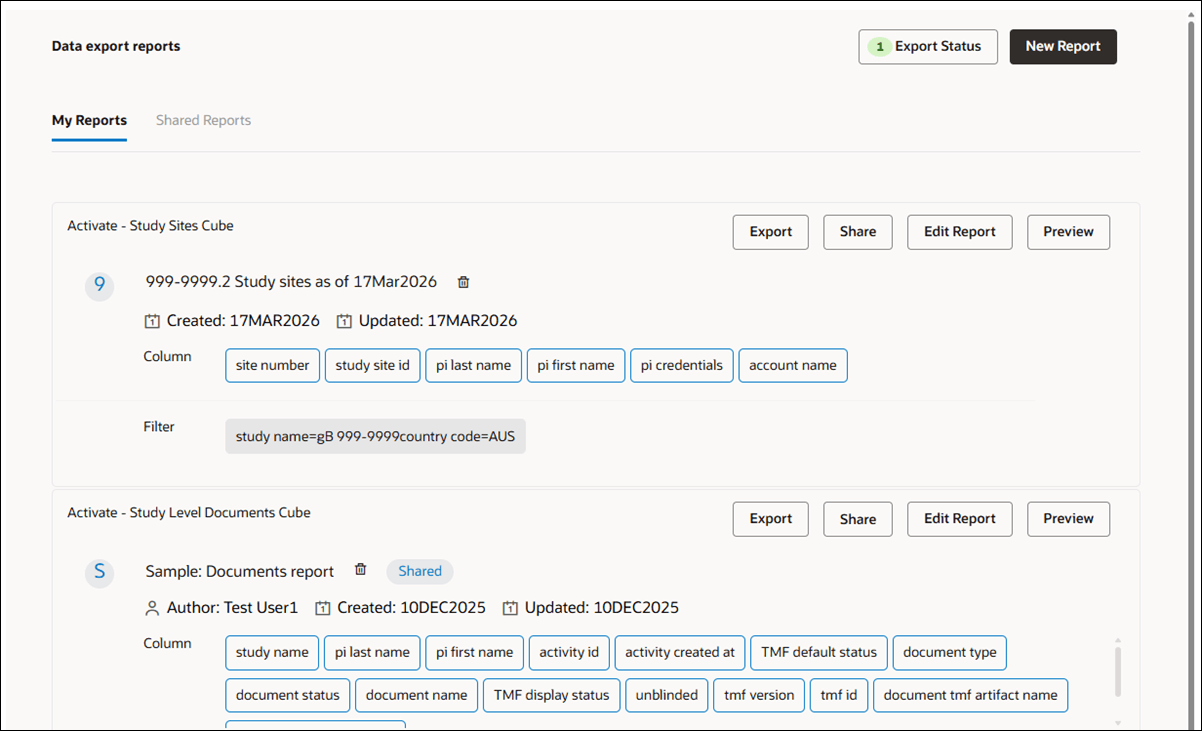
On the My Reports tab, you can Export, Share, Edit, or Preview a report using the button options at the upper right of each report. When you click Share, a modal displays where you'll set the report's access type as Private or Shared. Private, the default selection, means only you can access the report. Shared means you allow others in your account to have access to the report.
You can identify a shared report by the "Shared" status label displayed on the report's title line, and you'll also see author and created and/or updated dates as applicable. You can unshare a report you've shared at any time; click Share again to change the access type from Shared to Private. You can also edit your shared reports as preferred, and other Data Export Utility users will see the updated report in their Shared Reports list.
Modify a report shared with all users in the account
The Data Export Utility supports user-specific filters on shared reports. This lets you personalize shared report views without impacting the base report or other users’ views.
When you access a report from the Shared Reports tab on the home page or from the report preview page, you’ll see an Edit Report button. Click to open the edit report modal, with the focus on the “Filters added” tab. Here, you can view the filters from the original report and modify them by adding or removing filters. The adjustments you make are unique to you, so your changes do not affect others in the account. You can also navigate to the “Columns added” tab to review which columns are included and their order, but you cannot add new columns or change their sequence; column changes are reserved for the report's original author.
After updating filters, click Save and Preview to view the report with data filtered by your chosen filters. Your exports from the report will use the filters you specified.
The latest filter values appear in the “Filter” section on the Shared Reports tab for easy reference. If the original report author updates the shared report (e.g., changing which columns are included), you’ll see the updated columns, but your user-specific filters remain unchanged.
- Create a new export
If you have the appropriate business role permission in Oracle Site Activate, you can access the Data Export Utility to create a unique export that contains your preferred data and export the result to a .csv format file. - View existing export
The Data export report page lists all of your previously-created reports, as well as any reports authored by others and shared with you. - Edit existing export
The My Reports tab on the Data export reports page lists all of your previously created reports, and you can edit any of them as you prefer. - Delete an export
When you no longer need a report you created, you can delete it as necessary. - Share or unshare an export
Share an export when you want others in your account to have access to an export you authored. When you no longer want others to have access, change the report's access level from Shared to Private.