TMF Status Dashboard
Workbook synopsis
This report is intended for customers that have licensed and enabled Oracle eTMF functionality. We designed this report to help managers use data and visualizations to evaluate TMF data and activity.
Dashboards and sheets
Completeness Dashboard
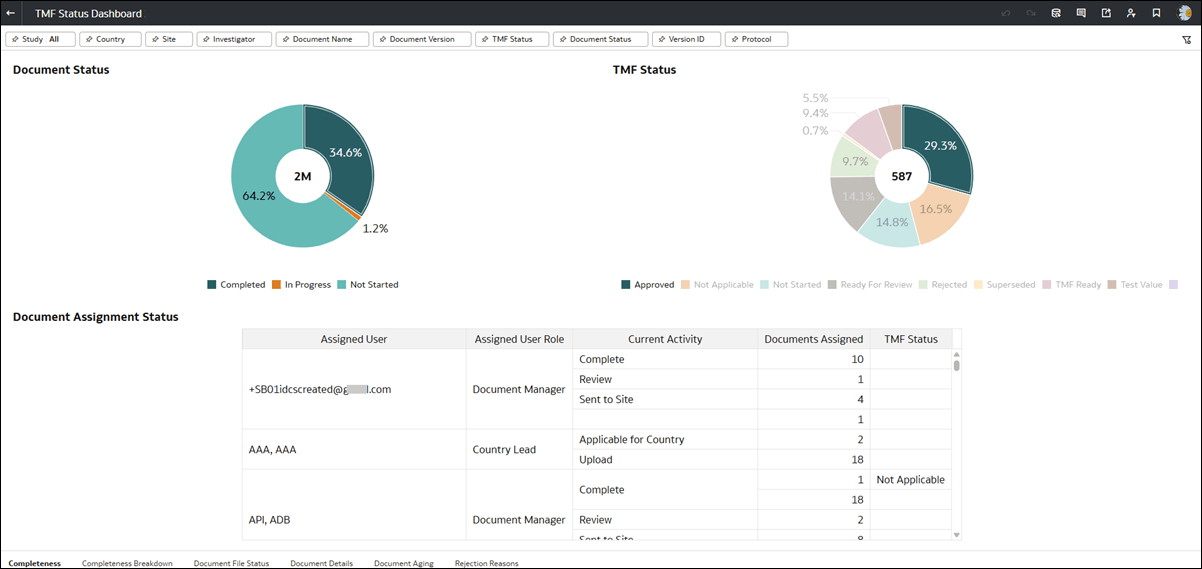
This worksheet includes interactive pie charts for Document Status and TMF Status. Hover over any portion of the charts to view count, status, and percentage details. You can filter this worksheet by Study, Country, Site, Investigator, TMF Zone, TMF Section, TMF artifact, Document Name, Document Version, TMF Status, Document Status, Version ID, and Protocol.
The Document Assignment Status section provides a tabular view of document assignment data with the following columns:
- Assigned User
- Assigned User Role
- Current Activity
- Documents Assigned
- TMF Status
You can optionally drill down to document details from the visualizations on the worksheet. Right-click and choose “View Document Details” from the menu. This option opens the Document Details worksheet with the selected document(s).
Completeness Breakdown
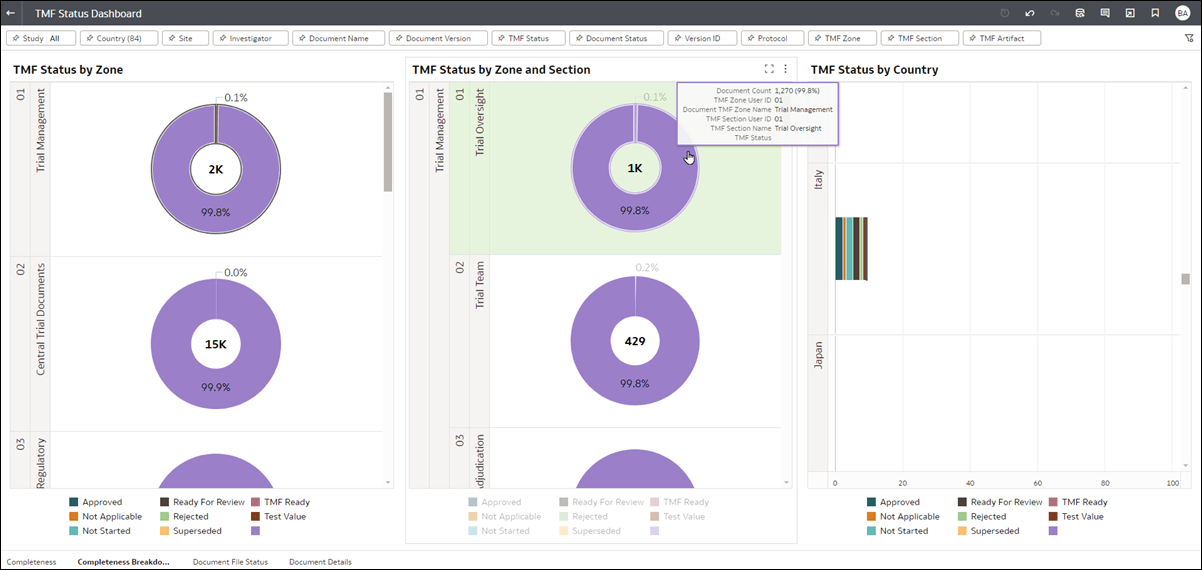
This worksheet provides visualizations of TMF Status by Zone, Zone and Section, and Country. You can filter this worksheet by Study, Country, Site, Investigator, TMF Zone, TMF Section, TMF artifact, Document Name, Document Version, TMF Status, Document Status, Version ID, and Protocol.
Hover over any chart on this worksheet to view details in a tool tip. Note that this worksheet also supports detail drill down. Right-click on any visualization and choose “View Document Details” from the menu.
Document File Status
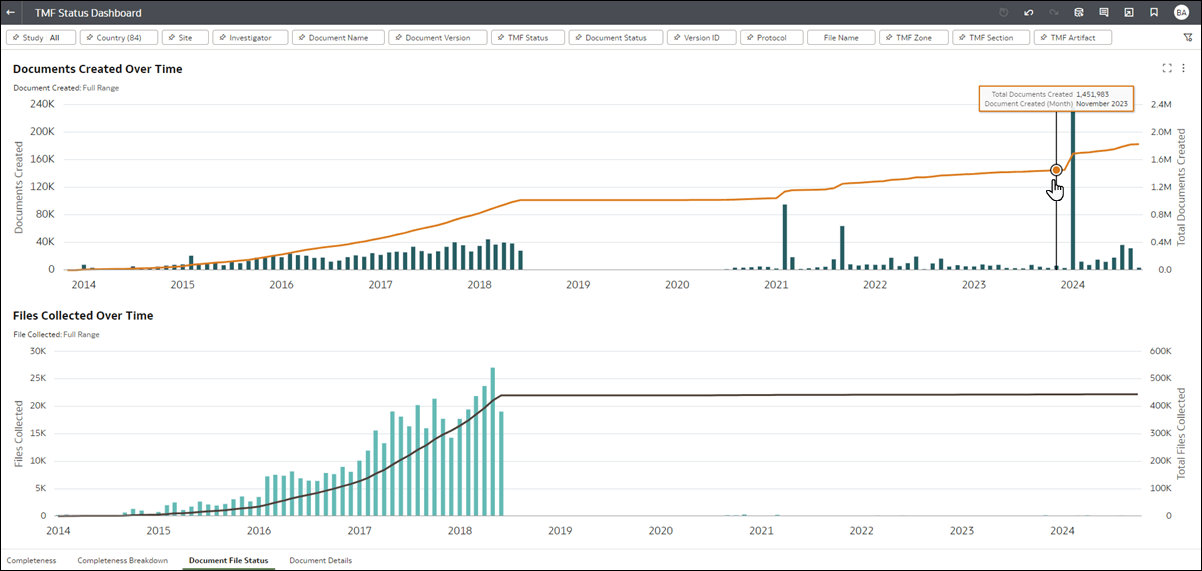
This worksheet visualizes Documents Created over Time and Files Collected Over Time. You can filter this worksheet by Study, Country, Site, Investigator, Document Name, Document Version, TMF Status, Document Status, Version ID, Protocol, File Name, TMF Zone, TMF Section, and TMF artifact.
Hover over any point in the Documents Created Over Time and Files Collected Over Time bar charts to see details in a tool tip. Again, right-click to choose “View Document Details” if preferred.
Document Details
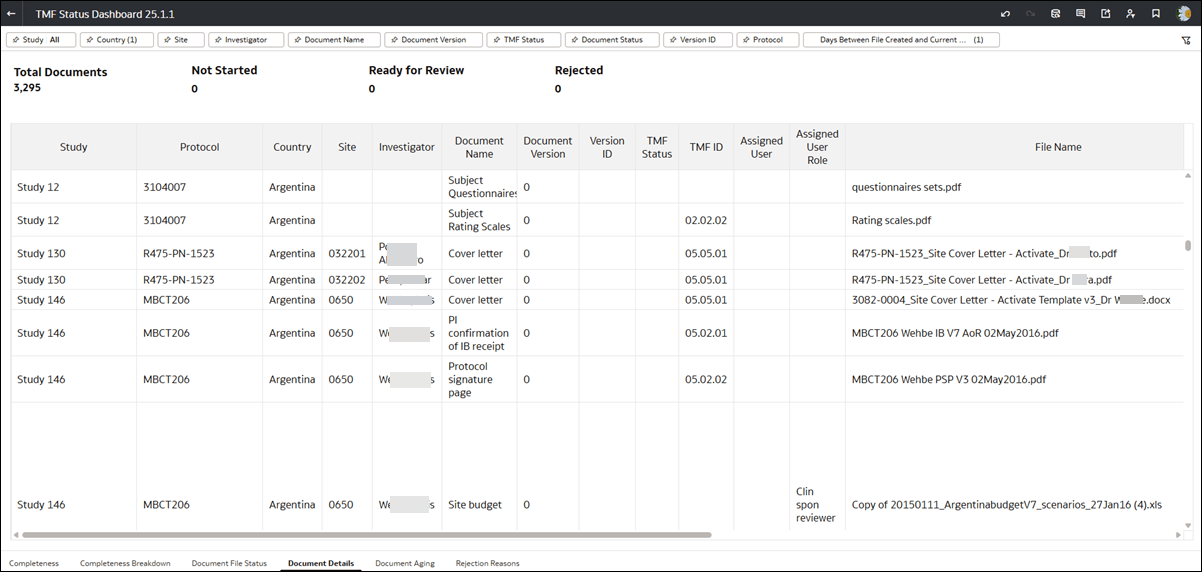
This worksheet is a tabular view of document information. You can filter this worksheet by Study, Country, Site, Investigator, TMF Zone, TMF Section, TMF artifact, Document Name, Document Version, TMF Status, Document Status, Version ID, and Protocol.
At the top of the worksheet, you’ll see a summary with counts for any documents in these actionable TMF statuses :
- Total Documents
- Not Started
- Ready for Review
- Rejected
The Document Details worksheet shows data, as available, in the following columns:
- Study
- Protocol
- Country
- Site
- Investigator
- Document Name
- Document Version (e.g., 0, 2, 4, 0.1, 1.1, etc.)
- version ID
- TMF Status
- TMF ID
- Assigned User
- Assigned User Role
- File Name
- Files Version (e.g., “3” if it is the 3rd attachment on the document)
- Completed vs Total Activities (e.g., 2/3)
- Last Completed Activity
- Activity Decision
- Current Activity
- Last Note
- Last Note By
Document Aging
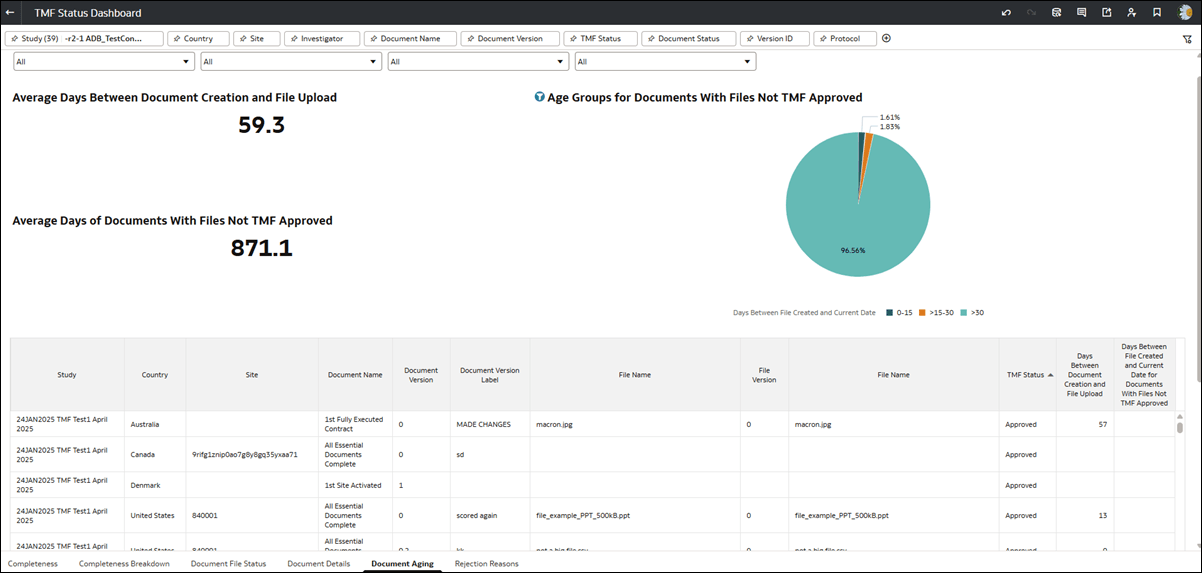
The Document Aging sheet allows you to review key metrics for eTMF, such as the average time between artifact creation and file upload, and the average number of days documents with files remain not TMF-approved. You can also view a pie chart with an age breakdown for documents not yet approved, sorted into brackets like 0–15 days, 15–30 days, and more than 30 days, with flexibility for these ranges to adjust based on your data. To see a specific time bracket, click any slice in the chart to filter the worksheet results to the associated artifacts or documents. To clear the pie slice filtering, click white space anywhere surrounding the pie chart.
Worksheet filtering options let you focus on specific TMF sections, zones, artifacts, artifact names, studies, countries, or sites. These filters help you identify patterns or areas for follow-up.
Rejection Reasons
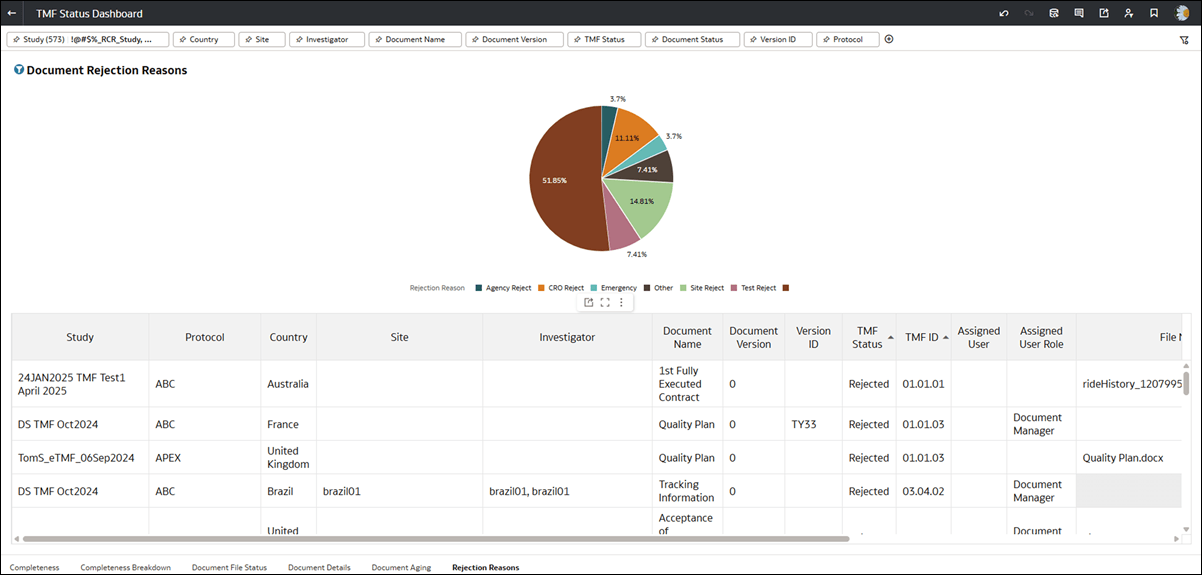
The Rejection Reasons sheet helps you track the most common reasons documents are rejected and includes the latest note for each rejected document, when available.
The sheet features a pie chart. Click any slice to filter the table to that rejection reason's data like Study, Document Name, TMF Status, etc. To clear the pie slice filtering, click white space anywhere surrounding the pie chart.