Select
Review site workflow task progress, see survey responses as applicable, and survey analysis, and site detail views and choose the sites that will advance to the next step in the site selection process.
In the Select bucket state, you'll see the list of sites that you can choose to add to the study and you can evaluate their progress through assigned workflow tasks as well. In the site grid's Invit Rcvd and Accessed Site Portal columns, click the date displayed to view details about access.
You can modify the columns displayed in the Select bucket and filter the data in the site grid as preferred. The You also have an "Add to..." action button with options relevant to the current view (i.e., Add to invited, Add to recommended, Add to declined, etc.). If necessary, you can resend an invite after you select one or more sites in the grid.
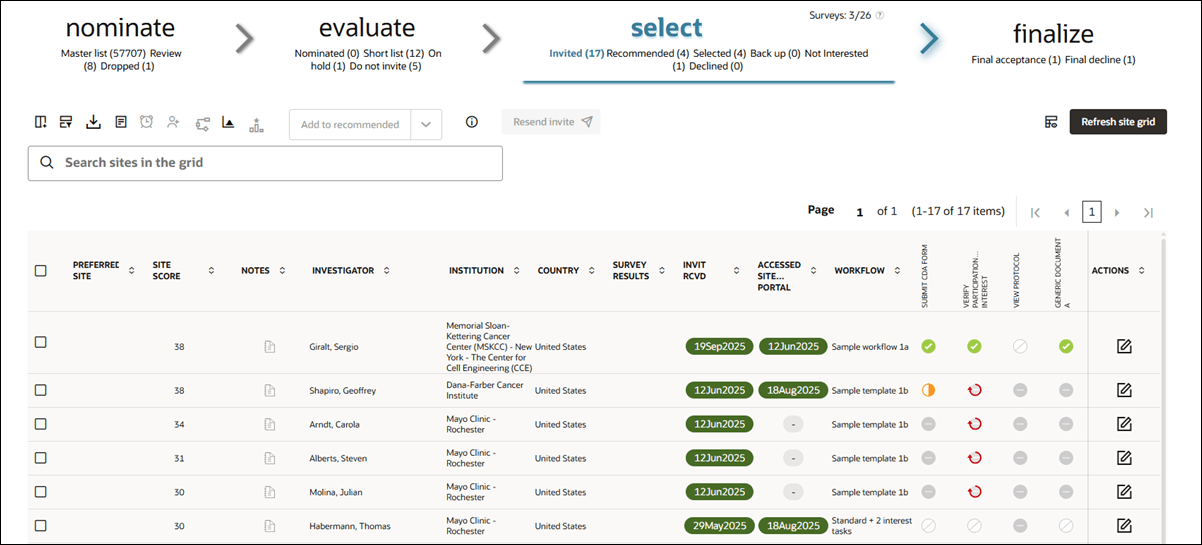
This bucket state shows site progress through assigned workflow tasks. If necessary, you can adjust workflow settings for sites using the buttons above the site grid. Hover over the task progress icons to view progress detail.
To assist study teams in maintaining their milestones and workflow task response time targets, the Select bucket state includes indicators for overdue workflow tasks. When a site takes longer than expected to complete a task an overdue icon ( ) overlays on the task's status indicator.
The overdue indicator is "paired" with workflow task status icon. For instance, when a workflow task is in progress and the number of days the task has been available exceeds the response time target set on the study milestones page, a paired "In progress (overdue)" icon ( ) displays for that task. A workflow task that was previously overdue (i.e., "In progress (overdue)" but subsequently completed), displays the "Completed (overdue)" icon (
 ) - meaning the task was completed but took longer than expected.
Overdue indications apply only to the current task - meaning a task that a site has not yet reached will not have an overdue indicator applied regardless of the response time set on the milestone page. Additionally, overdue task status is not concurrent. For example: a workflow has two tasks and each task has a response time target of one day. If the site has been working on the first task for three days then only the first task is overdue. The second task's response time indication will not start until the first task is completed.
Because generic document tasks share the same response time target input field on the milestones page, the overdue trigger functions differently from other tasks. For each generic document task that is not optional, the response time target applies to each unique instance. For example, if the response time target is five days and the site user takes three days to complete the first generic document task, then the site user has a "new" five day counter for the next generic document task.
Note:
By design, the following tasks are never labeled as overdue:
- A generic document task configured as optional
- Not required tasks
- Not applicable tasks
- Discontinued tasks
When you’re working in the site grid’s Select or Finalize stages, click a workflow task's progress icon to view a detailed task completion modal. This modal shows task-specific information, as well as the investigator’s name, specialties, institution, and any assigned users. Tasks marked as “Not required” or “Internal task pending” do not open the modal but instead display hover text that reflects their status.
Each task's status determines what the modal or icon displays. If the task is complete, the modal includes a table listing the person who completed it, their email address, role, and the completion date. Overdue tasks append “(overdue)” to their hover text, and discontinued sites display a banner indicating the site is no longer interested in participating.
Survey tasks behave differently depending on their stage: if not yet reached, the icon doesn’t open the modal; if pending or processing, the modal displays survey-specific details but no task table. Once submitted, the modal includes a success banner summarizing the survey name and score.
CDA tasks have their own progression. When downloaded, the modal shows a yellow advisory with the download date and site user. If a signed CDA is uploaded, the modal updates to show an “Uploaded” status along with a yellow advisory note, “The CDA was signed and returned by the site on <datetime>. Approval is required before the site can complete additional study tasks.” Once approved, a success banner confirms the final approval date. The modal tracks each stage of the CDA task by listing separate rows for downloaded, uploaded, and approved actions.
For document workflow tasks that are auto-completed, a banner confirms the task was completed with an existing file.
Lastly, investigator documents populated via API do not involve workflow actions. These entries are shown with the user listed as “Library import” in italics and have no associated email or role. The import date is recorded as the document’s completion date, which is expected behavior.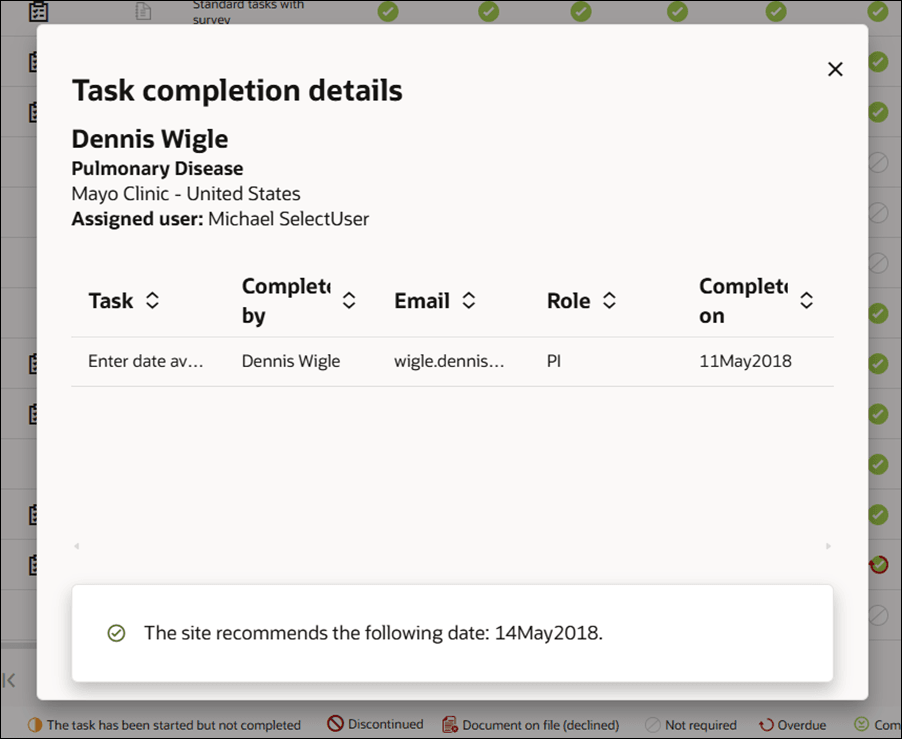
Feasibility surveys
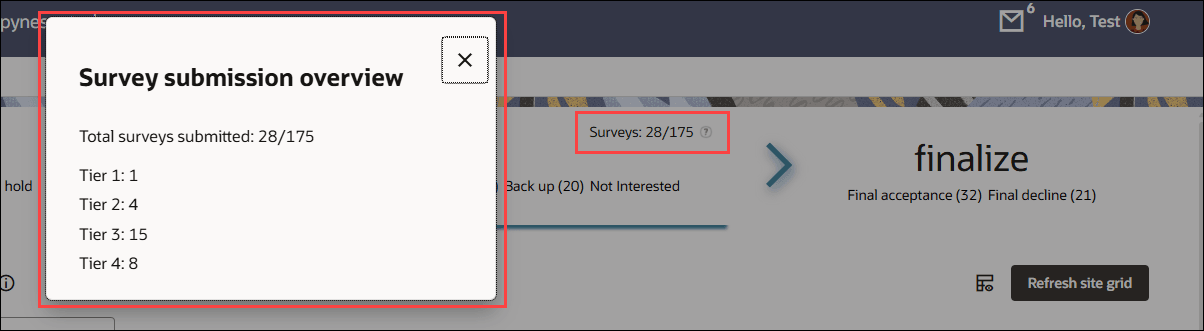
Click the "Surveys # / #" text in the Select bucket heading to view a Surveys submission overview modal. The modal shows the study's total submitted surveys and surveys by scoring tier, and Tier 4 includes all surveys that scored lower than Tier 3. Because the clickable text is in the chevron navigation panel, you can access the text link when viewing any of the selection steps. By design, clicking the link will only open the submission metric modal and will not navigate away from the current view.
You can optionally copy the modal text,if preferred. By design, you must click "X" to close the modal.
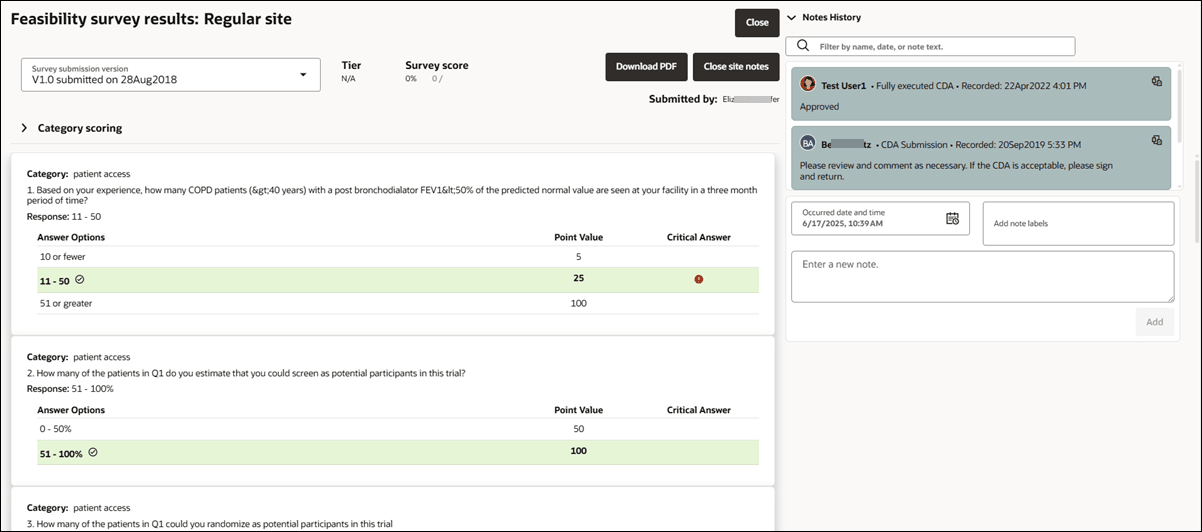
In the Select and Finalize buckets, you'll see a Survey results column. If a site has completed a survey, you'll see the survey icon  in this column. Click the icon to open the survey results modal, which shows submitted survey results, grouped by survey name and version, with the most recent listed first. The results modal also includes detailed scoring, tier, raw and percentage scores, and a breakdown of each question’s responses, points, and category. You can also download the selected survey as a PDF.
While viewing survey results, you can also click View Site notes to open a panel to the right of the results modal. This panel displays existing notes and allows note creation (if you have permission to create them). You can also input an occurred date, label, and note text. The survey results modal includes a Close button to exit the view and a separate Close Site notes button to hide the notes panel without closing the results modal.
Site grid CSV downloads
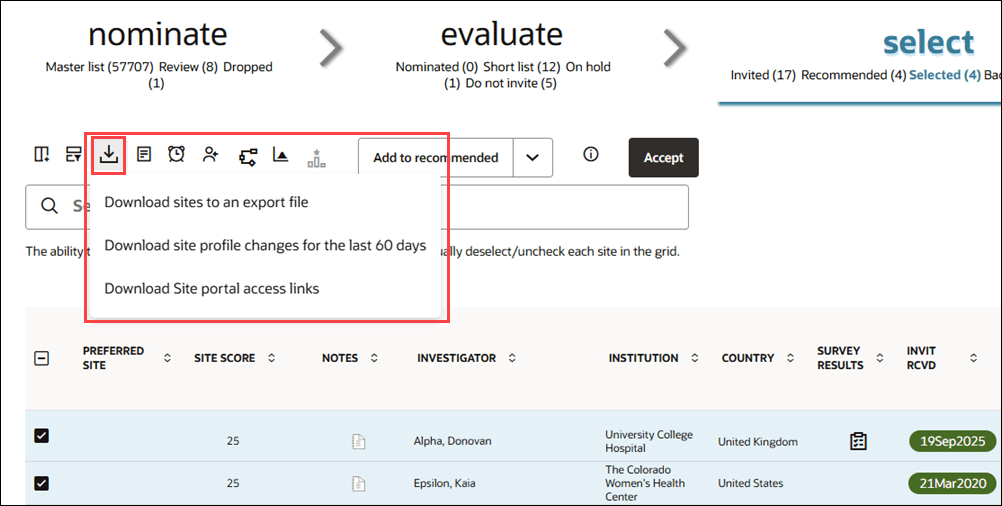
If preferred, you can create a CSV download for Site portal access links for invited sites. In the Select bucket, if you have the Access study-specific Site portal No Login links permission, you’ll see a “Download Site portal access links” option on the site grid download button.
When you use this feature, the CSV will include a Site portal access link for each study site user listed as a Study contact who has not yet accessed the Site portal in the current bucket state. If a site has multiple users, each will appear as a separate row, and the link allows the recipient to access the Site portal for that user, with all actions audited to that user. By design, the link does not allow creating a Site portal account during that session.
The CSV includes the following columns:
- Study name
- Study ID
- Protocol title
- Protocol number
- Investigator first name
- Investigator last name
- Institution
- Country (institution country)
- First name (Study site contact)
- Last name (Study site contact)
- Role (Study contact)
- Email (Study contact)
- Study site User link (the Site portal study-specific access link for that user)
The CSV file will be named using the format <study_name>- studysite_user_links -<date>.csv.
You can also download a CSV digest of all site profile changes made to sites in a study within the past 60 days. In the Select and Finalize buckets only, the site grid download button includes a Download site profile changes for the last 60 days option, which exports the site profile changes digest. By design, the download button is disabled if you have read-only site grid permissions.
When you select "Download site profile changes for the last 60 days," a CSV file is generated showing the before and after contents of any site's profile edit, provided your study uses a study-specific or account-level site profile. For studies with a study-specific site profile, the extract contains only changes to that study's profile, so changes made in other studies with an account-level site profile will not be included. For studies using an account-level site profile, you will see the before and after profile changes for the past 60 days following any edits.
- View task status, evaluate, and select or reject sites
The Select bucket states include information about site invitations, workflow assignment and workflow task status, feasibility survey results, and more. - Complete tasks on behalf of sites
You may be able to complete tasks (such as the feasibility survey or interacting with a CDA) for a site that does not participate using the Site portal, or when a site completed a task externally and you need to mark it complete in Oracle Site Select. To do so, you must have the appropriate permissions for that task. If you do, you'll access the tasks in the Site details drawer Workflow tab. - Edit a site's profile
Parent topic: Site Selection