Site grid
Site grid updates improve navigation, invitations, exports, previews, and row refreshes while reducing unnecessary processing.
CDA template preview in Short list
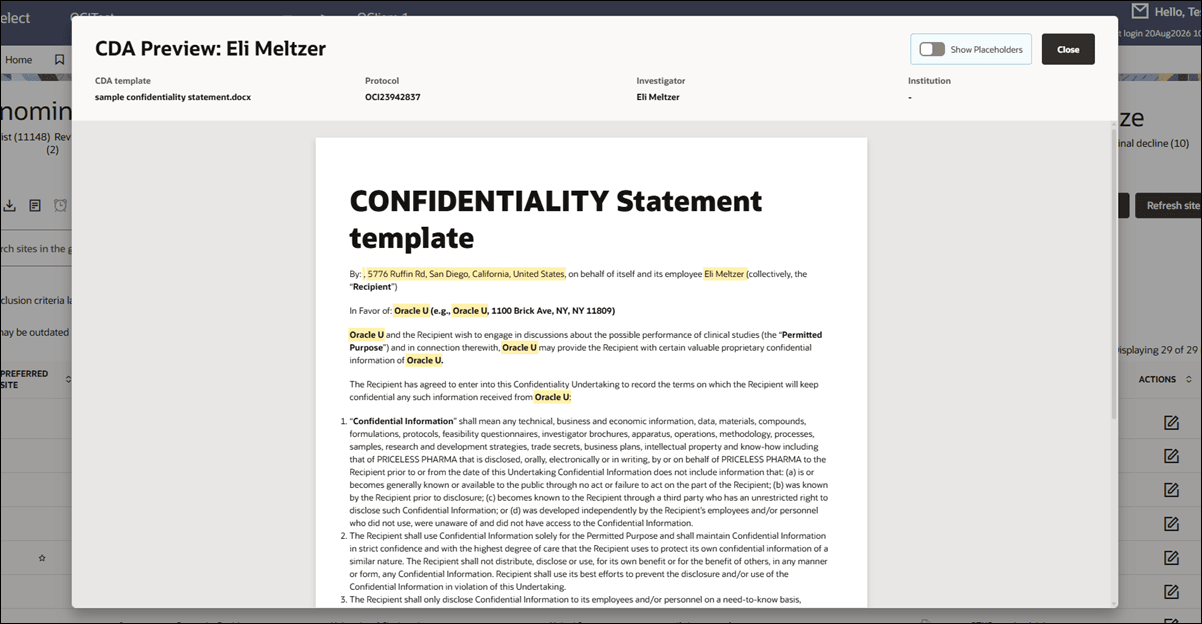
You can now preview a site’s CDA directly from the Evaluate > Short list site grid before sending an invitation, making it easier to verify the document and its site-specific content. For example, you can check the merged fields/placeholder values to confirm what will be sent is as expected.
A new default CDA Template column displays a clickable icon  that opens a read-only preview of the CDA for the selected site. By default, the preview displays the CDA with site-specific values populated and highlighted to make them easy to locate in the document. Use the Show Placeholders toggle at the upper right of the preview window to switch between the populated values and their corresponding CDA placeholder tokens. Closing the preview returns you to the Short list site grid with your existing grid context preserved.
Preview is available only for DOCX and PDF files. If the latest template uses another file type, such as ZIP or XLS, the preview window displays the text: "Preview is not supported for this file type."
Epic: SEL-22489
Invitation list review in Short list
You can now review and update a shortlisted site’s invitation recipients before moving the site to Invited. This enhancement helps ensure the correct existing site contacts receive the study invitation.
An optional Invitation list column is now available for the Short list site grid. When added, each site displays a numeric badge showing the number of saved invitation recipients. By default, the initial recipients are based on the study-level recipient settings under Email templates > Study-wide email template settings > Recipients.
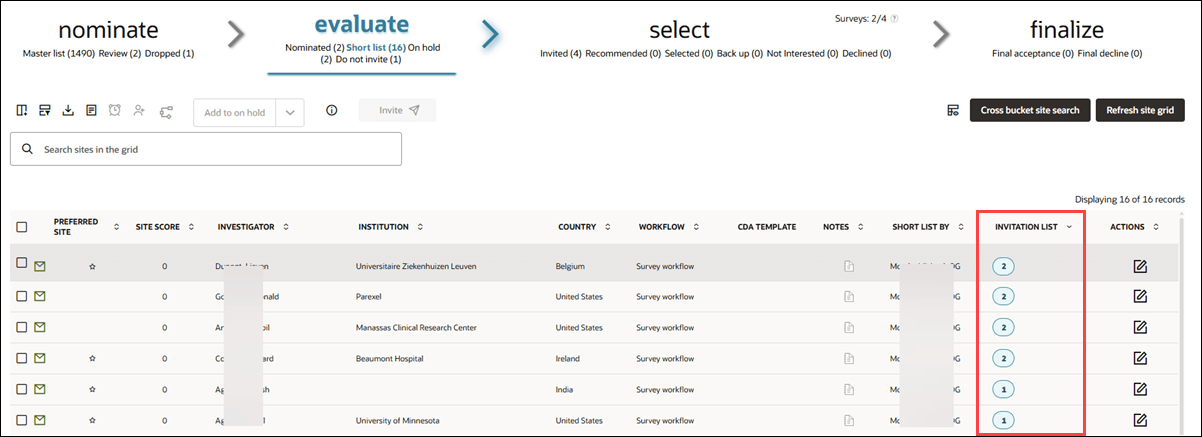
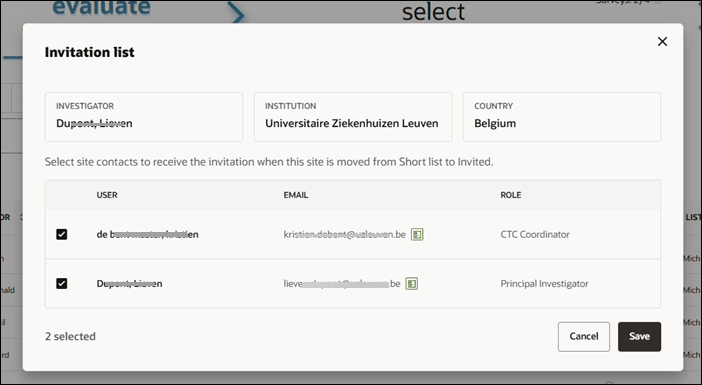
Click the badge in the Invitation list column, or select Actions > Manage recipients, to open the Invitation list modal and select or deselect existing site contacts. You cannot add new contacts from this modal.
Click Save to store the selected contacts as that site’s invitation preference for the study. When you move the site from Short list to Invited, Oracle Site Select sends the invitation to the saved recipients. The same saved recipients are also carried forward to the Resend invite modal if you reinvite the site.
Epic: SEL-22489
Study level site contacts export
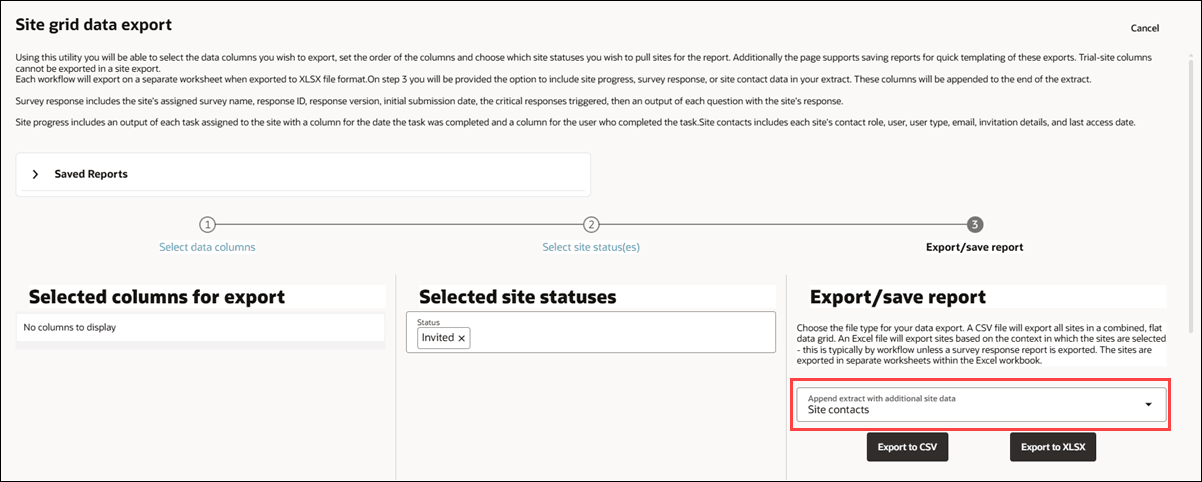
You can now include site contact information when exporting site grid data, allowing you to download site and contact details together in a single file. This option is available when creating the Site grid data export from the Oracle Site Select and Finalize buckets.
Under Export/save report, the export option is now labeled "Append extract with additional site data," and it includes a new Site contacts option. When selected, the export includes one row for each site contact and repeats the applicable site-level data for each contact. Contact details include the site contact role, name, user type, and email address, along with available invitation and access information. Sites with multiple contacts include a row for each contact, and sites without contacts remain in the export with blank site contact fields.
If you save an export configuration that includes Site contacts, Oracle Site Select retains that selection and applies it automatically when you reuse the saved export.
Epic: SEL-22489
Site scoring for inactive sites
To improve site grid performance, Oracle Site Select no longer recalculates site scores when your study has a status of On Hold, Feasibility Complete, Closed, or Cancelled. Previously, changes to Master list criteria filters could trigger site score recalculation for studies in these statuses.
If you make a scoring-related change before or while the study is inactive, Oracle Site Select retains the pending recalculation until you return the study to an active status (i.e., Active or In Setup). Oracle Site Select then recalculates the site scores using the current criteria and configuration. Returning the study to an active status doesn’t trigger recalculation unless a scoring-related change is pending.
If your inactive study has Master list criteria configured, the site grid displays the following message: Site scores may be outdated because this study is not in an Active customer status. Additionally, the site grid won’t display the Site scoring is being processed message, and the Site Score column doesn’t display Pending while score generation is skipped.
Epic: SEL-22489
Invite modal shows Site-assigned users
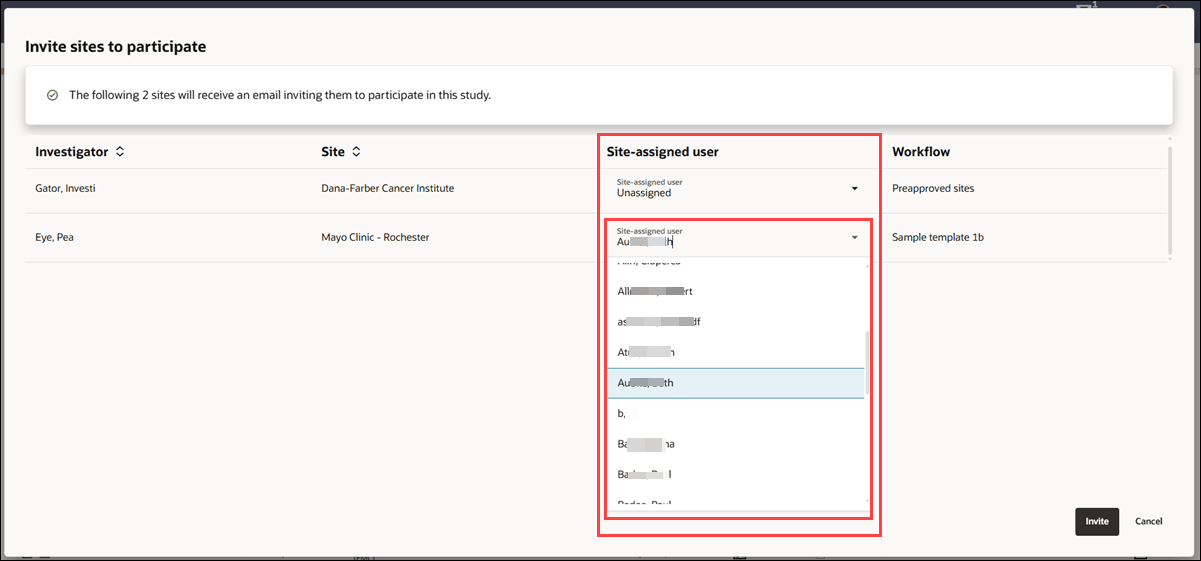
The Invite sites to participate modal now includes a Site-assigned user column that displays the person currently assigned to each listed site. Before sending the invitation, you can review and update the assigned user directly in this column. Click the Site-assigned user field to open a drop-down list and select a user to assign to the site.
If you change the site-assigned user and click Invite, Oracle Site Select saves the updated assignment before continuing with the invitation process. If you don’t change the assigned user, or if the Site-assigned user field is blank, the invitation process continues as before.
Epic: SEL-22489
Site details drawer navigation
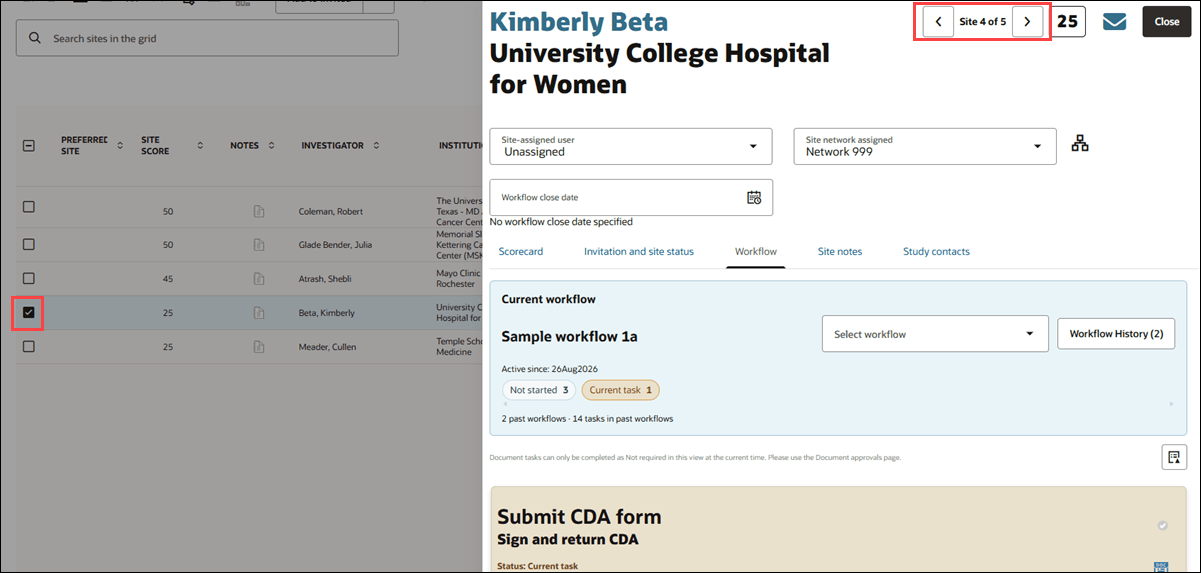
You can now review multiple sites more efficiently without repeatedly closing and reopening the site details drawer. Previous and next navigation controls at the top of the drawer let you move through the current site grid results while keeping the drawer open. A site position indicator (e.g., "Site 4 of 5" in the screenshot below) shows where the current site appears in the grid.
Use the previous and next navigation controls to move through sites in the existing grid order while preserving the current workflow bucket, filters, search terms, sort order, and loaded results. The site grid remains visible in the background, and the selected row updates to match the site shown in the drawer.
As you move between sites, the drawer updates all site-specific details, including the site name, institution, assigned user, site network, workflow close date, tabs, notes, workflow history, and study contacts.
The previous or next control is disabled when you reach the first or last site. Closing the drawer returns you to the same site grid context.
Epic: SEL-22489
Site grid row refresh
Instead of refreshing after every user action, the site grid now refreshes only when necessary (i.e., after a change that affects information displayed in the grid). This reduces unnecessary loading during normal workflows and helps you save time. This enhancement also lets you confirm relevant updates immediately without reloading the full grid or losing your current filters, sorting, pagination, scroll position, or site selections.
Row updates apply to grid-visible changes such as assignments, workflow or task status, workflow close date, invitation status, survey results, and document status. When you make changes to automatically updated fields, you won't see the "Refresh the site grid to see saved changes" text below the close button in the site details drawer. Selected sites remain selected in the site grid after bulk workflow assignment or failed invite action. This is expected behavior.
Changes that aren’t represented in the grid, such as site notes or study contacts, don’t trigger a row update. Canceled or failed actions, as well as opening or closing the drawer without saving a relevant change, leave the grid unchanged.
Epic: SEL-22489
Default Boolean column value
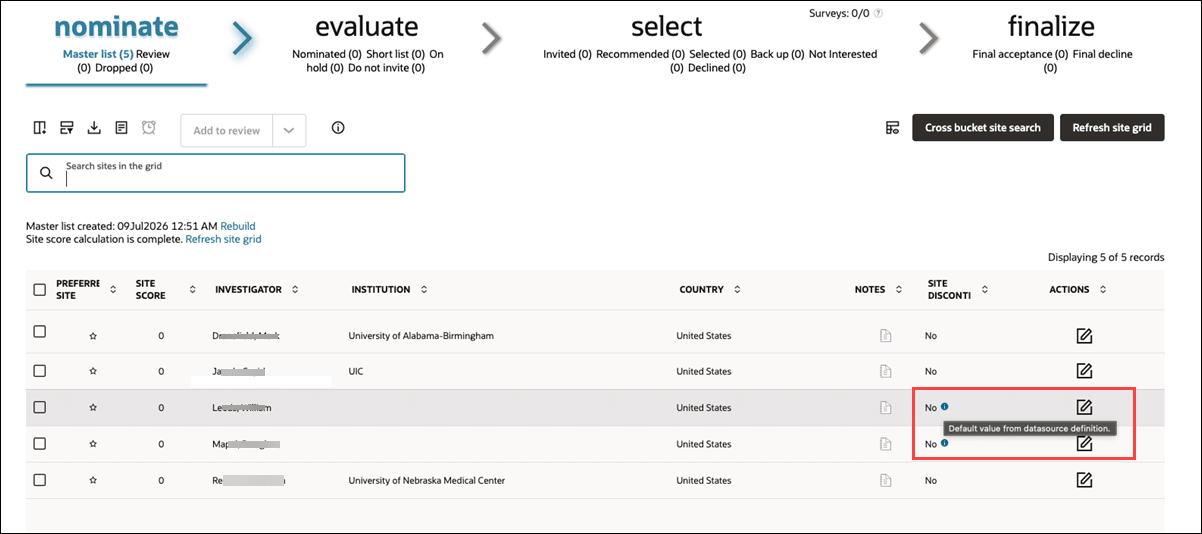
When an imported site record doesn’t include a value for a standard discontinue column, the site grid now displays the default value defined for that column. The displayed value also indicates that it came from the data source default rather than from the imported record.
This behavior applies to Site Discontinue, Institution Discontinue, and Investigator Discontinue columns. For example, if one of these columns has a default value of false and the imported record contains no value for it, the site grid displays false.
Epic: SEL-22883
Parent topic: What's new