Site profile
Site profile updates improve navigation, performance, and consistent staff type display across Oracle Site Select and the Site portal.
Pinned action bar
A new pinned action bar keeps key actions available at the top of the Site profile, allowing you to navigate profiles more efficiently.
Scenario 1: You open a profile from the site grid
The Site profile now includes a pinned action bar with options to Save, move to previous site, move to next site, a position indicator, and close. The bar remains visible as you scroll and replaces the previously available Save progress, Save and next, and Save and complete buttons on site profile pages. The position indicator shows where the current site appears in the site grid result set, such as Site 2 of 8.
Use the previous site or next site arrows to move through sites in the current grid order without returning to the grid. Navigation respects your existing filters, search terms, sort order, bucket, and loaded results. The previous or next control is disabled when you reach the beginning or end of the list. Save will save changes across the site profile and keep you on the current site.
If you have unsaved changes and select previous site, next site, or close, you’ll be prompted to Save, Discard, or Cancel your changes. Closing the profile without unsaved changes returns you to the site grid, preserving your existing grid context.
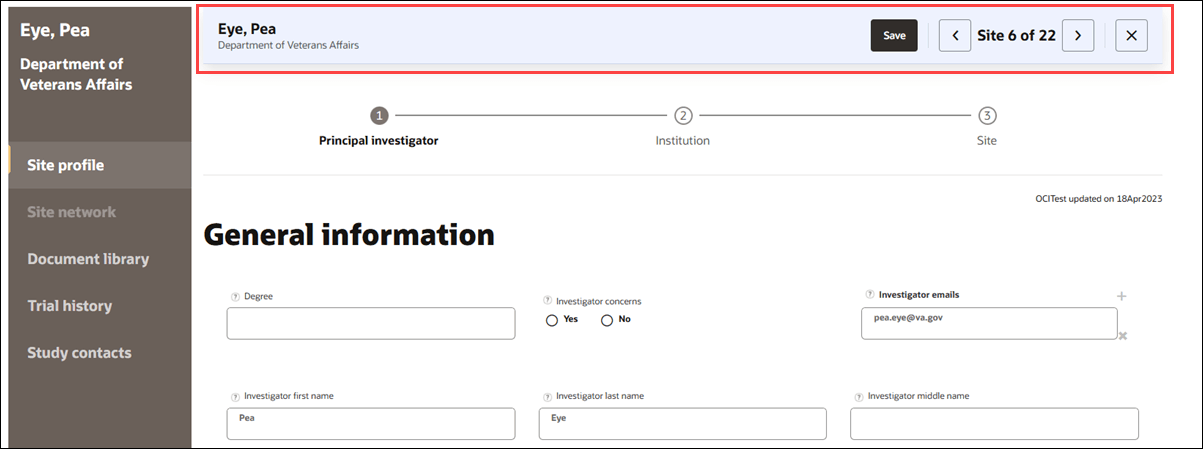
Scenario 2: You open a site profile from the Verify site profile information workflow task
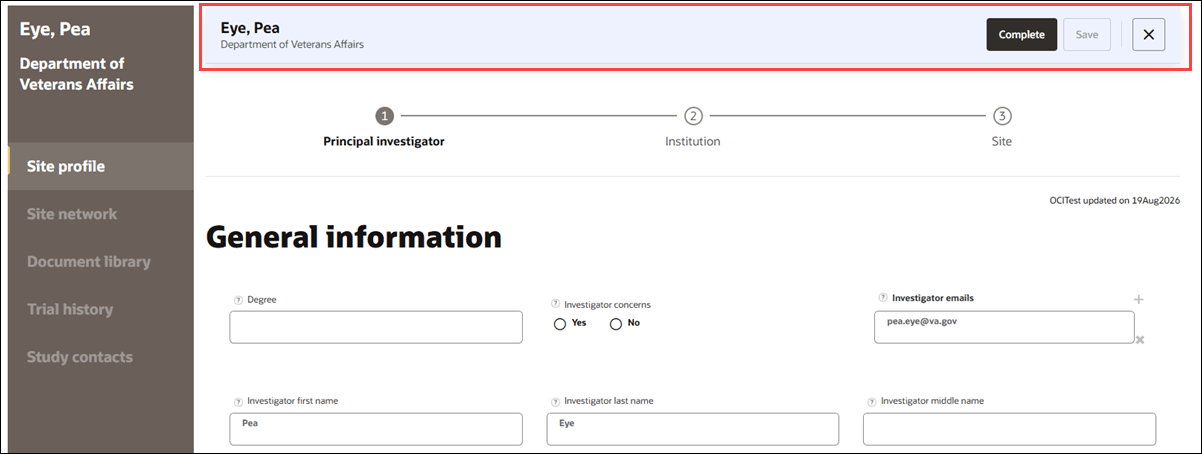
The pinned action bar provides Save, close, and, when available, Complete buttons. Previous and next site buttons aren’t applicable when you open the site profile from the Verify site profile information workflow task, so you won’t see them in this scenario.
Clicking Save will save your profile changes without completing the Verify site profile information task. It keeps you on the Edit site profile page.
If the Verify site profile information task hasn’t been completed yet, the Complete button is available; click it to complete the task. Clicking Complete or closing the profile when there are no unsaved changes returns you to the Workflow tab in the site details drawer. If you select Close when you have unsaved changes, you’ll be prompted to Save, Discard, or Cancel your changes.
Epic: SEL-22489
Train navigation
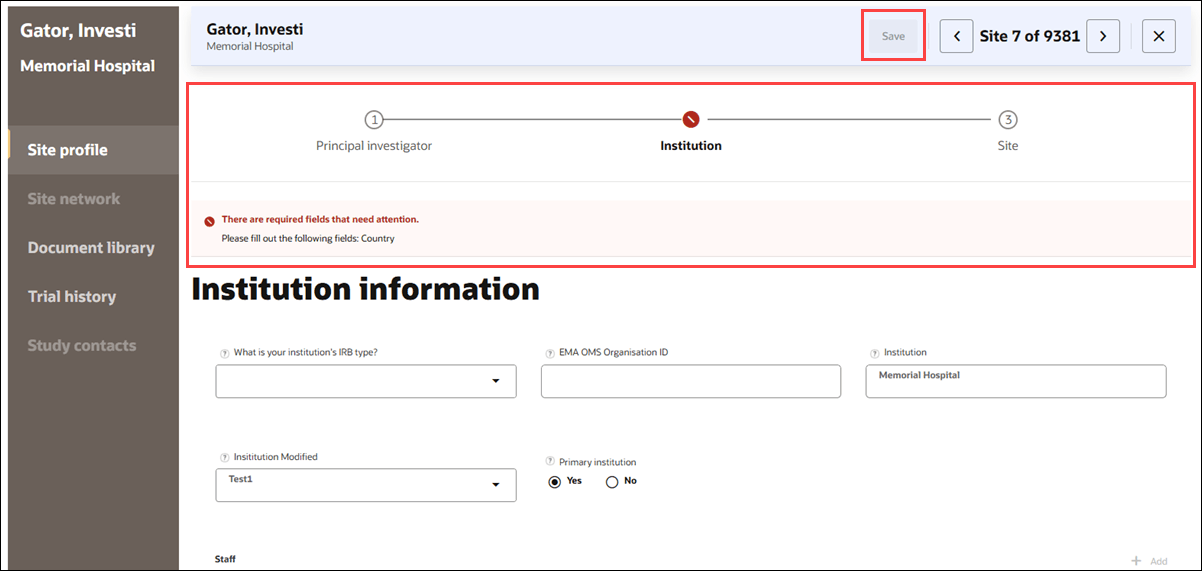
You can now move between site profile pages more easily using horizontal train navigation at the top of the profile. The train includes the following items: “1 Principal investigator,” “2 Institution,” and “3 Site.” The item numbers are simply a design element; you can navigate the pages in any order you prefer (e.g., click 1 Principal investigator, then click 3 Site, then 2 Institution).
Clicking a train item opens the corresponding profile page for the current site. As you move between profile pages, “Site profile” remains highlighted in the left navigation menu. The menu includes all previously available top-level site areas defined in your organization’s configurable site profile.
If you make changes in the site profile and click on another train item, your unsaved changes are preserved. Clicking Save on any site profile page saves unsaved changes across all profile pages. If you try to close the profile or navigate to another site while unsaved changes remain, you’ll be prompted to Save, Discard, or Cancel those changes.
If a page has no information in a required field, the train item number changes to an error icon  and a message displays the field(s) that must be populated to save the profile. By design, the Save button in the pinned action bar will be disabled until you populate the required field.
Epic: SEL-22489
Institution staff user type
Staff types now display consistently across Site Portal and Oracle Site Select, preserving the exact text and capitalization entered. This update applies to the Institution Staff and Additional Site Staff values.
When a site user enters and saves custom staff types in Site portal, the values display as entered in the Contacts section of the Edit Site Profile page. When these values are entered in Oracle Site Select, the same text appears in Study Contacts, Invitation and Site Status, and Study Email History and Status.
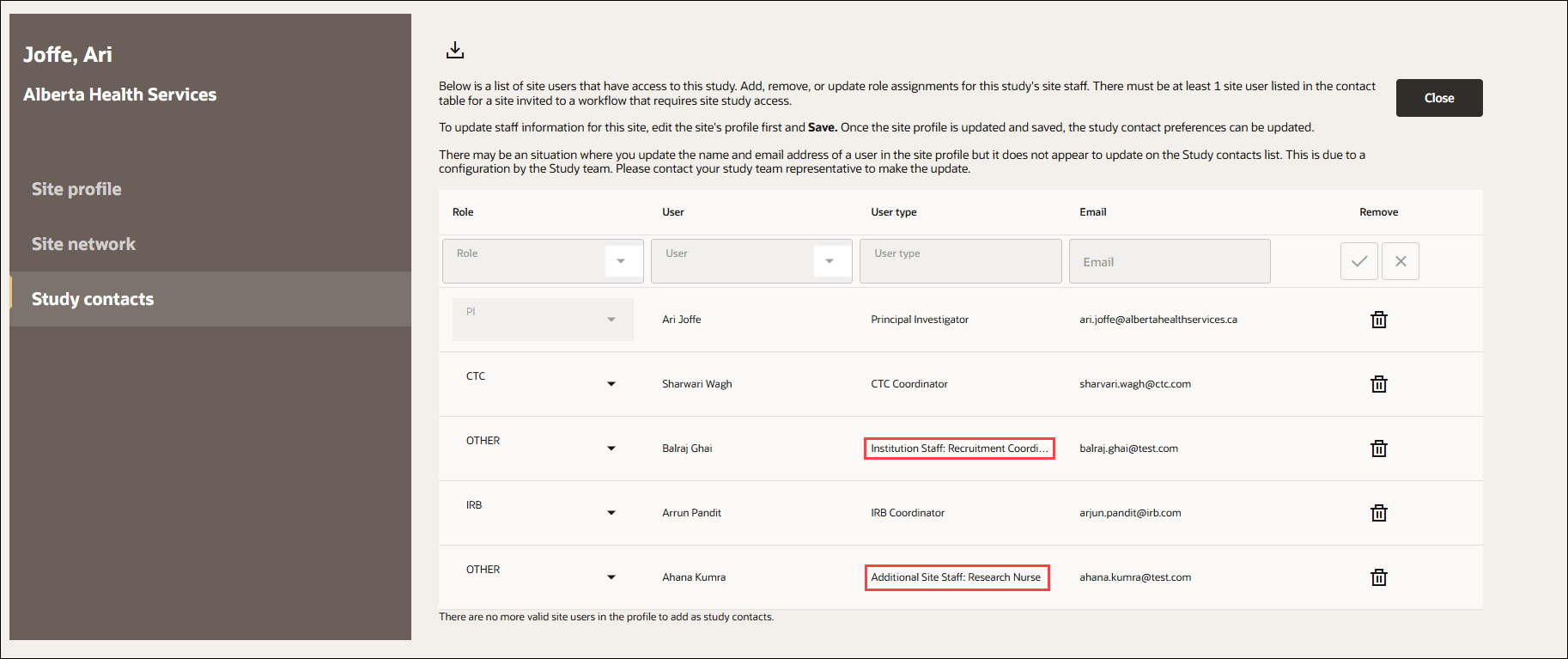
Oracle Site Select also displays customer-facing names, instead of database names, for standard site profile user type values. This means PI displays as Principal Investigator, TRIAL_COORDINATOR displays as CTC Coordinator, IRB_COORDINATOR displays as IRB Coordinator, ADDITIONAL_SITE_STAFF displays as Additional Site Staff, INSTITUTION_STAFF displays as Institution Staff, and NETWORK_DELEGATE displays as Network delegate.
Epic: SEL-22883
Site profile optimization
We improved site profile performance for studies with large custom site profile configurations, helping profiles load and respond more efficiently when many fields are configured.
These updates reduce unnecessary rendering and data retrieval when you open a site profile or move between profile tabs and domains. Existing required-field validation, completion indicators, Save, Cancel, and read-only behavior continue to work as before.
Epic: SEL-22489
Parent topic: What's new