Site workflow tasks
Workflow task enhancements add reminders, direct document template uploads, accurate task dates, and site workflow history for easier task management and review.
Task completion reminders
If you have the new Send task reminders permission introduced in this release, you can now send reminder emails directly from eligible pending workflow tasks. The Send reminder option appears in the workflow task Action menu when the task is pending and doesn't have a start at date.
For chained workflows: The Send reminder action is shown only for the Current task because the tasks will be completed in a configured order.
For unchained workflows: The Send reminder action is available for all pending tasks because sites can complete/start them in any order.
When you choose to send a reminder, a Send task completion reminder email modal displays and lists eligible recipients, including their names, roles, and email addresses. The site’s assigned user is also included when applicable. Recipients are initially selected according to the general recipient settings for the email template, and you can select or deselect recipients before sending.
The modal also includes details for the last reminder sent for that task (if any), including the total number of reminders sent, the date of the last reminder, who sent it, and who received it. After you send the reminder, you’ll see a confirmation of success or failure. The email is sent only to the recipients you selected, using the configured task reminder email template and the default sender settings for the site email template.
On the Workflow tab, each applicable task also displays the total reminder count and the date and time of the most recent reminder. Existing email history records capture when the reminder was sent, who sent it, and who received it.
Note:
The total reminder count reflects the actual number of reminder emails sent rather than button clicks because a single Send reminder action may notify multiple recipients. Counting each email provides a more accurate record of communications delivered to site contacts, whereas counting clicks would understate the number of recipients reminded.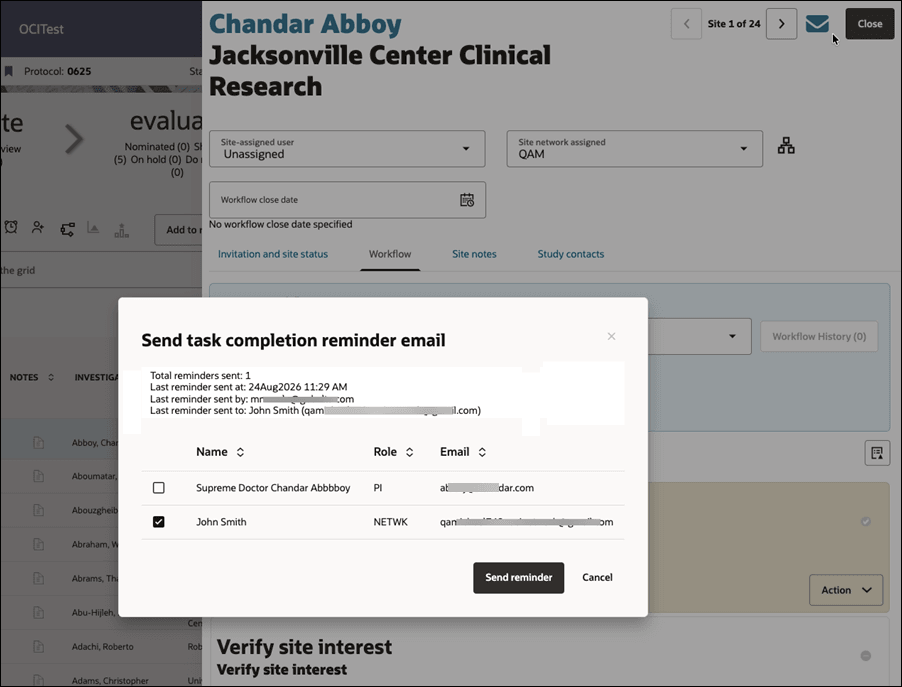
Task reminder email template
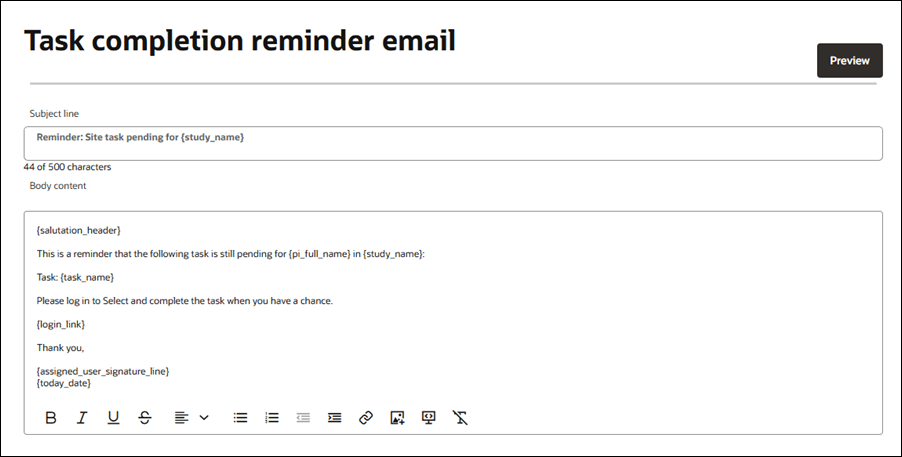
You can now customize the email template used for manual task reminders. A new Task reminder email template is available under Manage study email templates > Email body templates and under Workflow configuration > Email templates > Workflow-specific email templates.
The template includes editable subject and body fields and includes default reminder text. You can save your changes or cancel your edits without saving. If you configure a workflow-specific task reminder template, reminders for that workflow use the workflow-specific version. Otherwise, Oracle Site Select uses the applicable study-level task reminder template.
When a task-specific destination is available, reminder emails include a link to complete the task. Oracle Site Select users receive a link to the applicable study in Site Select, while site users receive the applicable Site Select invitation or task link for the specific site and task.
Task reminder information in the site grid and export
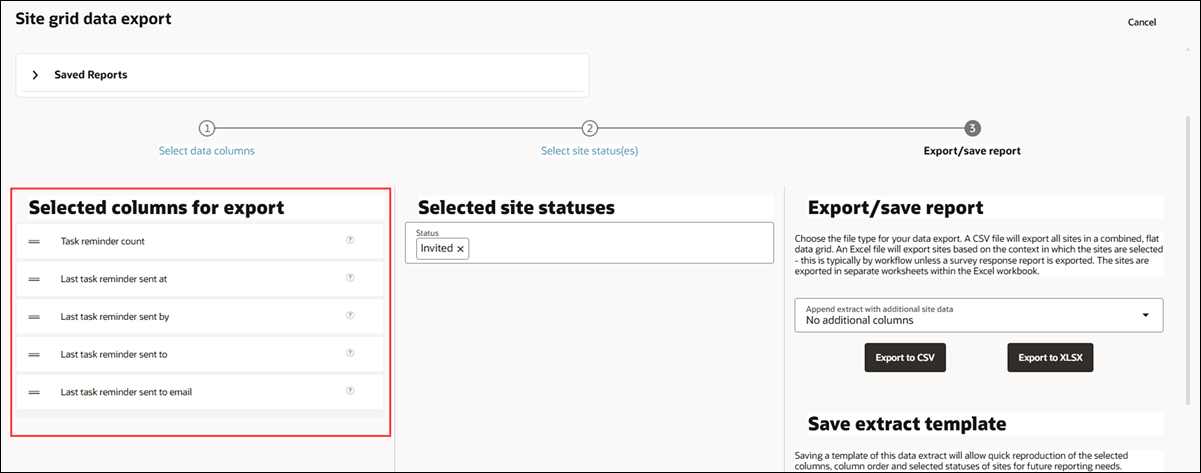
You can now include task reminder activity in the site grid and Site grid data export. New reminder columns let you review and report on reminder activity for individual workflow tasks.
When you include Site progress task completion details in a Site grid data export, reminder information is included for each applicable workflow task. Available values include Task reminder count, Last task reminder sent at, Last task reminder sent by, and, when supported, the most recent reminder recipient names and email addresses (Last task reminder sent to and Last task reminder sent to email). The same reminder columns are also available to be added to the site grid through existing site grid column management.
Reminder counts include only reminders that were successfully sent or queued, and the last-reminder fields reflect the most recent successful reminder for that task and site. Exported values correspond to the reminder history displayed for the task in Oracle Site Select and remain associated with the correct workflow task when a site has multiple tasks.
CSV reporting updates
Analyze CSV reporting now includes task-reminder information, so you can report on reminder activity outside Oracle Site Select. Task reminder fields are available in the existing study_sites and study_activities reporting views and follow existing Oracle Site Analyze CSV reporting naming conventions.
Available fields include Task reminder count, Last task reminder sent date/time, Last task reminder sent by, and, when supported, the most recent reminder recipient names and email addresses. Reminder counts include only reminders that were successfully sent or queued, and the last-reminder fields reflect the most recent successful reminder. Reported values correspond to the reminder history shown in the task drawer.
Note:
The latest reminder information at the site level reflects the most recent reminder sent specifically for that task, regardless of the task’s position in an unchained workflow. In the CSV extract, these details relate to the most recently reminded task at that site. For the current task, the displayed reminder details reflect the most recent reminder sent to the current task.Epic: SEL-22479
Workflow task documents
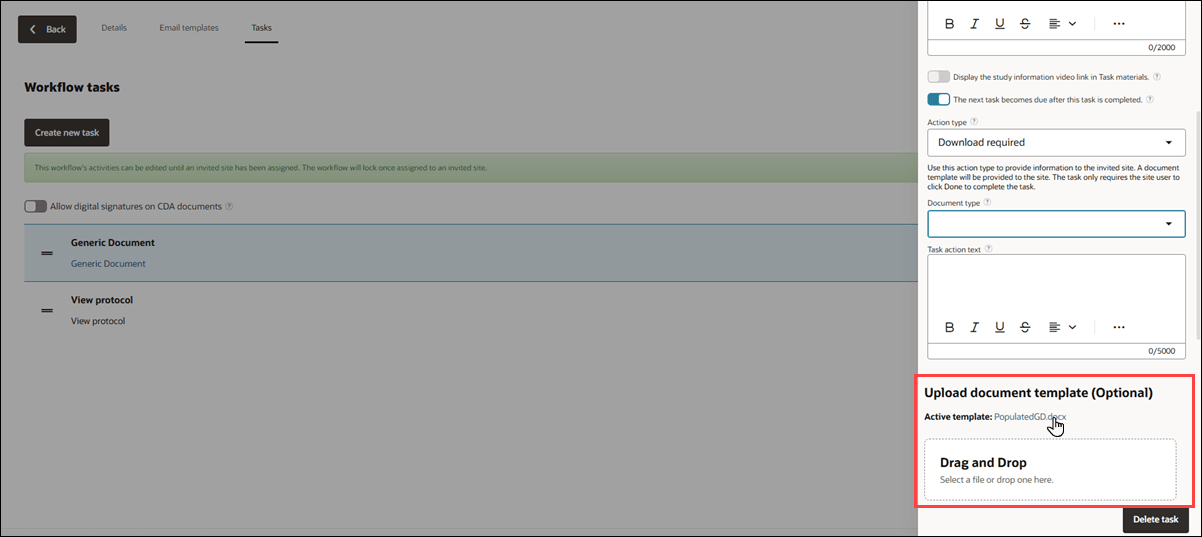
You can now upload a document template directly from the workflow task configuration drawer, making it easier to configure a workflow task without having to navigate to the Workflow documents page. The configuration drawer’s new Upload document template (Optional) section lets you select or drag and drop a file. If a template is already available, the drawer displays only the most recent active template as a downloadable link so you can download and view the current active document before uploading a replacement.
When you upload a new template for a non-protocol task, the uploaded file becomes the active template for that workflow task. By design, the drawer doesn’t display template history or provide an option to delete the active template. Uploading a template is optional and doesn’t prevent you from saving other task configuration changes. If you upload a file that isn’t a DOCX file, Oracle Site Select displays the same warning used on the Workflow documents page (i.e., “Not DOCX file extension - placeholder fields will not be supported”).
Template uploads are available based on your permissions. CDA, confidentiality statement, and generic document templates require CDA/Document Template Upload permission. Protocol templates require Study Setup Management permission.
Protocol templates have additional restrictions. You can upload a protocol template from the task configuration drawer only as a workflow-specific template, and doing so doesn’t replace the default protocol document template. You can replace an existing workflow-specific protocol template from the drawer only when it isn’t active or in use. If the template is active, Oracle Site Select directs you to the Workflow documents page, where protocol templates must be replaced because replacing one can reset workflows for invited sites.
Epic: SEL-22883
Task dates
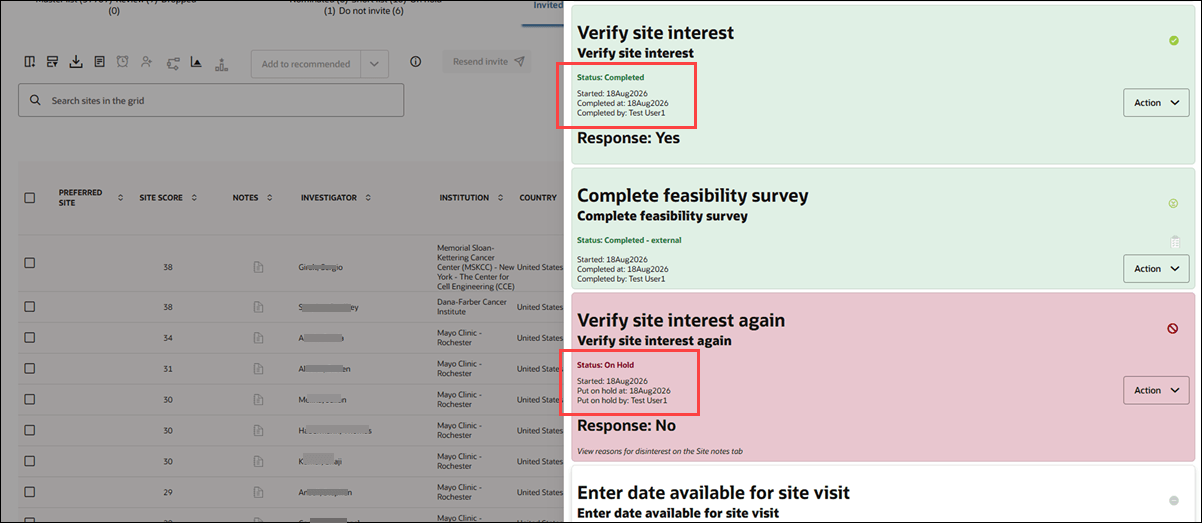
- Verify site interest
- Verify site interest again
- Agree to confidentiality statement
- Generic Document (Attestation required)
Previously, changing a completed task to On hold, or changing an On hold task back to Completed, could leave metadata from the previous status. Now, when a task changes to On hold, the drawer displays the date it was put on hold, and the task card displays values for Put on hold at and Put on hold by. Completion details are removed.
When you change the task back to Completed, the drawer displays the completion date, and the hold details are removed. These values remain accurate when you move the task between the two statuses multiple times. Existing completion behavior for tasks that don’t support On hold status and the audit history for task transitions remain unchanged.
Epic: SEL-22489
Site workflow history
You can now review a site’s current and previous workflows in one place. This enhancement gives you greater visibility into workflow progress, past task activity, and survey results without requiring you to change the active workflow.
The Workflow tab in the site details drawer now has a Current workflow section with the existing workflow selector and task counts by status (e.g., Not started 7, Current task 1, Completed 1, etc.). A new Workflow History button shows the number of past workflows available. If the site has no workflow history, the tab displays only the current workflow, and the Workflow History button is disabled.
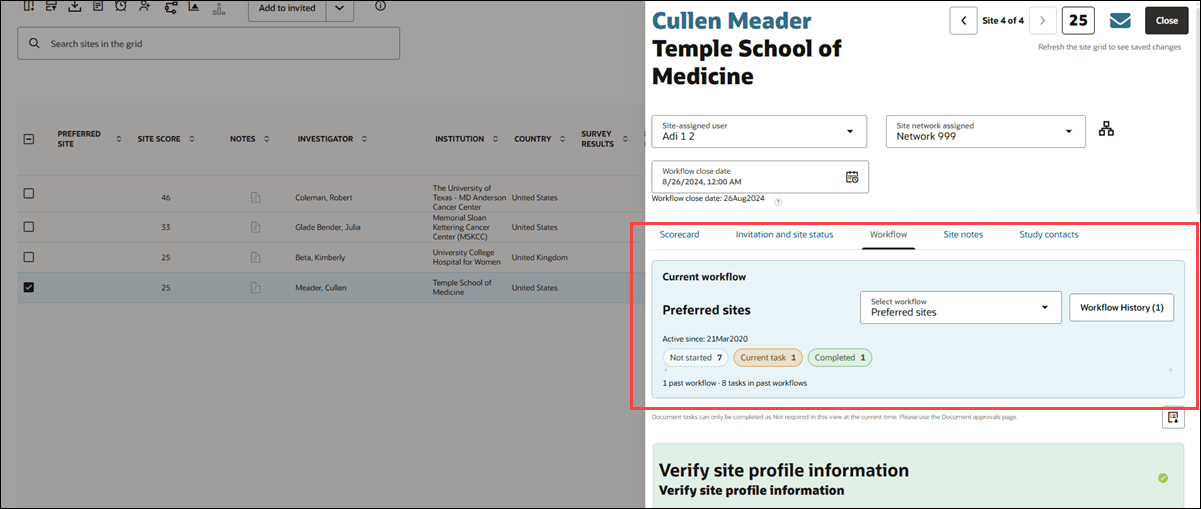
When you open workflow history, the drawer displays a dedicated Workflow History view with the site name, past workflow names, relevant dates, and task status counts. Started and Discontinued dates appear only when that information is available. Because discontinued information is captured going forward, older sites might not display it, and this is expected behavior.
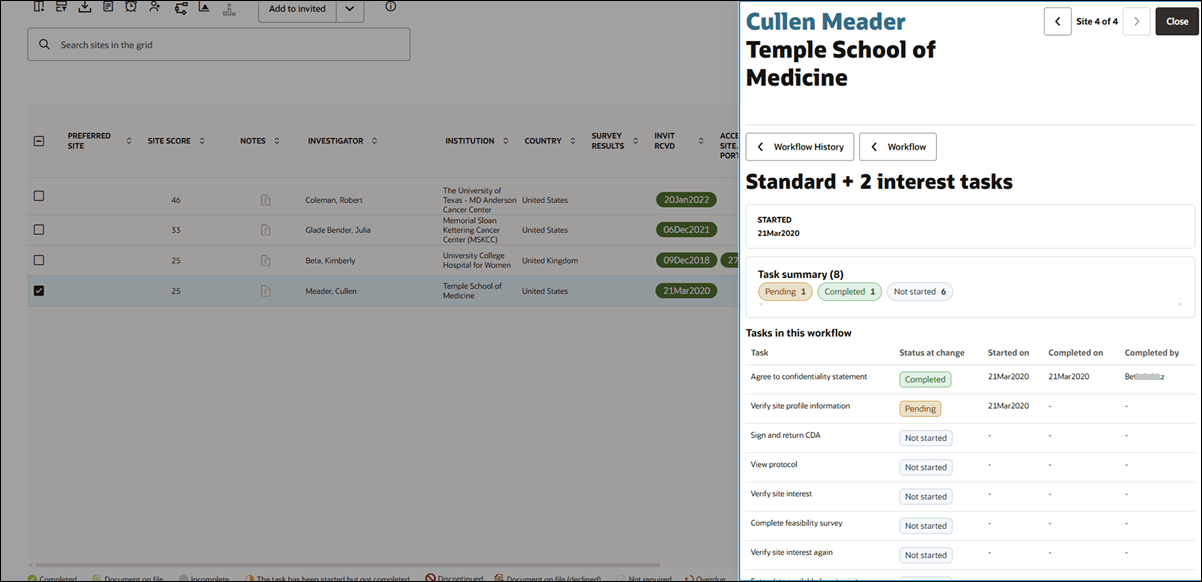
You can select a past workflow and click Expand to view its dates, task status counts, and a read-only task table. The table includes columns for Task, Status at change, Started on, Completed on, and Completed by, allowing you to review past task details and survey results without changing workflows.
From a past workflow, you can return to the history overview by clicking Workflow History, return to the current workflow by clicking Workflow, or Close the drawer.
Epic: SEL-22489
Parent topic: What's new