Site grid
The site grid now uses progressive scrolling, includes a global PI search option, and features a new Status filter panel in the Site history drawer, among other improvements.
Site contacts export
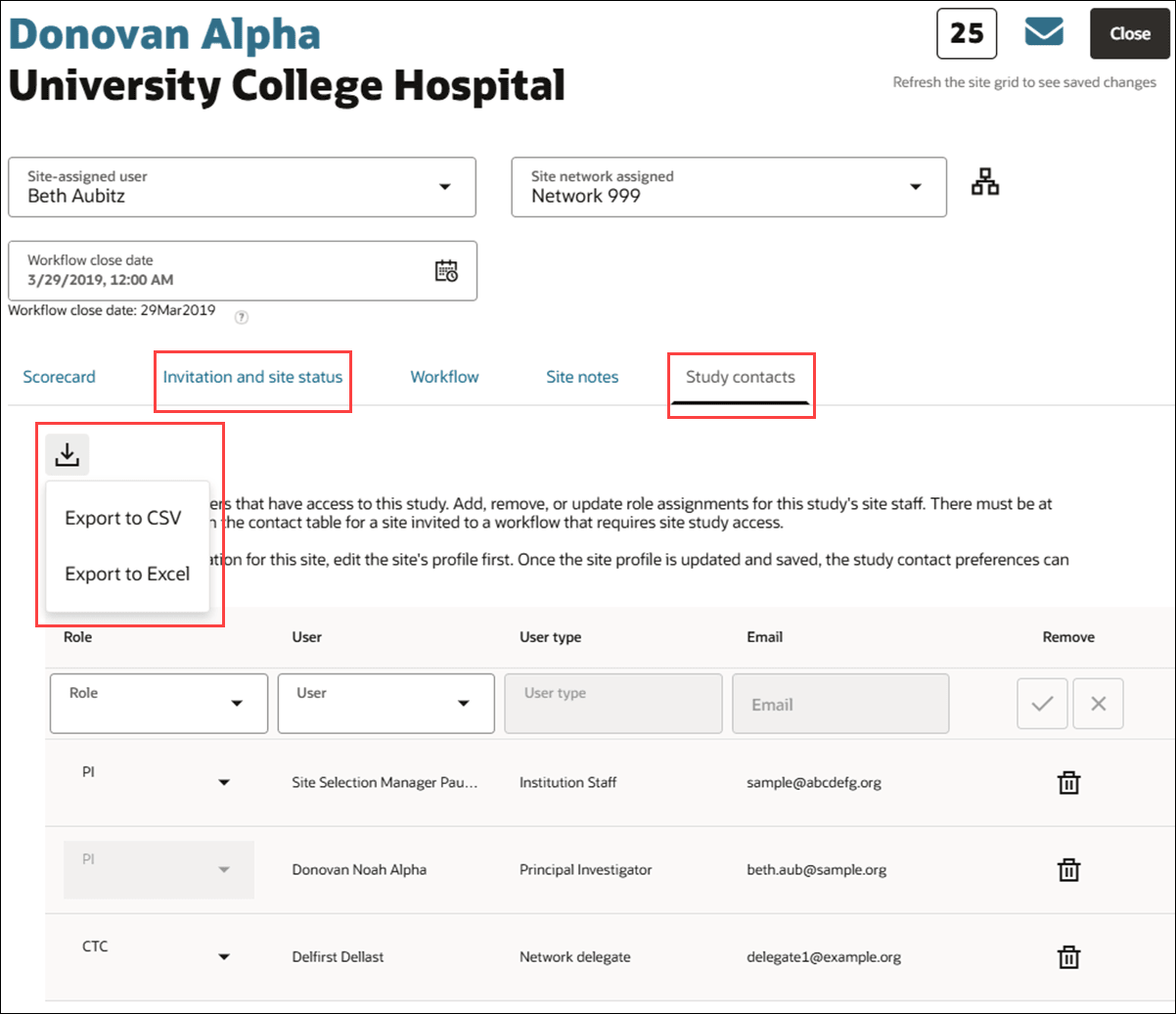
Now you can export a complete list of all site contacts to Microsoft Excel or CSV. This option makes it easier to share contact details with clients, particularly when escalating non-responder sites, and supporting reporting needs.
You’ll see a new export option  above the contact tables on the Invitation and site status tab and the Study contacts tab in the site details drawer. Click export and choose the format that aligns with your client’s needs or your reporting workflow. The export will include the full contact list from the tab where you initiate the export and will include the following columns:
Invitation and site status:
- Representative
- Email address
- Role
- Email sent on
- Status
- Last access
Study contacts:
- Role
- User
- User Type
By design, exports exclude Action columns such as Delete, Copy link, Resend invite, and Admin invite.
Progressive loading
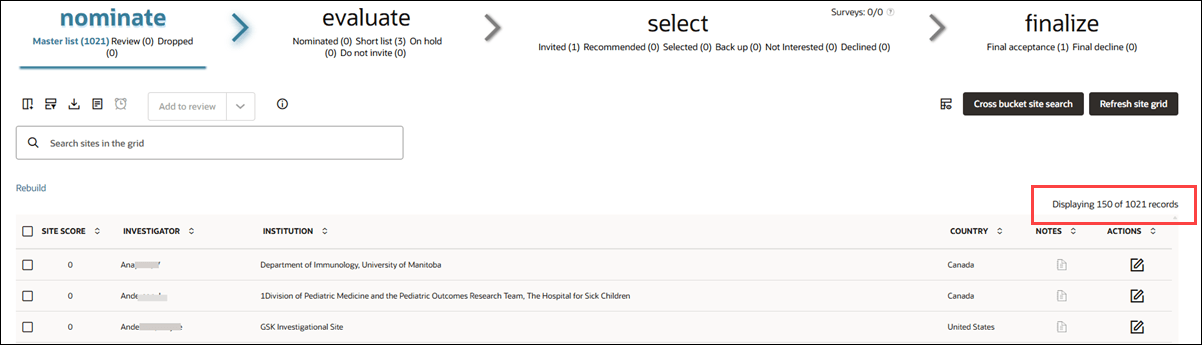
With release 26.1, we removed site grid pagination controls, and grids now use progressive scrolling. The first view loads 50 records. Then, as you scroll down, additional batches of 50 records load until all records are displayed.
You can see how many records are visible and remaining in the upper right of the grid, for example, “Displaying 50 of 3001 records.”
Global search
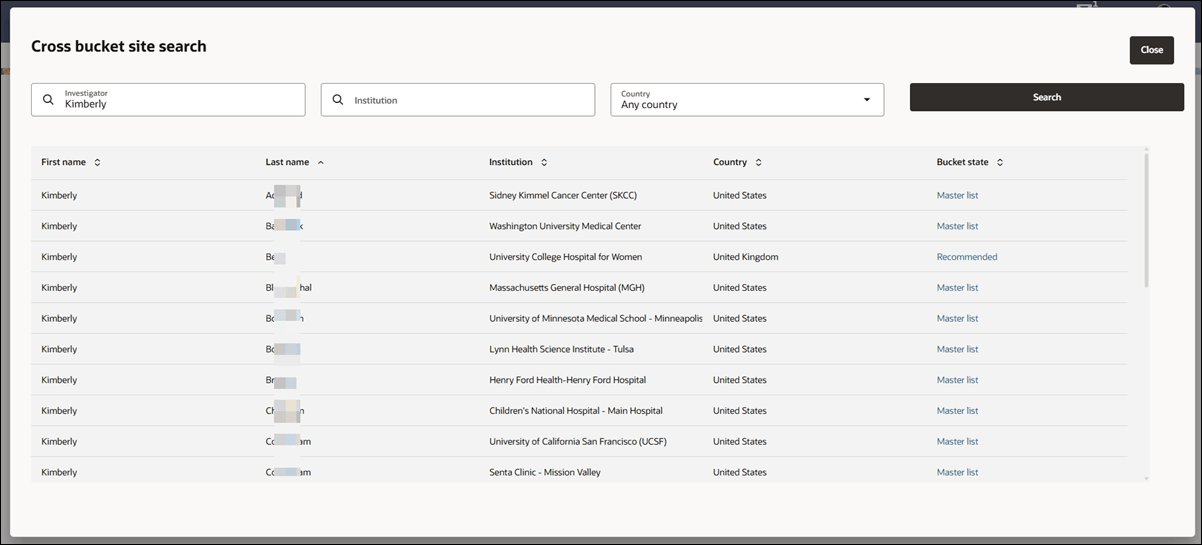
Release 26.1 introduces global PI search to the site grid. This enhancement lets you find a PI across all site grid buckets, so you can navigate directly to the correct record without opening and searching each bucket separately. You’ll see a new “Cross bucket site search” button above the site grid, at the upper right, that opens a new Cross bucket site search modal.
In the modal, you can search by any one of three fields:
- Investigator (first or last name)
- Institution
- Country (from the study's Master List Criteria)
Results return matches regardless of the site’s current bucket, and they display in a table with First name, Last name, Institution, Country, and Bucket state columns. The site's current bucket state is clearly shown, and you can navigate directly to the corresponding bucket state and site record. Click the site’s bucket state link to open that bucket state with the site’s record loaded in the site grid, where you can take action as needed.
If no matching results are found, you’ll see the message “There are no sites available to display.”
Site notes modal
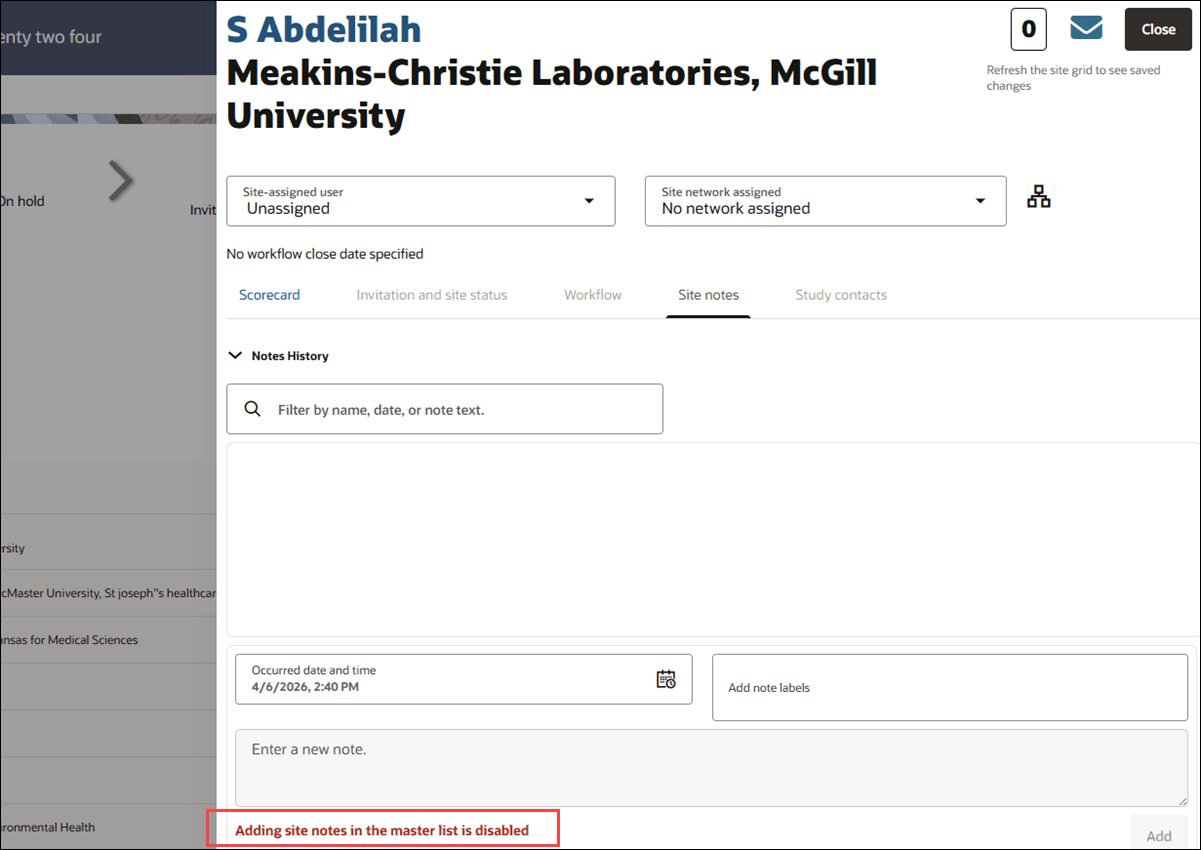
By design, adding a site note when a site is in the master list bucket state is disabled. This enhancement adds helper text in the site notes modal to explain why the note input and Add button are disabled.
The note input modal now displays bold red text that reads, “Adding site notes in the master list is disabled,” and this message remains visible as long as the site remains in the master list.
Site history view
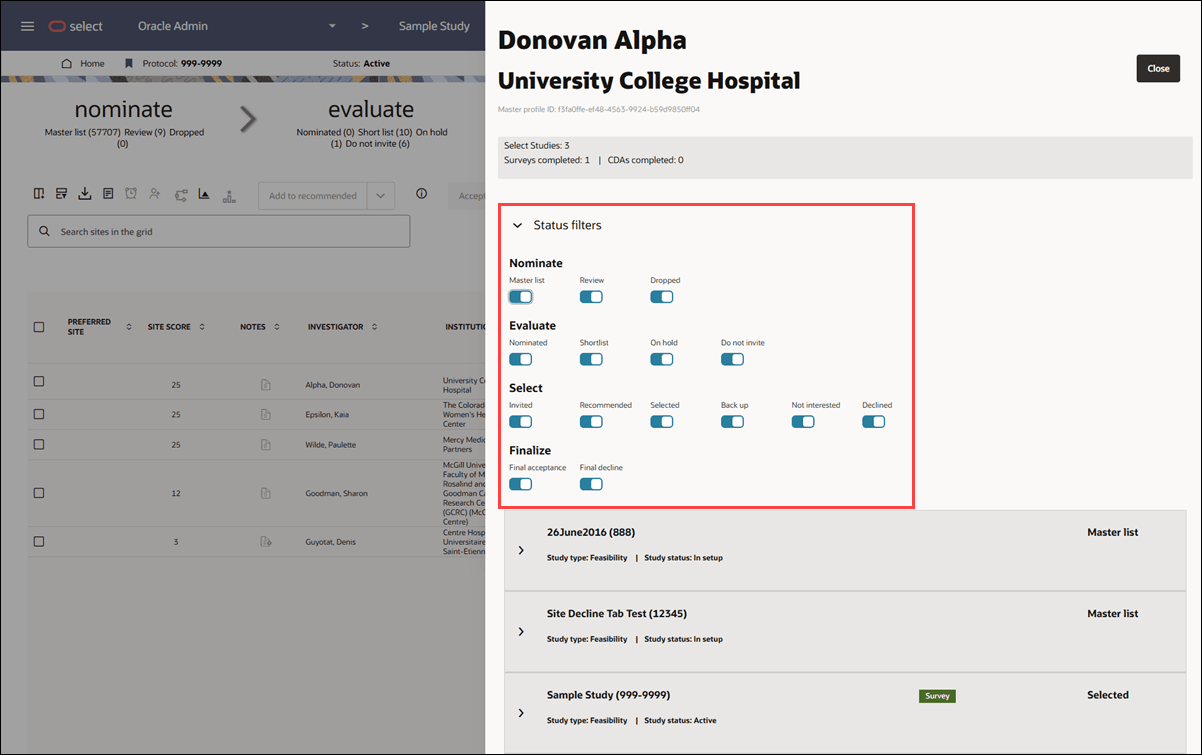
This enhancement adds a Status filters panel to the Site history drawer, giving you control over which bucket states appear in the history list so the view is less cluttered and easier to scan. The panel is accordion-style, and it includes toggle controls for each bucket state.
By default, all bucket states are toggled on, and you can adjust them as preferred to focus on studies where the site was invited, or any other combination of states. Your filtered view then reflects the site’s history based on the filters you turn on.
Verify site interest column
Previously, when viewing the site grid’s Select > Invited bucket state, multiple workflow task columns could appear if task names differed only by case (e.g., Verify Site Interest; Verify site interest; and Verify Site interest). This led to duplicate columns for essentially the same task and made the workflow task view harder to scan.
With release 26.1, we enhanced the site grid to prevent duplicate columns and improve consistency in how task names appear. The Select > Invited grid now consolidates similarly named tasks into a single column, and it displays the workflow task column name in all uppercase (e.g., VERIFY SITE INTEREST).
Site decoration icons
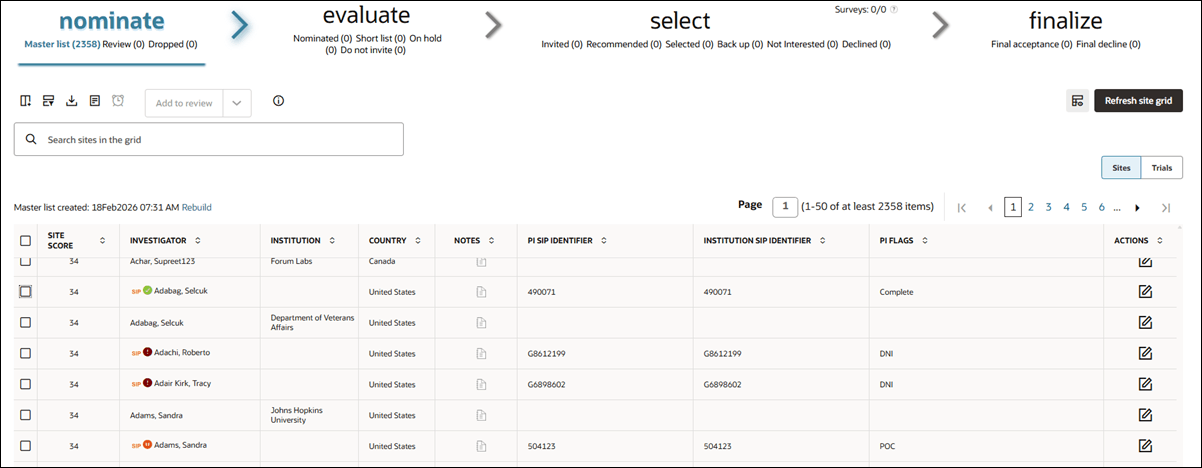
With release 26.1, we returned site decoration icons to indicate certain data fields imported with the site record. Your organization can adapt these indicators as you determine what will work best for your business processes. You can populate the data fields via the API or via CSV data import.
The icons display to the left of the site name in the site grid’s Investigator column, and they persist within the grid as the site progresses from one bucket state to another as long as the data fields are not updated. Note that the icons are not included in any CSV or Data Export Utility report. This is expected behavior.
Site decoration icons will display as follows:
| Icon | Data field | Display condition |
|---|---|---|
 |
investigator_sip_id AND institution_sip_id | Displays only when a site record has BOTH fields populated with a non-empty string |
 |
pi_flags | Displays when a site record has the field populated with the exact, case-sensitive string “Complete” |
 |
pi_flags | Displays when a site record has the field populated with the exact, case-sensitive string “POC” |
 |
pi_flags | Displays when a site record has the field populated with the exact, case-sensitive string “DNI” |
Site grid loading limits
To help you recognize when large datasets may affect site grid performance, release 26.1 restores a warning message to the Master list when the list exceeds tested limits. The warning appears when a Master list returns more than 40,000 sites or more than 100,000 trial-sites, and it is removed automatically once results drop below the thresholds.
The warning message is: “The selected master list criteria has resulted in more than 40,000 sites returned from the attached datasource(s). Site grid performance may be impacted from working with large datasets. The performance issues may include issues with filtering the site grid and the page failing to load. Please check your master list filters and apply more stringent criteria.” For each mention of “master list” in the warning, the text links to the Master list criteria page.
Parent topic: What's new in release 26.1