Site workflow
Task deletion has been moved to the task details drawer and includes a confirmation modal to prevent unintentional deletion.
Task deletion
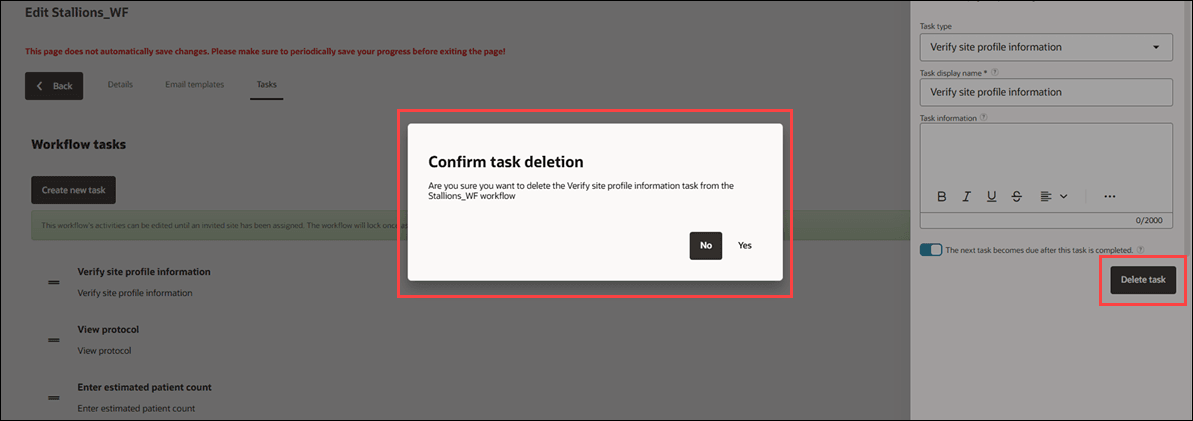
This enhancement moves task deletion into the task details drawer, so you’re less likely to delete a task by mistake. The delete icon is removed from the Account workflow template page (Workflow template > task list) and the Study workflow configuration page (task list). Instead, you’ll find a Delete task button at the bottom right of the task details drawer, and you must confirm a modal before the task is removed. If a study workflow is locked (assigned to a site), you can’t remove tasks.
When you delete a task, you’ll see a confirmation modal titled “Confirm task deletion” with the message: “Are you sure you want to delete the task from the workflow?” Choose No to close the modal without deleting, or choose Yes to close the modal and remove the task.
Parent topic: What's new in release 26.1