Site profile
Bell icons make field updates more apparent, you can choose a Site profile type per study, we added per-section demographics validation, and the review prompt text is easier to see.
Alert bell icon
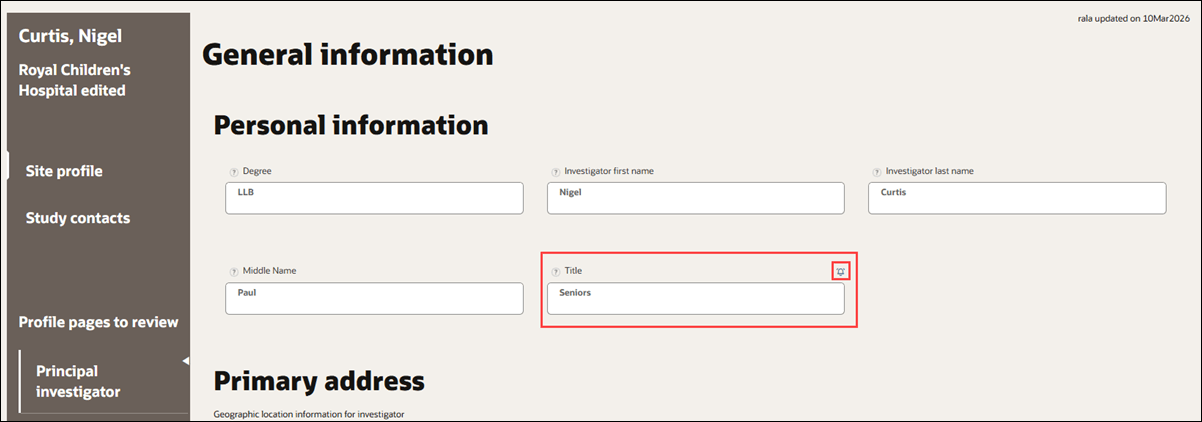
Release 26.1 restores the previous behavior that highlights changed Site profile fields with a bell icon  , so updates made in either Oracle Site Select or the Site portal are clearly indicated to the counterpart viewer. The behavior applies to studies that use a study-specific site profile datasource.
When a site user edits the Site profile in the Site portal, alert bells appear for each change in the Oracle Site Select user interface when the Site Select user edits the Site profile. Likewise, when a Site Select user edits the Site profile from the Edit site profile option in the site grid, alert bells appear for each change in the Site portal user interface, so the Site portal user sees the bells while editing.
Clicking an alert bell shows the details of the change, and alert bells disappear after the counterpart saves the Site profile. Example: if the site makes a change in the Site portal, the alert bells show for the Site Select user; the bells hide after the Site Select user makes a change and saves it.
Site profile type for new studies
With this enhancement, you can choose the preferred Site profile type for each new study: Account-level site profile or a Study-specific site profile. Your account will retain the default site profile type you specify. If you choose a different type for a new study (e.g., Study specific instead of Account level), an Oracle administrator will select it on your behalf during the study creation process, and the choice applies only to that study without changing your account’s default.
Account specific site profile: Site profile changes for the new study will be stored in an account-level data source. Site profile changes will span across all studies, including studies in the account that do not have a study-specific site profile data source.
Study specific site profile: Site profile changes for the new study will be stored in a data source specific to the new study only; site profile changes will be unique to each new study, and changes across common sites are not linked. Previous studies where site profile changes were stored at the account level will remain connected to the account-level site profile data source.
If the Oracle administrator creates a study on your behalf, they can also add data sources for the study, but in case they don't, you can add datasources for that study from Study datasources page. This is applicable to both account specific and study specific site profile options.
Note:
When you have Account study creation permission, you see an Add Study action button above the study list in My Dashboard. With this enhancement, when you add a study from My Dashboard, it will default to the Account-level site profile or a Study-specific site profile set at the account level. If you need to create a study with a profile type other than the default set for your account, please contact your Oracle administrator. Once a study is created, the selected Site profile type for that study cannot be changed.Demographics validation
Patient demographic input validation on the site profile now applies independently to the Age, Gender, Race, and Ethnicity sections. Each section requires its categories to sum to 100%, and the page displays section-specific warnings when a sum is above or below 100%.
In addition to section-level warnings, individual percentage fields show validation messages that direct you to the section that needs correction.
Section review prompt text
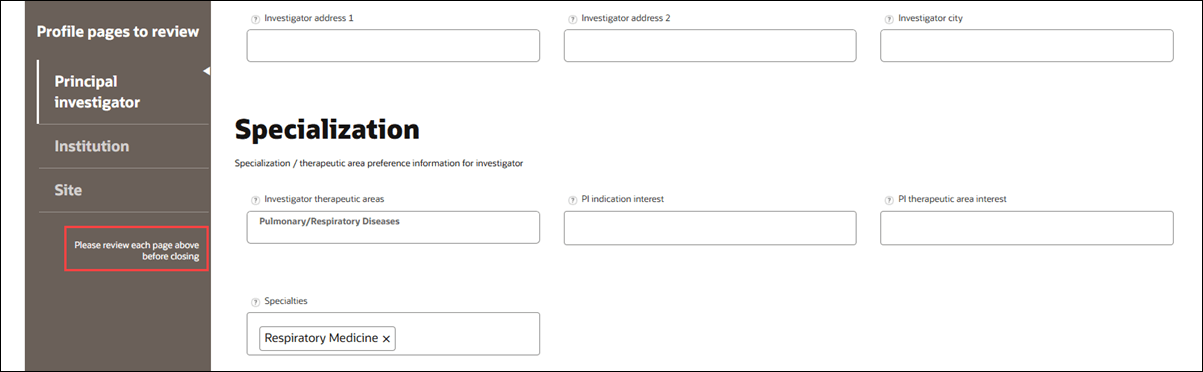
To make the profile review step easier to spot, we moved the review prompt text higher on the page to make it more prominent.
Previously, “Please review each page above before closing” sat at the bottom of the left menu panel, which required scrolling and could be overlooked. Now, the prompt appears directly beneath the Profile Pages to Review section, and it’s clearly visible when viewing the page.
Edit site profile navigation text
In release 26.1, we added rules to keep the Site profile’s left navigation text visible and accessible. When the browser width is reduced (for example, to 500 pixels), the text for “Profile pages to review” and “Please review each page above before closing” automatically scales down to maintain readability.
Parent topic: What's new in release 26.1