Forecast Review
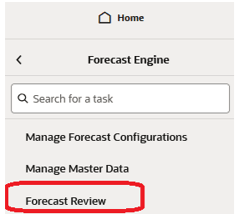
You can access Forecast Review from the left side Tasks list on the Forecast Engine task as shown below.
Figure 11-38 Forecast Review Task
This section describes the workflow and screens available to review, adjust, and approve forecasts. It shows the forecast with its components, baseline, and promotional peaks. It also shows sales of last year, and cumulative interval information. The navigation of this worksheet is very conveniently driven by navigation exceptions.
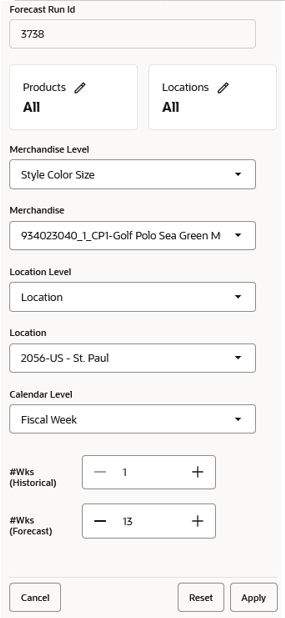
When entering the workspace, you can open the top filters panel.
The settings in the define the scope of the workspace.
For instance, you can select the products and locations that you want to review. Also, you select the number of historical and future weeks. Note that all the above selections can be made very easily. It is not necessary to select a huge scope, since working with smaller chunks of data is much more manageable from the workflow and performance perspectives.
Figure 11-39 Forecast Run Id
Once the scope of the workspace is determined, you move to the main screen and starts reviewing the forecasts. The information can be reviewed in grid format, as a chart or both. There is also the option to view the data in a pivot table.
Figure 11-40 Forecast Review Actions
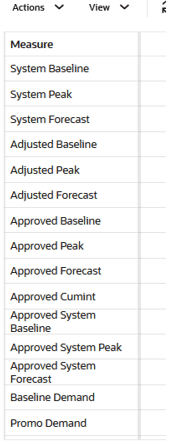
The metrics available in the screen are:
System Baseline
The System Baseline displays the system-generated baseline forecast. The values contained in this field are read only. The system baseline incorporates level, trend, seasonality, but no causal-related information.
System Peaks
The System Peaks displays the offer impacted demand generated by the engine. It is a read-only field, the together with the System Baseline equal the total demand.
System Forecast
This is a read-only measure that equals the system baseline plus the system peaks.
Adjusted Baseline
The value in this field initially defaults to the System Baseline if the forecast is automatically approved by the system or through a Forecast Approval Alert. Otherwise, the value in the Adjusted Baseline is different than the System Baseline if the metric has been updated by you.
Adjusted Peak
The value in this field initially defaults to the System Peak if the forecast is automatically approved by the system or through a Forecast Approval Alert. Otherwise, the value in the Adjusted Baseline is different than the System Baseline if the metric has been updated by you.
Adjusted Forecast
This is a read-only measure that equals the adjusted baseline plus the adjusted peaks.
Approved Baseline
The value in this field initially defaults to the Adjusted Baseline if the forecast is automatically approved by the system or through a Forecast Approval Alert. Otherwise, it displays the last approved baseline value.
Approved Peak
The value in this field initially defaults to the Adjusted Peak if the forecast is automatically approved by the system or through a Forecast Approval Alert. Otherwise, it displays the last approved peak value.
Approved Forecast
This read-only metric displays the approved forecast quantity. If changes are made to the Adjusted Forecast, the value in the Approved Forecast will reflect the adjustment.
Approved System Forecast
The Approved System Forecast is populated with the last System Forecast approved for a time series:
- Approval Method set to Automatic Approval
- Approval Method set to a Forecast Approval Alert and the alert is not triggered
Approved Cumint
Cumulative Intervals are used in safety stock calculation within allocation and replenishment systems. Its value is similar to a running total of a percentage of the actual forecast and is read only.
Baseline Demand
This read-only measure is the demand data used to generate the baseline forecast. This allows you to compare Actuals to forecast values. The metric is based on the historical sales which are undergoing several rounds corrections, including the removal of offer impacts on demand.
Promo Demand
This read-only measure is the demand data used to generate the forecast. This allows you to compare Actuals to forecast values. The metric is based on the historical sales which are undergoing several rounds corrections. The Promo Demand equals the Baseline Demand plus the promo driven demand.
Last Year Demand
This read-only measure equals the Baseline Demand shifted 52 weeks. This enables a convenient way to compare last years and future demand.
A screen that complements the review workflow is the Approval Information.
Figure 11-41 Approval Information

The two views have synchronized product and location hierarchies.
Escalation Level
Displays the intersection at which the seasonality was calculated when generating forecast for this item/location combination.
Base Demand
Displays the base demand value used when generating forecast for this item/location combination.
Approval Notes
In this box, the user can enter text. For instance, the user can write: Adjusted the promo demand up because of the upcoming supplier offer.
Ready for Approval
This control is very important for the approval process. It is disabled if the product/location is not approved. It is enabled if the product/location is approved. If a forecast was not approved and is manually adjusted, the control will be enabled. Finally, a user can manually enable the control. When the control has been enabled, the forecast is approved after clicking the Approve button in the main screen.