Manage Master Data
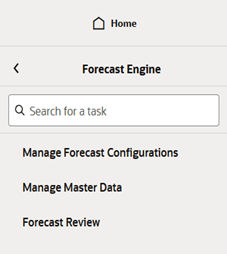
You can access Manage Master Data from left side Tasks list on the Forecast Engine task as shown
below. This takes you to the Sales Plans and Flexible Groups tabs.
Figure 11-42 Manage Master Data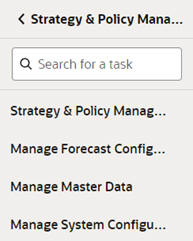
Figure 11-43 Manage Master Data
In Sales Plans tab, as shown below, you can select a row and edit
the Merchandise Level/Location Level or reset the value to the default
levels. Sales Plans are used for in-season (Bayesian) forecasting
within the Automatic Exponential Smoothing run types.
Figure 11-44 Sales Plans Tab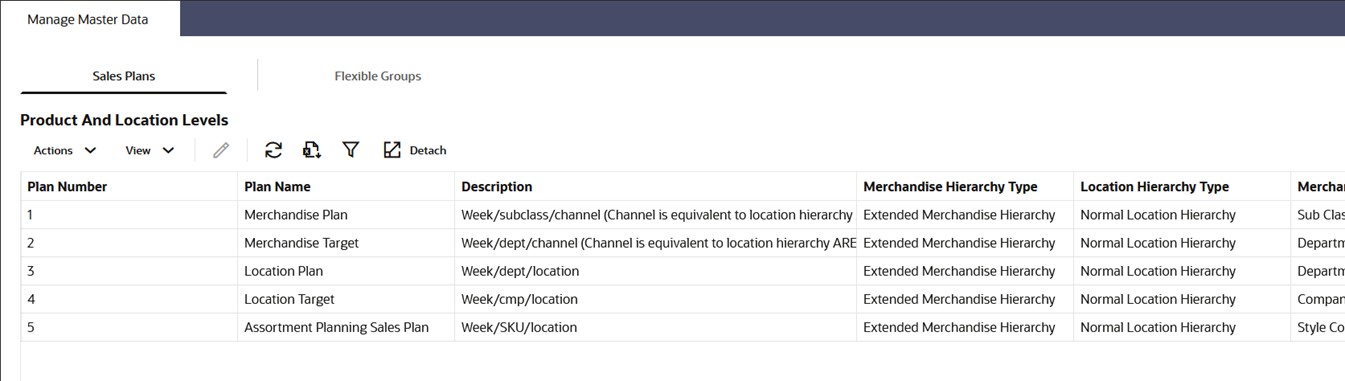
The Flexible Groups provide the grouping of merchandise/locations based on different criteria.
These are used in the escalation path to estimate seasonality/elasticity values for Sales &
Promo and Life Cycle run types. Flexible Groups ensure that the seasonality/elasticity estimation
results are separately calculated for each group of merchandise/location. Group Set is the parent
(that is, the grouping definition). Partitions are the children (that is, the groups within each
group set). In the Flexible Groups tab, you can create a new flexible group set and edit and
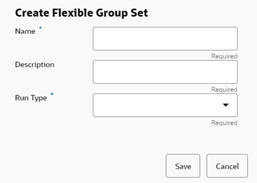
delete an existing flexible group set, as shown below. While creating a new flexible group set,
you can add a new group set name (which must be unique), group set description, and select an
existing run type from the drop-down list, as shown below . Once this step is done, the
partitions (groups) inside the group set must be created. The partitions can be provided through
IW using custom calculations or loaded through the staging interface (RSE_FLEX_GROUP_DTL_STG). By
clicking the icon near group set name, you can see the partitions under it, as shown below. .
Ensure that the Default_item_location_start flex group set is created via the dialog
above.
Figure 11-45 Flexible Groups Tab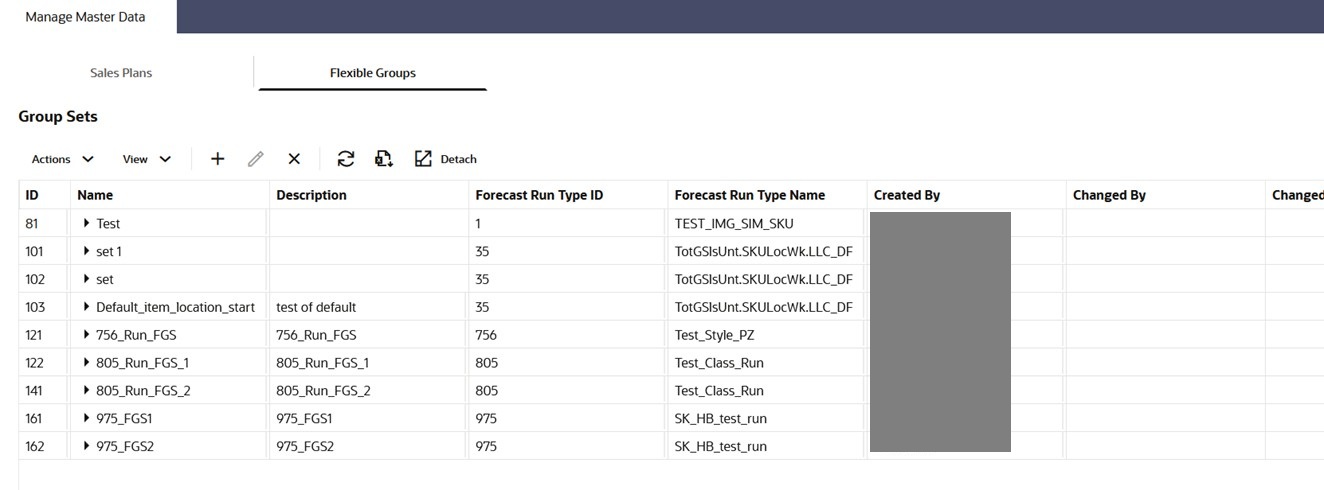
Figure 11-46 Create Flexible Group Set
Figure 11-47 Partitions (Groups) under a Group Set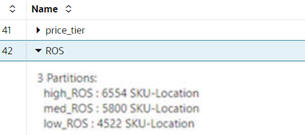
Once a new flexible group set is created and mapped to a run type,
new escalation levels corresponding to the flexible group set will
be automatically added under the Available Values column in the Estimation
Levels and Escalation Path section of the Seasonality tab for the
corresponding run type in Edit Configuration Parameters within the
Manage screen, as shown below. .
Figure 11-48 Escalation Levels Based on Group Set are Available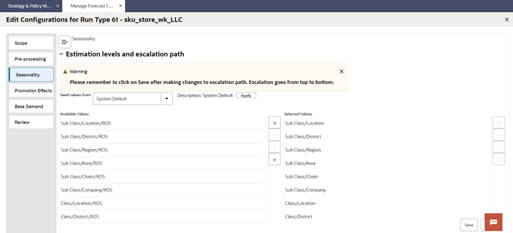
When a new What-If run is created from the Test screen under the corresponding run type, the run will also contain the additional escalation levels corresponding to the flex group set and will be displayed under the Available Values column in the Estimation Levels and Escalation Path section of the Seasonality tab.