23 Options Recommendation
This chapter describes the Options Recommendation process for Assortment Planning.
Options Recommendation is used to determine the optimal number of options for items in an assortment period based on their product hierarchies and attributes. It uses information regarding products' sales transactions, inventory levels, and attributes to optimize for these key metrics.
The following section provides details of the required data and processes involved in implementing the Options Recommendation algorithms.
Data Load Requirements
Most of the AI Foundation Cloud Services (AIF) data is pushed in two-step process.
-
First, data is loaded, using CSV and W_ interfaces and jobs in the AIF DATA standalone schedule in POM. Then, RADM_REFRESH_JOB must be run to refresh the table statistics before any AIF Apps job is run (though REFRESH_RADM_JOB is automatically executed as part of most ad hoc processes in AIF Data).
-
Second, appropriate AIF applications jobs are used to push data into AIF applications. At the time of implementation, the user will only use ADHOC jobs, not any batch jobs. Batch jobs (described in "POM Jobs") are necessary to put the system on a batch schedule.
AIF Data Processes
The following data needs to be loaded via AIF Data schedule. These should use CSV and W_ interfaces.
These interfaces provide the foundation data for the AI Foundation. Execute and verify that all the RAP foundation data has been loaded. For details, refer to the Retail Analytics and Planning Implementation Guide.
For Options, this includes the following.
Hierarchy Data
Required. Hierarchies are part of the core data elements that are used in AIF, in both the forecasting and optimization modules. The four types of hierarchies are Location Hierarchy, Product Hierarchy and Calendar Hierarchy
-
Location Hierarchy. An example of location hierarchy is: CHAIN ' COUNTRY ' REGION ' DISTRICT ' STORE. When the user wants to optimize by location hierarchy, then the run's optimization level must match a node in the location hierarchy. Relevant interfaces are W_INT_ORG_ATTR_D, W_INT_ORG_DH, and W_INT_ORG_D. These are all loaded using the ORGANIZATION.csv file.
- Product Hierarchy: An example of product hierarchy is as follows: CHAIN ' COMPANY/BANNER 'DIVISION ' DEPARTMENT 'CLASS ' SUBCLASS ' STYLE ' COLOR ' SIZE (SKU). There can be up to nine levels in the product hierarchy. The STYLE, COLOR and SIZE SKUs are expected to be provided in the W_PRODUCT_D interface, while the levels between CHAIN and Subclass are provided via W_PROD_CAT_DH interface. In addition, there must be consistency among the levels provided when using an extended hierarchy. W_PRODUCT_ATTR_D, is used to indicate the relationship between Style, Style/Color, and Style/Color/Size for an extended hierarchy. All of these tables will be populated when providing a PRODUCT.csv file as a foundation file input.
-
Calendar Hierarchy: The retailer can specify the calendar depending on their business requirements (for example, fiscal calendar). The relevant interface for this is W_MCAL_PERIOD_D. loaded using CALENDAR.csv file
- Customer Segmentation Hierarchy: Even when the retailer is not planning to load or use customer segments, a dummy record. is required. The AIF ad hoc jobs will create a dummy record when the source data is not provided, and it is not required for the client or implementer to provide these interface if they are not going to use them: W_PARTY_PER_DS and W_RTL_CUSTSEG_DS. The relevant interfaces to supply this data are W_RTL_CUSTSEG_DS and W_RTL_CUST_CUSTSEG_DS.
Sales Data
Required. Retail Sales data is provided through SALES.csv file (W_RTL_SLS_TRX_IT_LC_DY_FS staging table). You are required to provide retailer's historical sales data at the desired hierarchy levels. The AIF app allows you to select the number of weeks of historical sales data you want to use for optimizations. A minimum of 78 weeks of sales data is required.
Inventory Data
Required. Inventory data can be specified through this interface: INVENTORY.csv (staging table W_RTL_INV_IT_LC_DY_FS).
Inventory Receipts
Required. This data is used to identify when the item started selling and stopped selling for lifecycle predictions. The inventory receipts data is provided in RECEIPT.csv file (W_RTL_INVRC_IT_LC_DY_FS staging table).
Product Attributes/Flex Facts
Required. Product attributes are used to provide attribute-specific sales potential, optimized history and options count predictions. The retailer must use ATTR.csv and PROD_ATTR.csv files, which populates the table W_RTL_ITEM_GRP1_D, since it can support any number of attributes, such as BRAND, and the batch load process picks up the attributes added there automatically. Raw product attributes (for example, fabric, material, and so on) can be provided through this interface. Make sure the attribute values are as clean as possible. For example, COKE vs. COK vs. COEK must be normalized to COKE so that the Options Forecast does not interpret them as different attributes.
If the retailer wishes to load STYLE or COLOR as product attributes, then the W_RTL_ITEM_GRP1_D interface is used to provide style and color attributes for the different products, using a value in PROD_GRP_TYPE of either STYLE or COLOR. The actual values for the Styles and Colors are provided in columns FLEX_ATTRIB_2_CHAR and FLEX_ATTRIB_4_CHAR using values that represent the ID for the Style (for example, 1234), and a description for the Style (for example, Loose Fit). The columns FLEX_ATTRIB_3_CHAR and FLEX_ATTRIB_10_CHAR contain the appropriate designation for STYLE or COLOR.
AIF Apps Processes
Once the interface configuration is complete and the AIF Data Foundation data has been verified, the user can push the data into AIF applications. Once database logging has been enabled, users can check for any errors and the progress of the process in RSE_LOG_MSG.
The user must set the correct values for configuration parameters in RSE_CONFIG. This can be done using Manage System Configurations > Control and Tactical Center and then selecting RSE_CONFIG from the drop-down list. Specify relevant and appropriate hierarchy levels in RSE_CONFIG.
RSE_CONFIG:
Some configurable patterns in RSE_CONFIG relating to hierarchy levels and inventory are as follows:
- Product Hierarchy. When the user wants to load up to 9-level hierarchy (for example, fashion items with SBC ' STYLE ' STYLE/COLOR ' STYLE/COLOR/SIZE) in RSE_PROD_HIER (mentioned in next section), then two configurations must be verified: LOAD_EXTENDED_PROD_HIER and PROD_ITEMUDA_SRC.
- Attributes Specification Level. The level at which attributes are defined is denoted by CMGRP_LEVEL_ID.
- Inventory. Check configuration of relevant column INV_SRC_RI, which is used in target table (mentioned in next section) RSE_INV_PR_LC_WK_A.
- Inventory Receipts. Check configuration of INV_RC_DT_SRC_RI, which is used in target table (mentioned in next section) RSE_INV_PR_LC_HIST
RSE_% tables:
Check several target tables and configurations for correct loading of relevant information into AIF Apps:
-
Product Hierarchy. The target table to check is RSE_PROD_HIER.
-
Location Hierarchy. The target table to check is RSE_LOC_HIER.
- Calendar Hierarchy. The target table to check is RSE_CAL_HIER.
- Sales. The target table to check is RSE_SLS_TXN. This data will be further aggregated into multiple tables at different aggregate levels once the relevant aggregation jobs are executed.
-
Inventory. The target table to check for weekly inventory position at leaf node levels is RSE_INV_PR_LC_WK_A.
-
Inventory Receipts. The target table to check for inventory receipts at the leaf node level is RSE_INV_PR_LC_HIST. Note that the warehouse inventory positions are also loaded into this target table as warehouse is treated like a leaf node on the location hierarchy.
-
Customer Segments. The target table to check is RSE_CUSTSEG_HIER. It is required to execute the job to load customer segments (even when there is just a dummy segment).
- Product Attributes. The target tables to check are RSE_ATTR_DESCR, RSE_PROD_ATTR and RSE_BUSINESS_OBJECT_ATTR_MD.
AP Assortment Group Clusters
Data will need to be pulled from RDX to RSE to retrieve AP Assortment Group Clusters. The relevant RDX table that needs to be populated before this process is AP_ASSORT_GROUP_EXP, which contains the relevant AP Assortment Group Clusters.
If AP_ASSORT_GROUP_EXP is empty, refer to AP documentation for support.
After preparing all relevant input tables, we are ready to fire a forecast run of Options Recommendation.
Options Forecast Procedure
Create and activate new run type for Options Forecast.
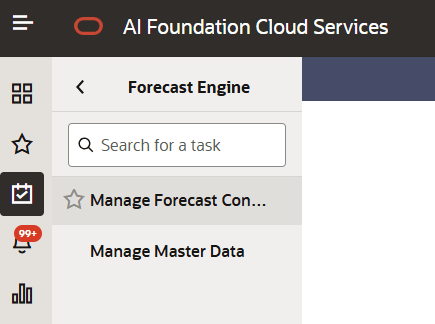
To do this, navigate to the calendar icon > Manage Forecast Configurations.
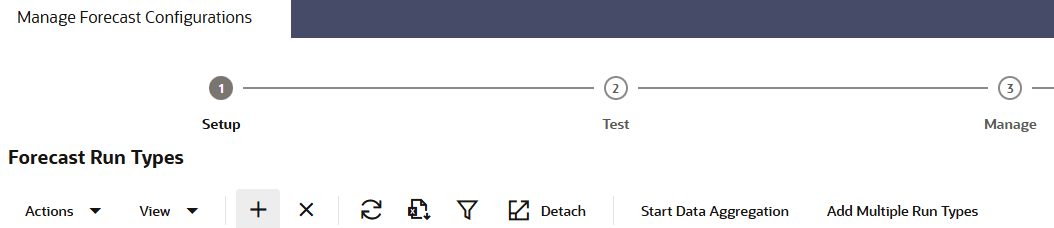
Under setup, hit the '+' icon
Select the relevant filters. Set a Run Type Name, Description. Select:
- Data Source: Store Sales
- Forecast Method: Options Forecast
- Forecast Measure: (e.g. Gross Sales Units or Reg and Promo Gross Sales Units)
Hit Create when complete.
Then, activate this run type by toggling to 'Manage' and clicking 'Activate' for your relevant run type.
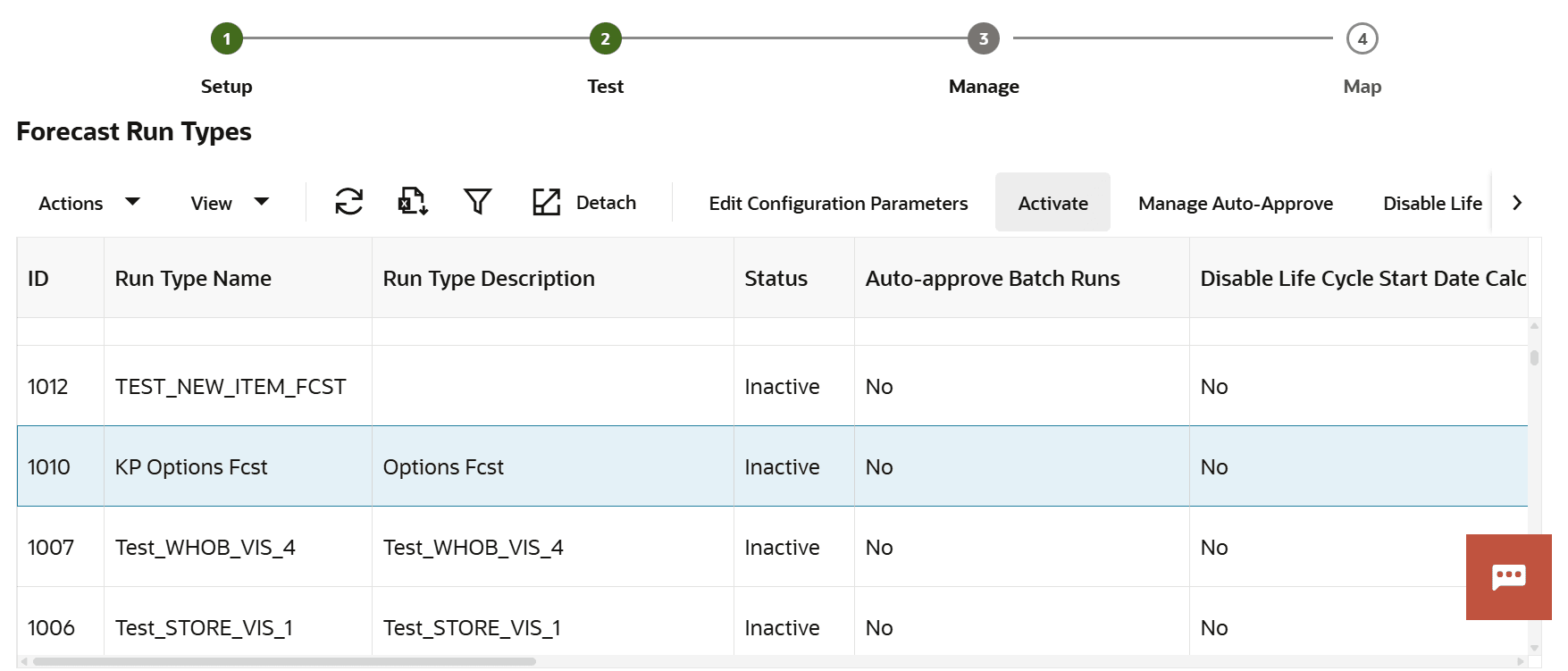
Note: Make sure there is only one active run type for Options Forecast.
The default duration is 78 weeks.
Run first aggregation to populate PMO_ACTIVITIES
PMO_ACTIVITIES contains all of our sales data. It may already be populated (refer to FAQ Question It says that 'Aggregation Status' is 'Complete' beside my new run type. So why would I have to run the aggregation again?). If so, it will say "Complete" under Aggregation Status as follows:

If not, you should perform the aggregation to populate it. Hit Aggregate on the UI beside the run type.
Check if PMO_ACTIVITIES is correctly populated using Innovation Workbench. This is done by filtering PMO_ACTIVITIES by the aggr_lvl_key column, which is tied to your run type id.
Query to run:
select * from pmo_activities where aggr_lvl_key=(select aggr_lvl_key from rse_fcst_run_type where id={fcst_run_type_id}For your forecast measure, check if SALES UNITS, INV_UNITS, STORE_COUNT_WITH_INV, etc are populated. E.g. for regular and promotion sales units:
select * from pmo_activities where aggr_lvl_key=(select aggr_lvl_key from rse_fcst_run_type where id={fcst_run_type_id) and REG_PROMO_GROSS_SALES_UNITS is not nullselect * from pmo_activities where aggr_lvl_key=(select aggr_lvl_key from rse_fcst_run_type where id={fcst_run_type_id) and INV_UNITS is not nullIf there are missing values/issues with PMO_ACTIVITIES, follow the steps in FAQ Question My aggregation of PMO_ACTIVITIES did not go through. The table is empty for my aggr_lvl_key. What do I do?.
Specify Sales Potential Attribute Inclusions
For Sales Potential, it is important to specify which attributes to include at the Stylecolor level. For e.g, in the following screenshot, the included attributes are specified in the UI as follows:
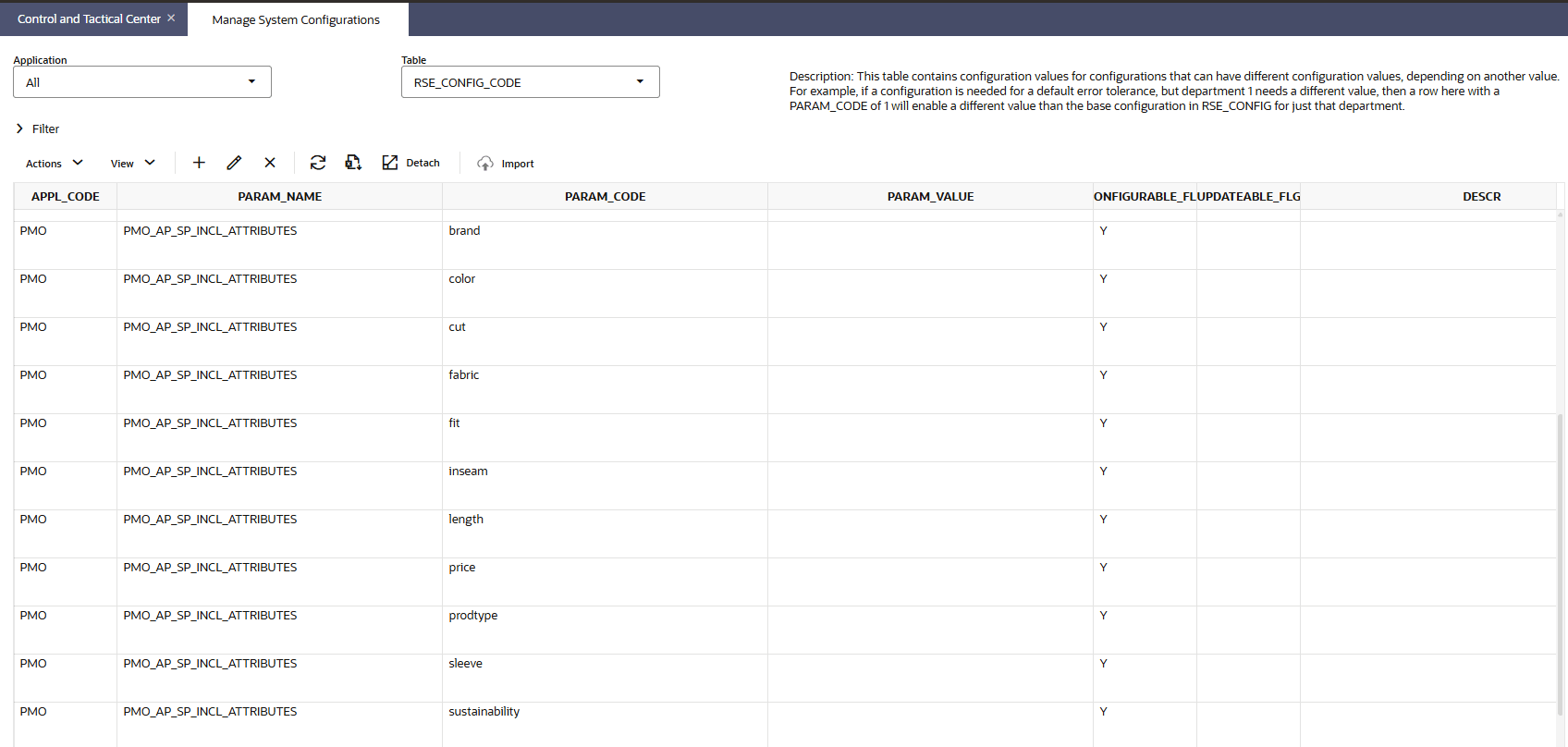
As seen above, "brand", "color", "cut", etc are specified are attributes of interest for the Sales Potential model.
To identify which attributes are currently being included, do the following:
- In the hamburger icon on the top left of the UI, click on Tasks > Control and Tactical Center > Manage System Configuration
- Filter to RSE_CONFIG_CODE table
- Filter to PARAM_NAME = 'PMO_AP_SP_INCL_ATTRIBUTES'
If an attribute that you are interested in is missing, you can add it as follows. Here, we use the example of adding Price Tier to the list of attributes:
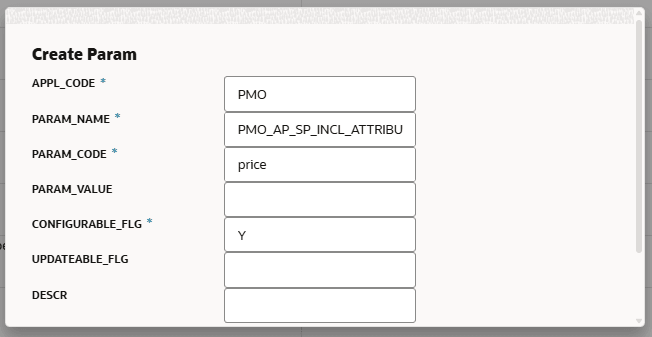
- Find the relevant attribute in rse_business_object_attr_md, and look for its corresponding entry in the attr_ext_code column. Here, our desired attribute, 'Price Tier' has the attr_ext_code='price'

- Add the relevant attr_ext_code of our new attribute to the table using the '+' icon in the Manage System Configuration UI above. This will add a new entry to RSE_CONFIG_CODE.
- Fill in the new attribute under PARAM_CODE accordingly, while also populating all other entries. Here is an example for populating 'price'. Leave all optional values empty:
Check and Populate AP Clusters
A nightly batch process is typically applied to populate/update AP clusters corresponding to active Options run types. You may opt to wait for the batch process to be triggered to populate the following target tables:
select * from rse_assort_group_cls_hdr where current_flg='Y'
select * from rse_assort_group_cls_dtl
However, if you would like to update the clusters immediately, you may run the following adhoc POM job:
- Navigate to AIF APPS > Standalone > RSE_ASSORT_GROUP_CLS_DATA_LOAD_ADHOC_PROCESS
- Run RSE_ASSORT_GROUP_CLS_DATA_LOAD_JOB
Check the relevant target tables using the queries mentioned above to ensure that the clusters have been populated. Refer to FAQ Question How do I know if the clusters in rse_assort_group_cls_hdr and rse_assort_group_dtl are correct? if you have further questions regarding clusters.
Specifically, for details on how AIF uses the AP assortment dates to select the historical start and end dates for training Options Forecast models, refer to FAQ Question How are historical start and end dates selected for training Options Forecast models?: How are historical periods selected?
Please note that any time the clusters are refreshed, you will need to run step Run secondary aggregation of PMO_OPTIONS_ACTIVITIES thereafter.
Run secondary aggregation of PMO_OPTIONS_ACTIVITIES
To populate PMO_OPTIONS_ACTIVITIES, PMO_OPTIONS_SP_ACTIVITIES and PMO_OPTIONS_SP_ATTR:
- Navigate to the 'Test' Screen
- Toggle beside the information icon in column Aggregation Status
- Hit 'Not Started' to trigger the aggregation:
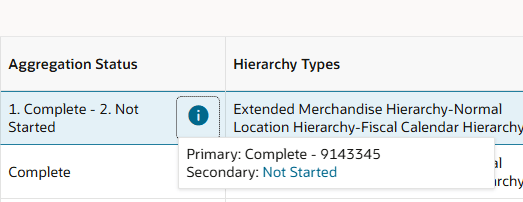
When complete, you will be able to see the number of rows in PMO_OPTIONS_ACTIVITIES as follows. Here, it contains 422052 rows:

You will need to perform the following 2 checks in Validating PMO_OPTIONS_ACTIVITIES and PMO_OPTIONS_SP_ACTIVITIES and Check Sales Potential Attribute Inclusions to ensure this step proceeded correctly.
Validating PMO_OPTIONS_ACTIVITIES and PMO_OPTIONS_SP_ACTIVITIES
Check that aggregation of pmo_options_activities and pmo_options_sp_activities is complete using Innovation Workbench:
select * from pmo_options_activities where GROSS_REG_PROMO_SALES_UNITS is not nullselect * from pmo_options_sp_activities where FCST_GROSS_REG_PRO_SALES_UNITS is not nullCheck for your relevant columns (e.g. reg and promo sales units) that the data is populated, and that there are some non-null rows (as in, some rows with valid sales entries).
Check Sales Potential Attribute Inclusions
Check that the attributes in pmo_options_sp_attr correspond to the attributes you added to RSE_CONFIG_CODE in the previous step:
select distinct attr_ext_code from pmo_options_sp_attrIf either of these validation steps fail, follow the instructions in FAQ Question My aggregation for PMO_OPTIONS_ACTIVITIES, PMO_OPTIONS_SP_ATTR or PMO_OPTIONS_SP_ACTIVITIES did not go through. The table is empty. What can I do next?.
Fire a new forecast run on the UI
Click the '+' button to fire a new run for your specific options run type.
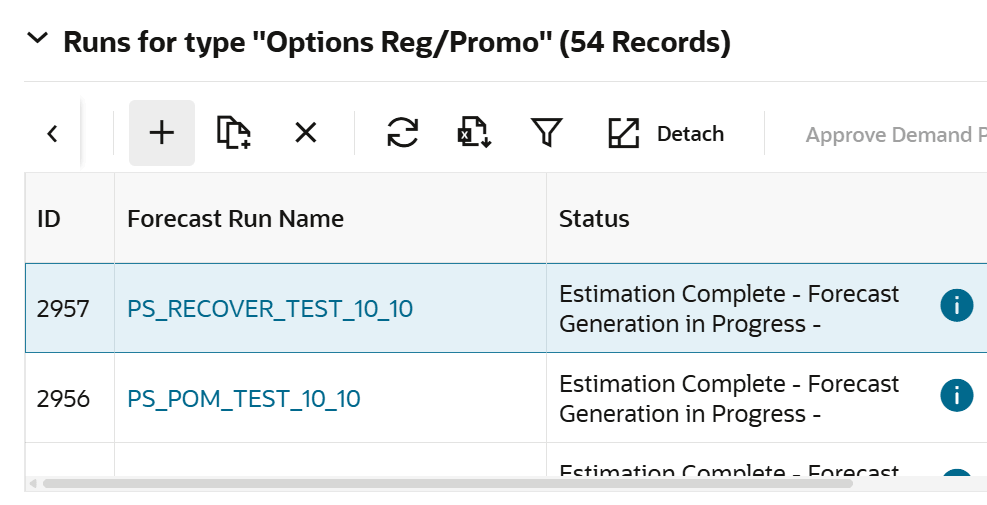
Specify a run name and hit save.
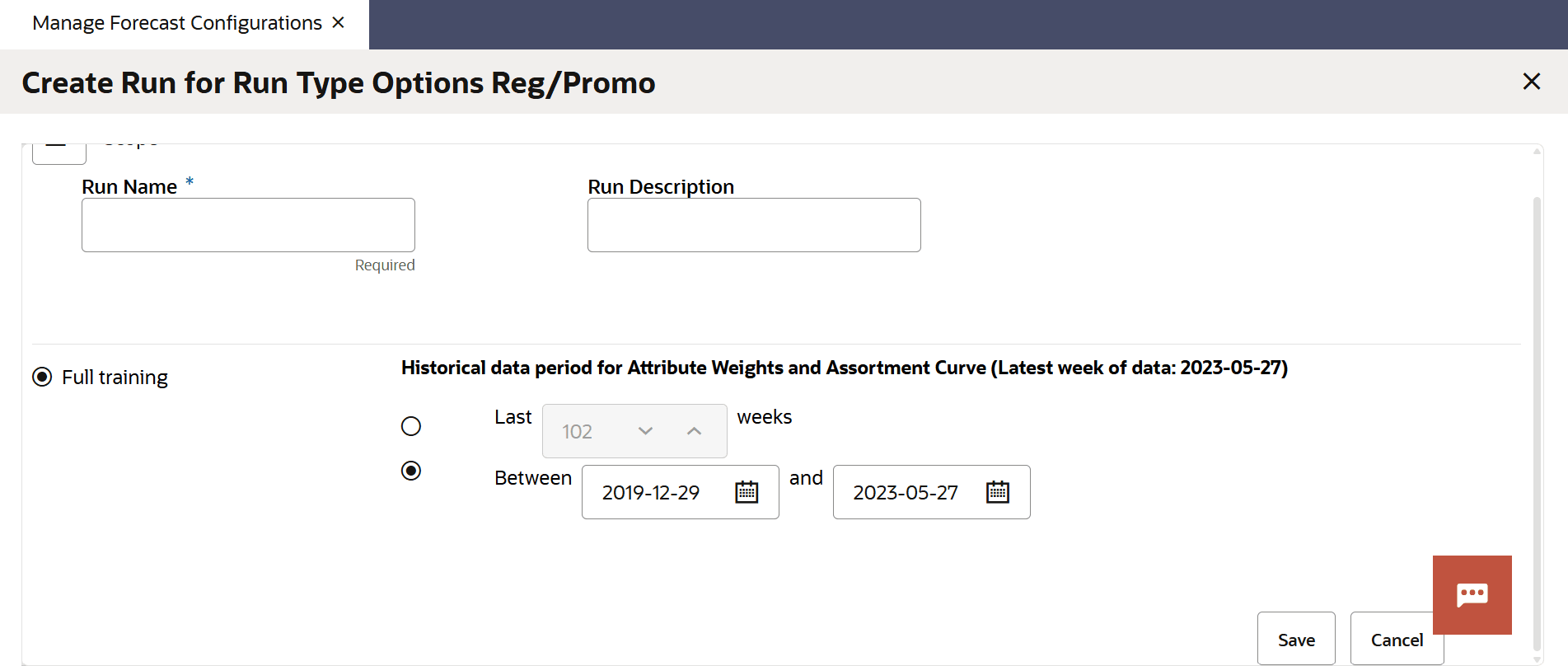
Use the hamburger icon to view or edit default parameters if needed.
Please refer to the User Guide for more details on how specific parameters work, and can be tuned to meet your needs.
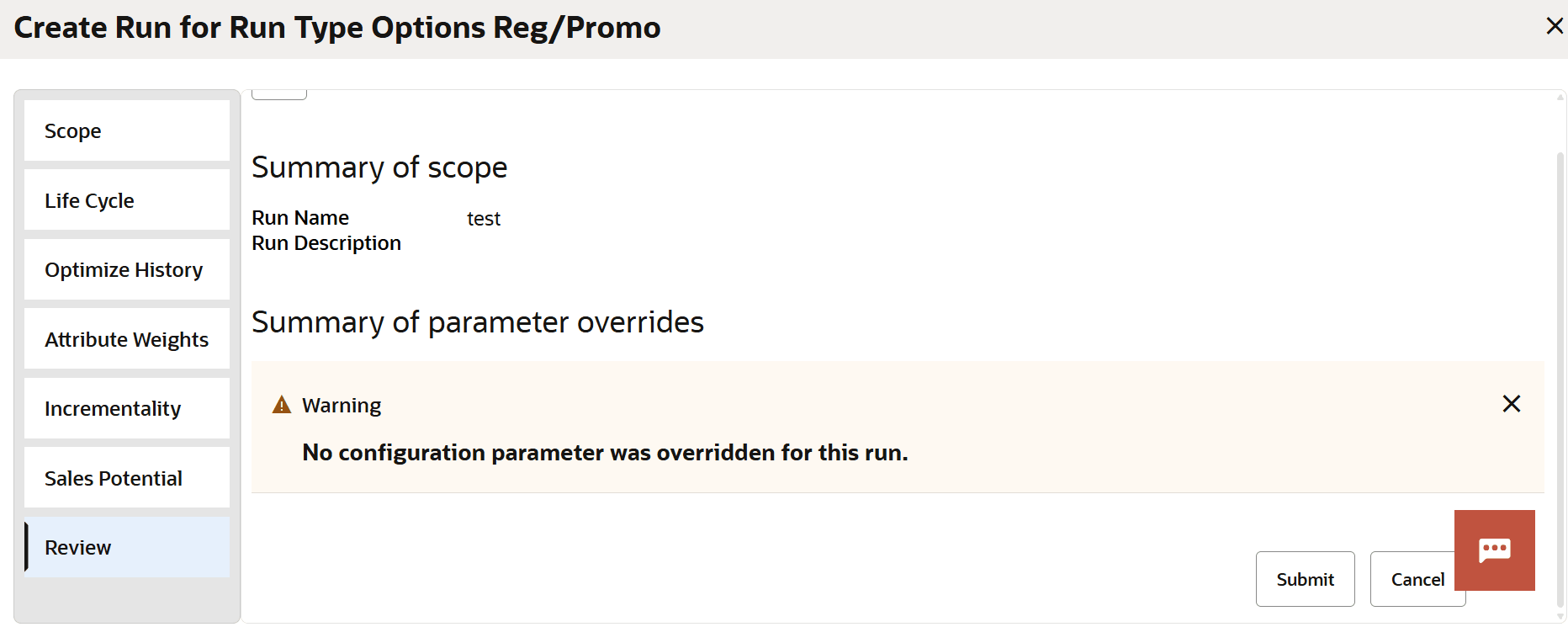
When ready to fire the run, toggle to Review in the Hamburger icon. Hit submit. This will fire a run of the entire Options Forecast pipeline.
Monitoring a Run
The progress of a run can be monitored both in the UI and Innovation Workbench.
The UI status is visible beside each run:

Toggle over the information button for more information on how the run is progressing. It may take more than an hour before the statuses start updating for Incrementality, Sales Potential and Optimized History by Attribute. This is because Lifecycle, Optimized History and Attribute Weights estimations are being done behind the scenes. Refer to Section Run-Related for Run-Related FAQs.
Once the Status says 'Estimation Complete - Forecast Generation Complete', we can check the relevant output tables to validate correctness of our results.
This can be done by scrolling to the right of the same table and clicking on Summary.
Summary Tables
These summary tables provide a clear picture of several tables pertaining to each algorithm.
Here is an example Summary Table that details Sales Potential models:
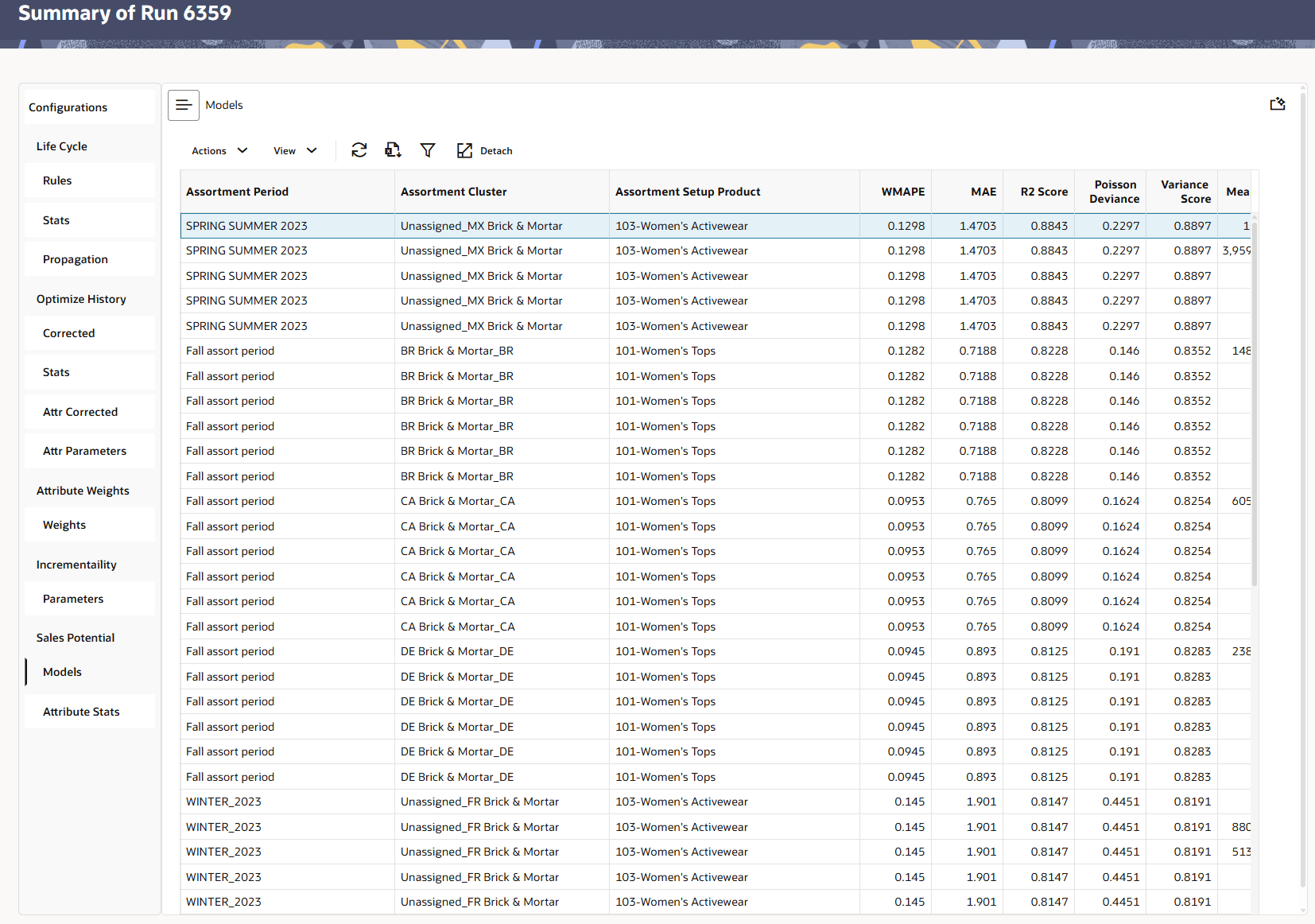
These summary tables allow you to:
- Filter table rows by entering matching text or substrings.
- Choose which columns are displayed in the table.
- Download the table data for offline review or analysis.
- Detach the table into a larger view so more columns can be seen at once.
For example, to filter rows according to a relevant substring, you may:
- Click on the Filter icon
- Enter your substring into the relevant column. Here, I would like to filter the table to only include rows where the Assortment Cluster Id is 'br_1_1153'. I have entered that into the search box above the column accordingly.
- View your filtered table, as follows:
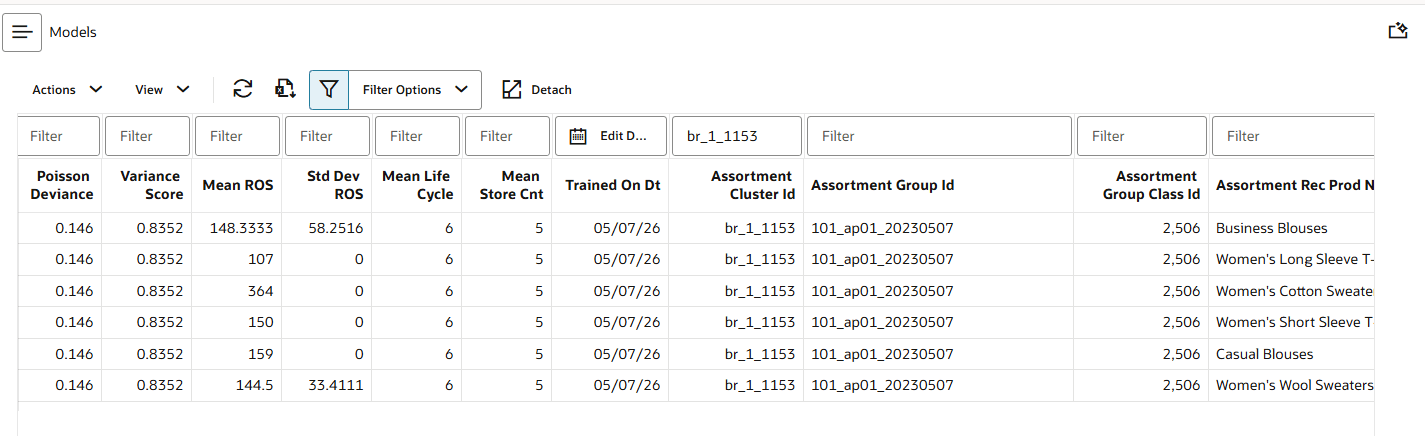
You may also filter by multiple conditions across columns. Clicking on Filter Options also allows you to opt between 'AND' and 'OR' conditions.
Previewing "Explainability" of Algorithms
Some Summary views include an Explainability feature, which explains how the algorithm produced a selected row of results in the table.
To use it, click the sparkling icon in the top-right corner of the Summary screen, then select the table row you want to explain. The explanation appears in a preview panel. The screenshot below shows an example from the Sales Potential - Models view:
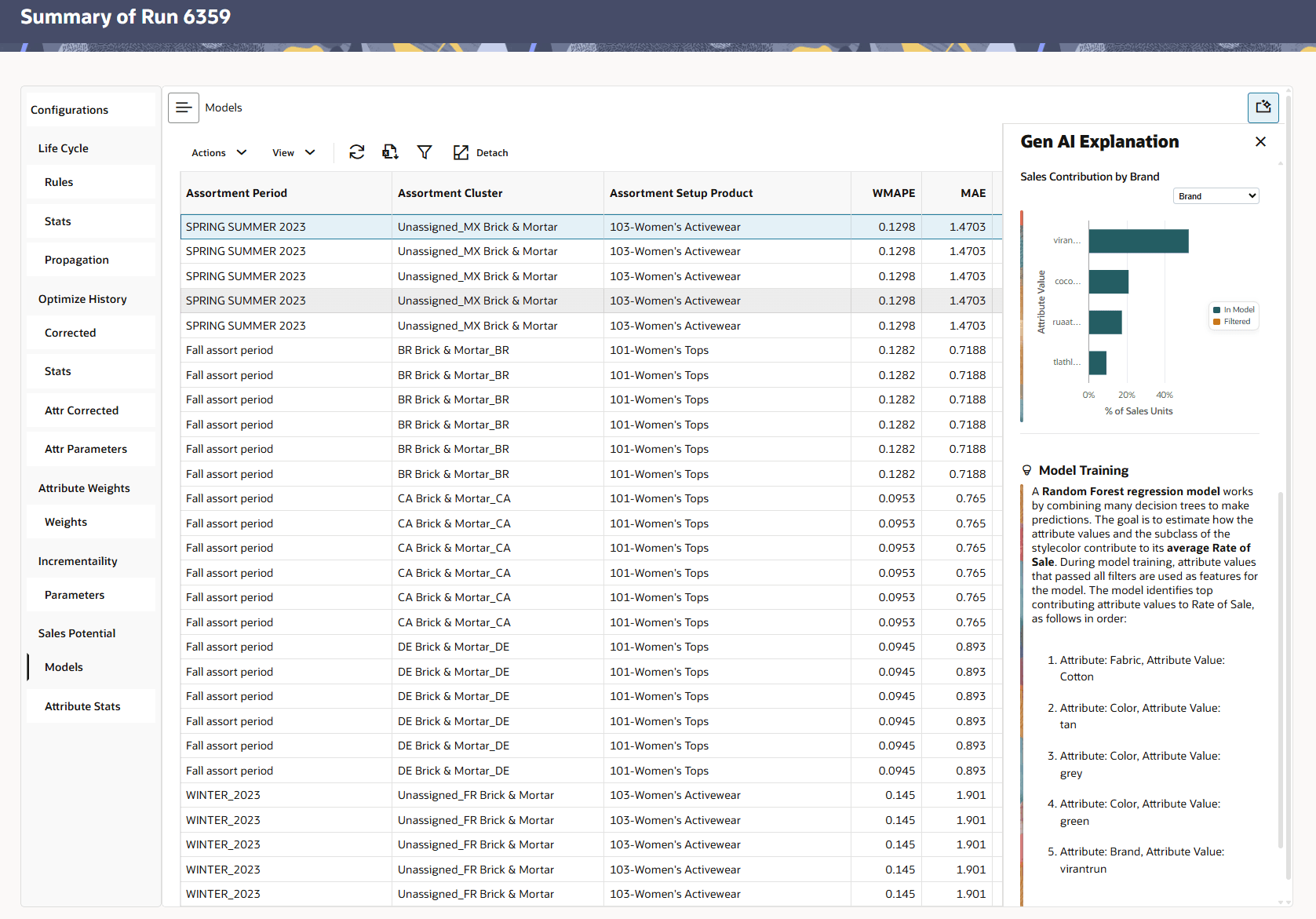
Note that this feature is only available for Sales Potential as of 26.2.201 release.
Validating Correctness of Results
There are several intermediary and output tables that can be checked to validate that the results are correctly retrieved. These include tables related to the options forecasting method (e.g. Lifecycle, Sales Potential), Spark job registration, and logging of the process.
Logging Tables
The rse_log_msg table is the best place to check how the forecast generation pipeline is currently proceeding once the run has been fired.
Filter it by process_id = '{fcst_run_hdr_id}' and in descending order:
select * from rse_log_msg where process_id = '{fcst_run_hdr_id}' order by msg_ts descSome log messages in the options forecast pipeline are also not associated with a process id. To expand your search to these cases, try:
select * from rse_log_msg
where program_unit like 'PMO_OPTIONS%'
order by msg_ts desc
Job Registration
Once a run is submitted, it creates an entry in this table and process_status_id should be 50.
select *
from RSE_PROC_REQ_QUEUE
where NAME LIKE 'PMO_RUN_OPT_REC'
order by start_dt_ts desc
Run the following SQL query in IW to check for job registration in rse_dis_job_cache:
select *
from RSE_DIS_JOB_CACHE
After the incrementality and sales potential forecasting have respectively begun (typically takes >45 minutes), there should be new jobs registered in rse_dis_job_cache for each of the two measures. Here, replace the x with a number:
- rgburap-py-rse-options-inc-x
- rgburap-py-rse-options-sp-x
In RSE_DIS_JOB_CACHE, the 'updated_on_dt' column for each of these jobs should be shortly after the time when you first fired the run of the forecast generation pipeline. Otherwise, the job may not have been updated and is using an outdated job.
If the job seems to not be updated/is missing, run the following SQL query to investigate the relevant logs and see what went wrong:
select *
from RSE_LOG_MSG
where PROGRAM_UNIT like 'GBUAStreaming%'
order by MSG_TS DESC
If there are any issues with job registration, run the following adhoc POM job RSE_SPARK_JOB_CLEANUP_ADHOC_JOB to clear all Spark jobs.
Edit parameters before running the POM job and enter as follows:
--AllJobs:Y --deleteFromDIS:Y --deleteFromTable:Y
NOTE: This will clear all existing jobs in rse_dis_job_cache. Ensure that there are no other important jobs running, or else they will be deleted and fail.
After doing so, fire a new forecast run on the UI and repeat the validation checks.
Lifecycle
Several preprocessing filters are applied before lifecycle estimation is complete.
The Summary Screen 'Lifecyle - Stats' view clearly displays how much data made it through each filter.
You may also check the table directly on IW:
select * from PMO_OPTIONS_ED_ESTIM_STATS_VWIf any data is lost because of the filters, then it won't have any models trained for that ASSORT_GROUP_CLS_ID and thus consequently no data in PMO_OPTIONS_ED_RULES.
If there are no data in the PMO_OPTIONS_ED_RULES table, please run this query to check which filter caused all data to be lost:
select *
from rse_log_msg
where program_unit like 'PMO_OPTIONS_EXITDATE_CALC'
and log_msg like '%Rows inserted into %'
order by msg_ts desc
The Summary Screen view 'Lifecycle - Rules' on the Summary Screen contains information on all the rules extracted using cleaned up data.
Its corresponding IW table is:
select *
from PMO_OPTIONS_ED_RULES_VW
The Summary Screen view 'Lifecycle - Propagation' contains the lifecycle dates after propagation.
Its corresponding IW table is:
select *
from PMO_OPTIONS_OH_LC_DATES_VW
Optimized History
The Summary Screen view 'Optimized History - Stats' view contains information on how much data has made it through each filter.
Its corresponding IW table is:
select * from PMO_OPTIONS_OH_ESTIM_STATS_VWFilter it by your fcst_run_hdr_id and assort_group_cls_id. Order it by seq_order.
This table is useful for seeing how much data (based on the sales_units column) passed through each filter.
For example:
Table 23-1 Example Optimized History Filter Statistics
| STEP_ID | SALES_ROWS | SALES_UNITS | SALES_ITEMS |
|---|---|---|---|
|
INITIAL |
60000 |
5000 |
30 |
|
OPT_OH_ITEMS_MISSING_SCWI_FLG |
50000 |
4000 |
20 |
This means that 10,000 rows got filtered out by the first filter, OPT_OH_ITEMS_MISSING_SCWI_FLG.
This table contains intermediate results of Optimized History estimation at SKU / cluster:
select * from PMO_OPTIONS_OH_ESTIMATIONFilter it by your fcst_run_hdr_id, assort_group_cls_id and prod_hier_id to look at whether any data was corrected for:
select a.* from
PMO_OPTIONS_OH_ESTIMATION a,
rse_prod_hier_dh b
where a.fcst_run_hdr_id={fcst_run_hdr_id}
and a.ASSORT_GROUP_CLS_ID={assort_group_cls_id}
and a.PROD_HIER_ID=b.prod_hier_id
and b.hier_type_id={hier_type_id}
and b.hier_level_id={sku hier_level_id}
and b.prod_hier_id_lvl_6={sbc_id}
If there is no data in pmo_options_oh_estimation table then please run the following query to see which filter caused all entries to be filtered out:
select *
from rse_log_msg
where 1=1
and program_unit like 'PMO_OPTIONS_OH_CALC'
and log_msg like '%Rows inserted into %'
order by msg_ts desc
The Summary Screen view 'Optimized History - Corrected' contains the final corrected sales units after applying the algorithm and correcting for stockouts.
Its corresponding IW view is:
select * from PMO_OPTIONS_OH_CORR_RUN_VWIt is important to check whether there are any corrected sales units values in it for your fcst_run_hdr_id. This is because many cluster + product combinations may get filtered out during preprocessing. The following query does this for forecast measure = reg promo sales units. Adapt to your forecast measure accordingly:
select * from PMO_OPTIONS_OH_CORR_RUN_VW where FCST_RUN_HDR_ID={fcst_run_hdr_id} and GROSS_REG_PROMO_SALES_UNITS_SO is not NULLYou may also try to replicate the above query on the Summary Screen view using relevant filters.
Attribute Weights
The Summary Screen view 'Attribute Weights - Weights' can be used to view Attribute Weights calculations.
Its corresponding IW table is:
select * from PMO_SIM_ATTR_WGTYou may also check PMO_SIM to check if similarity models were created for a particular run.
Filter PMO_SIM by the run_hdr_id column, using the relevant pmo_run_hdr_id (note: NOT fcst_run_hdr_id). To find the pmo_run_hdr_id corresponding to the run, check rse_fcst_run_hdr. Example:
select * from PMO_SIM
where RUN_HDR_ID = (select PMO_RUN_HDR_ID from RSE_FCST_RUN_HDR where ID={fcst_run_hdr_id})
It can also be retrieved from the UI for the relevant forecast run, under the Estimation Run column:

If you want to look at a specific prod_hier_id, you can also filter the above query by CM_GRP_ID, which denotes product hierarchy IDs (prod_hier_ids) at the CMGRP_LEVEL_ID level (the value of this is denoted in RSE_CONFIG).
Do the same for PMO_SIM_ATTR_WGT, and filter by a relevant SIM_ID identified in PMO_SIM:
select * from PMO_SIM
where SIM_ID = {sim_id}
If attribute weights are not populated in PMO_SIM_ATTR_WGT, check prod hierarchy type configuration in RSE_CONFIG table using the following query:
select * from rse_config where param_name='PMO_PROD_HIER_TYPE'It should return value 3 since we are dealing with extended hierarchy here and attributes are populated for the same.
If attribute weights are missing for a particular assort_group_cls_id and subclass_id, then first check data in RSE_PROD_ATTR_GRP table using the below:
select * from rse_prod_attr_grp where BUSINESS_OBJECT_ATTR_MD_ID={id} and hier_type_id=3If this query returns no data, this means that the data was not loaded during the initial Data Load process in Section Product Attributes/Flex Facts.
Smart Item Flow
The Summary Screen view 'Smart Item Flow - Seasonality' can be used to view Smart Item Flow calculations.
Its corresponding IW query to check is, which should be filtered by pmo_run_hdr_id, rather than fcst_run_hdr_id:
select *
from rse_seas_curve_dim
where run_hdr_id = {pmo_run_hdr_id}
and row_proc_level = 1
and season_code not like 'BASIC%'
order by prod_hier_id, loc_hier_id, flex_group_id, season_code;
The previous section details how you may retrieve the pmo_run_hdr_id.
If the above query returns no rows, a likely reason is that it only has rows with season_code LIKE 'BASIC%'. The cause is a mismatch between the pruning window and available training data. The pruning step (pmo_run_seasonality_pruned) selects a 52-week window based on the run's end-of-history date. If the environment has training data only up to e.g. 2022, but the end-of-history is set to 2025, the pruning window will cover 2025 dates where no reliable non-BASIC curves exist, resulting in nothing being exported to rse_seas_curve_dim.
To verify, run:
-- Check what date range pruning selected
SELECT MIN(cal_hier_id) AS min_cal, MAX(cal_hier_id) AS max_cal
FROM pmo_run_seasonality_pruned
WHERE run_hdr_id = {pmo_run_hdr_id}

-- Check where reliable non-BASIC curves actually exist
SELECT season_code, MIN(cal_hier_id) AS min_cal, MAX(cal_hier_id) AS max_cal
FROM pmo_run_seasonality_curve
WHERE run_hdr_id = {pmo_run_hdr_id}
  AND season_code NOT LIKE '%BASIC%'
  AND reliable_curve_flg = 'Y'
GROUP BY season_code
ORDER BY season_code
If the two ranges don't overlap, rerun with the end-of-history parameter set to align with where training data exists (e.g. end of 2023). This is typically an environment data issue rather than a configuration error.
Also, check that the copied flex group set metadata is populated:
select *
from pmo_options_sif_fgs_copy
where fcst_run_hdr_id = {fcst_run_hdr_id}
and name like 'sif_%'
order by name;
Incrementality
Incrementality results can be reviewed in the Summary Screen view 'Incrementality - Parameters'. These contain parameters estimated from sales and inventory data - arrival rates and utilities.
Its corresponding IW table is the following, which can be filtered by fcst_run_hdr_id:
select * from PMO_OPTIONS_INC_TRAIN where FCST_RUN_HDR_ID={fcst_run_hdr_id}Incrementality progress can be monitored via its run queue table PMO_OPTIONS_INC_RUN_QUEUE and output table PMO_OPTIONS_INC_TRAIN:
select run_status, count(*) from PMO_OPTIONS_INC_RUN_QUEUE where FCST_RUN_HDR_ID={fcst_run_hdr_id}
group by run_status
The run_status column in PMO_OPTIONS_INC_RUN_QUEUE is a good indicator of how a given forecast run has performed. There may be some entries with run_status = 'FAILED - NO SALES DATA'. This is normal - it means that all data got filtered out due to preprocessing and caused the given cluster + product combination to be skipped.
If PMO_OPTIONS_INC_TRAIN isn't populated, you may try the following troubleshooting steps.
PMO_OPTIONS_INC_TRAIN depends on the Incrementality flow being able to identify the Size attribute. Size is a required/key attribute for the model estimation process.
The system identifies Size in one of two ways:
- If a Product attribute exists with prod_grp_type = 'SIZE', the system uses that automatically.
- If no Product attribute has prod_grp_type = 'SIZE', then AP_ASSORT_BOAM_ID must be set to the rse_business_object_attr_md.ID of the attribute that should be treated as Size.
Use this query to check whether Size can be identified automatically:
SELECT *
  FROM rse_business_object_md rbom,
       rse_business_object_attr_md rboam
 WHERE rboam.business_object_md_id = rbom.id
   AND rbom.name                   = 'PRODUCT'
   AND rboam.prod_grp_type         = 'SIZE';
Use this query to check the current override value:
select * from rse_config where param_name='AP_ASSORT_BOAM_ID'When a standard Size attribute exists, meaning there is a PRODUCT attribute with prod_grp_type = 'SIZE', leave AP_ASSORT_BOAM_ID as NULL. The system will identify Size automatically.
When there is no standard Size attribute, set AP_ASSORT_BOAM_ID to the rse_business_object_attr_md.ID of the custom attribute that should be used as Size.
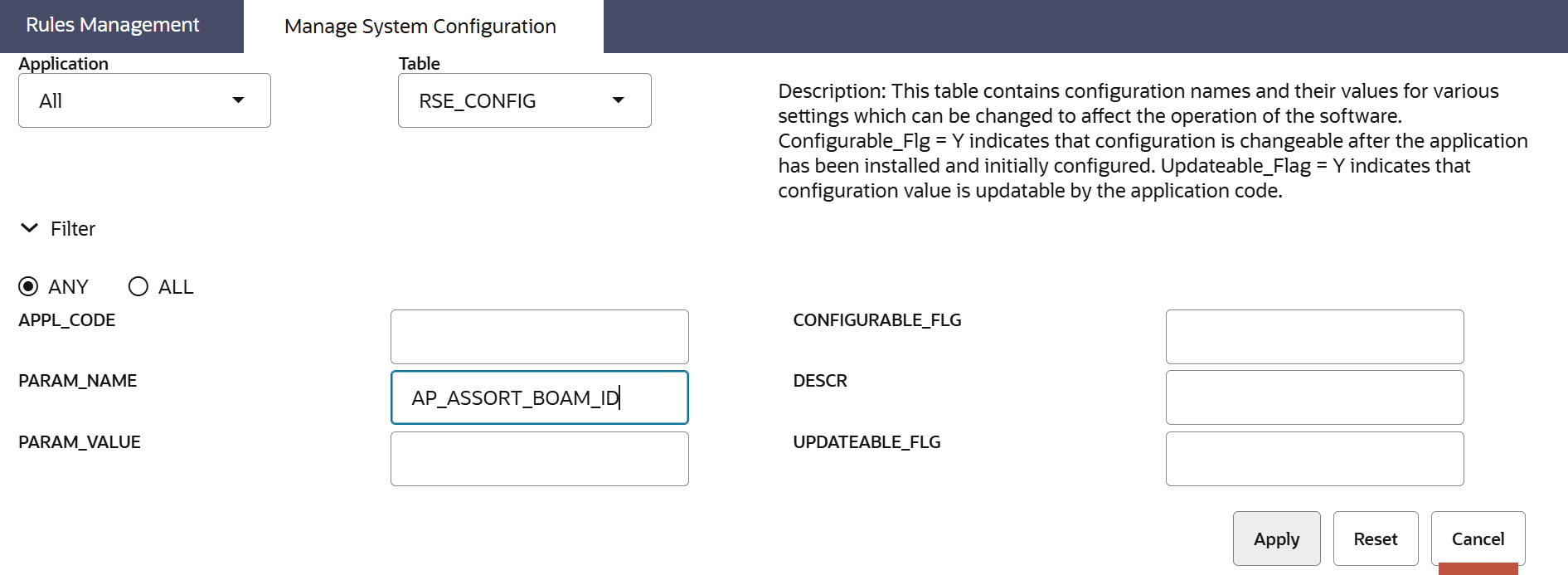
To update AP_ASSORT_BOAM_ID in the UI:
- Open the hamburger menu in the top-left corner.
- Go to Tasks > Control and Tactical Center > Manage System Configuration.
- Filter for the AP_ASSORT_BOAM_ID parameter.
- Set PARAM_VALUE to either NULL or the relevant rse_business_object_attr_md.ID for the custom Size attribute.
Sales Potential
Sales Potential modeling results can be reviewed in Summary Screen view 'Sales Potential - Models'. Its corresponding IW table is:
select * from PMO_OPTIONS_SP_TRAIN where FCST_RUN_HDR_ID={fcst_run_hdr_id}Sales potential progress can similarly be monitored via its run queue table PMO_OPTIONS_SP_RUN_QUEUE
select run_status, count(*) from PMO_OPTIONS_SP_RUN_QUEUE where FCST_RUN_HDR_ID={fcst_run_hdr_id}
group by run_status
With Sales Potential, it is possible that the model could not be training for a given assort_group_cls_id and prod_hier_id due to preprocessing filters. For instance, you may see entries with run_status='FAILED - NO DATA AFTER FILTERS APPLIED'. This is normal - this means that all input data was filtered out during preprocessing.
To identify which filters caused all data to get filtered out before preprocessing, you may refer to the Summary Screen view 'Sales Potential - Attribute Stats'. The column 'FILTER_NAME' indicates which preprocessing filter caused the relevant attribute/attribute value to get filtered out.
This table is also available in the IW table:
select * from pmo_options_sp_train_attr where fcst_run_hdr_id={fcst_run_hdr_id}
Refer to Sales Potential Web Service FAQs Question I am seeing status message: "Attribute/Attribute Value Combos: {'attribute': 'attribute_value'} filtered. " for a clear picture of how to use this table to identify filtered attributes.
Optimized History by Attribute
Optimized History by Attribute progress can similarly be monitored via its run queue table PMO_OPTIONS_OH_ATTR_RUN_QUEUE
select run_status, count(*) from PMO_OPTIONS_OH_ATTR_RUN_QUEUE where FCST_RUN_HDR_ID={fcst_run_hdr_id}
group by run_status
The Summary Screen view is 'Optimized History - Attr Stats' provides visibility into the training process for this algorithm, and indicates model performance and parameters.
Its corresponding IW table is:
select * from pmo_options_oh_attr_train where fcst_run_hdr_id={fcst_run_hdr_id}
Likewise, the Summary Screen view 'Optimized History - Attr Corr' displays results for attribute value level corrected sales units and options counts.
Its corresponding IW table is:
select * from pmo_options_oh_attr_corr where fcst_run_hdr_id={fcst_run_hdr_id}
You should also check that the following table is populated for your fcst_run_hdr_id. This step is crucial:
select * from pmo_options_oh_attr_aggr where fcst_run_hdr_id={fcst_run_hdr_id}
Web Service
NOTE: When checking web service responses, it is important to identify the correct AIF assort_group_cls_id, prod_hier_id and fcst_run_hdr_id corresponding to our AP inputs. This is how we may query AIF tables for a specific combination of Assort Group ID, Store Cluster ID, and prod ID that we may have passed as input to our web service. Refer to FAQ Section General Web Service for clarity on how to correctly retrieve these parameters, before proceeding with the following queries.
When running the relevant Options Count (Incrementality) and Sales Potential web services, there are some additional tables to check for issues.
For Options Count, check PMO_OPTIONS_OH_ATTR_AGGR for relevant fcst_run_hdr_id. There should be entries in this table for your assort_group_cluster_id + prod_hier_id combination:
select * from pmo_options_oh_attr_aggr
where assort_group_cls_id = {assort_group_cls_id}
and prod_hier_id = {prod_hier_id}
and fcst_run_hdr_id = {fcst_run_hdr_id}
Sales Potential:
What attributes went in and are used in the model training, are specified in these views. These are also available in the UI as explained above.
You may check how attributes got processed for your specific assort_group_cluster_id:
select * from pmo_options_sp_train_attr
where assort_group_cls_id = {assort_group_cls_id}
and fcst_run_hdr_id = {fcst_run_hdr_id}
You may also check if there is a trained model for your specific assort_group_cluster_id + prod_hier_id combination:
select * from pmo_options_sp_train_attr
where assort_group_cls_id = {assort_group_cls_id}
and assort_rec_prod_hier_id = {prod_hier_id}
and fcst_run_hdr_id = {fcst_run_hdr_id}
Frequently Asked Questions
Aggregation-related
How do I know if the clusters in rse_assort_group_cls_hdr and rse_assort_group_dtl are correct?
select max(CREATED_ON_DT) from RSE_ASSORT_GROUP_CLS_HDRThis will give an indication of when the clusters were last updated on the AIF side. If you believe that the clusters should be updated again based on new changes past the date indicated above, please run the adhoc POM job mentioned in Section Check and Populate AP Clusters.
How are historical start and end dates selected for training Options Forecast models?
AIF uses the assortment start and end dates provided by AP to select a historical period covering the corresponding fiscal weeks.
It chooses the most recent matching period that fits within the historical window available to Options Forecast. This is not necessarily the same dates one year earlier. If the newer matching period extends beyond the available window, AIF may select an older period.
The selected dates provide the historical window for Options processes, including Incrementality, Sales Potential, and OH by Attribute. Each process may apply additional data filters.
Example
Suppose we are attempting to plan for the Assortment Period of 1 January to 27 June 2027.
AIF looks for a comparable historical period using the same fiscal weeks, rather than the exact calendar dates. The ideal matching period is 29 December 2025 to 28 June 2026.
However, suppose the history available to this calculation only extends to 7 June 2026. It therefore does not cover the end of that matching period (28 June 2026).
AIF does not simply shorten the period to end on 7 June. Instead, it looks further back for matching start and end fiscal weeks that both fit within the available history. In this example, it selects 23 December 2024 to 29 June 2025.
This is why the selected historical period can be older than the immediately preceding year.
Check Selected Dates
Use this query to understand exactly which historical date range the Options Forecast uses to train its model for your Assortment period. Please add the relevant Assort Group ID and Cluster ID:
select h.id as assort_group_cls_id,
       h.assort_group_id,
       h.cluster_id,
       h.eff_start_dt as ap_start_date,
       h.eff_end_dt as ap_end_date,
       s.cal_from_dt as historical_start_date,
       e.cal_to_dt as historical_end_date
from rse_assort_group_cls_hdr h
left join rse_cal_hier s on s.id = h.hist_start_cal_hier_id
left join rse_cal_hier e on e.id = h.hist_end_cal_hier_id
where h.assort_group_id = :assort_group_id
  and h.cluster_id = :cluster_id;
My aggregation for PMO_OPTIONS_ACTIVITIES, PMO_OPTIONS_SP_ATTR or PMO_OPTIONS_SP_ACTIVITIES did not go through. The table is empty. What can I do next?
If the data validation in Validating PMO_OPTIONS_ACTIVITIES and PMO_OPTIONS_SP_ACTIVITIES or Check Sales Potential Attribute Inclusions above shows that the aggregation of PMO_OPTIONS_ACTIVITIES, PMO_OPTIONS_SP_ATTR or PMO_OPTIONS_SP_ACTIVITIES has issues, you will need to identify why.
It is possible that one of the base tables did not get correctly aggregated.
If PMO_OPTIONS_ACTIVITIES and/or PMO_OPTIONS_SP_ACTIVITIES has 0 rows, check the following base tables:
- PMO_ACTIVITIES
- RSE_ASSORT_GROUP_CLS_HDR
- RSE_ASSORT_GROUP_CLS_DTL
If any of them are not populated or have 0 rows, you will have to identify why they are not populated (refer to their individual sections), and follow the relevant steps to populate them.
If PMO_OPTIONS_SP_ATTR is not populated, check the following base tables:
- RSE_BUSINESS_OBJECT_ATTR_MD
- RSE_PROD_ATTR
- RSE_CONFIG_CODE (where param_name = 'PMO_AP_SP_INCL_ATTRIBUTES')
For PMO_OPTIONS_SP_ATTR, ensure that you have specified your attribute inclusions. These are the attributes you would like included as part of Sales Potential calculations. Refer to Section Specify Sales Potential Attribute Inclusions for more details.
After you have ensured that the data is correctly aggregated, you have two options:
- Rerun this aggregation via POM job
- If you prefer not to/do not have POM access, you can create a new run type and restart the process.
Option 1: Rerun this aggregation via a POM job
- On the Batch Monitoring page in POM, navigate to AIF Apps
- Click on Standalone processes
- Click on PMO_MASTER_ADHOC_PROCESS. The below screenshot shows what you should be seeing.
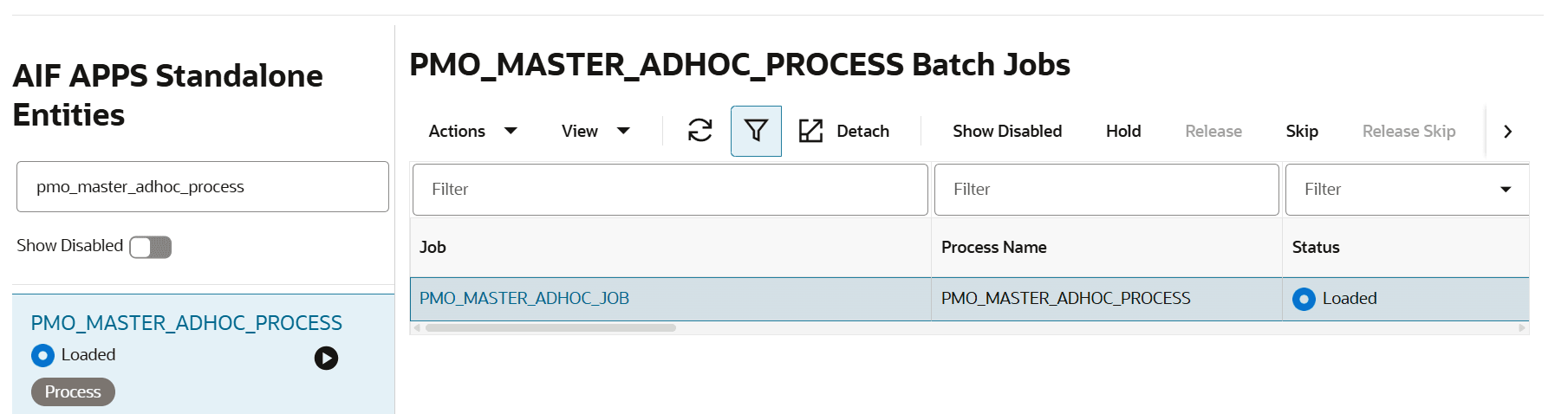
To edit job parameters, first click on the cell of PMO_MASTER_ADHOC_JOB. Click Actions > Edit Parameters. Enter relevant parameters - select your start and end date range in YYYYMMDD. Make sure -o is included to specify that PMO_OPTIONS_ACTIVITIES should be populated. Sample parameters:
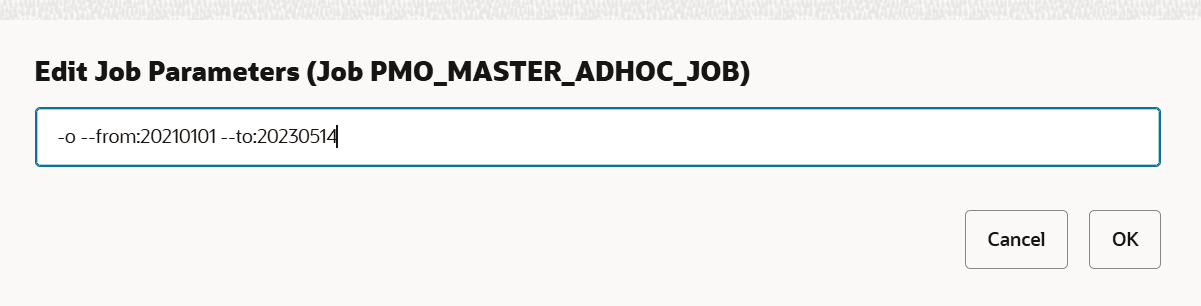
After selecting parameters, hit Run.
After POM job is completed, perform the validation steps in Validating PMO_OPTIONS_ACTIVITIES and PMO_OPTIONS_SP_ACTIVITIES and Check Sales Potential Attribute Inclusions again to ensure that data is now currently populated.
Option 2: Create a new run type and restart process
You must delete or inactivate the "incorrectly aggregated" run type. Then, create a new run type, activate it, and restart the Options Forecast procedure as written in Section 3.
My aggregation of PMO_ACTIVITIES did not go through. The table is empty for my aggr_lvl_key. What do I do?
First, you will need to identify why it is empty. It is possible that one of the base tables did not get correctly aggregated.
PMO_ACTIVITIES consists of sales data for the relevant Options Forecast run type.
You will need to check your Sales and Inventory related base tables in Section RSE_% tables: under Data Flow - RSE_% tables
Please also check that the configuration parameter PMO_AGGR_INVENTORY_DATA_FLG is set to 'Y'.
After you have validated that the base tables are populated correctly, you can opt to either:
- Rerun the aggregation of PMO_ACTIVITIES using a POM job
- If you prefer not to/do not have POM access, you can create a new run type and restart the process.
Option 1: Rerun this aggregation via a POM job
You will need to run 2 adhoc POM jobs to manually populate PMO_ACTIVITIES:
- On the Batch Monitoring page in POM, navigate to AIF Apps
- Click on Standalone processes
- Click on the cell corresponding to PMO_ACTIVITY_LOAD_ADHOC_PROCESS. The below screenshot shows what you should be seeing.
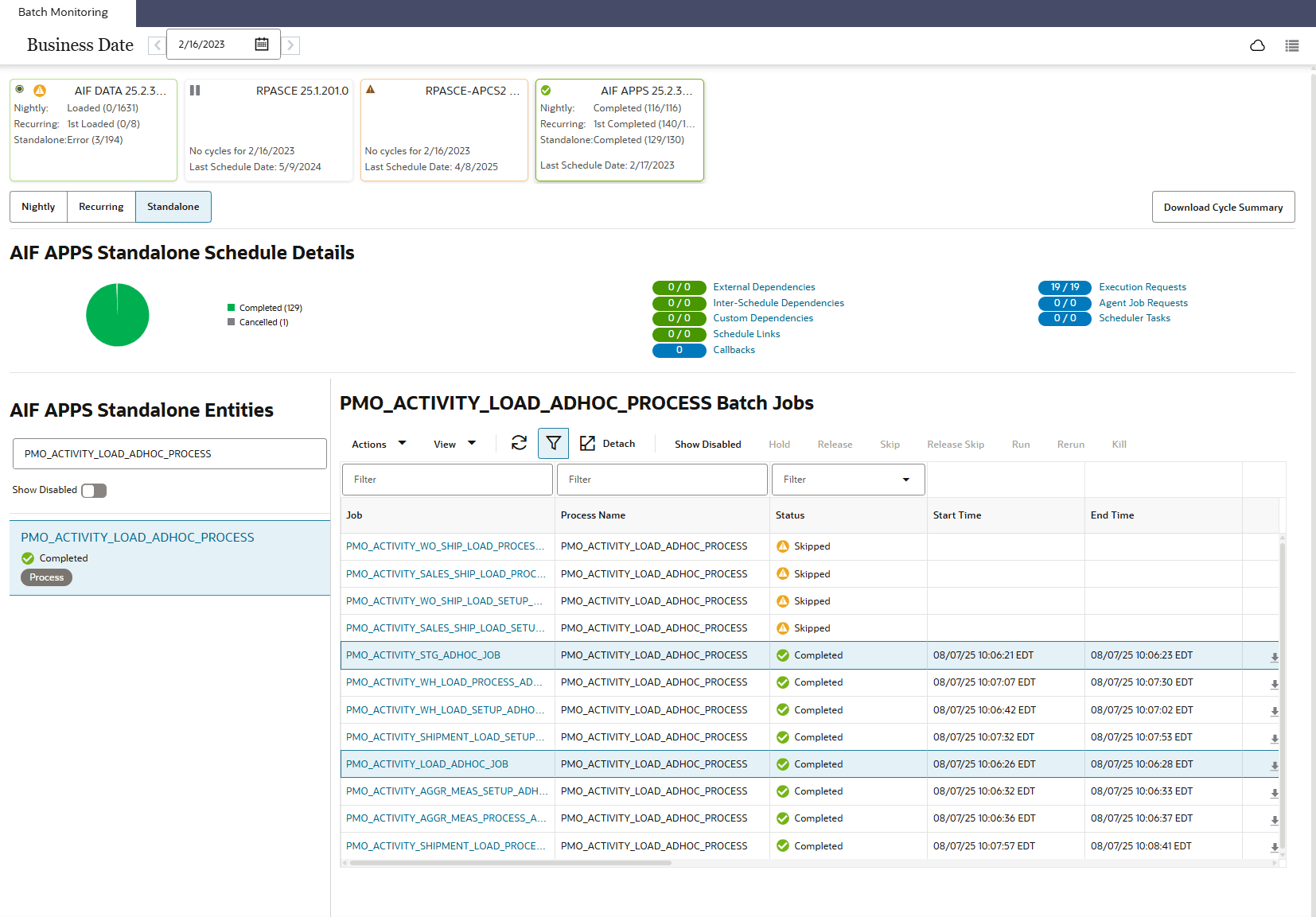
You will need to run PMO_ACTIVITY_STG_ADHOC_JOB and PMO_ACTIVITY_LOAD_ADHOC_JOB.
To do this, first click on the cell of PMO_ACTIVITY_STG_ADHOC JOB. Click Actions > Edit Parameters.
Enter relevant parameters - select your start and end date range. Make sure -f is set to Y to force update of PMO_ACTIVITIES and -N is set to N:
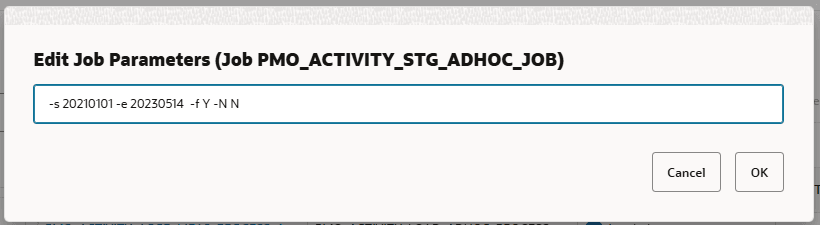
After selecting parameters, hit Run. This will run the first adhoc job, PMO_ACTIVITY_STG_ADHOC_JOB.
After the first POM job is complete, you can run the second POM job PMO_ACTIVITY_LOAD_ADHOC_JOB. This can be done without setting any parameters.
Once this is complete, PMO_ACTIVITIES should be populated. Run the query below again to check that there is no more missing data:
select * from pmo_activities where aggr_lvl_key=(select aggr_lvl_key from rse_fcst_run_type where id={fcst_run_type_id}) and REG_PROMO_GROSS_SALES_UNITS is nullOption 2: Create a new run type and restart process
You must delete or inactivate the "incorrectly aggregated" run type. Then, create a new run type, activate it, and restart the Options Forecast procedure as written in Section 3.
It says that 'Aggregation Status' is 'Complete' beside my new run type. So why would I have to run the aggregation again?
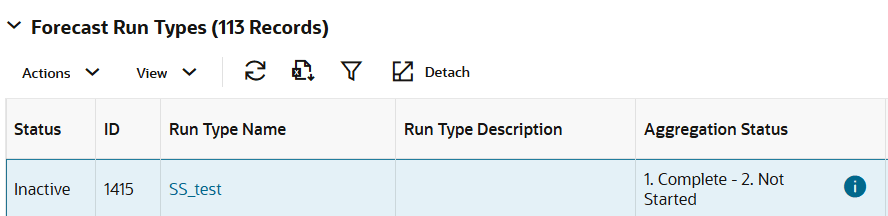
If, like the above image, it says that Aggregation Status is 'Complete' for the first aggregation even before you aggregated it yourself:
This is because there are other run types that share the same 'aggr_lvl_key' as your new run type. As a result, the first aggregation has already been completed automatically. If you believe that this is incorrect (due to new data being loaded, bug fixes in previous aggregations, etc), follow the steps pertaining to the first Data Aggregation above. This will cause the first aggregation to be redone.
Run-Related
My forecast has been running for a long time (UI Status = Forecast Generation in Progress). How do I see the progress of my forecast?
rse_log_msg contains relevant updates about your forecast. Filter it by process_id = 'fcst_run_hdr_id' or program_unit = 'PMO_OPTIONS%' and in descending order:
select * from rse_log_msg
where process_id = '{fcst_run_hdr_id}'
or program_unit like 'PMO_OPTIONS%'
order by msg_ts desc
This shows us when the process was last updated, based on msg_ts column. This may show where the run got stuck at. Investigate when the log was last updated (note that it is in GMT timezone).
Alternatively, check if your job is still running or has been aborted due to errors using the following query:
select * from rse_proc_req_queue where proc_id=14019 order by start_dt_ts descNote that 14019 is the PROC_ID associated with the Options Forecast method.
You can check the process_status_id column against the process_status table for more information on what the process_status_ids mean.
Some examples for reference:
- If process_status_id=40, your job has failed and been aborted.
- If process_status=35, your job is currently running.
rse_log_msg is helpful for reviewing either why it failed, or what step of the options forecast the process is currently on.
It says on the UI that 'Forecast Generation Failed'. What do I do?
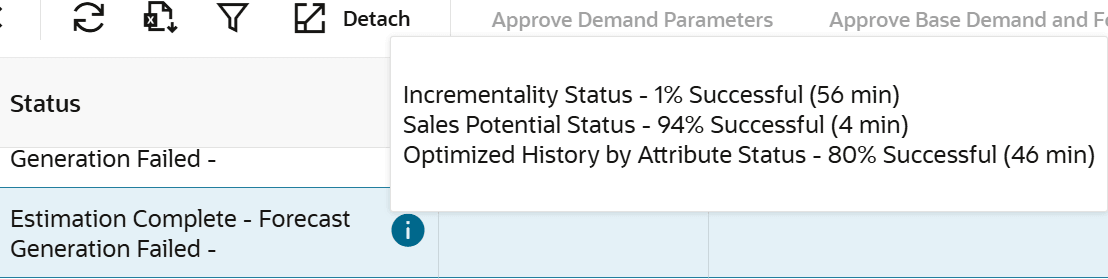
This can be for one of 2 reasons:
- The estimation process exceeded a maximum time threshold and timed out.
- Of the three Options forecast-generation queues (Incrementality, Sales Potential, and Optimized History by Attribute), at least one queue has a failed-row percentage greater than the maximum allowed failure threshold. That threshold is defined by
RUN_QUEUE_FAILED_STATUS_PERCinrse_config; for example,.01allows roughly 1% of queue rows to fail before the forecast run is marked failed.
In the screenshot above, Incrementality has a large number of failures, and so the Forecast Generation failed.
The following queries may also be helpful to investigate the run queues' progressions:
select run_status, count(*)
from pmo_options_inc_run_queue
where fcst_run_hdr_id = {fcst_run_hdr_id}
group by run_status
select run_status, count(*)
from pmo_options_oh_attr_run_queue
where fcst_run_hdr_id = {fcst_run_hdr_id}
group by run_statusselect run_status, count(*)
from pmo_options_sp_run_queue
where fcst_run_hdr_id = {fcst_run_hdr_id}
group by run_statusIf there are a large number of 'Failed' Units of Work, you may perform relevant validation checks as outlined in 'Validating Correctness of Results' section to do a deep dive into what might have gone wrong.
If validation checks show that:
-
Some UOWs have already been processed successfully, but other UOWs from the same run remain stuck in
CREATEDin one or more of these run queue tables:-
PMO_OPTIONS_INC_RUN_QUEUE -
PMO_OPTIONS_SP_RUN_QUEUE -
PMO_OPTIONS_OH_ATTR_RUN_QUEUE
-
- no Spark jobs are actively running in
RSE_DIS_JOB_CACHE RSE_LOG_MSGhas not been updated for the Options Forecast run in several hours
then streaming for Python units may have stopped midway.
In this case, use the Options Forecast recovery adhoc job to resubmit the pending units of work. See FAQ Question My run queues show that several IDs are stuck in 'CREATED', and have not progressed for a long time. What do I do? for the recovery steps.
How do I check what jobs are running?
Run the following SQL query:
select * from RSE_DIS_JOB_CACHEThis will allow you to see what jobs have been created. You should see 2 jobs for SP and 2 jobs for Incrementality. These jobs should also have been created on the same date as when you fired your job. If there are any issues, do the relevant checks under 'Validating Correctness of Results - Job Registration'.
Submitted a new run and it errored with log message "Error running create_sif_flex_groups." What do I do?
This error is thrown from pmo_options_sif_util.create_sif_flex_group. The underlying stack trace will typically show:
ORA-20001: Error occurred in RSE_LOAD_SRVC_T.load - ERROR : RSE_FLEX_GROUP_DTL Load FAILED

...

ORA-20001: Error occurred in RSE_LOAD_SRVC_T.post_validate - ERROR : Validation FAILED.

Number of Validation Errors are more than the number of Maximum Number/Percent of errors permitted.
This means the flex group detail load into RSE_FLEX_GROUP_DTL failed validation because too many rows in the staging table did not pass.
To investigate, check the bad/staging tables:
select * from rse_flex_group_dtl_bad
select * from rse_flex_group_dtl_stg
These tables will show which rows failed validation and why.
A common cause is leftover test flex group data in rse_flex_group_dtl_stg that doesn't match valid metadata for the current run type causing validation failures. If you find such rows, clean them up:
delete from rse_flex_group_dtl_stg where flex_group_set_name='Test_flex_group';Once the bad staging data is removed, resubmit the run.
My run queues show that several IDs are stuck in 'CREATED', and have not progressed for a long time. What do I do?
There is an adhoc job that can be used to recover an Options Forecast run and resubmit the queued Python UOWs.
Run the PMO_OPTIONS_FCST_ADHOC_JOB job under the RSE_OPTIONS_FCST_BATCH_ADHOC_PROCESS with the following parameters:
-recover -f <FCST_RUN_HDR_ID>This should be used when the run queue tables contain pending UOWs in CREATED status and there are no active Spark jobs currently processing them. The recovery job will pick up the remaining queued UOWs for the specified forecast run header ID and allow processing to continue.
After submitting the recovery job, monitor the relevant run queue tables , RSE_DIS_JOB_CACHE, and RSE_LOG_MSG to confirm that the remaining UOWs are being submitted and processed. The section 'Validating Correctness of Results' will assist you with how to query these tables.
Options Inc Web Service
I am seeing status_message: Not enough data to train an Incrementality curve - Failed to get estimation parameters. ". What does this mean?
This error message means that the estimation parameters could not be calculated for the given cluster + subclass combination during the training phase of incrementality. To investigate why, run the following SQL query for your approved fcst_run_hdr_id, assort_group_cls_id and prod_hier_id (subclass level). Refer to FAQ Questions in General Web Service if you are unsure how to get your assort_group_cls_id, prod_hier_id and fcst_run_hdr_id.
select *
from pmo_options_inc_run_queue
where fcst_run_hdr_id = {fcst_run_hdr_id}
and prod_hier_id = {prod_hier_id}
and assort_group_cls_id = {assort_group_cls_id}
Check the run_status of your corresponding entry in the table. If it says 'FAILED - NO SALES DATA', this means that there was no sales data available within the relevant cluster + subclass to train the model successfully.
I am seeing status_message: Not enough data to train an Incrementality curve - Failed to get estimation parameters. " I am not getting any results because of this for other metrics as well.
If you get this status_message, you should not be getting results for the following parts of the response: optTtlSls, optTtlCnt, fcstTtlCnt, histTtlCnt, and optAttrMix, optAttrSls, attrTypeWgt for each of the attribute values. This is because the estimation parameters returned during training are used for calculating all of the aforementioned variables. Without these estimation parameters, none of the results, including attribute-specific sales/option counts, can be calculated.
I am seeing status_message: optTtlSls were too high and capped at ....
This can happen to optTtlSls, histSls, fcstSls and tgtSls. If it happens for histSls, fcstSls or tgtSls, which are values that were passed as input by the web service user, are too large. They may be exceeding an upper bound of what can reasonably be calculated by our trained algorithm, and are hence "capped" at an upper bound as stated above. If this is not done, the options count value returned for the relevant sales units entry may be exponentially large.
Likewise, if this happens for optTtlSls, the optimized sales units value retrieved by the model was likewise too large for a reasonable options count calculation to be made. Hence, it has also been capped at the upper bound value.
I am seeing status_message: Not enough data to Optimize History - Failed to get optTtlSls.
If this happens, please do the same analysis that was done for Web Service FAQs Question I am seeing status_message: Not enough data to train an Incrementality curve - Failed to get estimation parameters. ". What does this mean?.
Also, check for data in:
select *
from pmo_options_inc_infer
where fcst_run_hdr_id = {fcst_run_hdr_id}
and prod_hier_id = {prod_hier_id}
and assort_group_cls_id = {assort_group_cls_id}
I am seeing status_message: Failed to get assort_group_cls_id.
The assort group id and store cluster id passed to the web service could not be mapped to an assort_group_cls_id. To confirm this, run the following query. It should not return any results:
select *
from rse_assort_group_cls_hdr
where assort_group_id={assort group id} and cluster_id={store cluster id}
This is likely because the new clusters were not correctly pulled to the system. Please repeat Step Check and Populate AP Clusters of the Procedure correctly (Check and Populate AP Clusters).
I am seeing status_message: Failed to get internal_prod_hier_id.
You may be entering an incorrect prod Id. For valid prod Ids, there should be results for the following query:
select prod_hier_id
            from rse_prod_src_xref
            where hier_type_id=3
            and level_name = (select DESCR from rse_hier_level where hier_type_id=3 and id = (select param_value from rse_config where param_name='AP_ASSORT_PROD_REC_LVL'))
            and level_id = {prodId}
            and current_flg='Y'
I am seeing status_message: Failed to get latest run hdr id.
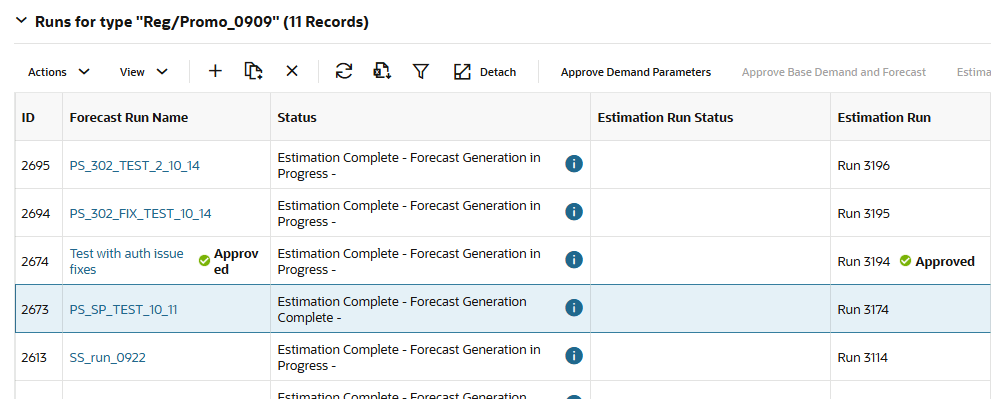
Please check that there, for your run type, there is an approved and active fcst_run_hdr_id with Status = Forecast Generation Complete on the UI. It would look like this, fcst_run_hdr_id=2674:
I am seeing status_message: No attribute values for attributes attr found given current attrSlsThr. This is despite the fact that my attribute is valid and meets the threshold attrSlsThrs I have set.
If you are seeing "Not enough data to train an Incrementality curve - Failed to get estimation parameters." in addition to the message above, then refer to Questions I am seeing status_message: Not enough data to train an Incrementality curve - Failed to get estimation parameters. ". What does this mean? and I am seeing status_message: Not enough data to train an Incrementality curve - Failed to get estimation parameters. " I am not getting any results because of this for other metrics as well. for your answer. optAttrSls would not have been calculated. Hence, you will receive the log mentioned above - that no attributes have been found.
If this is not the case, please run the following SQL query to check if there are valid results for your attribute for the relevant assort_group_cls_id and prod_hier_id:
select *
from pmo_options_oh_attr_aggr
where fcst_run_hdr_id={fcst_run_hdr_id}
and assort_group_cls_id={assort_group_cls_id}
and prod_hier_id={prod_hier_id}
and attribute={attribute}
Check if there are results in the table, and check the column attr_sales_pct. This indicates what percentage of sales AIF sees that the attribute makes up. In other words, we compare this value to attrSlsThrs to decide whether to return this entry.
Also check:
select *
from pmo_options_oh_attr_corr
where fcst_run_hdr_id={fcst_run_hdr_id}
and assort_group_cls_id={assort_group_cls_id}
and prod_hier_id={prod_hier_id}
and attr_ext_code={attribute}
To check if the attribute is loaded correctly, run:
select * from rse_prod_attr_grp where BUSINESS_OBJECT_ATTR_MD_ID={boam_id} and hier_type_id=3Get the boam_id of your attribute using this table:
select * from rse_business_object_attr_md where attr_ext_code = '{attribute name}'I am seeing status_message: Not enough data to calculate Attribute Weights for attribute type {attr}.
First, check if attr_weight column is populated in the following table for your cluster/product combination:
select *
from pmo_options_oh_attr_aggr
where fcst_run_hdr_id={fcst_run_hdr_id}
and assort_group_cls_id={assort_group_cls_id}
and prod_hier_id={prod_hier_id}
and attribute={attribute}
You should see that the attr_weight column is empty, but the rest of the table is populated. This means that attribute weights was not calculated for this product.
If so, check if the attribute was loaded correctly:
select * from rse_prod_attr_grp where BUSINESS_OBJECT_ATTR_MD_ID={boam_id} and hier_type_id=3select * from rse_business_object_attr_md where attr_ext_code like '{attribute name}'I am seeing status_message: Returning historical ROS & optAttrMix for statistically insignificant attribute values: {attr}.
This means that there the relevant attribute value is statistically insignificant based on the Log-Linear regression model. Hence, an optimized ROS & options count prediction could not be made, and the historical value was returned.
I am seeing status_message: Returning historical ROS & optAttrMix for attribute values with sales units below threshold: {attr}.
Similar to I am seeing status_message: Returning historical ROS & optAttrMix for statistically insignificant attribute values: {attr}., this means the relevant attribute value’s sales-unit contribution percentage fell below the configured threshold below:
select parameter_value
from rse_fcst_run_parameter
where fcst_run_hdr_id= {fcst_run_hdr_id}
and parameter_name = 'OPT_OH_ATTR_CORR_THRESHOLD'
For example, if the threshold is 90%, the attribute value was not part of the set of attribute values (for a given attribute) contributing to the top 90% of sales units.
Hence, an optimized ROS & options count prediction was not made for the attribute value, and the ROS & options counts were returned.
Sales Potential Web Service
I am seeing status message: "Failed to load models."
Check pmo_options_sp_run_queue to ensure that training ran successfully for your cluster + subclass combination:
select * from pmo_options_sp_run_queue
where fcst_run_hdr_id={fcst_run_hdr_id}
and assort_group_cls_id={assort_group_cls_id}
and prod_hier_id={prod_hier_id}
Check Validating Correctness of Results - Sales Potential section above for information on how to interpret this query's output. Run_status should be successful for training to have gone smoothly - and a model to be successfully trained and stored.
Also, check pmo_options_sp_train for your cluster + subclass with the following query:
select * from pmo_options_sp_train
where fcst_run_hdr_id={fcst_run_hdr_id}
and assort_group_cls_id={assort_group_cls_id}
and assort_rec_prod_hier_id={prod_hier_id}
There should be one entry in this table with a valid value in the DIS_MODEL_EXT_KEY column. If not, there is no model stored corresponding to your subclass + cluster.
I am seeing status message: "Failed to retrieve model attribute info."
Check pmo_options_sp_train_attr corresponding to your cluster + subclass combination. Bear in mind that this table is rolled up to department level, so the query below is adjusted accordingly:
SELECT * FROM PMO_OPTIONS_SP_TRAIN_ATTR
WHERE ASSORT_GROUP_CLS_ID={assort_group_cls_id}
AND ASSORT_SETUP_PROD_HIER_ID=(select prod_hier_id_lvl_4 from rse_prod_hier_dh where prod_hier_id={prod_hier_id} and hier_type_id=3)
AND FCST_RUN_HDR_ID={fcst_run_hdr_id}
These are all of the attributes and attribute values passed for this combination during training. Check that this query is not empty. If it is, then there were no attributes passed during training.
I am seeing status message: "Sales Potential Failed: ProdId history not available for this assort_group_cls_id."
This means that this 'ProdId', or stylecolor, belongs to a subclass that was not successful in Sales Potential training for this particular cluster. Run the following query:
select * from pmo_options_sp_run_queue
where fcst_run_hdr_id={fcst_run_hdr_id}
and assort_group_cls_id={assort_group_cls_id}
and prod_hier_id={prod_hier_id}
Check run_status - if not successful, refer to Section Sales Potential (Validating Results - Sales Potential).
Also check the following query:
select * from pmo_options_sp_train
where fcst_run_hdr_id={fcst_run_hdr_id}
and assort_group_cls_id={assort_group_cls_id}
and assort_rec_prod_hier_id={prod_hier_id}
Alternatively, you may check the UI view 'Sales Potential - Models' for the relevant cluster + subclass.
In this filtered table, 'MEAN_ROS' should be populated - this represents the historical average ROS for the given ProdId + cluster.
I am seeing status message: "Not enough data to compute Sales Potential. "
If you are seeing this error message, it means that either:
- You have not passed any input attributes
- All the input attributes you have passed have either been filtered out or are new attributes that have not been seen in history. If this is the case, you would probably be seeing either/both of the following two status messages in addition to the message in question:
- "Attribute/Attribute Value Combos: {'attribute': 'attribute_value'} not in history. "
- "Attribute/Attribute Value Combos: {'attribute': 'attribute_value'} filtered. "
If you are in case 1, please pass attributes to the web service.
If you are in case 2a or 2b, please refer to FAQ Questions I am seeing status message: "Attribute/Attribute Value Combos: {'attribute': 'attribute_value'} filtered. " and I am seeing status message: "Attribute/Attribute Value Combos: {'attribute': 'attribute_value'} not in history. " for further investigation.
I am seeing status message: "Attribute/Attribute Value Combos: {'attribute': 'attribute_value'} filtered. "
To understand why an attribute does not meet the relevant filters for Sales Potential, refer to the Attribute Stats view under the summary of the run in the UI.
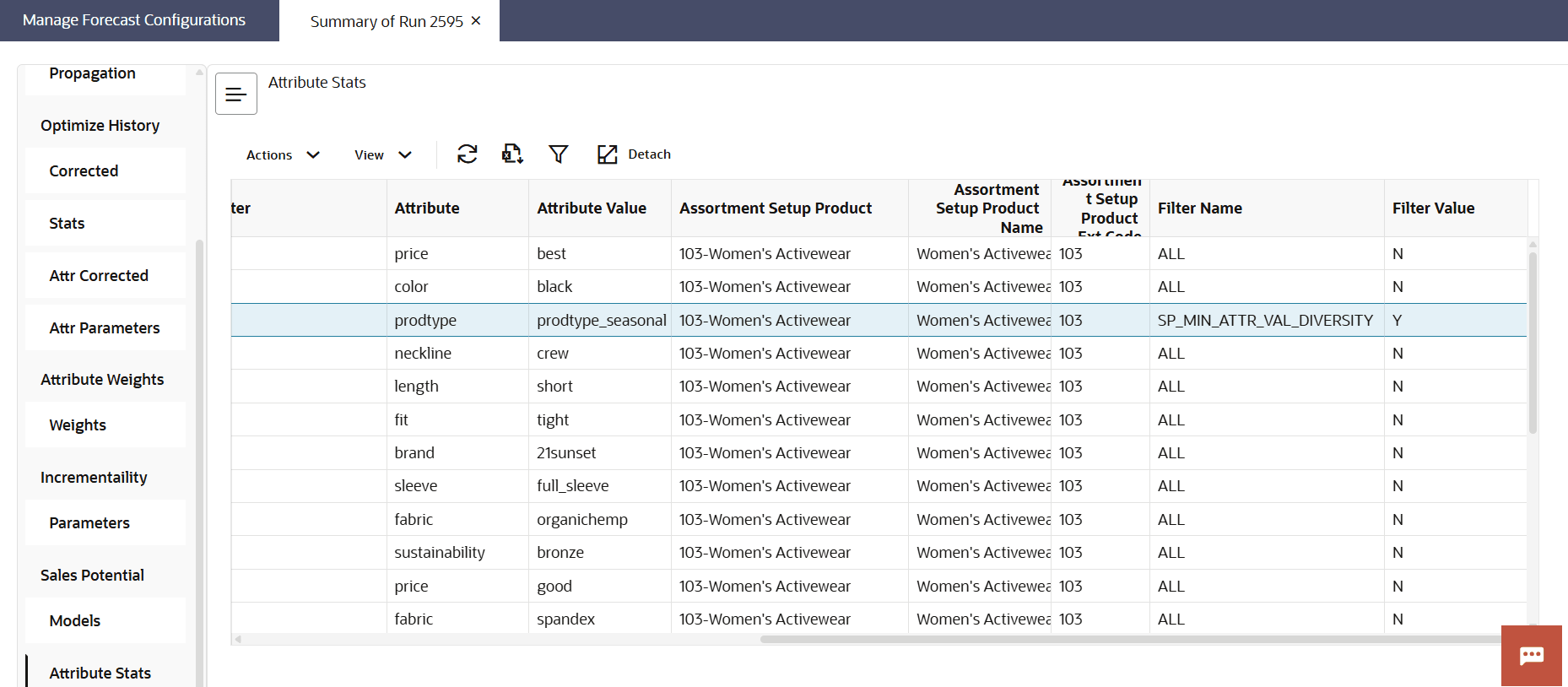
For instance, here, the cluster + subclass + attribute + attribute value combination failed the Sales Potential filters due to the SP_MIN_ATTR_VAL_DIVERSITY filter. Look at the forecast configurations for Sales Potential to identify what this filter means.
I am seeing status message: "Attribute/Attribute Value Combos: {'attribute': 'attribute_value'} not in history. "
This means that the relevant attribute value was not passed in training. To see which attributes have been passed in training to a model for a given assortment group cluster id, refer to the Attribute Stats table, pmo_options_sp_train_attr. In the below query, we roll our subclass prod_hier_id up to the department level (4):
select * from pmo_options_sp_train_attr
where fcst_run_hdr_id={fcst_run_hdr_id}
and assort_group_cls_id={assort_group_cls_id}
and prod_hier_id=(select prod_hier_id_lvl_4 from rse_prod_hier_dh where prod_hier_id={prod_hier_id} and hier_type_id=3)
If the relevant attribute is missing from Attribute Stats table shown above, it was never passed in training at all.
If you do not see your assort group ID or cluster ID in the Attribute Stats view at all when investigating this, then training failed for the relevant assort group Id + cluster id. Refer to PMO_OPTIONS_SP_RUN_QUEUE for more details on why. The Validating Results: Sales Potential section above is informative of how to use this table to identify why the training run failed.
I am seeing status message: "Unable to load model to compute Sales Potential. "
Do the same analysis as FAQ Question I am seeing status message: "Failed to load models.".
General Web Service
How do I get assort_group_cls_id and prod_hier_id from my web service inputs?
Your web service inputs for both Sales Potential and Incrementality should contain the following information:
- assortGroupId
- storClusId
- prodId
To get the assort_group_cls_id, on IW, please run this query:
select *
from rse_assort_group_cls_hdr
where assort_group_id={assortGroupId} and cluster_id={storClusId}
To get the prod_hier_id (at subclass level, which is what is used for many tables such as pmo_options_inc_run_queue, pmo_options_sp_run_queue, etc), run the following query:
select prod_hier_id
from rse_prod_src_xref
where hier_type_id=3
and level_name = (select DESCR from rse_hier_level where hier_type_id=3 and id = (select param_value from rse_config where param_name='AP_ASSORT_PROD_REC_LVL'))
and level_id = {prodId}
and current_flg='Y'
How do I get the fcst_run_hdr_id from my web service inputs?
Check the AIF UI to find the latest approved fcst_run_hdr_id. Here, for example, fcst_run_hdr_id=2674 is the latest run hdr id.