Approach 1: Quick Create
In this approach, the user can create a rule by defining the Rule Criteria and attaching a Rule Value in a single step based on the business scenario. This approach is used:
- When rules are straightforward, and fewer categories need to be defined.
- When different criteria need to have distinct rule combinations.
Example Use Case: End-of-season markdown for Women's Activewear in the United States Zone with:
- Maximum first markdown of 40%
- Minimum first markdown of 15%
- Minimum number of markdown items: 100
Follow these steps for Approach 1:
-
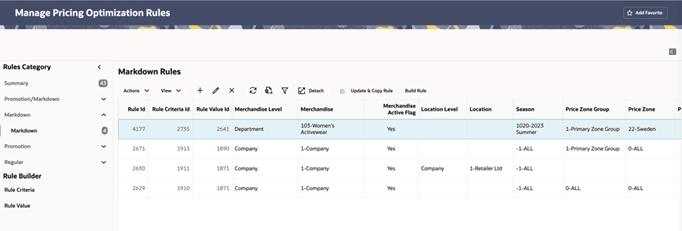
Under Rules Category -> Pricing Optimization -> Markdown (for our use case) -> select "Manage Markdown Rules."
Figure 11-9 Create Markdown Rules
-
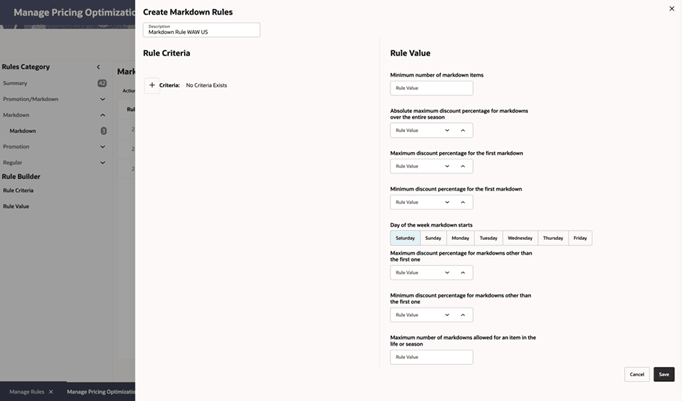
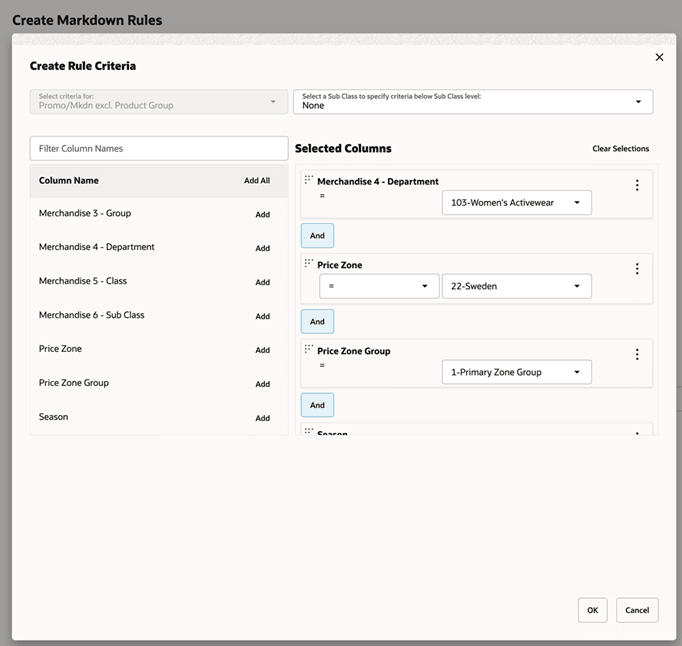
Click the Add icon from the Markdown Rules table and define the Criteria:
- Merchandise: Department -> Women's Activewear
- Price Zone: United States
- Price Zone Group: Primary Zone Group
Figure 11-10 Create Markdown Rules
-
Assign a value for a specific rule category:
- Maximum discount percentage for the first markdown: 40%
- Minimum discount percentage for the first markdown: 15%
- Minimum number of markdown items: 100
Figure 11-11 Rule Criteria and Value
-
Save the criteria and associated rule value. The rule is now created and seen in the Markdown Rules table.
Figure 11-12 Markdown Rule Created