Approach 2: Build Rule
In this approach, the Rule Criteria and Rule Values are created separately and then combined to form a rule as required for a business use case. This provides more flexibility and reduces the need to recreate the same criteria multiple times.
Example Use Case: A retailer wants to apply:
Maximum first markdown of 40%
- 10% minimum promotion
- $20,00,000 budget
- For Women's Activewear brand "Sunset" in the United States Zone until 30/09/2023
Follow these steps for Approach 2:
-
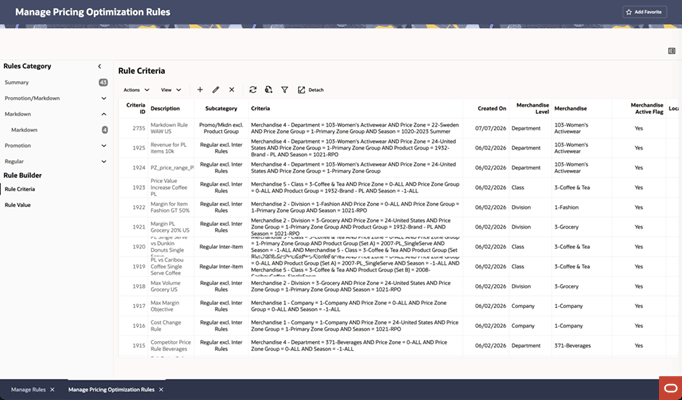
Under Rules Category -> Pricing Optimization -> Rule Builder. The Rule Criteria screen is opened by default.
Figure 11-13 Build Rule - Rule Criteria
-
Click the Add icon from the Rules Criteria table. Select "Promo/Mkdn with Product Group" criteria and define the Rule Criteria, similar to Approach 1.
- Merchandise: Department -> Women's Activewear
- Price Zone: United States
- Price Zone Group: Primary Zone Group
- Product Group: Sunset and define the Criteria
-
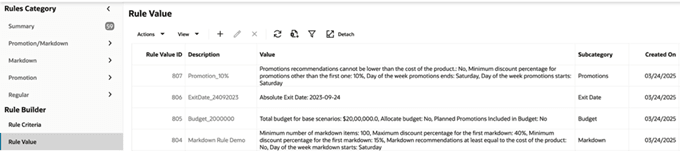
Click Rule Value under Rule Builder. Click the Add icon from the Rules Value table. Create the following rule values for the required categories and save them.
-
Budget
Rule Category -> Promotion/Markdown; Sub Category -> Budget -> Total Budget: $20,00,000
-
Exit Date
Rule Category -> Promotion/Markdown; Sub Category -> Exit Date -> Set Exit Date: 30/09/2023 -
Promotion
Rule Category -> Promotion; Sub Category -> Promotion -> Minimum promotion for the first and subsequent promotions: 10%
Figure 11-14 Create Rule Value - Budget
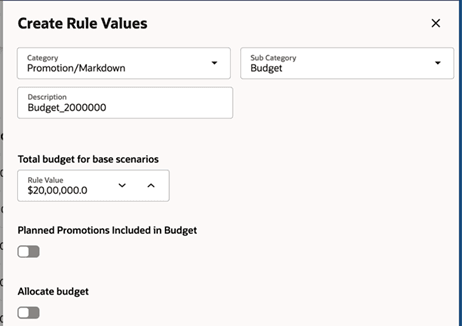
Figure 11-15 Create Rule Value - Exit Date
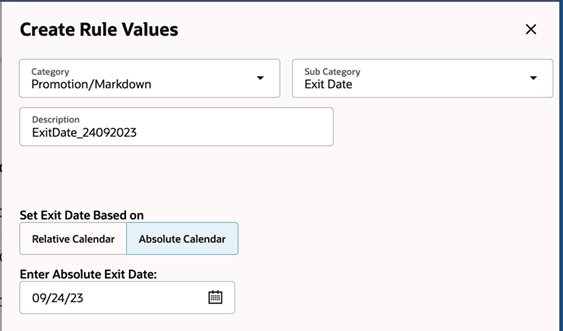
Figure 11-16 Create Rule Value - Promotion
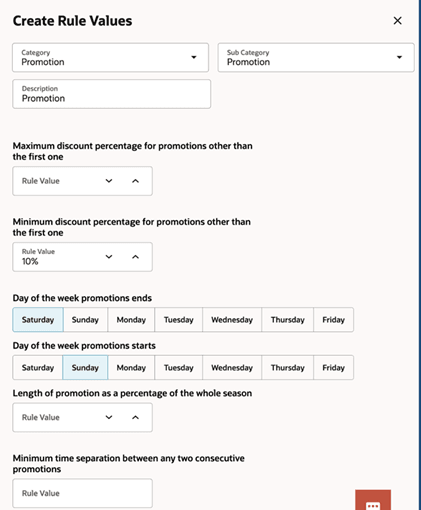
Figure 11-17 All Rule Values Created
-
-
These Rule Criteria and Rule Values can be combined and built to form a rule based on the business scenario.
For example - to build a rule for Exit Date:
Navigate to Rule Category -> Promotion/Markdown; Sub Category -> Exit Date and click Build Rule:
- Select one or more Rule Criteria (turn on the switch), click Next.
- Select one or more Rule Value (turn on the switch), click Next.
- Add a Description, and click Review Rules followed by Save.
Figure 11-18 Build Exit Date Rule
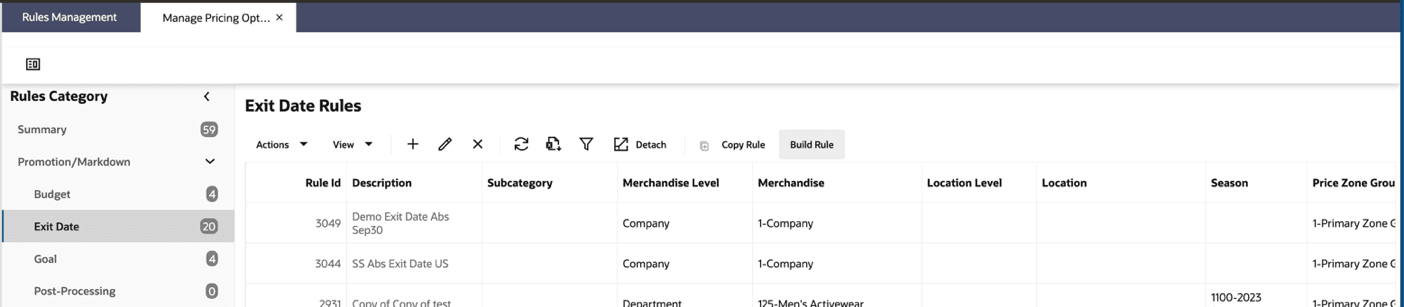
Figure 11-19 Build Rule - Selecting Rule Criteria
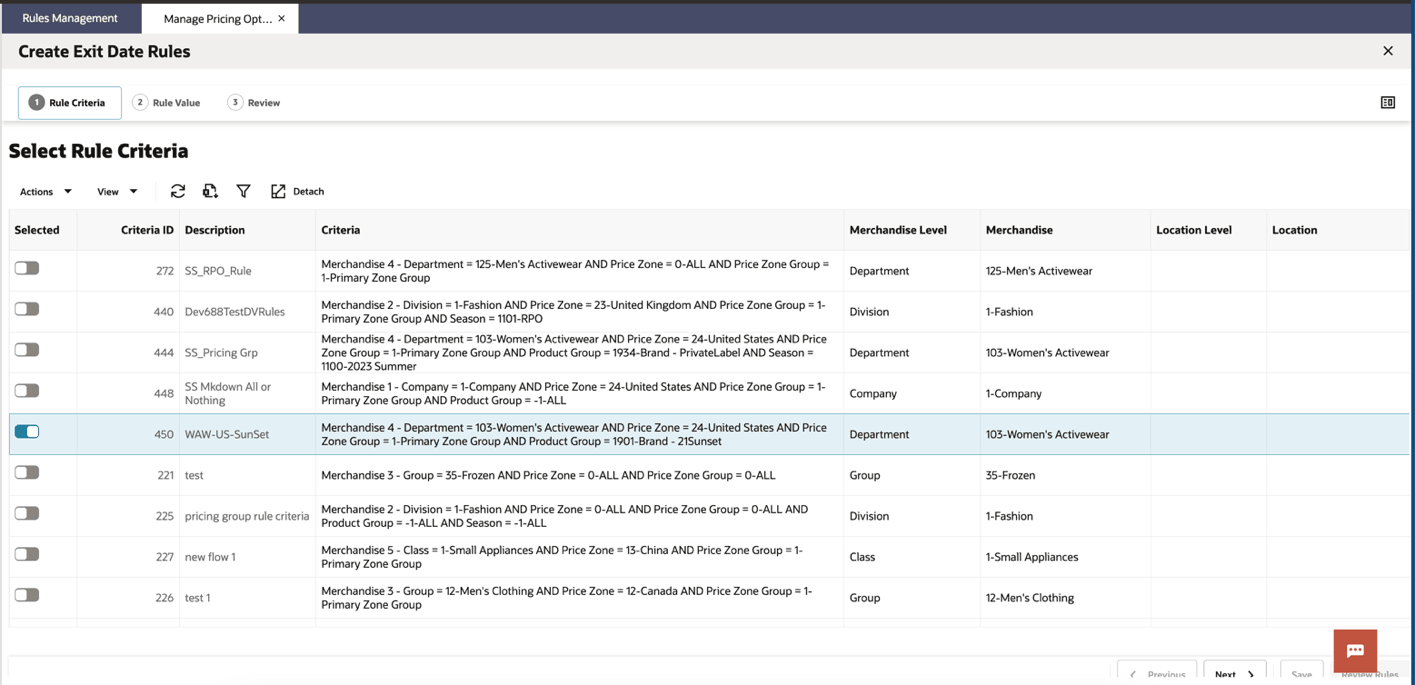
Figure 11-20 Build Rule - Selecting Rule Value
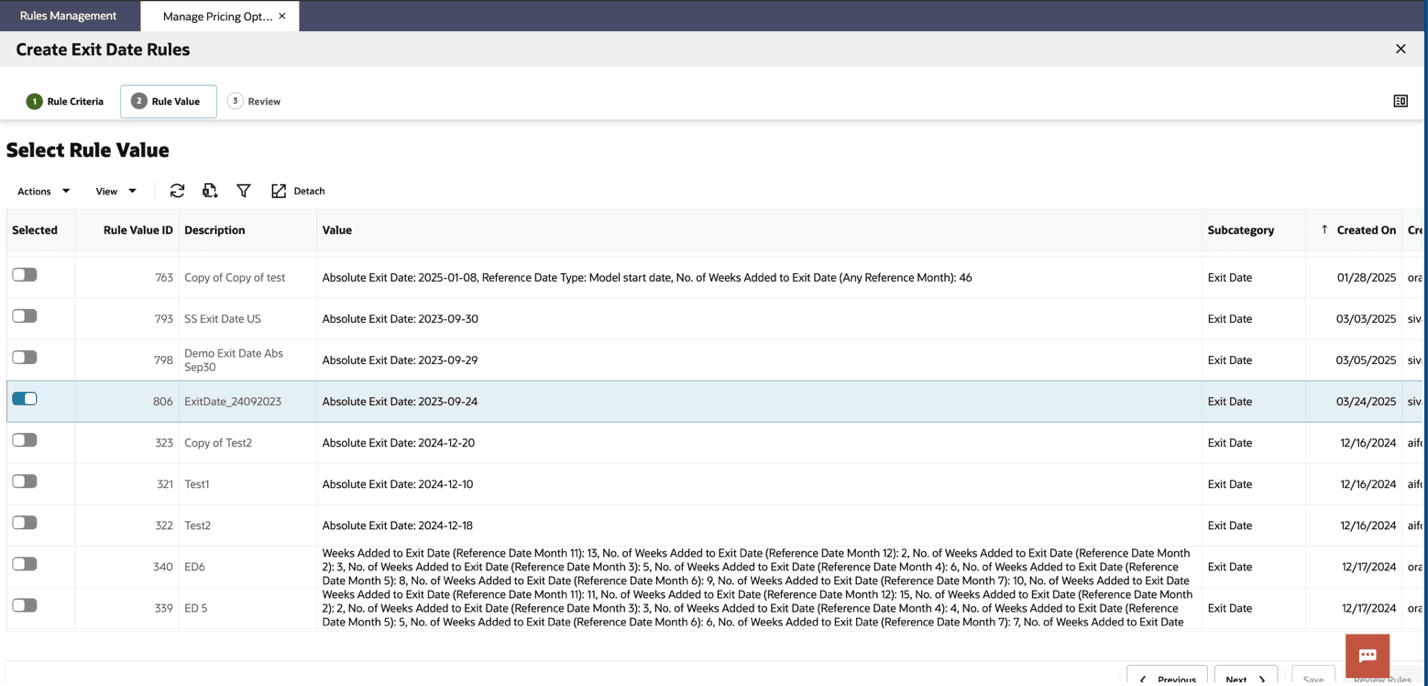
Figure 11-21 Review and Save the Rule
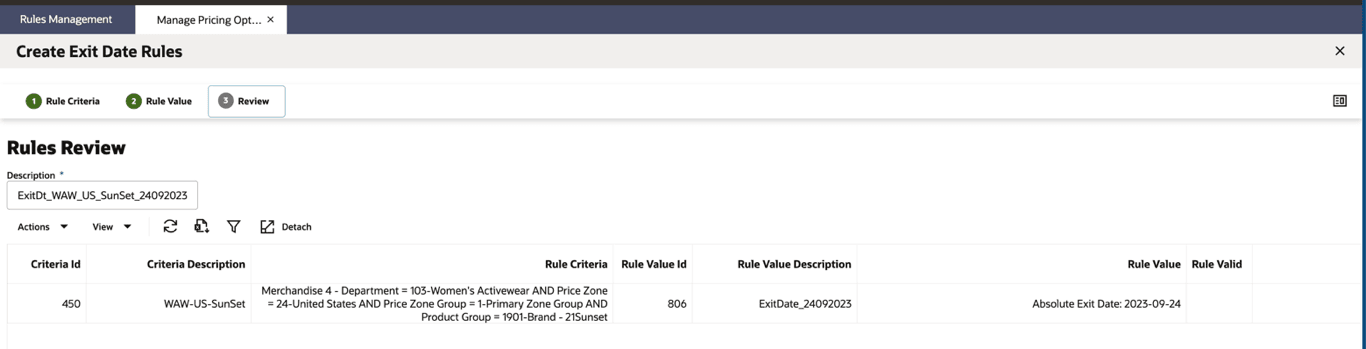
Figure 11-22 Exit Date Rule Created
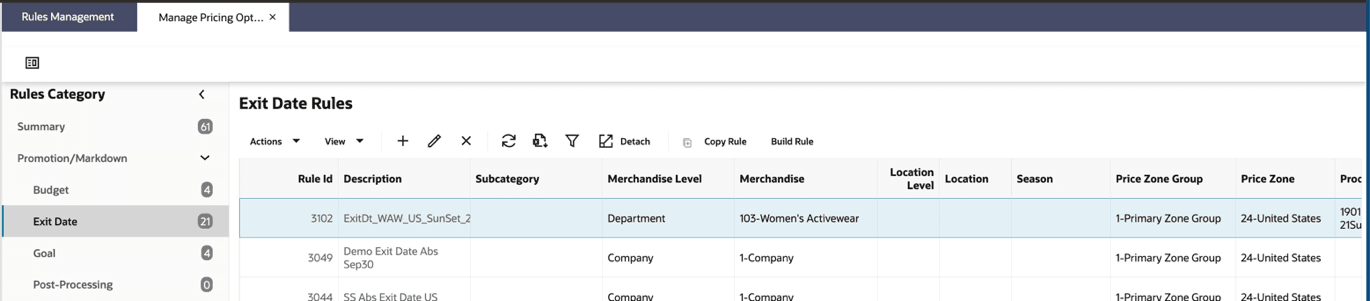
Similarly, rules can be built for Budget, Promotion, and other rule categories based on the business scenario.