Approach 3: Update and Copy Rule
This approach allows the user to update an existing rule and make a new copy of it to create a new rule.
-
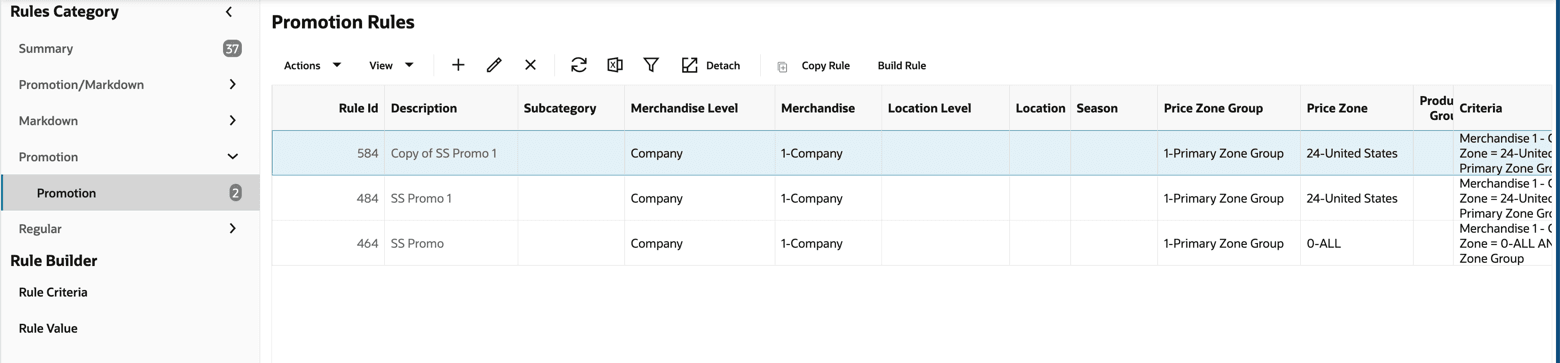
Under Rules Category -> Pricing Optimization -> Promotion (for example) -> select Manage Promotion Rules.
-
To copy all the rules, click Copy Rule. To copy one rule, select the rule row, and click Copy Rule.
-
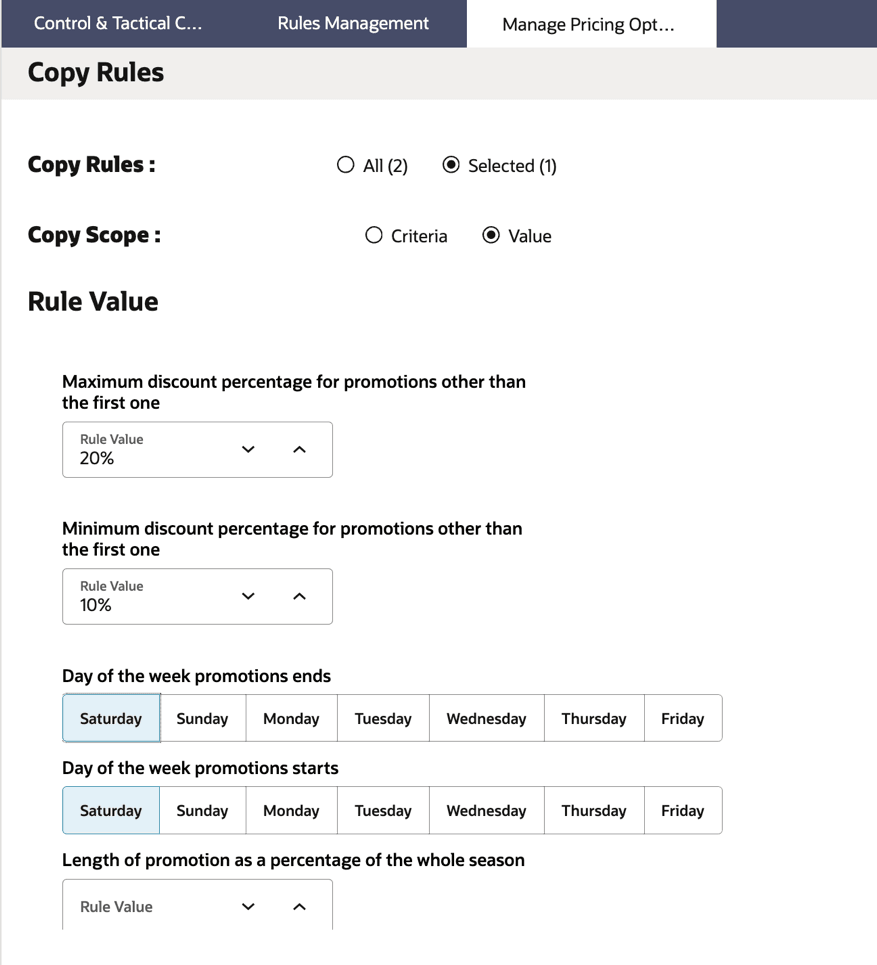
Select All or Selected (row) and update the Criteria and Scope Values as required.c
Figure 11-23 Copy Rules - Update Criteria
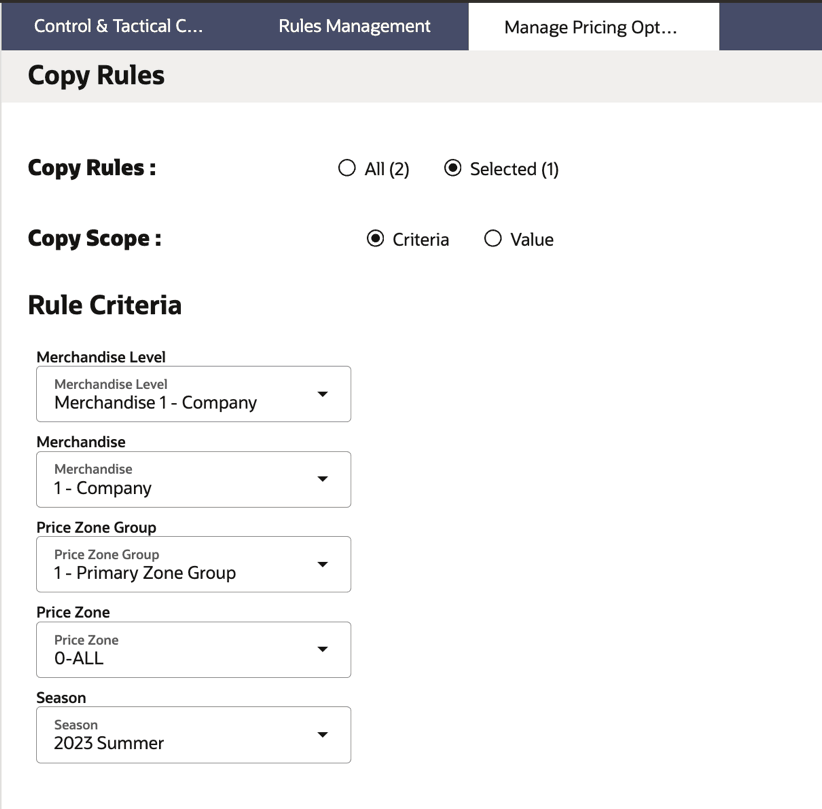
Figure 11-24 Copy Rules - Update Value
-
Click Save. A new rule is created that says "Copy of <copied rule name>."
Figure 11-25 Copy of the Rule is Created