Approach 2: Create a New Strategy and Build Rules
This approach allows the user to create a new strategy and build new rules for the strategy on the fly.
Example Use Case: A retailer wants to apply: 15% minimum promotion on a $10,00,000 budget for Women's Activewear brands "Sunset" and "RileyCalli" in the United States Zone, until 30/09/2023
Follow these steps for Approach 2:
- Create Rule Criteria and Rule Value for the use case from the Rules Management screen. Refer the section “Rules Management - Creating a New Rule - Approach 2: Build Rule.”
- In the Strategy Overview page, click the New icon ( + ) to create a new strategy.
- In the Scope page, select the required criteria (Name, Price Zone, and Products) and click Next.
-
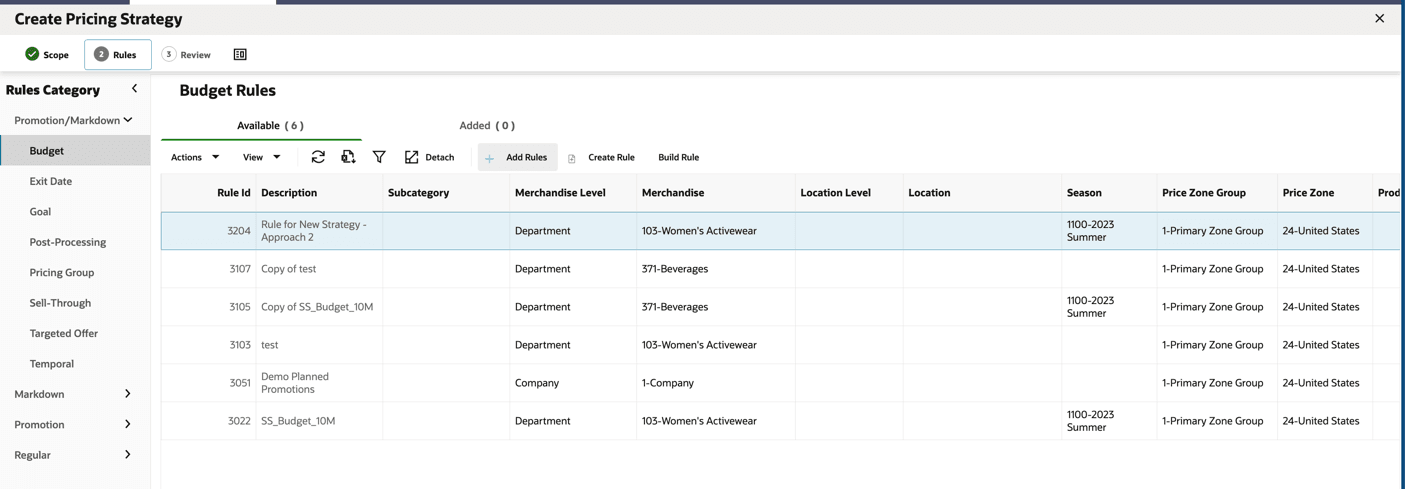
Select the Budget Rule Category:
- Click Build Rule, select all the applicable rule criteria and click Next button
- Select all the applicable rule values to be applied on the selected criteria.
- Click Review Rules, followed by Save.
- Now that rule is seen in the table for the Budget category, select that rule and click Add Rules. The rule is now added to the new strategy.
- Repeat the above steps for Budget, Product Groups, and Promotion categories.
- Step 5: After adding all rules, click Next. Review all the added rules and submit the strategy (refer to the figures from Approach 1: Creating a New Strategy and Attaching Rules).
Figure 11-32 New Strategy - Build Rule
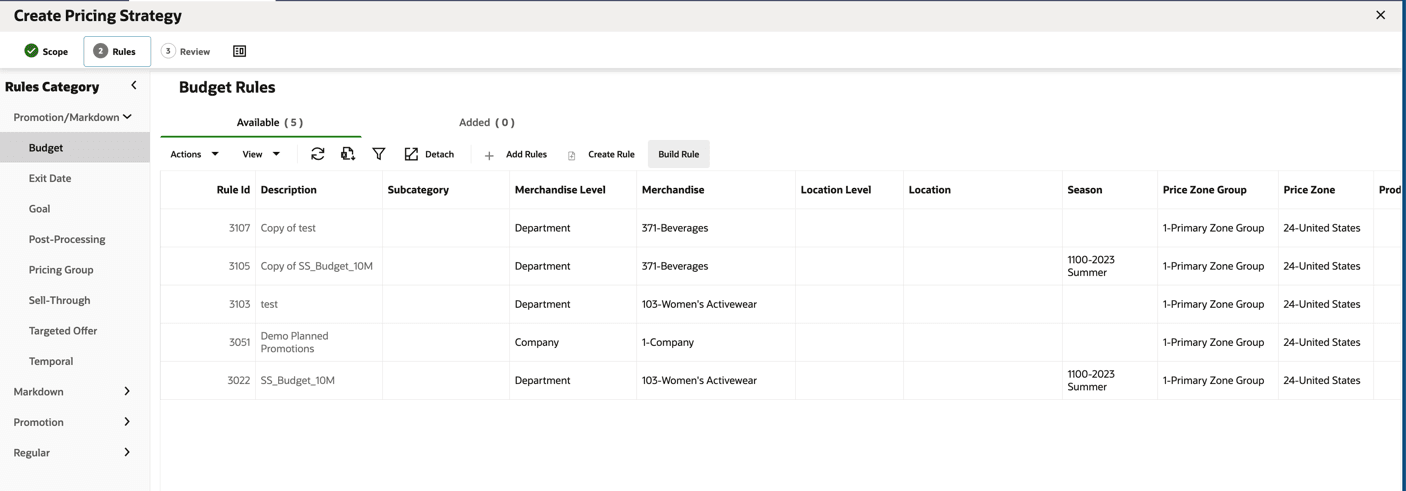
Figure 11-33 New Strategy - Build Rule - Select Rule Criteria
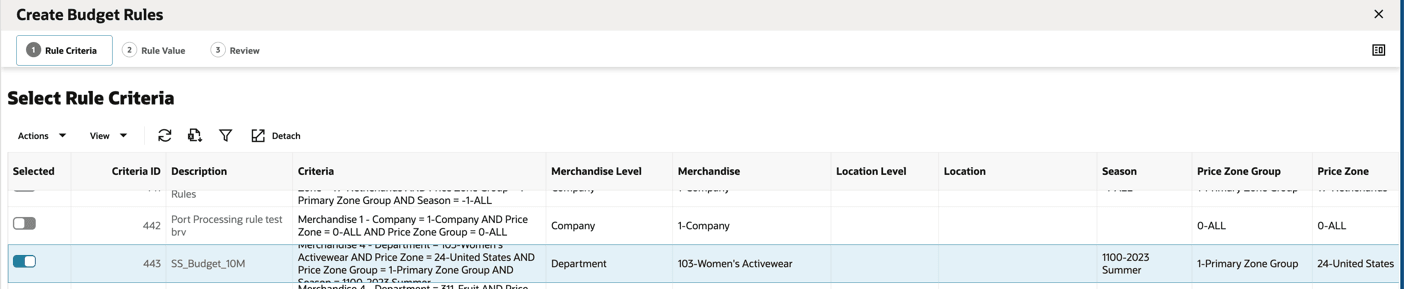
Figure 11-34 New Strategy - Build Rule - Select Rule Value
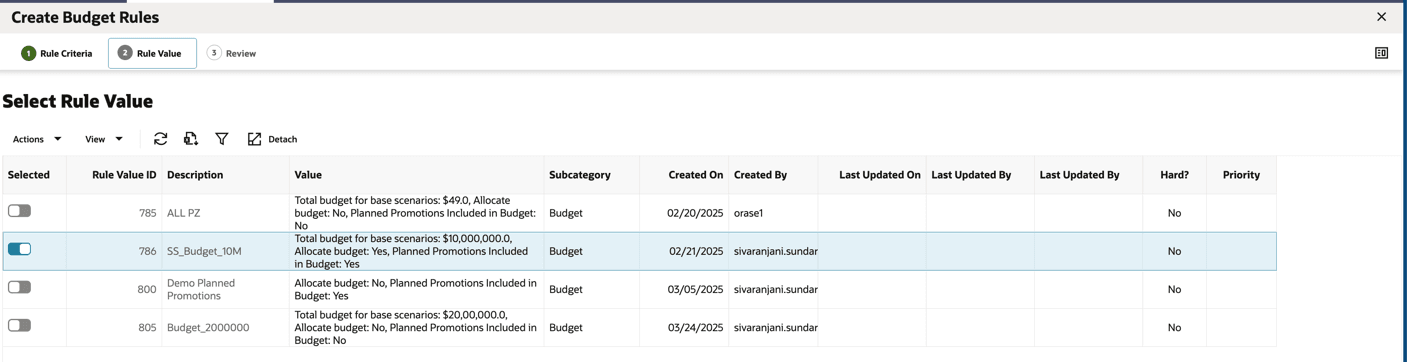
Figure 11-35 New Strategy - Review Rule
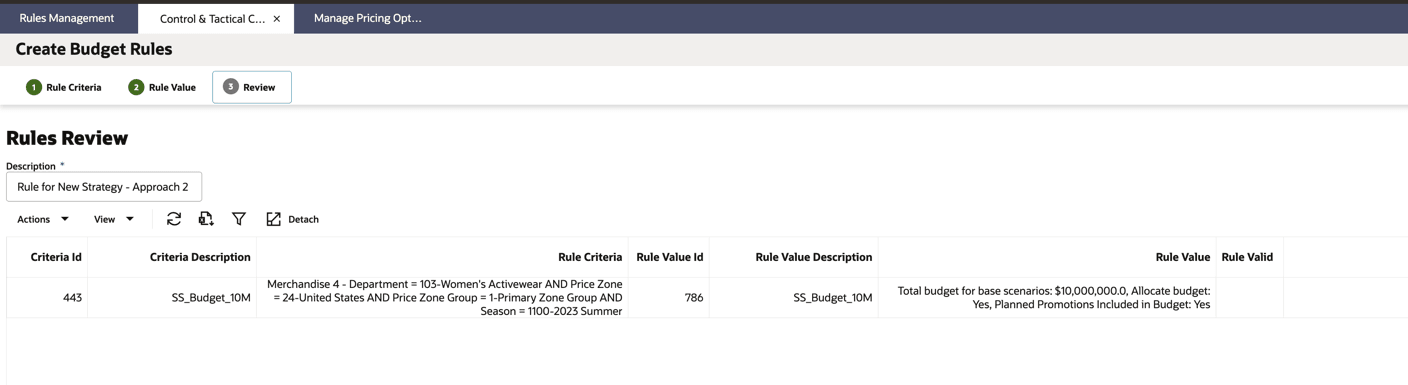
Figure 11-36 New Strategy - Add the Built Rule to the Strategy