Manage Offer Rules
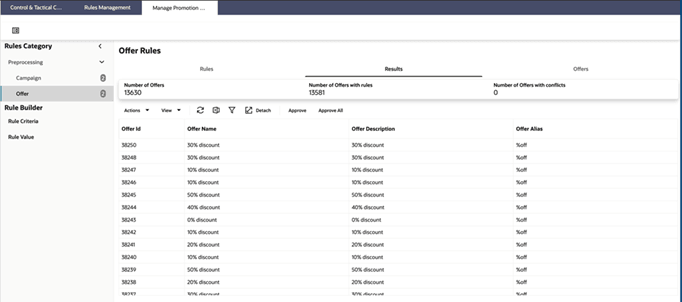
When you select Manage Offer Rules, you see the following three tabs.
- Rules: Rules can be created to remove unwanted descriptions from the offer data.
- Results: Review the results after the rule is applied and make changes to the rule if necessary.
- Offers: This tab contains the offer data received from the retailer. Review the data to understand the various offers used and pay attention to prefixes or suffixes to the offers that do not add value or that may have an impact on the lift estimation. Similar offers can be grouped together if necessary. For example, BOGO 50% and BOGO 100% can be combined to generate BOGO.
The Summary panel, located below the tab, displays the following metrics.
- Number of offers: Offers received from the retailer through the data file.
- Number of offers with rules: After each rule is created, this metric is updated by the total number of offers for which an alias value is generated by a rule.
- Number of offers with conflicts: Occasionally, multiple rules can impact an offer with conflicting results. This alerts the user of the need to review the rules and make changes.
For example, you may see multiple offers for the following.
- TV Ad with Month and Year. The month and year can be removed using rules to generate an offer alias of TV AD corresponding to these offers.
- Price Discount with Year and Season: The year and season can be removed using rules to generate an offer alias of Price Discount corresponding to these offers.
- Web Promo: Multiple offers associated with the web promotion can be grouped by creating an appropriate rule to generate an offer alias Web Promo.
- % Off: All the offers with % Off can be grouped to generate an alias % Off.
Figure 11-5 Offer Rules - Rules
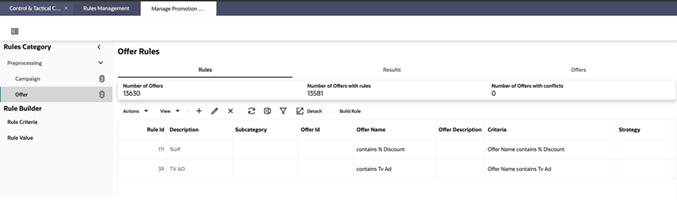
Select the Rules tab to see the above screen. This is used to create the new rules and review the existing rules. In this example, rules have already been created for % Off and TV Ad. Select the + symbol to view the Create Rule screen. To edit a rule, select an already defined rule and click Edit.
Create or Edit Offer Rules
The following must be provided for each rule.
- Description: Add a description to help manage the rules. This is used only in the Promotion Management screens.
- Rule criteria: Define the rule using the Query Builder. Use the Offer Name, Offer ID, and Offer Description columns to define the rules. Select one or more columns to define the rule. For each selected column, select the criteria from the drop-down menu.
- Rule value: Enter the alias value to associate with offers satisfying the rule criteria.
In the following example, the Query Builder is opened from the ‘Offers’ tab and all offer name that contain Off and TV are identified and assigned a value of % Off-TV Ad.
Figure 11-6 Offer Rules - Offers - Query Builder
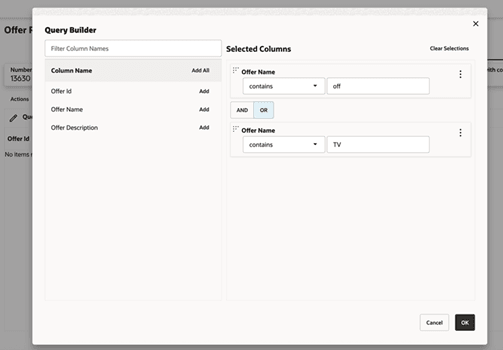
ClickOK and save the rule. The Summary metrics are updated. You then see the Rule tab where you can review all the rules that have been created.
Figure 11-7 Offer Rules - Offers
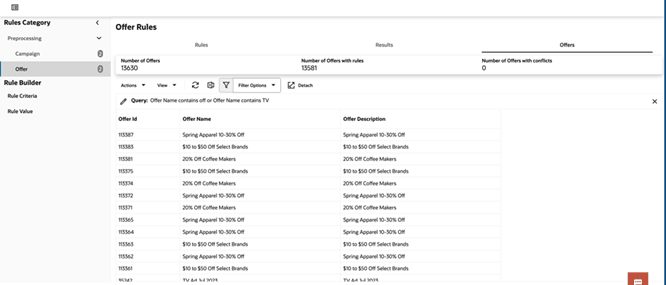
From the Rules tab, review the data for any conflicts in the Summary tab. You can select the Results tab to review the results and any conflicts.
In the following Results tab, the Offer alias assigned to each Offer ID is shown. If there are conflicts for an Offer ID, a drop-down menu with multiple offer alias values associated with the Offer ID is displayed. To override the conflict, select one of the alias values in the UI or update the associated rules to remove the conflicts.
Figure 11-8 Offer Rules - Results