New Location Setup
You can access this workspace by navigating to the New Item/Location option and selecting New Location Setup.
Use this workspace to assign like stores to handle forecasting for New Stores. The like store assignment is manual and there is a good reason for it. New stores have a large financial impact, so it makes sense having a business person making the like store selection.
It is probably more appropriate than going with an automatic selection based on something such as store attributes. Also, new store introductions are infrequent compared to New Item introductions, so manually handling New Stores is not a significant overhead activity.
The workspace is at the product location intersection, so all parameters can vary by product. For example, a new store opening in the Midwest can have a Like Store from Alaska for items in the Shovels department. However, for summer items, the Like Store is picked from the Northeast region. The location needs to be the lowest in the loc hierarchy, that is, location or store. The product should not go down to store. Subclass or class is granular enough.
There is a cycle set for locations.
The products are displayed in the x axis.
The most common way to use the screen is to use the location cycle set to navigate to the next new store or to search for the new store.
The Top Filters allow you to define the scope of the workspace by filtering the products and locations that are displayed. You can also use the Top Filters to specify the product and location hierarchy levels.
Figure 12-29 Top Filters
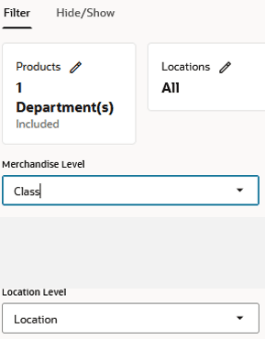
Cycle sets are available to navigate locations at the level specified in the filter.
Figure 12-30 New Location Setup
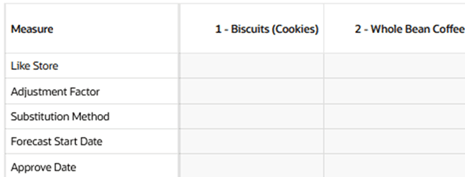
The metrics available in this workspace are:
-
Like Store: In this measure, you can specify the like store. Note how the like store can be different by product. A different like store selection can be made for any merchandise level as defined in the top filters.
-
Adjustment Factor: This measure is relevant to the Like Store Substitution method. It determines how much of the base rate of demand of a like store is applied to the new store. For instance, if the adjustment factor is 1.25, the base rate of demand of the new store is 1.25 times the base rate of demand of the like store.
-
Substitute Method: This measure displays a list where you can select the substitute method.
When a substitute method is used to forecast, the method set for an intersection is cleared once the Default Forecast Start Date is greater than the Forecast Start Date Override plus the TS Duration for the intersection. Valid substitute method options are:
-
blank: No forecast is created for the time series.
-
Like Store: If you select Like Store as strategy to generate forecast for the new store, the base demand of the new store is the base demand of the like store times the Adjustment Factor.
Base demand new store = base demand like store * Adjustment Factor
The forecast for the new store is calculated as:
Forecast at time t = base demand new store * seasonality at time t (coming from escalation level) * promo and price effects
Once the setup is finished, click the Approve button, and the Approval Date will update.
-
-
Approve Date: date when the forecast strategy for the new location was set up and approved.