Create Scenario
For each Portfolio Optimization Type, the user can create and optimize scenarios. The Create Scenario step defines the product and location positions and parameters for optimization. The typical user for creating scenarios is either a financial planning manager or a planner. The user can create as many scenarios for a single Portfolio Optimization Type as required by the business.
Steps to create a scenario:
-
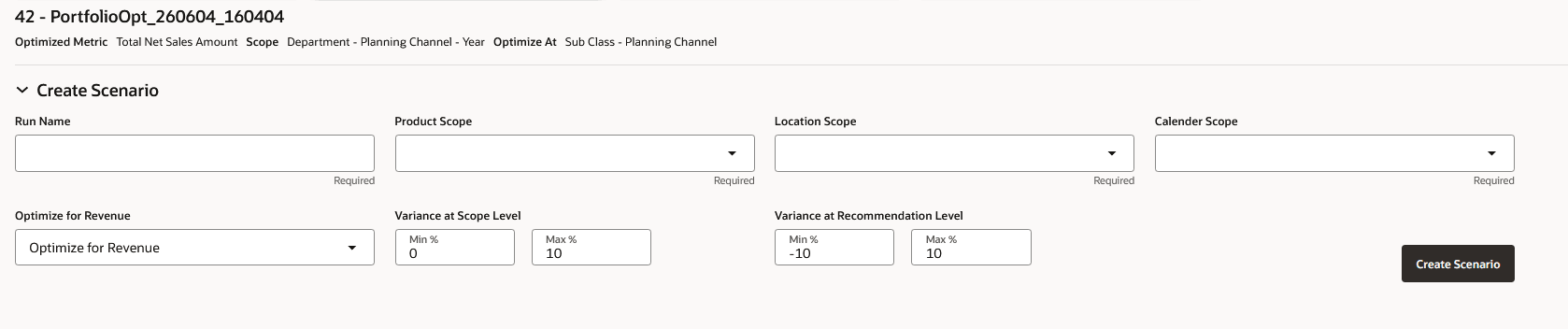
Select the Portfolio Optimization Type tile desired to create a Scenario. When you select a tile, the Scenario Creation section is displayed. The Create Scenario section is enabled when the two aggregations of the selected Portfolio Optimization Type are successfully completed. Beneath the optimization type name selected, a summary of the optimization type parameters is displayed.
-
Enter the details for the following:
Create Scenario Setting Description Scenario Name Enter the name for the Scenario in the text box. Product Scope Select the value of the Product Hierarchy scope selected in Type. Location Scope Select the value of the Location Hierarchy Scope selected in Type. Calendar Scope Select the period for which you want to generate the Optimization. If your calendar scope is Year, then you can select up to two future years, and if your calendar Scope is Quarter, then you can select quarter for the next two years. Optimization Objective Select the Optimization Objective. The Optimization Objective has only one option: Optimize for revenue. Variance at Scope Level (Min & Max %) Enter the minimum or maximum percentage values for the variance. This defines the allowed variation in the total recommendation at the scope level compared to the source data. Scope level variance can be set between -99 to 99. Variance at Recommendation Level (Min & Max %) Enter the minimum or maximum percentage values for the variance. This defines the allowed variation in the total recommendation at the optimized level from source data. Recommendation level variance can be set between -99 to 99. Note:
Based on your system setting, when you choose the future year for generating optimization, the system is going to utilize the planned data or forecast data for the unelapsed period.Figure 14-5 Create Scenario
-
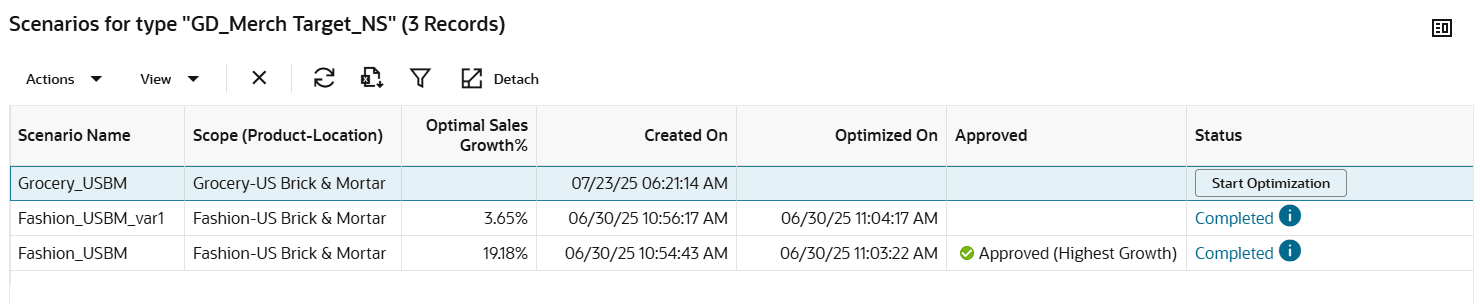
Click Create Scenario to see the scenario listed below in the Scenarios by type table. The Scenario table will display the Scenario name, Scope (Product - Location), resulting Optimal Sales Growth %, Created and Optimized on date with time stamp, Approved, and the Status of the scenario.
Figure 14-6 Scenario Table
Actions for the Scenario Table
Figure 14-7 Actions

You can use the following actions for the scenario table:
-
Delete - You can delete selected scenario from the table using the ‘x’ icon.
Note:
If you delete an approved scenario, the associated approved results will be deleted which might be used by other applications. -
Refresh - Refresh the table to update the aggregation status for the scenario table.
-
Export to Excel - Download the scenario table in excel file.
-
Query by Example - Scenario table can be filtered query by the columns.
-
Detach - Expand the table by detaching it.
-
View - Mange column option can be used for column selection and ordering.
-