3 User and Role Maintenance
This chapter describes the process for managing users and roles. The Administrator can create users and assign the level of access as needed. This chapter describes how to create/modify/delete a user and assign roles to a user.
Your Merchandise Financial Planning Cloud Service is configured with Oracle Cloud Infrastructure Identity and Access Management (OCI IAM) for managing users and access.
In order to provide application access to end users, the Cloud Service Administrator needs to create the user's account from OCI IAM. For OCI IAM user setup, follow the steps in OCI IAM User Creation. The user must also be assigned to a group in OCI IAM.
Note:
The list of groups in Table 3-1 are provided by default. It is not required that additional groups be created by the user.
To complete the user provisioning activity, the same user must be added in the Merchandise Financial Planning Cloud Service application and assigned to the same user group. By default, all the roles as user groups in Table 3-1 will be added to the Application Domain. Only if not present will those user groups need to be added.
MFP Cloud Service is built with role-based access. Permissions are associated with roles. Table 3-1 lists the available roles. Those roles will be created by default during provision time, but if not present, those can be set up in OCI IAM.
Table 3-1 Merchandise Financial Planning Cloud Service Default Enterprise Roles
| Application Role | Application Role Description |
|---|---|
|
MFP_ADMIN |
MFP Admin |
|
MFP_USERS |
MFP Users |
|
MFP_PLANNERS |
MFP Planners |
|
MFP_BUYERS |
MFP Buyers |
|
MFP_APPROVERS |
MFP Approvers |
|
MFP_ADMIN_PROD |
MFP Admin for Production |
|
MFP_ADMIN_STAGE |
MFP Admin for Stage |
Note:
Additional roles for authorization and application administration are also required. See the User Roles section in the Oracle Retail Predictive Application Server and Applications Cloud Edition Security Guide.
The Administrator can assign the above role or roles to the user. Follow the steps in Managing Users in OCI IAM.
For detailed information on the tasks related to user and role, see the following sections:
For Cloud Service provisions, the customer needs to define required roles as needed for their configuration using OCI IAM. For more details about Atomic User Management (AUM), additional roles available, and access to security details, see the Oracle Retail Predictive Application Server and Applications Cloud Edition Security Guide.
User Maintenance through OCI IAM
This section describes how to maintain users through Oracle Cloud Infrastructure Identity and Access Management (OCI IAM).
OCI IAM User Creation
Before users can access the Oracle Retail Merchandise Financial Planning Cloud Service applications, it is necessary to provision access to the system for each user and to assign roles to each user to control what functionality will be available to the user. The access provisioning can be done using OCI IAM. After creation of the user in OCI IAM, the Administrator needs to create the same user with the same user group (that is, the role in OCI IAM) in the Oracle Retail Merchandise Financial Planning Cloud Service application.
Note:
The OCI IAM Application URL and login with the required administrator access are needed to perform the following steps. The welcome email sent by Oracle includes the URL.
The following steps explain how to define users and assign roles for a new user:
-
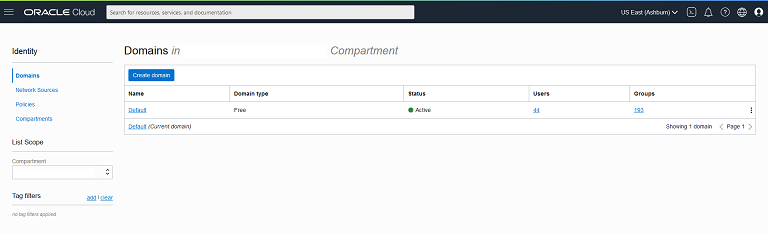
Log in to the OCI IAM application. The Domains view is shown by default.
Figure 3-1 OCI IAM Domains
-
Click the Domain name for which you want to create a user. The Domain Overview page appears.
-
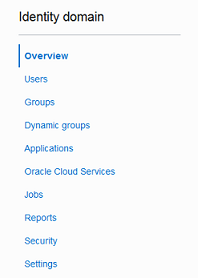
From the Domains Overview page, click Users.
Figure 3-2 Domains Overview Menu
-
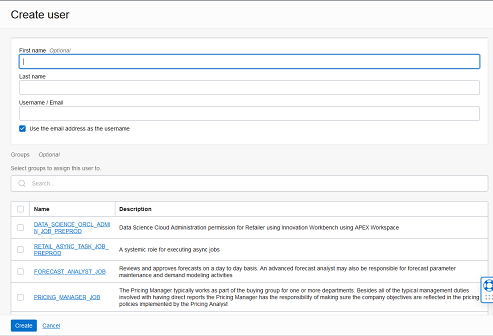
From the Domain Users page, click Create User. The Create User page appears.
Figure 3-3 Create User
-
Provide the First Name, Last Name, and unique user name. If the Use the email address as the user name option is checked, the system automatically takes the email address as the user name.
Note:
Oracle recommends using the email address as the user name.
-
Assign the user to a group. Typically, this will be the group specific to the provisioned service or application. The user can be assigned to more than one user group, but it is recommended to assign one group to one user.
The available roles are listed in Table 3-1. For example, you could assign the user being created to the MFP_BUYERS role.
-
Click Create to complete the user creation in OCI IAM.
-
To complete the user setup, the same user must be created in the Merchandise Financial Planning Cloud Service application. To add the user to the Merchandise Financial Planning Cloud Service application, follow the steps in Adding a User to the MFP CS Application.
Adding a User Group
User groups provide an intermediate level of security to workbooks that were created and saved by specific users. When new users are assigned to the system, they must be assigned to existing user groups. User groups should consist of individuals with similar job functions or responsibilities. In the Oracle Retail Predictive Planning Suite, the user group corresponds to the user's planning role.
To add a user group:
-
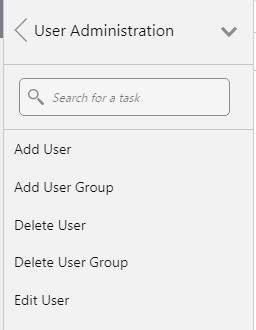
Under User Administration, click Add User Group. A Workbook Wizard window appears.
-
In the Workbook Wizard window, enter the relevant information into the following fields:
-
In the Group Name field, enter a name for the group.
Note:
Each group name must begin with a letter and contain only alphanumeric characters and underscores. It cannot have spaces. User group names are case sensitive.
-
In the Group Label field, enter a descriptive label for the group. This label is displayed when referring to the group throughout RPAS CE.
-
-
Click Finish to add the user group to the database.
Managing Users in OCI IAM
After users are created in OCI IAM, the Administrator can manage user information, manage user groups assigned to users, delete or revoke user access, and reset a password.
The following steps explain how to manage users in OCI IAM:
-
Log in to the OCI IAM application. The Domains view is shown by default.
-
Click the Domain name for which you want to create a user. The Domain Overview page appears.
-
From the Domains Overview page, click Users.
Figure 3-4 Domains Overview Menu
-
Click the user that you want to edit.
-
You can update the additional information for the selected user. Once updated, click Update User to confirm the changes.
-
You can manage the user groups assigned to users in the Groups table.
Assign a New Group
-
In the Groups table, click Assign user to groups.
-
From the Assign user to group dialog, select the group or groups to add the user.
-
Click Assign user.
Remove a Group
-
In the Groups table, select the group from which you want to remove the user.
-
Click Remove user from group.
Note:
The same user also needs to be deleted from the Merchandise Financial Planning Cloud Service application. This will keep OCI IAM and the application synchronized. Complete the user deletion by following the steps for deleting a user in the User Maintenance chapter of the Oracle Retail Predictive Application Server Cloud Edition Administration Guide.
-
-
A user can be deactivated by selecting Deactivate from the More Actions menu and then confirming the selection in the confirmation dialog.
-
A user can be asked to reset their password by selecting Reset Password and then confirming the selection in the confirmation dialog. The associated user will get an email with a link to reset the password.
Adding a User to the MFP CS Application
To add a user to the MFP CS application:
-
Under User Administration, click Add User. A Workbook Wizard window appears.
Figure 3-5 User Administration
-
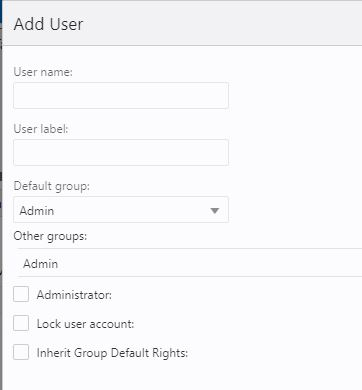
In the Workbook Wizard window, enter the relevant information in the following fields:
Figure 3-6 Add User Details
-
User name: Enter the user name that the user uses for logging in. This user name should be the same as the user name created in OCI IAM.
-
User label: Enter a label that describes the user (for example, the user's full name). This identifying label appears in various locations throughout the application.
-
Default group: Select the user group to which the user belongs. The group selected for the user should be same as the role selected for the same user in OCI IAM.
The available roles are listed in Table 3-1. For example, you could assign the user being created to the MFP_BUYERS role.
-
Other groups: If a user belongs to more than one group, select the additional groups from the list in the Other groups field.
Note:
Passwords are not used by the RPAS CE Client. The password is defined and managed by your external authentication provider.
-
-
If the user requires Administration status, check the Administrator box. To make the user an Administrator, it is mandatory to check this check box.
Note:
Administrative users have special privileges and the read-only status may not apply to them.
If you are not sure whether a user should be granted this ability, you can modify the Administration status later in the Security Administration workbook.
Note:
Granting users Administration status gives them access to all workbook templates, but it does not automatically give them access to all workbooks.
-
Select the Lock user account check box to temporarily disable the user's account.
-
Select the Inherit group default rights check box so that the user can inherit the default rights set for the user group through the Group Workbook Template Default Rights and Group Measure Default Rights worksheets. If the Inherit group default rights option is not selected and the Administrator check box is not selected, then the user is assigned Denied access rights to all templates and measures. If the Inherit group default rights option is not selected but the Administrator check box is selected, then the user is assigned Full Access rights to all templates and Read/Write rights to all measures.
-
Click Finish to add the new user to the database.
Workbook template and measure access rights can now be assigned to the user. To do this, access the Security Administration workbook. For more information, see the Accessing Security Administration section in the Oracle Retail Predictive Application Server Cloud Edition Administration Guide.
Bulk Loading of User and User Groups
The Administrator can bulk import user and user groups using comma-separated-values (CSV) files. For information on the bulk import of user and user groups from OCI IAM, see the documentation at the following links: https://docs.oracle.com/en-us/iaas/Content/Identity/home.htm.