Tiles
Tiles are displayed across the top of the screen and contain the measures/metric data. Located above the tiles, drop-down lists control the profile of tiles and segment of data represented in the tiles and the following chart.
The arrow beneath a tile indicates what is displayed in the chart area in more detail. Clicking on a different tile will refresh the data in the chart area below and put the arrow under the clicked tile.
There are various styles of tiles-variance and informational:
-
Variance
A variance tile shows the divergence of value between one metric with two other related metrics.
-
Informational
An informational tile displays the existing measure data.
Figure 2-1 Variance Tiles
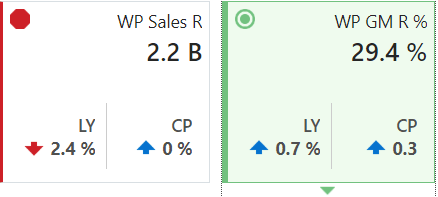
The color and icon of a tile give a visual indicator of the state or health of the metrics in the tile. In Figure 2-1, WP Sales R displays a problem icon (red octagon) because the working plan sales value is 2.4% below Last Year sales. An informational tile is always blue indicating no problem, because it is simply showing data, not a comparison.