11 Cross Category Line Review
The Cross‑Category Line Review process enables retailers to plan assortments holistically, reflecting the way customers shop for complete looks rather than isolated products. Customers rarely purchase items in silos; they combine dresses with shoes, tops with bottoms, and accessories with outfits. This module ensures that assortments are coordinated across categories to deliver cohesive shopping experiences, increase basket value, and support smarter merchandising decisions.
Without cross‑category planning, assortments risk imbalance, for example, planning tops without ensuring trouser availability may result in missed sales, overstock in one category, understock in another, and ultimately a poor customer experience. By synchronizing supply chains across categories, the Cross‑Category Line Review helps retailers align looks, color stories, and silhouette pairings.
This process fosters collaboration among merchandisers, planners, buyers, visual teams, and marketing, leading to stronger governance, fewer missed opportunities, and more strategic decision‑making. The outcome is improved conversion rates, enhanced customer engagement, and a more seamless in‑store experience.
Create the Cross Category Line Review Segment
When working in a segment, it is a common practice to keep the wizard selections for the segment size limited to what will be worked on, to facilitate navigation and increase UI responsiveness.
To create the Cross Category Line Review segment:
- Click Assortment Services in the Task menu. Then, click the Planning Services activity and then the Cross Category Line Review task.
- The dialog to create New Plan opens. Click Create New Plan.
- Enter the Plan Label into the text field. Click Ok.
- In the Calendar, select the timeframe you want to review plan for and click Next.
- In the Location, select the locations you want to review plan for and click Next.
-
In Select Product, select one or more departments and click Next.
The wizard allows you to select multiple departments to enable comparison between different products.
- Click Finish. The Cross Category Line Review segment is built.
Step 1: Cross Category Line Review
The Cross‑Category Line Review begins with the selection of subclasses to be set as filter. Since departments may contain multiple subclasses, users can focus on specific product groups as needed. Once the selection is made, the Cross‑Category Review visual displays images of assorted style‑color combinations organized by week, user can use the special filters to narrow down products to be reviewed. In addition, the Cross‑Category Review table provides key metrics for the assorted products under review, aligned to the chosen location and calendar level. This allows users to compare assorted products across different subclasses for the selected location and calendar positions, ensuring assortments are planned in the right proportion to arrive in stores at the same time.
Tabs and Views in this Step:
Cross Category Line Review Tab
In this tab, the Buyer or Planner reviews the products from different departments in the visual view as well as reviews KPIs in the pivot table.
Select Category Filter View
In the Select Category Filter view, you plan select the subclasses that you want to use as special filters in the cross category view. This is an optional step. If there are any particular subclasses you want to filter for and review products, this view allows you to define four such filters. Each of these becomes the filtering criteria in the cross category review view, both visual and table. Like any other special filter, you and toggle it ON/OFF to see the subset of products or full set while reviewing cross category assortment.
Figure 11-1 Select Category Filter View

Cross Category Review Visual View
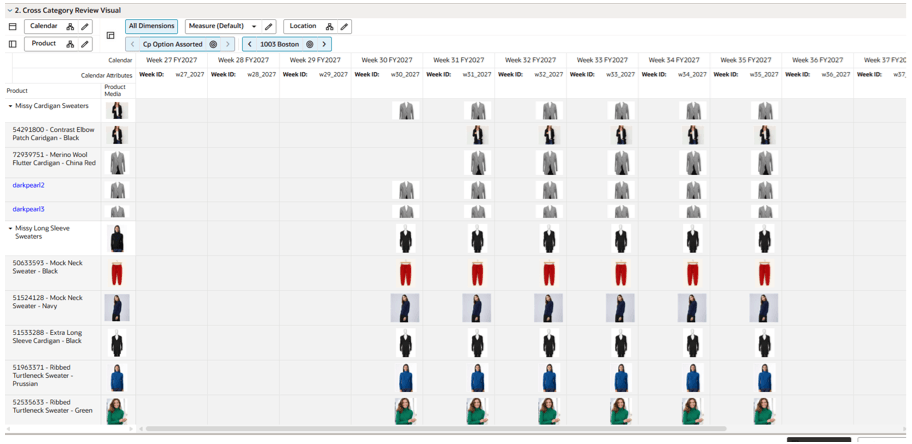
The Cross‑Category Review Visual View enables users to analyze assorted products across multiple subclasses and departments within the selected location and calendar hierarchy levels. This view displays images of the assorted products, providing a clear visual representation of how assortments are planned.
Special filters can be applied to quickly narrow down product selections for review and comparison, eliminating the need to manually select items in edit mode. This functionality allows retailers to evaluate the overall look of assortments, for example, pairing dresses with shoes, tops with bottoms, or accessories with complete outfits.
Cross‑category planning ensures that assortments are balanced and cohesive. Without it, planning tops without considering trouser availability may result in missed sales, overstock in one category, understock in another, and a poor customer experience. By synchronizing supply chains across categories and coordinating looks, color stories, and silhouette pairings, this view enhances conversion rates and customer engagement.
The process also fosters collaboration among merchandisers, planners, buyers, visual teams, and marketing, leading to stronger governance, fewer missed opportunities, and more strategic decision‑making.
Figure 11-2 Cross Category Review Visual View
Cross Category Review Table View
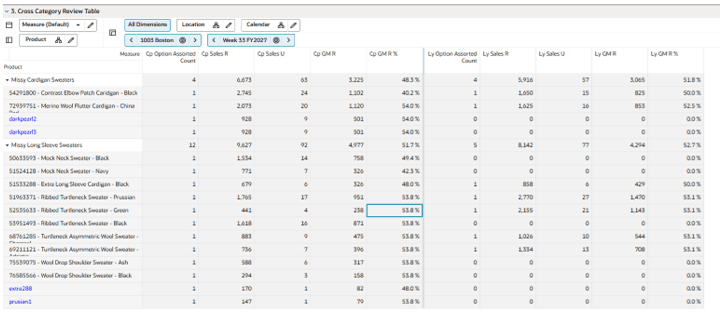
The Cross‑Category Review Table View enables users to analyze key performance indicators (KPIs) for assorted products across multiple subclasses and departments within the selected location and calendar hierarchy levels. This view presents essential measures such as Current Plan Rate of Sale, Gross Margin, Sales Units, Sales Retail, Store Count, Week Count, and CpA GM%, along with comparable metrics from the previous year for effective benchmarking. By consolidating this information into a single view, the table serves as a comprehensive report, allowing users to evaluate performance across categories efficiently and make informed planning decisions.
Figure 11-3 Cross Category Review Table View
Define Product Rollup View
The Define Product Rollup view allows you select up to three product attributes to create an alternate hierarchy for analyzing assortments at the item level. Organized into three groupings, each with three levels, this feature enables nested dynamic rollups by key attributes (such as, Brand, Color, and Fabric). You can review plans grouped by these attributes and edit subtotals at each level to spread values to child positions. This flexibility allows for detailed analysis and adjustments of the proposed assortment based on critical attributes, enhancing strategic decision-making.
Figure 11-4 Define Product Rollup View

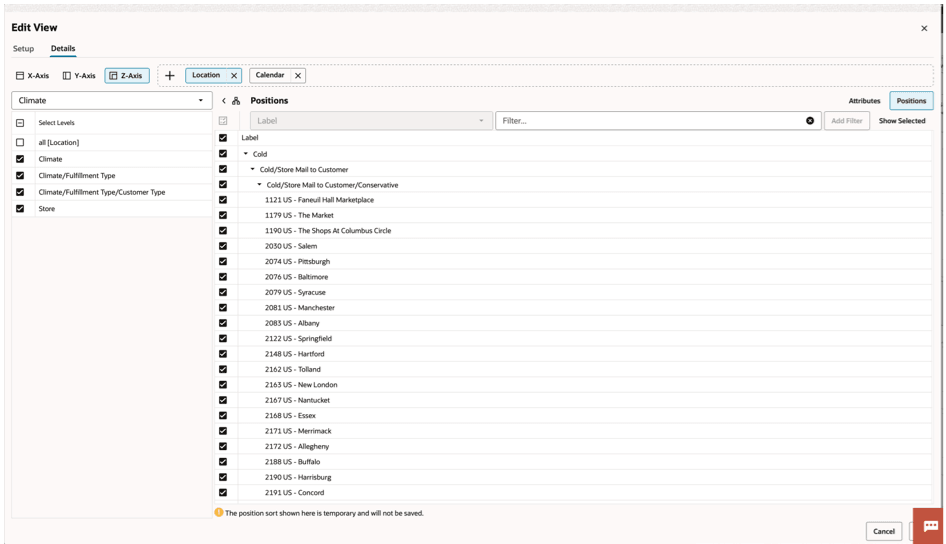
Figure 11-5 Edit View

Define Location Rollup View
When selecting the alternate dynamic hierarchy defined in the Define Location Rollup View, you can see the subtotals at each nested level. For all the editable measures, you can edit these subtotals to spread the values to all the associated positions.
Figure 11-6 Define Location Rollup View
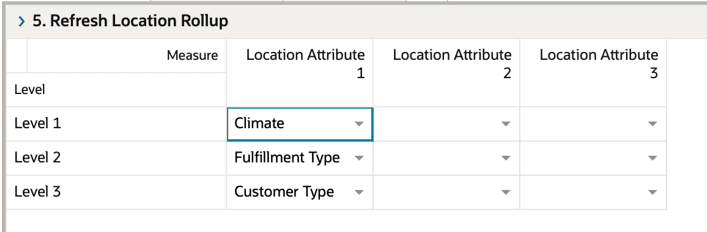
Figure 11-7 Edit View