1 Feature Summary
This chapter describes the feature enhancements in this release.
Noteworthy Enhancements
This guide outlines the information you need to know about new or improved functionality in the Oracle Retail Brand Compliance Management Cloud Service update and describes any tasks you might need to perform for the update. Each section includes a brief description of the feature, the steps you need to take to enable or begin using the feature, any tips or considerations that you should keep in mind, and the resources available to help you.
Note:
Where new fields, User Interface (UI) changes, or glossary entries are introduced as part of a change, the portal owner may need to apply their own translations of the core system text.Column Definitions
-
Feature: Provides a description of the feature being delivered.
-
Module Impacted: Identifies the module impacted associated with the feature, if any.
-
Scale: Identifies the size of the feature. Options are:
-
Small: These UI or process-based features are typically comprised of minor field, validation, or program changes. Therefore, the potential impact to users is minimal.
-
Large: These UI or process-based features have more complex designs. Therefore, the potential impact to users is higher.
-
-
Delivered: Is the new feature available for use immediately after upgrade or must the feature be enabled or configured? If no, the feature is non-disruptive to end users and action is required (detailed steps below) to make the feature ready to use.
- Customer Action Required: You must take action before these features can be used. These features are delivered disabled and you choose if and when to enable them.
Table 1-1 Noteworthy Enhancements
| Feature | Module Impacted | Scale | Delivered | Customer Action Required? |
|---|---|---|---|---|
|
All |
Small |
Yes |
No |
Rich Text Editor Upgrade
The rich text editor component is upgraded to conform with Oracle requirements.
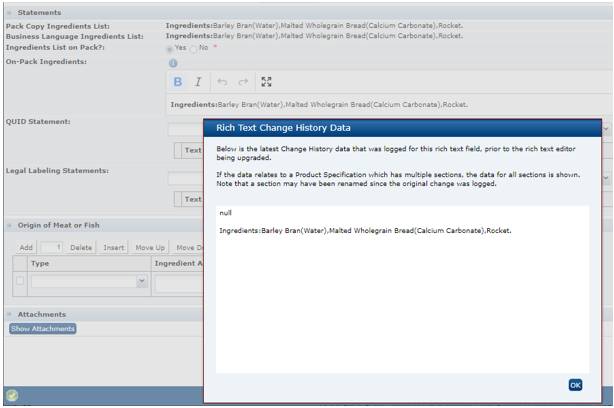
To cater for any minor formatting differences between the versions, a means of comparing the current contents of a rich text field to how the data was saved prior to the upgrade is made available in the UI.
When a rich text field is presented in edit mode, if it contains data that was saved prior to the upgrade, an icon is shown adjacent to the field label. Clicking the icon opens a dialog box containing the rich text field as it was saved prior to the upgrade, for comparison to the current contents. The data is retrieved from the record’s Change History log; data logged since the upgrade is flagged internally as such. Only the legacy rich text data is shown in the dialog box, where it is read only.
Notes:
-
The following rich text fields are affected (the majority are in the Product Specification):
-
OLC section: Preparation Guidelines, Recipe Suggestions, Serving Suggestions.
-
Finished Product Standards section: Chemical, Physical, Microbiological.
-
Process Controls section: Process Steps.
-
Recipe & Raw Materials section: On Pack Ingredients.
-
Spec Type Format glossary: Declaration.
-
Nutrition Footnote glossary: Footer, Header, Table Header.
-
Temporary Specification: Change Detail.
-
Audit Issue/Non-Conformance: Description.
-
News Item: Body.
-
Application: Body.
-
Branding Configuration: Terms and Conditions.
-
User Defined Fields: Rich text type custom fields.
-
-
If the data relates to a Product Specification with multiple sections, the data for all sections is shown, along with section names. Note that a section may have been renamed since the original change was logged.
-
The number of change history entries retrieved is limited to 30.
-
As existing Change History data is utilized, there is no data migration or data generation as part of the release.
-
The icons will remain until removed in a future release.
-
New installations will not show the icons, as there is no legacy rich text data present.
-
The ability to add a “horizontal rule” within the content is no longer supported.
New system text is introduced for the dialog box contents. See Post Release Tasks.
Post Release Tasks and Impact on Existing Installation
The following post release tasks and impact on an existing installation must be taken into account as part of this release.
System Text
The Rich Text Editor Upgrade feature introduces new System Text records for the wording within the dialog box.
The system text records are added automatically during the release process, however any translation overrides must be added manually, by the retailer administrator.
Enabling User Roles
If they do not already exist, configure the Power User, Account Administrator, Assistant Technologist, and Site Inspector user roles, and assign to the appropriate users.
Enabling Artwork with SSO
Artwork is not a core Brand Compliance module, but a third-party add-on application. This process enables the integration with the third-party Artwork application, where it is used.
For existing installations that use the Artwork module, in order to configure single sign on (SSO) between Brand Compliance and the Artwork solution (using IDCS OR OCI IAM authentication), the following steps must be taken by the Customer or their Partner:
-
Ensure the MYARTWORK external system has been created in Brand Compliance PROD and STAGE.
-
Raise an SR service requesting for creation of the Artwork Application for PROD and STAGE. The call back URLs and IDCS OR OCI IAM URLs must be provided in the SR.
-
Once created, you will be able to gather the Client ID and Client Secret from IDCS OR OCI IAM.
Refer to the Artwork chapter in the Oracle Retail Brand Compliance Management Cloud Service Administration Guide for the full process for enabling Artwork with SSO.