1 Feature Summary
This chapter describes the feature enhancements in this release.
Noteworthy Enhancements
This guide outlines the information you need to know about new or improved functionality in the Oracle Retail Brand Compliance Management Cloud Service update and describes any tasks you might need to perform for the update. Each section includes a brief description of the feature, the steps you need to take to enable or begin using the feature, any tips or considerations that you should keep in mind, and the resources available to help you.
Note:
Where new fields, User Interface (UI) changes, or glossary entries are introduced as part of a change, the portal owner may need to apply their own translations of the core system text.Column Definitions
-
Feature: Provides a description of the feature being delivered.
-
Module Impacted: Identifies the module impacted associated with the feature, if any.
-
Scale: Identifies the size of the feature. Options are:
-
Small: These UI or process-based features are typically comprised of minor field, validation, or program changes. Therefore, the potential impact to users is minimal.
-
Large: These UI or process-based features have more complex designs. Therefore, the potential impact to users is higher.
-
-
Delivered: Is the new feature available for use immediately after upgrade or must the feature be enabled or configured? If no, the feature is non-disruptive to end users and action is required (detailed steps below) to make the feature ready to use.
- Customer Action Required: You must take action before these features can be used. These features are delivered disabled and you choose if and when to enable them.
Table 1-1 Noteworthy Enhancements
| Feature | Module Impacted | Scale | Delivered | Customer Action Required? |
|---|---|---|---|---|
|
Supplier |
Small |
Yes |
Yes Requires User Role setup |
|
|
Product |
Small |
Yes |
Yes Requires Permissions setup |
Restricted Auditor Access
A new enhancement to allow auditors to have restrictions on the Audits to which they have access. The access is based on a new user role Restricted Auditor, which is similar to the existing Auditor user role except for a new authority profile. This user role, when used in conjunction with additional configuration, restricts access to only Audits where the user is listed as an auditor in the People Present table.
A Restricted Auditor Access checkbox is added to the User record:
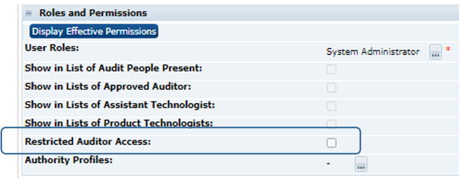
Notifications have been updated for this new user role, so if an Auditor user in the People Present table is a user with Restricted Audit Access set against their user record, only then will they receive:
-
Audit Overdue notifications within the Urgent Items.
-
Audit Task App Notifications for Due Audits, Number of Audits In Progress, and Awaiting Corrective Action/Amendment/Sign-Off.
-
Email notifications for Audits due and overdue.
As part of this feature, a new wizard will allow Auditors to be assigned to or deleted from multiple Audit records at once.
Configurable D&A Declarations
An enhancement to the Food and BWS Specifications, to allow for multiple and more varied Allergy & Dietary label declarations, for example a Contains declaration with multiple statements, such as:
Contains egg
Not suitable for customers with an allergy to egg
For Allergen Advice see ingredients in bold
Previously, a fixed mapping limited the on pack claim statements available to each of the Allergen, Contains, and Suitable For questions for use in the declaration. This enhancement makes the on pack claims configuration dynamic, so that they can be associated with any declaration and with the ability to control the order in which they appear. This is achieved through the following changes to glossaries:
-
Allergy & Dietary Declarations glossary - Allows for configuration of the sequencing of statements within the declaration (currently the order is fixed, with Contains appearing first).
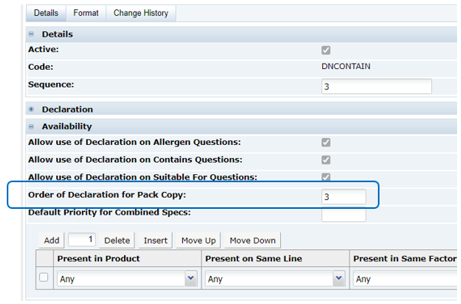
Existing installations will have the sequence automatically set as part of the upgrade to replicate the current order.
CONTAINS = 1
DNCONTAIN = 2
FREE FROM = 3
MCONTAIN = 4
SUITABLE FOR = 5
The enhancement also allows formatting to be applied to the Start Statement and End Statement fields, for emboldening text within the generated declaration.
-
Allergy & Dietary Questions glossary - The current fixed set of On Pack Claims is replaced with a dynamic table, with selection from the Declarations glossary.
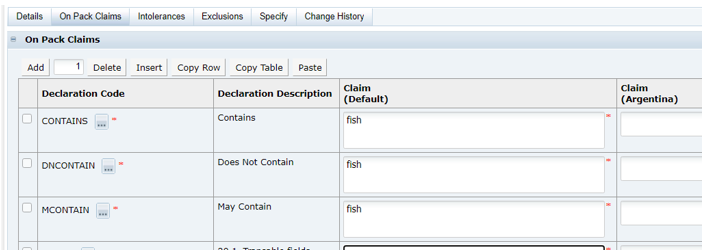
For existing installations, the On Pack Claims page in the Questions glossary records is converted to the new format, with the tables being automatically populated as part of the upgrade, based on the following mappings:
Declarations
On Pack Claims
Allergen Questions
Contains
If Label Declaration is Contains
May Contain
If Label Declaration is May Contain
Does Not Contain
Free From
If Label Declaration is Does Not Contain
Contains Questions
Contains
If Present in Product is Yes
Does Not Contain
Free From
If Present in Product is No
Suitable For Questions
Suitable For
If Suitable For is Yes
The enhancement also allows formatting to be applied to the On Pack Claim field, for emboldening text within the generated declaration.
Note:
The enhancements to the declaration in the Specification are reflected in the declaration in the associated Pack Copy file, and the Specifications API, reports and data extracts.
The contents of existing Specifications and pack copy files remain unaffected until: the Allergy & Dietary Advice section is edited and the declaration is regenerated; a new Pack Copy file is generated.
The declaration in the Specification is generated each time it is opened, either in read or edit mode; it is not held as a snapshot data field. Therefore, if a Pack Copy file has been generated and the sequence of statements is subsequently changed in the glossary, it is possible that the Specification may then show a different declaration to that generated previously in the Pack Copy file.
Post Release Tasks & Impact on Existing Installation
The following post release tasks and impact on an existing installation must be taken into account as part of this release.
Restricted Auditor Access
A new User Role RESTRICTED AUDITOR should be set up with the following authority profiles as part of the requirement to restrict access to audits for auditors:
-
Library Reader
-
Restricted Auditor
-
Supplier & Site Reader
-
Alert Reader
The AUDIT Authority Profile Group needs to include the RESTRICTED AUDITOR authority profile. The following is the recommended list of authority profiles in priority order:
-
AUDIT ADMINISTRATOR
-
AUDIT EDITOR
-
RESTRICTED AUDITOR
-
AUDIT READER
-
SUPPLIER AUDIT EDITOR
The existing roles for Power User and System Administrator need to be updated to include Restricted Auditor in their list of Grantable Roles.
A new Restricted Audit Access option under the Roles and Permissions section of the User Details tab of a Retailer User record will be available for editing by User Administrators. This should be set to limit visibility, for auditors, to the audits they are listed in the People Present table for an audit, for which they are the approved auditor.
Configurable D&A Declarations
For existing installations, the new options in the Allergy & Dietary Questions and Declarations glossaries will be set as part of the upgrade. Review the settings and make any necessary configuration changes.
A Permissions change is required to enable administrator access for the Configurable D&A Declarations feature, by amending the Permissions spreadsheet.
Amend the following rows in the Admin page:
| Record (A) | Authority Profile (B) | Menu Option (C) | Sub Menu Option (D) | Action (E) | Data Record (F) | User Mode (L) | Access Level (M) |
|---|---|---|---|---|---|---|---|
|
Admin |
Product Administrator |
Admin |
Allergy And Dietary On Pack Claim |
NORMAL |
Y |
||
|
Admin |
Product Administrator |
ALLERGY AND DIETARY ON PACK CLAIM |
NORMAL |
F |
The instructions for downloading and uploading the amended Permissions spreadsheet are as follows:
-
Log in as an Oracle Authorized Administrator user and go to Company > Admin > Roles & Permissions.
-
Open the Permissions page.
-
Download the active spreadsheet by selecting the row with true in the Active Permissions column, click Download Selected, and save locally.
-
Edit the downloaded spreadsheet, make the changes described above, then save the spreadsheet.
-
Upload the edited spreadsheet by clicking Upload Permissions, select the spreadsheet and click Ok.
-
Apply the changes by selecting the uploaded spreadsheet row and click Process Selected, then Ok to confirm.
Permissions: Additional Packaging Information
For the Supplier user access to Additional Packaging Information table in Specifications fix (item 32386659), if it is desirable for columns in the table to remain read only for Supplier users, it can be achieved by making a Permissions change.
For example, to make the entire table read only for Supplier users, add the following to the Specifications page of the Permissions spreadsheet:
|
Record (A): |
Product |
|
Authority Profile (B): |
Supplier Specification Editor |
|
Data - Record (F): |
Product Specification |
|
Data - Page (G): |
advancedPackagingAdditionalInformationQuestionPage |
|
User Mode (L): |
NORMAL |
|
Access Level (M): |
R |
To change just one of the columns, apply as above, adding the Data - Field (I) column as follows:
|
Response Data - Field (I): |
answer |
|
Component Data - Field (I): |
advancedPackagingComponent |
|
Comments Data - Field (I): |
comments |
The Data - Field Set (H) column must be left empty.
The instructions for downloading and uploading the amended Permissions spreadsheet are as follows:
-
Log in as an Oracle Authorized Administrator user and go to Company > Admin > Roles & Permissions.
-
Open the Permissions page.
-
Download the active spreadsheet by selecting the row with true in the Active Permissions column, click Download Selected, and save locally.
-
Edit the downloaded spreadsheet, make the changes described above, then save the spreadsheet.
-
Upload the edited spreadsheet by clicking Upload Permissions, select the spreadsheet and click Ok.
-
Apply the changes by selecting the uploaded spreadsheet row and click Process Selected, then Ok to confirm.
Permissions: Recycling Advice
For the Supplier user unable to edit Recycling Advice table in Specifications fix (items 32052800, 32141626, 32149990), if it is desirable for columns in the table to remain read only for Supplier users, it can be achieved by making a Permissions change.
For example, to make the Recycling Advice Icon column read only for Supplier users, add the following to the Specifications page of the Permissions spreadsheet:
|
Record (A): |
Product |
|
Authority Profile (B): |
Supplier Specification Editor |
|
Data - Record (F): |
Product Specification |
|
Data - Page (G): |
advancedPackagingComponentsPage |
|
Data - Field Set (H): |
recyclingAdvice |
|
Data - Field (I): |
advancedPackagingRecyclingAdviceIcon |
|
User Mode (L): |
NORMAL |
|
Access Level (M): |
R |
Repeat as required for the other columns: Supporting Text (advancedPackagingRecyclingSupportingText), Use On Pack (useOnPack), Use Component (useComponent), Use Base Material (useBaseMaterial), and Multi-pack Component (advancedPackagingMultiPackComponents). Note that the Component and Base Material columns are always read only for all users.
The instructions for downloading and uploading the amended Permissions spreadsheet are as follows:
-
Log in as an Oracle Authorized Administrator user and go to Company > Admin > Roles & Permissions.
-
Open the Permissions page.
-
Download the active spreadsheet by selecting the row with true in the Active Permissions column, click Download Selected, and save locally.
-
Edit the downloaded spreadsheet, make the changes described above, then save the spreadsheet.
-
Upload the edited spreadsheet by clicking Upload Permissions, select the spreadsheet and click Ok.
-
Apply the changes by selecting the uploaded spreadsheet row and click Process Selected, then Ok to confirm.
Product Record API
The fix to the Product Record API (items 32123736, 32131031, 32221459) includes a change to the XML structure and processing of the Status Change History data used by the Product Records REST API. If you currently use this API, and access the status history data, it may be necessary to make a change to how the external system calls the API.
The changes that have been made as part of the fix are as follows:
-
The product.wadl API description has a change to the XML structure, to include statusChangedBy within the statusHistory element.
-
The outbound XML data now has createdOn and updatedOn populated in the statusHistory element (along with statusChangedBy).
-
The statusChangedBy value is now accepted within the inbound XML (createdOn and updatedOn already are).
-
The ability to modify existing status history data is now limited to the comments element only, and the system will simply ignore changes for any other elements in the inbound XML (such as createdOn, updatedOn, and statusChangedBy).
-
Within the application, if Status Changed By within the status history is not populated with a user name, the system text value System is shown, rather than the dash that is currently displayed. This applies to all record types that contain the Status Change History log (such as Suppliers, Audits, Projects, and so on).
Nutrition Declaration Panel
Any specifications that have been reversioned or copied should be verified to ensure that the Nutrition columns are in the correct order as defined by the Nutrition Panel (items 32046778, 32062296).
Any that are found to be different will need to be regenerated on the Nutrition section. This could involve changing a specification status back to a status where this can be edited, or creating a new version of a specification if already at active status.
System Text
The fixes to add the Certification Body column to the Audits & Visits list views (item 32155993), the new Empty and Not Empty operators (items 31432265, 31480746, 31507432), and missing sub-heading translations in Pack Copy reports (item 31964884) introduce new System Text records:
peoplePresent.selectedCertBodyName=Certification Body
FilterDetailoperator.BLANK=Empty
FilterDetailoperator.NOT_BLANK=Not Empty
packCopyReport.siteName_1
New Report System Text records have also been introduced for the columns added to the Audit query (item 32190326), Site query (item 32357547), and Contains query (items 32263464, 32366474):
orbcmReports.siteTechnologistName=Site Technologist Name
orbcmReports.siteTechnologistEmail=Site Technologist Email
orbcmReports.siteTechnologistNameEmail=Site Technologist Name And Email
reportQueryColumn.SITE_GPS_LATITUDE=Site GPS Latitude
reportQueryColumn.SITE_GPS_LONGITUDE=Site GPS Longitude
orbcmReports.sitePhone=Site Phone
orbcmReports.siteGpsLatitude=Site GPS Latitude
orbcmReports.siteGpsLongitude=Site GPS Longitude
reportQuery.allergensContains=Allergens - Contains
The fix for importing Recipient lists to Alert records (item 32157730) introduces the following New System Text records:
-
Site Code
-
Site Name
-
Supplier Code
-
Supplier Name
The records are added automatically during the release process, however any translation overrides must be added manually, by the retailer administrator.
Enabling User Roles
If they do not already exist, configure the Power User, Account Administrator, Assistant Technologist, and Site Inspector user roles, and assign to the appropriate users.
Enabling Artwork with SSO
Artwork is not a core Brand Compliance module, but a third-party add-on application. This process enables the integration with the third-party Artwork application, where it is used.
For existing installations that use the Artwork module, in order to configure single sign on (SSO) between Brand Compliance and the Artwork solution (using IDCS authentication), the following steps must be taken by the Customer or their Partner:
-
Ensure the MYARTWORK external system has been created in Brand Compliance PROD and STAGE.
-
Raise an SR service requesting for creation of the Artwork Application for PROD and STAGE. The call back URLs and IDCS URLs must be provided in the SR.
-
Once created, you will be able to gather the Client ID and Client Secret from IDCS.
Refer to the Artwork chapter in the Oracle Retail Brand Compliance Management Cloud Service Administration Guide for the full process for enabling Artwork with SSO.