3 Site Management
Note:
Depending on your system configuration, Site records may be displayed in either the Classic interface or the new JET user interface. While the core functionality remains largely the same, the layout, navigation, and some features may differ. See the Oracle Retail Brand Compliance Management Cloud Service Workspace User Guide for more information on JET UI forms.
New functionality is introduced in the JET interface and may not be available in the Classic interface.
To work with sites, select the Sites option from the Supplier drop-down list. The Sites tab opens. This page shows the list of available sites.
Figure 3-1 Sites Page
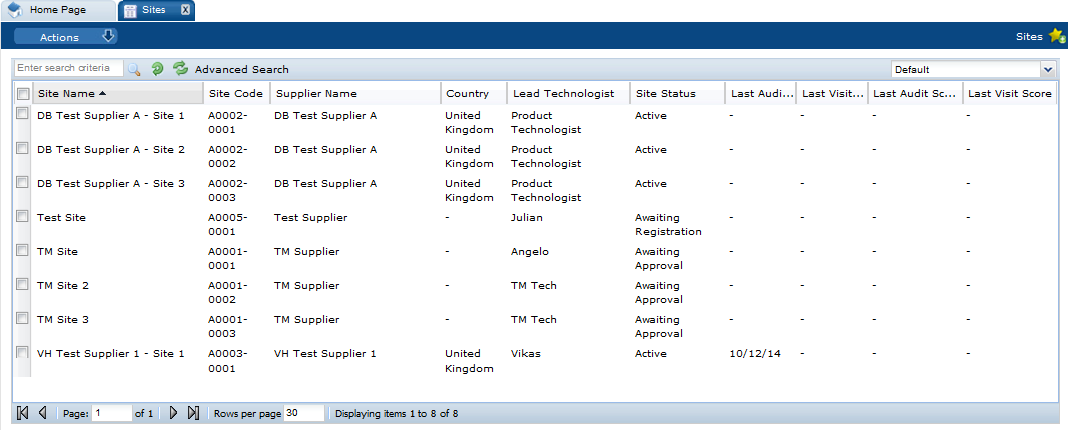
The following actions are available:
-
New Alert: For information on creating a new alert, see Alerts Management.
-
Change Status: Select one or more sites from the list and select the Change Status action. Select the new status for the sites from the list. Only Retailer users can change the status.
The workflow includes the ability to set a site to Awaiting Approval status. This is of use for activating sites that have previously been set to Inactive, Unapproved, or Delisted status. Once set back to Awaiting Approval status, the site will behave as if it had been automatically set to that status as a result of completing the registration process.
To see the details for a specific site, double-click the row. A tab opens with the details. You can also select the View or Edit actions.
Figure 3-2 Site Details Page
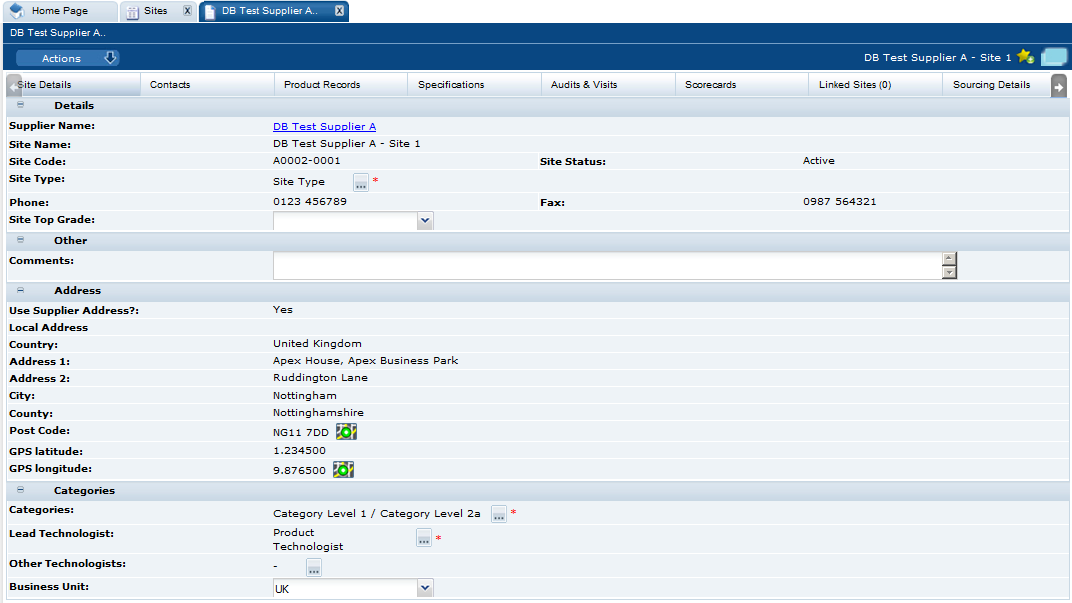
The following subtabs are available. Select a subtab to see the information for the site:
-
Site Details
- Scoring Details: If configured, scores for each Supplier Evaluation Type and the list of events that contributed to the score, see Site Summary Scores in Site Record.
-
Contacts: List of contacts for the site.
-
Product Records: If Product is purchased and implemented, list of product records.
-
Specifications: List of product specification documents and the status.
-
Audits & Visits: List of audits and visits and the status.
-
Assessments: List of assessments and status.
-
Linked Sites: The number of linked sites is shown in parentheses on the subtab.
-
Sourcing Details: Billing and production details.
-
References: List of certificates and the status.
The system can be configured to automatically notify the relevant users when individual references become due for renewal or exceed their expiry date. In the JET UI interface, each reference can be linked to one or more supporting documents using a new Linked Attachments field. Depending on the system configuration, certain reference types may require at least one attachment to be linked.
-
Process Links: If Process is purchased and implemented, list of processes and status.
-
Custom Fields
-
Change History
-
Attachments: List of documents attached to the site.
The following actions are available:
-
New Audit: For information on creating a new audit, see Audits & Visits.
-
New Visit: For information on creating a new visit, see Audits & Visits.
-
New Assessment: For information on creating a new assessment, see Assessment Management.