18 Retail DB Ops Console
The Retail DB Ops Console is the operational starting point for monitoring Retail Data Store (RDS) database activity, investigating performance issues, managing sessions, unlocking database users, and maintaining selected application properties. Use this chapter with the Query Tuning appendix when diagnosing slow SQL, system-wide performance changes, or resource contention.
Customers remain responsible for tuning custom extensions and monitoring CPU, storage, sessions, and query behavior. The console provides the views needed to identify what is happening; the Query Tuning appendix provides the diagnostic workflow for deciding what to do next.
Access and Roles
Retail DB Ops Console access is controlled through OCI groups. Group assignments can take up to 1 hour to propagate. For the authoritative role list, see the Retail Data Store Security Guide, Post Installation Configuration, Retail DB Ops Console. Table 18-1 summarizes the DB Ops Console groups by environment.
Table 18-1 Retail DB OPs Console Role Groups
| Capability | Production group | Pre-production group |
|---|---|---|
| View system-generated AWR reports, Top SQL, and DBMS Jobs | RDS_MANAGEMENT_VIEWER | RDS_MANAGEMENT_VIEWER_PRE-PROD |
| Viewer capabilities plus custom AWR report generation | RDS_MANAGEMENT_OWNER | RDS_MANAGEMENT_OWNER_PRE-PROD |
| Owner capabilities plus database metrics and application property management | RDS_MANAGEMENT_ADMINIS-TRATOR | RDS_MANAGEMENT_ADMINISTRA-TOR_PREPROD |
Use the production groups listed in Table 18-1 only for production environments. Use the _PREPROD groups for non-production environments.
Open and Navigate the Console
Launch the Retail DB Ops Console from Retail Home’s Application Navigator. The Home page gives a quick view of current database activity and recent operational data, including current storage utilization by schema, latest generated AWR reports, Top SQL, and DBMS Jobs, as shown in Figure DB OPs Console Home Page.
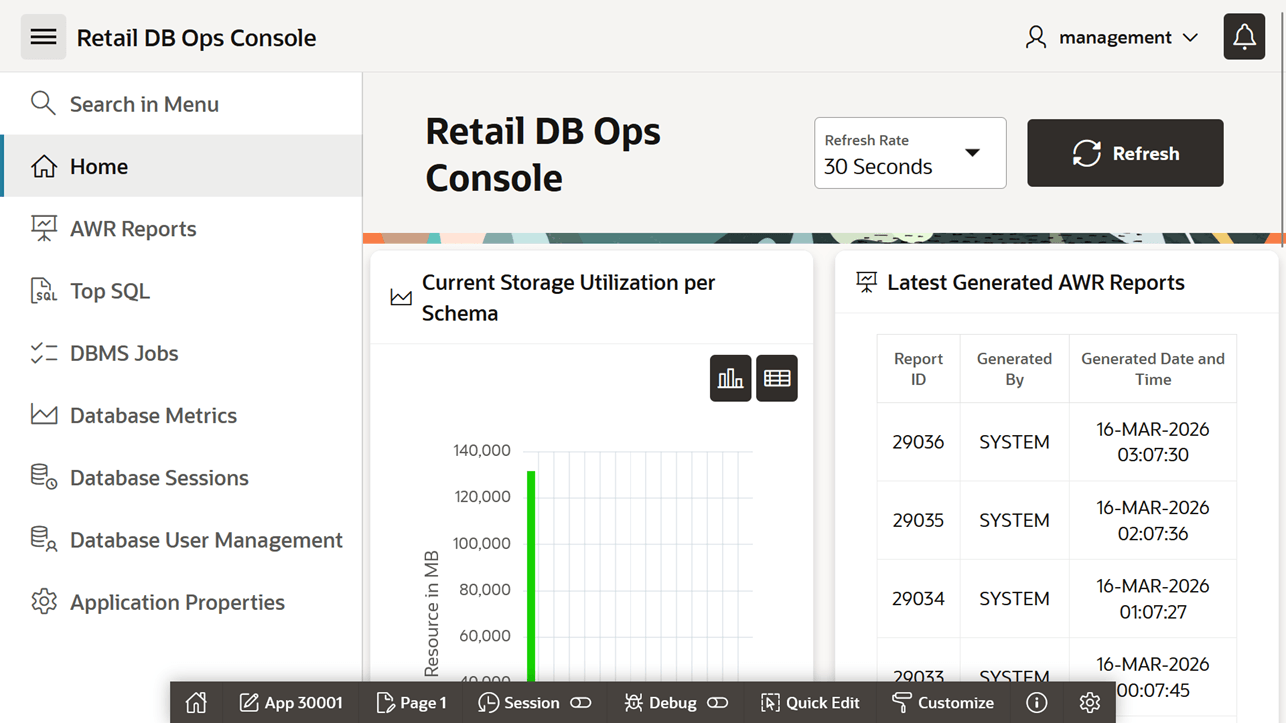
All DB Ops Console features are available from the navigation menu shown in Figure DB Ops Console Menu. Use this menu to move between monitoring, investigation, and administration pages.
Figure 18-1 DB OPs Console Home Page
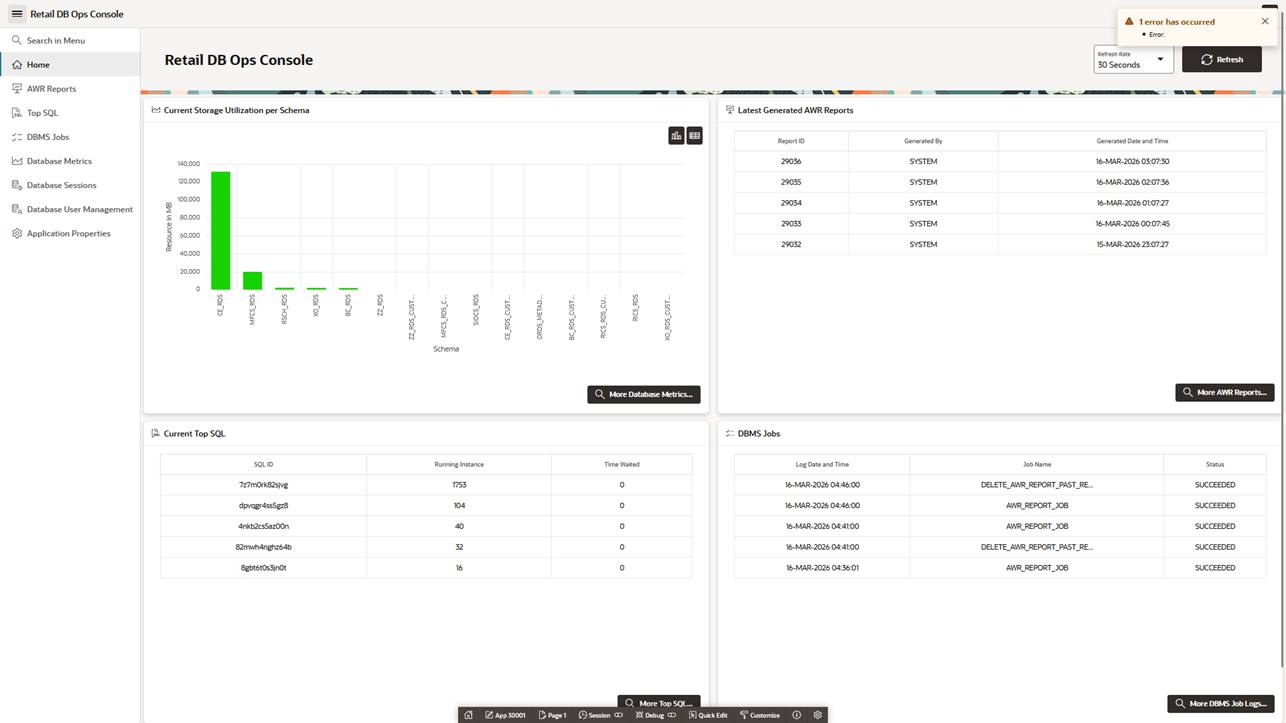
Figure 18-2 DB Ops Console Menu
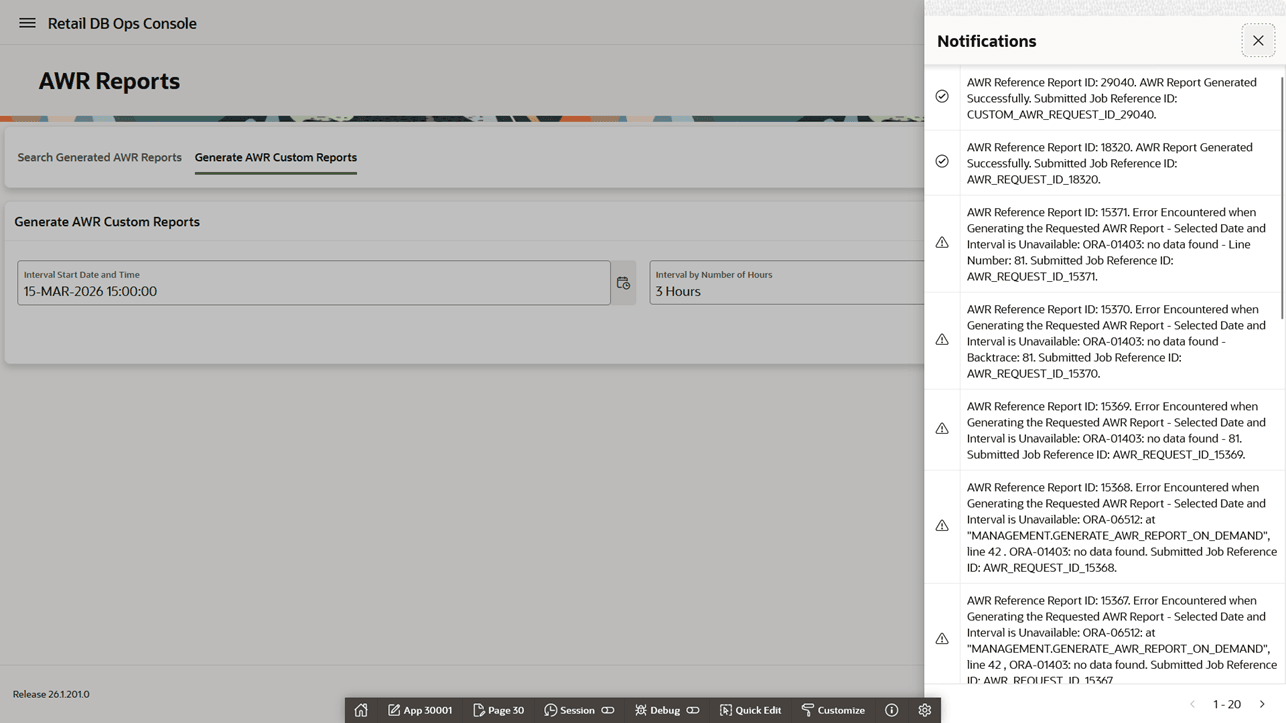
Notifications provide status updates for background operations such as custom AWR report generation, as shown in Figure Notifications Panel.
Figure 18-3 Notifications Panel
Use the menu search field shown in Figure Search in Menu to find DB Ops Console pages without scrolling through the navigation menu.
Search results are displayed directly in the menu and can be selected to open the matching page, as shown in Figure Sample Search in Menu Entry.
Monitor System Health
Start with Database Metrics when users report broad slowness, delayed jobs, intermittent timeouts, or unusual APEX behavior. The Query Tuning appendix recommends checking database metrics as part of system-wide performance diagnosis.
Users with RDS_MANAGEMENT_ADMINISTRATOR or
RDS_MANAGEMENT_ADMINISTRATOR_PREPROD can access Database Metrics,
shown in Figure Database Metrics.
Metrics describe database load, storage consumption, session activity, SQL execution,
queueing, and APEX activity.
Use the triage signals in Table 18-2 to decide which console page to open next.
Figure 18-4 Search in Menu
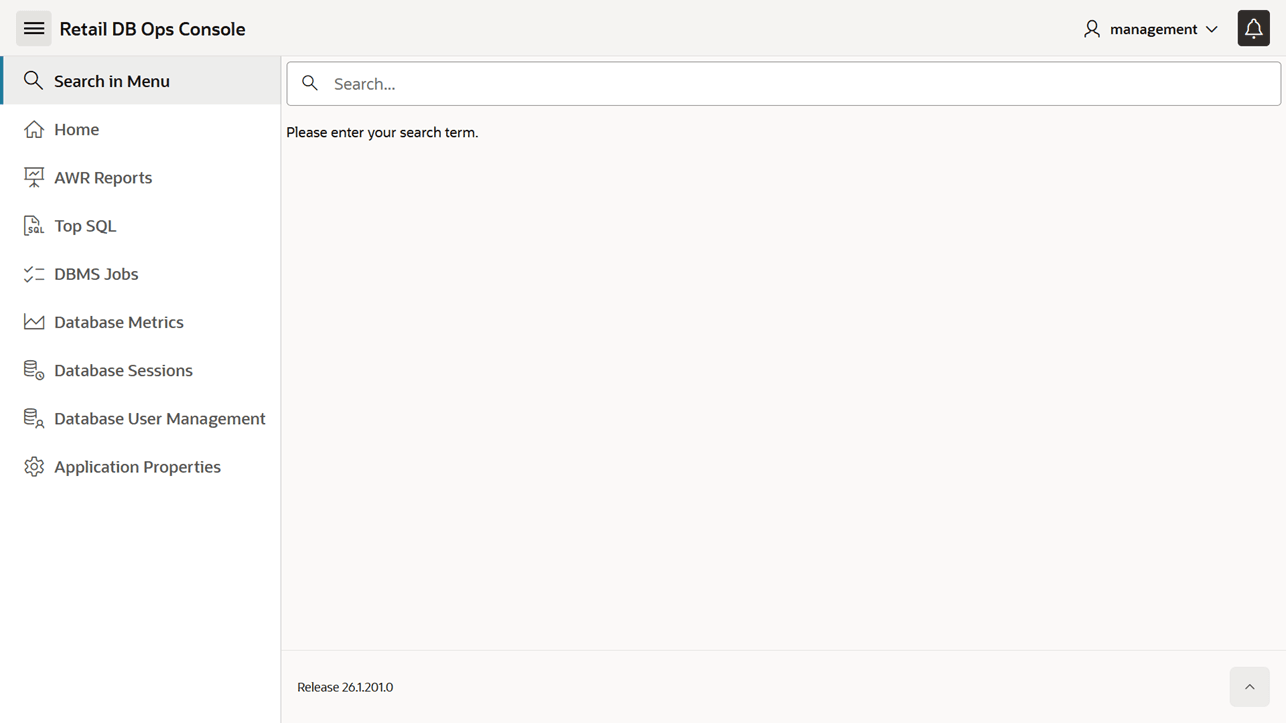
Figure 18-5 Sample Search in Menu Entry
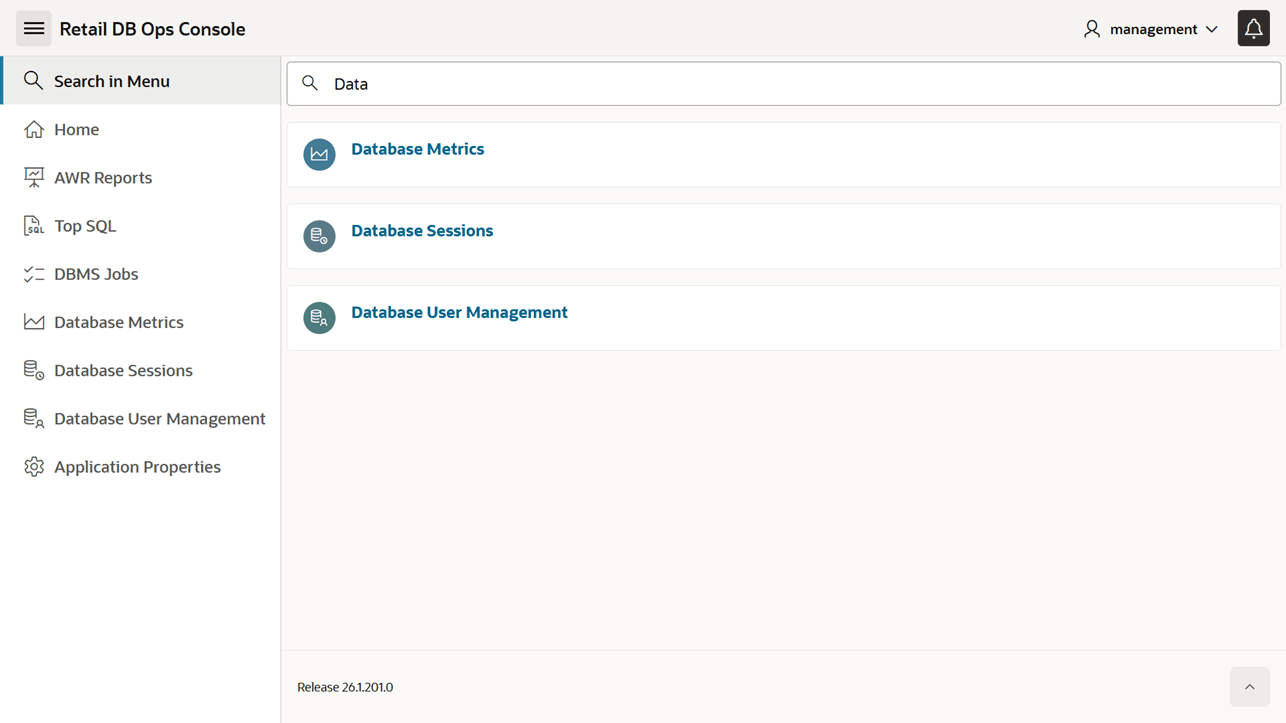
Figure 18-6 Database Metrics
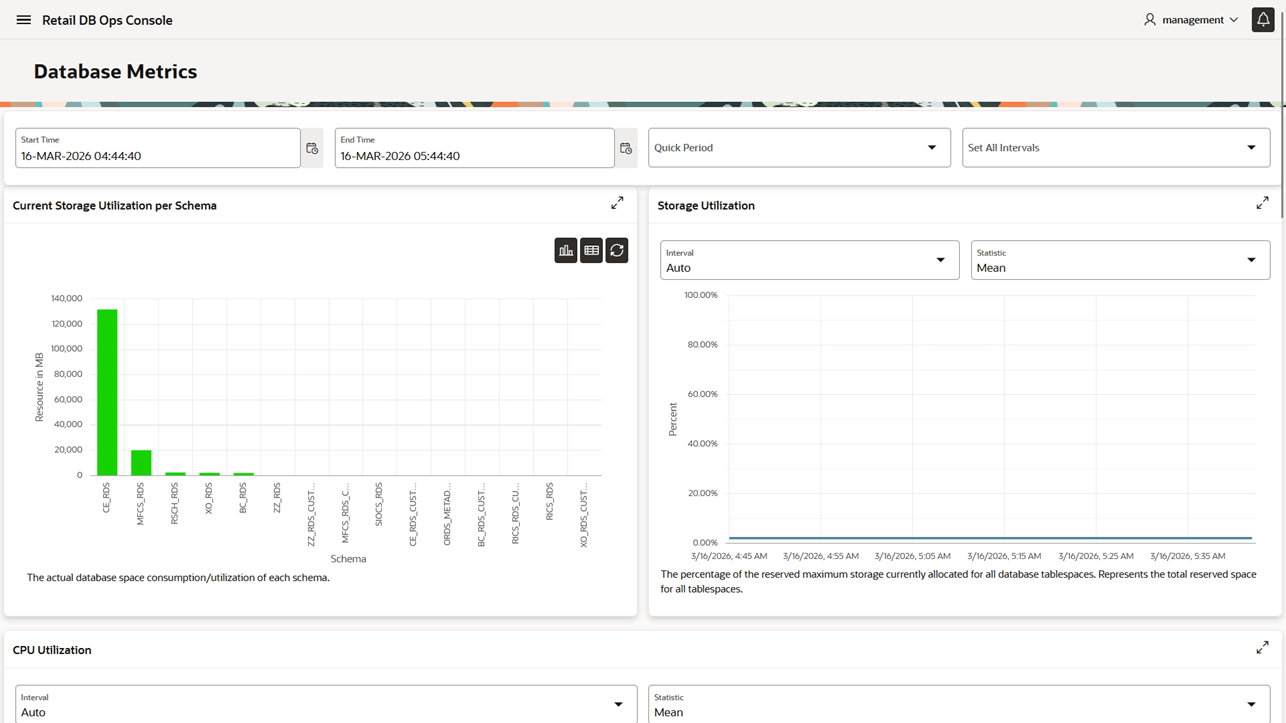
Table 18-2 Database Metric Triage Signals
| Metric | What to watch | Typical next step |
|---|---|---|
| CPU Utilization | Sustained high CPU or sharp spikes aligned with user complaints | Check Top SQL and AWR reports for high-load SQL. |
| Current Storage Utilization | Schemas approaching allocated capacity | Review growth sources and request capacity if needed. |
| Sessions | Spikes in concurrent sessions | Review Database Sessions for idle, runaway, or blocked custom sessions. |
| Execute Count | Higher-than-normal statement volume | Compare against expected workload and recent releases. |
| Running Statements | Many statements executing concurrently | Use Top SQL to identify active SQL and session state. |
| Queued Statements | Backlog waiting for execution | Treat as contention and investigate active SQL, sessions, and jobs. |
| APEX Page Load Time | Page rendering time increases | Compare with APEX Page Events and Top SQL. |
| APEX Page Events | Increased user interaction volume | Decide whether performance change follows higher usage or inefficient SQL. |
Storage Utilization
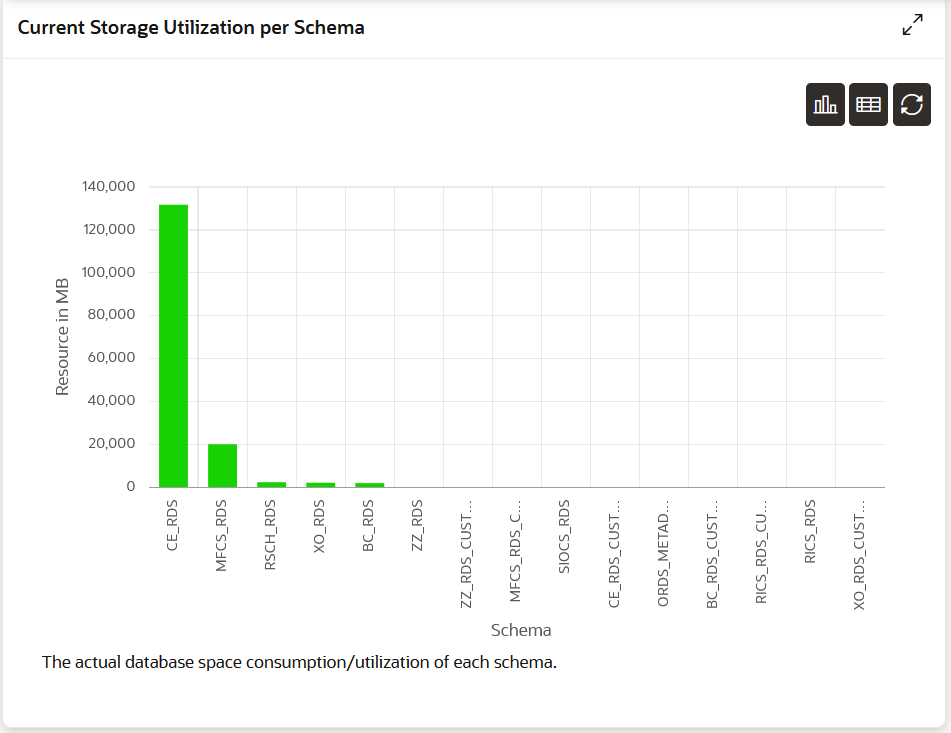
The current storage utilization metric shows how much storage each schema is consuming in graph form, as shown in Figure Current Storage Utilization per Schema - Graph View.
Figure 18-7 Current Storage Utilization per Schema - Graph View
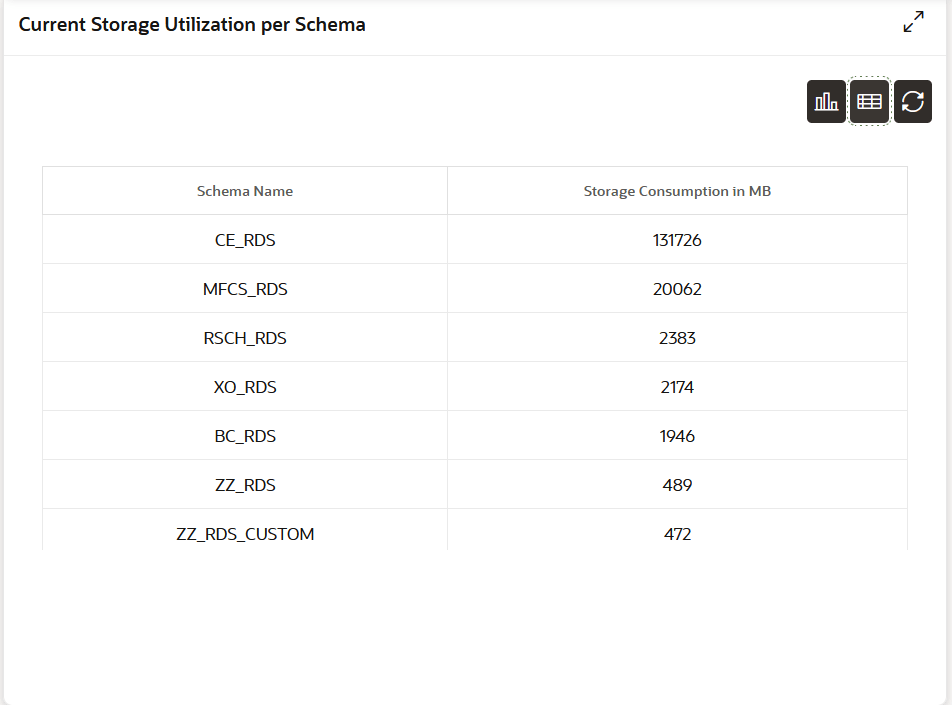
Use the table view shown in Figure Current Storage Utilization per Schema - Table Report to review schema name and storage consumption in MB.
Figure 18-8 Current Storage Utilization per Schema - Table Report
Load and Activity Metrics
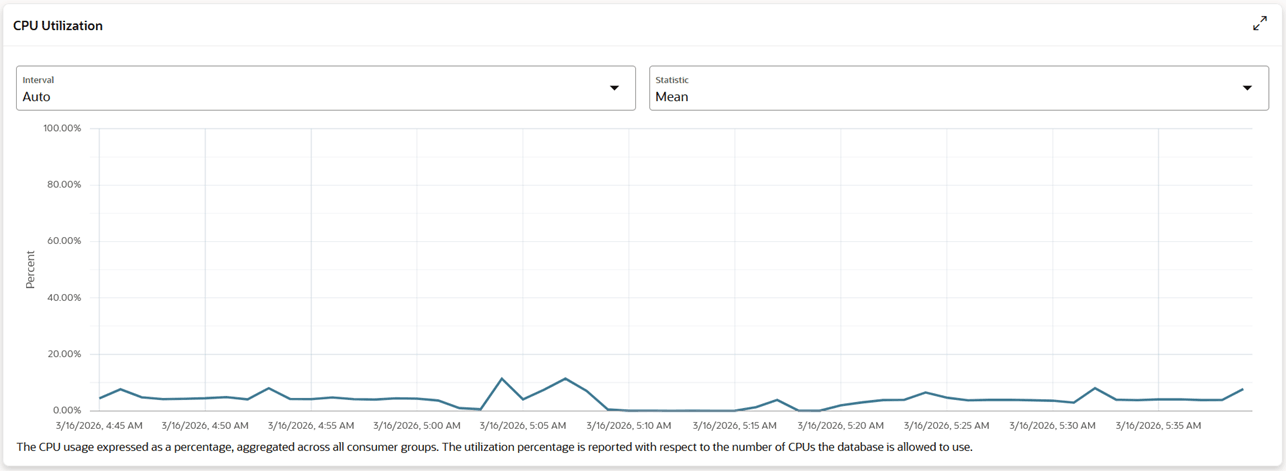
CPU Utilization shows the percentage of processing capacity used by active processes during the selected interval, as shown in Figure CPU Utilization.
Figure 18-9 CPU Utilization
Sessions shows concurrent database session activity during the selected interval, as shown in Figure Sessions.
Execute Count shows the number of SQL statements executed during the selected interval, as shown in Figure Execute Count.
Running Statements shows the number of SQL statements currently being executed by the database, as shown in Figure Running Statements.
Queued Statements shows statements waiting to be executed, which can indicate resource contention or scheduling backlog, as shown in Figure Queued Statements.
APEX Page Load Time shows page load and rendering time for APEX applications, as shown in Figure APEX Page Load Time.
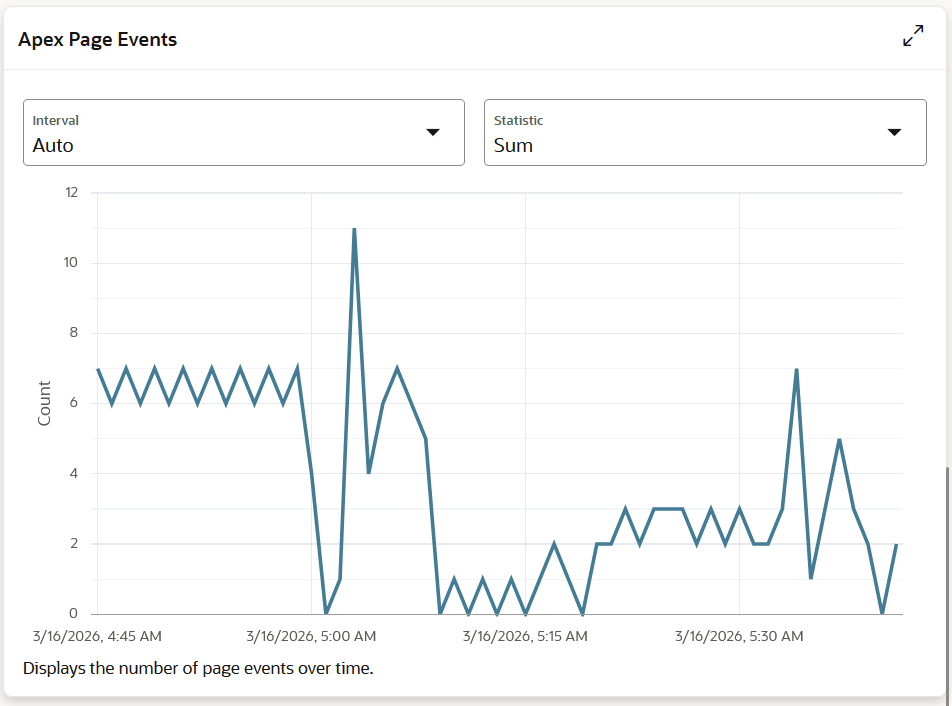
APEX Page Events shows APEX page event activity during the selected interval, as shown in Figure APEX Page Events.
Investigate Performance
Use AWR reports, Top SQL, and DBMS Jobs together when investigating performance. A practical sequence is:
-
Use Database Metrics to identify the affected time window.
-
Use AWR reports to understand system load during that window.
Figure 18-10 Sessions
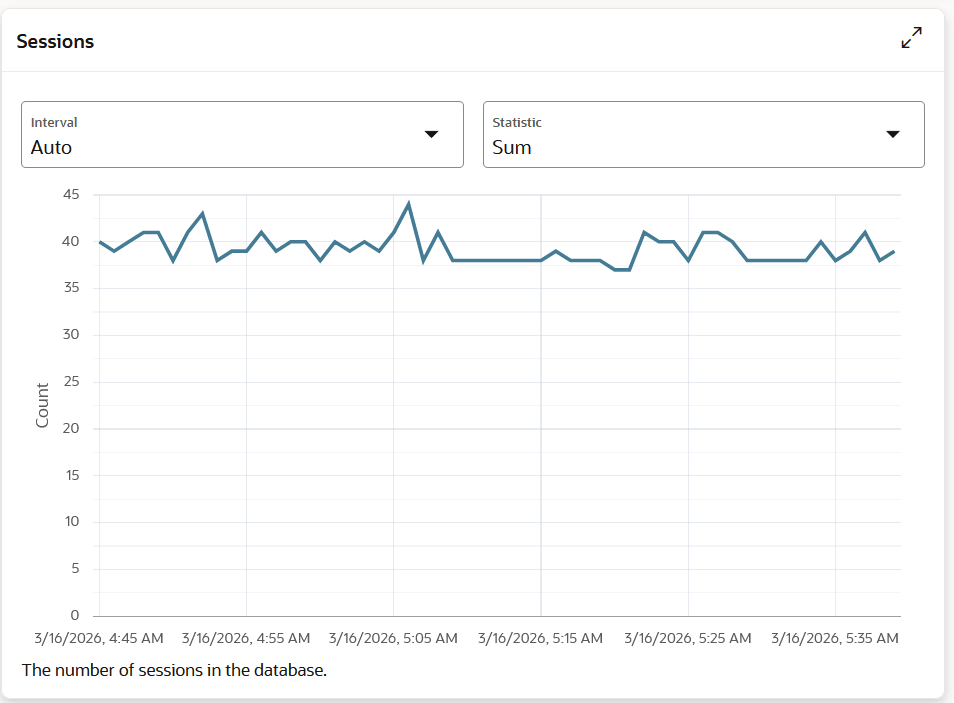
Figure 18-11 Execute Count
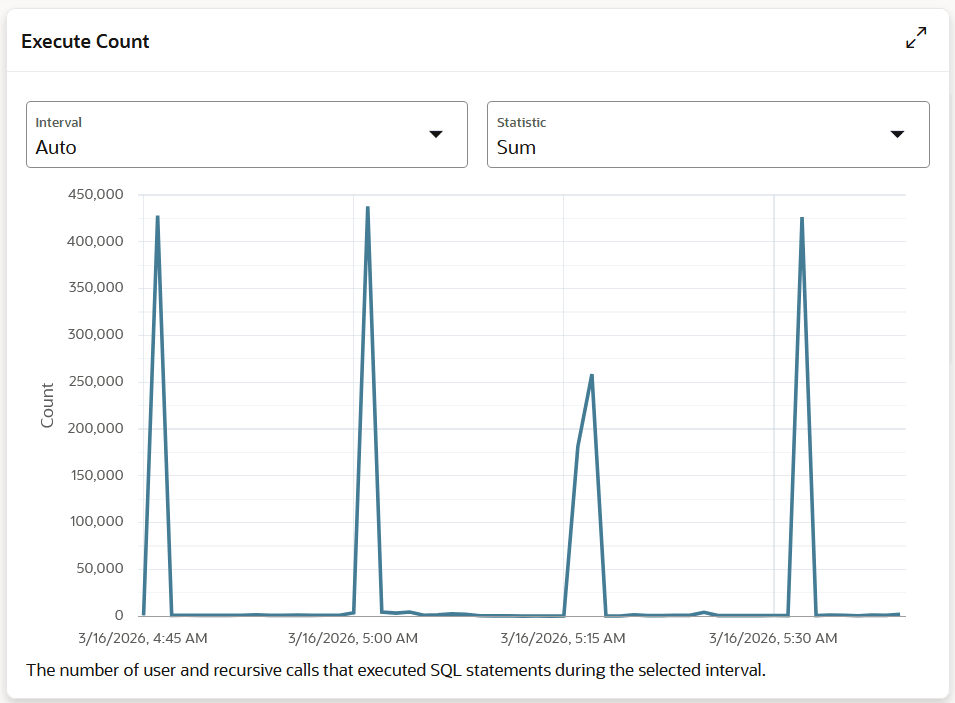
Figure 18-12 Running Statements
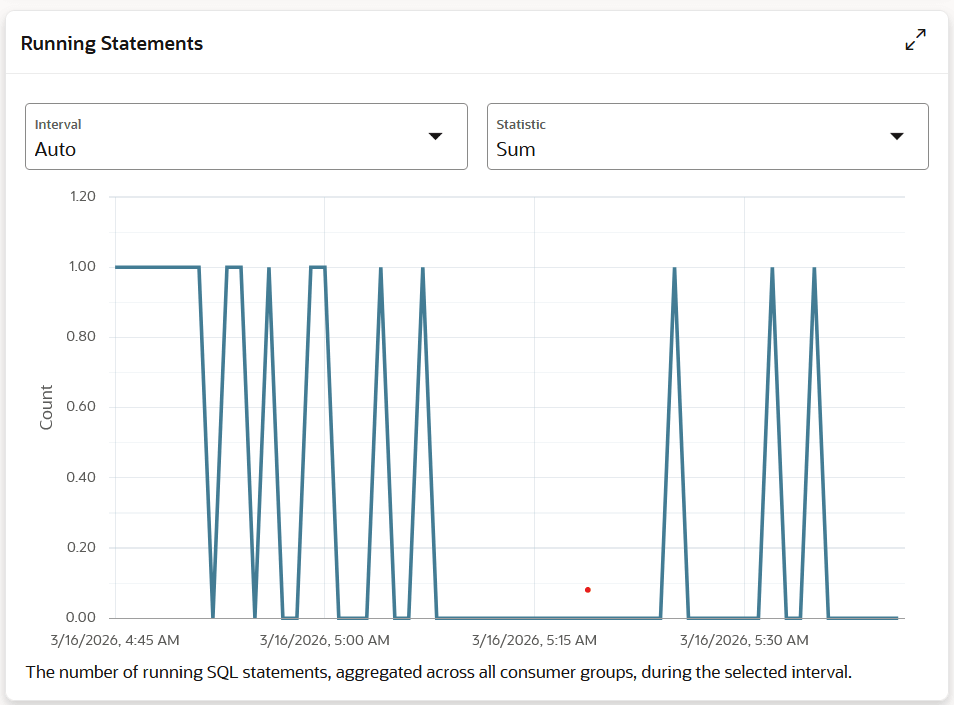
Figure 18-13 Queued Statements
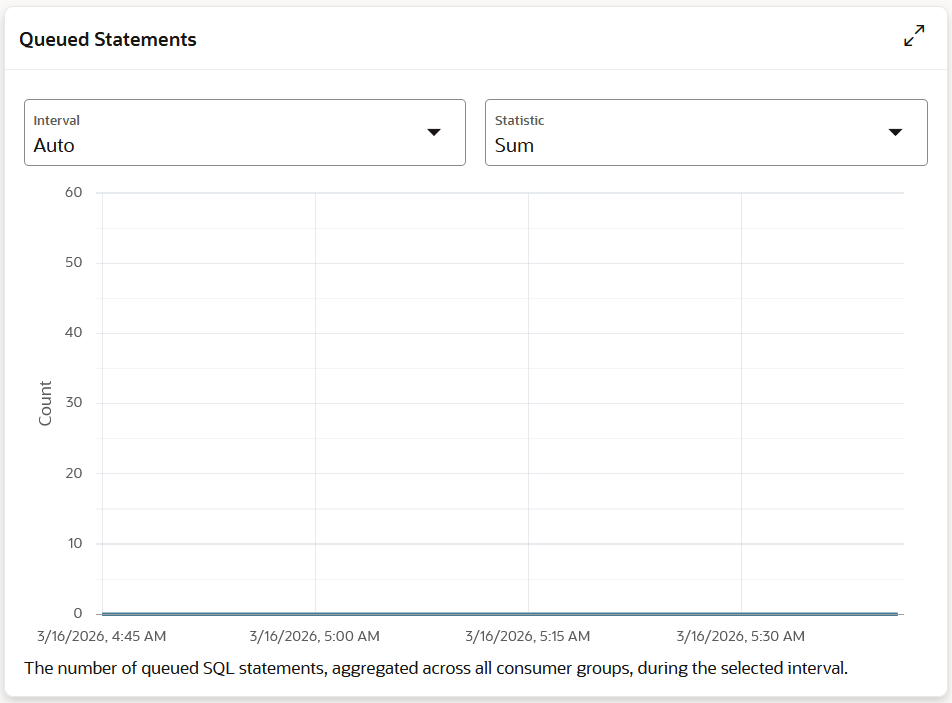
Figure 18-14 APEX Page Load Time
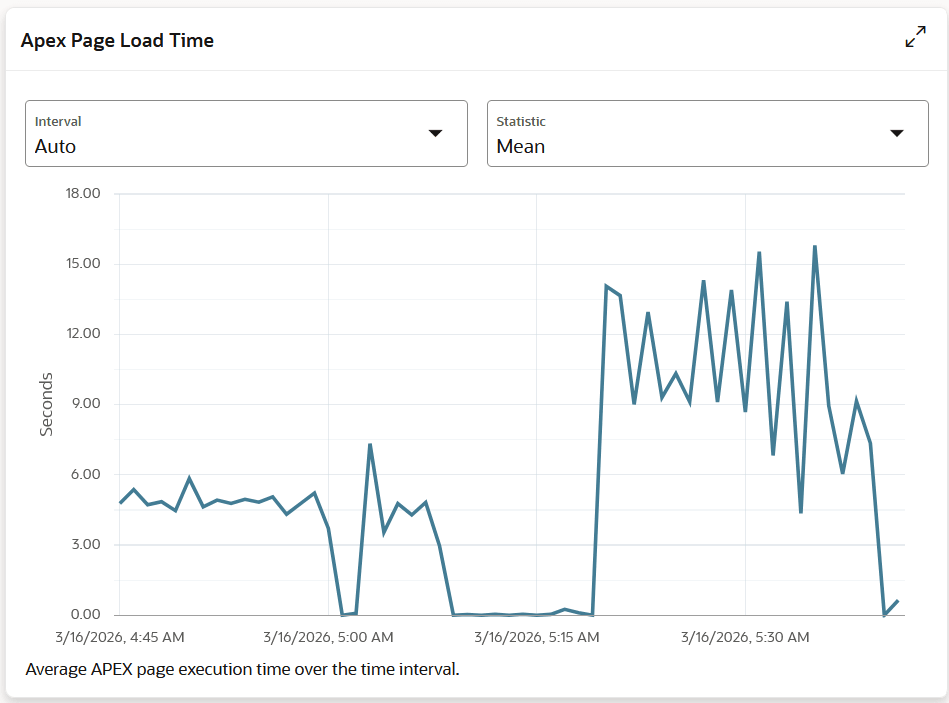
Figure 18-15 APEX Page Events
-
Use Top SQL to identify active or waiting SQL.
-
Use DBMS Jobs to check whether scheduled jobs contributed to the load.
-
Follow the Query Tuning appendix to inspect execution plans, waits, plan history, and tuning options.
Review AWR Reports
Automated Workload Repository (AWR) reports summarize database workload over a selected snapshot interval. Use AWR reports when the issue happened in the past, when you need to compare current behavior with a known healthy period, or when the Query Tuning appendix calls for system-load evidence. Generated reports are retained for 30 days.
Users with RDS_MANAGEMENT_VIEWER or
RDS_MANAGEMENT_VIEWER_PREPROD can search generated AWR reports. The
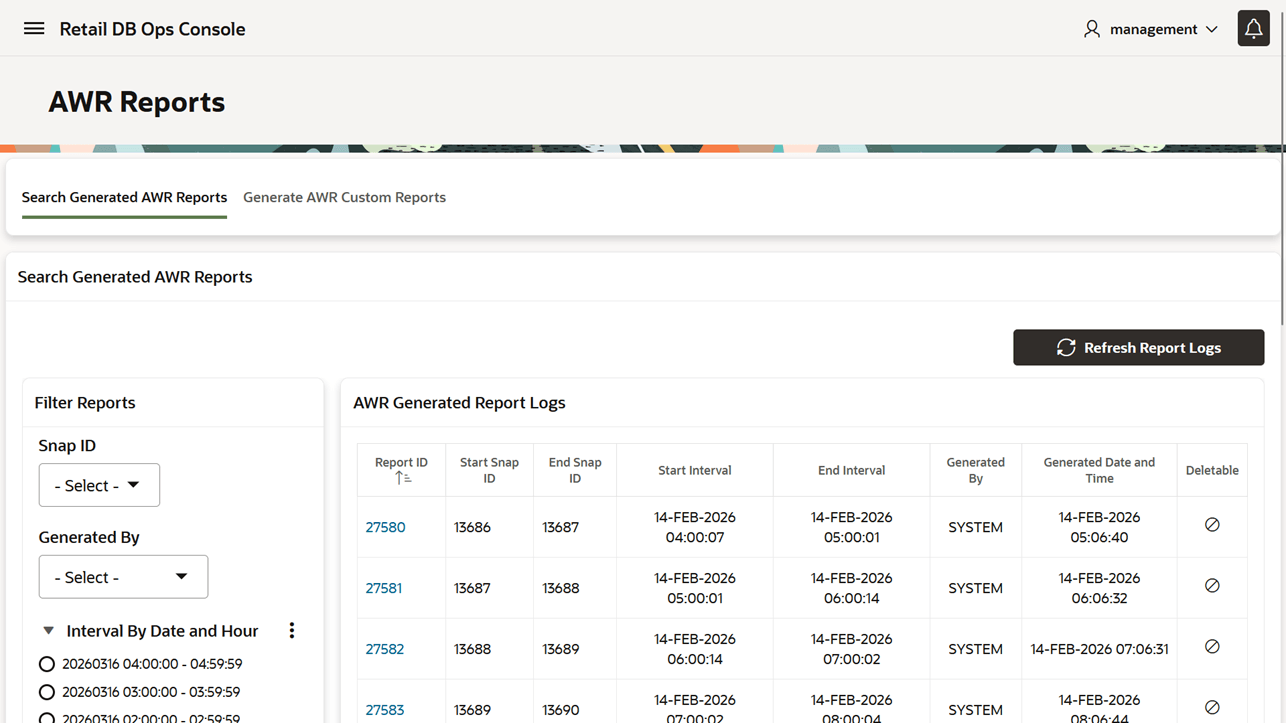
page shown in Figure AWR Reports -
Search Generated AWR Reports supports filtering by snapshot, generated-by
value, interval date and hour, and generated date. Select a Report ID to open the report
viewer.
Figure 18-16 AWR Reports - Search Generated AWR Reports
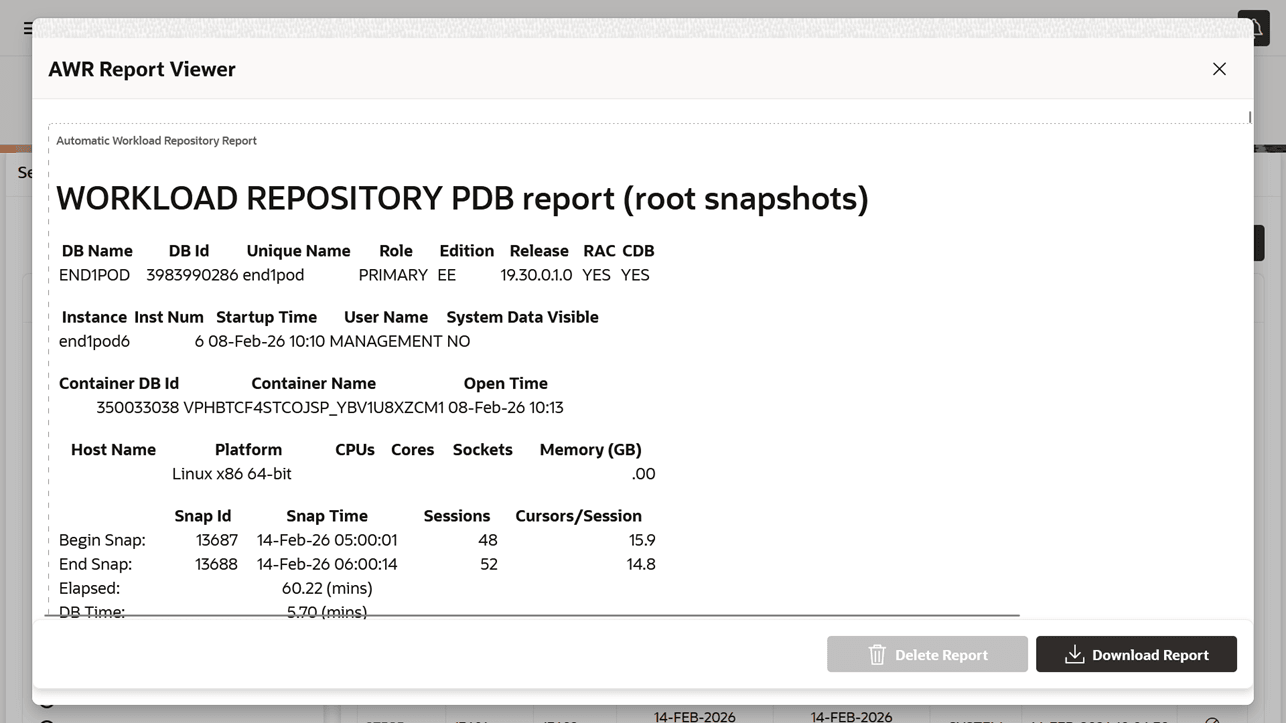
The AWR Report Viewer displays the selected report in a modal window, as shown in Figure AWR Reports - AWR Report Viewer.
From this window, the user can download the report or delete it when deletion is allowed.
When reviewing AWR output, compare the affected interval to a similar healthy interval when possible. Look for new top SQL, increased database time, high waits, plan changes, and workload spikes.
Figure 18-17 AWR Reports - AWR Report Viewer
Generate a custom AWR Report
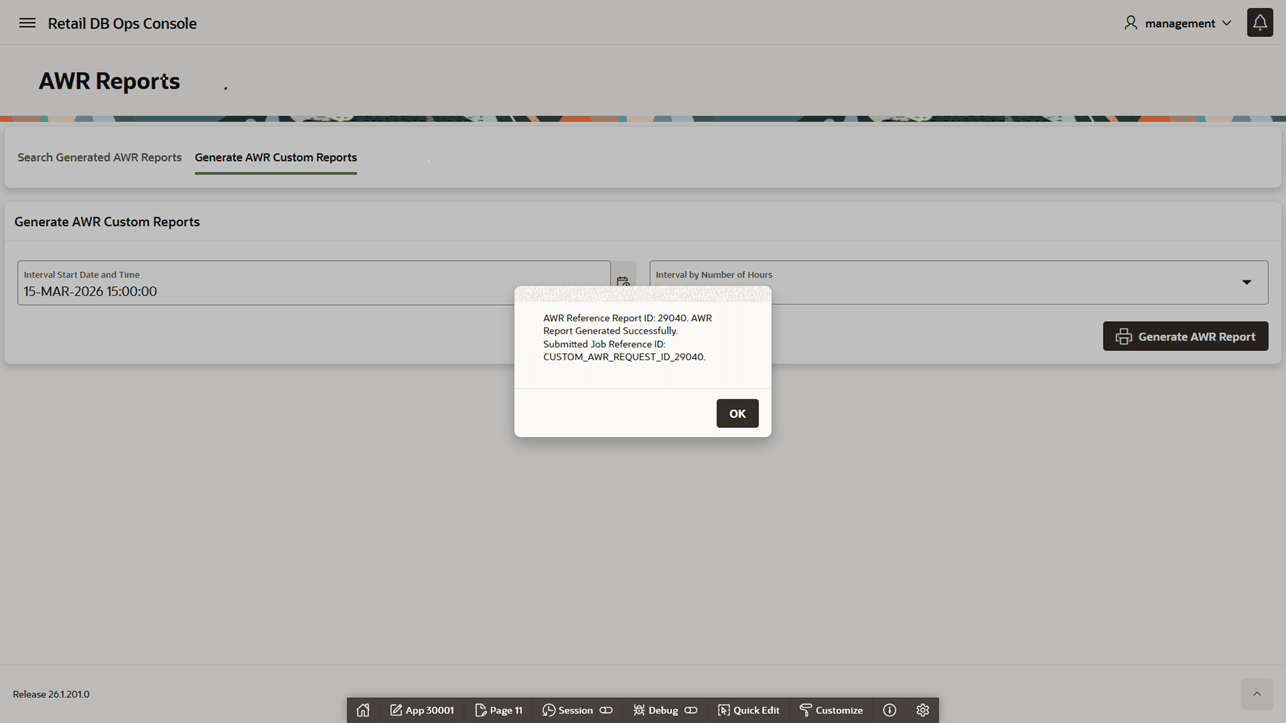
Users with RDS_MANAGEMENT_OWNER or RDS_MANAGEMENT_OWNER_PREPROD can generate custom AWR reports from the page shown in Figure AWR Report - AWR Reports Generation. Enter the interval start date and time, select the number of hours, and then generate the report.
After the generation request is submitted, the report runs in the background, as shown in Figure AWR Report Generation Started.
When the report is generated successfully, the console displays a confirmation message, as shown in Figure AWR Report Generation Success Message.
The same completion status is also available from the Notifications panel, as shown in Figure AWR Report Generation Notification.
Triage Active SQL
Use Top SQL when an issue is happening now or when Database Metrics show active running or queued statements. The Top SQL page displays active SQL collected from database activity.
Figure 18-18 AWR Report - AWR Reports Generation
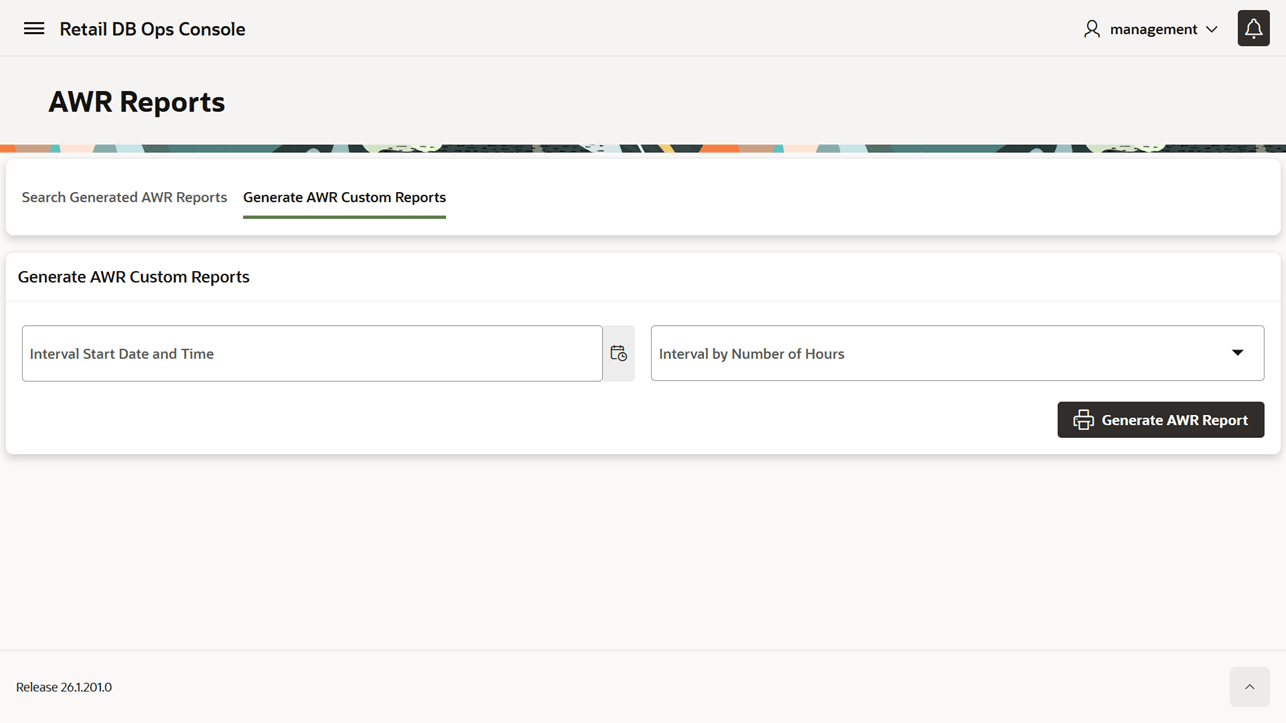
Figure 18-19 AWR Report Generation Started
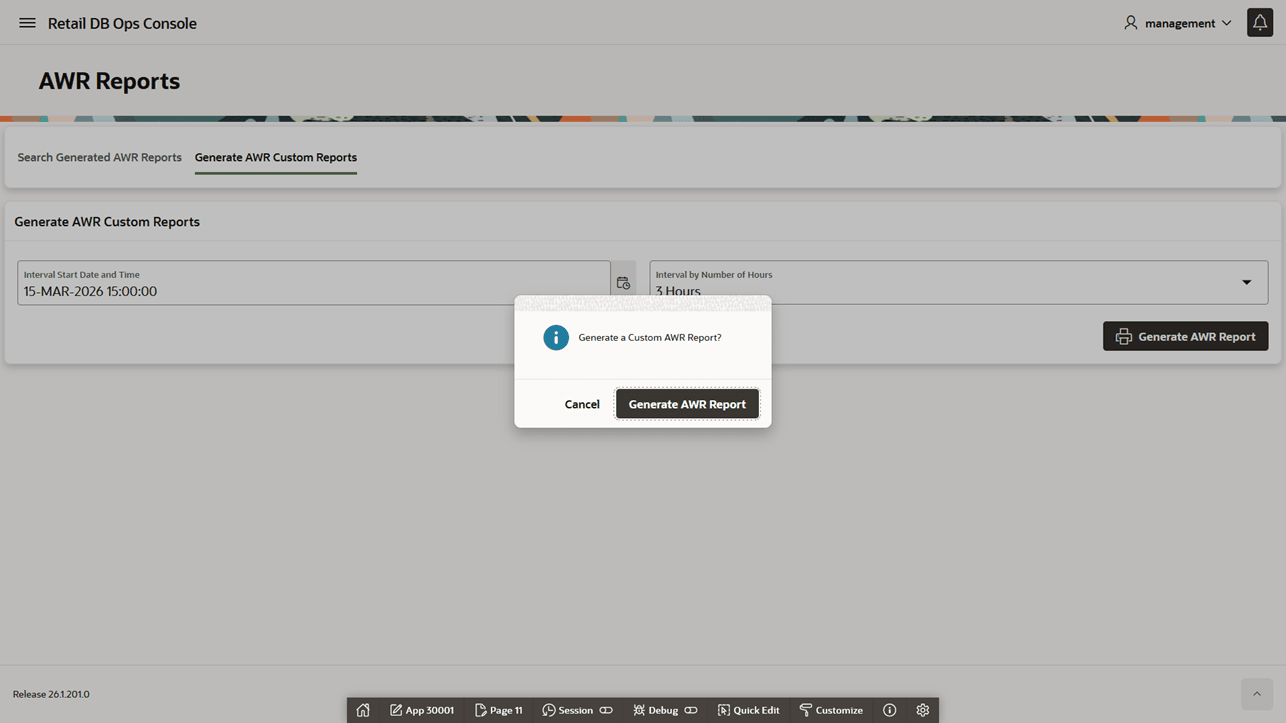
Figure 18-20 AWR Report Generation Success Message
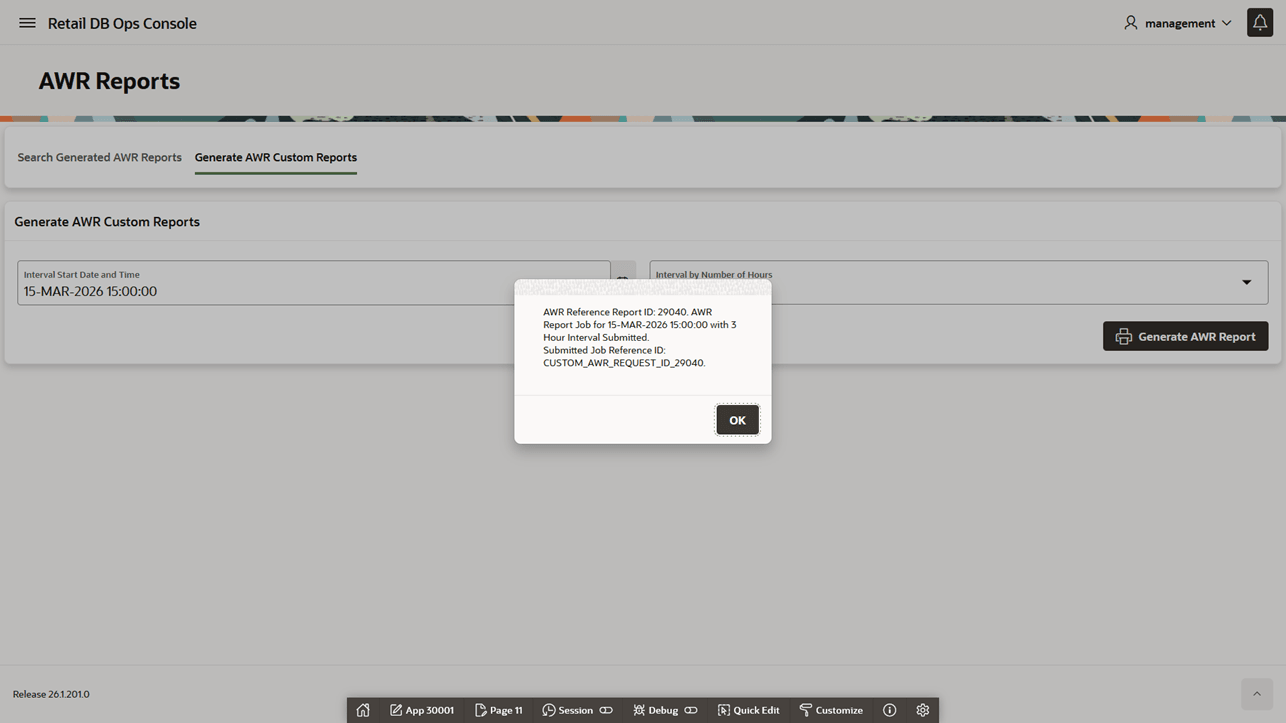
Figure 18-21 AWR Report Generation Notification
Users with RDS_MANAGEMENT_VIEWER or
RDS_MANAGEMENT_VIEWER_PREPROD can view the page and filter SQL by
session state, including ON CPUand WAITING.
The Top SQL report shown in Figure Top SQL includes fields such as SQL ID, running instance, client ID, user name, schema name, SQL text, session state, start time, time waited, and elapsed time in seconds. Select a SQL ID to open detailed SQL instance information.
Figure 18-22 Top SQL
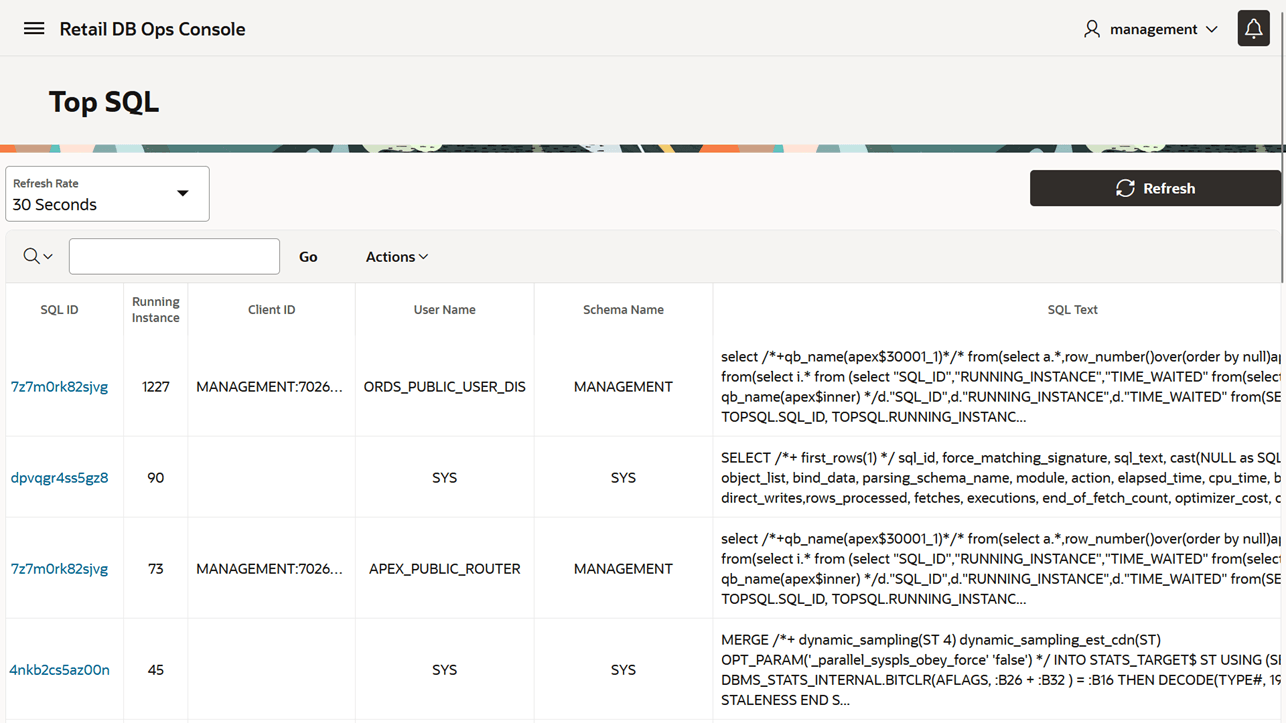
Use ON CPU to identify SQL consuming processing capacity. Use
WAITINGto identify SQL blocked on waits or resources. For slow
custom SQL, continue with the Query Tuning appendix to review the SQL ID, execution
plan, wait profile, and plan history.
From Top SQL, generate and download an explain plan or SQL active report for the selected SQL, as shown in Figure Top SQL - Generate Explain Plan.
The SQL Instance Viewer shown in Figure Top SQL - SQL Instance Viewer displays the selected SQL instance and related runtime details.
Use the SQL Full Text link to view the complete SQL statement, as shown in Figure Top SQL - Full SQL Text Viewer.
The SQL Instance Viewer includes DBA historical report data when available, as shown in Figure Top SQL - DBA Historical Reports. Fields include Snap ID, Database ID, Instance Number, Report ID, Component ID, Session ID, Session Serial Number, period start and end time, generation time, report parameters, SQL ID, generation cost in seconds, and historical report.
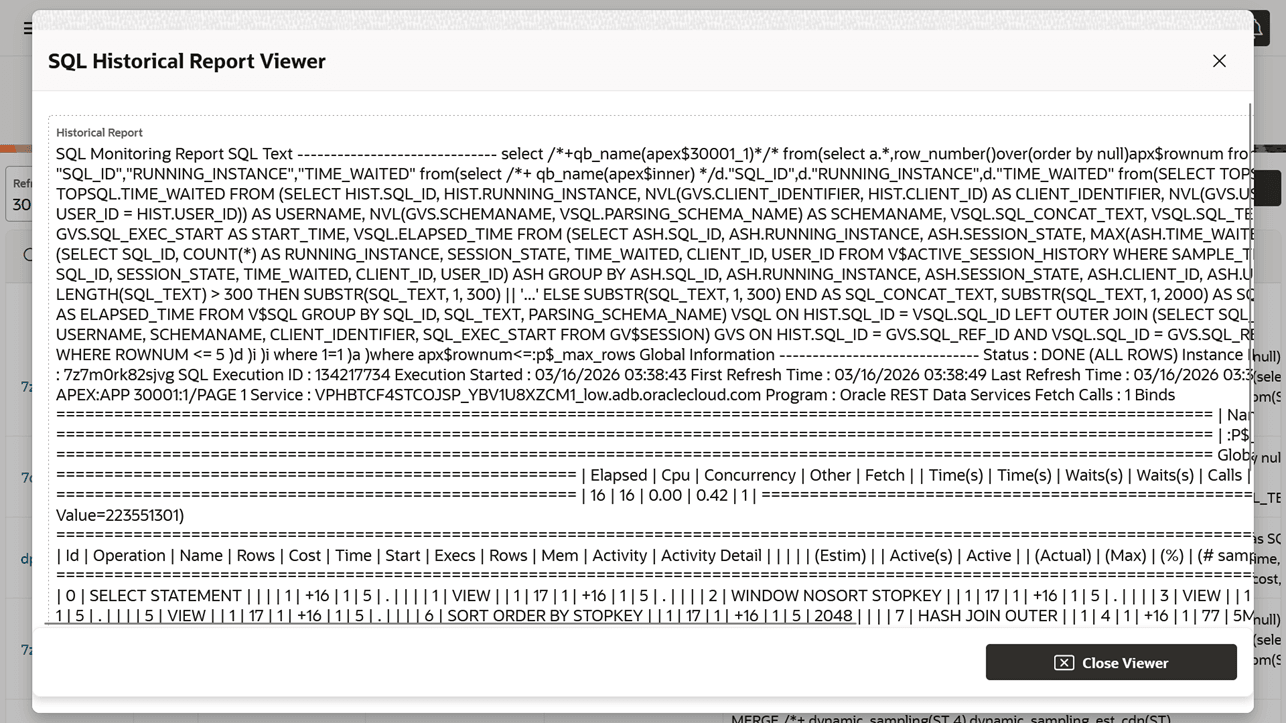
Open a historical report to review the SQL historical report details shown in Figure Top SQL - SQL Historical Report Viewer.
Figure 18-23 Top SQL - Generate Explain Plan
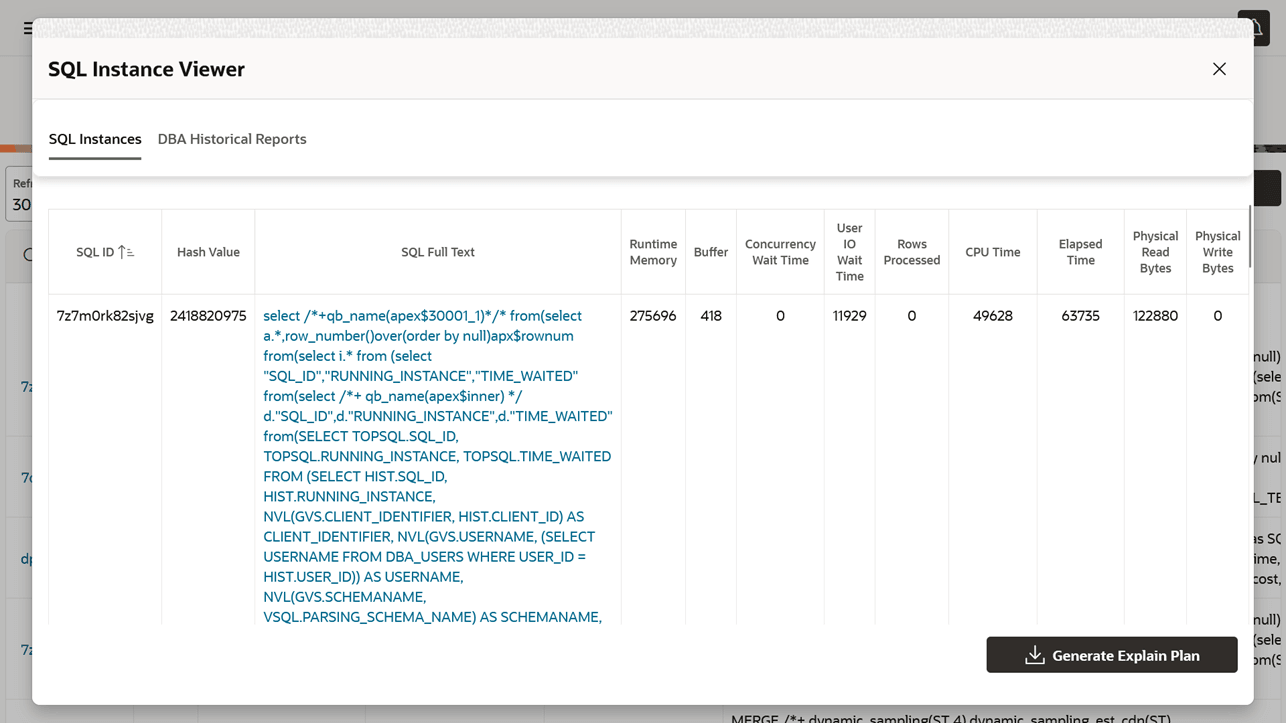
Figure 18-24 Top SQL - SQL Instance Viewer
Figure 18-25 Top SQL - Full SQL Text Viewer
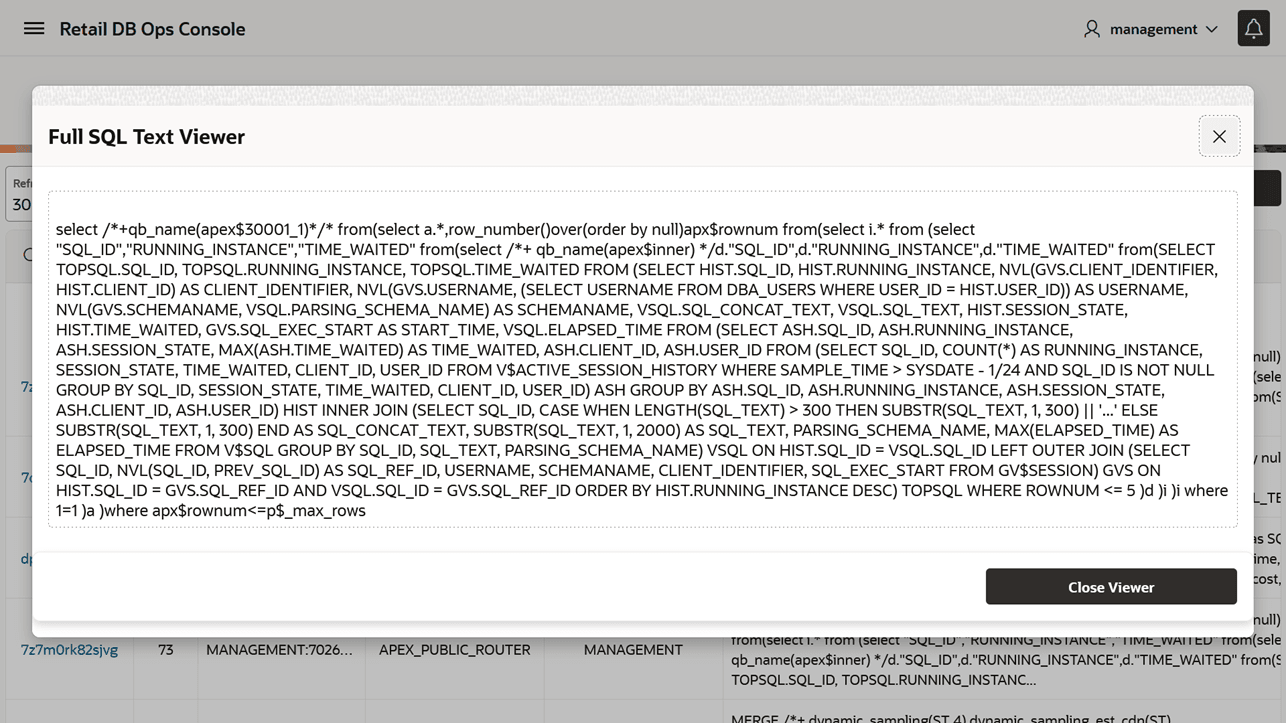
Figure 18-26 Top SQL - DBA Historical Reports
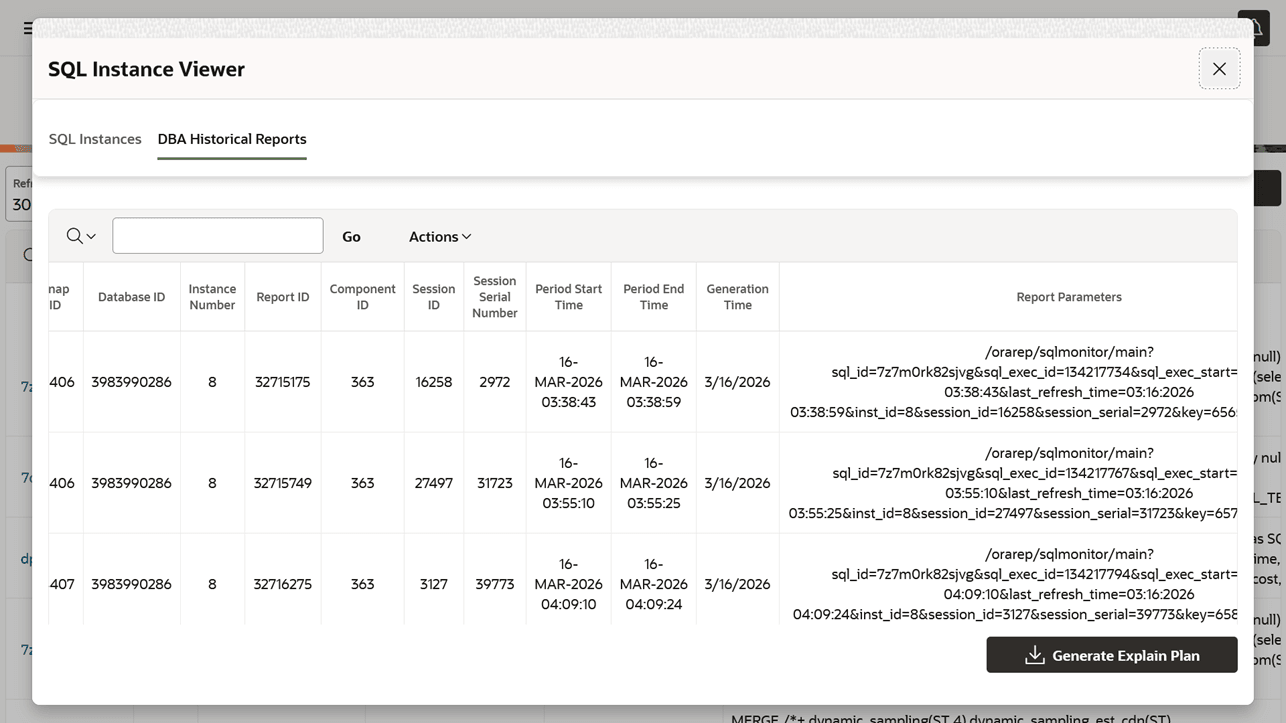
Figure 18-27 Top SQL - SQL Historical Report Viewer
Check DBMS Jobs
Use DBMS Jobs when performance changes align with scheduled activity, batch processing,
or failed background work. The DBMS Jobs page shown in Figure DBMS
Jobs lists available database jobs and job details. Users with
RDS_MANAGEMENT_VIEWER or
RDS_MANAGEMENT_VIEWER_PREPROD can open the page and review job
status.
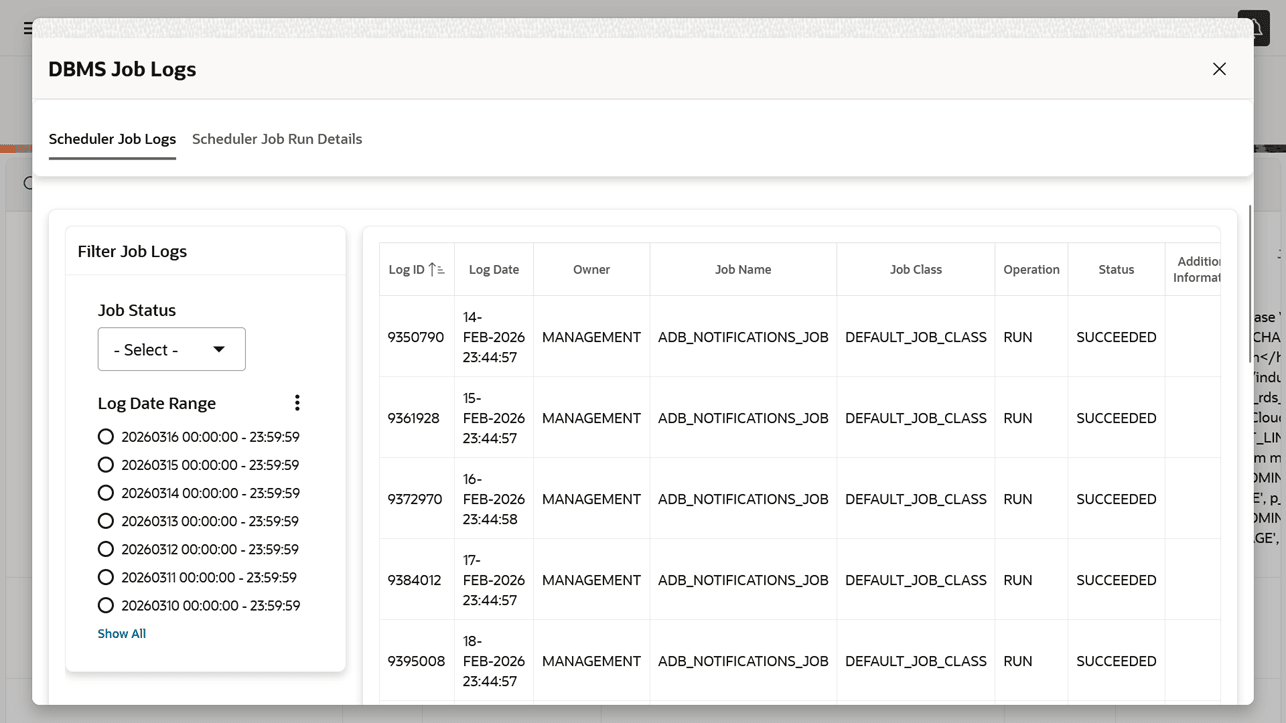
Select a job name to open job log and job run details, as shown in Figure DBMS Jobs - Scheduler Job Logs.
The job run details tab shown in Figure DBMS Jobs - Scheduler Job Run Details shows run history and run-specific details for the selected job.
When diagnosing performance, look for failed jobs, jobs with unusually long runtimes, or jobs that started shortly before the reported slowdown.
Manage Database Sessions
Database Sessions provides an interactive view of custom database sessions that are candidates for termination. Use it when Database Metrics show elevated sessions, when queued statements indicate contention, or when a custom session appears idle, runaway, or no longer useful.
Figure 18-28 DBMS Jobs
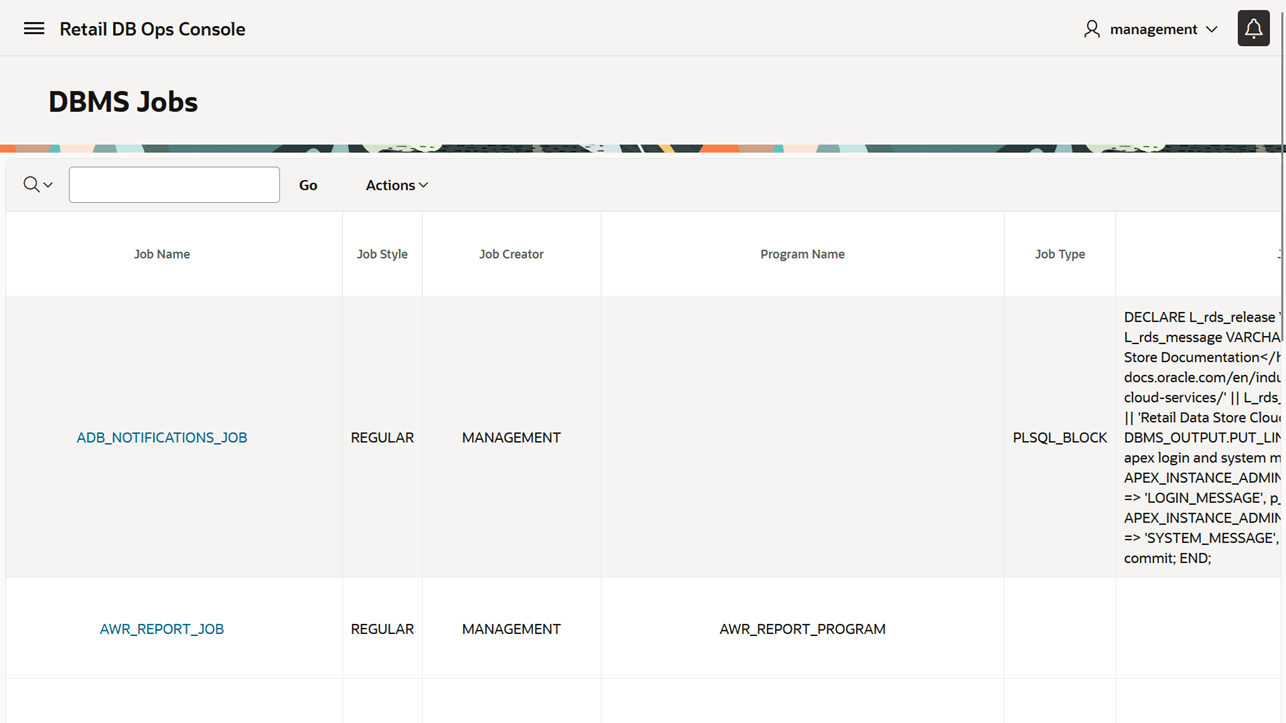
Figure 18-29 DBMS Jobs - Scheduler Job Logs
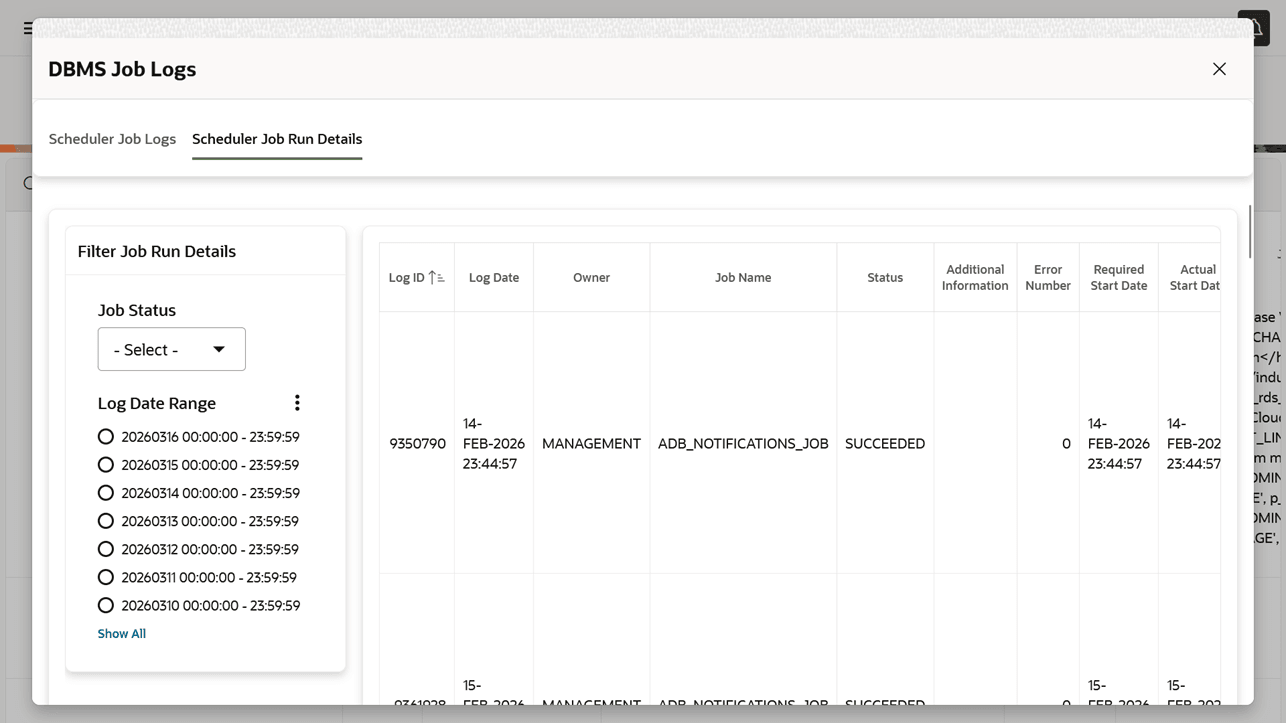
Figure 18-30 DBMS Jobs - Scheduler Job Run Details
The page is designed for sessions that are nominally safe to terminate, including
sessions where the username is ORDS_PUBLIC_USER_DIS and the schema name
is null, or where the username or schema name contains _RDS_CUSTOM.
WARNING:
Terminating a session can interrupt custom processing. Users are responsible for confirming that ending a session will produce the intended outcome. To terminate sessions outside the DB Ops Console criteria, submit a support request.
Open Database Sessions from the navigation menu to review active database sessions, as shown in Figure Database Sessions - Active Database Session.
The Active Database Sessions report shown in Figure Sample Active Database Session shows running database sessions and provides refresh and action controls. Administrators can use the end session action from the report row.
To end a database session, select the end session action on the session row and confirm the action in the dialog shown in Figure End Database Session Confirmation.
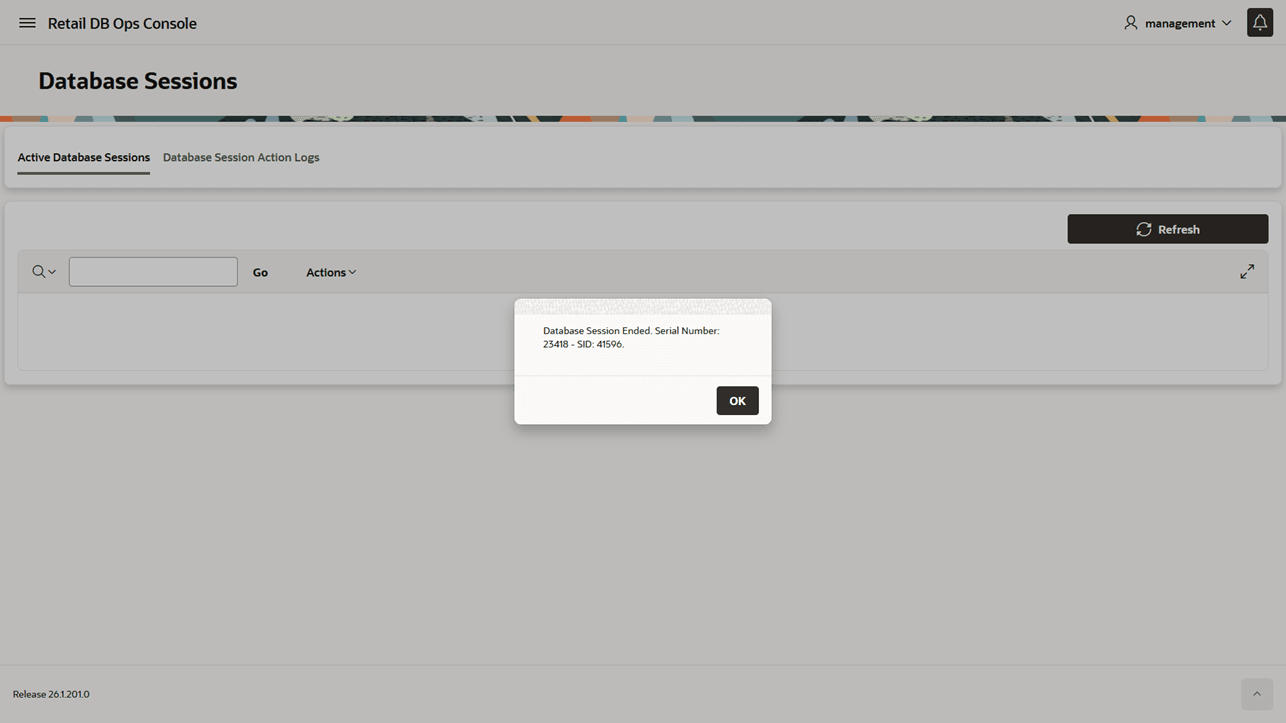
After the session action completes, the console displays a status message and refreshes the report, as shown in Figure End Database Session Status.
Figure 18-31 Database Sessions - Active Database Session
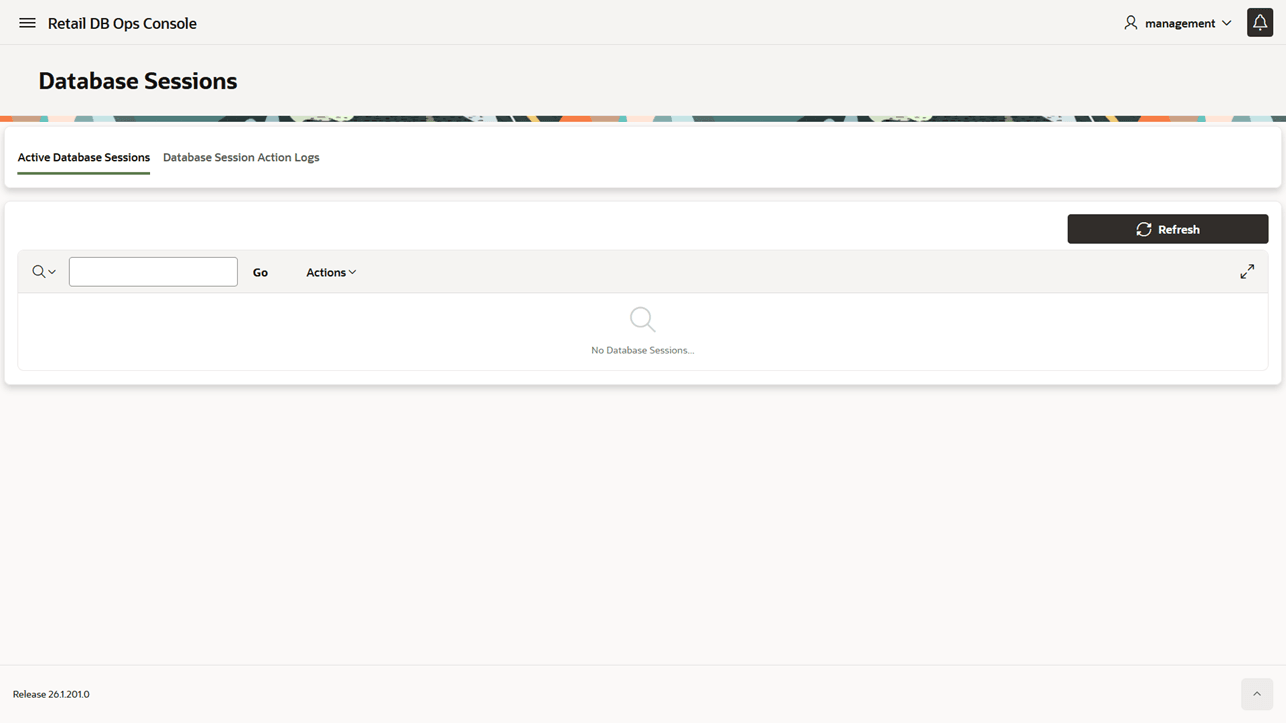
Figure 18-32 Sample Active Database Session
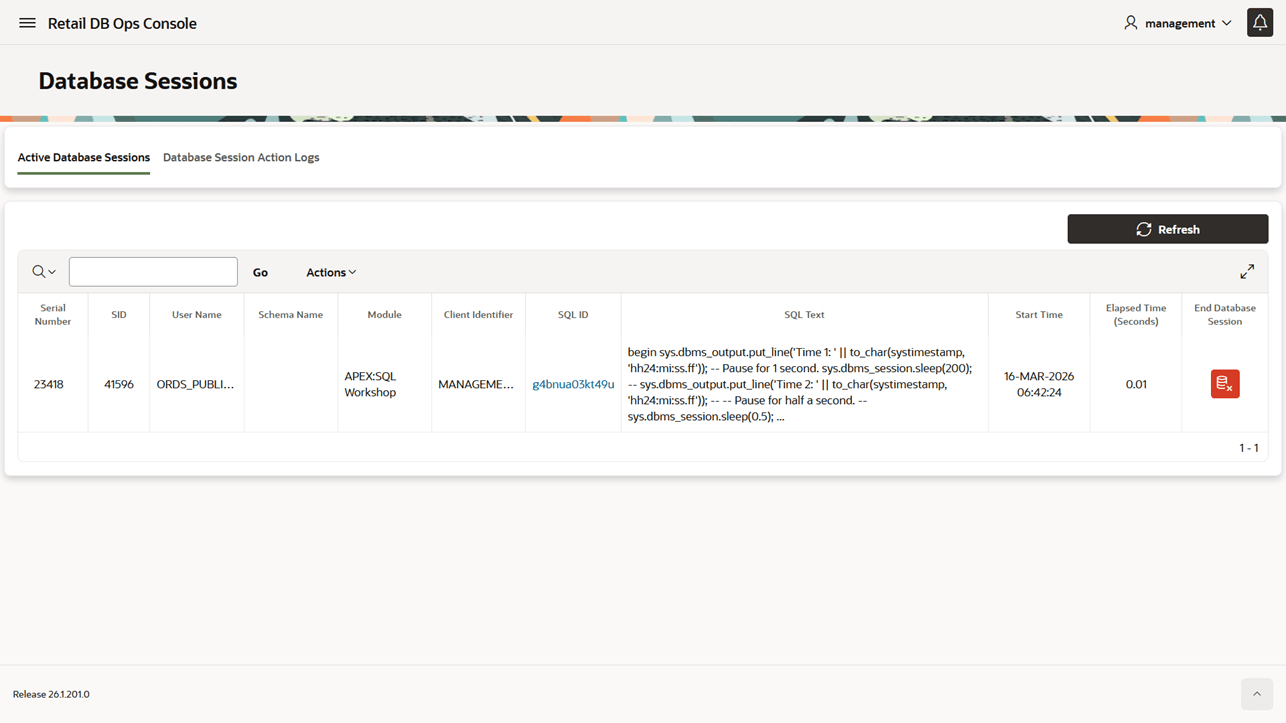
Figure 18-33 End Database Session Confirmation
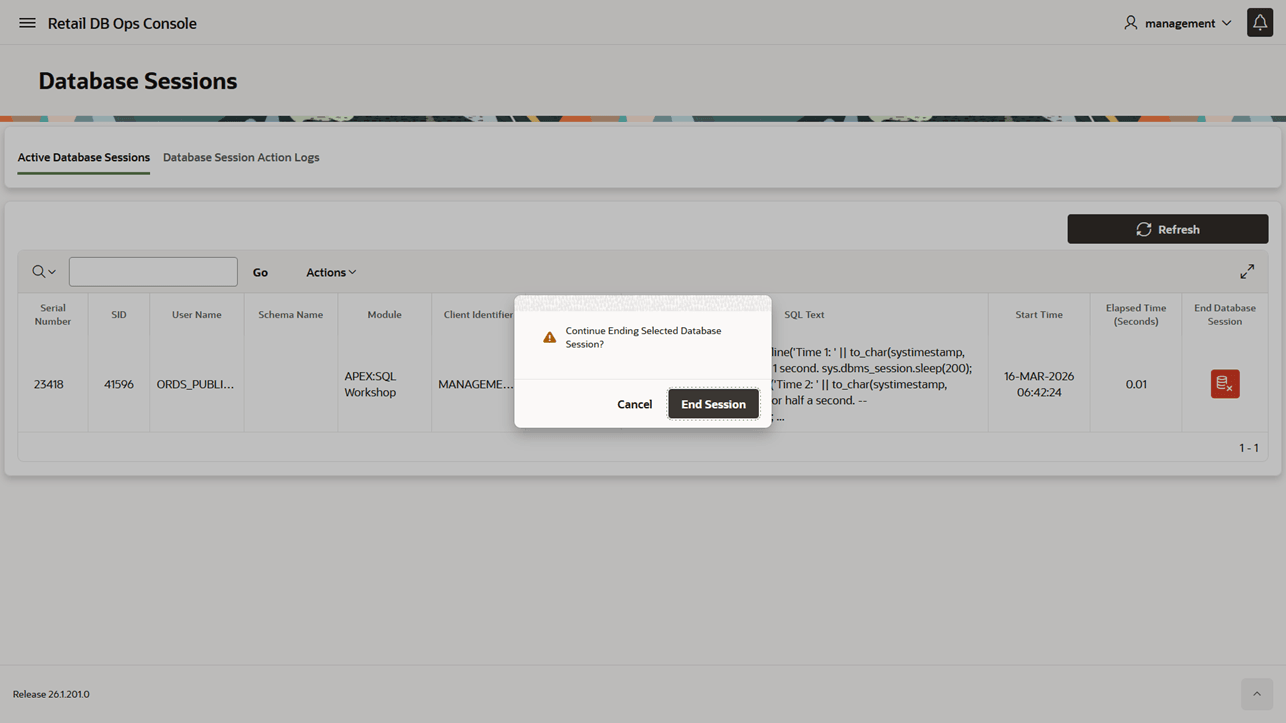
Figure 18-34 End Database Session Status
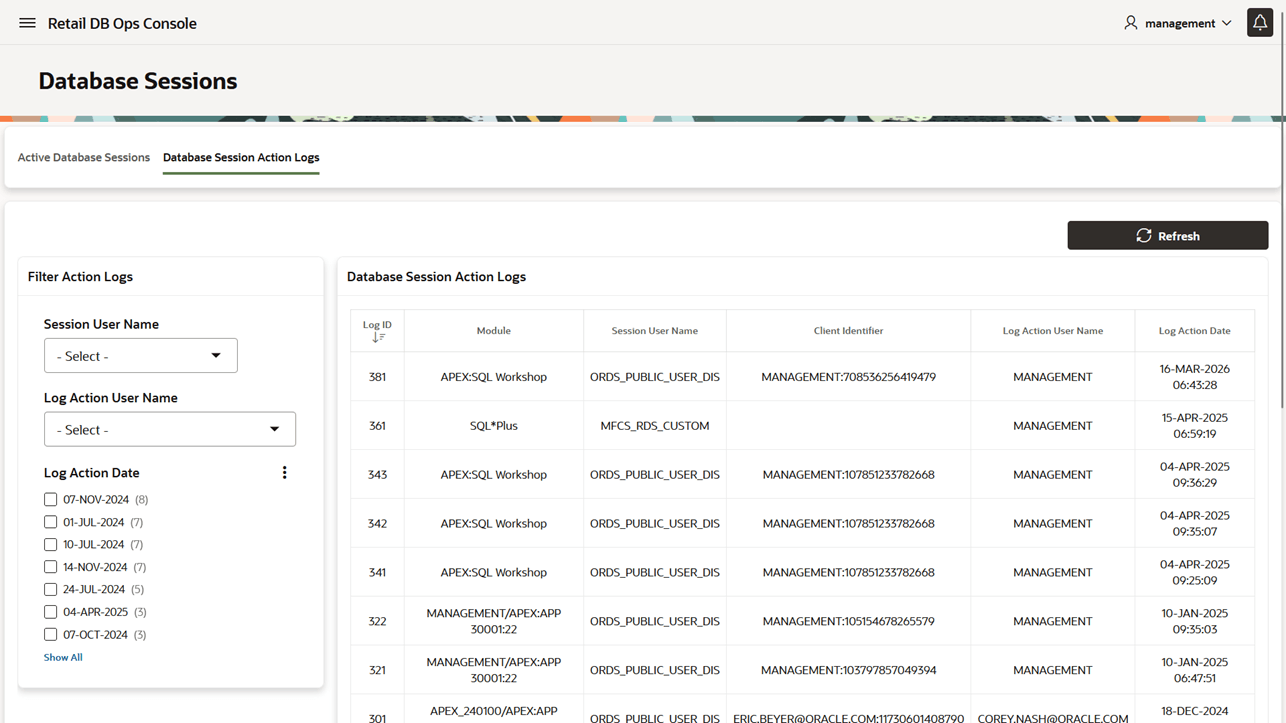
The Database Session Action Logs page shown in Figure Database Sessions - Database Session Action Logs shows details of ended sessions.
Administrators can refresh the log and filter by session user name, log action user name, and log action date.
Figure 18-35 Database Sessions - Database Session Action Logs
Manage Locked Database Users
Use Database User Management to review locked database users and unlock users when permitted by the assigned role. This is most useful after failed login attempts, credential changes, or access incidents.
Database User Management provides controls for reviewing locked database users and unlocking users when permitted by the assigned role, as shown in Figure Database User Management - Locked Database Users.
The Locked Database Users report shown in Figure Sample Locked Database Users lists locked users and provides row-level actions.
To unlock a database user, select the unlock action and confirm the action in the dialog shown in Figure Unlock Database User Confirmation.
After the unlock action completes, the console displays a status message, as shown in Figure Unlock Database User Status.
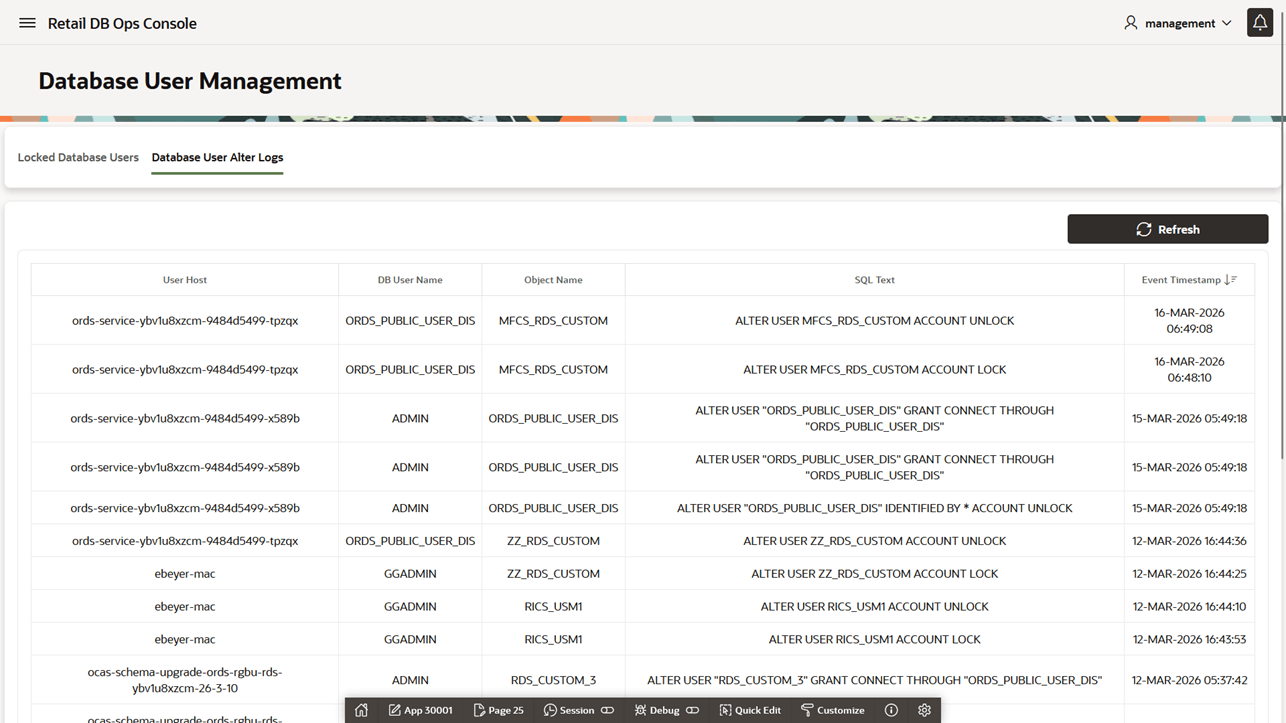
The Database User Alter Logs page shown in Figure Database User Management - Database User Alter Logs shows database user management actions, including the user affected, the action user, and the action date.
Figure 18-36 Database User Management - Locked Database Users
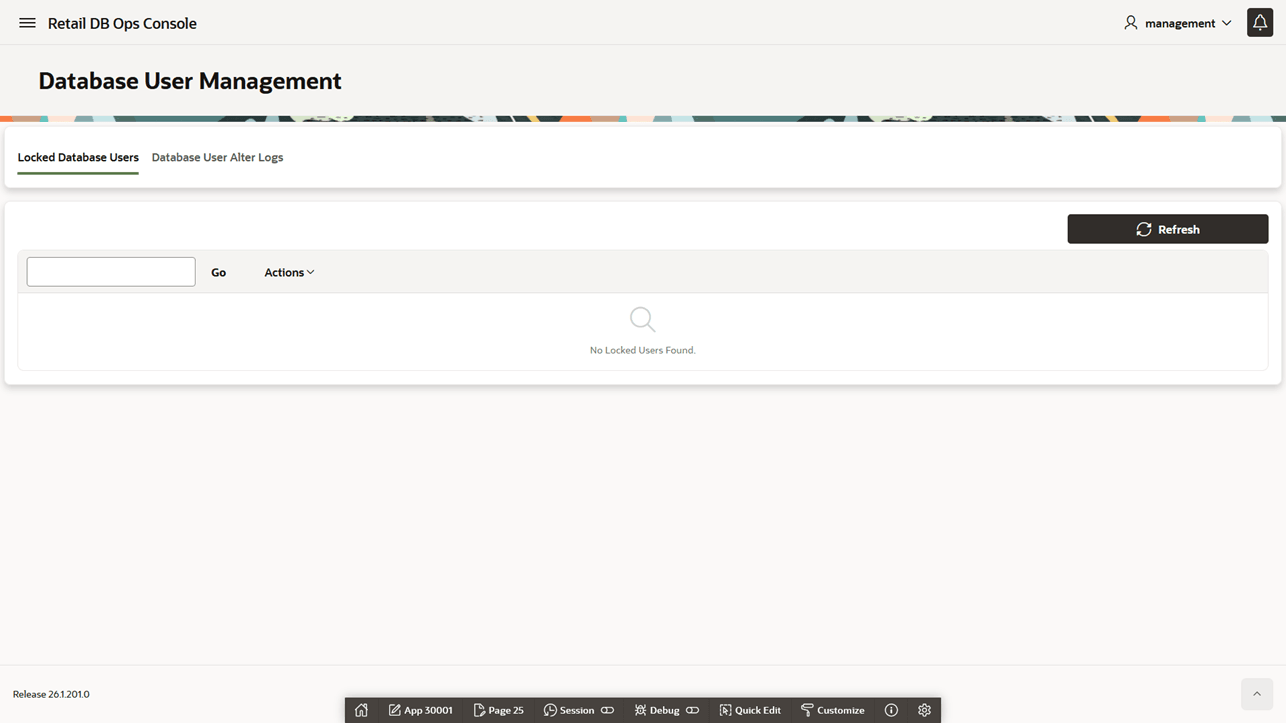
Figure 18-37 Sample Locked Database Users
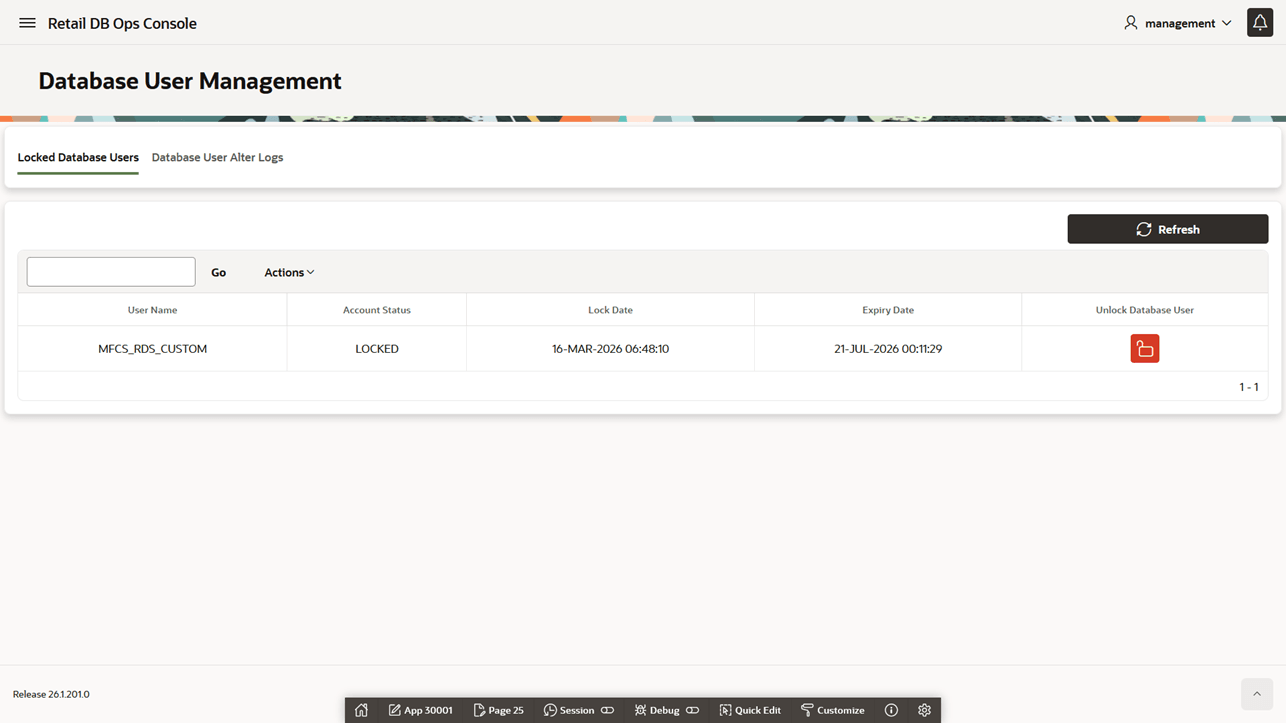
Figure 18-38 Unlock Database User Confirmation
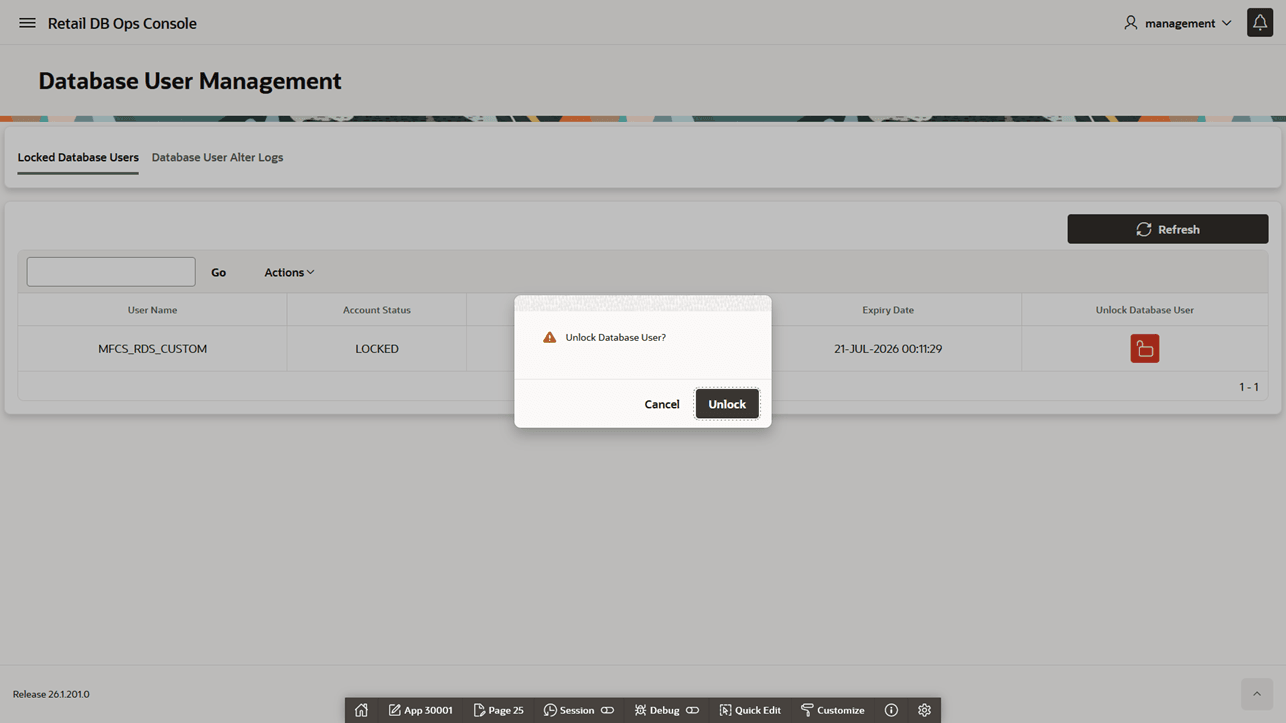
Figure 18-39 Unlock Database User Status
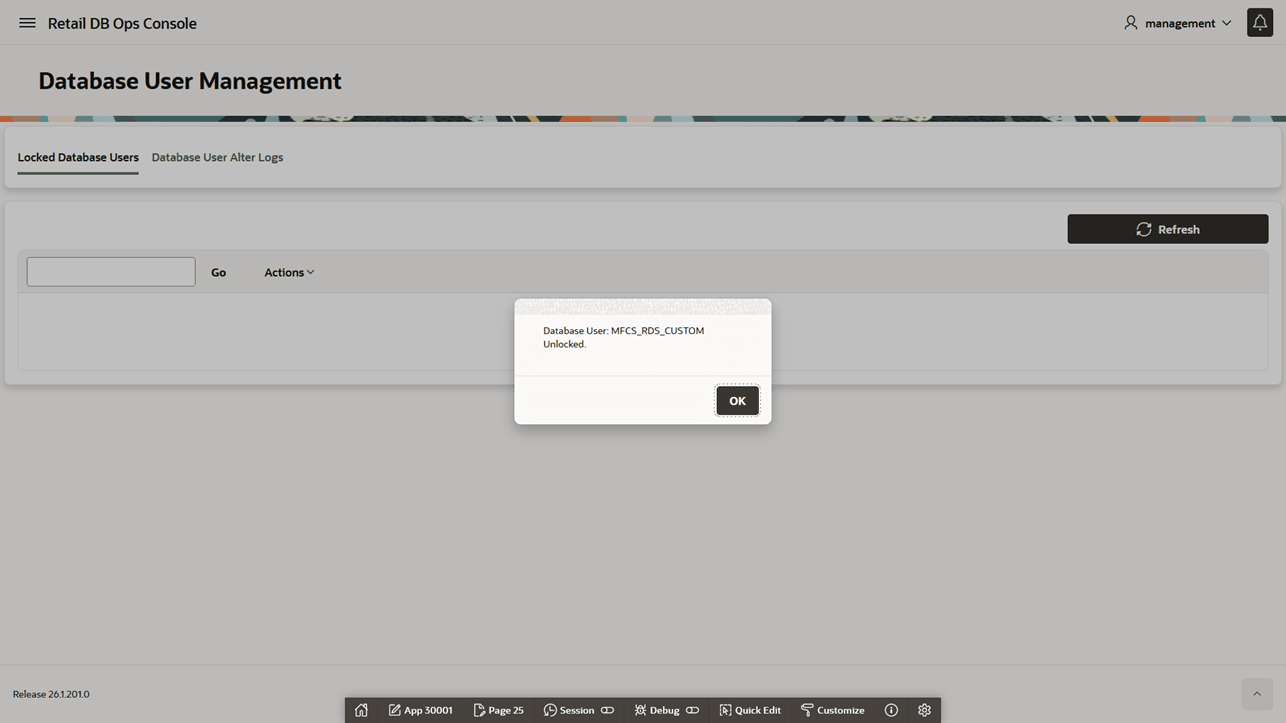
Figure 18-40 Database User Management - Database User Alter Logs
Manage Application Properties and Email
Use Application Properties to review and update editable application settings. Administrators can use this page to manage Oracle APEX SMTP configuration and verify email delivery.
The Application Properties page shown in Figure Application Properties lists editable application properties as key-value pairs. Administrators can use this page to manage settings such as Oracle APEX
SMTP configuration.
Select Edit to update a property value in the dialog shown in Figure Application Properties - Edit Property.
Use Validate Email Configuration to verify the configured email settings, as shown in Figure Application Properties - Validate Email Configuration.
Use Send a Test Email to verify that APEX mail can be sent with the configured SMTP values,
as shown in Figure Application Properties - Send a Test Email.
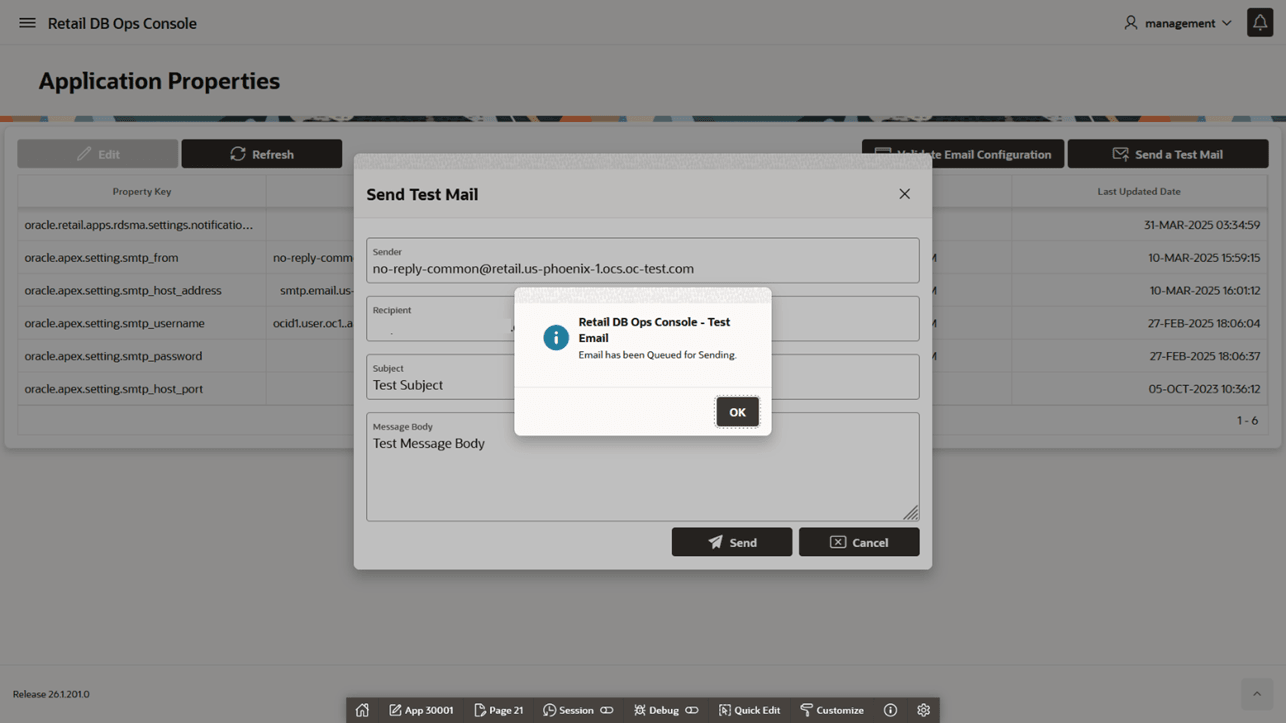
The console reports the status of the test mail request, as shown in Figure Send Test Email Request Status.
When the email is sent successfully, the console displays a success message, as shown in Figure Send Test Email Success.
Figure 18-41 Application Properties
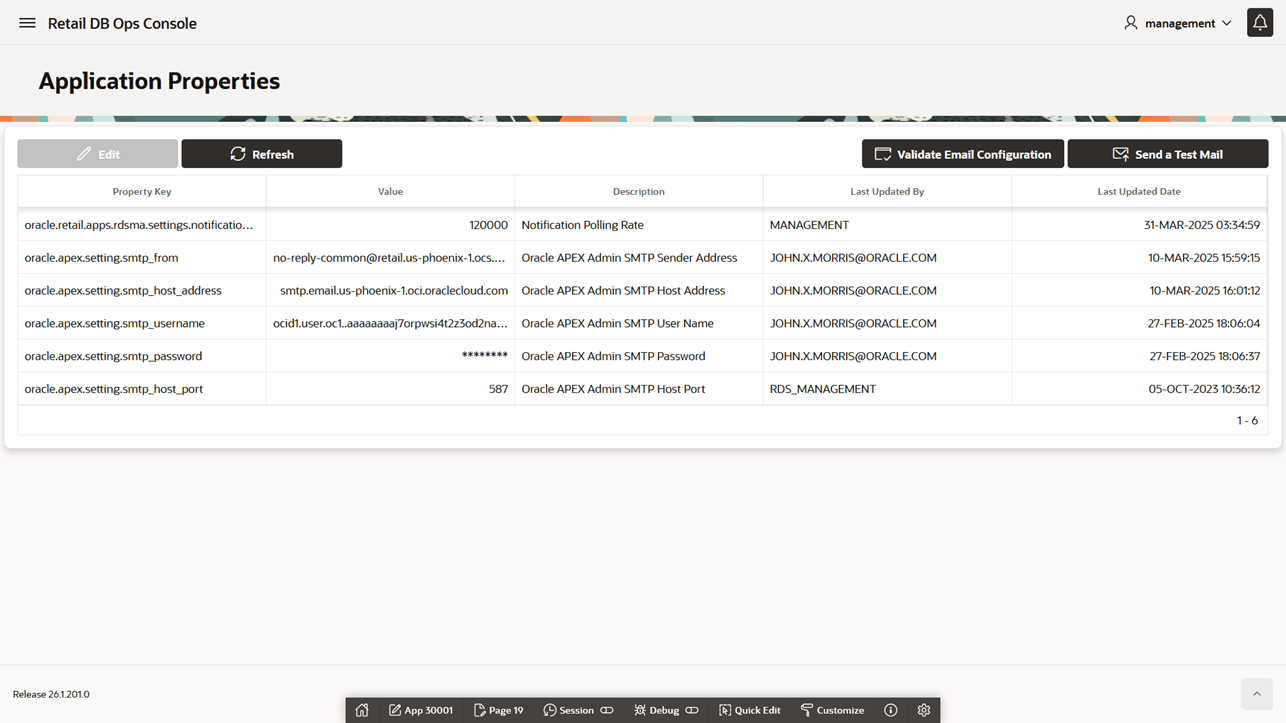
Figure 18-42 Application Properties - Edit Property
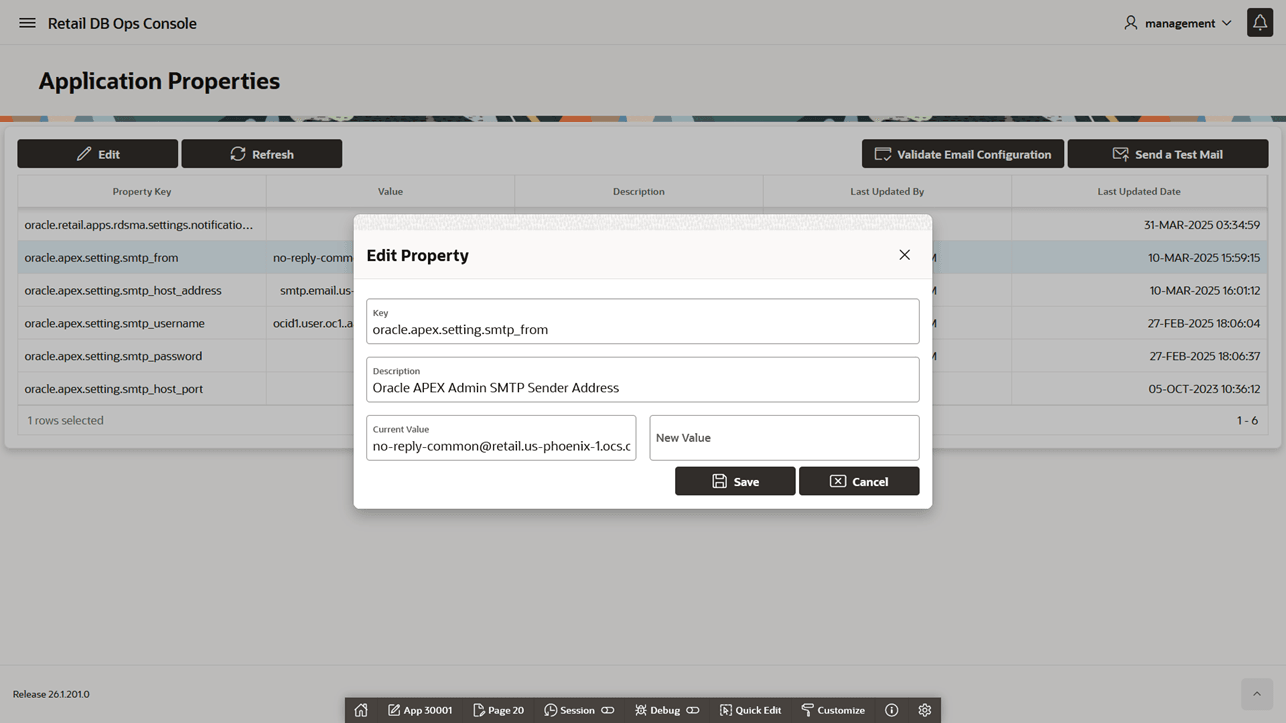
Figure 18-43 Application Properties - Validate Email Configuration
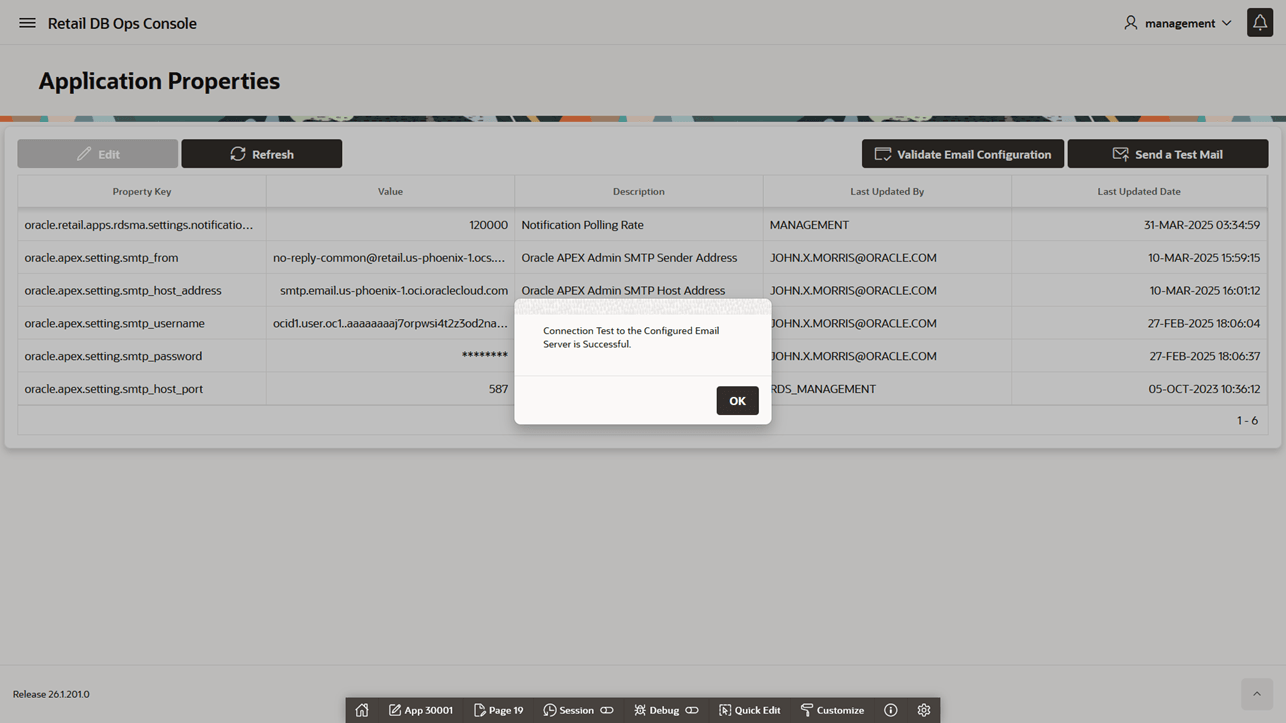
Figure 18-44 Application Properties - Send a Test Email
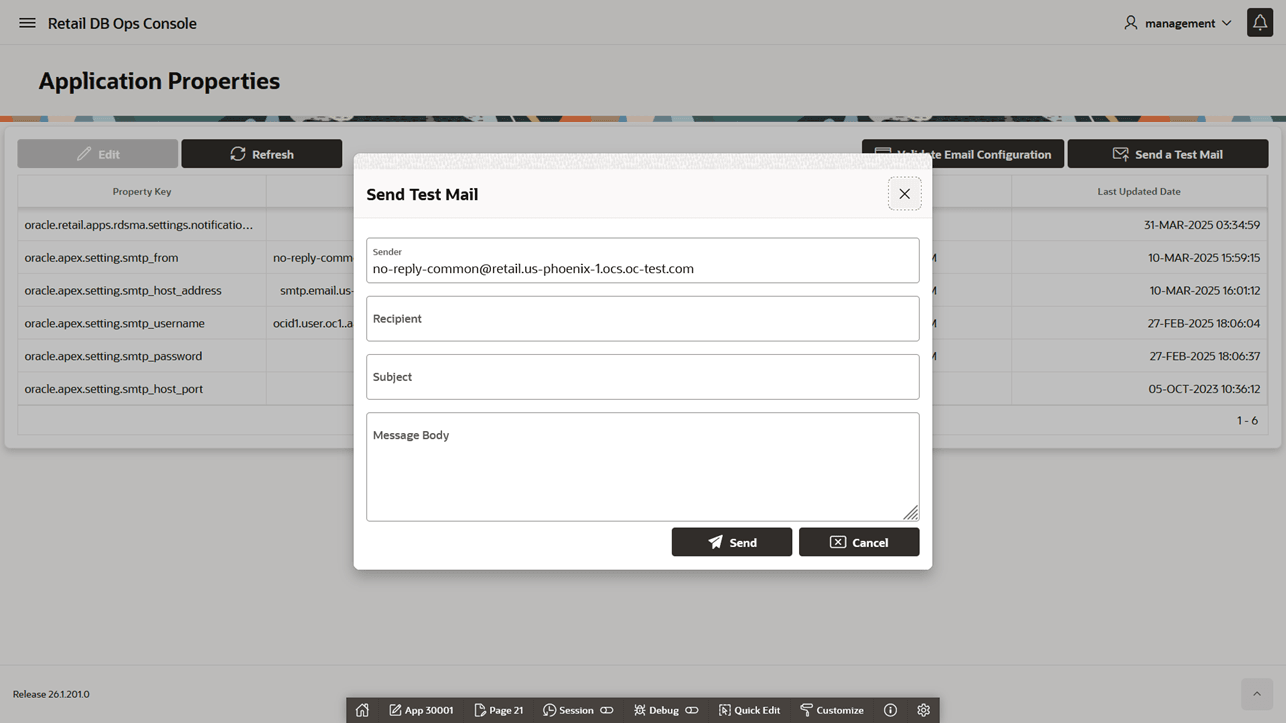
Figure 18-45 Send Test Email Request Status
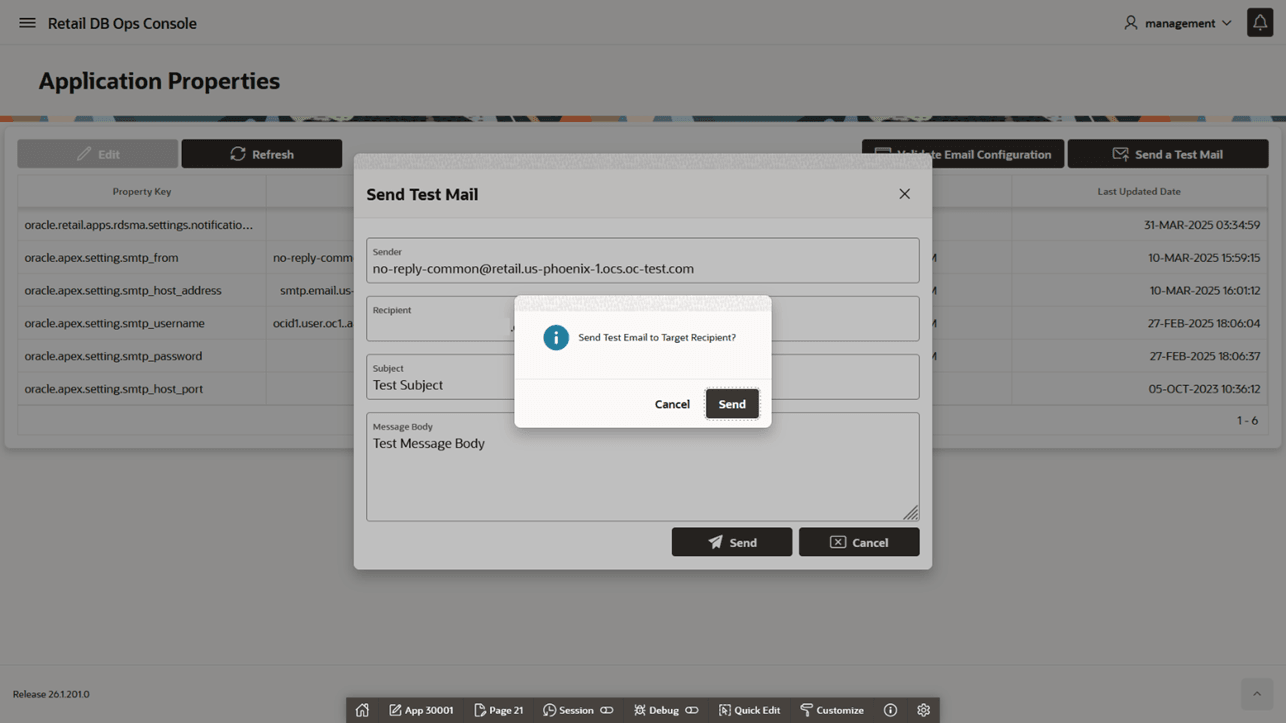
Figure 18-46 Send Test Email Success
Session Management API
RDS also provides a session management API for managing custom database sessions pro-grammatically. Use the API when the number of sessions to terminate would make interactive termination burdensome.
The MANAGEMENT.RDS_SESSION_MGMT package includes procedures and functions to list and terminate database sessions that meet the same session management criteria used by the DB Ops Console.
-
LIST_RDS_SESSIONS(O_session_list OUT SYS_REFCURSOR)returns sessions that meet the RDS criteria. -
KILL_RDS_SESSION(I_sid IN NUMBER, I_serial IN NUMBER, O_status OUT
                        VARCHAR2)
terminates a validated session by SID and SERIAL. -
KILL_RDS_SESSION(I_audsid IN NUMBER, O_status OUT VARCHAR2)terminates validated sessions by audit session identifier.
As with the interactive session management page, API users are responsible for confirming that the targeted sessions can be terminated safely.