22 Use Volume Pricing for Products
Many companies offer discounts to people who purchase products in volume.
Retail Digital Commerce supports this type of pricing for the products in your catalog. This section provides details on how volume pricing is specified for a product as well as information on how to make sure volume pricing appears correctly on your storefront.
Understand Volume Pricing
You can specify volume pricing for a product in two ways, bulk pricing or tiered pricing.
For bulk pricing, the same price is applied to the entire quantity of a product that is purchased but that price is determined by where the quantity purchased falls within the volume pricing structure. For example, consider the following volume prices:
1 – 10, $2.00
11-20, $1.90
21 – 50, $1.80
51 – 200, $1.70
If a shopper purchased 25 units of this product, the bulk price for the product would fall into the 21 – 50 level of the pricing structure, making the bulk price for this product calculate to 25 units at $1.80 each.
For tiered pricing, the price of the product changes based on the quantity purchased within each level of the pricing structure. For example, using the same volume pricing structure above, if a shopper bought 25 units of this product, the tiered price would be calculated as follows:
10 units at $2.00 (for the 1 – 10 level)
10 units at $1.90 (for the 11 – 20 level)
5 units at $1.80 (for the 21 – 50 level)
Add Volume Prices to a Product
You can specify volume prices for both the list price and sale price for a product.
Volume pricing can be used in any combination for the list and sale prices, for example, you can specify volume pricing for both the list and sale prices, or for only the list price, or for only the sale price.
To specify a volume price for a product:
Display Volume Pricing in a Storefront
In order to display volume pricing in a storefront, you must use the set of widgets and elements that are volume-pricing enabled.
This section describes those widgets and elements and the layouts that use them. Note that Oracle recommends that you create clones of the out-of-the-box layouts and modify them to add volume pricing. This keeps the out-of-the-box layouts in their original form and available for future cloning and modification.
To add volume pricing to the Product Layout:
- On the Design page, clone the Product Layout, give it a descriptive name, enable the Make Default Layout option, and save the clone.
- Go to Grid View for the layout and modify
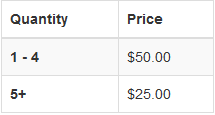
the Product Details widget to include the Volume Price element. This adds a table similar to the
following to the layout, which displays the volume pricing using columns
for quantity and price and rows for each level of pricing:
To add volume pricing to the Order Details Layout:
- On the Design page, clone the layout, give it a descriptive name, enable the Make Default Layout option, and save the clone.
- Go to Grid View for the layout, remove the instance of the Order Details widget and replace it with an instance of the Order Details with Additional Info widget.
To add volume pricing to the Order Confirmation Layout:
- On the Design page, clone the layout, give it a descriptive name, enable the Make Default Layout option, and save the clone.
- Go to Grid View for the layout, remove the instance of the Order Details widget, and replace it with an instance of the Order Details with Additional Info widget.