21 Configure Price Groups
A price group is a set of price lists (list price, sale price, and shipping surcharge), in a specific currency, for the products, SKUs, and shipping surcharges in a catalog.
Price groups let you price catalog items (products, SKUs, and shipping surcharges) in multiple currencies so a shopper can select from a list of currencies your store supports and see those prices on your store.
- The editors for the price group and its prices are read-only
- Menu options for actions that the user is not authorized to perform may be hidden or disabled
- Some icons and menu options will change from Edit to View only
Understand Price Groups
A price group is a set of price lists (list price, sale price, and shipping surcharge) in a specific currency for all products and SKUs in your catalog.
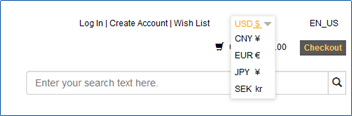
When a shopper selects the currency for an active price group, your store displays all products and SKUs in that price group’s prices. The following illustration shows the currency selector on a store that lets shoppers choose to see prices in several currencies.
Your Retail Digital Commerce instance comes with one configured price group, with the currency in US Dollars. You can edit this price group to give it a name that makes sense for your environment, for example the name of your store.
If your store supports multiple currencies, create one price group for each currency that you want customers on your store to be able to see. When your store supports multiple price groups, one price group is always the default, that is, the group whose currency and prices are displayed when an anonymous shopper (that is, a shopper who is not logged in) visits your store. While shoppers can change price groups by selecting a different currency, the default prices are always displayed when a shopper returns to your store for a new shopping session.
If your store supports account-based commerce, you can create unique price groups for each account registered on your store. See Configure Business Accounts for more information.
If your Retail Digital Commerce instance supports more than one store or site, you can create unique price groups for each site that runs on your instance. See Run Multiple Stores from One Retail Digital Commerce Instance for more information.
If your store supports a loyalty-points program, you use the Admin REST API to create a currency for loyalty points. Then you create and activate a price group for the points, just as you would any other currency your store supports. See Create a custom currency for loyalty points for details about creating a currency for loyalty points and assigning it to a price group.
Price groups are independent of the languages customers can view your store in. For example, if you translate your store into Japanese, but do not add a price group that shows prices in Yen, shoppers can view the store in Japanese but the prices remain in US Dollars. For information about how to translate your store into other languages, see Localize Your Store.
To create a new price group:
- Create a new price group. See Create and edit price groups.
- Add prices to each product in your catalog for the new price group. See Manually add prices to products and SKUs and Import prices for products and SKUs.
- Activate and display the price group. Optionally, make it the default price group so that its prices are the ones shoppers automatically see when they first visit your store. See Activate price groups.
- Publish your changes so they will appear on your store. See Publish Changes.
If direct price editing is enabled for your Retail Digital Commerce store, any price changes you make are available on the storefront without publishing. See Update prices without publishing for more information.
Understand how Price Groups affect Promotions
If your store uses price groups to support multiple currencies, you can specify that a promotion applies only to items purchased in specific currencies. For example, suppose you create a price group called GBP that lets shoppers view prices in British Pound Sterling. You can then create an order discount called “Spend £100, get £10 off” that applies only when a shopper displays your store’s prices in British Pound Sterling and then purchases £100 worth of merchandise. See Understand currency-specific promotions for more information.
Understand how Price Groups affect Shipping Methods
If your store uses price groups to support multiple currencies, you can specify that a shipping method applies only to items purchased in specific currencies. For example, suppose you create a Ground Shipping method that is valid only for delivery to the continental USA. In addition to specifying the appropriate shipping region, you might also want to make sure that the shipping method is available only when a shopper displays your store’s prices in the default currency, US Dollars. See Configure Shipping for more information.
Understand how to use Price Groups with Loyalty Programs
If your store supports a loyalty program, you use the Admin REST API to create a currency that represents loyalty points. Then you create and activate a price group for the points, just as you would any other currency your store supports. See Work with Loyalty Programs for details about creating a currency for loyalty points and assigning it to a price group.
If your store uses one of the built-in tax-processor integrations (Vertex O-Series), you can use the REST Admin API to convert the value of points-based orders to monetary currency so that your tax processor can calculate taxes for the order. (See Work with Loyalty Programs for more information.) or you can turn off tax calls for the points-based price group and make sure tax processing is handled externally, for example, in your order management system. (See Create and edit price groups for more information about configuring tax settings for price groups.)
Create and Edit Price Groups
A price group is a set of prices in a specific currency for products and SKUs in your catalog.
To create a new price group:
- On the Catalog page, click Manage Catalogs and select Price Groups.
- On the Price Groups page, click the Price Group button.
- Enter values for the price group’s properties.
- Click Save.
| Property | Description |
|---|---|
| Name (required) | Short, descriptive name that identifies the price group. This name does not appear on your store. Each price group name must be unique within your store. |
| ID (required) | The ID that identifies the price group internally. Each price group ID must be unique within your store. Even after you delete a price group, you cannot assign its ID to another price group. |
| Inherit prices from | Use the drop-down menu to select a price group. This associates the new price group with an existing price group, creating a price group hierarchy. Prices from the new price group, or the child price group, will be inherited from this parent price group. See Work with price group inheritance for more information. |
| Currency |
The ISO currency associated with the prices in this price group. If you created a custom currency for loyalty points, that currency is also available to assign to a price group. See Create a custom currency for loyalty points for more information. |
| Tax Calculation |
Select one of the following options to specify whether calls are made to your tax processor for this price group: Calculate tax: Retail Digital Commerce calls the tax processor your store integrates with, which calculates and returns tax for prices in this price group. This option is selected by default. Do not calculate tax: Commerce does not call the tax processor your store integrates with and no tax is calculated for prices in this price group. This setting affects tax calculation only if your store uses one of the built-in tax-processor integrations (Vertex O-Series), or an external tax-processor integration configured with the REST API. If you turned off tax calculation by selecting None as the tax processor on the Tax Processing settings page, Commerce will not calculate taxes for a price group, even if you select Calculate tax here. See Configure Tax Processing for more information. |
| Status | Indicates if the price group is active. |
| Require all products to be in this price group. | Select this option to require that every product in your catalog has a corresponding list price in this price group before it can be activated. This option is selected by default and must be selected for the default price list. |
| Include tax in the prices |
Select this option to display all prices in the price group with tax (for example, VAT) included. The prices you assign to a tax-inclusive price group must already include a tax amount. If prices include tax, your integrated tax processor back-calculates taxes for each order. That means that when the call is made to the tax processor when the cart is priced, no tax is returned. Once you save a price group with this option selected, you cannot change this setting. If you select this option, you may also need to configure additional settings on your tax processor. See Configure Tax Processing for more information. |
Edit Price Groups
Once you create a price group, you can change is its name. You cannot change its ID or the currency associated with it.
To edit a price group:
- On the Catalog page, click Manage Catalogs and select Price Groups.
- On the Price Groups page, click the name of the price group to edit.
- Enter a new name.
- Click Save.
Delete Price Groups
To remove a price group from your system:
- On the Catalog page, click Manage Catalogs and select Price Groups.
- On the Price Groups page, click the name of the price group to delete.
- Click Delete.
Manually Add Prices to Products and SKUs
You can manually add prices to products and SKUs by updating either your catalog or the price group itself.
To add prices to individual items in your catalog, display the details page for a product and click the Price Groups tab. See Create and work with products for information about adding prices to a product or SKU.
To add prices to the price group, display the details page for a price group and click the Products link. A list of all products and SKUs in your catalog appears. You can add or change the list price, sale price, or shipping surcharge for products or SKUs in the list. See Activate price groups for information about displaying a price group’s details.
Format Prices
When entering prices, keep in mind that the locale of the browser you use to access the Retail Digital Commerce administration interface controls number format and the price group’s currency controls the precision specifier (the number of decimal places) in the prices shoppers see on your store. For example, suppose your browser’s locale is US_EN and you are adding prices for a price group whose currency is Japanese Yen (JPY). If you enter a price as 1240.89, Retail Digital Commerce displays the price as 1,241 because Japanese Yen does not display decimal places.
Import Prices for Products and SKUs
The easiest way to add prices to products and SKUs is to export products and, if applicable, SKUs, add prices for each price group to the spreadsheet, and import them back into your catalog.
See Import and Export Catalog Items and Inventory for more information.
When you look at the exported spreadsheet, you can see that the second row displays column headings that contain the internal names of the exported properties. Each price group has three column headings:
PLG:<id>PriceGroup.ListPricePLG:<id>PriceGroup.SalePricePLG:<id>PriceGroup.ShippingSurcharge
In each column heading, <id> is the ID for
the price group. For example, the column of list prices for the default
price group has the heading PLG:defaultPriceGroup.ListPrice.
Prices for the products or SKUs begin in the third row and continue for the remainder of the spreadsheet. If an item does not have a value for a property, the corresponding cell is blank.
Keep the following in mind when you import prices:
- Price groups are not dependent on languages (ISO formats) you
may translate your store into. Therefore, when you import prices into
your catalog, the
LOCALEthat appears in the fifth column (cell E1) of the import spreadsheet has no effect on the imported prices. - If you create a new product via import, it must include a list price for each price group in your catalog, even for price groups that are not yet active.
If you have configured price list group inheritance, note that when you export a product or SKU whose price is inherited from a parent price list group, the prices will display in the spreadsheet as null.
Activate Price Groups
Activating a price group makes its prices available to be displayed on your store.
Once a price group is active, you can add it to your store. Then shoppers can select a currency from a list of active currencies that appears at the top of each page of your store. Each currency in the list is associated with an active price group you chose to display.
Note:
If your store supports account-based commerce, you can assign active price groups to accounts so logged-in contacts can see those prices. See Configure Business Accounts for more information.
To activate a price group:
- On the Catalog page, click Manage Catalogs and select Price Groups.
- On the Price Groups page, select the price group to activate.
- Once the price group page is displayed, click the Activate button to activate.
- Click Save.
- To display prices from an active price group, add it to your store. See Display active price groups for more information.
If your catalog contains products when you create a price group and you chose to force the price group to include all products in your catalog, you cannot activate that price group until it contains list prices for all products and SKUs in your catalog. If you try to activate a price group and see an error message that says the group does not contain list prices for all your products, check to see which products do not have prices in the price group. You can check for missing prices in the following ways:
- Click the Products link on the price group’s details page to see products and their prices. By default, all products are displayed. To show only products that do not have list prices, select Show Only Products With No Prices from the dropdown list in the upper-right corner of the page. Then add the missing prices.
- Export all the products in your catalog. When you view the spreadsheet, you can easily see which products do not have list prices assigned from each price list.
For more information about adding missing prices, see Manually add prices to products and SKUs and Import prices for products and SKUs.
Display Active Price Groups
Activating a price group does not automatically add it to your store. To display an active price group on your store, you must add it to your store’s Setup settings. You can also change the default price group on the Location tab of your store’s Setup settings page.
To display active price groups on your store:
- Click the Settings icon.
- Select Setup from the Settings list, then click the Location tab.
- To change the default price group, select a price group from the Default Price Group drop-down list.
Only price groups that include a list price for every product in your catalog are eligible to be the default price group.
- To display an additional active price group that shoppers can
select, add it to the Additional Price Groups field.
To stop displaying a price group on your store, remove it from the Additional Price Groups field.
Note:
Price groups you add to the Additional Price Groups field can be seen and selected by all shoppers who visit your store. If your store uses account-based commerce and you have created price groups to associate only with specific accounts, do not select those price groups here. See Configure Business Accounts to learn how to display an active price group only to logged-in contacts from a specific account.
- Click Save.
- Publish your changes. See Publish Changes for more information.
If direct price editing is enabled for your Retail Digital Commerce store, any price changes you make are available on the storefront without publishing. See Update prices without publishing for more information.
Update Prices without Publishing
By default, when you create or modify product prices, the changes you make must be published before they take effect. You can optionally configure Retail Digital Commerce to make price changes directly on the storefront without publishing.
Publishing price changes works well for many merchants, particularly those that change their prices relatively infrequently. Some merchants, however, have a large number of products and change their prices frequently, in some cases updating prices several times a day. For these merchants, Retail Digital Commerce provides the ability to make price changes available on the storefront immediately, bypassing the publishing process.
To enable this feature, you use the updateDirectPriceEdit endpoint. For example:
PUT /ccadmin/v1/merchant/directPriceEdit  HTTP 1.1
Authorization: Bearer <access_token>
Content-Type: application/json

{
  "enable": true
}
Note that if your stores have any unpublished price-related changes,
you must publish them before attempting to set enable to true, or the call will fail.
Use Direct Price Editing
When direct price editing is enabled, if you create or modify a product (in the administration interface, using an endpoint, or through an import process), price changes you make are available on the storefront without publishing; they do not appear in the list of changes that are returned by REST endpoints or appear in the Publishing page of the administration interface. Other product changes, however, must still be published. As a result, prices may exist on your production system before the associated products do. These prices will be applied to the products when they are published.
When you publish changes, Retail Digital Commerce
initiates an indexing operation so the search index is updated to
reflect the changes. With direct price editing, though, prices
on the production server can be changed without publishing,
which means prices in the index may become out of date. To ensure
the index is kept up to date, enabling direct price editing
also sets up a schedule to perform incremental indexing every
15 minutes. However, if you have already used the setSearchPartialSchedule endpoint in the Search Data and
Indexing API to set up a different incremental indexing schedule,
then that schedule will remain in place instead.
Disable Direct Price Editing
You can disable direct price editing by using the updateDirectPriceEdit endpoint to set the enable property back to false. Doing this initiates
publishing of all pending changes.
Note, however, that you should decide which mode makes sense for your stores, and continue to use it unless your business needs change. The feature is not designed to be turned on and off frequently. Disabling direct price editing may cause a considerable delay, because Retail Digital Commerce must then synchronize your publishing server with the prices on your production server.
Disabling direct price editing also cancels the incremental
indexing schedule that was set up when direct price editing was enabled.
However, if you used the setSearchPartialSchedule endpoint to create a different incremental indexing schedule, disabling
direct price editing does not cancel that schedule.
Work with Price Group Inheritance
You can create parent-child relationships with price groups, which allow price groups to inherit prices for list, sale and shipping surcharge prices.
Price groups specify list prices, sale prices and shipping surcharge prices. Using price group inheritance allows you to define some customer-specific prices for some products and SKUs, while the rest of the prices are inherited from another price group. This feature is applicable for both consumer-based and account-based environments.
Understand Price Group Hierarchy
When you create a new price group, or edit an existing one, you can specify a price group from which to inherit prices. When you save a price group that inherits prices, known as a child price group, any prices that are not explicitly specified in the child will be inherited from the group you identify, known as the parent price group. Whenever you make a change in the parent price group, the changes will be reflected in any inherited prices in the child price group. For example, if you create a sale price in a parent price group, any children that inherit the sale price will reflect the price you created in the parent price group. The currency, the setting for tax calculation and the setting that determines if the SKU prices include tax are also set from the parent price group. Note that these settings cannot be changed once a price group is created. When choosing a new parent for an existing price group, your choices are limited to those price groups whose settings for these properties are the same as the existing price group.
Although child price groups can have only one unique parent price group, parent price groups can have more than one child. While child price groups may also have their own child price groups, the limit for the depth of price groups is three levels. Each price in a child price group is inherited unless the inherited price is overridden by a price that is explicitly added to the child.
Note that it is possible for a product or a SKU in a child price group to have a sale price that is greater than or equal to a list price. This may occur because one or both of the prices is inherited and sale price validation does not occur on child price groups when a change is made to its parent.
You can override the inherited list, sale, or shipping surcharge price for a product or SKU. Note that a SKU can inherit its price from its product or from the parent price group. Should a SKU price be empty in a child price group, the system will search for, and display a price by checking for the product price in the current price group, followed by the SKU price in the parent, and then repeating this sequence for increasingly higher levels of the price group. If no price is found, then the SKU price is marked as "None defined". A product or a SKU in a child price group must either have an inherited price or an explicitly specified override price. If you leave the price empty, it will be inherited. Therefore, there is no way to specify that the product or SKU has no price in the child price group, assuming that it has a price somewhere in the hierarchy above.
Note:
If you are using Admin APIs to obtain product prices, for a SKU that does not contain a price in a child price group, the API returns the inherited price, if any; otherwise it returns an empty price.
Create a new Price Group Hierarchy
- Use the drop-down menu to select Price Groups.
- Click the Create New Price Group button.
- Provide the name, ID as usual.
- Select the Inherit prices from check box. Use the drop-down menu to select the parent Price Group.
- Select the rest of the options as needed. Note that the Require all products to be in this price group checkbox
means that every product must have an explicitly specified list price
in the price group. For the purposes of this checkbox, an inherited
price would not be sufficient. For this reason, this flag is always
set to
falsein a child price group. - Click the Create button to save the new price group.
You need to activate your price group for prices to be displayed on your store. Child price groups can only be active if the parent is active. Parent price groups cannot be deleted. For information on activating price groups, refer to Activate price groups.