9 Custom Reports
Retail Home not only ships with built-in reports, but also supports the creation of Custom Reports using predefined templates.
Custom Reports are created in the Custom Reports page and are later used in the Dashboard Configuration flow.
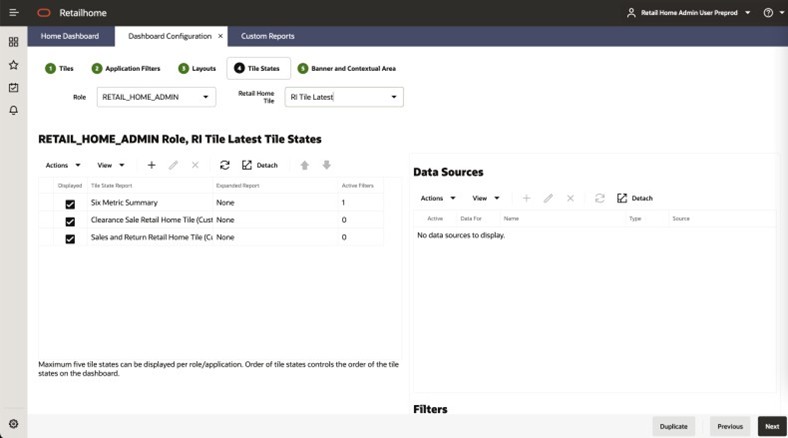
Once created, Custom Reports are available during the Tile Configuration step, where they can be selected using the Report Name and assigned to tile states for display on the dashboard.
To display a Custom Report on the dashboard, it must be assigned to a tile state in the Dashboard Configuration flow. For details about configuring tile states and assigning reports, see Dashboard Configuration.
Launch: The Custom Reports page can be accessed from:
- Ask Oracle menu → Dashboards & Reports
- Legacy UI → Settings → Dashboards & Reports → Dashboards → Custom Reports
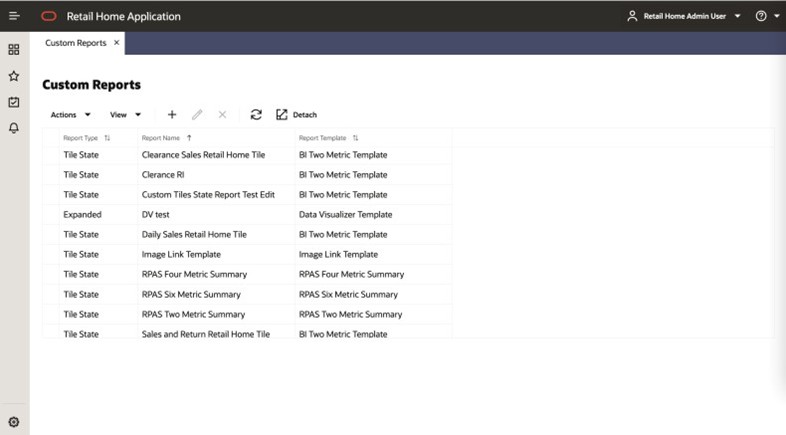
This page displays:
- A table listing all Custom Reports
- A toolbar to add, edit, and delete reports
Figure 9-1 Custom Tile State Reports
Adding a Custom Report
To add a custom tile state report, complete the following steps:
-
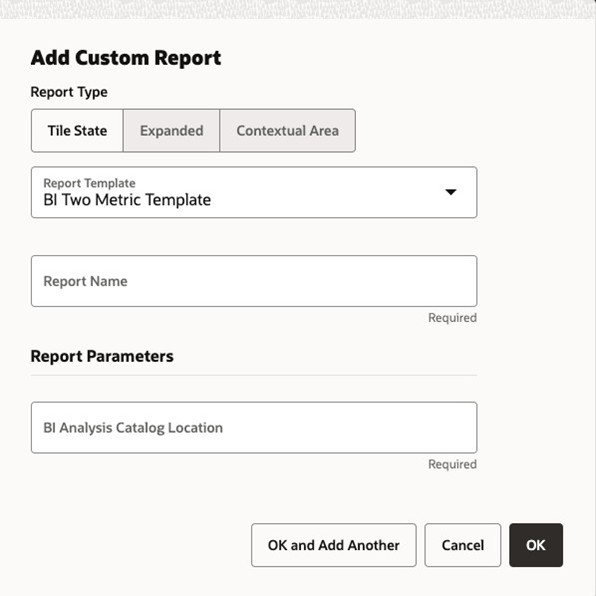
Click Add in the table toolbar to open the Add Custom Tile State Report dialog.
Figure 9-2 Add Custom Tile State Report
-
Select a template from the Report Template drop-down list.
Note:
The Report Parameters section of the dialog will update dynamically, depending on the selected template since each template defines its own set of report parameters. -
Enter a name in the Report Name field. This name is used to identify the report in the Tile Configuration step of the Dashboard Configuration page.
-
Complete the Report Parameters section. See the documentation for each Report Template for an explanation of the template's Report Parameter fields and expected values.
-
Click OK to add the Custom Report or OK and Add Another to add the Custom Report and then add another. Click Cancel to not create the Custom Report.
Configuring Report Templates
Custom Reports are created using different templates depending on the use case.
Image Link Template
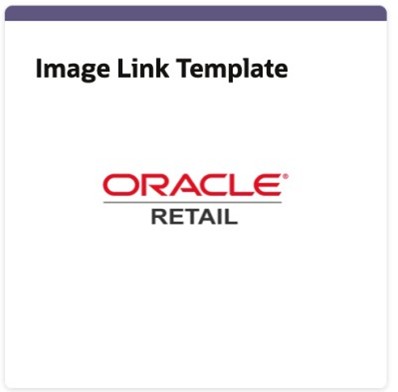
The Image Link Template allows an administrator to create a tile state report that renders an image that launches a configured link in a new browser tab. For example, an administrator may create a "Company Website" tile state report that shows a company logo that when clicked opens the company's website in a new browser tab.
The following figure shows a tile state report that renders the Oracle Retail logo and launches to the Oracle Retail website.
Figure 9-3 Configuring the Image Link Template
The following screenshot shows the Image Link Template report parameters.
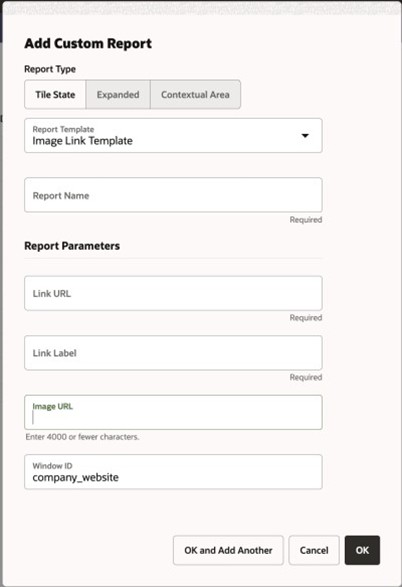
The Image Link Template has the following parameters:
Table 9-1 Image Link Template Parameters
| Parameter Name | Description |
|---|---|
| Link URL | The URL that will be opened in a new browser tab when the image is clicked. |
| Link Label | A label that will display when hovering over the image. |
| Image URL | The URL where the image in the tile can be accessed. |
| Window ID | A text identifier specifying which window/browser tab to open the link in. If you create multiple Image Link reports, but you want them all to open in the same browser window or tab, you would specify the same Window ID in each report. Otherwise, this can be any unique value. |
BI Templates
Tile state reports created from BI templates render the tile state layout with data coming from one or more Retail Insights (RI) analyses.
Note:
Retail Home must be installed with RI Integration enabled for this functionality to work properly.See Appendix: Report Data Requirements for details about required analyses for each of the supported BI templates.
Note:
Users must have permission to use RI to view RI report data in Retail Home. Reports using these templates will fail to load for users without the necessary permissions. Refer to the Oracle Retail Identity Management for OCI IAM Startup Guide for details on RI roles.The following tile state uses the BI Two Metric Template tile state layout:
Figure 9-4 Tile State Example
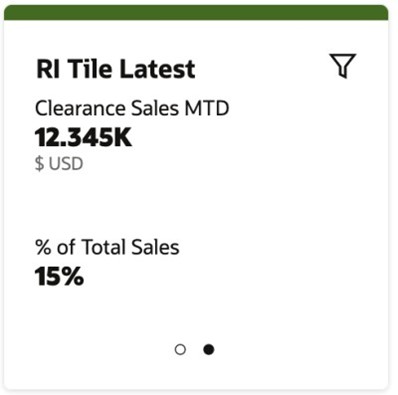
Each metric has a label, value, and optional description. In the above tile state example, the first metric's label is Daily Sales Retail, its value is 5,837K, and its description is USD.
The BI Two Metric Template has the following report parameter configuration:
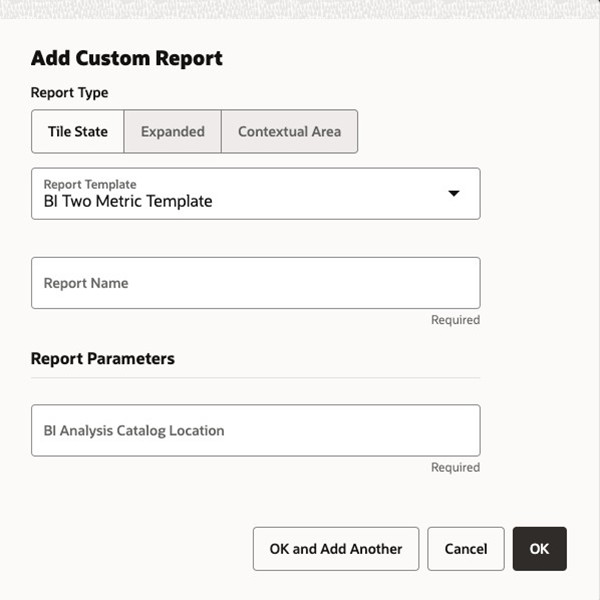
BI Analysis Catalog Path
BI templates require one or more BI Analysis Catalog Locations. The BI Analysis Catalog Location is the path to the analysis within RI.
The analysis path is a combination of the analysis's Location and Name, as found in the analysis's Properties within RI.
/shared/Retail Home/Dashboard Tiles/Clearance Sales Retail Home TileFigure 9-5 Clearance Sales Retail Home Tile - Analysis Path
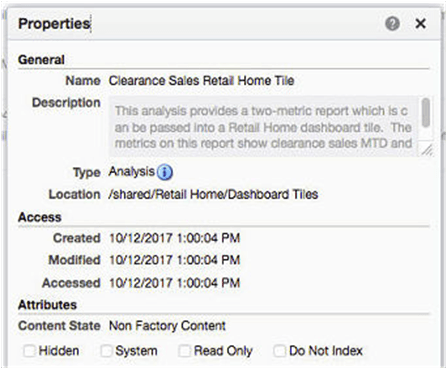
- In the above example, the analysis's Location is /shared/Retail Home/Dashboard Tiles and the analysis's Name is Clearance Sales Retail Home Tile. The full BI Analysis Catalog Path is formed by joining the Location and Name with a /.
- The structure of the RI analysis must match the documented format described in Appendix: Report Data Requirements.
- No data source is required when adding tile state reports created with the BI templates, the location of the BI instance is taken from application configuration instead.
- If the report backs a tile state that has filters set, the filters will be passed as variables to the BI analysis for processing.
Data Visualizer Template
The data visualizer template allows embedding data visualization from Retail Insights in an expanded report.
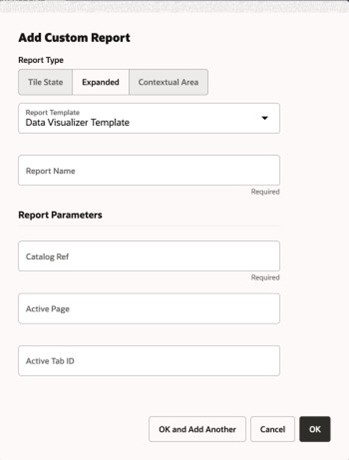
The catalog reference is retrieved in the same way as for the BI tile states. The default view of the data visualizer report can be controlled using the optional active page and tab ID values. Refer to the Data Visualizer documentation on embedded views for more information on what values to enter for these.
Note:
The Data Visualizer expanded view will open the report in Data Visualizer in a new tab.Metric Summary Template
The metric summary templates are configured to render arbitrary metric summary tiles in Retail Home. There are templates for all metric summary and table reports.
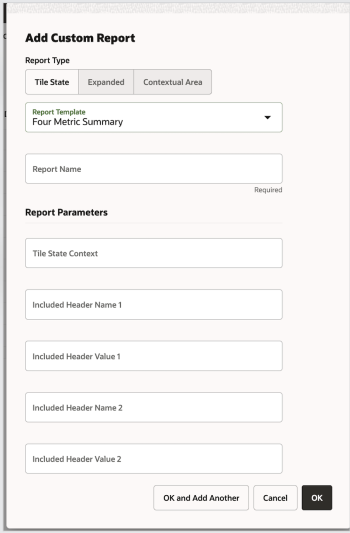
Administrators can configure the report to include or exclude specific headers when sending
requests to the service. Additionally, this template supports sending a
tileStateContext query parameter based on the RPAS templates, which
consuming applications can use to send additional configuration data to the service.
RPAS Metric Summary Template
The RPAS (Retail Predictive Application Server) Metric Summary Templates are pre-configured to render metrics sourced from the RPAS services as metric summary tiles in Retail Home. There are templates for all metric summary and table reports.
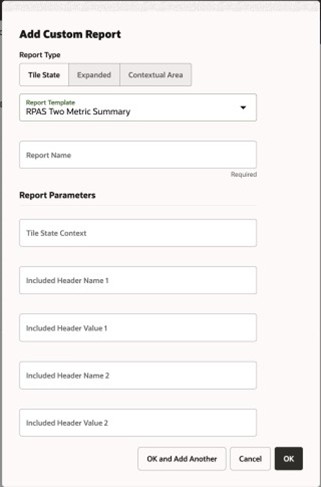
The template has the following features:
- It allows RPAS services to be called with a configurable context value called the
Tile State Context. This context value will be passed a query parameter
(
tileStateContext) to the RPAS services. The RPAS services can inspect this value to mutate business logic when calculating the metrics.
- It is tailored for RPAS services standards for REST invocation. Specifically, RPAS
Services will be called with the following characteristics:
- The REST request header
X-Requested-Byis always included with a value oftrue. - The REST request header
Accept-Versionis always excluded.
- The REST request header
Administrators for Retail Home can use the Custom Report dialog to specify the Tile State Context value to be sent to the supporting RPAS service.
Administrators can also specify additional headers to be included and excluded in the REST service calls through the dialog.
Editing or Deleting a Custom Report
-
To edit a Custom Report, select the tile state report, and click the Edit icon from the table toolbar.
Note:
You cannot change the Report Template of a Custom Report once the report has been added. You must either add a new custom report tile state report or delete your existing Custom Report and then add a new one.
-
To delete a Custom Report, select the tile state report, and click the Delete icon from the table toolbar.
Adding a Custom Tile State Report to a Tile State
All Custom Reports added on the Custom Reports page are available to add to a tile on the Tile configuration step of the Dashboard Configuration page. You can find each Custom Report by looking for its Report Name that was entered on the Custom Reports page.
Note:
Each custom report is further marked as a custom report on the Tile Configuration screen with the word "(Custom)" appended to the custom report name.Figure 9-6 Custom Report