8 Dashboard Configuration
Retail Home is a portal-type application for the Oracle Retail enterprise. The UI consists of a tile-based configurable dashboard that highlights important metrics and KPIs across Oracle Retail applications. A Retail Home administrator configures persona-based dashboards for each enterprise role through the Dashboard Configuration flow.
-
Ask Oracle menu → Dashboards & Reports
-
Legacy UI → Settings → Dashboards & Reports → Dashboards
Figure 8-1 Home Dashboard Tiles
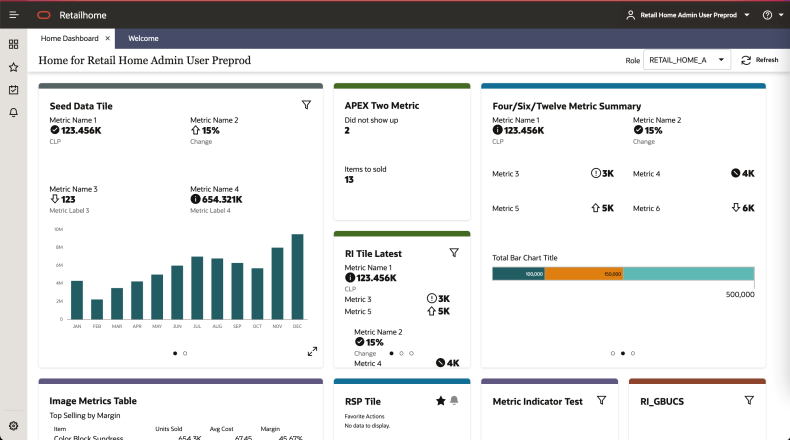
The Retail Home dashboard can be configured with 4 different kinds of reports.
-
Tile state reports render within dashboard tiles. A tile can display up to 5 tile state reports.
-
Expanded tile reports can be launched from a tile state to show more data.
-
Banner reports render in the region above the tiles.
-
Contextual area reports render on the right side of the screen next to the tiles and below the banner.
Train Stop 1: Tiles
In Retail Home, an administrative user defines dashboards for enterprise roles. Users will see the dashboards configured for their enterprise role(s) when they log in to Retail Home. This Tiles section describes how to create dashboard tiles, the first step in the Dashboard Configuration flow.
Adding a Tile
To add a new dashboard tile, complete the following steps:
-
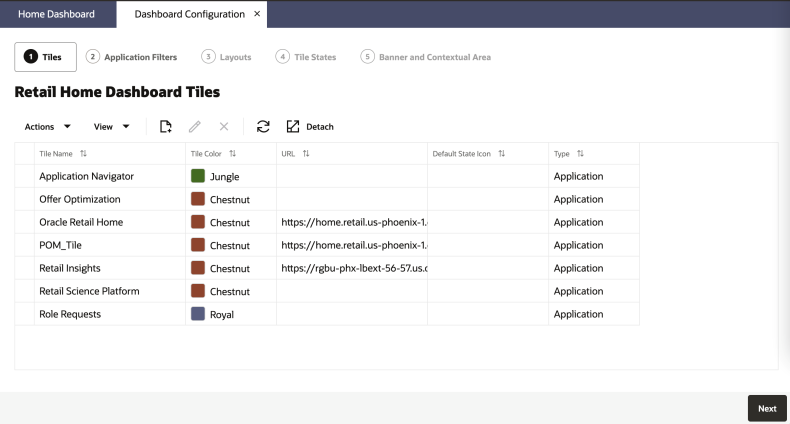
In the Dashboard Configuration flow, select the Tiles tab if it is not already selected.
Figure 8-2 Creating Dashboard Tiles
-
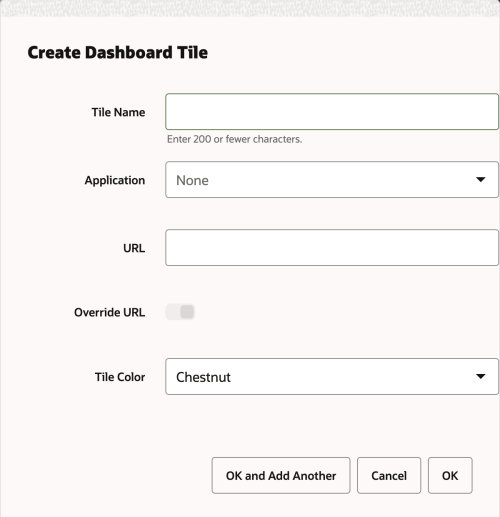
Click on the Add icon to open the Create Tile Dialog Box.
Figure 8-3 Create Tile
-
Enter text in the Tile Name text box.
-
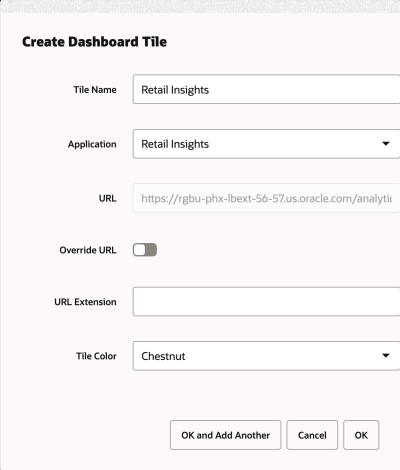
Select the appropriate Application from the drop down. The URL, URL Extension, and Tile Color fields will be populated with corresponding values. The URL field gets the application URL automatically, but the user can override the value using the Override URL switch.
Figure 8-4 URL Extension & Override URL Switch
-
The URL field is editable if Override URL is enabled. Clicking OK when the URL field is editable saves the value entered in the text area. Clicking OK when the URL field is disabled will override the value with the application URL.
-
Enter URL Extension. The URL Extension is appended to the URL when the OK button is clicked.
-
Select the appropriate Tile Color in the drop down.
-
Click OK to save your changes and close the dialog box. Click OK and Add Another to save your changes. Click Cancel to close the dialog box without saving your changes.
 to open the dialog again. The tiles also can be deleted by selecting the
 in the table toolbar, and click
 Train Stop 2: Application Filters
Retail Home supports the creation of filters for dashboard tiles. Filter options can be configured on a per-application basis and can be retrieved from a REST endpoint or BI analysis. Filter options can also be manually defined in the UI.
Adding a Filter
To add a new filter for an application, complete the following steps:
-
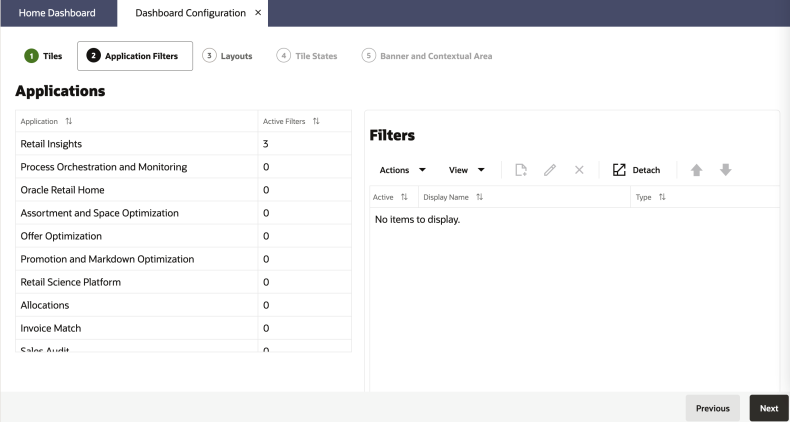
In the Dashboard Configuration flow, select the Filters tab if it is not already selected.
-
Select the application to add a filter for from the list of applications on the left.
-
Select the add button
 on the list of filters to the right.
-
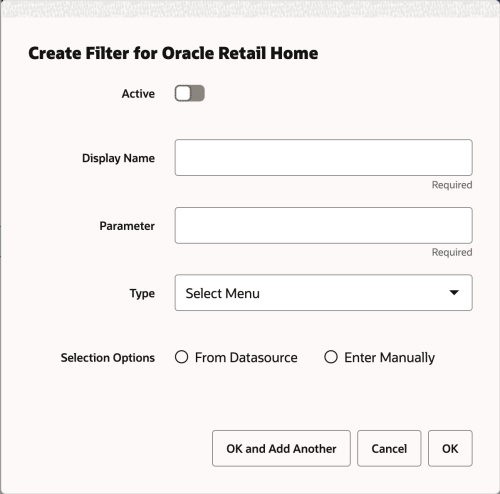
Toggle the Active switch to turn on the filter.
-
Enter a Display Name and the Parameter the filter applies to. The parameter is the actual string sent to the tile state's data source.
-
Select the Type of filter to add. The supported filter types are radio buttons, toggles, multi-select inputs, checkboxes, and numeric inputs.
-
Define the filter options for the filter. They can be set to load from a data source (either BI or REST service) or be manually entered.
Adding a Filter - Selection Options
From Datasource
Selecting the data source option presents a second choice of which type of data source to use. Service endpoint allows calling a REST service, BI allows returning results from a BI analysis.
Figure 8-5 Create Filter for Store Inventory Operations from Datasource

Service endpoints must accept GET requests according to the following API:
Query Parameters
There are two optional query parameters that may be sent in requests from Retail Home:
- nameSearch - This is used for single/multi-select filters and provides user search input for options in the result.
- pageSize - The maximum number of results to return.
Response Payload
The server must respond with a JSON object containing an array under
options. Each entry in the options array has the
following fields:
| Property | Type | Required | Description |
|---|---|---|---|
| value | String | Y | The internal value of the option that will be processed by the filter. |
| name | String | Y | The name of the option to be displayed to the user. This value can be localized before returning the response. |
A BI analysis can also return filter options. Enter the catalog path to the corresponding
analysis in the BI instance Retail Home is integrated with. The BI analysis should
accept a NameSearch parameter and return two columns for the value and
display name respectively.
Data sources are expected to provide their own localization.
Filters must be enabled on a tile before they will appear in the UI. See the later section on configuring tiles for details.
Enter Manually
To manually enter filter options, select Enter Manually in the dialog.
Figure 8-6 Create Filter from Merchandising - Enter Manually

The first column is the label to display to the user and the second column is the string that will be submitted to the tile state's data source. Additional rows can be added with the button at the bottom. The controls on the left and right offer options for rearranging the list and removing rows.
To localize the display names, open the edit dialog in a browser using a different locale. Any changes to the display name column will only apply for the locale you are currently in.
Train Stop 3: Layouts
In Retail Home, an administrative user defines dashboards for enterprise roles. Users will see the dashboards configured for their enterprise role(s) when they log in to Retail Home. This section describes how to associate enterprise roles with application tiles.
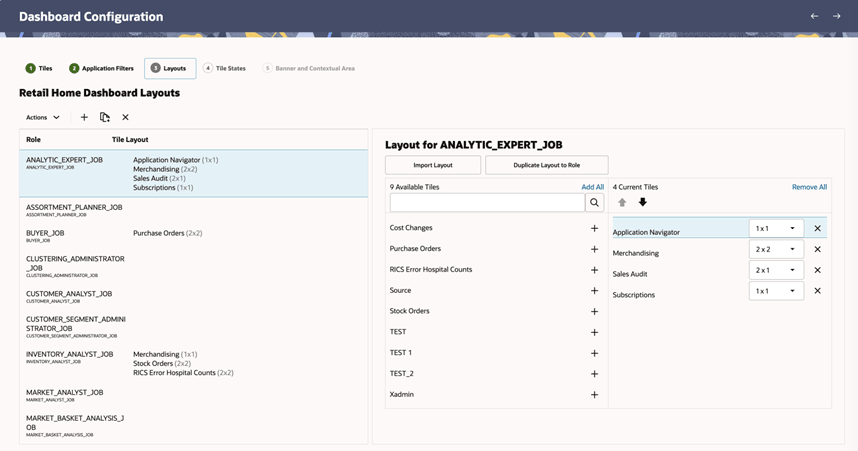
Figure 8-7 Dashboard Layouts
Role Configuration
The Layouts tab in the Dashboard Configuration flow allows administrators to define and manage role-based dashboard configurations. Each role can be associated with a specific set of dashboard tiles, layout arrangements, and configurations that determine what users see when they access Retail Home.
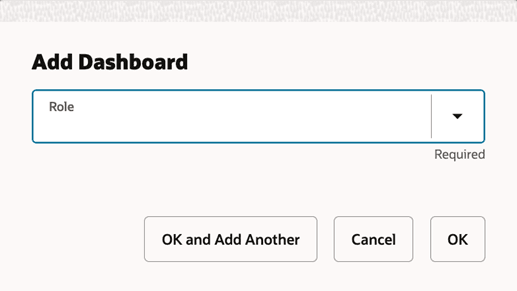
Administrators can add new roles by associating existing enterprise roles with dashboard configurations.
Figure 8-8 Add Role
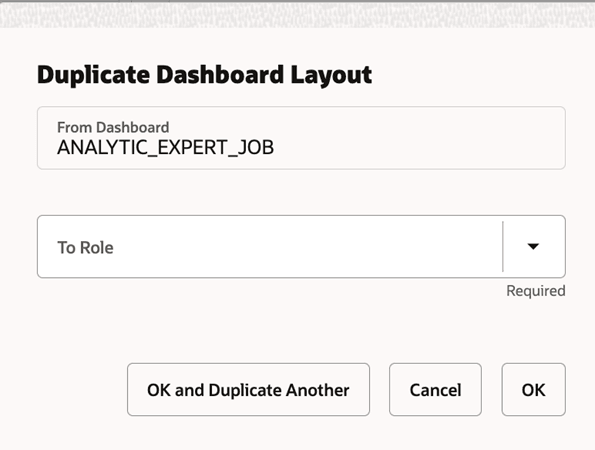
Existing configurations can also be duplicated to other roles to reuse layout and tile setups, enabling faster onboarding and consistency across roles. This can be done by selecting the role and clicking on the Duplicate icon in the table toolbar.
This approach is particularly useful when multiple roles require similar dashboards with minimal variations.
Figure 8-9 Duplicate Role Configuration
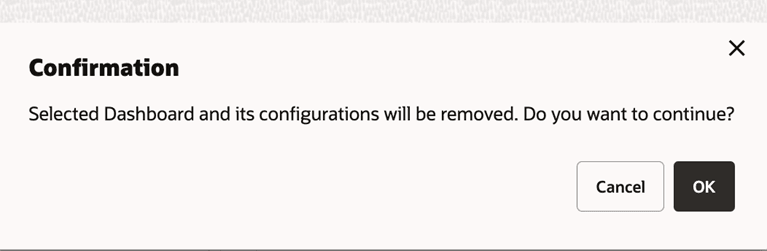
You can delete a role association record along with its associated tile, banner, and contextual configurations by selecting the role and clicking on the Delete icon in the table toolbar.
Figure 8-10 Delete a Role Configuration
Tile Layout Configuration
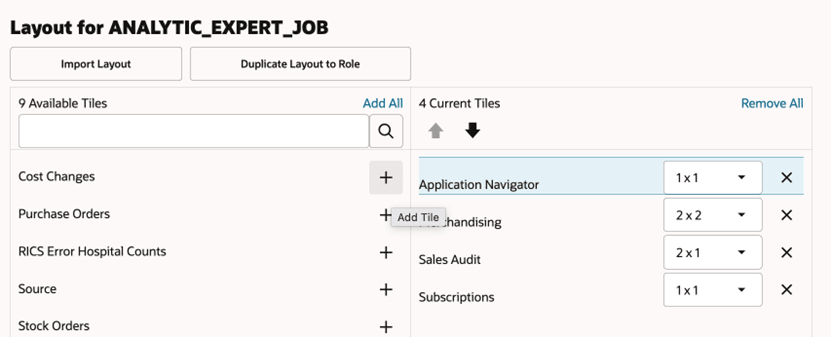
The Layouts tab enables administrators to define how tiles are arranged and presented for each role. This includes associating tiles with roles, controlling their visibility, ordering, and size within the dashboard.
Administrators can add tiles to a role from the list of available tiles and organize them within the layout. Tile positioning can be adjusted to control the display order, and tile sizes can be configured to optimize the layout based on the importance and type of information being presented. Tiles can also be enabled or disabled for a role, allowing flexibility in tailoring dashboards for different user groups.
Figure 8-11 Add Layout For a Role
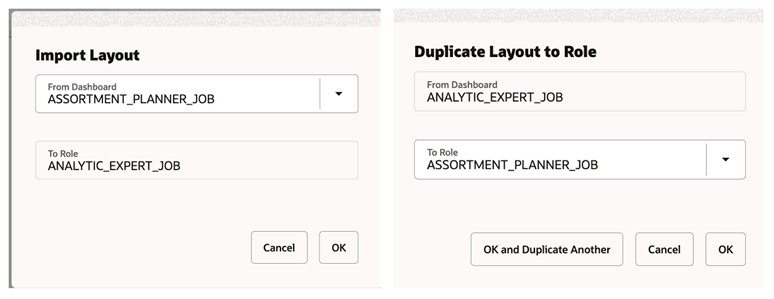
To streamline configuration, existing layouts can be reused across roles. Administrators can import the layout from another role or duplicate the current layout to a different role, ensuring consistency while reducing the effort required to configure similar dashboards.
Figure 8-12 Import & Duplicate Layout Dialog Box
Train Stop 4: Tile States
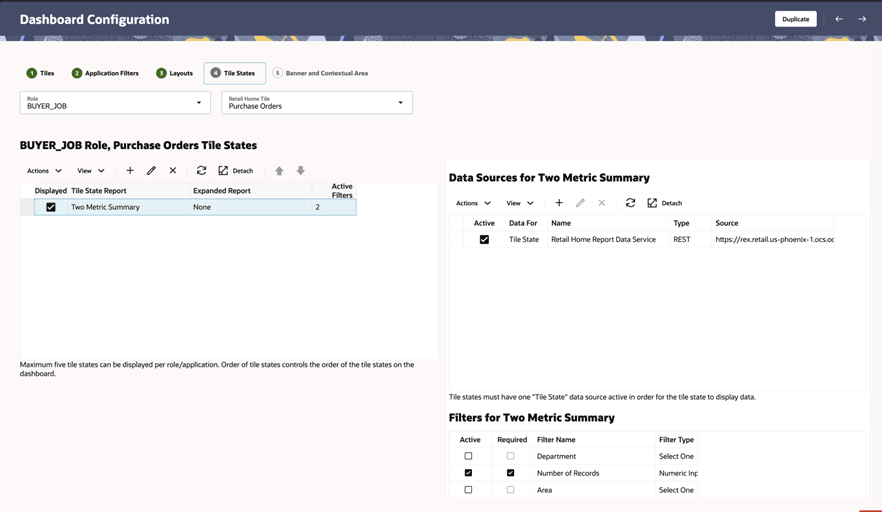
Retail Home displays application tiles on the dashboard. The Tile States section allows you to configure how these tiles appear by defining different tile states and associating reports with them.
Figure 8-13 Tile States
Tile State Configuration
At the top of the screen, the Role and Retail Home Tile select controls are used to select which dashboard application tile to configure.
Tile States and Data Sources tables are rendered below the controls and are for configuring tile states and data sources respectively.
Figure 8-14 Tile State Configuration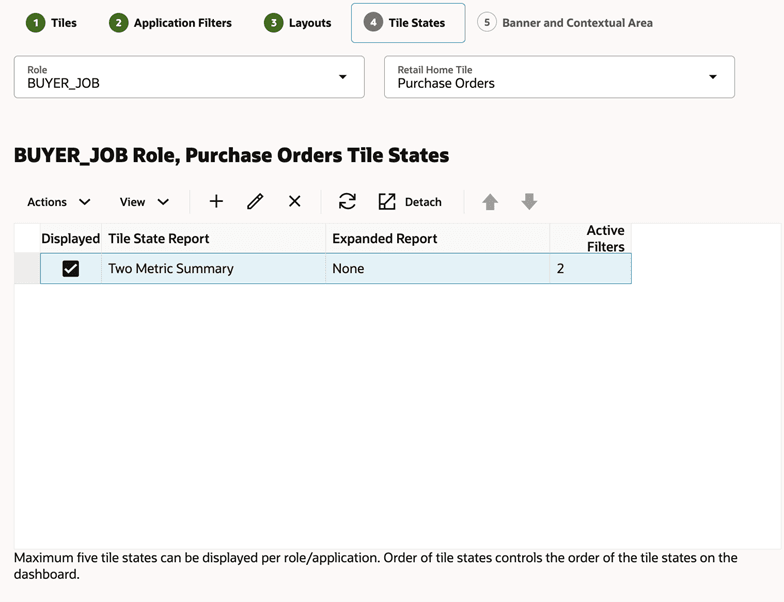
The following fields are configurable for Tile States:
- Displayed - A checkbox that determines whether the tile state is visible on the dashboard.
- Tile State Report - A required field that specifies the report displayed in the tile state. This can be a built-in report or a Custom Report created in the Custom Reports page.
- Expanded Report - A optional field that defines the report displayed when the tile is expanded.
- Active Filters – An optional field that indicates the number of filters configured for this tile.
Adding a Tile State
Use the Add Tile State dialog to define a new state for a dashboard tile and configure how it is displayed.
Figure 8-15 Add Tile State
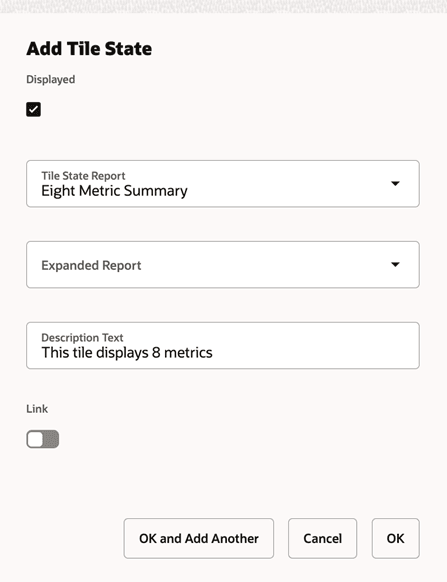
- Displayed - Enables or disables the visibility of the tile state on the dashboard.
- Tile State Report - Select the report to be displayed in this tile state.
- Expanded Report - (Optional) Select the report to be shown when the tile is expanded.
- Description Text - Enter a short description to provide additional context for the tile state.
- Link - Toggle to enable or disable linking behavior for the Description Text.
- Actions:
- OK and Add Another – Save the current tile state and open a new dialog to add another.
- OK – Save and close the dialog.
- Cancel – Close the dialog without saving changes.
Note:
Only five tile states can be displayed for a given role/application at a time.
Editing or Deleting or Reordering a Tile State
- Select a tile state from the table, click the Edit icon, make the necessary changes, and click OK to save.
- Select a tile state, click the Delete icon, and confirm the action to remove it along with its associated data sources.
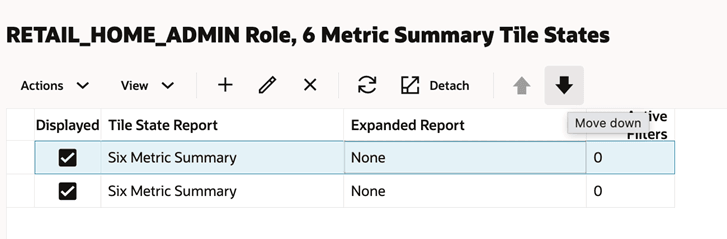
- Select a tile state and use the Up and Down arrow icons to adjust its position. The order determines how tile states are displayed on the dashboard.
Note:
The Favorites and Notification tile states are always the last two tile states respectively and cannot be moved.
Figure 8-16 Edit Tile State
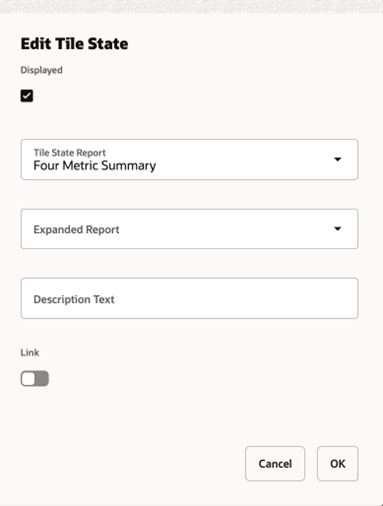
Figure 8-17 Delete Tile State
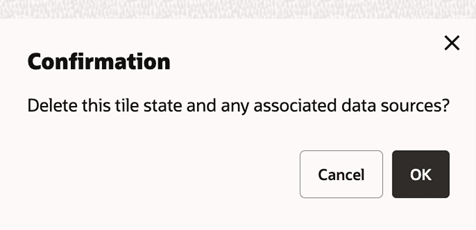
Figure 8-18 Reorder Tile State
Data Source and Configuration
The right section of the page allows you to configure data sources for tile states and manage filters associated with them.
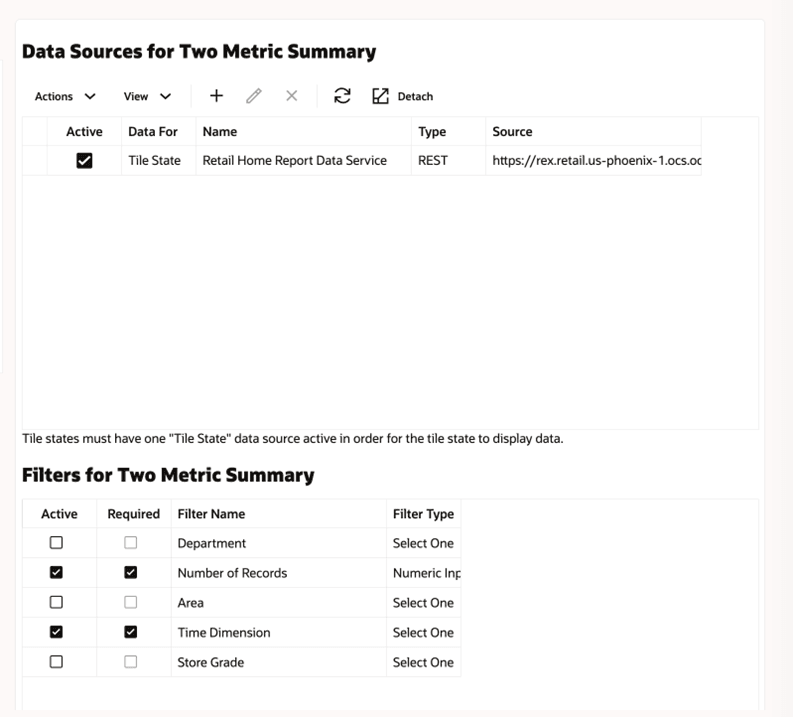
Data Sources - Configurable Fields:
- Data For - Specifies whether the data source is used for a Tile State or an Expanded Report.
- Active - Indicates whether the data source is active. Only one data source per report type can be active at a time.
- Name - The name of the data source.
- Type - The data source type, either REST or FILE.
- Source - The URL or path for the data source.
Figure 8-19 Data Source for the Selected Tile State
Adding a Data Source
To add a data source, complete the following steps:
- In the Dashboard Configuration flow, select the Tile States tab if it is not already selected.
- Select a combination of Role and Retail Home Tile from the drop-down menus.
- Select the Tile State Report that you want to add a data source for.
- In the Data Sources table toolbar, click the Add icon.
Figure 8-20 Add Data Source
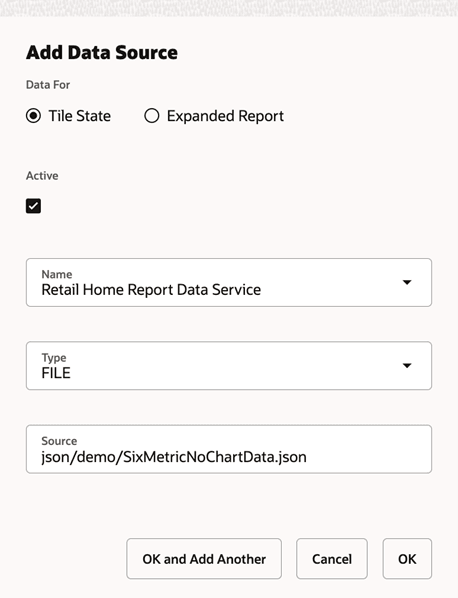
- Select the Data For value. If the data source provides data to a tile state report, select Tile State. If the data source provides data to an expanded tile report, select Expanded Report.
- Select the Active check box to toggle to the active state.
Note:
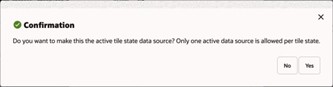
If another data source is active, you will be asked if you want to make the new datasource active upon saving. Click Yes to make the new data source active.
Figure 8-21 Change Active Data Source
- Select the data source Name from the drop-down list.
- Select the data source Type from the drop-down list.
- Enter a valid URL for the data source.
Note:
The URL will be validated and you will receive an error message if the URL is not valid.
- Click OK to save your changes and close the dialog box. Click OK and Add Another to save your changes and add another data source. Click Cancel to close the dialog box without saving your changes.
Editing or Deleting or Duplicating Data Source
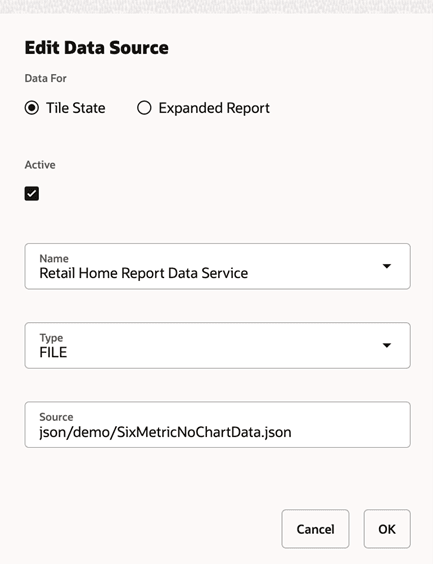
- Select a data source, click the Edit icon, update the details, and click OK.
- Select a data source, click the Delete icon, and confirm the action.
- Use the Duplicate option (Top banner three dots - Duplicate) to copy all tile states and their associated data sources from one role to another.
Figure 8-22 Edit Data Source
Filter for Tile Status
Filters for an application must be applied to individual tile states before they will show up for a user. This table allows enabling a filter for a tile state as well as designating whether it is required or not. Filter values will be passed as query parameters to the data source backing a tile state.
Figure 8-23 Filter for Tile State

Train Stop 5: Banner and Contextual Area Configuration
You can configure Retail Home to display reports and metrics in the banner and contextual areas of the Dashboard.
Note:
Currently there are no report layouts for banner and contextual reports available in the release version of Retail Home.
Figure 8-24 Banner and Contextual Area
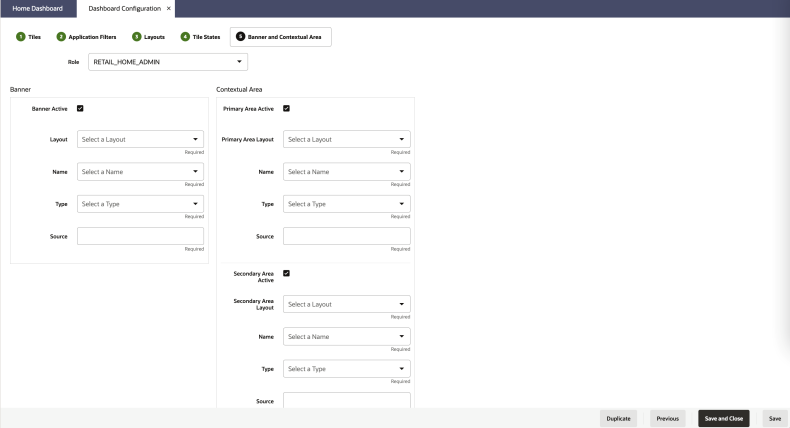
To configure the reports and metrics, complete the following steps:
-
In the Dashboard Configuration flow, select the Banner and Contextual Area tab if it is not already selected.
-
Select a role from the Role drop-down list.
-
Select the Banner Active check box. This determines whether the banner is displayed on the dashboard. If the banner is active, you must provide a value for the following:
-
Select a layout from the Layout drop-down list.
-
Select a banner data source name from the Banner data Name drop-down list.
-
Select a data source type from the Type drop-down list.
-
Enter a valid data source URL into the Source text box. The URL will be validated.
-
-
To configure the Contextual Area, select the check box to make the Primary Area active or the Secondary Area active. If you make both areas active, then both will be displayed on the dashboard. If you do not want to display the Contextual Area, then do not make either area active.
For whichever area(s) you have designated (Primary and/or Secondary) as active, provide values for the following:
-
Select a layout from the Layout drop-down list
-
Select a data source name for the report from the Name drop-down list.
-
Select a data source type from the Type drop-down list.
-
Enter a valid data source URL into the Source text box. The URL will be validated.
-
-
Click Save to save your work and continue. Click Save and Close to save your work and close the tab.
You can duplicate your Banner and Contextual Area Configuration to another role's Dashboard by clicking the Duplicate button at the bottom of the page for legacy UI or top banner for Ask Oracle UI.