6 OAuth Client Applications
OAuth client applications registered in OCI Identity, Oracle Identity Cloud Service (IDCS) or OCI IAM and used with Retail Home can be customer-managed applications or Oracle-managed OPC applications.
Oracle recommends creating customer-managed OAuth client applications directly in the OCI Console. This approach gives customers ongoing visibility and control over the application and its credentials. For instructions, see My Oracle Support document PALRT2931, Retail Cloud Services: OAuth Client Application Guidance Related to OCI Identity Changes, particularly the “Recommended Approach Going Forward” section.
As a short-term alternative, e.g. for XOffice integrations, customers can use Retail Home to create an Oracle-managed OAuth client application as a short-term alternative. The client secret is displayed when the application is created and must be stored securely because it cannot be retrieved through Retail Home after the dialog is closed. The client secret cannot subsequently be viewed or managed through the OCI Console. Therefore, the customer-managed approach is recommended for long-term credential management for these use cases.
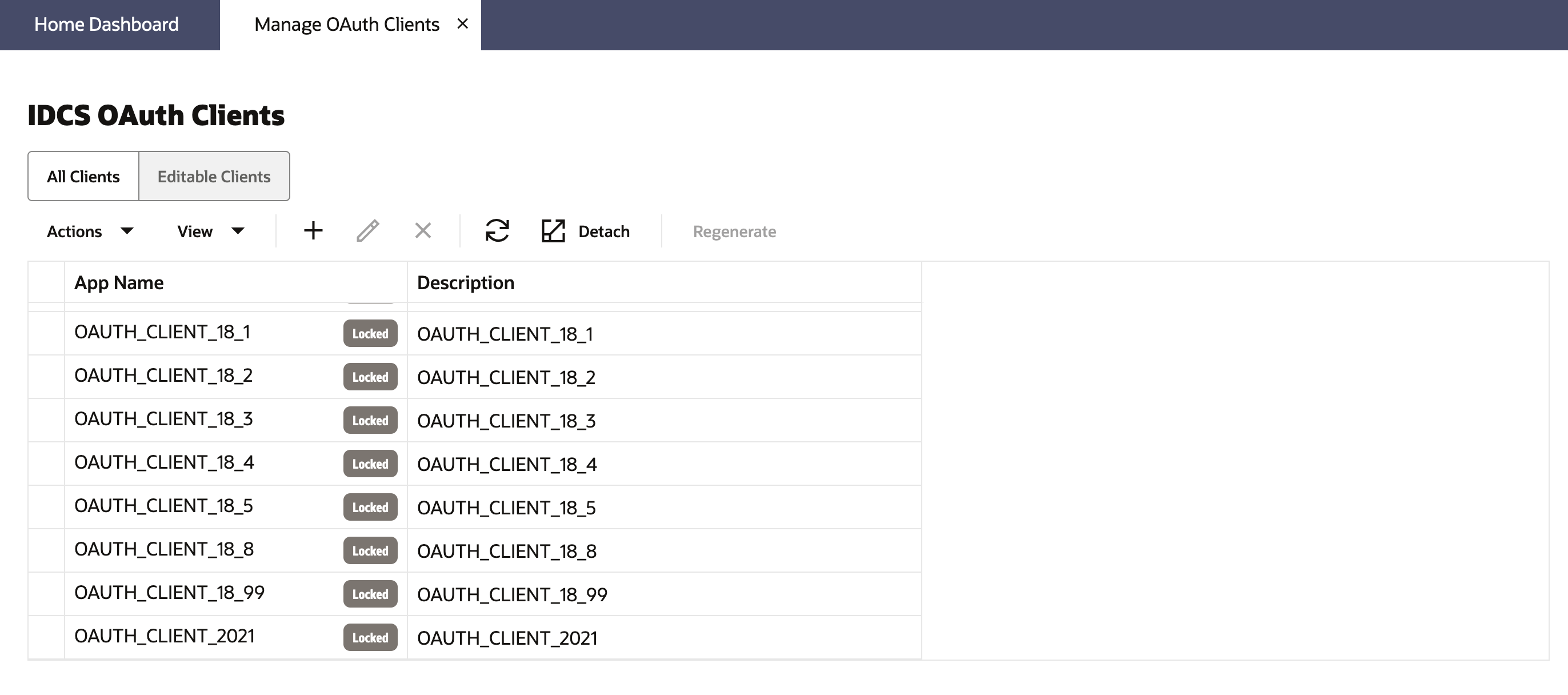
The Manage OAuth Clients page allows administrators to view clients created through Retail Home and all OAuth clients in IDCS or OCI IAM, as applicable. Only clients created through Retail Home can be modified in Retail Home. Other clients are displayed as locked.
Launch: The Manage OAuth Clients page can be accessed from:
- Ask Oracle menu → Application Administration
- Legacy UI → Settings → Application Administration
Figure 6-1 Manage OAuth Clients Page
Creating OAuth Client Applications
The following procedure creates an Oracle-managed OAuth client application through Retail Home. Use this approach only when the customer accepts the credential-management limitations described above.
To create a new OAuth client application, select Add from the action menu or the add button on the toolbar.
Figure 6-2 Create OAUth Client
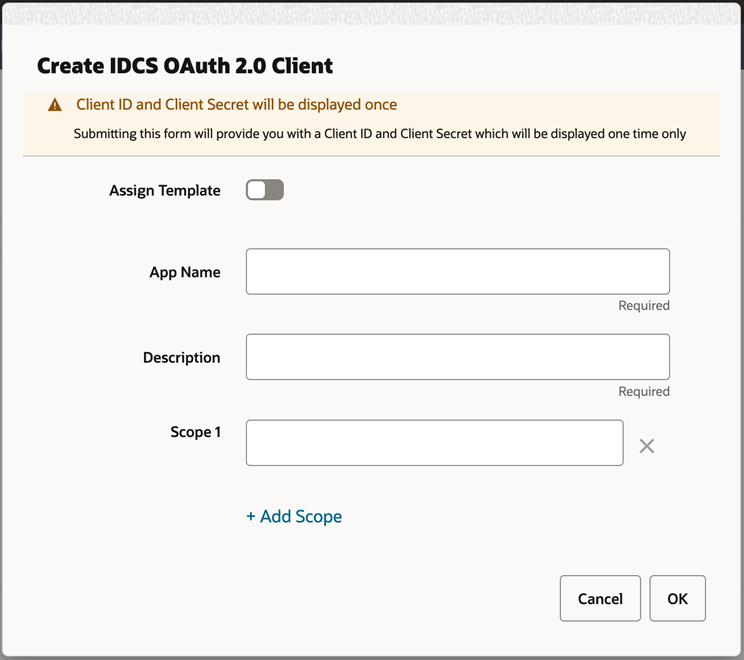
This dialog takes the following values:
- The Assign Template switch displays a Template dropdown containing a list of predefined templates. Selecting a template automatically populates the App Name and Scope(s) fields based on the selected template.
- The App Name is 2-100 characters and will be used as the name in IDCS or OCI IAM.
- Description is a detailed description of the application.
- Scope allows multiple scopes to be defined on the client. These scopes must
already exist in IDCS or OCI IAM and should be provided as fully qualified scopes
(FQS), such as
rgbu:rh:service,rgbu:carcs:delivery-rw-PRD1, and so on.
When the application is created, another dialog will open to show the client ID and client secret of the new application. These values should be copied down to a safe location, as they will only be shown once. Retail Home cannot retrieve the credentials again after the dialog is closed.
Figure 6-3 Create OAutH Client Using Template
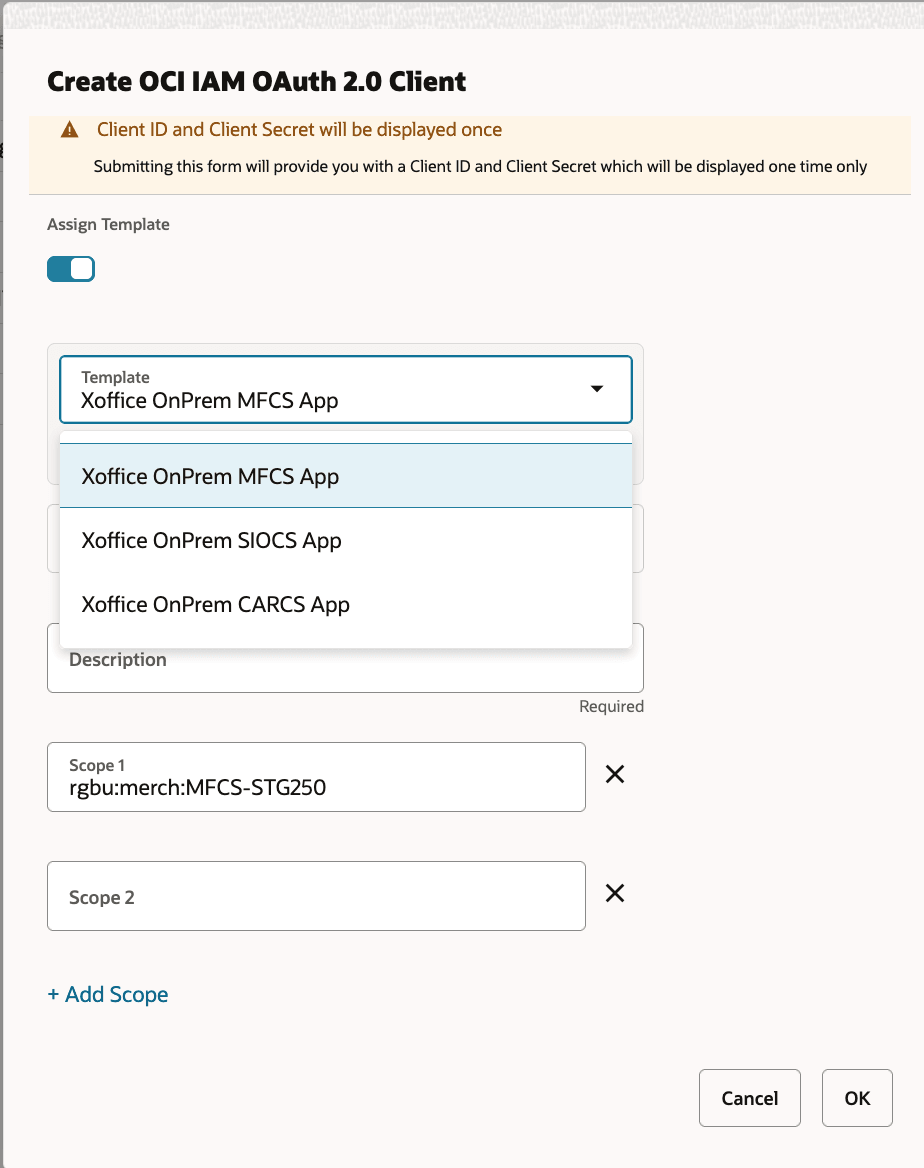
This dialog takes the following values:
-
The Assign Template switch displays a Template dropdown containing a list of pre-defined templates. Selecting a template automatically populates the App Name and Scope(s) fields based on the selected template.
-
The App Name is 2-100 characters and will be used as the name in IDCS or OCI IAM.
-
Description is a detailed description of the application.
-
Scope allows multiple scopes to be defined on the client. These scopes must already exist in IDCS or OCI IAM and should be provided as fully qualified scopes (FQS), such as
rgbu:rh:service,rgbu:carcs:delivery-rw-PRD1, and so on.
When the application is created, another dialog will open to show the client ID and client secret of the new application. These values should be copied down to a safe location, as they will only be shown once. Retail Home cannot retrieve the credentials again after the dialog is closed.
Editing or Deleting OAuth Client Applications
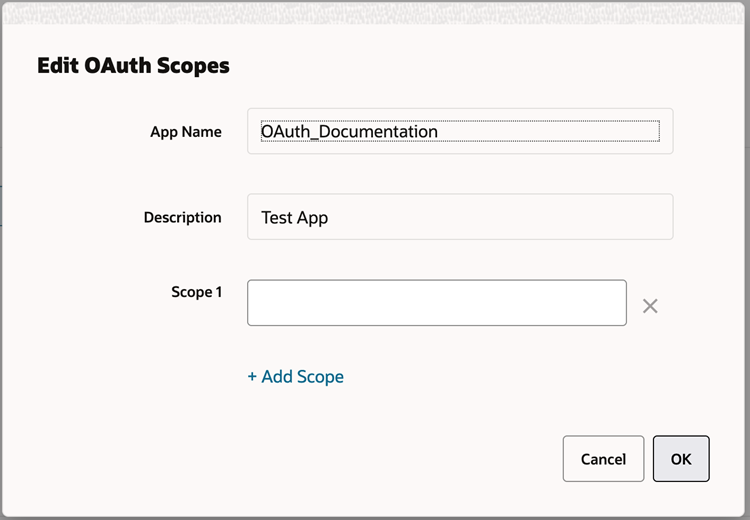
To modify an existing OAuth client, select it in the main list and select Edit from the menu or the edit button on the toolbar. When viewing all OAuth clients, clients marked as Locked cannot be modified from Retail Home.
Editing an existing client application allows updating the scopes associated with it, but does not allow the name or description to be changed.
Figure 6-4 Edit OAuth Scope
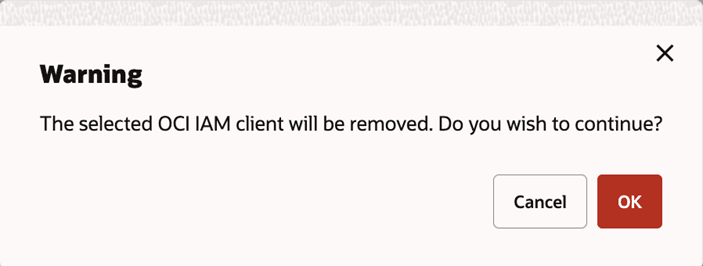
To delete an OAuth client, select it in the main list and select Delete from the menu or the delete button on the toolbar. When viewing all OAuth clients, clients marked as Locked cannot be deleted from Retail Home.
Figure 6-5 Delete OAuth Client