2 Getting Started With Retail Home
After signing in, you can begin working with Oracle Retail Home using the available navigation options and workspace elements. Retail Home provides a flexible workspace that adapts to your role and user experience, enabling you to efficiently access information and perform tasks.
Landing Experience
After you sign in, the Welcome page is displayed by default. This page provides access to onboarding resources, training materials, and supporting content to help you get started.
You can use this page as your initial workspace before navigating to dashboards, applications, or other features.
Working Across User Experiences
Oracle Retail Home supports both the Current UI and the Redwood UI (Ask Oracle experience). Depending on your rollout phase, users may see either interface.
This guide is organized so you can complete the same business task regardless of interface. When a topic is interface-specific, the guide clearly identifies the applicable experience.
How to Use this Guide
- Follow steps marked Both UIs when behavior is the same.
- Follow Current UI only instructions when using the existing interface.
- Follow Redwood UI only instructions for Ask Oracle and Redwood-specific interactions.
- Use screenshots and navigation labels in each topic to confirm you are in the correct experience.
Experience-Specific Differences
- Navigation location and menu labels
- Page layout and control placement
- Interaction patterns for search, help, and guided actions
- Ask Oracle capabilities available only in Redwood UI
These differences are expected and are documented in each topic where applicable.
Home With Ask Oracle
Oracle Retail Home provides a modern navigation experience that combines a role-based workspace with AI-driven interaction. When you sign in, you can access applications, insights, and tasks through multiple entry points.
Bottom Navigation Bar
- Favorites - Access frequently used items and saved content.
- Applications - View available applications and navigate based on your role.
- Home - Access dashboards and metric-based insights.
- Reports - View and launch available reports.
- Welcome - Return to the Welcome page.
Figure 2-1 Bottom Navigation Bar

Ask Oracle Panel
At the bottom-right corner of the page, you can access Ask Oracle, which you can click and open a panel that provides the following:
Figure 2-2 Ask Oracle Icon

Product Map View
By default, Ask Oracle opens in the Product Map view, which displays available options as tiles based on the role assigned.
Figure 2-3 Product Map View
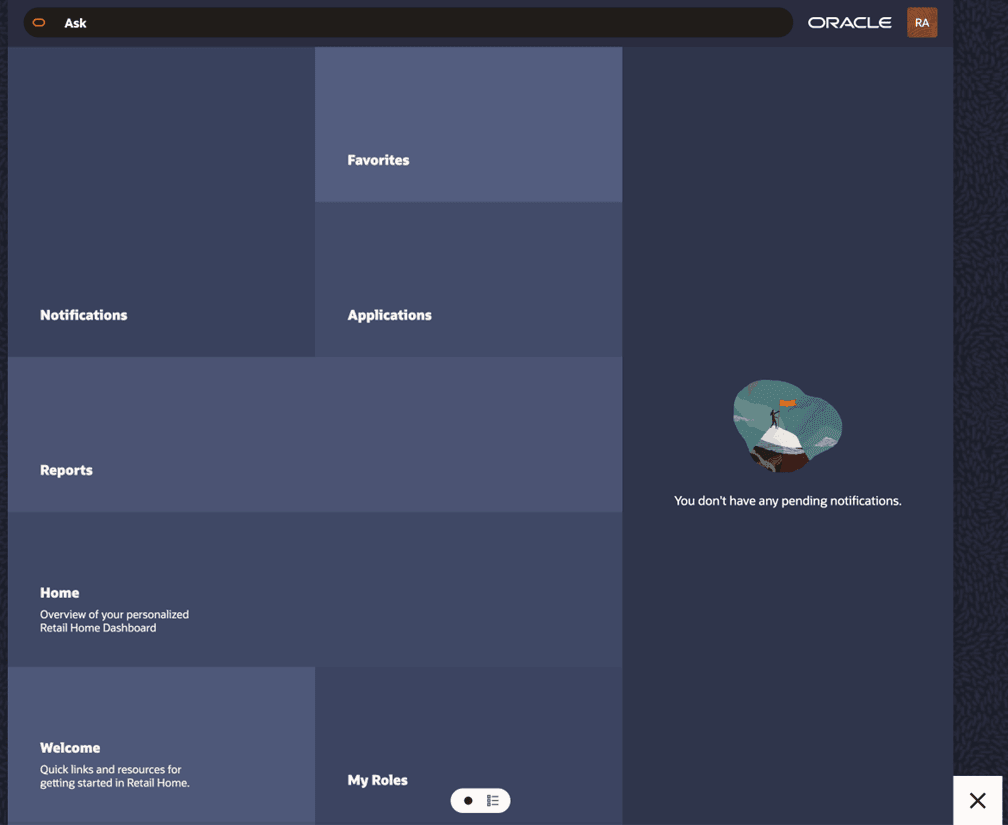
- View navigation options such as Notifications, Favorites, Metrics, Welcome, Roles, and Reports
- Select a tile to navigate directly to that section
- Access content based on your assigned role
- The available options may vary depending on your role (for example, business user vs. administrator).
Suggestions View
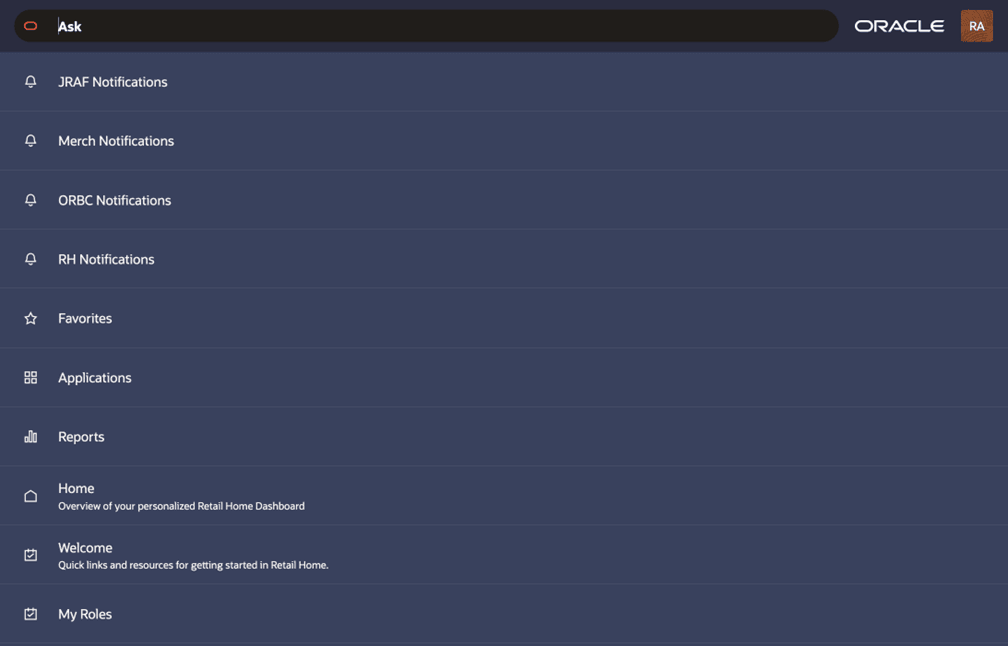
You can switch to the Suggestions view by clicking the Suggestions icon at the bottom, which displays the available options as a list.
Figure 2-4 Suggestions View
Search
- Applications
- Pages
- Reports
- Other available content
Search results allow you to navigate directly to the selected item.
Figure 2-5 Search
