3 Navigating the Application
LPO runs within the Oracle Retail AI Foundation Cloud Service (AIF) JET-based user interface. This chapter describes how to access LPO and navigate its key interface components. Familiarizing yourself with these components before working on runs will help you move through the application efficiently.
Accessing LPO
LPO is accessed through the Oracle Retail AI Foundation Cloud Service. To open the application:
-
Sign in to the Oracle Retail AI Foundation Cloud Service (AIF) using your assigned credentials.
-
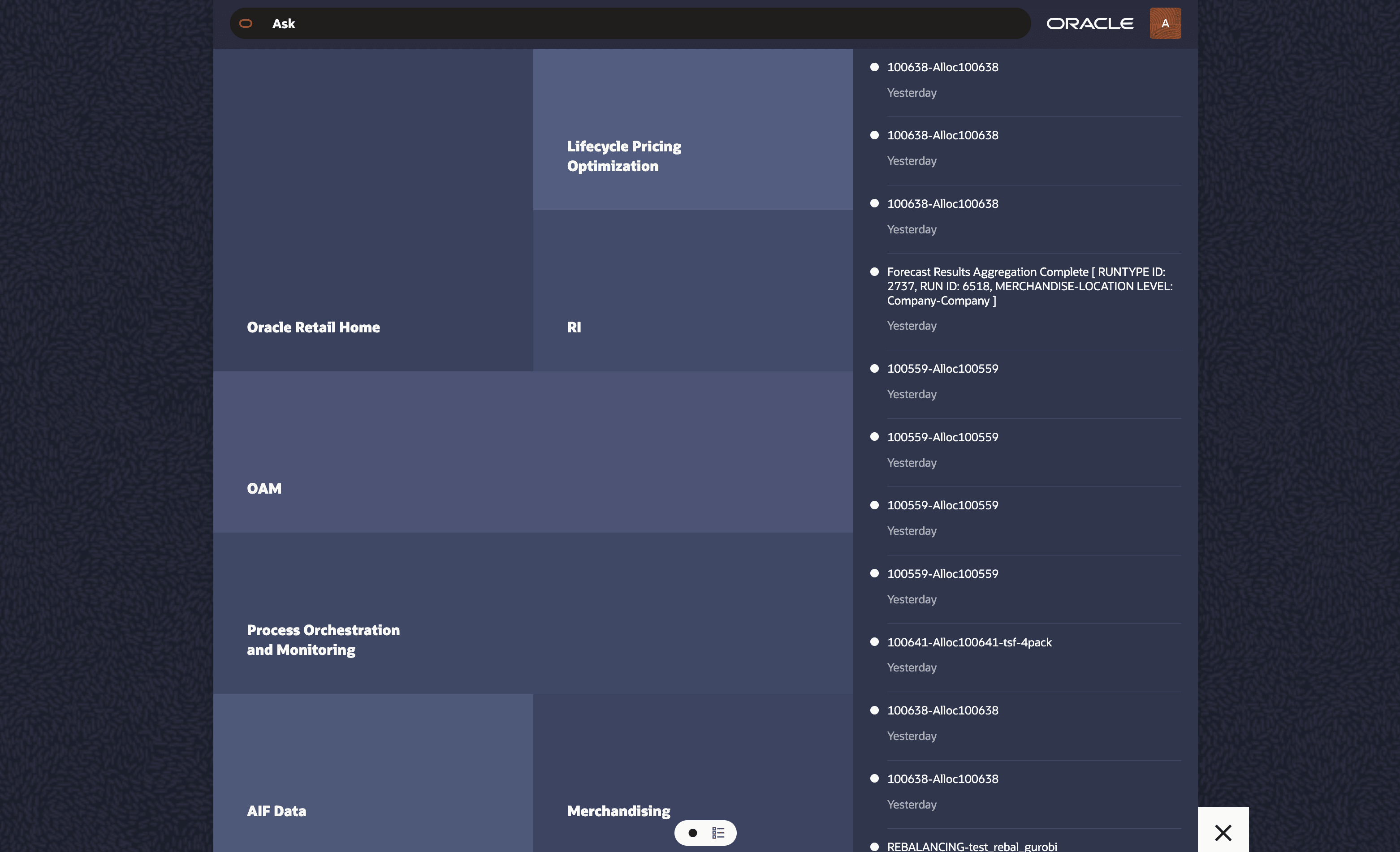
In the Oracle Home Experience Product Map, open the Lifecycle Pricing Optimization folder to view the available LPO links.
Figure 3-1 AIF Landing Page
LPO Folders and Links
Within the LPO section of the Oracle Home Experience, folders and links are used to navigate to applications, workflows, and actions. The links relevant to Rules Based Regular Pricing are:
-
Run Overview: Create, view, and manage optimization runs. This is the primary starting point for Rules Based Regular Pricing runs.
-
Manage Recommendations: Review, reject, override price, submit, and approve regular price recommendations. In production environments this is the most frequently accessed screen for day-to-day pricing work.
Most users begin from either the Run Overview link to create or monitor optimization runs, or the Manage Recommendations link to review and act on generated price recommendations.
Note:
Your access to LPO screens and tasks is determined by your assigned roles and data-level security. If you cannot see a task link or screen, contact your Pricing Administrator to review your role assignments.
Figure 3-2 LPO Folders and Links - Oracle Home Experience - Product Map View
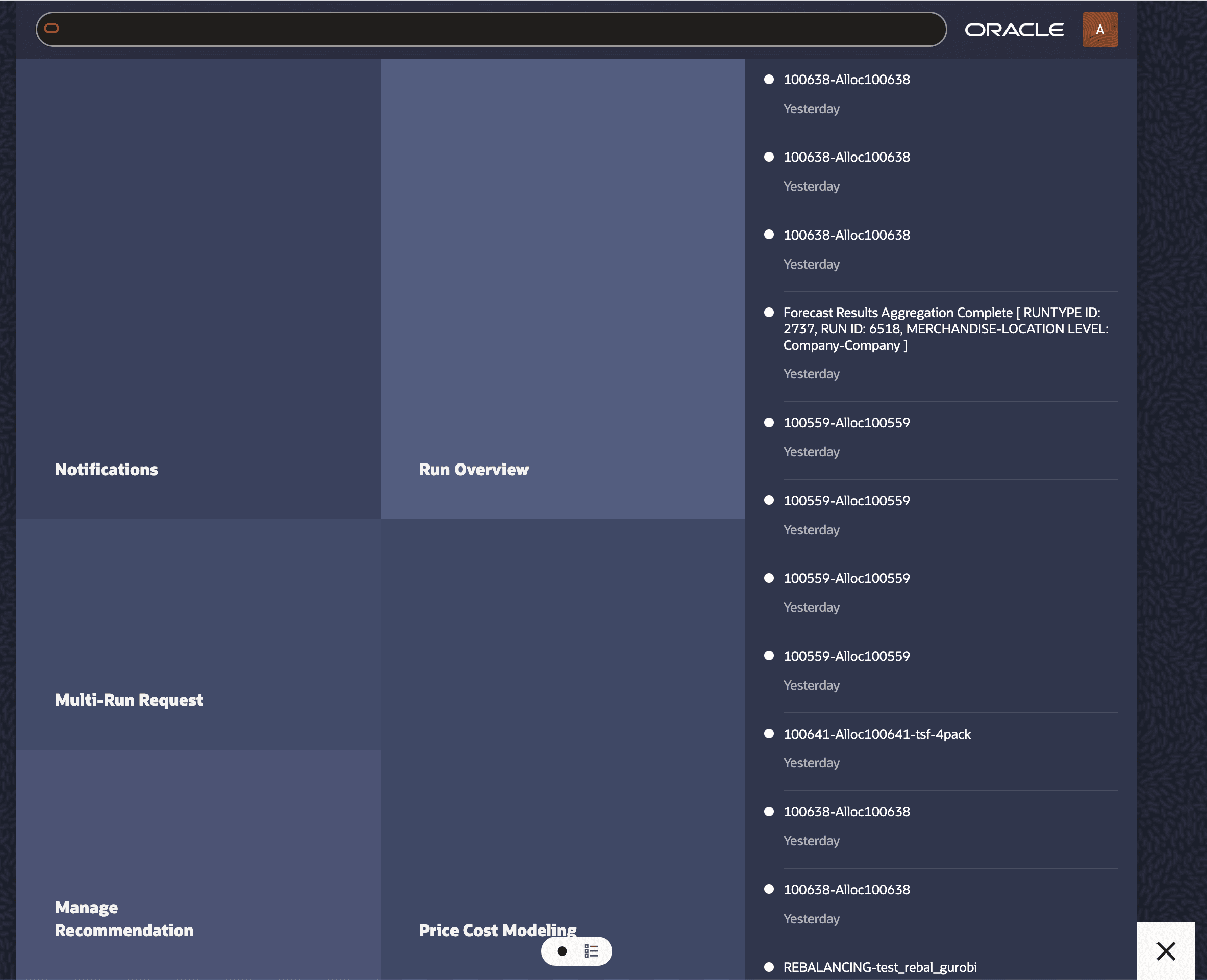
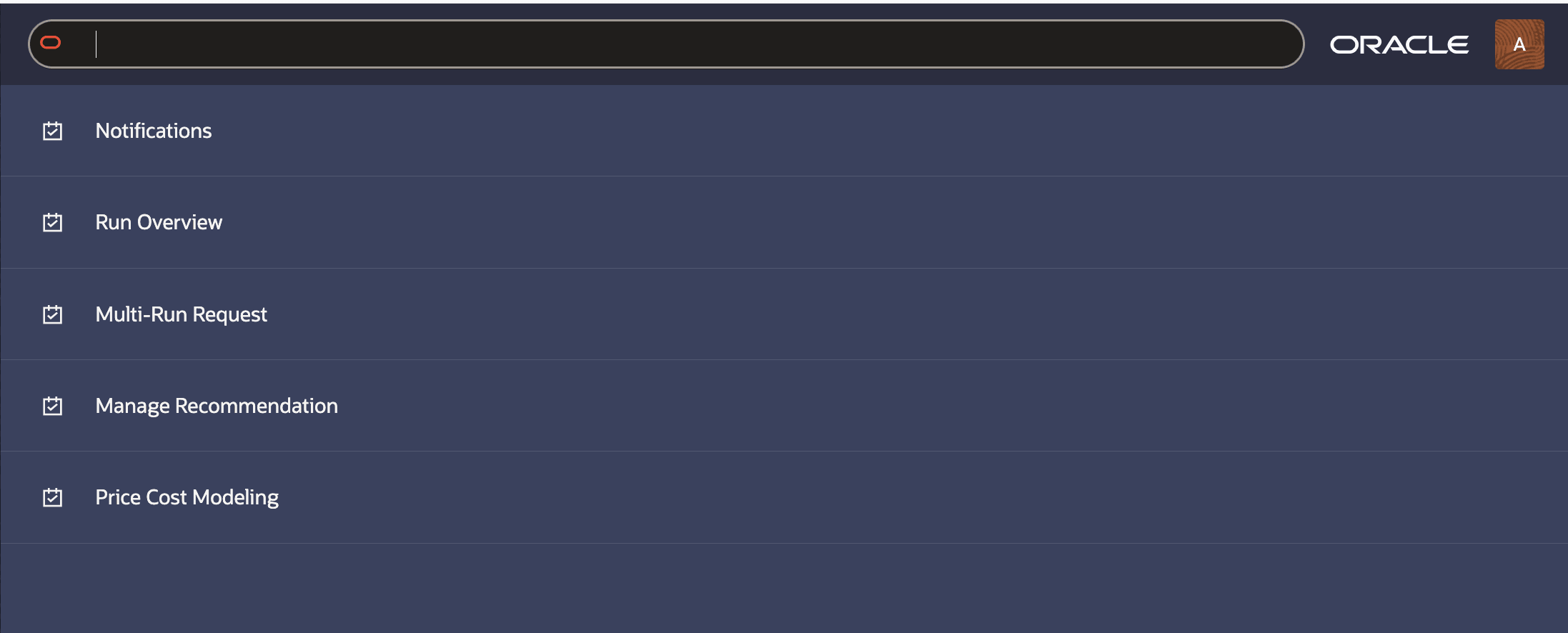
Figure 3-3 LPO Links - Oracle Home Experience - Suggestions List View
User Preferences & Personalization
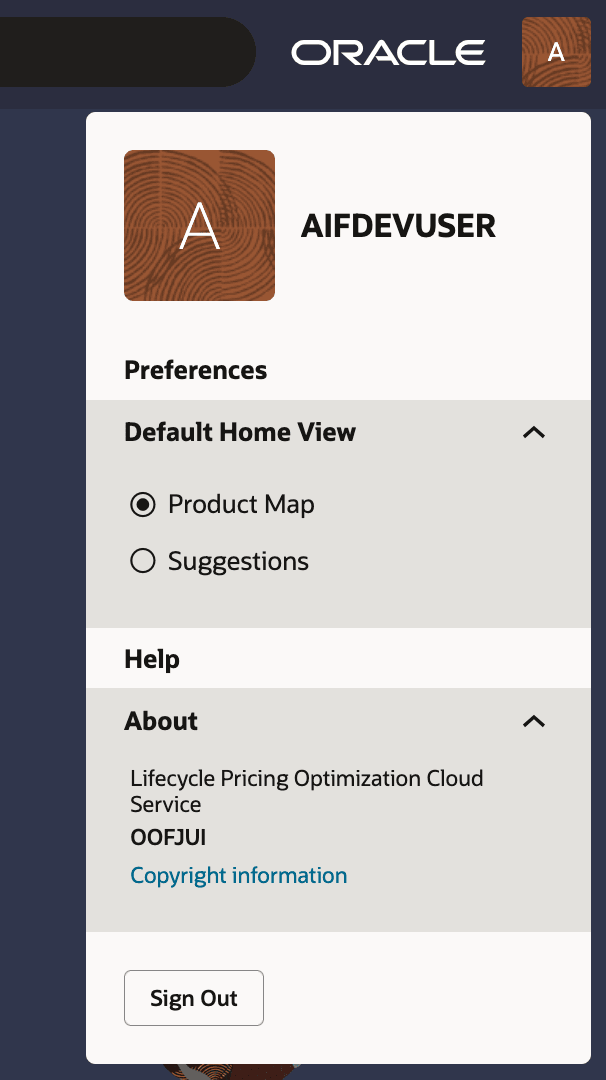
The User Menu provides access to personal preferences, Help, product information, and sign-out options. To open the menu, click your user profile icon in the upper-right corner of the application.
Default Home View
The Default Home View setting determines how folders and links are displayed when you access the Oracle Home Experience. You can open the Oracle Home Experience from the Oracle 'O' tag in the application shell; depending on configuration, the tag may display Home or Explore as its hover label.
Depending on the user experience configuration, users may open Ask Oracle from the Oracle Home Experience, an Ask Oracle search field, or the assistant entry point available in the application shell. The Oracle Home Experience itself is opened from the Oracle 'O' tag; when the home experience is open, the tag may change to a close control. When Ask Oracle is opened, it launches the assistant panel on the right side of the screen.
-
Product Map: Displays folders and links in a visual layout. Folders group related links together so users can navigate to applications, workflows, or actions from a predictable location. Depending on configuration, the Product Map view may also include a Notifications pane.
-
Suggestions List: Displays links in a list view. Frequently or recently selected links can appear near the top, helping users quickly return to the applications, workflows, or actions they use most often.
Your selected home view is remembered and automatically displayed each time you access the Oracle Home Experience.
Figure 3-4 User Menu
Contextual Panel
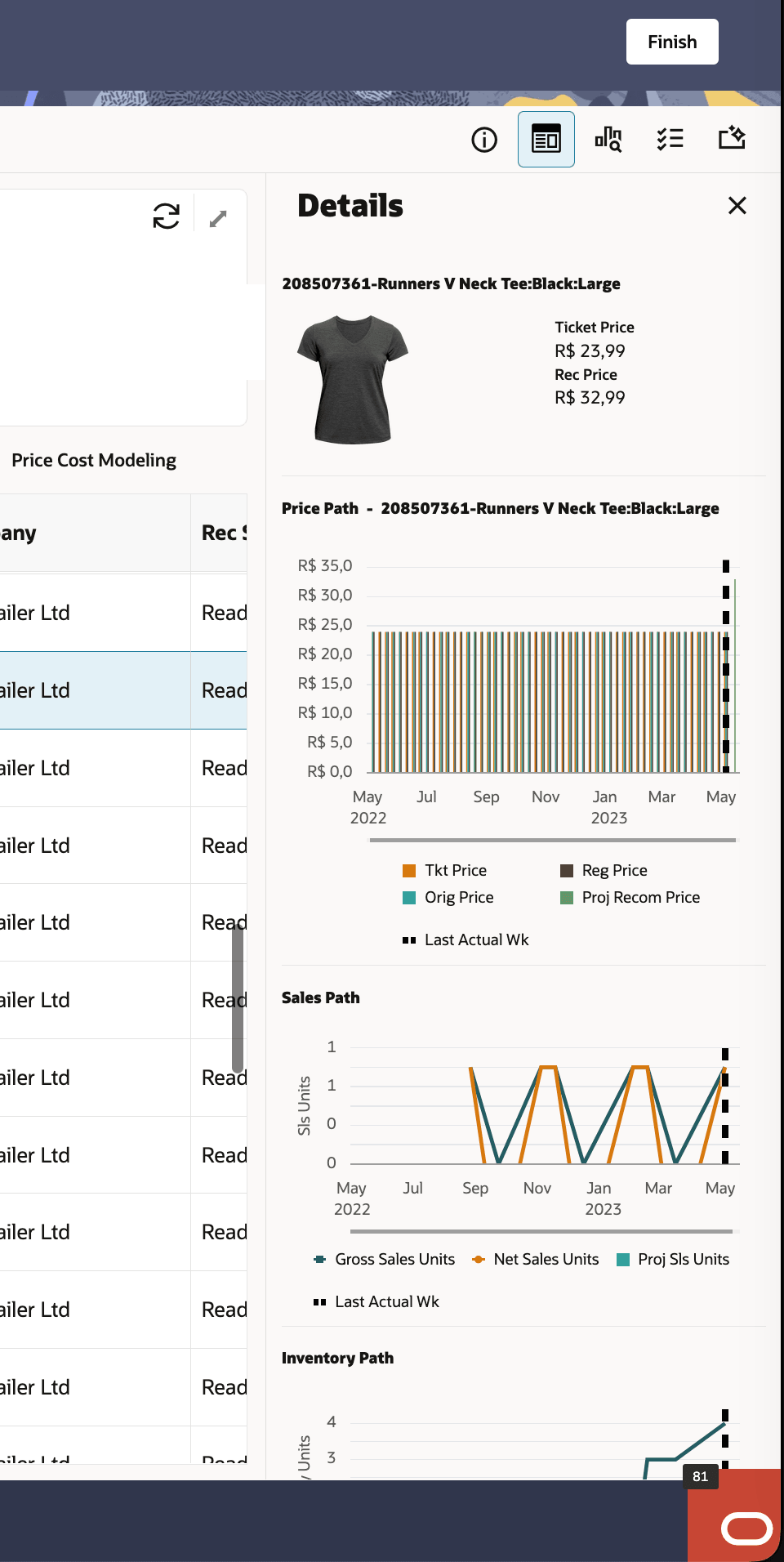
The Contextual Panel is a collapsible panel on the right side of the LPO workspace. It displays additional information related to the currently selected run or recommendations and updates dynamically based on your selection:
-
Run Overview: Shows run-level summary information including run parameters and status history.
-
Results : Shows item-level details including ticket price, recommended price, cost, margin, and a visual price path chart.
-
Manage Recommendations: Show individual recommendation details, job status, rules applied, and where configured a GenAI-powered explanation of the recommendation.
Click the respective icons on top the right edge of the workspace to expand or collapse the Contextual Panel. You can resize the panel by dragging its left border.
Figure 3-5 Contextual Panel from Manage Recommendations workspace
Pull Down Menus
Pull-down menus are available on most LPO screens and provide actions and view controls relevant to the current context.
The View menu controls how data is displayed on the current screen. Common options include:
-
Columns: Show or hide specific columns in the table. Opens the Manage Columns dialog.
-
Sort: Change the sort order of the table.
-
Detach: Detach the table from the main screen for a larger view.
-
Filter / Query By Example: Apply or clear filters on the table.
Actions Menu
The Actions menu contains operations you can perform on the currently selected record or on the screen as a whole. Common actions available across LPO screens include Create, Copy, Delete, Optimize, Finalize, and Export. The Actions menu is context-sensitive, so actions that are not available for the current selection or run status are grayed out.
View Menu
The View menu controls how data is displayed on the current screen. Common options include:
- Columns: Show or hide specific columns in the table. Opens the Manage Columns dialog.
- Sort: Change the sort order of the table.
- Detach: Detach the table from the main screen for a larger view.
- Filter / Query By Example: Apply or clear filters on the table.
Manage Columns
The Manage Columns feature allows you to customize which columns are displayed in any LPO table and in what order. Access it by selecting Columns from the View menu, or clicking the Manage Columns icon in the table toolbar.
In the Manage Columns dialog, Available Columns lists all columns that can be added and Selected Columns lists the columns currently displayed. Use the arrow buttons to move columns between lists and the up/down arrows to reorder. Click Apply to update the table view or Reset to restore the default column set. Column preferences are saved per user and persist between sessions.
Figure 3-6 View Menu - Manage Columns - Save Column Set
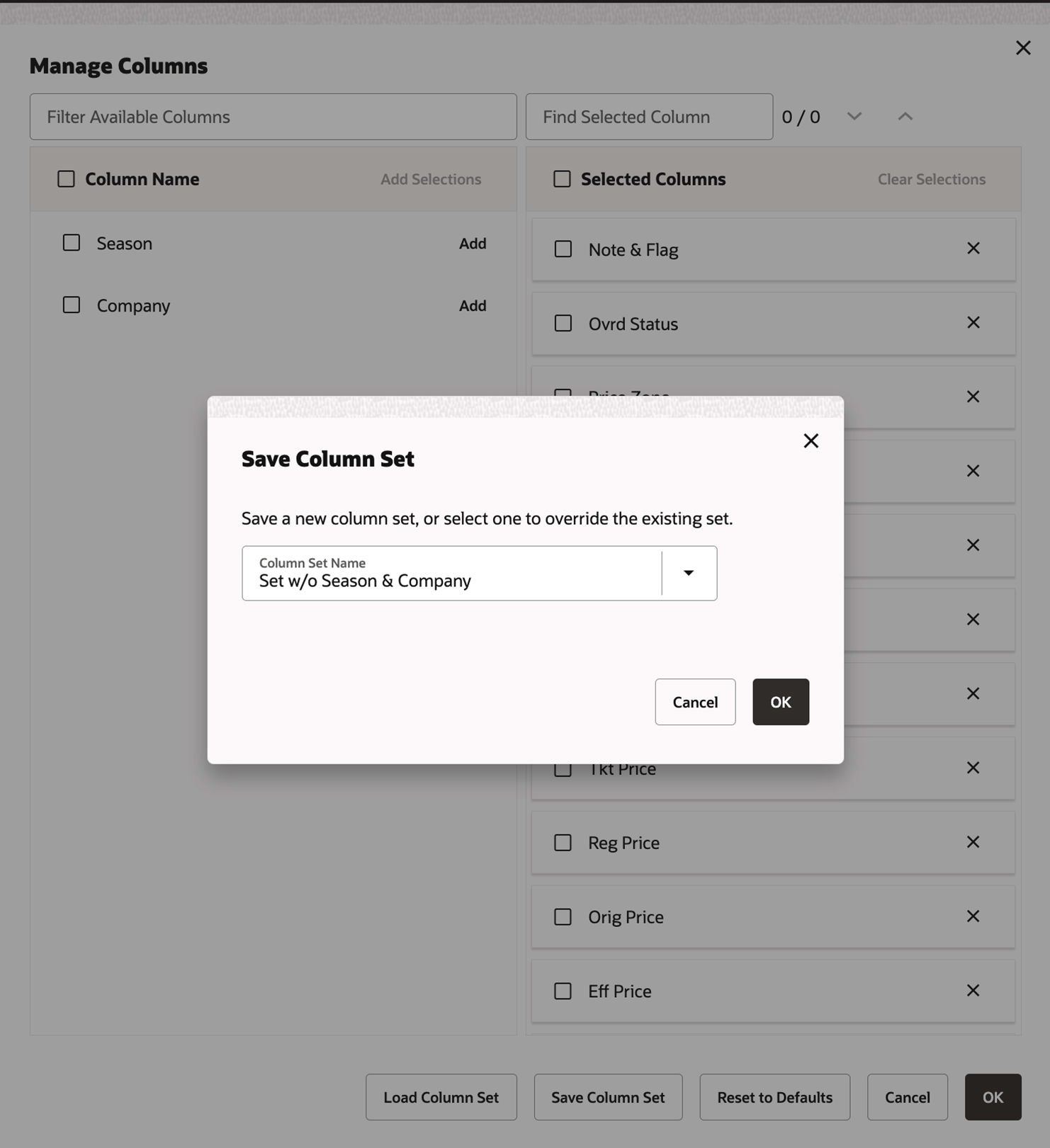
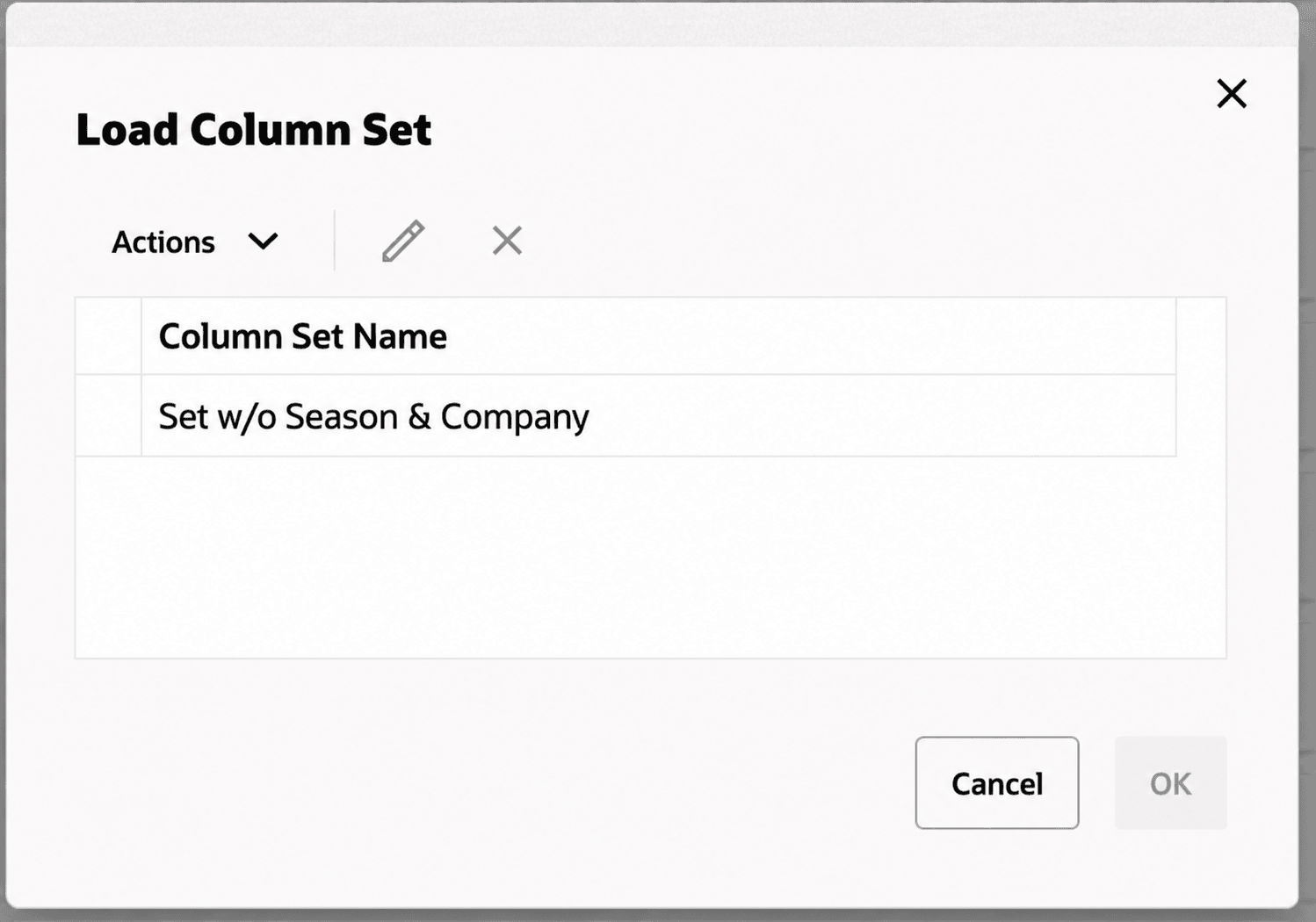
Figure 3-7 View Menu - Manage Columns - Load Column Set
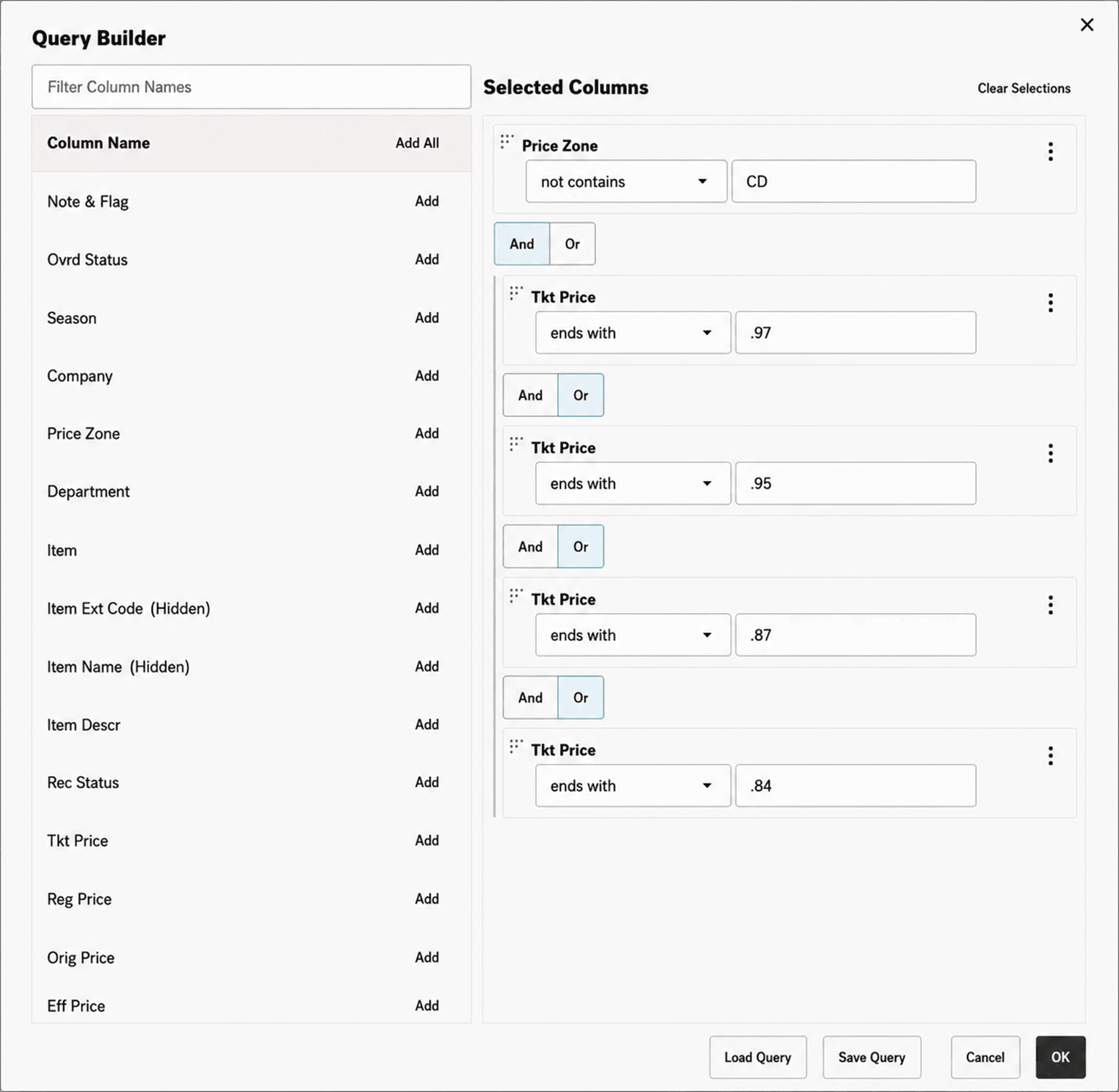
Query Builder
The Query Builder is an advanced filtering tool available on the Run Overview and Manage Recommendations workspace. It allows you to define complex, multi-condition filters to narrow down the records displayed.
To use the Query Builder, click the Query Builder icon in the table toolbar. Select a field, an operator such as equals, contains, or greater than, and a value. Add additional conditions using AND or OR logic. Click Apply to filter the table and Save to save the query for future reuse. Saved queries can be reused to quickly filter frequently reviewed recommendation sets.
Figure 3-8 View Menu - Query Builder
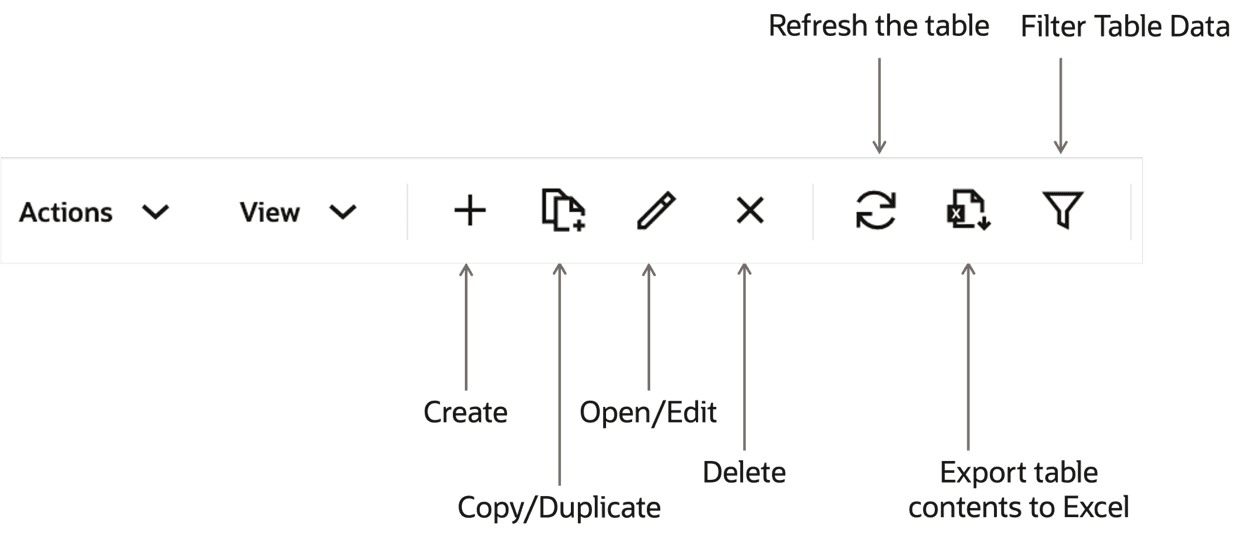
The following icons are used in the user interface. The icons may vary based on their table structure and certain icons have slightly different definitions depending on the context.
Figure 3-9 Table Toolbar
Ask Oracle
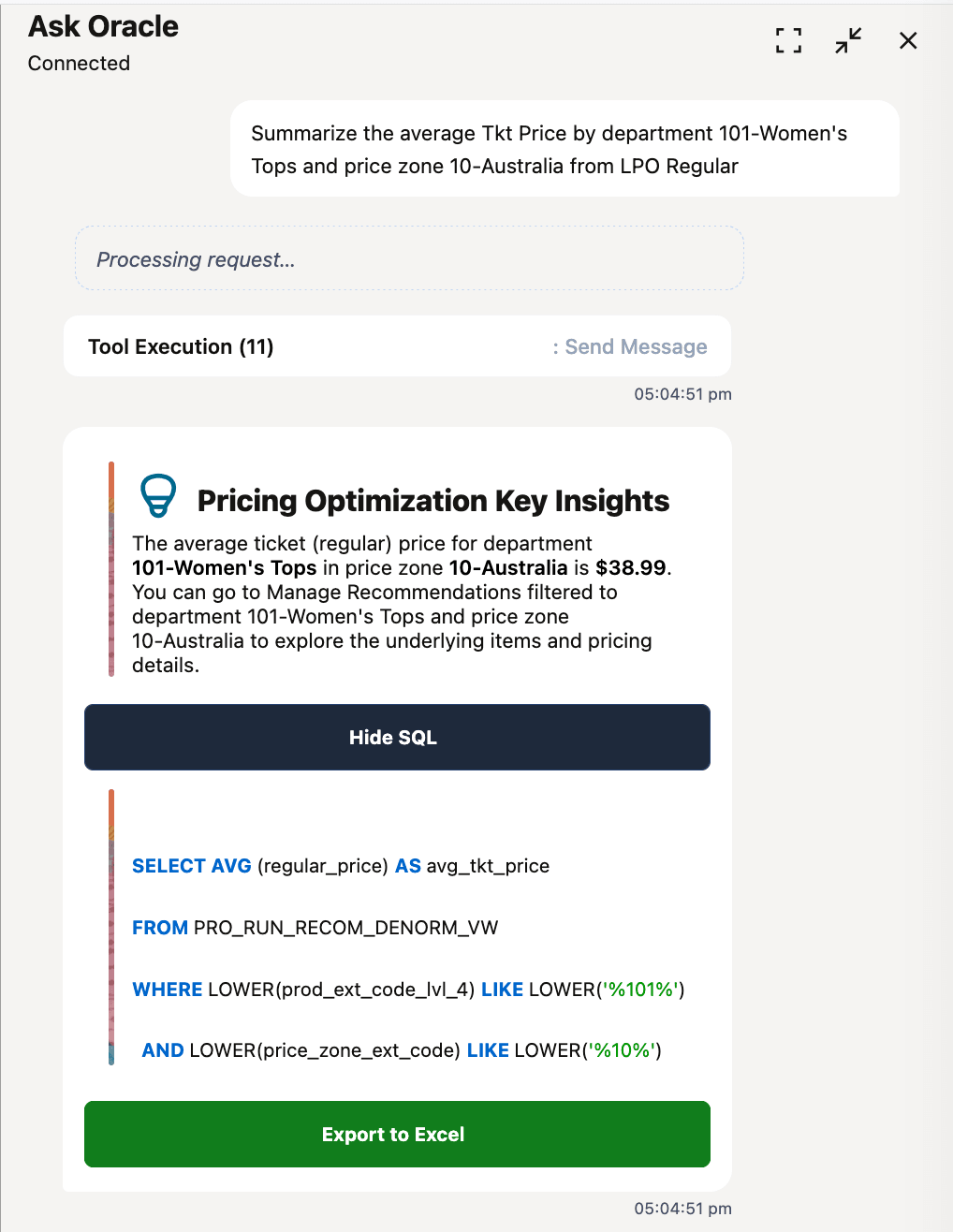
Ask Oracle is the intelligent search and conversational assistant capability in the LPO application. Use Ask Oracle when you want to ask natural-language questions, filter or search application data, retrieve information, or receive AI-generated assistance. Ask Oracle is not the generic name for the home menu or shell; that experience is referred to as the Oracle Home Experience.
For Rules Based Regular Pricing users, Ask Oracle can be used to ask questions about application concepts, retrieve information about runs and recommendations using natural-language questions, and navigate to available workspaces. Depending on configuration, users may access this capability from the Ask Oracle search experience or from the Oracle Home Experience.
Example questions:
-
Summarize the average Tkt Price by department 101-Women's Tops and price zone 10-Australia from LPO Regular
-
Show the average difference between the current regular price and the recommended price by department.
-
Compare current and recommended prices by class and price zone.
-
Show recommendations affected by competitor alignment rules.
-
Identify items with margin rule violations.
-
Summarize recommendations by strategy.