Column Configuration
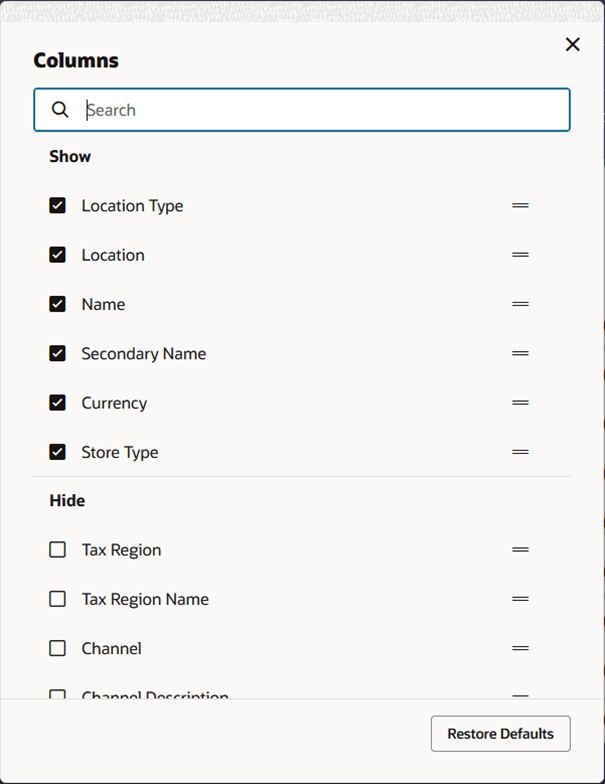
In a table view there may be a column configuration button  in the table toolbar. When clicked, the Columns dialog opens.
The Columns dialog includes a list of the table columns that are currently being shown with checkboxes checked, and a list of columns that are currently hidden with checkboxes unchecked.
You can uncheck columns to hide them, check hidden columns to show them, or drag columns between the Show and Hide sections using the handlebar icon on the right side.
To find a desired column, you can use the search box at the top of the dialog.
To restore the display of the table to the original setting, you can click the Restore Defaults button at the bottom of the dialog.
To close the Columns dialog, click the X at the top right of the dialog.
Figure 2-9 Table Column Configuration – Columns Dialog