Preferences
The only preference that can be set for the Locations Destination is your desired language. This will determine the language in which all labels in the Locations Destination will display. If any data has been translated into the language, you will also be able to see these translated values on various pages in the Locations Destination.
The Language page in the Preferences Destination is where you specify your desired language.
To set your preferences:
-
Open the Locations Destination Home Experience by clicking the "O-tag" icon in the bottom right corner of the screen. The Home Experience displays.
-
Open the User Menu by clicking the avatar icon or image in the upper right corner of the Home Experience.
-
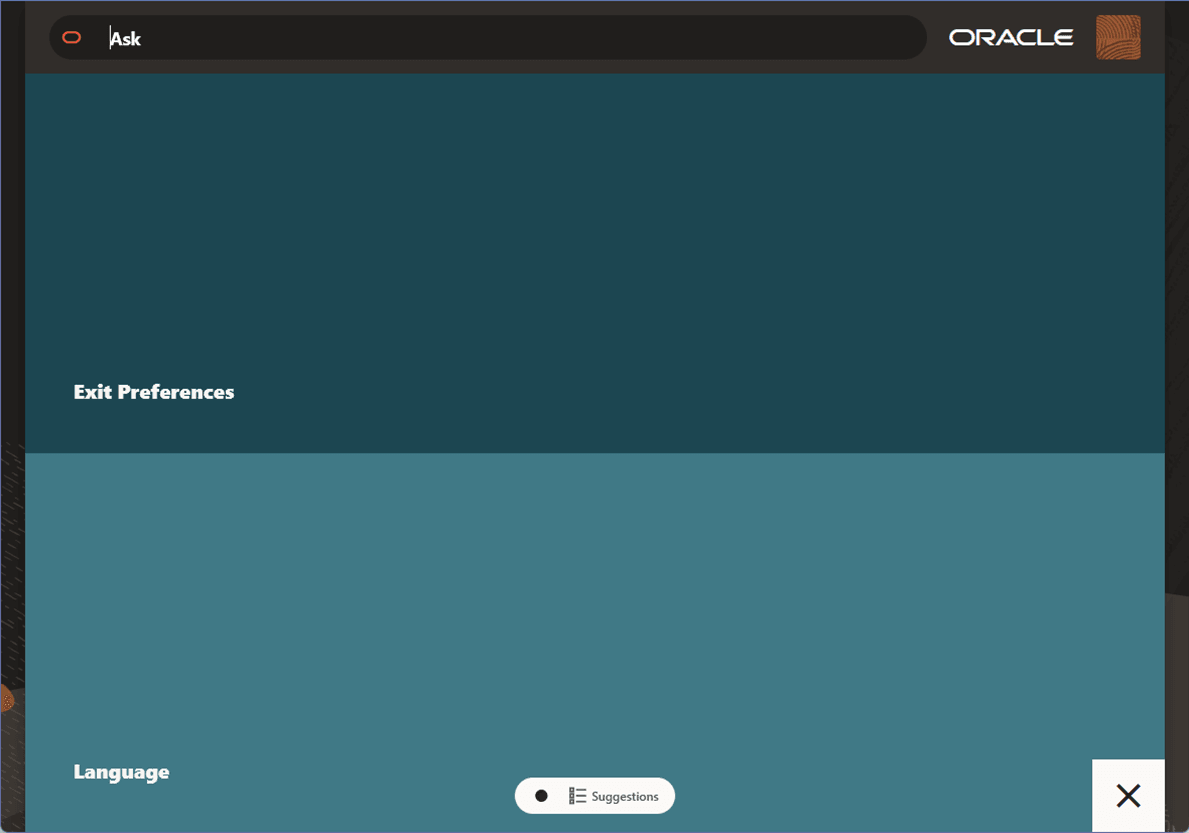
Select Preferences from the User Menu. A warning message will display telling you any unsaved work will be discard if you continue. If you have work you wish to save, click Cancel to this message and save your work. Otherwise, click the Discard button in the message. The Preferences Destination’s Home Experience page will open.
Figure 1-9 User Menu
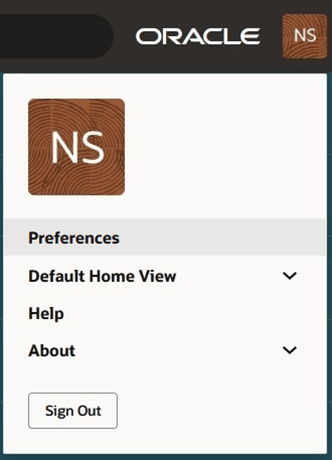
Figure 1-10 Preference Home Experience
-
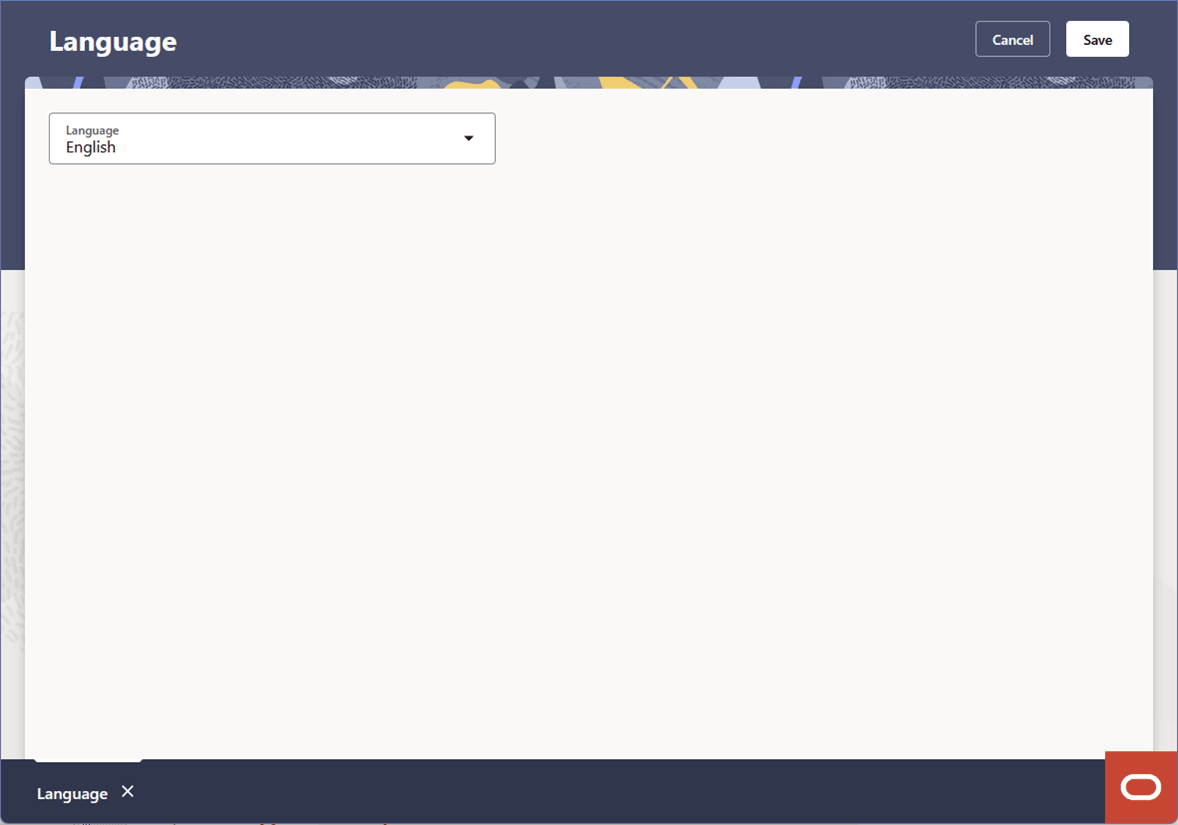
Select Language from the Home page. The Languages page appears.
Figure 1-11 Language Page
-
Select your desired language from the Language page and click the Save button to save this change, or click the Cancel button to discard your change.
To return to the Locations Destination landing page:
- Click the “O-tag” Oracle icon in the bottom right corner to open the Preferences Home Experience.
- Click Exit Preferences from the Home Experience page. The Locations Destination appears.