Creating an Address
To create an address, follow the steps below:
-
In the Addresses section, click Create Address button. The New Address drawer appears.
Figure 3-38 New Address Drawer
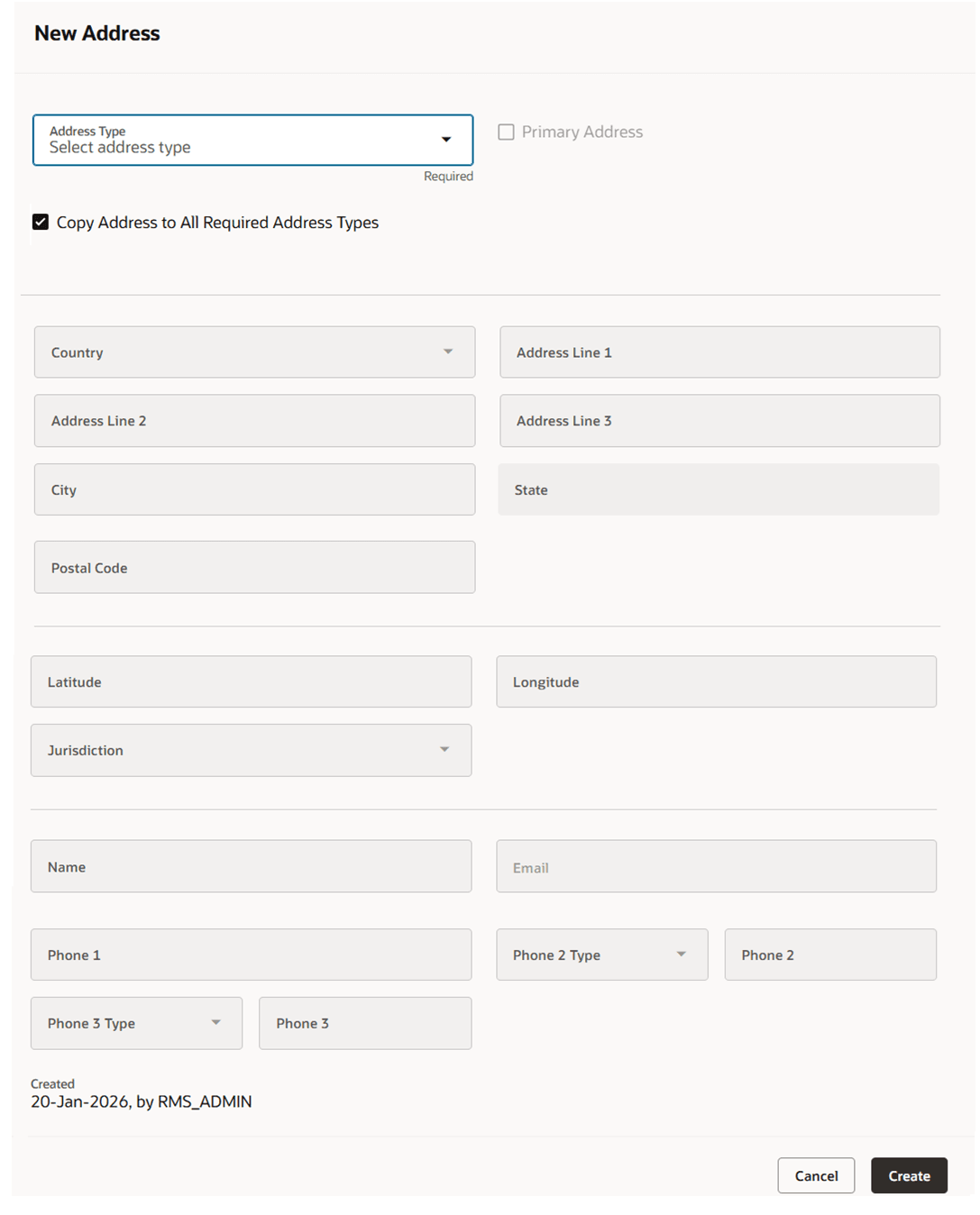
- In the Address Type field, select the type of address to be created.
- Select the Primary Address checkbox to indicate that the current address is a primary address for the address type. The field is enabled if a primary address already exists for the selected address type, allowing you to choose a new primary address. If no primary address exists for the selected address type, the Primary Address field is automatically selected and disabled.
- The Copy Address to all Required Address Types checkbox,indicates whether the current address information is added to each required address type that does not yet have an address defined. This checkbox will be hidden if all required address types already have an address. When displayed, this checkbox is selected by default.
- In the Address information section, enter the following details:
- In the Country field, enter, select, or search for the country. This field is a required field.
- In the Address Line 1/2/3 fields, enter the full address. The Address Line 1 field is a required field.
- In the City field, enter the city in which the store is located. This field is a
required field.
- This field can have a different label, or may be ordered differently per the country-level address configuration. More details on the country address configuration can be found in the “Countries” section of the Oracle Retail Merchandising Foundation Implementation Guide.
- In the State field, select a state from the list.
- This field can have a different label, or may be ordered differently per the country-level address configuration. More details on the country address configuration can be found in the “Countries” section of the Oracle Retail Merchandising Foundation Implementation Guide.
- In the Postal Code field, enter the postal code of the store.
- This field can have a different label, or may be ordered differently per the country-level address configuration. More details on the country address configuration can be found in the “Countries” section of the Oracle Retail Merchandising Foundation Implementation Guide.
- Select the Primary Address checkbox to indicate that the current address is a primary address.
- Enter geographic coordinates:
- In the Latitude field, enter the latitude of the address location.
- In the Longitude field, enter the longitude of the address location.
- In the Jurisdiction field, enter, select or search for the jurisdiction of the country-state relationship.
- In the Contact information section, you can enter the following details:
- In the Name field, enter the name of the contact person at this address.
- In the Phone field, enter the phone number of the contact.
- In the Phone 2 Type field, select a type.
- In the Phone 2 field, enter a phone number for the selected type.
- In the Phone 3 Type field, select a type.
- In the Phone 3 field, enter a phone number for the selected type.
- In the Email field, enter the email address.
- Then choose one of the following options.
- Click Create to save the current address and close the drawer.
- Click Cancel to reject all entries and close the drawer.