Create Stores
To create a store, follow the steps listed below.
- To create a new store, you can initiate the process from the Organizational Hierarchy page,
the Stores and Warehouses page, or through the Home Experience.
- To initiate the creation of a store through the Organizational Hierarchy page:
- On the Locations Destination landing page, click the Organizational Hierarchy card. Alternatively, from the Home Experience select Organizational Hierarchy from the Product Map or Suggestions list view. The Organizational Hierarchy page appears.
- When the Organizational Hierarchy page opens, the company will be selected and displayed in the focused card with all chains in the company listed in child cards below. You can drill down to the district under which you wish to add the new store by clicking the chain, then area, then region, and then district. Alternatively, you can search for the desired district by keying a partial or full district ID or name in the Ask Oracle search bar at the top of the page. The district will become the focused card.
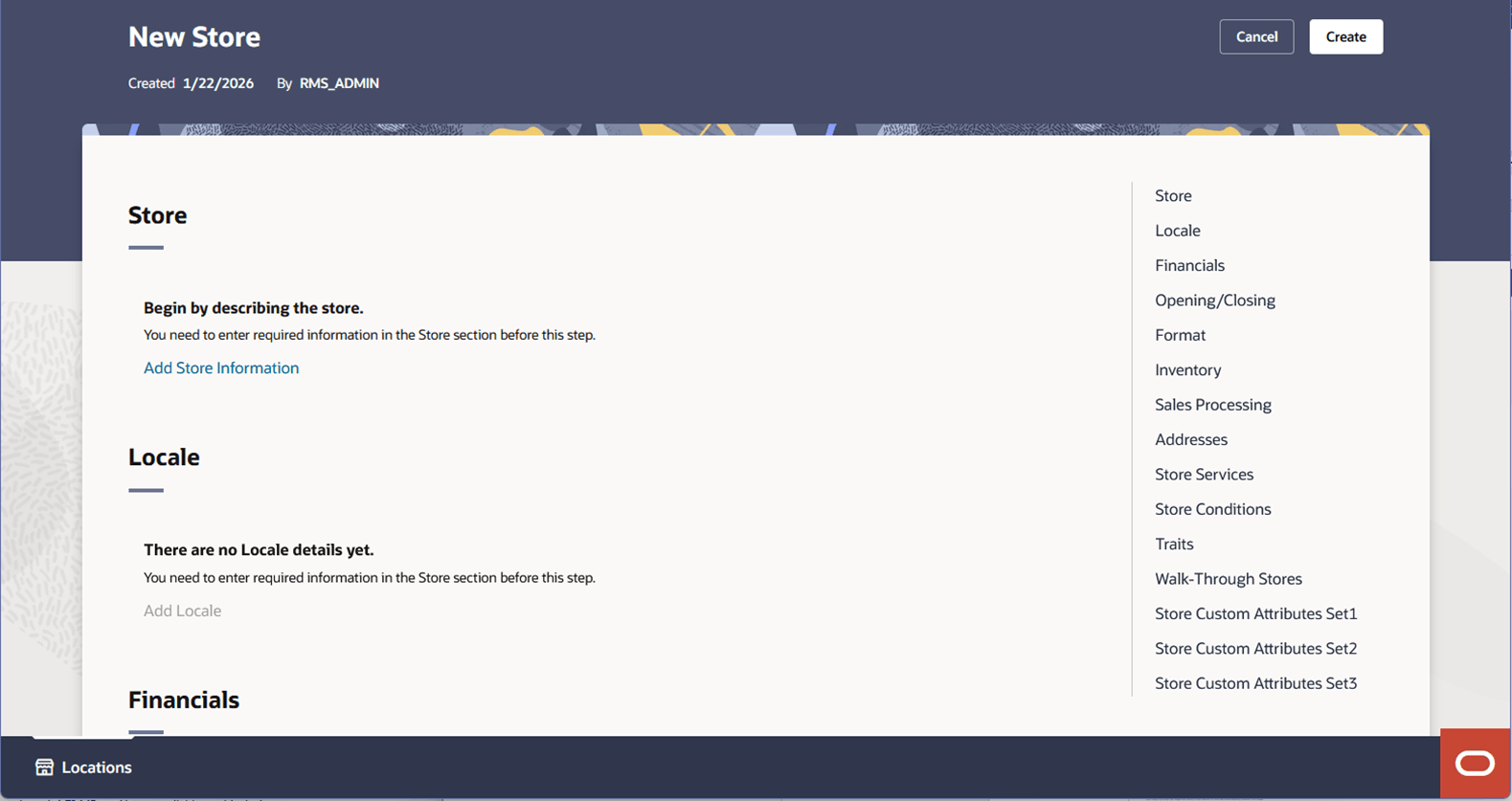
- With the district card as the focused card, choose Create Store option from Overflow Menu. The New Store screen appears.
- To initiate the creation of a store through the Stores and Warehouses page:
- On the Locations Destination landing page, click the Stores and Warehouses card. Alternatively, from the Home Experience select Stores and Warehouses from the Product Map or Suggestions list view. The Stores and Warehouses page appears.
- Near the top of the page, select the Create Store button. The New Store screen appears.
- To initiate the creation of a store via the Organizational Hierarchy page:
- From any page, select the Oracle icon (“O-tag”) in the bottom right corner of the screen. The Home Experience appears.
- From the Product Map or the Suggestions list, select the Create Store task. Alternative, enter Create Store into the Ask Oracle search bar at the top of the page and select the Create Store task that displays in the results. The New Store screen appears.
Figure 3-20 New Store Page
- To initiate the creation of a store through the Organizational Hierarchy page:
- Begin by clicking the Add Store Information hyperlink in the Store section to add basic store information. After this, other sections will become enabled to add the details.
- Enter the necessary information for the store. For more information about the available fields on the Store page, see the Store Page section.
- Choose one of the following options.
- Click Create to create the store.
- Click Cancel to reject all entries and exit the New Store page without creating a store.