3 Organizational Hierarchy
The organizational hierarchy allows you to create the relationships that are necessary to support the operational structure of a company. You can create a preferred organizational structure to support consolidated reporting at various levels of the company. Also, you can assign responsibility for any level of the hierarchy to a person or persons in order to satisfy internal reporting requirements.
The following are the levels of the organizational hierarchy in Merchandising:
Company: The highest default organizational and merchandise hierarchy level defined in Merchandising. Only one company can be defined.
Chain: The first level below the company level in the organizational hierarchy. The definition of a chain is based on the needs of the company, but a chain can be used to group various store formats, concepts, and geographical locations within the organization.
Area: The second level below the company level in the organizational hierarchy. The definition of an area is based on the needs of the company, but an area is used typically to define a geographical group within the organization. An area can belong to only one chain.
Region: The third level below the company level in the organizational hierarchy. The definition of a region is based on the needs of the company, but a region can be used to group geographical locations within the organization. A region can belong to only one area.
District: The fourth level below the company level in the organizational hierarchy. The definition of a district is based on the needs of the company, but a district is used typically to group geographical locations within the organization. A district can belong to only one region.
Store: The fifth and lowest level of the organizational hierarchy. A store, which is associated with a single district, can represent a physical selling location, a virtual selling location (e.g. e-commerce site), or a customer (e.g. franchisee) location.
Warehouse: Considered the bottom of the organizational hierarchy, but unlike stores, it does not roll up under a specific level of the hierarchy, as it can source many store, districts, areas, and so on. Warehouses can be physical or virtual. Physical warehouses are meant to represent the physical building, whereas virtual warehouses are where inventory is held. One or more virtual warehouses can exist in one physical warehouse.
The Organizational Hierarchy page allows you to create, edit and view the organizational hierarchy of the company. The screen can be accessed either from the Locations Destination landing page or the Home Experience.
Organizational Hierarchy Screen
To enter the Organizational Hierarchy workflow, from the Locations Destination landing page, click the Organizational Hierarchy card or, from the Home Experience, click Organizational Hierarchy from the Product Map or Suggestions view.
Figure 3-1 Organizational Hierarchy Page
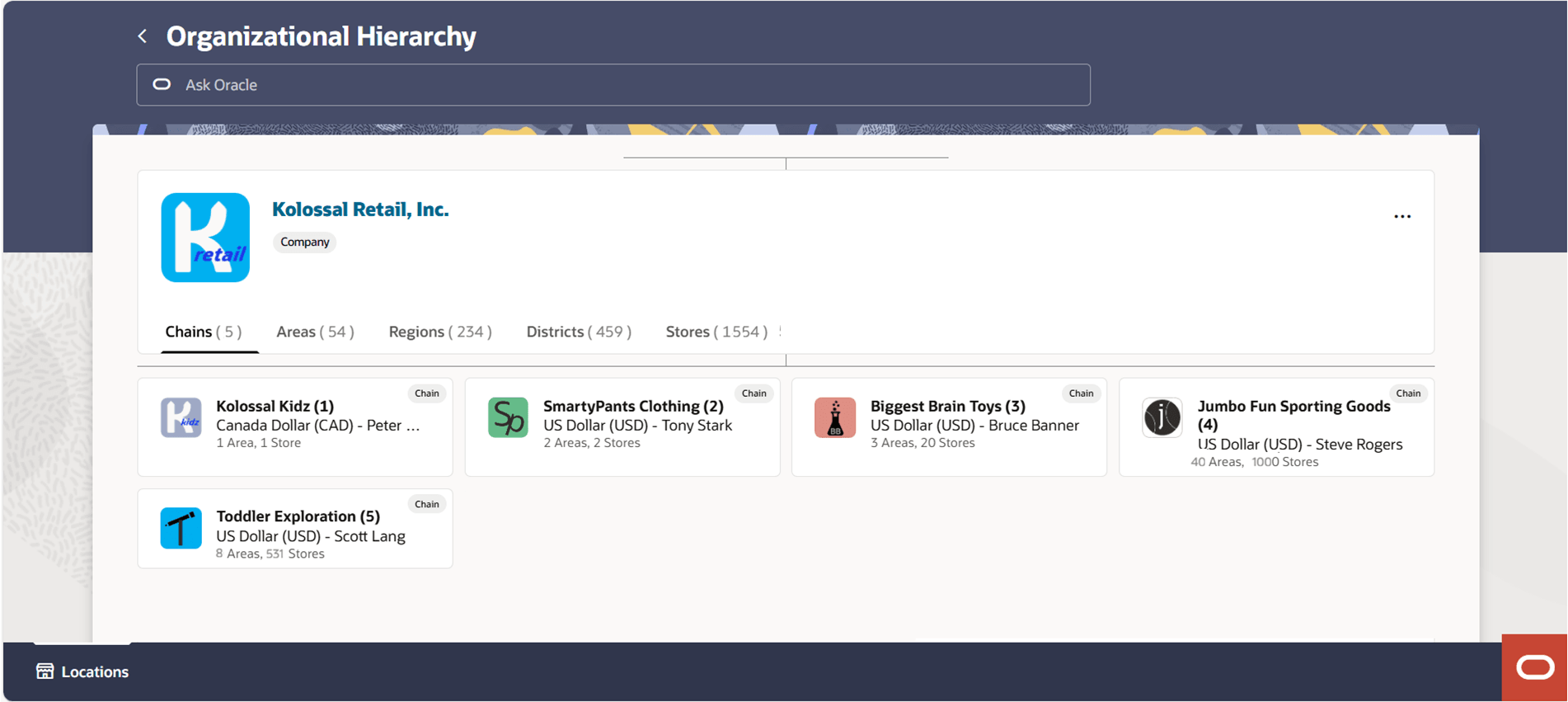
When the screen is opened, the company will be displayed in a large card, referred to as the focused card. Below the company will be a list of all chains within the company. As you select a particular chain, area, region, district or store, it will display as the focused card, with the details of what is contained within that level of the hierarchy displayed below.
Focused Card
As you select a particular chain, area, region, district or store, it will display as the focused card, with the details of what is contained within that level of the hierarchy displayed below.
Figure 3-2 Focused Card
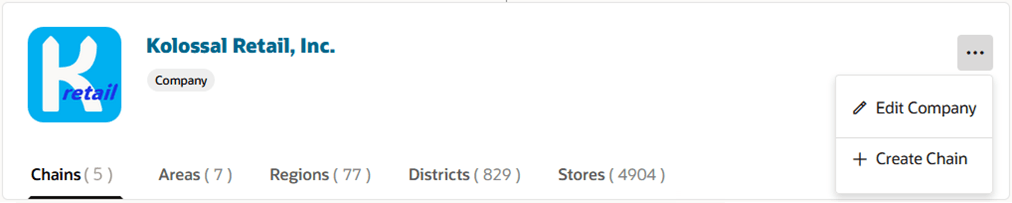
Table 3-1 Information on the Focused Card
| Information | Description |
|---|---|
| Logo Image | Company and chain cards can optionally display a logo for brand recognition. |
| Name | Displays the name of the organizational entity with its associated identifier in parentheses. If you have security privileges to view or maintain the hierarchy level, the name will appear as a hyperlink that when clicked will open a drawer where, depending on your security access you can view or edit details of the entity. |
| Details | Displays the currency and manager of the entity if defined. |
| Hierarchy Level | The gray badge displays the level of the hierarchy. |
| Level Tabs | A tab is available for each level below the selected entity along with a count of the entities at that level. For example, if you have selected the company in the focused card, there will be a tab for all levels below company, Chain, Area, Region, District and Store, along with a count of how many of each exist under the company. Clicking the tab will display the full list. |
| Actions | The menu button on the right side of the focused card will have one or more actions you can perform on the entity selected in the focused card depending on your security access. You may have an action to view, edit and/or delete the selected entity, or to create an entity below the selected entity. |
Parent and Child Cards
When you select a particular entity such as a chain or a district, the entity above will display in a small parent card and the entities below will display in small child cards.
Figure 3-3 Parent/Child Card
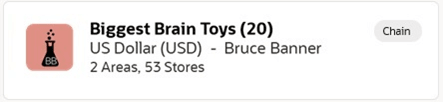
Table 3-2 Information on a Parent/Child Card
| Information | Description |
|---|---|
| Logo Image | Company and chain cards can optionally display a logo for brand recognition. |
| Name | Displays the name of the organizational entity with its associated identifier in parentheses. |
| Details | Displays the currency and manager of the entity if defined. |
| Children Count | Displays the count for the immediate level below the entity, along with the number of stores. For example, if the parent or child card contains a chain, the Children Count will display the total number of areas in the chain, along with the total number of stores in the chain. |
| Hierarchy Level | The gray badge displays the level of the hierarchy. |
Manage Company
Company is the highest level of the organization and merchandise hierarchies defined in Merchandising. Only one company can be defined, and this company is initially set up during the installation process. Since the company is required, and only one company is allowed, the Organizational Hierarchy page and the upload/download process only allow the company to be updated; you cannot add or delete a company. However, the company information can be referenced in multiple languages, so you can add, update, or remove translations of the company information through the upload/ download process.
For the upload/download process, see Supporting Data.
Editing Company
To edit a company, follow the steps below.
-
On the Locations Destination landing page, click the Organizational Hierarchy card. Alternatively, from the Home Experience, select Organizational Hierarchy from the Product Map or Suggestions list view. The Organizational Hierarchy page appears.
-
With the company card as the focused card, choose the Edit Company option from the Overflow menu or simply click on the card title, which is a hyperlink. The Edit Company drawer appears.
Figure 3-4 Edit Company Drawer
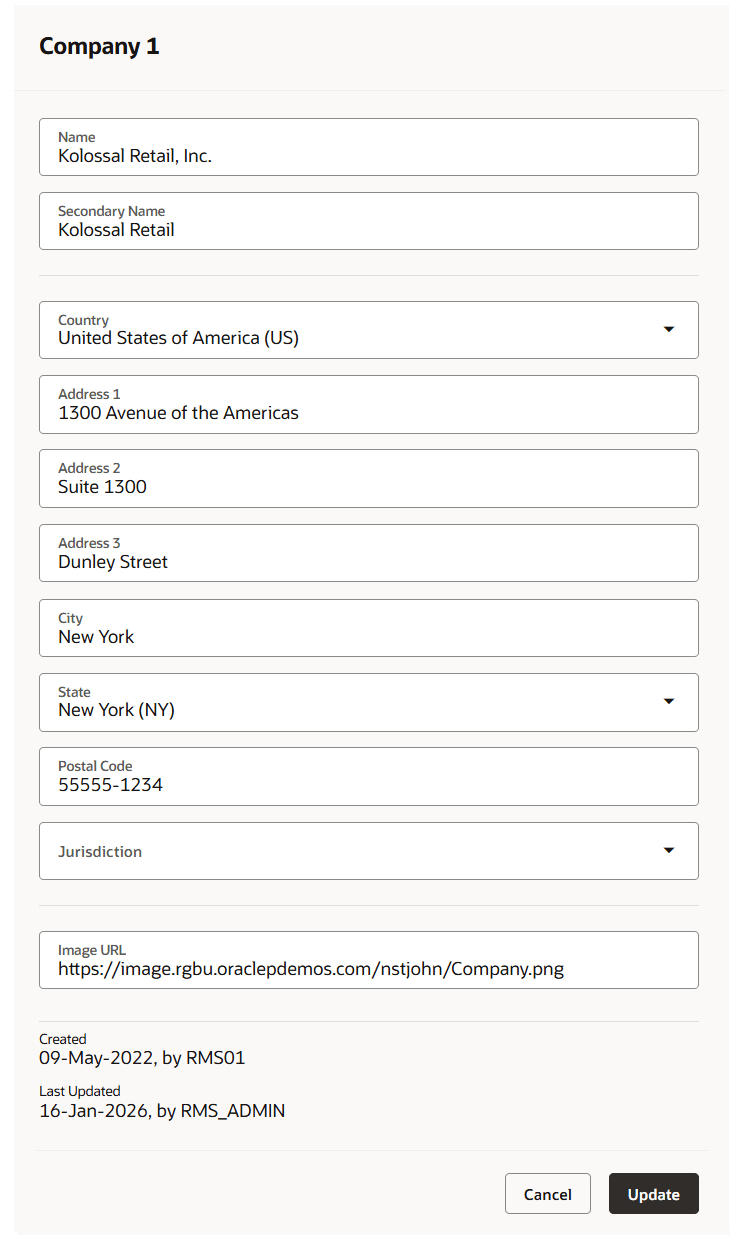
-
Edit the company name, secondary name, country, address details, Jurisdiction and/or image URL, as desired.
- Then choose one of the following options.
- Click Update to save your changes and close the drawer.
- Click Cancel to reject all changes and close the drawer.
- Then choose one of the following options.
Note:
- Modification to URL will change the company logo image displayed in the Organizational Hierarchy screen.
- The drawer displays the "created by" and "last updated by" user and date information, providing a record of recent changes.
- Currently, the company translations are not supported through the Company edit drawer, the translations can be viewed and maintained using the ‘Company’ foundation data loading spreadsheet template in Merchandising.
Create Chains
To create a chain, follow the steps below.
- On the Locations Destination landing page, click the Organizational Hierarchy card. Alternatively, from the Home Experience select Organizational Hierarchy from the Product Map or Suggestions list view. The Organizational Hierarchy page appears.
- With the Company card as the focused card, choose Create Chain option from Overflow Menu.
- The New Chain drawer appears.
-
Figure 3-5 New Chain Drawer
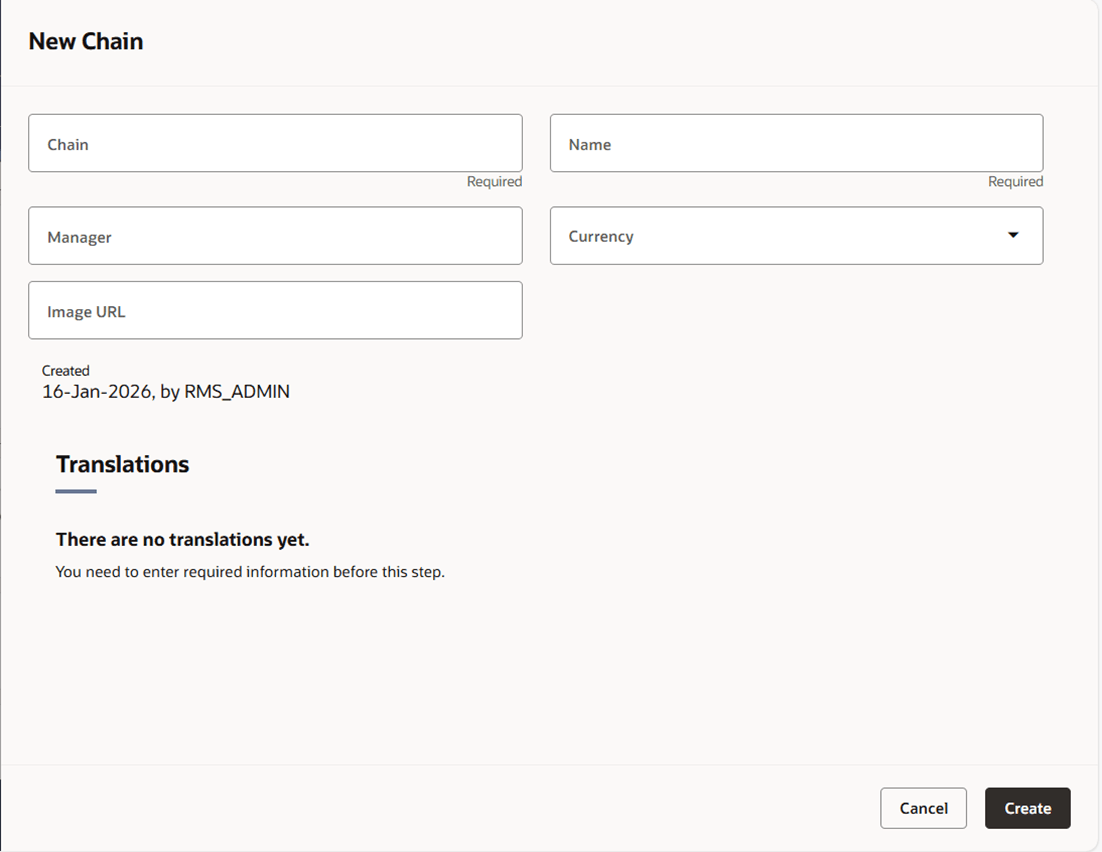
- In the Chains field, enter a unique number. This field is a required field.
- In the Chain Name field, enter the name of the chain. This field is a required field.
- In the Manager field, enter the name of the manager who is responsible for the chain.
- In the Currency field, enter, select or search for the chain's currency code.
- The Translations section is enabled when all required details are entered. Click
Create Translation button to add translations. The New Translation drawer appears.
- Add the translation. For more information see the "Translate Data" chapter in the Oracle Retail Merchandising Do the Basics User Guide.
- Then choose one of the following options.
- Click Create to save the chain and close the drawer.
- Click Cancel to reject all entries and close the drawer.
Manage Chains
Editing Chains
To edit a chain, follow the steps below.
- On the Locations Destination landing page, click the Organizational Hierarchy card. Alternatively, from the Home Experience select Organizational Hierarchy from the Product Map or Suggestions list view. The Organizational Hierarchy page appears.
- With the desired chain as the focused card, select the Edit Chain option from the Overflow menu or simply click the card title that is a hyperlink. The Edit Chain drawer appears.
Figure 3-6 Edit Chain Drawer
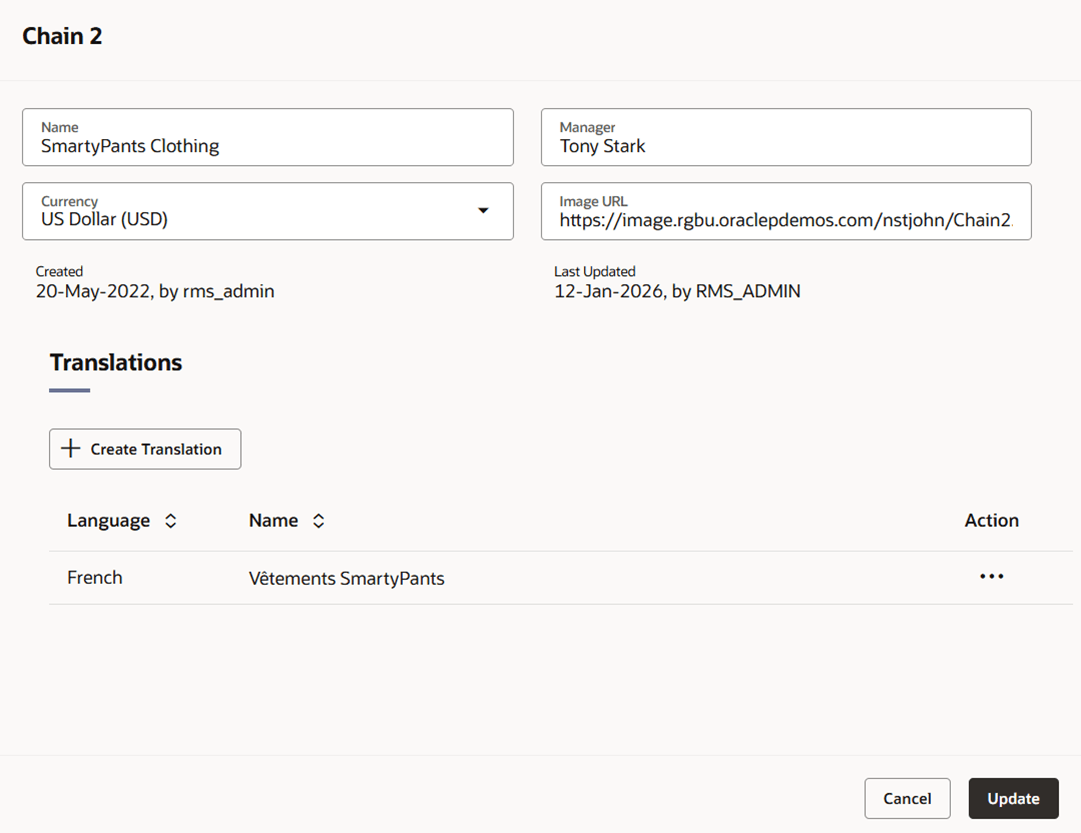
- The drawer title displays Chain ID.
- Edit the chain name, manager, currency and/or image URL, as desired.
- You can create and/or edit translations as necessary. For more information see the "Translate Data" chapter in the Oracle Retail Merchandising Do the Basics User Guide.
- Then choose one of the following options.
- Click OK to add your to the table and close the page.
- Click Cancel to reject all entries and close the page.
Chain as a Focused Card
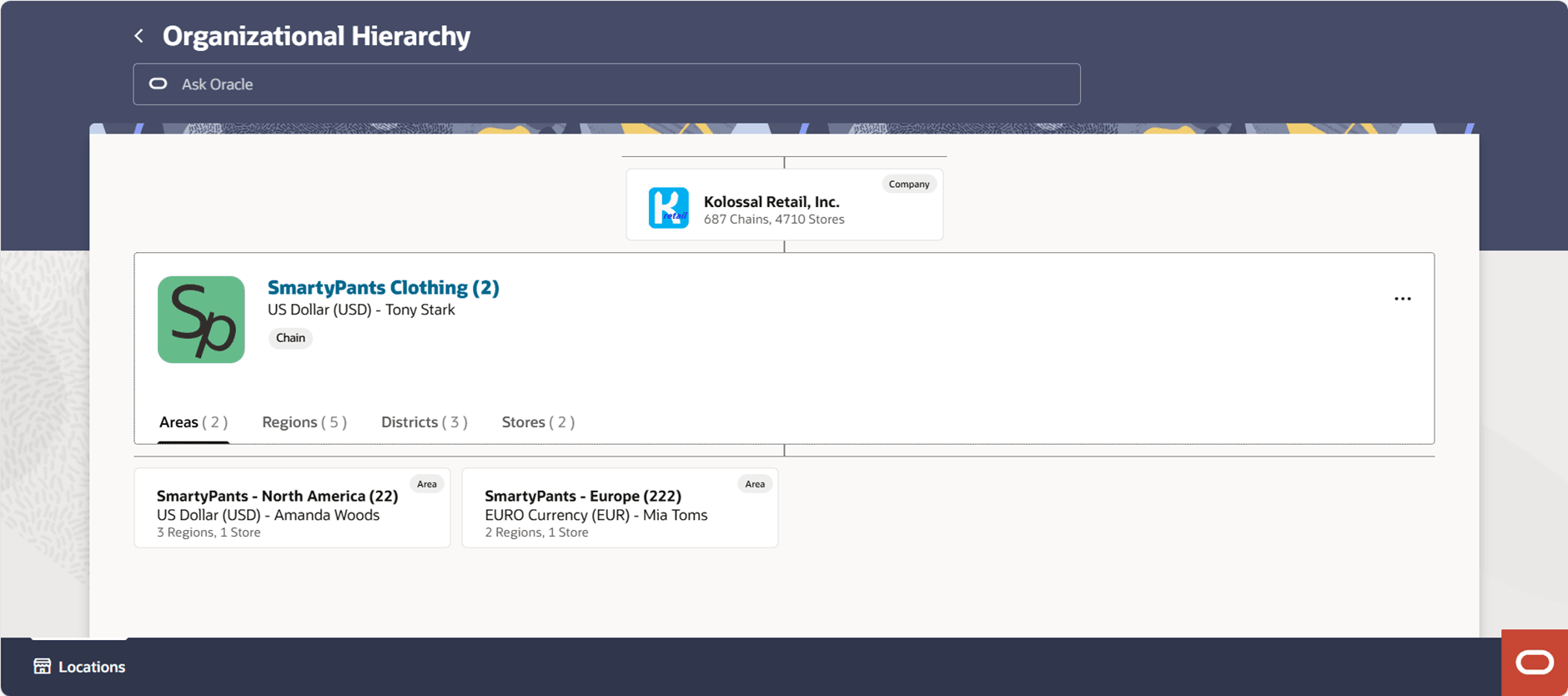
When a particular chain is selected, it displays as the focused card on the Organizational Hierarchy screen and enables you to create new areas and edit, view, or delete the selected chain. A chain is the 2nd level of the organizational hierarchy, just below the company. From a business standpoint, you can use the chain level to define a variety of store formats, concepts, and/or geographical groupings.
Figure 3-7 Chain as a Focused Card
Create Areas
To create an Area, follow the steps below.
- On the Locations Destination landing page, click the Organizational Hierarchy card. Alternatively, from the Home Experience select Organizational Hierarchy from the Product Map or Suggestions list view. The Organizational Hierarchy page appears.
- When the Organizational Hierarchy page opens, the company will be selected and displayed in the focused card with all chains in the company listed in child cards below. Select the chain under which you will to create an area, or search for the desired chain by keying a partial or full chain ID or name in the Ask Oracle search bar at the top of the page. The chain will become the focused card.
- With the desired chain as the focused card, choose the Create Area option from Overflow menu. The New Area drawer appears.
Figure 3-8 New Area Drawer
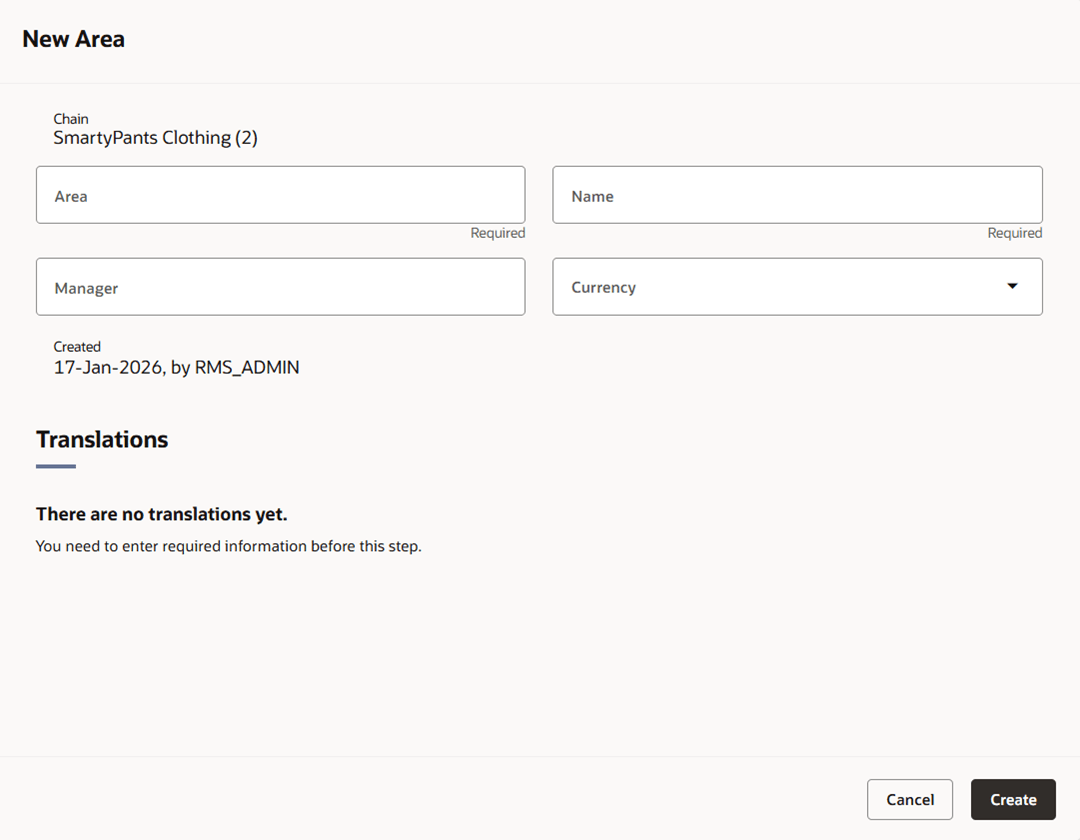
- At the top of the drawer, the hierarchy tree is displayed, showing the hierarchy levels above the area being added as read-only fields.
- In the Area field, enter a unique number. This field is a required field.
- In the Name field, enter the name of the area. This field is a required field.
- In the Manager field, enter the name of the manager who is responsible for the area.
- In the Currency field, enter, select or search for the area's currency code.
- The Translations section is enabled when all required details are entered. Click Create Translation button to add translations. The New Translation page appears.
- For more information see the "Translate Data" chapter in the Oracle Retail Merchandising Do the Basics User Guide.
- Then choose one of the following options.
- Click Create to save the area and close the drawer.
- Click Cancel to reject all entries and close the drawer.
Manage Areas
Editing Areas
To edit an area, follow the steps below.
- On the Locations Destination landing page, click the Organizational Hierarchy card. Alternatively, from the Home Experience, select Organizational Hierarchy from the Product Map or Suggestions list view. The Organizational Hierarchy page appears.
- When the Organizational Hierarchy page opens, the company will be selected and displayed in the focused card with all chains in the company listed in child cards below. Select the chain under which you will to edit an area, the chain will become the focused card. From the list of areas displayed below the selected chain, select the desired area. Alternatively, search for the desired area by keying a partial or full area ID or name in the Ask Oracle search bar at the top of the page.
- With the desired Area as the focused card, choose Edit Area option from Overflow menu or simply click on the card title which is a hyperlink. The Edit Area drawer appears.
Figure 3-9 Edit Area Drawer
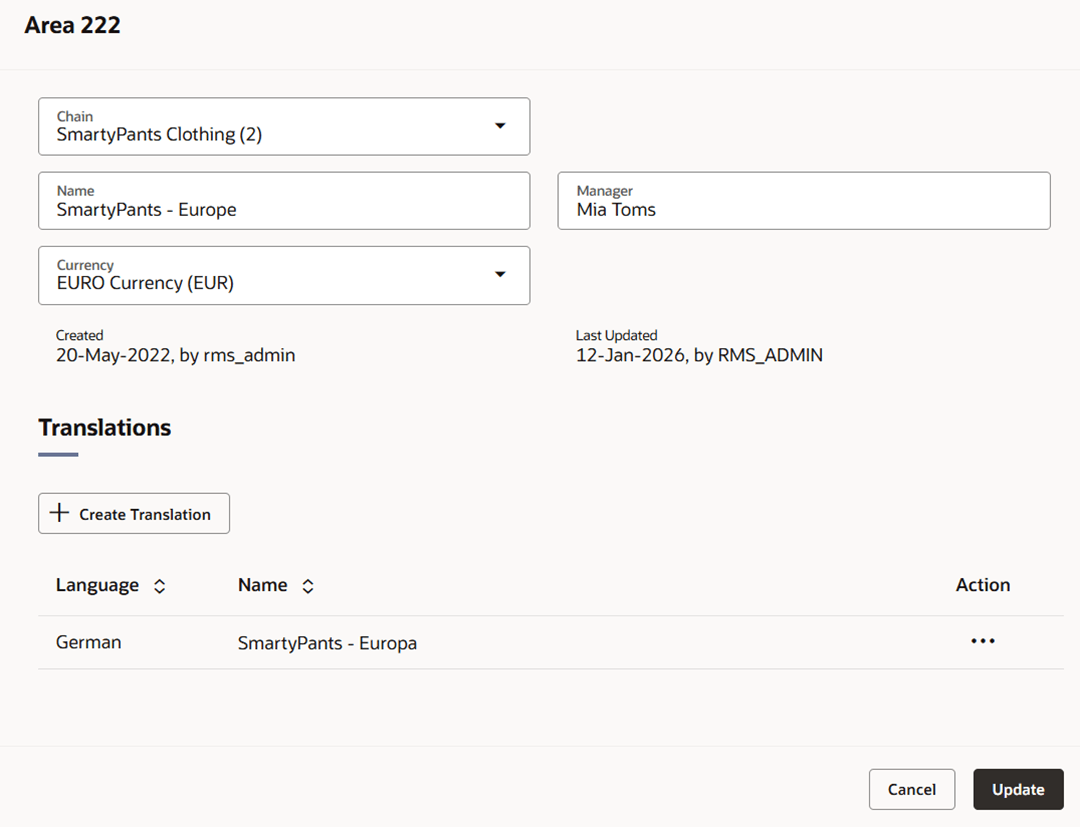
- The drawer title displays the Area ID.
- Edit the chain, area name, currency and/or manager, if necessary.
- Create or edit translations as necessary.
- For more information see the "Translate Data" chapter in the Oracle Retail Merchandising Do the Basics User Guide.
- Then choose one of the following options.
- Click Update to save your changes and close the drawer.
- Click Cancel to reject all entries and close the drawer.
Area as a Focused Card
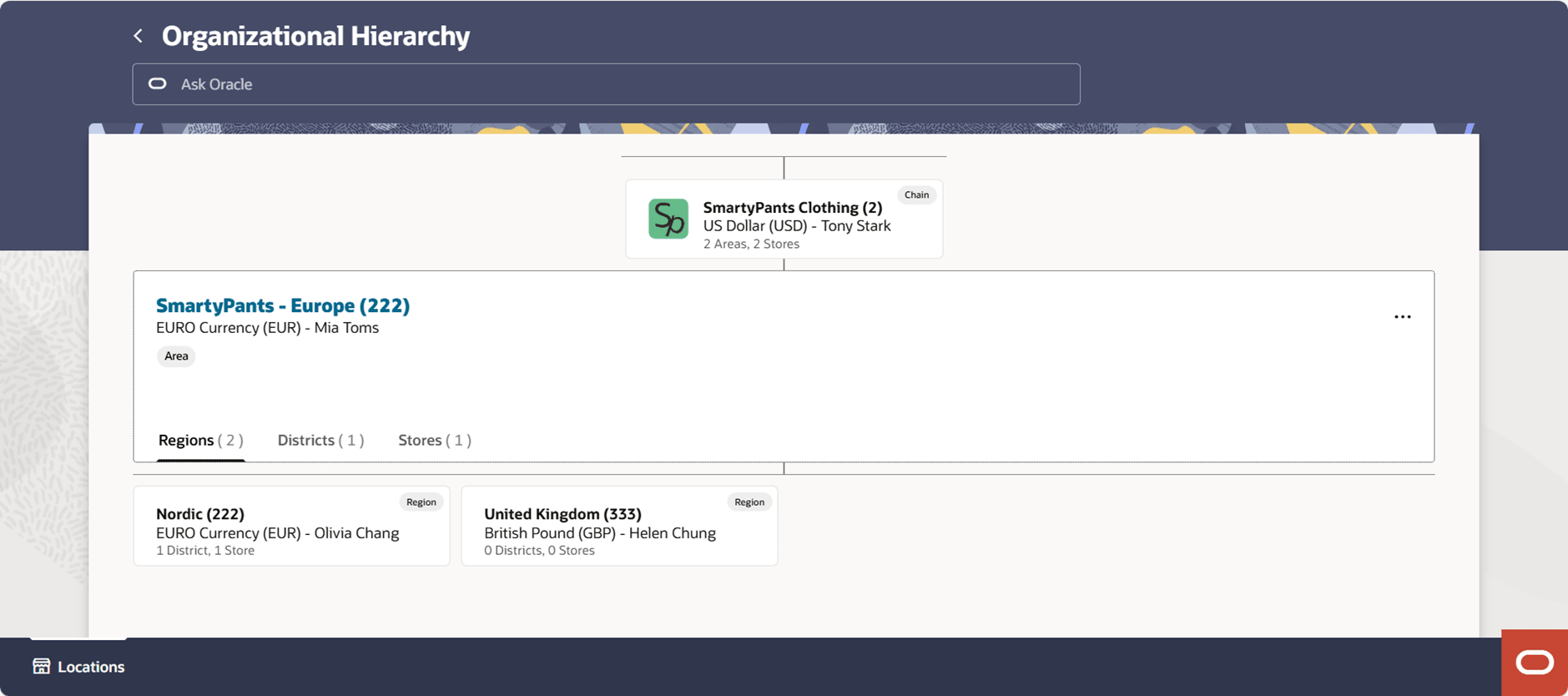
When a particular area is selected, it displays as the focused card on the Organizational Hierarchy page, and allows you to create new regions and edit, view, or delete the selected area. An area is the 3rd level of the organizational hierarchy, below chain and above region. Typically, an area is used to define a geographical grouping within the organization. An area can belong to only one chain within the organizational hierarchy.
Figure 3-10 Area as a Focused Card
Create Regions
To create a region, follow the steps below.
- On the Locations Destination landing page, click the Organizational Hierarchy card. Alternatively, from the Home Experience select Organizational Hierarchy from the Product Map or Suggestions list view. The Organizational Hierarchy page appears.
- When the Organizational Hierarchy page opens, the company will be selected and displayed in the focused card with all chains in the company listed in child cards below. Select the chain under which you will create a region, then select the area under which you will create the region, or search for the desired area by keying a partial or full area ID or name in the Ask Oracle search bar at the top of the page. The area will become the focused card.
-
With the Area card as the focused card, choose the Create Region option from the Overflow Menu. The New Region drawer appears.
Figure 3-11 New Region Drawer
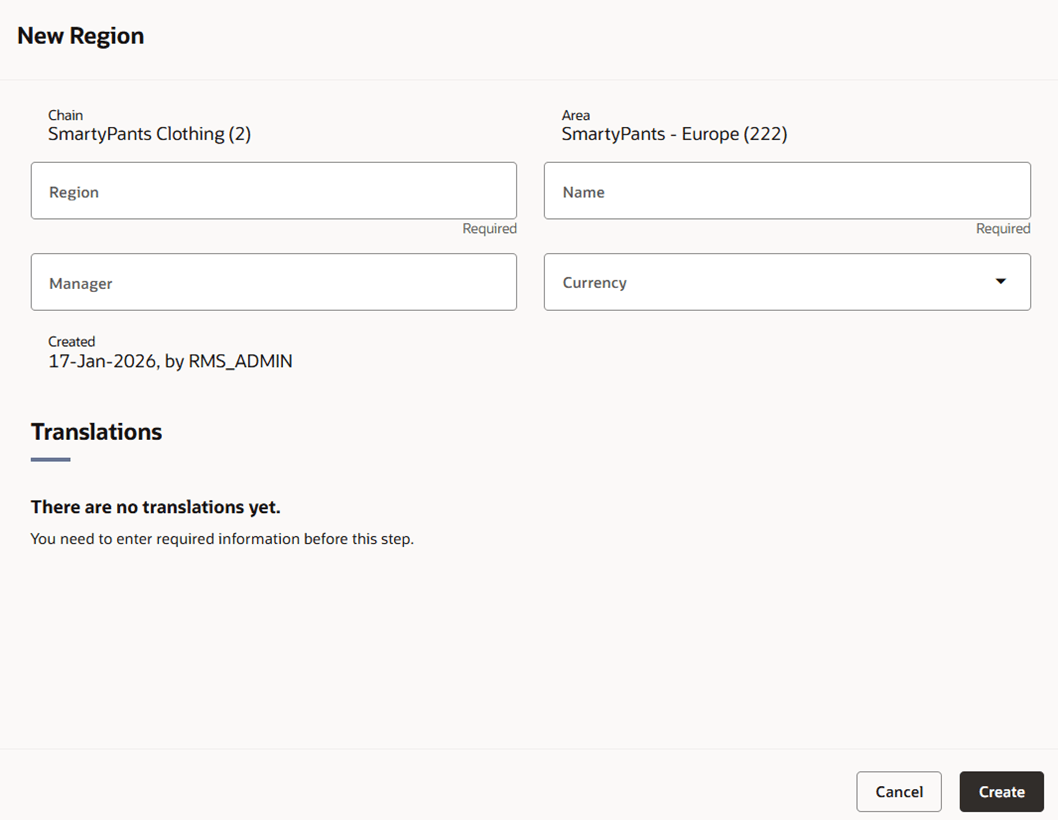
- At the top of the drawer, the hierarchy tree is displayed, showing the hierarchy levels above the region being added as read-only fields.
- In the Region field, enter a unique number. This field is a required field.
- In the Region Name field, enter the name of the region. This field is a required field.
- In the Manager field, enter the name of the manager who is responsible for the region.
- In the Currency field, enter, select or search for the region's currency code.
- The Translations section is enabled when all required details are entered.
Click the Create Translation button to add translations. The New
Translation page appears.
- Add the translation. For more information see the "Translate Data" chapter in the Oracle Retail Merchandising Do the Basics User Guide.
- Then choose one of the following options.
- Click Create to save the region and close the drawer.
- Click Cancel to reject all entries and close the drawer.
Manage Regions
Editing Regions
To edit a region, follow the steps below.
- On the Locations Destination landing page, click the Organizational Hierarchy card. Alternatively, from the Home Experience, select Organizational Hierarchy from the Product Map or Suggestions list view. The Organizational Hierarchy page appears.
- When the Organizational Hierarchy page opens, the company will be selected and displayed in the focused card with all chains in the company listed in child cards below. Select the chain under which you will to edit the region; the chain will become the focused card. Then select the area under which you want to edit the region; the list of regions will be displayed below the selected area, select the desired region. Alternatively, search for the desired region by keying a partial or full region ID or name in the Ask Oracle search bar at the top of the page.
- With the desired Area as the focused card and choose Edit Region option from Overflow menu or simply click on card title which is a hyperlink. The Edit Region drawer appears.
Figure 3-12 Edit Region Drawer
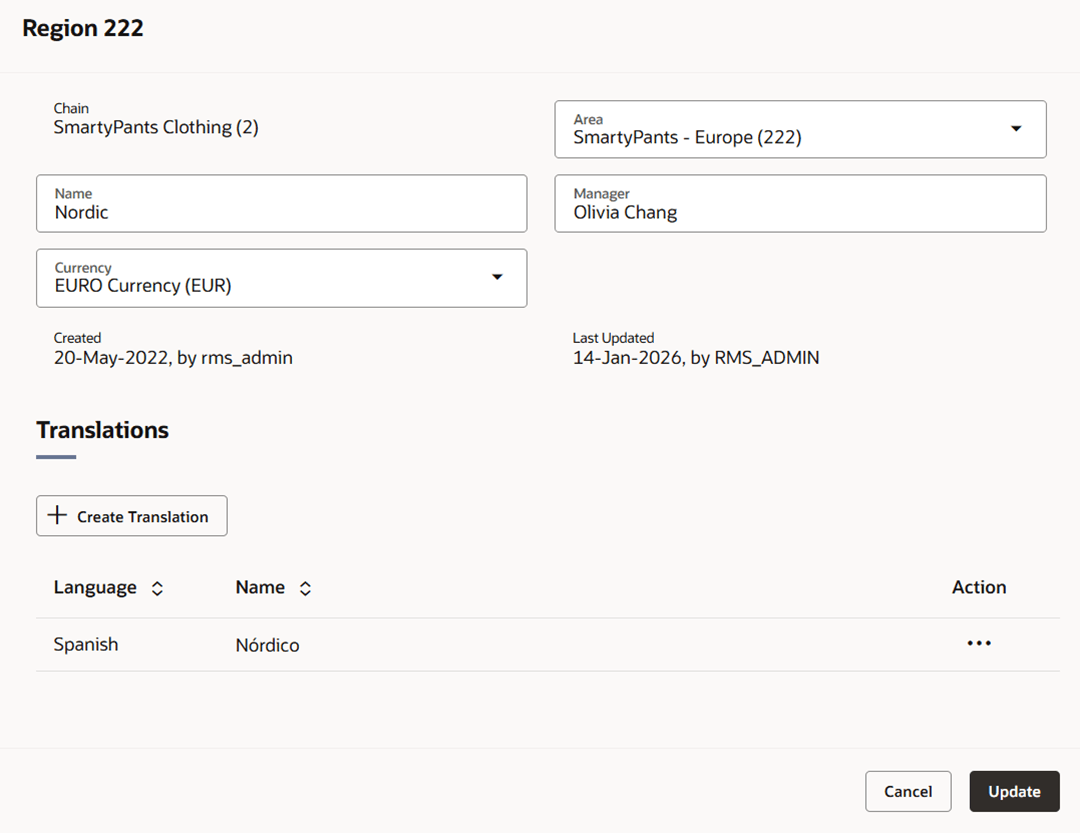
- The drawer title displays the Region ID.
- The chain is displayed as a ready-only field.
- Edit the area, region name, manager, and/or currency, if necessary.
-
You can create and/or edit translations as necessary.
For more information see the "Translate Data" chapter in the Oracle Retail Merchandising Do the Basics User Guide.
- Then choose one of the following options.
- Click Update to save your changes and close the drawer.
- Click Cancel to reject all changes and close the drawer.
Region as a Focused Card
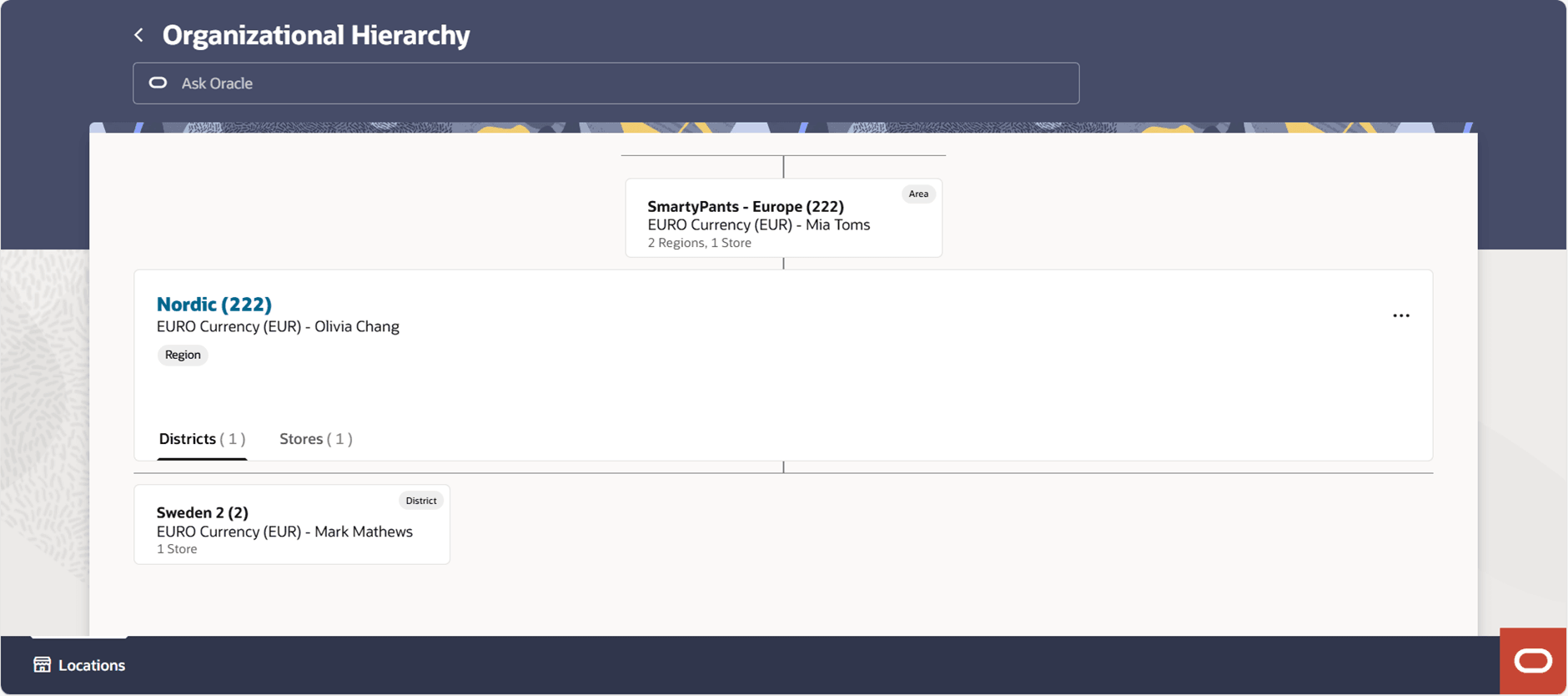
The Region as a focused card enables you to create new districts and edit, view, or delete the selected region within the organizational hierarchy. A region is below the area and above the district in the organizational hierarchy. Typically, the region is used to define a geographical grouping within the organization.
Figure 3-13 Region as a Focused Card
Creating a District
To create a district, follow the steps below.
- On the Locations Destination landing page, click the Organizational Hierarchy card. Alternatively, from the Home Experience, select Organizational Hierarchy from the Product Map or Suggestions list view. The Organizational Hierarchy page appears.
- When the Organizational Hierarchy page opens, the company will be selected and displayed in the focused card with all chains in the company listed in child cards below. You can drill down to the region under which you wish to add the new district by clicking the chain, then area, and then the region. Alternatively, you can search for the desired region by keying a partial or full region ID or name in the Ask Oracle search bar at the top of the page. The region will become the focused card.
- With the region card as the focused card, choose Create District option from Overflow Menu. The New District drawer appears.
Figure 3-14 New District Drawer
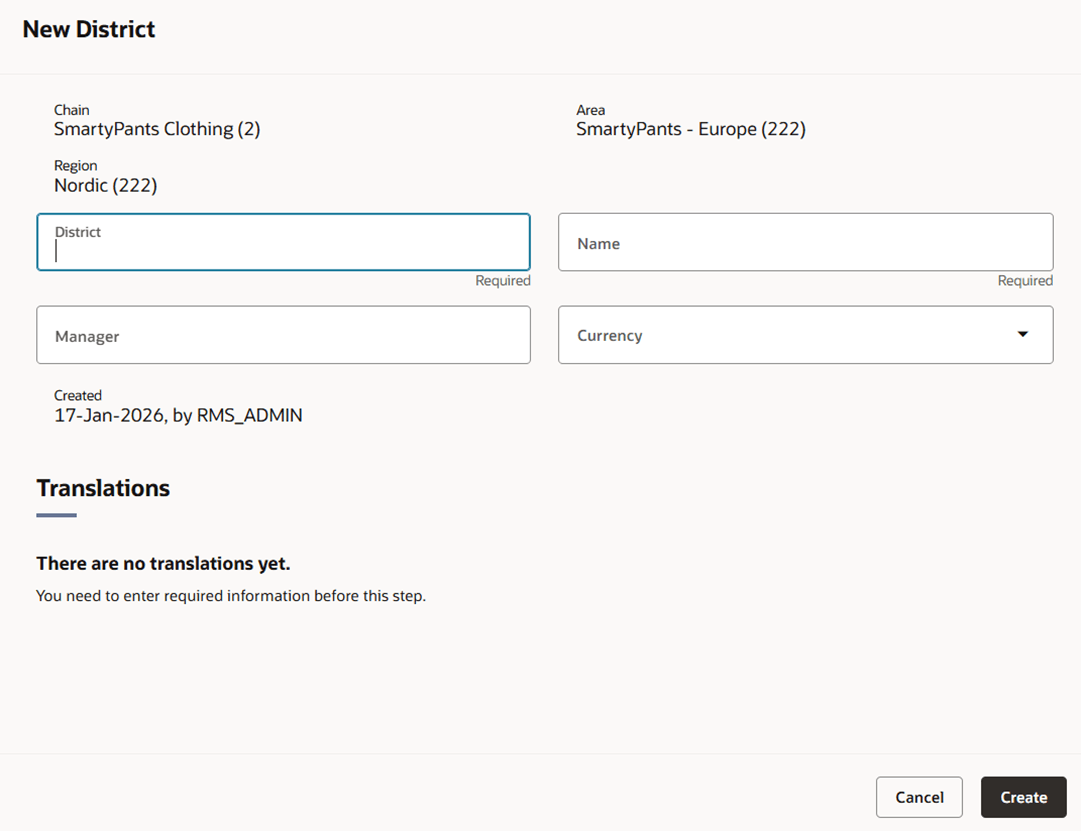
- At the top of the drawer, the chain, area, and region under which the new district will be added are displayed.
- In the District field, enter a unique number. This field is a required field.
- In the District Name field, enter the name of the district. This field is a required field.
- In the Manager field, enter the name of the manager who is responsible for the district.
- In the Currency field, enter, select, or search for the district's currency code.
- In the Region field, enter, select or search for the region ID that is associated with the district. This field is a required field.
- Then choose one of the following options.
- Click Create to save the district and close the drawer.
- Click Cancel to reject all entries and close the drawer.
Manage Districts
Editing Districts
To edit a district, follow the steps below.
- On the Locations Destination landing page, click the Organizational Hierarchy card. Alternatively, from the Home Experience select Organizational Hierarchy from the Product Map or Suggestions list view. The Organizational Hierarchy page appears.
- When the Organizational Hierarchy page opens, the company will be selected and displayed in the focused card with all chains in the company listed in child cards below. You can drill down to the district you wish to edit by clicking the chain, then area, then region, and then the district. Alternatively, you can search for the desired region by keying a partial or full region ID or name in the Ask Oracle search bar at the top of the page. The region will become the focused card.
- When the Organizational Hierarchy page opens, the company will be selected and displayed in the focused card with all chains in the company listed in child cards below. Select the chain under whichyou will edit the region; the chain will become the focused card. Then select the area under which you want to edit the region; the list of regions will be displayed below the selected area; select the desired region. Alternatively, search for the desired are by keying a partial or full region ID or name in the Ask Oracle search bar at the top of the page.
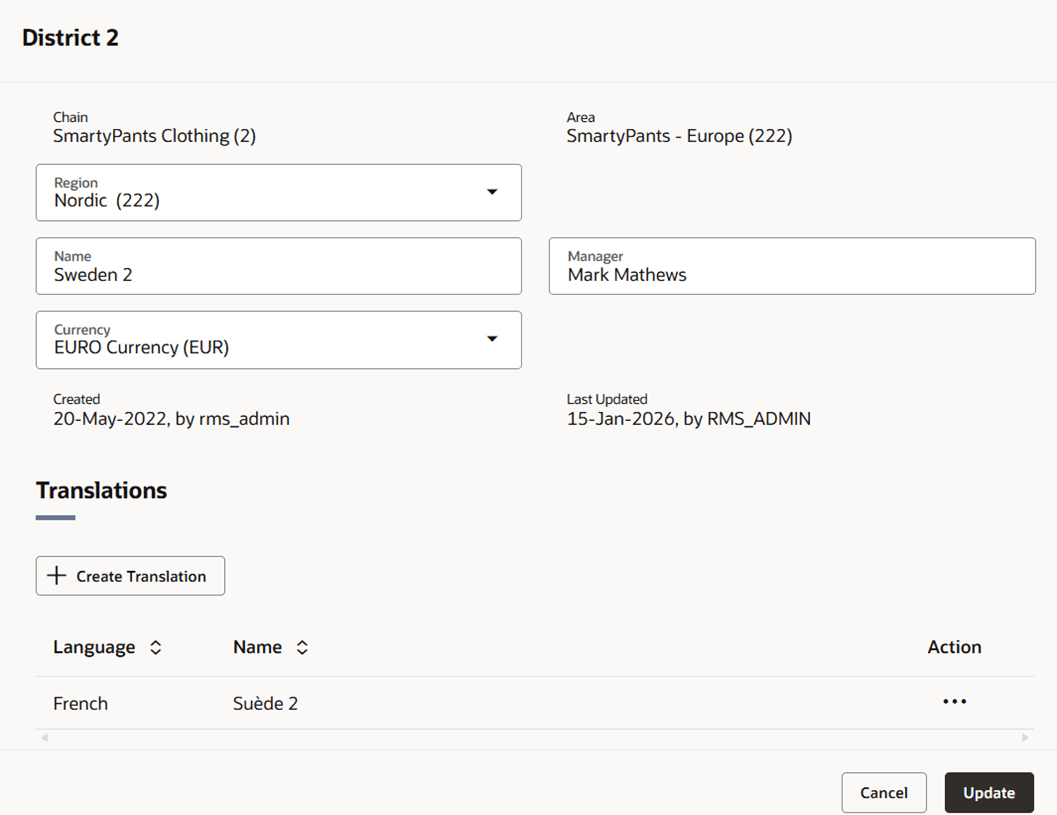
- With the desired district as the focused card, choose the Edit District option from the Overflow menu or simply click on the card title that is a hyperlink. The Edit District drawer appears.
Figure 3-15 Edit District Drawer
- Select Actions > Edit, or use the Edit icon. The Edit District page appears.
- The drawer title displays the District ID.
- The chain and area are displayed as ready-only fields.
- Edit the region, district name, manager, currency and/or region, if necessary.
- You can create and/or edit translations as necessary. For more information see the "Translate Data" chapter in the Oracle Retail Merchandising Do the Basics User Guide.
- Choose one of the following options:
- Click Update to save your changes and close the drawer.
- Click Cancel to reject all entries and close the drawer.
District as a Focused Card
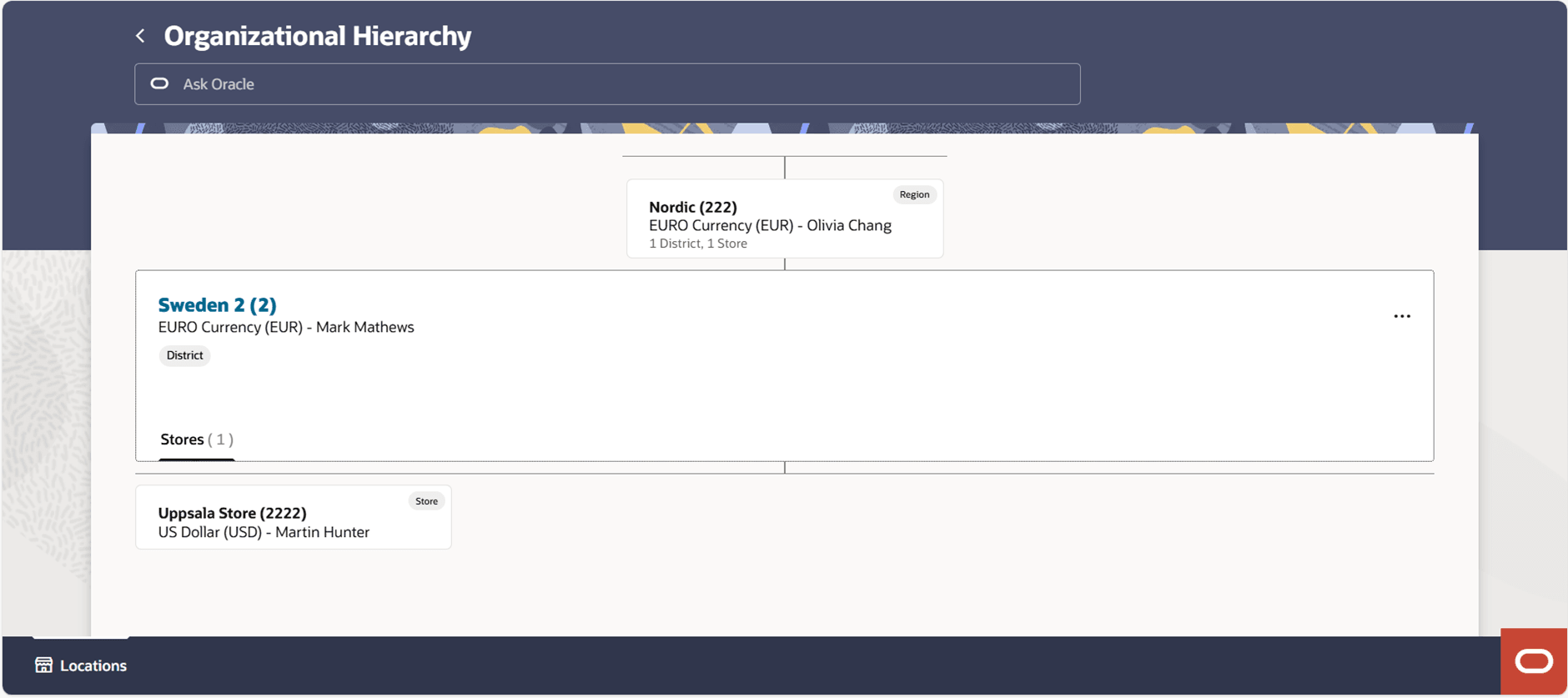
The District as focused card enables you to create new stores and edit, view, or delete the selected district within the organizational hierarchy. A district is below the region and above the store in the organizational hierarchy. Typically, the district is used to define a geographical grouping within the organization.
Figure 3-16 District as a Focused Card
Stores and Warehouses Search
The Stores and Warehouses page provides advanced searching capabilities to find a store or warehouse location.
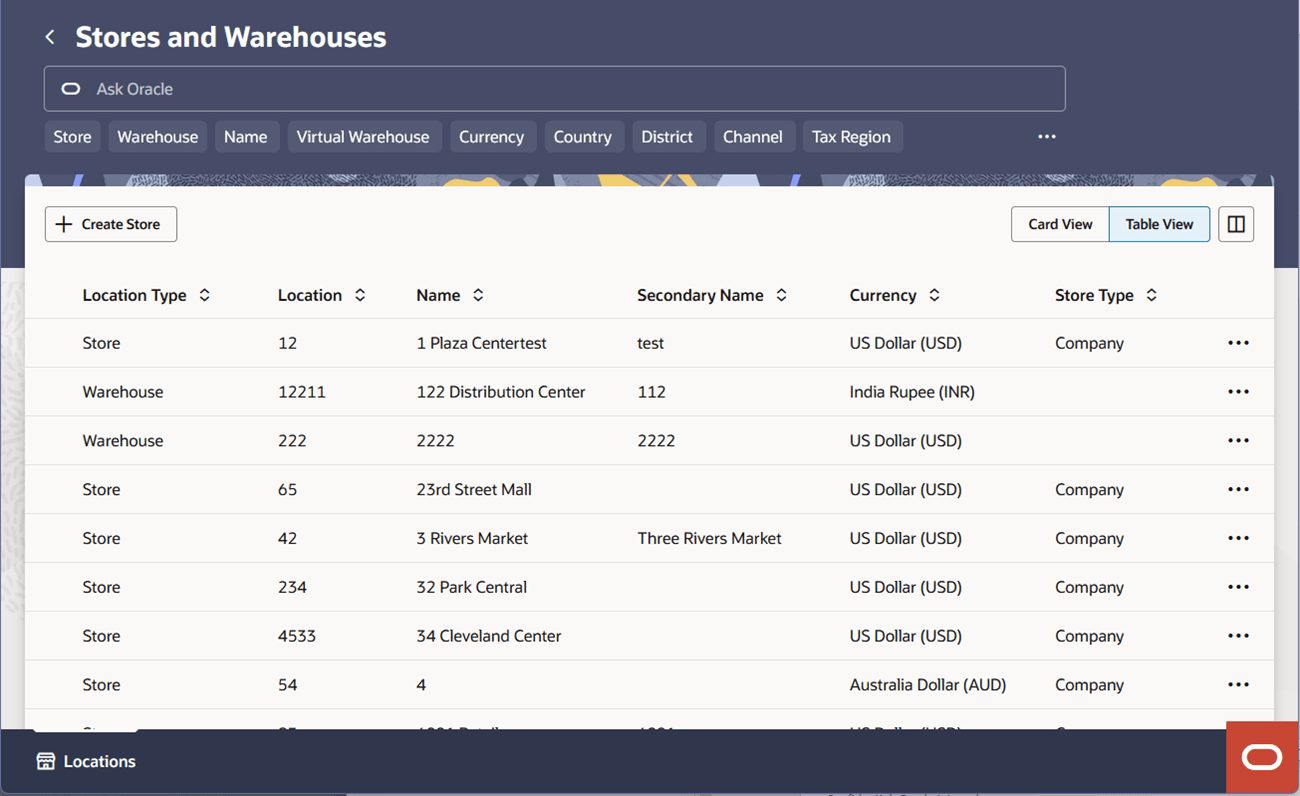
The Stores and Warehouses search page offers two choices of display for the list of stores and warehouses, a Card View and a Table View. The Card View provides a visual card display for each store or warehouse. While the Table View offers a traditional table display with locations listed in rows, with column customization and sorting capabilities. Both views support the same actions for each store locations, Edit, View, and Translate, along with Create Store and Create Warehouse buttons at the top of the screen for quick access.
On the Locations Destination Landing page, click the Stores and Warehouses card, or, from the Home Experience, click Stores and Warehouses from the Product Map or Suggestions view. The Stores and Warehouses search page appears.
The main functionalities include smart search, intuitive filter chips, card and table views, and features for sorting and configuring the results display.
The Ask Oracle search bar is located at the top of the screen, along with a set of filter chips. Commonly used filters are visible, while additional filters are available from the overflow menu.
The list of stores and warehouses will be displayed in the main content section. There are Create Store and Create Warehouse actions giving quick access to create a store and warehouse. The details under this section can be displayed as Card view or Table view format.
Use the in-flow Back button or the Locations Destination tab to return to the Locations landing page.
Figure 3-17 Stores and Warehouses – Card View
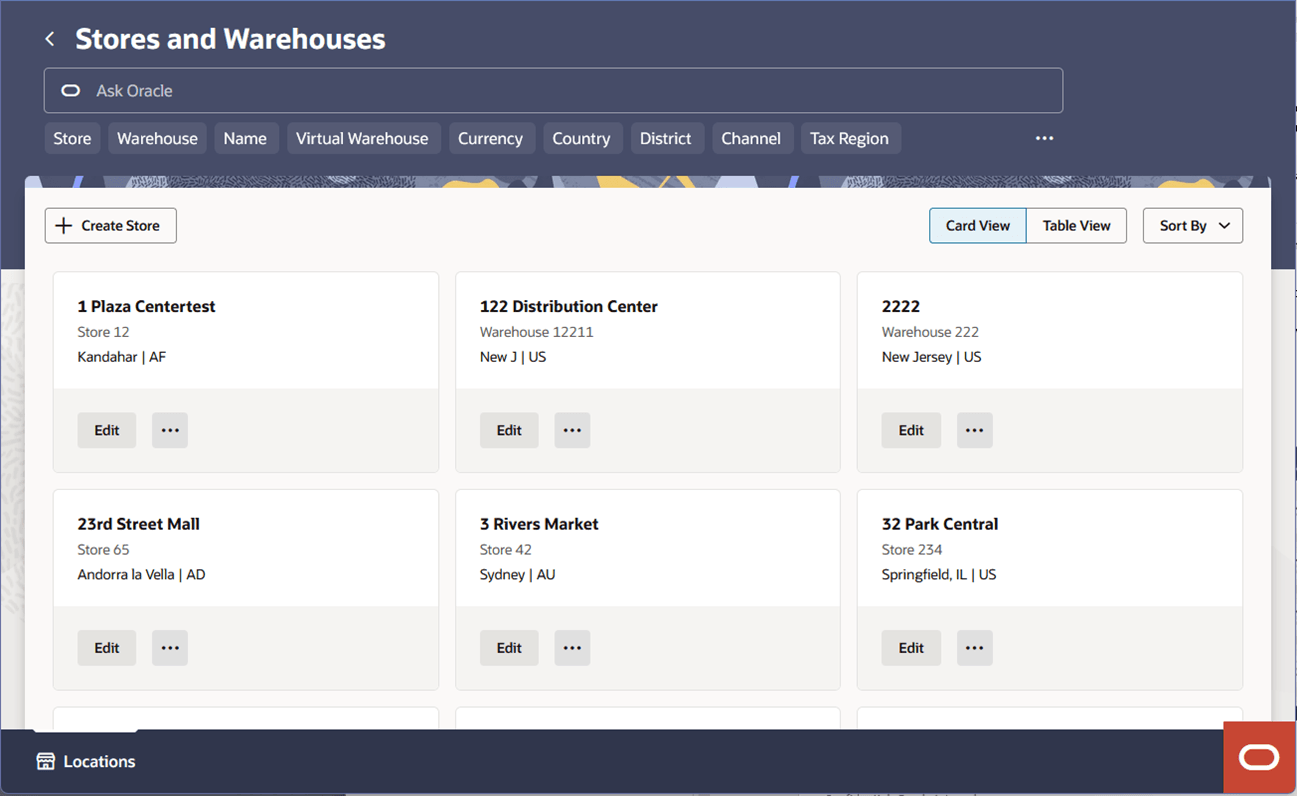
Figure 3-18 Stores and Warehouses – Table View
Searching for Locations
Figure 3-19 Ask Oracle Search Bar with Filters Applied

Keyword Searches
You can filter the list of locations using a keyword search in the Ask Oracle search bar. A keyword search entails typing in a keyword or string. Only locations that contain the entered string in the store ID, store name, physical warehouse ID, virtual warehouse ID, or virtual warehouse name will be displayed in the results. After keying in a string and pressing [Enter] or clicking elsewhere on the screen, the keyed string will be applied in the Ask Oracle search bar as an applied filter chip. This filter chip can be removed by clicking the X on the chip. When the chip is removed, the list of locations is re-queried and is no longer filtered by the value on the chip.
Filter Chips
Filter chips allow users to apply and combine multiple search criteria to narrow the list of locations. The search criteria are displayed as chips in the search bar. Filters are additive; each new filter further restricts the dataset based on previously applied filters.
Some of the filter chips are applicable to both types of locations. These include:
- Name
- Currency
- Country
- Tax Region
Some of the filter chips are only applicable to stores. These include:
- Store (location type)
- District
- Channel
- Organizational Unit
- Transfer Entity
- Store Type
- Stock Holding
- Store Service
- Store Condition
- Store Open Date
- Store Close Date
Some of the filter chips are only applicable to warehouses. These include:
- Warehouse (location type)
- Virtual Warehouse
If the Store (location type) filter chip is applied, only locations with a type of store will be displayed in the table. In this case, the warehouse-specific filter chips are no longer applicable. Applying any of them along with the Store filter chip would return no locations. Therefore, the warehouse-specific filters are hidden when the Store filter chip is applied. Likewise, if the Warehouse (location type) filter chip is applied, all of the store-specific filter chips are hidden. When the Store or Warehouse applied filter chip is removed from the Ask Oracle search bar, the previously hidden chips become visible again.
When you click a filter chip, it will be applied to the Ask Oracle search bar. If the chip requires you to enter or select a value, a field will display below the applied filter chip to allow you to enter, select, or search for the desired value. If you click away without entering a value, the filter chip will automatically be unapplied. Some filter chips allow only a single value to be applied at a time, while other chips such as Currency and Country allow you to select multiple values.
Create Stores
To create a store, follow the steps listed below.
- To create a new store, you can initiate the process from the Organizational Hierarchy page, the Stores and Warehouses page, or through the Home Experience.
- To initiate the creation of a store through the Organizational Hierarchy page:
- On the Locations Destination landing page, click the Organizational Hierarchy card. Alternatively, from the Home Experience select Organizational Hierarchy from the Product Map or Suggestions list view. The Organizational Hierarchy page appears.
- When the Organizational Hierarchy page opens, the company will be selected and displayed in the focused card with all chains in the company listed in child cards below. You can drill down to the district under which you wish to add the new store by clicking the chain, then area, then region, and then district. Alternatively, you can search for the desired district by keying a partial or full district ID or name in the Ask Oracle search bar at the top of the page. The district will become the focused card.
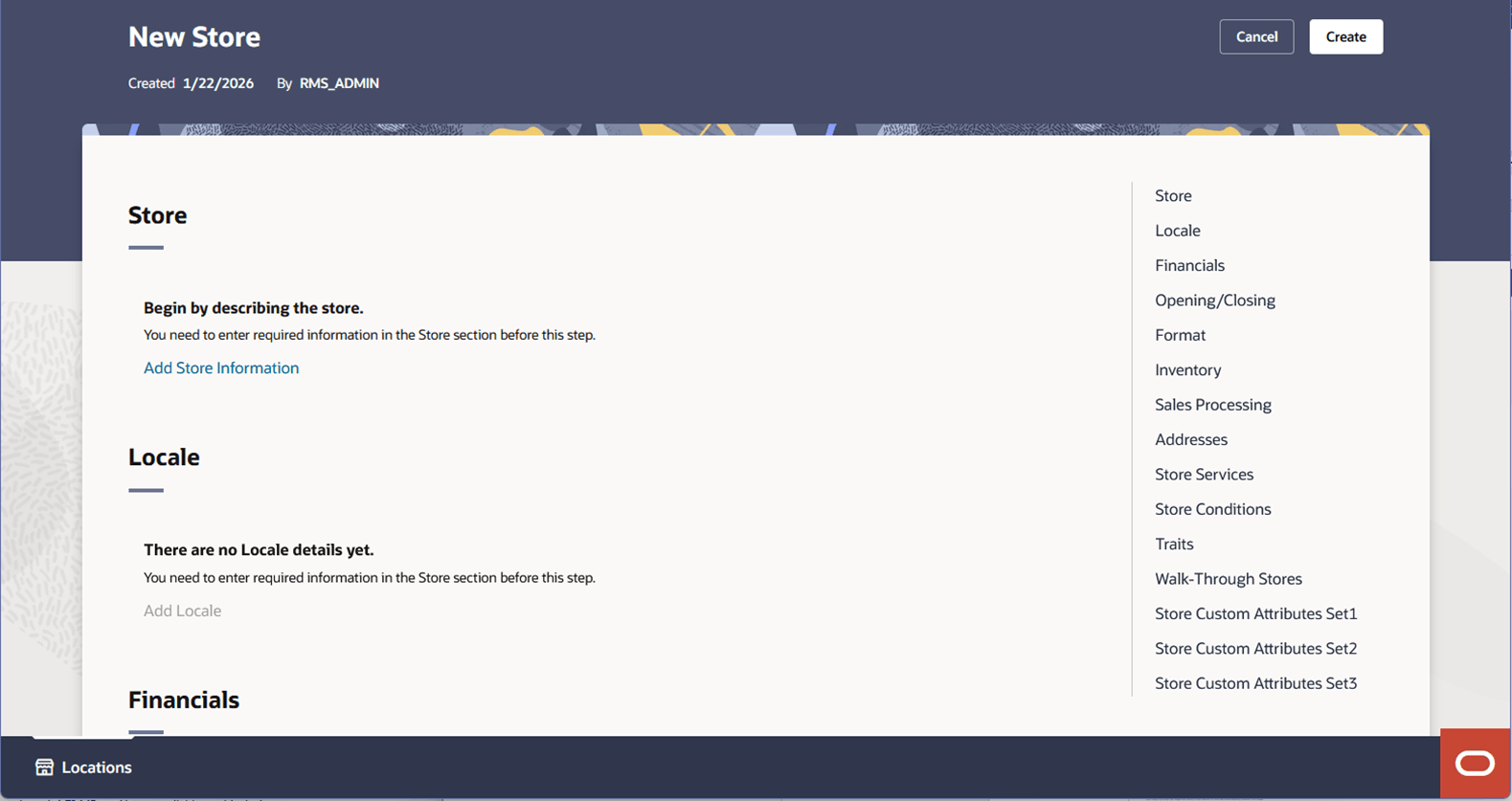
- With the district card as the focused card, choose Create Store option from Overflow Menu. The New Store screen appears.
- To initiate the creation of a store through the Stores and Warehouses page:
- On the Locations Destination landing page, click the Stores and Warehouses card. Alternatively, from the Home Experience select Stores and Warehouses from the Product Map or Suggestions list view. The Stores and Warehouses page appears.
- Near the top of the page, select the Create Store button. The New Store screen appears.
- To initiate the creation of a store via the Organizational Hierarchy page:
- From any page, select the Oracle icon (“O-tag”) in the bottom right corner of the screen. The Home Experience appears.
- From the Product Map or the Suggestions list, select the Create Store task. Alternative, enter Create Store into the Ask Oracle search bar at the top of the page and select the Create Store task that displays in the results. The New Store screen appears.
Figure 3-20 New Store Page
- To initiate the creation of a store through the Organizational Hierarchy page:
- Begin by clicking the Add Store Information hyperlink in the Store section to add basic store information. After this, other sections will become enabled to add the details.
- Enter the necessary information for the store. For more information about the available fields on the Store page, see the Store Page section.
- Choose one of the following options.
- Click Create to create the store.
- Click Cancel to reject all entries and exit the New Store page without creating a store.
Manage Stores
Editing Stores
To edit a store, follow the steps below.
- To edit a store, you can initiate the process from the Organizational Hierarchy page or the
Stores and Warehouses page.
- Find the store you wish to edit through the Organizational Hierarchy page:
- On the Locations Destination landing page, click the Organizational Hierarchy card. Alternatively, from the Home Experience, select Organizational Hierarchy from the Product Map or Suggestions list view. The Organizational Hierarchy page appears.
- When the Organizational Hierarchy page opens, the company will be selected and displayed in the focused card with all chains in the company listed in child cards below. You can drill down to the district under which you wish to add the new store by clicking the chain, then area, then region, and then district. The stores under the selected district will display as cards below the focused card; select the desired store. Alternatively, you can search for the desired store by keying a partial or full store ID or name in the Ask Oracle search bar at the top of the page. The store will become the focused card.
- With the store card as the focused card, choose Edit Store option from Action menu. The Store page appears.
- Find the store you wish to edit through the Stores and Warehouses page:
- On the Locations Destination landing page, click the Stores and Warehouses card. Alternatively, from the Home Experience select Stores and Warehouses from the Product Map or Suggestions list view. The Stores and Warehouses page appears.
- Enter keywords or select filters in the Ask Oracle search bar at the top of the page to filter the locations displayed on the page. When you find the store you wish to edit, from the Card View, click the Edit button on the store card, or from the Table View, select Edit from the Action menu on the row. The Store page appears.
- Find the store you wish to edit through the Organizational Hierarchy page:
- Edit the fields, if necessary. For more information about the available fields in the Store page, see the Store Page section.
Store Page
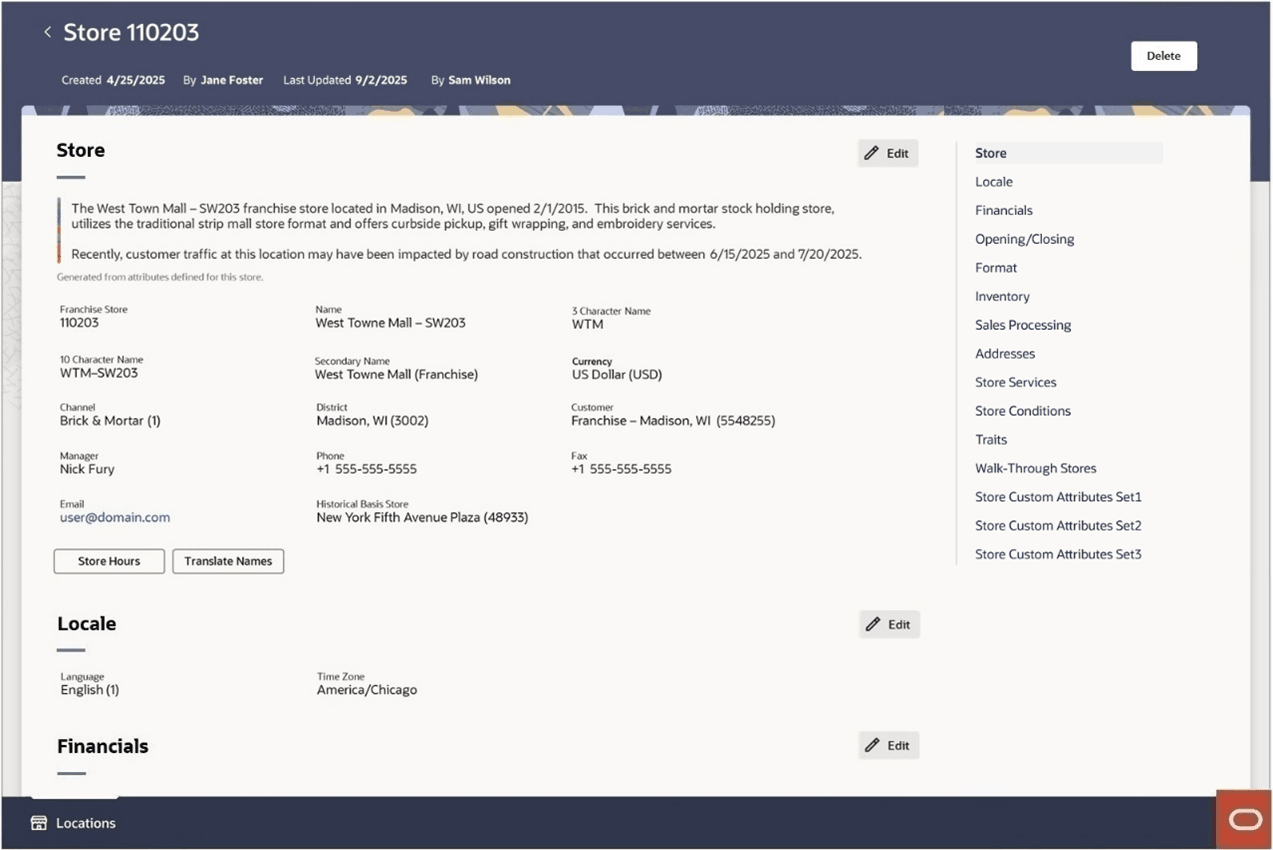
The Store page allows you to create, edit, delete, and view a store in the organizational hierarchy. The store is the lowest level of the organizational hierarchy. The store may be defined as the selling entity. The store is crucial because it is the level at which business transactions are processed. A store can belong to only one district within the organizational hierarchy.
The Store page has a header section and main content area.
The main content area contains a series of sections which logically group the store’s attributes. You can quickly jump to a desired section by clicking one of the navigation links listed on the right side of the page.
Figure 3-21 Store Page
Note:
An AI-generated store summary is displayed under the Store section after a store is created or any store attribute is updated. The summary includes Store Name, Type, District, City, State, Country, Store Open Date, Store Close Date, Store Remodel Date, Channel, Stock Holding, Online Store, Store Format, Store Services, Store Conditions, Customer Order, and Custom Flexible Attributes. It is displayed in the language used to set up the store and its attributes.
Store Information
The basic store definition is provided in the Store section, such as the store name, channel, contact information, and regular store hours. If information has already been entered in the Store section, it will display in a read-only format upon entering the page. To edit the information, click the Edit button in the upper right corner of the section. This will display the Store section in an input state where the fields are enabled for entry and edit. After changes are made to return to the read-only state, click the Update button to save changes or the Cancel button to discard all edits.
Figure 3-22 Store – Read-only State
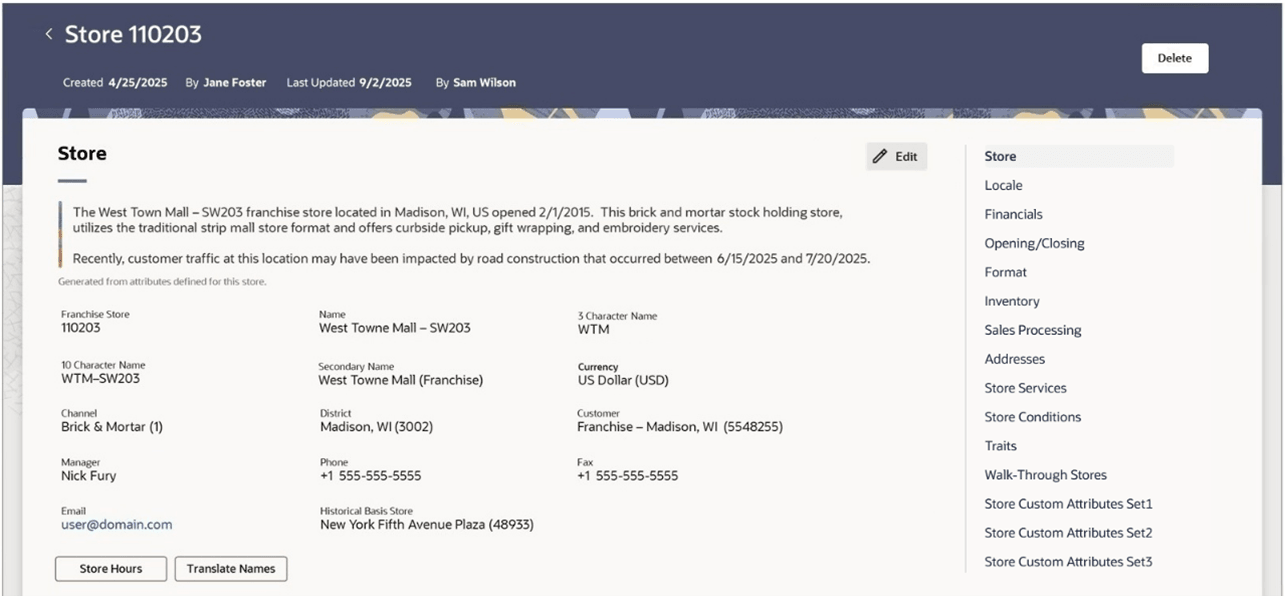
Figure 3-23 Store – Input State
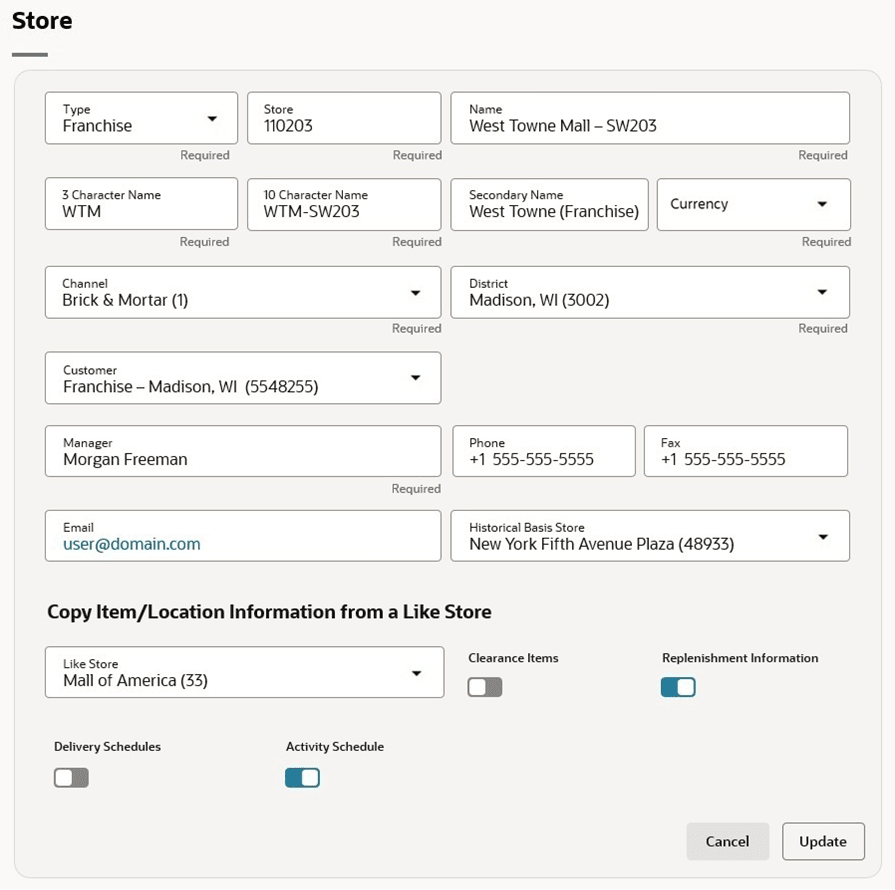
Table 3-3 Store - Fields and Description
| Fields | Description |
|---|---|
| Type |
Select the store type from the list. Possible store types are:
|
| Store |
The Store field next to the store type enables. Enter a unique ID for the store. This field is a required field. |
| Store Name |
Enter a unique description for the store. This field is a required field. |
| 3 Character Name |
Enter up to 3 character abbreviation for the store. This field is a required field. |
| 10 Character Name |
Enter up to 10 character abbreviation for the store. This field is a required field. |
| Secondary Name | Enter the secondary name for the store. |
| Currency |
Enter, select or search for the currency code. This field is a required field. |
| Channel |
Enter, select or search for the channel of business to which the store belongs. This field is a required field. |
| District |
Enter, select or search for the district ID. This field is a required field. |
| Manager | Enter the name of the store manager. |
| Phone | Enter the phone number. |
| Fax | Enter the fax number. |
| Enter the email address. | |
| Historical Basis Store | Enter, select or search for the store number. This field is used to copy the store's history when defining allocations for new stores.The Historical Basis Store allows you to create a store with the same assortment of items as another store. Also, you can choose to copy replenishment information, delivery schedules, and dates when closed as well as items on clearance from the existing store to the new store. |
| Like Store | Enter, select, or search for the store number. Information from this store is copied to the new store, such as item/location relationships and, optionally, the store's delivery schedule, clearance items, and replenishment settings. |
| Delivery Schedule | Select Delivery Schedule to copy delivery schedules from the Like Store. |
| Activity Schedule | Select Activity Schedule to copy the activity schedule from the Like Store. |
| Clearance Item | Select Clearance Items to copy items on clearance from the Like Store. |
| Replenishment Information | Select the Replenishment Information to copy the replenishment information from the Like Store. |
Locale
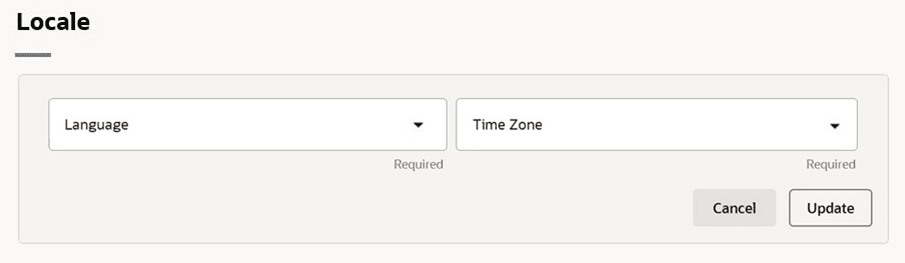
The store’s locale-related information is displayed and entered in the Locale section. If information has already been entered in the section, it will display in a read-only format upon entering the page. To edit the information, click the Edit button in the upper right corner of the section. This will display the section in an input state where the fields are enabled for entry and edit. After changes are made to return to the read-only state, click the Update button to save changes or the Cancel button to discard all edits.
Figure 3-24 Locale
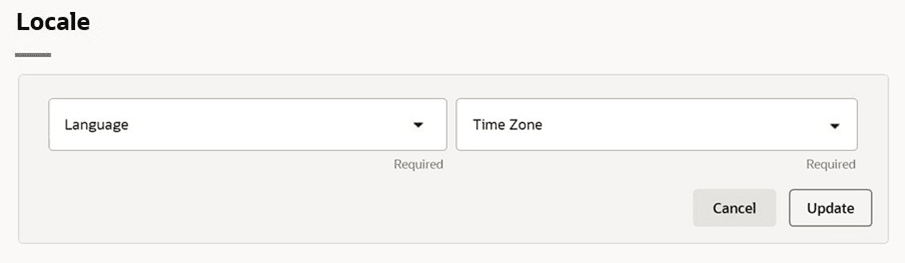
Table 3-4 Locale - Fields and Description
| Fields | Description |
|---|---|
| Language |
Enter, select or search for the language code for the store. This field is a required field. |
| Time Zone |
Enter, select, or search for the time zone of the store. This field is a required field. |
Financials
The store’s financials information is displayed and entered in the Financials section. If information has already been entered in the section, it will display in a read-only format upon entering the page. To edit the information, click the Edit button in the upper right corner of the section. This will display the section in an input state where the fields are enabled for entry and edit. After changes are made to return to the read-only state, click the Update button to save changes or the Cancel button to discard all edits.
Figure 3-25 Financials
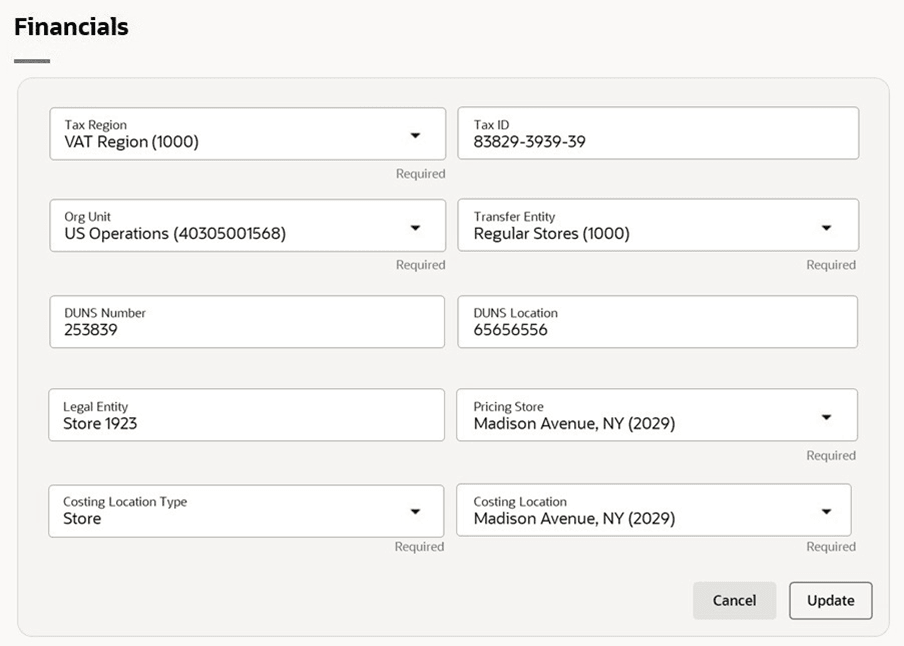
Table 3-5 Financials - Fields and Description
| Fields | Description |
|---|---|
| VAT Region |
Enter, select or search for the VAT region code for the store. This field is a required field. |
| Tax ID | Enter the Tax Identification number to be associated with the store. |
| Org Unit |
Enter, select or search for the organizational unit ID. This field is available if Oracle Financials is integrated. This field is a required field, if available. |
| Transfer Entity | Enter, select or search for the transfer entity ID. This field is a required field. |
| DUNS Number |
Enter the Dun & Bradstreet Data Universal Numbering System (DUNS) number. The DUNS number is a nine digit code that identifies your store. |
| DUNS Location Number |
Enter the DUNS location number. The DUNS location number is a four-digit code that identifies the locations of your store. This field is only enabled, if you have entered the DUNS number for your store. |
| Legal Entity | Enter the legal entity for the store. |
| Costing Location Type | Select the type of location to use as the costing location. |
| Costing Location | Enter, select, or search for the costing location. |
| Pricing Store | Enter, select, or search for the pricing store. |
| Language |
Enter, select, or search for the language code for the store. This field is a required field. |
| Time Zone |
Enter, select, or search for the time zone of the store. This field is a required field. |
Opening / Closing
Information related to the store’s opening and closing is displayed and entered in the Opening/Closing section. If information has already been entered in the section, it will display in a read-only format upon entering the page. To edit the information, click the Edit button in the upper right corner of the section. This will display the section in an input state where the fields are enabled for entry and edit. After changes are made to return to the read-only state, click the Update button to save changes or the Cancel button to discard all edits.
Figure 3-26 Opening/Closing
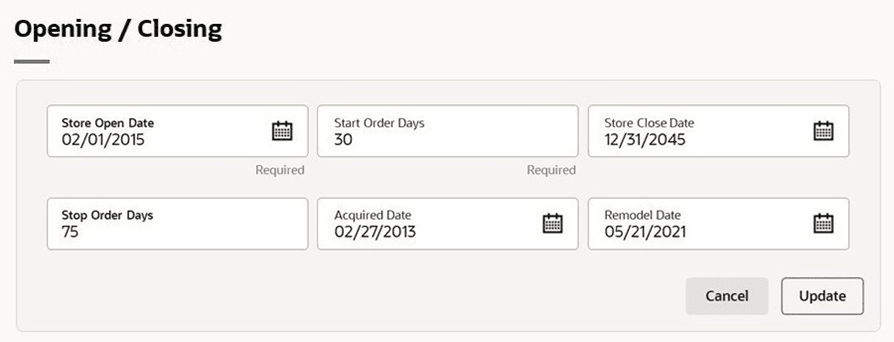
Table 3-6 Opening/Closing - Fields and Description
| Fields | Description |
|---|---|
| Store Open Date |
Enter the date when the store opens or use the Calendar icon to select a date. This field is a required field. |
| Start Order Days |
Enter the number of days before the store opens to start ordering merchandise. This is a required field. |
| Store Close Date | Enter the date when the store closes or use the Calendar icon to select a date. |
| Stop Order Days | Enter the number of days before the store closes to stop ordering merchandise. |
| Acquired Date | Enter the date when the store has been acquired or use the Calendar icon to select a date. |
| Remodel Date | Enter the date when the store has been remodeled or use the Calendar icon to select a date. |
Location Closings
The Location Closings page lets you create and manage location-specific closings and company-closing exceptions for this store. Open it by selecting the Location Closings button in the Opening/Closing section. For procedures, see Manage Location Closings.
Format
The store’s format related information is displayed and entered in the Format section. If information has already been entered in the section, it will display in a read-only format upon entering the page. To edit the information, click the Edit button in the upper right corner of the section. This will display the section in an input state where the fields are enabled for entry and edit. After changes are made to return to the read-only state, click the Update button to save changes or the Cancel button to discard all edits.
Figure 3-27 Format
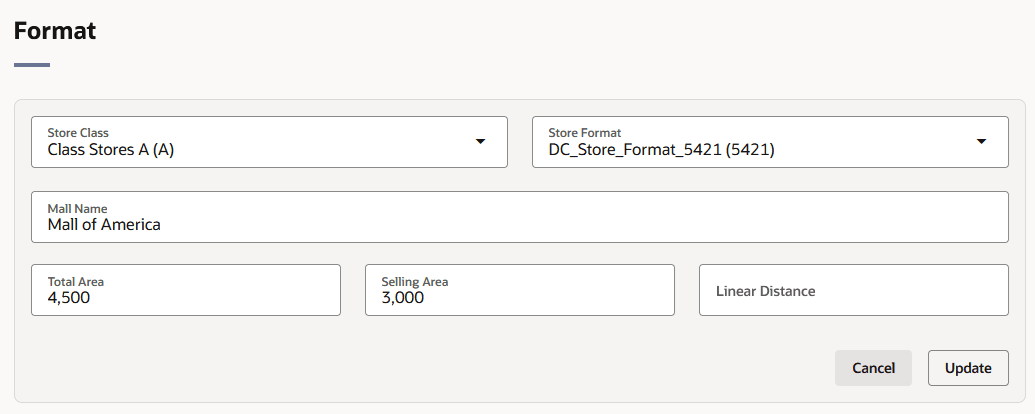
Table 3-7 Format - Fields and Description
| Fields | Description |
|---|---|
| Store Class |
The Store Class field is enabled, if you selected the store type Company. The Store Class field is defaulted to Class X and disabled if you selected the store type Franchise. Select the Store Class from the list. A store is grouped under the class based on the sales for the location. |
| Store Format | Enter, select or search for the store format, such as Strip Mall. |
| Mall Name | Enter the mall name, if necessary. |
| Total Area | Enter the total space of the store. |
| Selling Area | Enter the selling space available at the store. |
| Linear Distance | Enter the shelving space available at the store. |
Inventory
The store’s inventory related information is displayed and entered in the Inventory section. If information has already been entered in the section, it will display in a read-only format upon entering the page. To edit the information, click the Edit button in the upper right corner of the section. This will display the section in an input state where the fields are enabled for entry and edit. After changes are made to return to the read-only state, click the Update button to save changes or the Cancel button to discard all edits.
Figure 3-28 Inventory
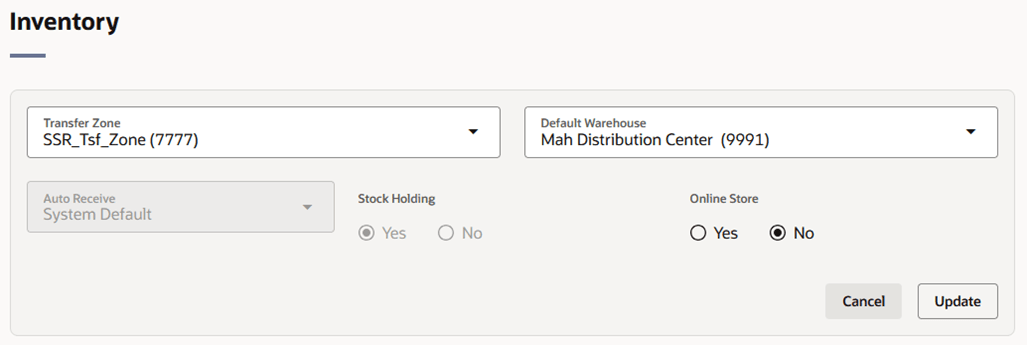
Table 3-8 Inventory - Fields and Description
| Fields | Description |
|---|---|
| Transfer Zone |
Enter, select, or search for the transfer zone. This field is a required field. |
| Default Warehouse |
Enter, select, or search for the default warehouse of the store. This field is only enabled if you have specified a channel. For Franchise stores, this field is a required field. |
| Auto Receive | Select and search for the automatic receiving for the store. |
| Stock Holding |
If the store is intended to be stock holding, this option must be selected. The Stock Holding option is set to Yes by default. |
| Online Store |
This option allows the retailer to specify if the location is an online store. |
Sales Processing
The store’s sales processing information is displayed and entered in the Sales Processing section. If information has already been entered in the section, it will display in a read-only format upon entering the page. To edit the information, click the Edit button in the upper right corner of the section. This will display the section in an input state where the fields are enabled for entry and edit. After changes are made to return to the read-only state, click the Update button to save changes or the Cancel button to discard all edits.
Figure 3-29 Sales Processing - Fields and Description
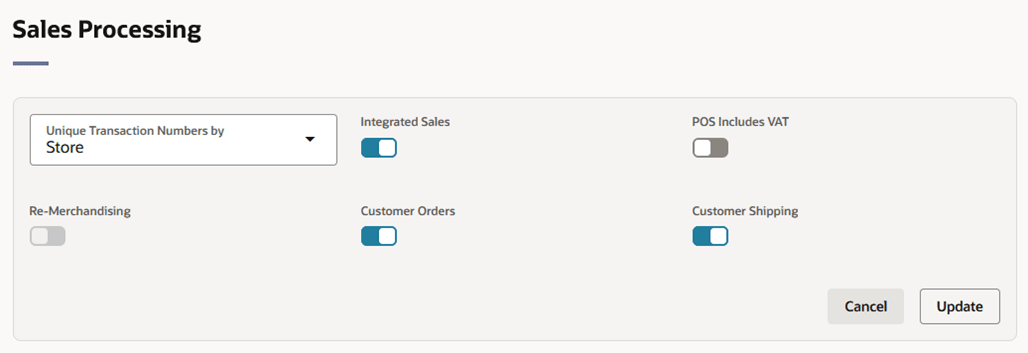
Table 3-9 Sales Processing - Fields and Description
| Fields | Description |
|---|---|
| Unique Transaction No. by |
Select the store or register for the Unique Transaction Number By from the list. This field indicates whether the transaction number in the store is generated uniquely across store or at each register. This field is a required field. |
| Integrated Sales |
The Integrated Sales checkbox is selected by default. You cannot load the sales for that store in ReSA if the Integrated Sales option is not selected. |
| POS Includes VAT | Indicates whether or not the POS system at the Store is integrated. |
| Remerchandising | Select the Remerchandising checkbox, if the store is undergoing a significant remerchandising effort as an indicator to Advanced Inventory Planning (AIP) application. |
| Customer Orders |
This option allows the retailer to specify whether the location supports the customer for customer orders. |
| Customer Shipping |
This option allows the retailer to specify whether the location supports shipping to the customer for customer orders. The Customer Shipping option is unselected by default and is only enabled if the Customer Orders option is selected. |
Addresses
The store’s addresses are displayed and entered in the Addresses section. If information has already been entered in the section, it will display in table list upon entering the page.
For details on creating and maintaining addresses, see the Manage Location Addresses section.
Store Services
Services that are provided by the store, such as Gift Wrapping, Engraving, and Curbside Pickup, are displayed and selected in the Store Services section. The list of services is configurable using the STSV code type, which can be maintained through the Codes and Descriptions foundation data spreadsheet template. If information has already been entered in the section, it will display in a read-only format upon entering the page. To edit the information, click the Edit button in the upper right corner of the section. This will display the section in an input state where the fields are enabled for entry and edit. After changes are made to return to the read-only state, click the Update button to save changes or the Cancel button to discard all edits.
Figure 3-30 Store Services
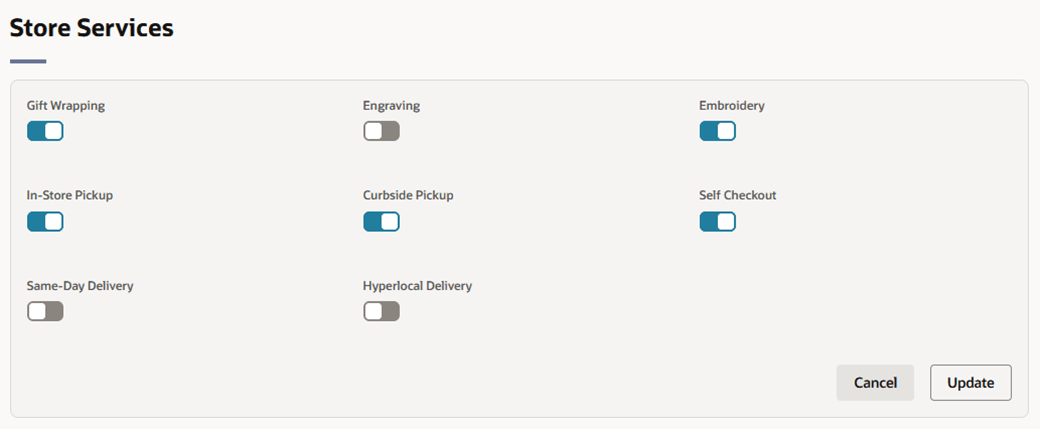
Table 3-10 Store Services - Fields and Description
| Fields | Description |
|---|---|
| Store Service | To indicate if the store offers the service, set the switch to ON. Your application administrator determines which services are displayed. |
Store Conditions
Conditions that occurred at the store that may have impacted customer traffic at the store can be captured in the Store Conditions section. The list of condition types is configurable using the SCND code type which can be maintained through the Codes and Descriptions foundation data spreadsheet template. If information has already been entered in the section, it will display in a read-only format upon entering the page. To edit the information, click the Edit button in the upper right corner of the section. This will display the section in an input state where the fields are enabled for entry and edit. After changes are made to return to the read-only state, click the Update button to save changes or the Cancel button to discard all edits.
To add Location Traits to a store, follow the steps below.
- Navigate to the Store Conditions section. Click the Add Store Condition hyperlink. Alternatively, to add another condition to the store, click the Edit button in the upper right corner of the Store Conditions section.
- A table will be displayed having five columns, Type, Start Date, End Date, Comments, and Action.
- Select a the type of condition that occurred at the store and enter or select the date on which the condition started.
- Optionally, enter the date the condition ended and provide any comments to further describe the condition.
- The Action column will have Add Row/Save or Cancel options in the Add Row.
- Select the Add Row/Save action to create a Store Condition.
- After adding a condition, the row will be populated below and an empty row will display at the top of the table allowing you to set up another condition if desired.
Figure 3-31 Store Conditions
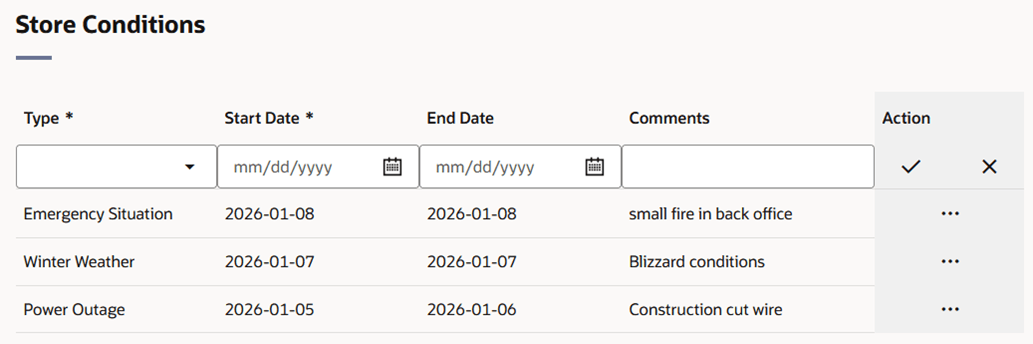
Table 3-11 Store Conditions - Fields and Description
| Fields | Description |
|---|---|
| Type |
Select the type of condition that occurred at the store. This field is a required field. |
| Start Date |
Enter the date when the condition started or use the Calendar icon to select a date. This field is a required field. |
| End Date | Enter the date when the condition ended or use the Calendar icon to select a date. |
| Comments | Enter comments to describe the condition that occurred in more detail. |
Traits
The store’s traits displayed and entered in the Traits section. If information has already been entered in the section, it will display in a read-only format upon entering the page. To edit the information, click the Edit button in the upper right corner of the section. This will display the section in an input state where traits can be added or deleted.
At the store level, location traits can be used as a grouping mechanism when you:
- Record Attributes for a Store
- Add Locations to a Location List
To add Location Traits to a store, follow the steps below.
- Navigate to Traits section. Click the Add Traits hyperlink. Alternatively, to add another location trait to the store, click the Edit button in the upper right corner of the Traits section.
- A table will be displayed having two columns: Location Trait and Action. Location Trait will display the trait that is linked to the store. The 'Action' column will have Add Row/Save or Cancel/Undo options in the Add Row.
- Select the trait from Location Trait drop down.
- Select the Add Row/Save action to add the Location Trait.
- After adding one record, the saved row will be populated below and an empty row will be displayed at the top allowing you to set up another Location Trait if desired.
- Click the Delete action from the Action menu to remove an existing location trait.
Figure 3-32 Traits
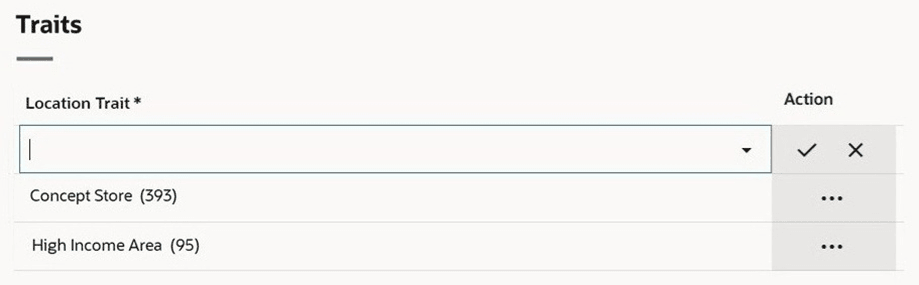
Table 3-12 Traits - Fields and Description
| Fields | Description |
|---|---|
| Location Trait |
Enter, select or search for the location trait for the store. This field is a required field. |
Walk-through Stores
Walk-through stores are displayed and entered in the Walk-through Stores section. Each walk-through store may operate as a separate entity; however, the stores are located in the same physical location.
You can associate multiple stores as walk through locations. Walk-through stores can be uploaded into the system, or you can add walk-through locations to a store. You must set up the stores and then associate one with another. Walk-through stores can be added during store creation itself. If information has already been entered in the section, it will display in a read-only format upon entering the page. To edit the information, click the Edit button in the upper right corner of the section. This will display the section in an input state where walk-through stores can be added or deleted.
To add walk-through stores, follow the steps below.
- Navigate to the Walk-through Stores section. Click the Add Walk-Through Stores hyperlink. Alternatively, to add another walk-through store, click the Edit button in the upper right corner of the Walk-Through Stores section.
- A table will be displayed having two columns: Store and Action. Store will display the walk-through store that is linked to the store. The Action column will have Add Row/Save or Cancel/Undo options.
- In the Store field, select the walk-through store from the drop down.
- Select the action to create a Walk-Through Store.
- After adding one record, the saved row will be populated below and an empty box will be displayed at the top, allowing you to set up another walk-through store if desired.
- Click the Delete action from the Action menu to remove a walk-through store.
Figure 3-33 Walk-through Stores
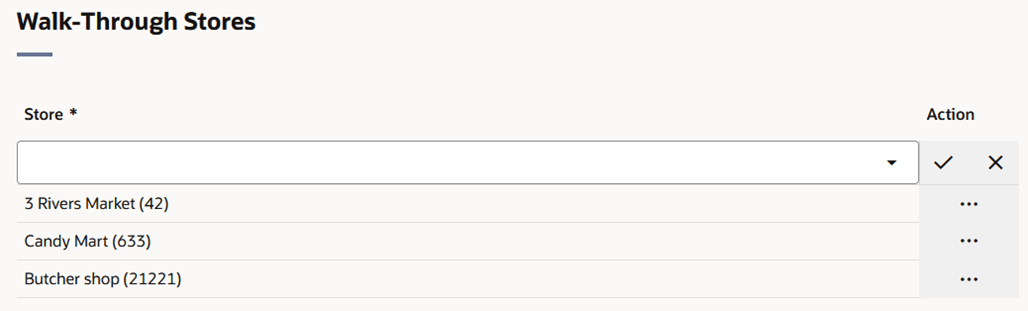
Table 3-13 Walk-through Stores - Fields and Description
| Fields | Description |
|---|---|
| Store |
Enter, select or search for a walk-through store. This field is a required field. |
Custom Flexible Attributes – Group Sets
Custom Flexible Attributes (CFAS) can be defined at the store level. Each CFAS group set defined at the store level will display as a separate section on the Store page. CFAS Groups will be displayed as sub-sections with the associated attributes displayed as fields within the sub-section. If information has already been entered in the section, it will display in a read-only format upon entering the page. To edit the information, click the Edit button in the upper right corner of the section. This will display the section in an input state where the fields are enabled for entry and edit. After changes are made to return to the read-only state, click the Update button to save changes or the Cancel button to discard all edits.
Figure 3-34 Custom Flexible Attribute – Group Sets
Adding Hours to a Store
The Store Hours drawer allows you to view, capture and manage regular store hours of operation.
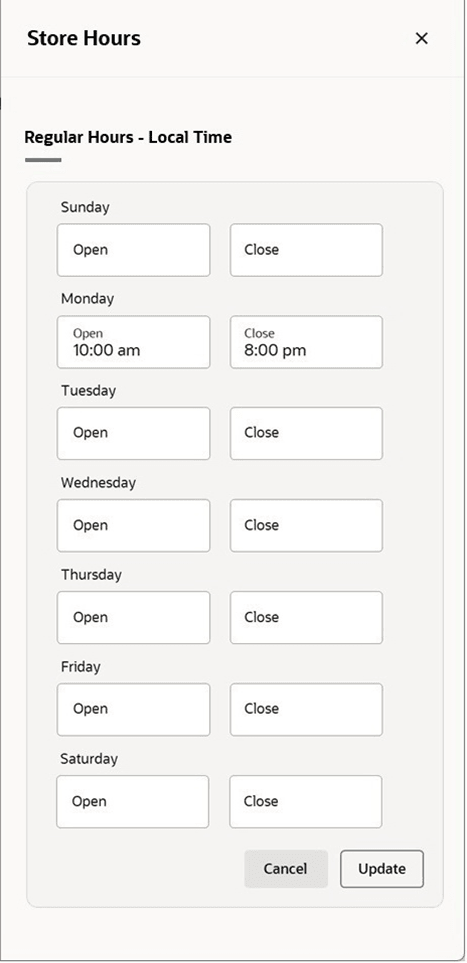
- In the Store page, click the Store Hours button under the Store Section. A the Store Hours drawer appears.
- Click the Add Store Hours button to add store hours.
- For a store with existing store hours, click the Edit button to modify the store hours.
- Enter the time at which the selected store opens and closes for each day. Times should be entered in the HH:MM AM/PM format. For example, 9:00 AM. If no time is entered for a day, the store is assumed to be closed.
- Click Update to save the updated store hours and return to the Store page.
Figure 3-35 Store Hours Drawer
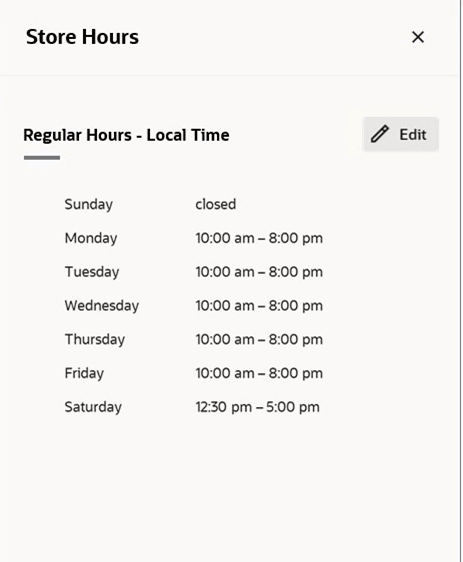
Figure 3-36 Edit Store Hours Drawer
Copying Up Charges to a Store
Copying Up Charges to a Store
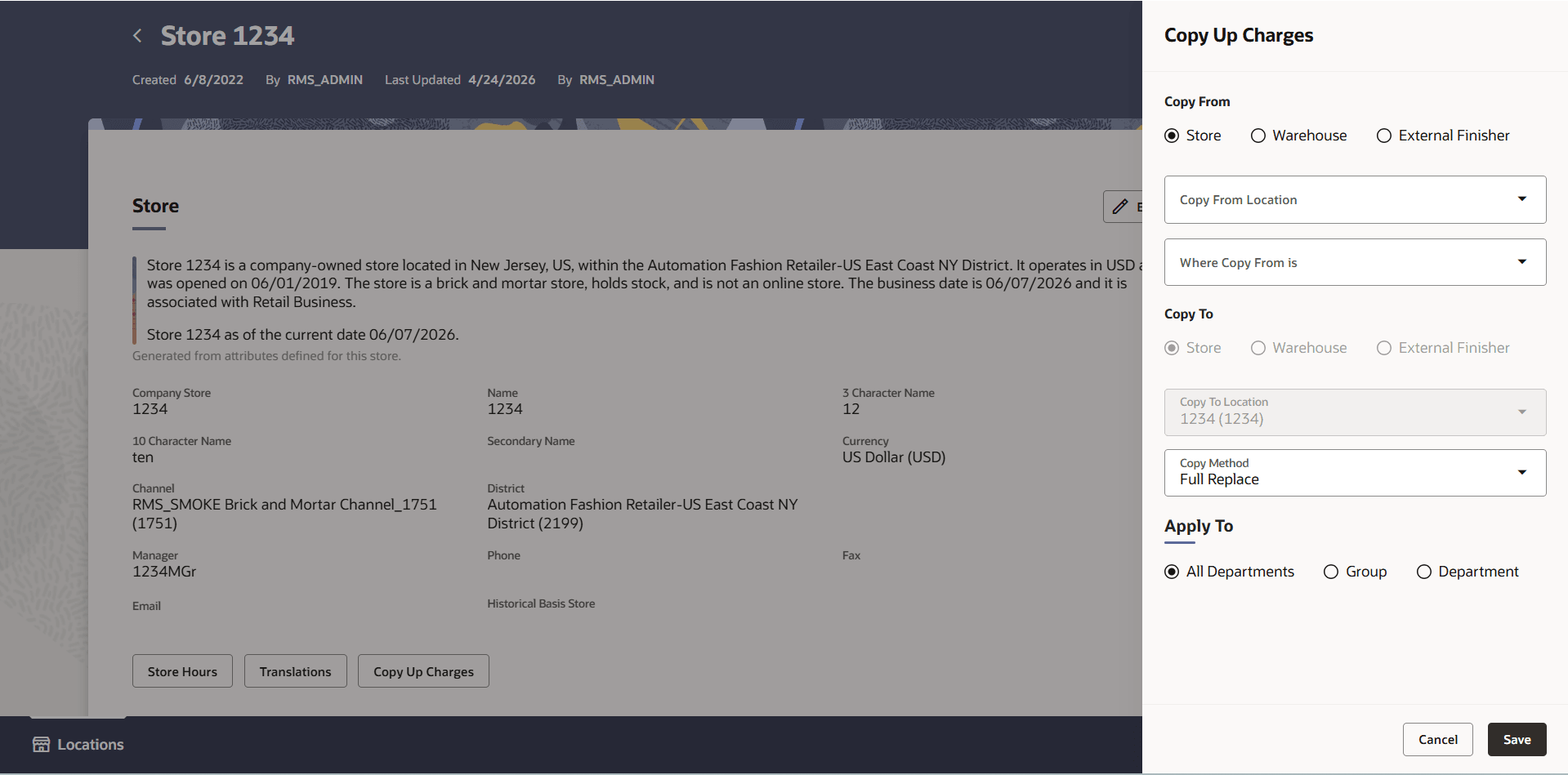
When creating a new store, use the Copy Up Charges button in the Store section to queue up charge copy requests before the store is saved.
In the Store page, click the Copy Up Charges button under the Store section. The Copy Up Charges drawer appears.
Enter the details under Copy From, Copy To and Apply To sections
Under the Copy From section
Copy from Location Type will be set to Store by default.
Change the value as desired and then enter a Copy From Location and select a Where Copy From is value
Under the Copy To section
Copy from Location Type will be set to Store and cannot be changed.
Copy To Location will be populated with the new store
Copy Method will be hidden and set to Full Replace because a new store will not have any existing up charges with which the copied up charges need to be merged; they will all copied to the new store.
Under the Apply To section
‘All Departments’ will be selected by default.
Change this to Group or Department as desired
Click the Save button to initiate the copy of the up charge details to the new store.
Click Cancel to close the drawer without executing a copy.
Figure 3-37 Figure 3-36 Store section - Copy Up Charges button
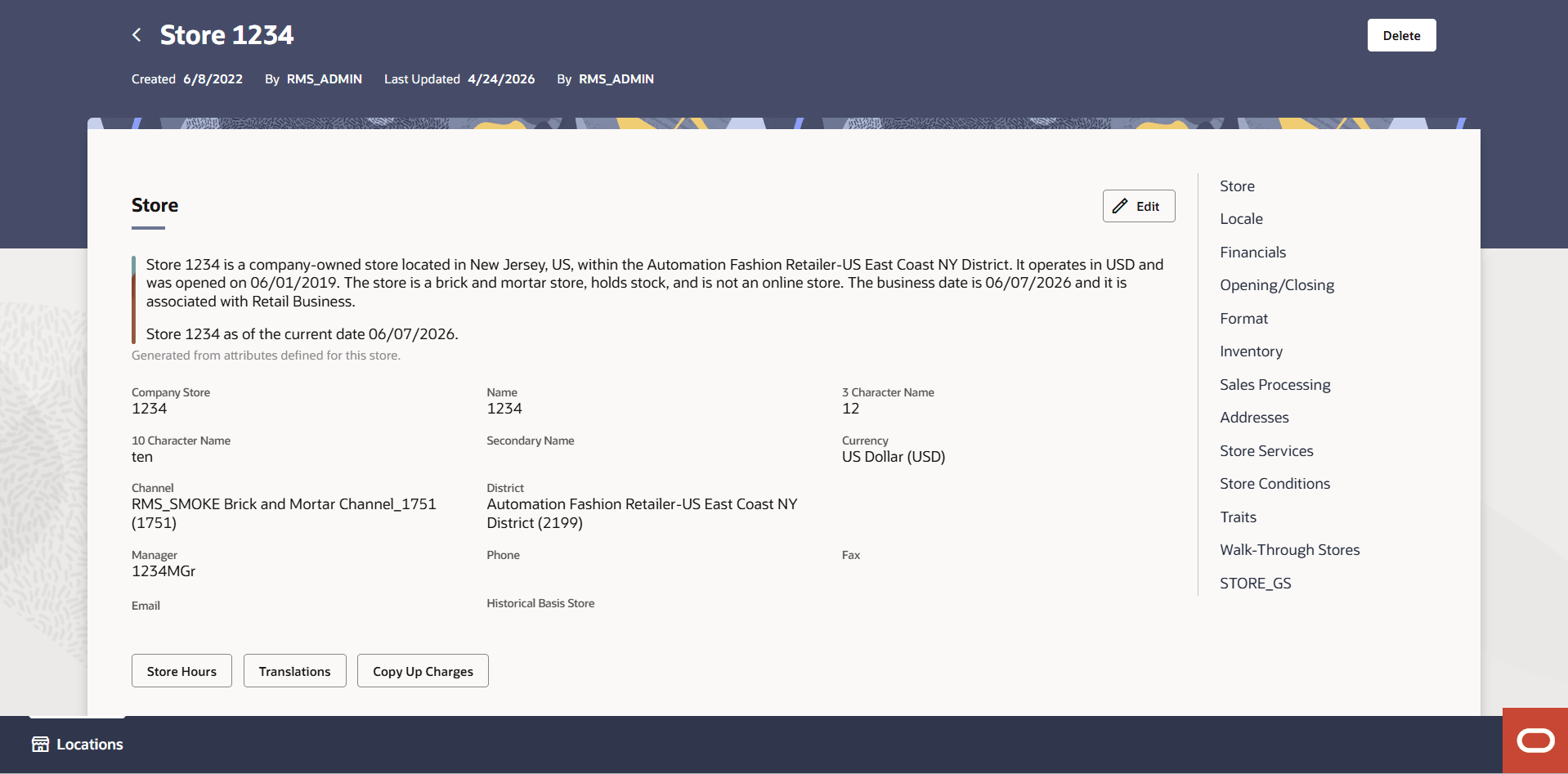
Figure 3-38 Figure 3-37 Copy Up Charges Drawer
Create Warehouses
To create a warehouse, follow the steps listed below.
-
To create a new warehouse, you can initiate the process from the Stores and Warehouses page, or through the Home Experience.
- To initiate the creation of a warehouse through the Stores and Warehouses page:
- On the Locations Destination landing page, click the Stores and Warehouses card. Alternatively, from the Home Experience select Stores and Warehouses from the Product Map or Suggestions list view. The Stores and Warehouses page appears.
- Near the top of the page, select the Create Warehouse button. The New Warehouse screen appears.
- To initiate the creation of a warehouse via the Home Experience:
- From any page, select the Oracle icon (“O-tag”) in the bottom right corner of the screen. The Home Experience appears.
- From the Product Map or the Suggestions list, select the Create Warehouse task. Alternative, enter
Create Warehouseinto the Ask Oracle search bar at the top of the page and select the Create Warehouse task that displays in the results. The New Warehouse screen appears.
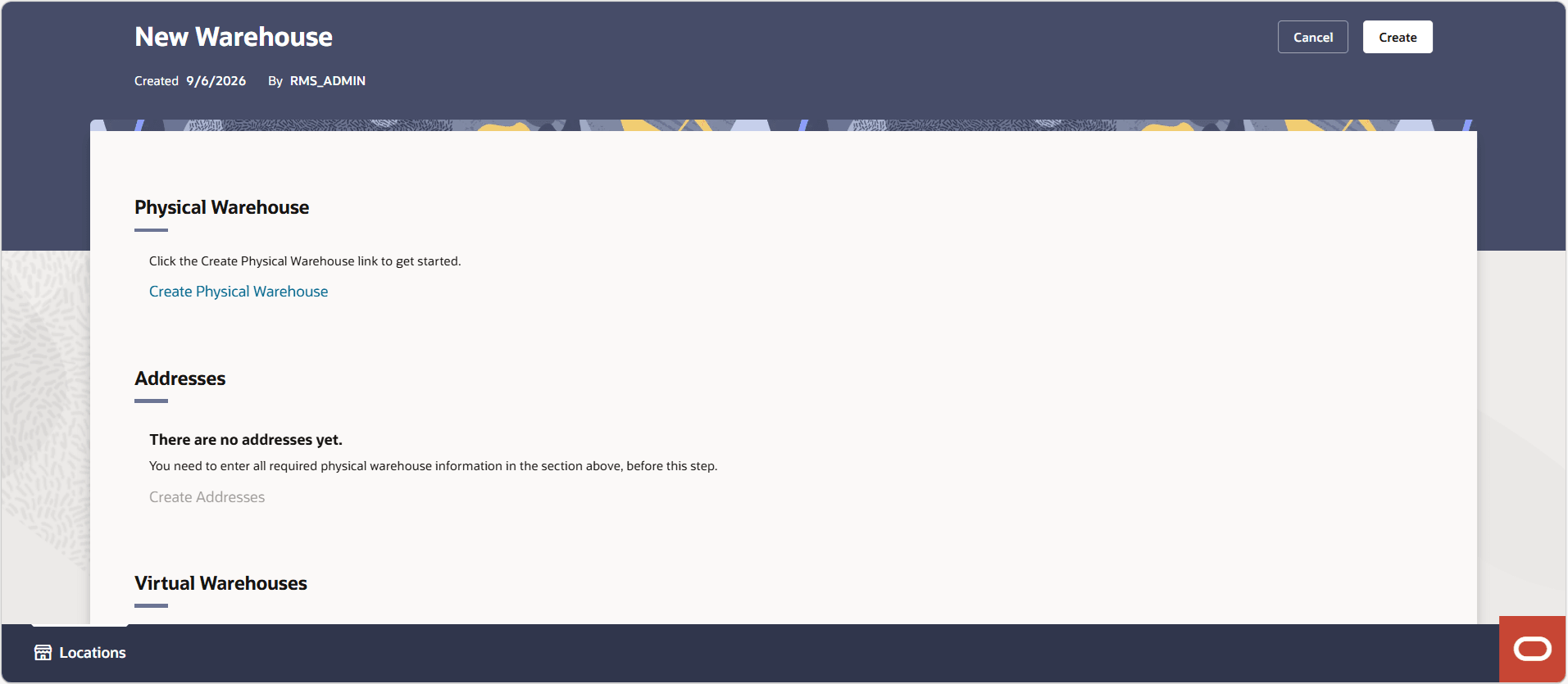
Figure 3-39 New Warehouse Page
- To initiate the creation of a warehouse through the Stores and Warehouses page:
- Begin by clicking the Create Physical Warehouse Information link in the Physical Warehouse section to add physical warehouse information. After this, the Addresses section will become enabled to add the details.
- Enter the necessary information for the physical warehouse. For more information about the available fields on the Warehouse page, see the Warehouse Page section.
- Choose one of the following options.
- Click Create to create the warehouse.
- Click Cancel to reject all entries and exit the New Warehouse page without creating a warehouse.
Manage Warehouses
Editing a Warehouse
To edit a warehouse, follow the steps below.
- To edit a warehouse, you can initiate the process from the Stores and Warehouses page.
- On the Locations Destination landing page, click the Stores and Warehouses card. Alternatively, from the Home Experience select Stores and Warehouses from the Product Map or Suggestions list view. The Stores and Warehouses page appears.
- Enter keywords or select filters in the Ask Oracle search bar at the top of the page to filter the locations displayed on the page. When you find the warehouse, you wish to edit, from the Card View, click the Edit button on the warehouse card, or from the Table View, select Edit from the Action menu on the row. The Warehouse page appears.
- Edit the fields, if necessary. For more information about the available fields in the Warehouse page, see the Warehouse Page section.
Warehouse Page
The Warehouse page allows you to create, edit, delete, and view a warehouse. The warehouse is the entity within Merchandising that defines the physical storage, cross-dock, or distribution facility in an organization. The warehouse has all of the transaction capability of the store, except for sales and price changes. You can specify at which organizational level a warehouse is reported.
You also have the option to designate a warehouse as a redistribution warehouse. A redistribution warehouse does not actually hold stock and cannot be used as a distribution center. With the existence of a redistribution warehouse, you can create purchase orders before the distribution center is known. Orders must be redistributed to actual warehouses or stores when the locations become known and before the merchandise is shipped.
The main content area in this page is organized into several sections, allowing you to handle every aspect of warehouse management from a single page.
Figure 3-40 Warehouse Page
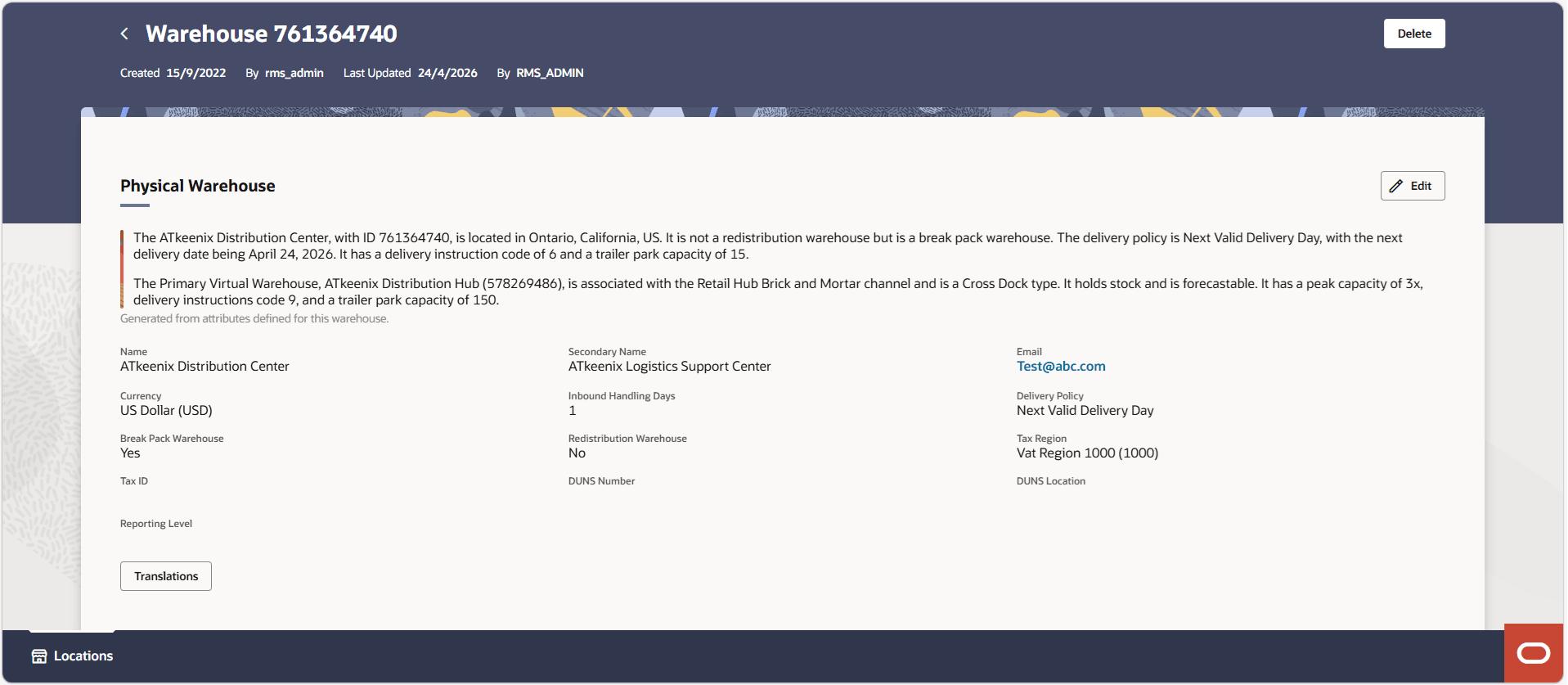
The Warehouse screen now includes an AI-generated summary that is automatically created after any warehouse attributes are added or updated. This summary provides a quick overview of the warehouse and its primary virtual warehouse, enabling you to quickly understand key details without reviewing all fields individually.
The summary is derived from the following attributes: Warehouse Name, Name, City, State, Country, Redistribution Warehouse, Break Pack Warehouse, Delivery Policy, Primary Virtual Warehouse Name, Channel, Virtual Warehouse Type, Stockholding, Forecastable, Warehouse Services, and Custom Flex Attributes. City, State, and Country are sourced from the warehouse’s primary business address.
For the primary virtual warehouse, it includes -Primary Virtual Warehouse Name, Channel, Virtual Warehouse Type, Stockholding, Forecastable, Warehouse Services, and Custom Flex Attributes.
Location Closings
From the overflow menu on a virtual warehouse card, select Location Closings to view or manage closings for that warehouse. For procedures, see Manage Location Closings.
Warehouse Information
Warehouse details, including addresses and virtual warehouses, can be created, and managed from a single page. The Physical Warehouse section captures core information such as warehouse name, currency, tax details, and other key attributes.
Virtual warehouses linked to the physical warehouse are displayed as cards within the Virtual Warehouses section.
If information has already been entered, each section appears in a read-only view when you open the page. To make changes, click the Edit button in the upper-right corner of the section. This switches the section to an editable state with enabled fields. After making updates, click Update to save changes or Cancel to discard them and return to read-only mode.
Figure 3-41 Physical Warehouse – Read-only State
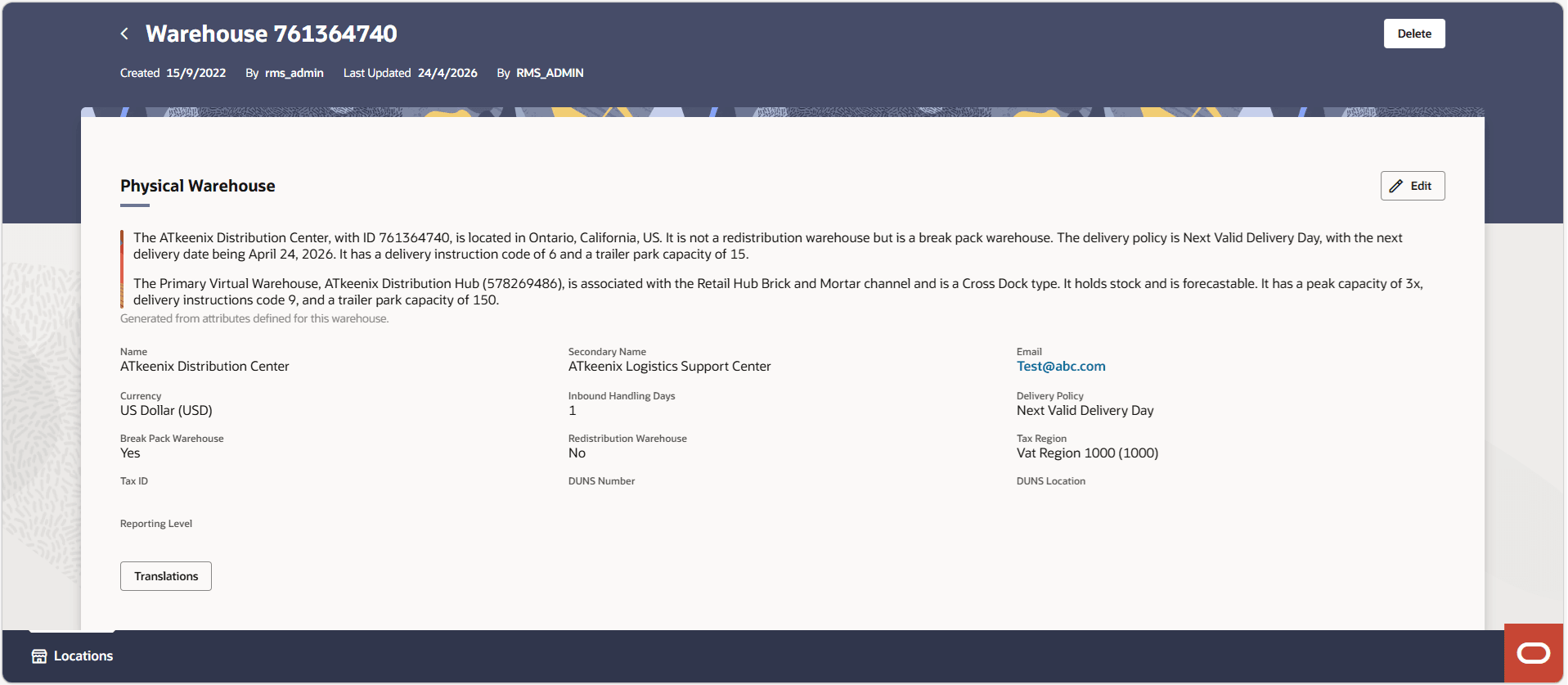
Figure 3-42 Physical Warehouse – Input State
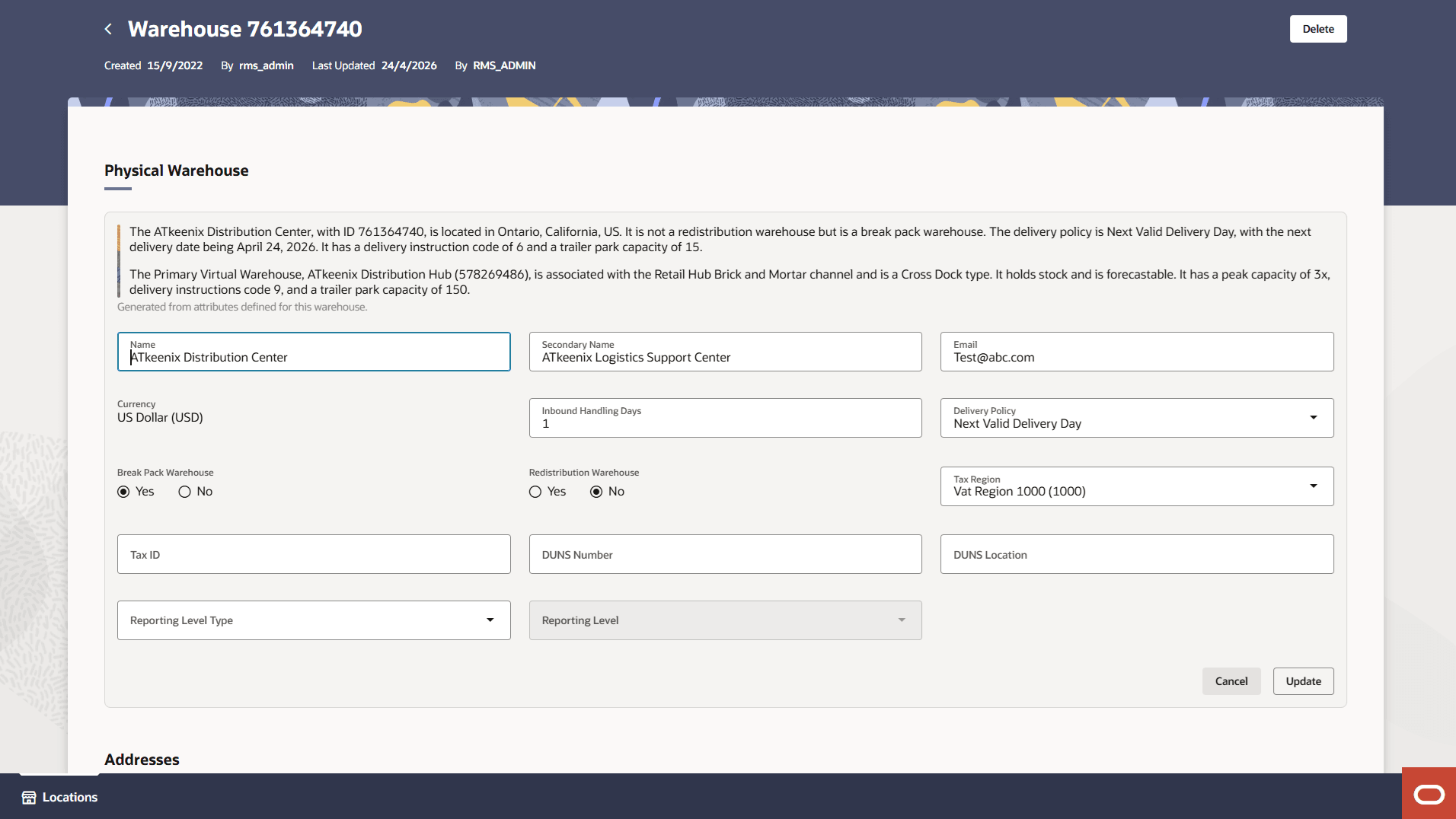
Table 3-14 Physical Warehouse Section – Fields and Description
| Field | Description |
|---|---|
| Warehouse Name |
Enter a unique description for the warehouse. This field is a required field. |
| Secondary Name | Enter the secondary name for the warehouse. |
| Enter an email address for the warehouse. | |
| Currency |
Enter, select or search for the currency code. This field is a required field. |
| Inbound Handling Days |
Enter the number of days that the warehouse requires to receive any item and move the item to the shelf, so that it is ready to be picked. Next Day indicates that the if a location is closed, the warehouse will deliver on the next day. Next Valid Delivery Day indicates that the warehouse will wait until the next scheduled delivery day before delivering the item. |
| Delivery Policy | Select a delivery policy from the list. |
|
Zoning Location section: This section is only available, when you create a new warehouse |
|
| Cost Location Type | Select a cost location type from the list. |
| Cost Location | The location ID field enables when the cost location type is selected. Enter, select or search for the location |
| Break Pack Warehouse checkbox | Select the checkbox to indicate that the warehouse is capable of distributing less that the supplier case quantity. |
| Redistribution Warehouse checkbox | Select the checkbox to indicate that the warehouse distributes to other warehouses. |
| Tax Region |
Enter, select or search for a VAT region for the warehouse. This field is a required field. |
| Tax ID | Enter the Tax Identification number to be associated with the warehouse. |
| DUNS Number |
Enter the Dun & Bradstreet Data Universal Numbering System (DUNS) number. The DUNS number is a nine digit code that identifies your store. |
| DUNS Location |
Enter the DUNS location number. The DUNS location number is a four digit code that identifies the locations of your store. This field is only enabled, if have entered the DUNS number for your store. |
| Reporting Level Type | Select a reporting level type from the list. |
| Reporting Level | The reporting level field enables when the reporting level type is selected. Enter, select or search for the organizational hierarchy ID. |
Addresses
The warehouse’s addresses are displayed and entered in the Addresses section. If information has already been entered in the section, it will display in table list upon entering the page.
For details on creating and maintaining addresses, see the Manage Location Addresses section.
Virtual Warehouses
The Virtual Warehouses section allows you to divide a physical warehouse into one or more virtual warehouses. Virtual warehouses are used in a multi-channel environment to track ownership of inventory by channel. You associate each virtual warehouse with a channel. If the virtual warehouse contains a finishing location, you can indicate an additional virtual warehouse within the channel.
Virtual warehouses are considered stockholding locations, while the physical warehouse is considered a non-stockholding location.
Figure 3-43 Virtual Warehouses Section
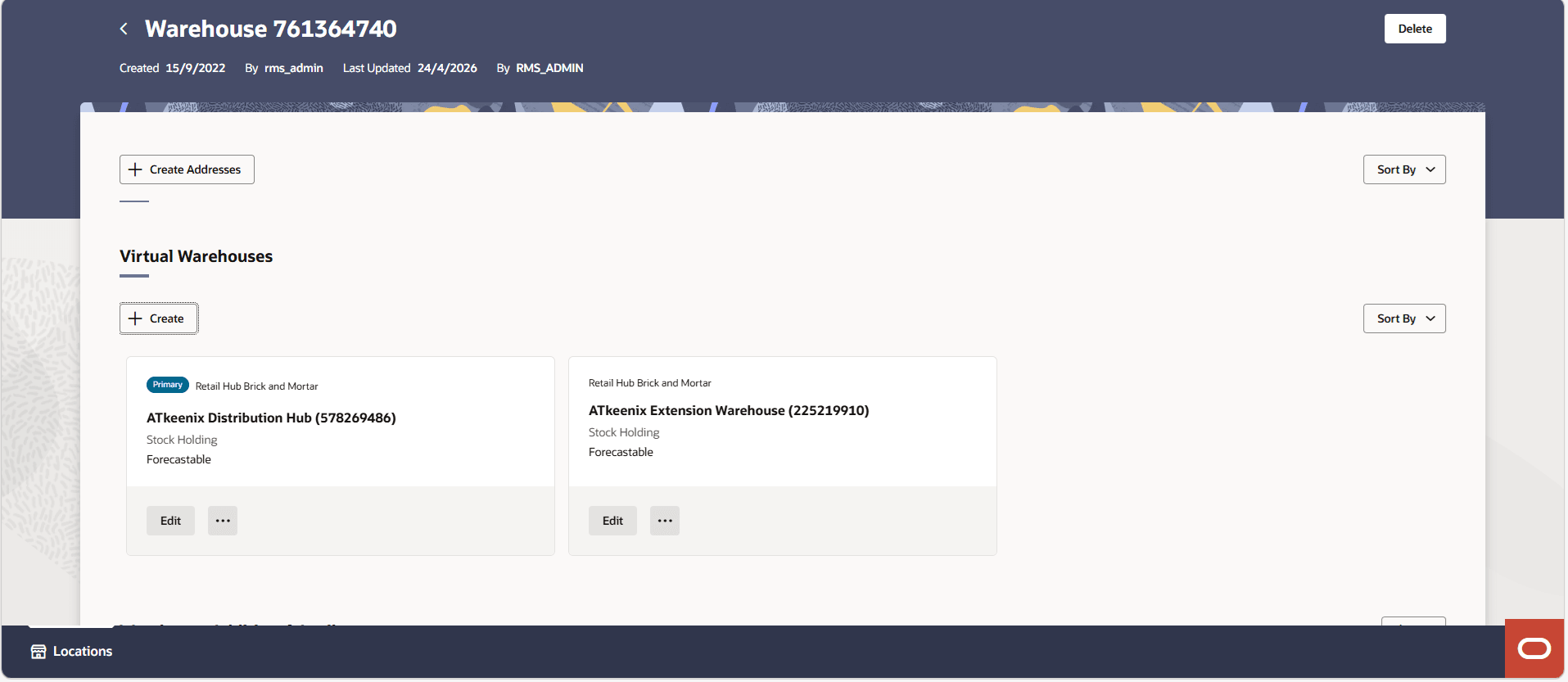
Virtual Warehouse Card
The Virtual Warehouses section provides a visual card display for each virtual warehouse within the physical warehouse. Each card supports Edit, Translate and Delete actions, along with a Create button at the top of the section to create a new virtual warehouse. Copying up charges to the virtual warehouse and location closing setup can also be performed from the overflow menu.
Select the Translate option to create and/or edit translations as necessary. For more information see the "Translate Data" chapter in the Oracle Retail Merchandising Do the Basics User Guide.
Using the Sort By button, the virtual warehouse cards can be sorted by Warehouse Name, Warehouse Number, Channel or Org Entity Type.
Figure 3-44 Virtual Warehouse Card
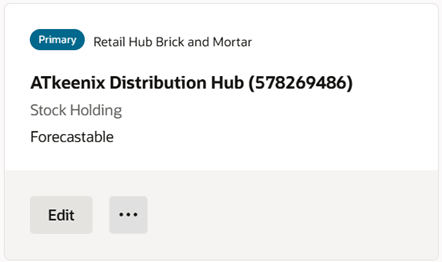
Table 3-15 Information on a Virtual Warehouse Card
| Information | Description |
|---|---|
| Primary | The blue badge displays on the virtual warehouse that is marked as the primary virtual warehouse for the physical warehouse |
| Channel/Org Entity Type | The overline displayed next to the Primary badge shows the org entity type when it is an importer or exporter, and the channel description when it is a regular virtual warehouse. |
| Name | Displays the name of the virtual warehouse with its associated identifier in parentheses. |
| Operational Flag | Displays the stock holding, finisher and customer order location flags. |
| Planning & Control Flags | Displays the protected, restricted and forecastable flags. |
Copying Up Charges to a Warehouse
When creating a new virtual warehouse, use the Copy Up Charges action on its card to queue an up charge copy before the warehouse is saved.
- In the Copy From section, Warehouse and Regular Warehouse are selected by default. Change the values as needed, then select a source location and Where Copy From is value.
- In the Copy To section, Warehouse and the new virtual warehouse type are populated. The Copy To Location is the new virtual warehouse. Copy Method is hidden and set to Full Replace because the new warehouse has no existing up charges.
- In Apply To, All Departments is selected by default; change it to Group or Department when needed.
- Click Save to initiate the copy, or Cancel to close the drawer without copying.
For descriptions of the drawer fields and copy methods, see Copy Up Charges.
Add Virtual Warehouses
To add a virtual warehouse to a physical warehouse, follow the steps below.
- In the Virtual Warehouses section, click Create button. The New Virtual Warehouse drawer appears. The drawer organizes related attributes into sections – Header, Financial, Inventory, Services and Custom Flex Attributes (CFAS).
Figure 3-45 New Virtual Warehouse Drawer
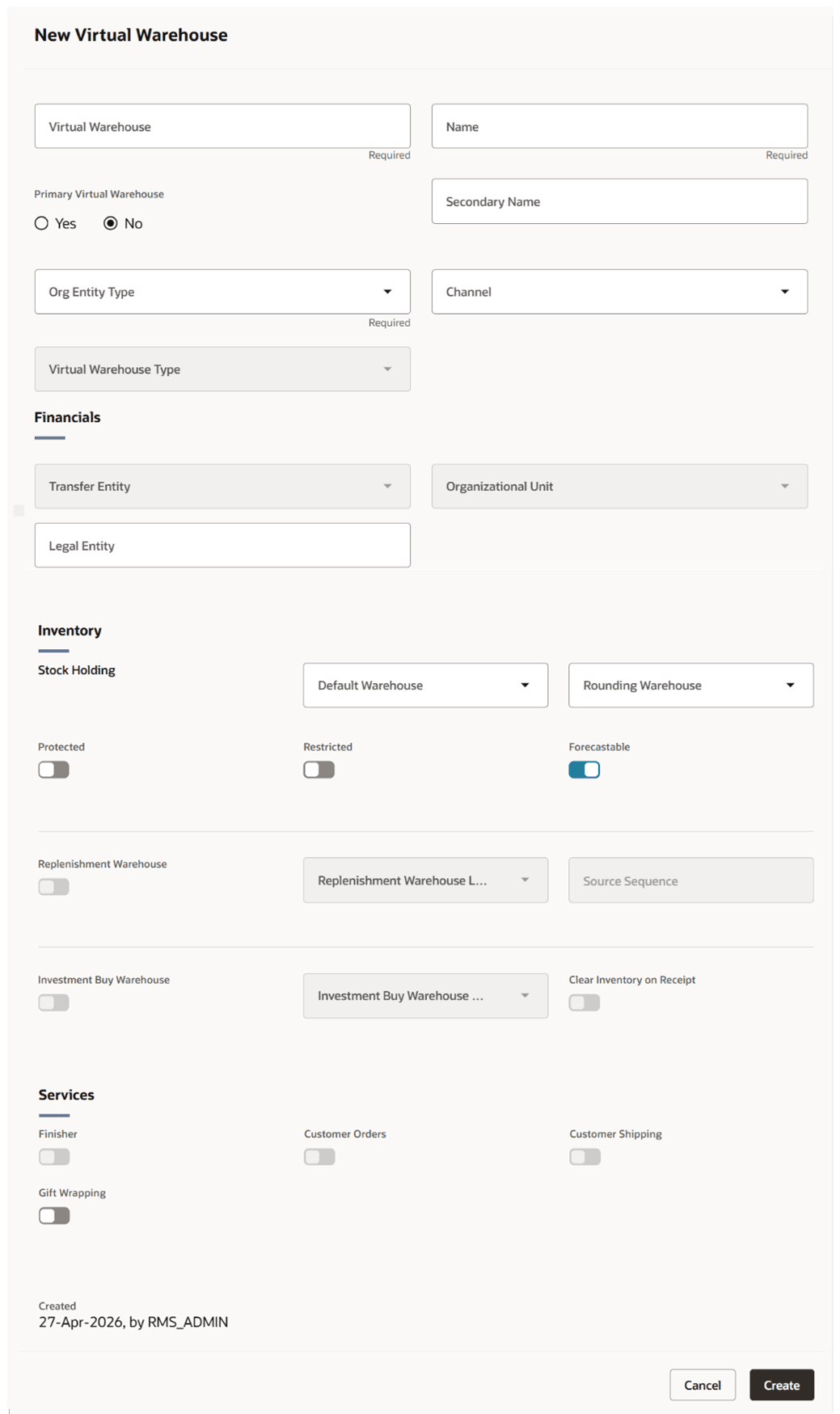
- In the Virtual Warehouse field, enter a unique warehouse ID. This field is a required field.
- In the Name field, enter the name of the warehouse. This field is a required field.
- Set the Primary Virtual Warehouse switch ON to indicate this is the primary virtual warehouse for the physical warehouse.
- In the Secondary Name field, enter the secondary name for the warehouse.
- In the Org Entity Type field, select the org entity type from the list. This field is a required field.
- In the Channel field, enter, select or search for a channel. This field is a required field.
- In the Virtual Warehouse Type field, select a warehouse type from the list. This field is a required field.
- In the In the Financials section, enter the following details:
- In the Transfer Entity field, enter, select or search for the transfer entity. This field is a required field.
- In the Org Unit field, enter, select or search for the org unit. This field is a required field.
- In the Legal Entity field, enter the legal entity.
- In the Pricing Location field, enter, select or search for the pricing location ID. This field is a required field when Org Entity Type field is selected as Regular Warehouse.
- In the In the Inventory section, enter the following details:
- Set the Stock Holding switch ON to indicate that the warehouse is a stock holding one.
- In the Default Warehouse field, enter, select or search for the warehouse.
- In the Rounding Warehouse field, enter select or search for the warehouse.
- Set the Protected switch ON to indicate that the warehouse is affected last in transactions where inventory is removed or affected first in short-shipment type transactions where inventory is being added.
- Set the Restricted switch ON to indicate that the virtual warehouses is restricted from receiving stock during an inbound transaction.
- Set the Forecast switch ON to indicate that the warehouse should be included in forecast calculations.
- Set the Replenishment switch ON to indicate that the virtual warehouse is included in the net inventory calculations for the replenishable warehouse.
- In the Replenished Warehouse Link field, enter, select or search for the corresponding link.
- In the Source Sequence field, enter the order from which the inventory is sourced from the linked warehouses.
- Set the Investment Buy Warehouse switch ON to indicate whether the warehouse is an investment buy warehouse.
- In the Investment Buy Warehouse Link field, enter, select or search for the corresponding link.
- Set the Clear Inventory on Receipt switch ON to indicate that the investment buys inventory should be automatically transferred to the turn (replenishable) warehouse when an order is received by the turn warehouse.
Note:
If you select Regular Warehouse as the Org Entity Type, the Stock Holding checkbox is selected and disabled. You can not deselect this checkbox.
- In the Services section, enter the following details:
- Set the Finisher switch ON to indicate that the warehouse is a finisher location.
- Set the Customer Order Location switch ON to indicate that the warehouse is a location where the customer places orders.
- Set the Customer Shipping switch ON to specify if the warehouse supports shipping to the customer for customer orders.
- Set the Gift Wrapping switch ON to specify if the warehouse supports gift wrapping.
- In the Customer Flexible Attributes – Group Sets section, define Custom Flexible Attributes (CFAS) for the virtual warehouse.
- Then choose one of the following options.
- Click Create to save the current address and close the drawer.
- Click Cancel to reject all entries and close the drawer.
Edit Virtual Warehouses
To add a virtual warehouse to a physical warehouse, follow the steps below.
- In the Virtual Warehouses section, choose Edit action button in the virtual warehouse card you wish to edit. The Virtual Warehouse drawer appears.
Figure 3-46 New Virtual Warehouse Drawer
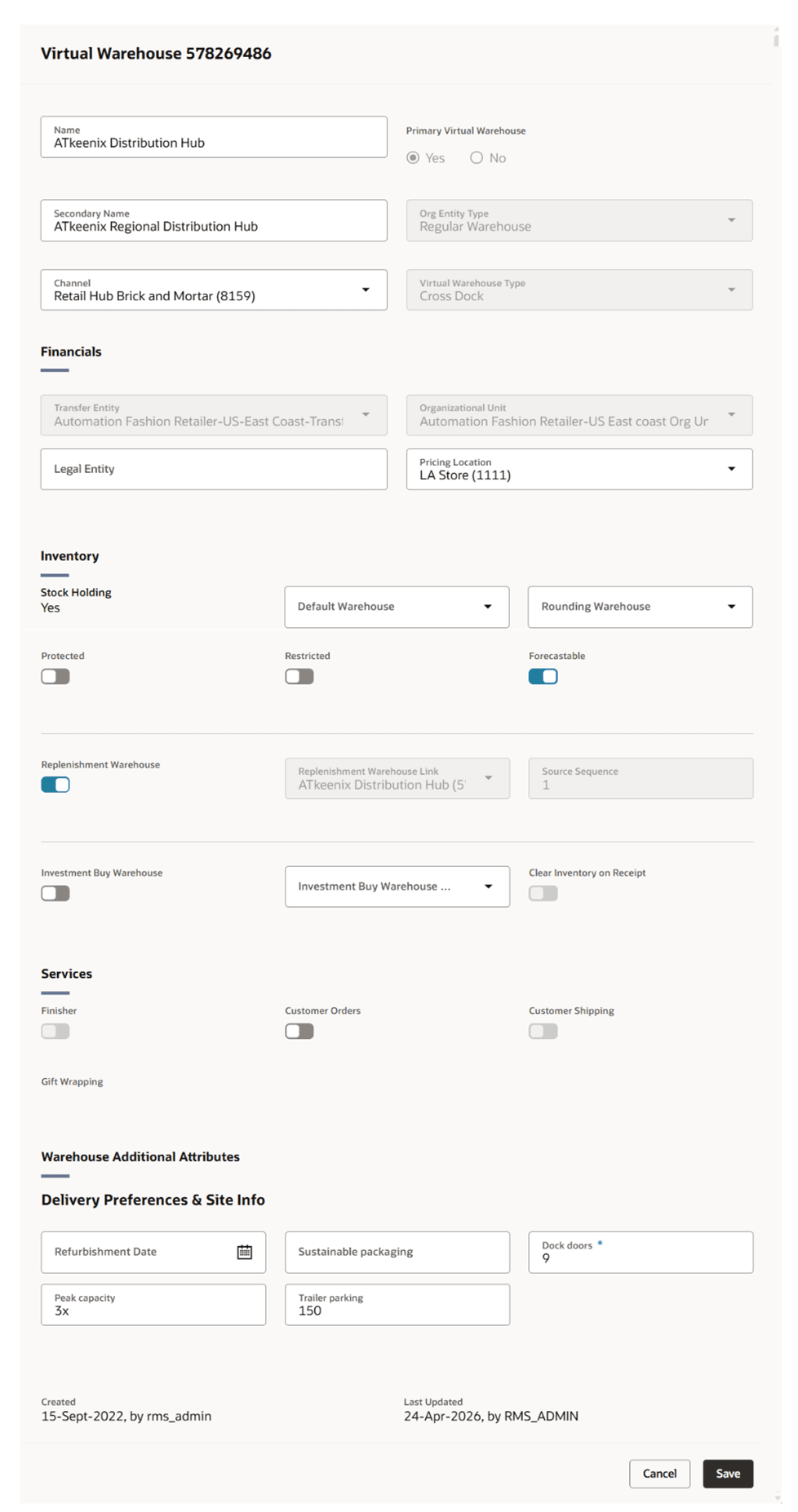
- Edit the virtual warehouse attributes as necessary.
- Then choose one of the following options.
- Click Save to save the changes and close the drawer.
- Click Cancel to reject all entries and close the drawer.
Custom Flexible Attributes – Group Sets
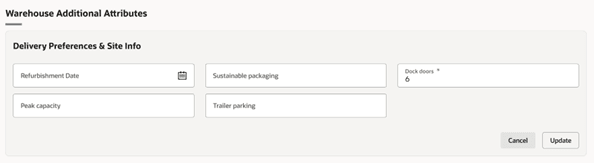
Custom Flexible Attributes (CFAS) can be defined at the physical warehouse level. Each CFAS group set defined at this level will display as a separate section on the Warehouse page. CFAS Groups will be displayed as sub-sections with the associated attributes displayed as fields within the sub-section. If information has already been entered in the section, it will display in a read-only format upon entering the page. To edit the information, click the Edit button in the upper right corner of the section. This will display the section in an input state where the fields are enabled for entry and edit. After changes are made to return to the read-only state, click the Update button to save changes or the Cancel button to discard all edits.
Figure 3-47 Custom Flexible Attribute – Group Sets – Read-only State

Figure 3-48 Custom Flexible Attribute – Group Sets – Input State
Copying Up Charges to a Warehouse
Copying Up Charges to a Warehouse
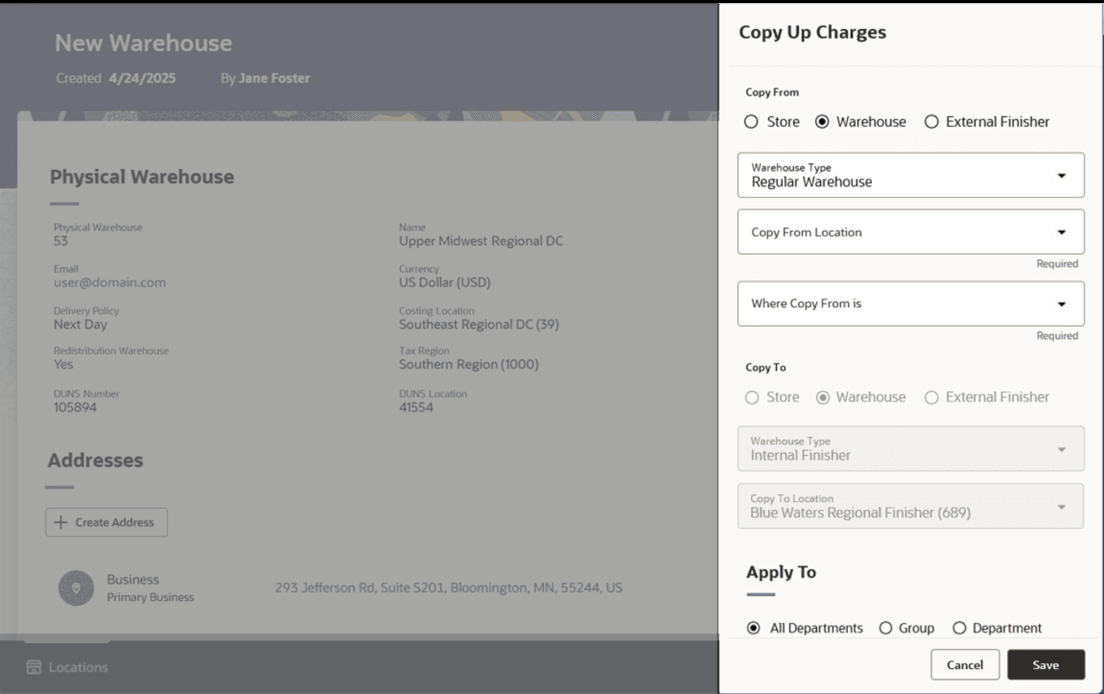
When creating a virtual new warehouse, use the Copy Up Charges action in the virtual warehouse card to queue up charge setup before the warehouse is saved.
On the virtual warehouse card, select the Copy Up Charges action. The Copy Up Charges drawer appears.
Enter the details under Copy From, Copy To and Apply To sections
Under the Copy From section
Copy from Location Type will be set to Warehouse and Warehouse Type will be selected as Regular Warehouse by default.
Change the values as desired, then enter or select a Copy From Location and a Where Copy From is value.
Under the Copy To section
Copy To Type will be set to Warehouse and Warehouse Type will be populated with virtual warehouse type.
Copy To Location will be populated with the virtual warehouse.
Copy Method will be hidden and defaulted to Full Replace because a new warehouse will not have any existing up charges with which the copied up charges need to be merged; they will all copied to the new virtual warehouse.
Under the Apply To section
‘All Departments’ will be selected by default.
Change this to Group or Department as desired
Click the Save button to initiate the copy of the up charge details to the new virtual warehouse.
Click Cancel to close the drawer without executing a copy.
Figure 3-49 Figure 3-47 Virtual Warehouses displayed on the Warehouse Page
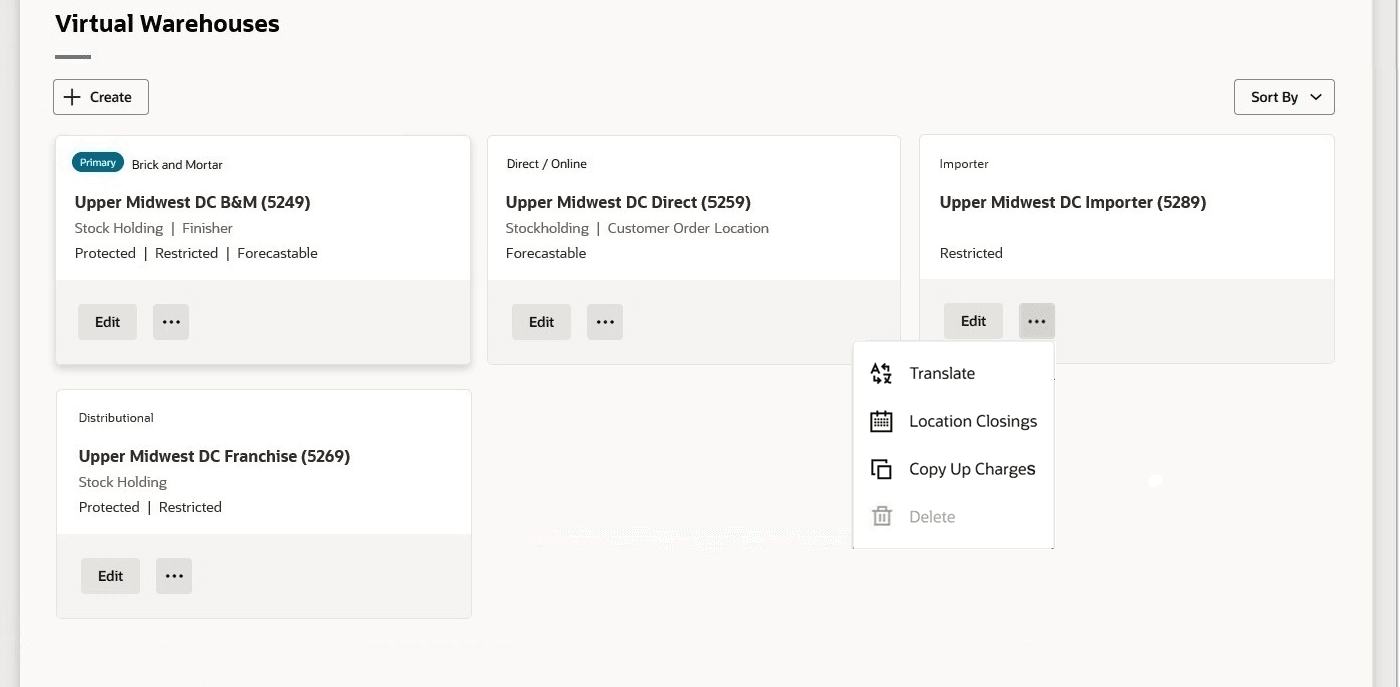
Figure 3-50 Figure 3-49 Copy Up Charges Drawer
Manage Location Addresses
The Addresses page allows you to create, copy, edit, delete, or translate addresses and contact information for either stores, warehouses, suppliers, or partners. You can set up multiple types of addresses, and you can set up multiple addresses per address type. Each location, supplier, or partner that is created requires that at least one address is entered for all mandatory address types. Once you have entered a mandatory address, you cannot delete, but you can edit the mandatory address as needed.
The address assist feature enables you to quickly search for and select a suggested address when creating or editing addresses, while still allowing manual entry and refinement. The selected address also automatically populates the corresponding latitude and longitude details.
To support global address formats, certain address fields can be configured according to each country's requirements. Using the country level address configuration, the city, the state, and the postal code fields may be omitted, renamed, or arranged in a different order. For example, some countries use "postal code," whereas other countries refer to this attribute as a "PIN code." Likewise, the state may be referred to as "county" or "province" in various regions.
Additionally, you can define up to two phone types and associated numbers for addresses to support custom phone types as applicable. The valid values for phone number types can be selected from a dropdown that is maintained under the code type PHTP. To modify the valid categories, you can update the descriptions or add new values by accessing the Codes and Descriptions foundation data loading template.
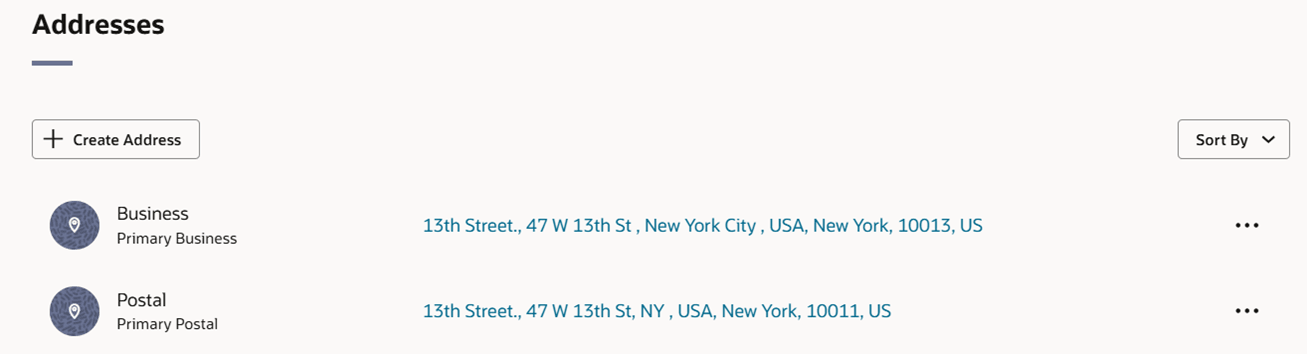
Figure 3-51 Addresses List
Addresses List
The list displays the type of address, whether the address is the primary address of that type, and the address.
Using the Sort By button, the addresses in the list can be sorted by Address Type, Primary Address, or Country.
The rightmost column contains an Overflow menu with actions to Edit, Copy, Translate, or Delete the address.
Using the Translate option, you can create and/or edit translations as necessary. For more information see the "Translate Data" chapter in the Oracle Retail Merchandising Do the Basics User Guide..
Maintaining Addresses
To maintain addresses, follow the steps below.
Creating an Address
To create an address, follow the steps below:
-
In the Addresses section, click Create Address button. The New Address drawer appears.
Figure 3-52 New Address Drawer – Search Address
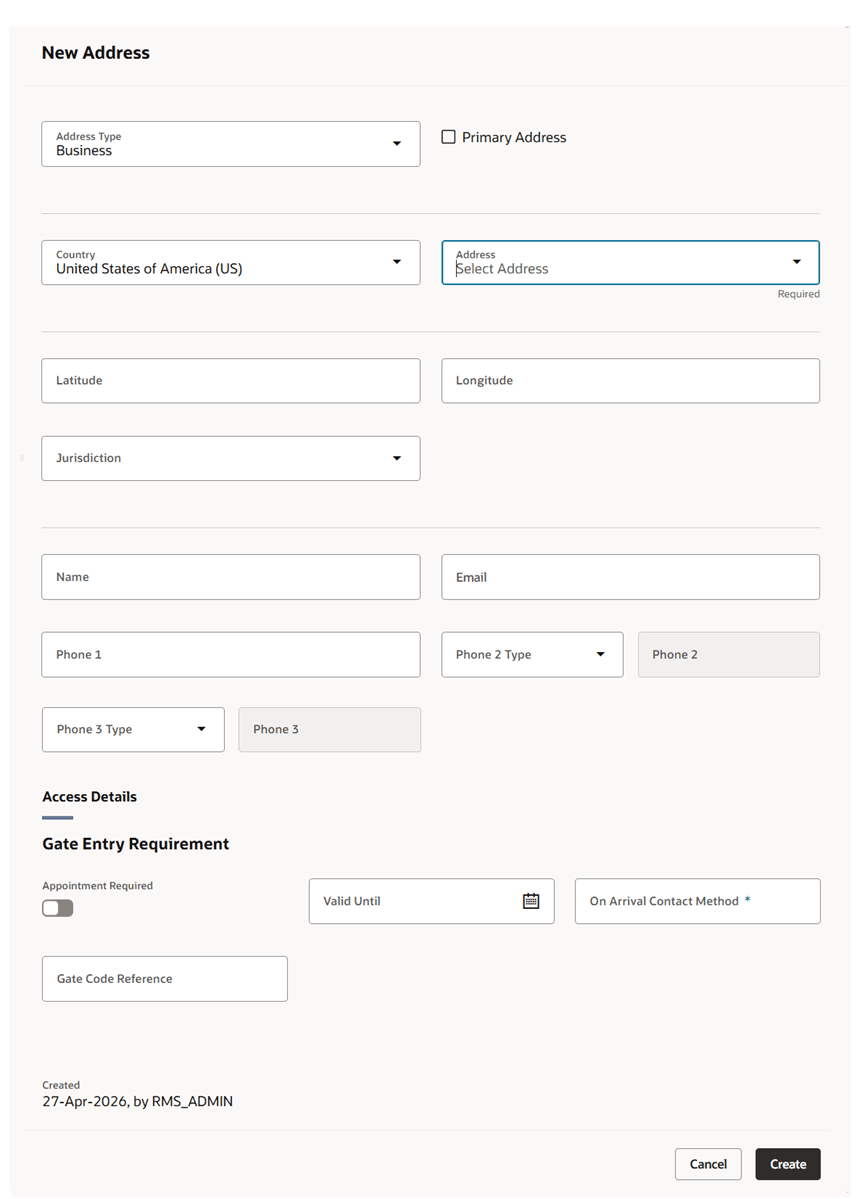
Figure 3-53 New Address Drawer – Manual Entry
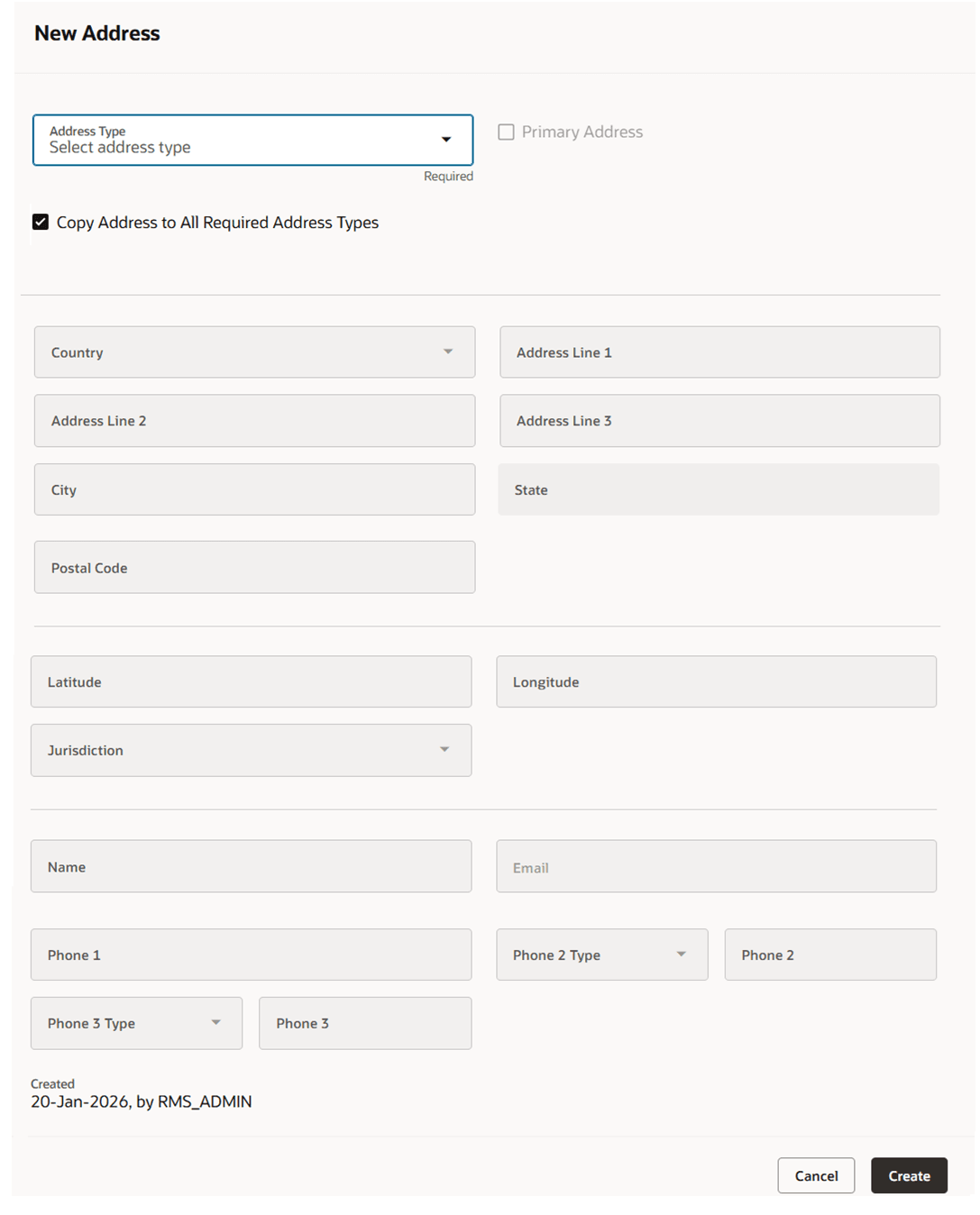
- In the Address Type field, select the type of address to be created.
- Select the Primary Address checkbox to indicate that the current address is a primary address for the address type. The field is enabled if a primary address already exists for the selected address type, allowing you to choose a new primary address. If no primary address exists for the selected address type, the Primary Address field is automatically selected and disabled.
- The Copy Address to all Required Address Types checkbox, indicates whether the current address information is added to each required address type that does not yet have an address defined. This checkbox will be hidden if all required address types already have an address. When displayed, this checkbox is selected by default.
- In the Country field, enter, select, or search for the country. This field is a required field.
- By default, the Address field is displayed, allowing you to search for an address.
- Enter an address to view matching results within the selected country, then choose from the suggested list.
- The selected address also automatically populates the related latitude and longitude details.
- If needed, switch to manual entry by selecting “Enter an address” from the Address field dropdown.
- To modify a selected address, click the Edit action link to access individual fields for manual updates.
- Use the manual entry form to enter a new address or refine a previously selected one.
- In the Address Line 1/2/3 fields, enter the full address. The Address Line 1 field is a required field.
- In the City field, enter the city in which the store is located. This field is a required field.
- This field can have a different label, or may be ordered differently per the country-level address configuration. More details on the country address configuration can be found in the “Countries” section of the Oracle Retail Merchandising Foundation Implementation Guide.
- In the State field, select a state from the list.
- This field can have a different label, or may be ordered differently per the country-level address configuration. More details on the country address configuration can be found in the “Countries” section of the Oracle Retail Merchandising Foundation Implementation Guide.
- In the Postal Code field, enter the postal code of the store.
- This field can have a different label, or may be ordered differently per the country-level address configuration. More details on the country address configuration can be found in the “Countries” section of the Oracle Retail Merchandising Foundation Implementation Guide.
- Select the Primary Address checkbox to indicate that the current address is a primary address.
- Enter geographic coordinates:
- In the Latitude field, enter the latitude of the address location.
- In the Longitude field, enter the longitude of the address location.
- In the Jurisdiction field, enter, select or search for the jurisdiction of the country-state relationship.
- In the Contact information section, you can enter the following details:
- In the Name field, enter the name of the contact person at this address.
- In the Phone field, enter the phone number of the contact.
- In the Phone 2 Type field, select a type.
- In the Phone 2 field, enter a phone number for the selected type.
- In the Phone 3 Type field, select a type.
- In the Phone 3 field, enter a phone number for the selected type.
- In the Email field, enter the email address.
- Then choose one of the following options.
- Click Create to save the current address and close the drawer.
- Click Cancel to reject all entries and close the drawer.
Creating an Address from Existing
To create a new address from an existing address, follow the steps below.
- In the Addresses list, choose Copy from the Overflow menu next to the address you wish to copy. The New Addresses drawer appears.
- In the Address Type field, select the type of address you wish to create using the information from the copied address.
- Select the Primary Address checkbox to indicate that the current address is a primary address for the selected type. The field is enabled if a primary address already exists for the selected address type, allowing you to choose a new primary address. If no primary address exists, the Primary Address field is automatically selected and disabled.
- The Copy Address to all Required Address Types checkbox, indicates that the current address information is added to each required address type that does not yet have an address defined. This checkbox will be hidden if all required address types already have an address. When displayed, this checkbox is selected by default.
- The address and contact fields enable and display the copied data from the selected address. Change the entries as necessary.
- Then choose one of the following options.
- Click OK to save the current address and close the page.
- Click OK and Add Another to save the current address and add additional entries.
- Click Cancel to reject all entries and close the page.
Editing an Address
To edit an address, follow the steps below.
- In the Addresses list, choose Edit from the Overflow menu next to the address you wish to edit. The Address drawer appears.
- The Address Type field displays the type of address. You cannot edit this field.
- Select the Primary Address checkbox to set the current address as the primary address for the selected address type. If the address is already designated as the primary address, the Primary Address field is disabled.
- Edit the address and contact fields as necessary.
- Then choose one of the following options.
- Click Save to save the changes and close the drawer.
- Click Cancel to reject all entries and close the drawer.
Manage Location Closings
Location Closings allow you to define dates on which specific stores or warehouses are unavailable for one or more business activities, such as sales, shipping, and receiving. For example, if a store is marked as closed for sales on December 25, sales transactions are not expected to occur on that date.
Location closing dates are used by various applications to support operational planning. For example, Sales Audit uses sales closing dates to determine whether to create a store/day record for a specific store and date. Similarly, the replenishment function in Merchandising uses shipping and receiving closing dates when calculating delivery dates for replenishment orders.
Similarly, Company Closings allow you to define dates on which the entire company is closed, and to specify exceptions for individual locations that remain operational for one or more business activities, such as sales, shipping, and receiving.
Closed dates are used to determine whether sales, shipping, and receiving activities are expected on a given date. For example, if a company closing is defined for December 25, and no location exceptions are defined, then no sales transactions, shipments, or receipts are expected on that date.
Closed dates are used by various applications to support operational planning. For example, Sales Audit uses dates when locations are closed for sales to determine whether to create a store/day record, while the replenishment function in Merchandising uses shipping and receiving closing dates when calculating delivery dates for replenishment orders.
The Location Closings page enables you to view and manage closure dates for an individual store or warehouse. It presents both location-specific closings and company-wide closings that affect the selected location, including company closing exceptions where the location remains open for sales, shipping, and/or receiving even when the company as a whole is closed.
For stores, you can define whether the location is closed for sales, shipping, and receiving. For warehouses and franchise stores, the sales-related option is not applicable and is hidden.
Company-wide closing dates are maintained centrally; from this page, you can create or update an exception for the selected location by changing which business activities are available when the company as a whole, is closed.
Use the Ask Oracle search field and filter chips to find records. By default, the Closed filter is set to On or After Today. You can also filter by closures for sales, shipping, receiving, and company-wide closings. The Closed filter supports basic options such as This Year, Last Year, and Next Year, as well as advanced date filtering.
Figure 3-54 Figure 3-54Location Closings
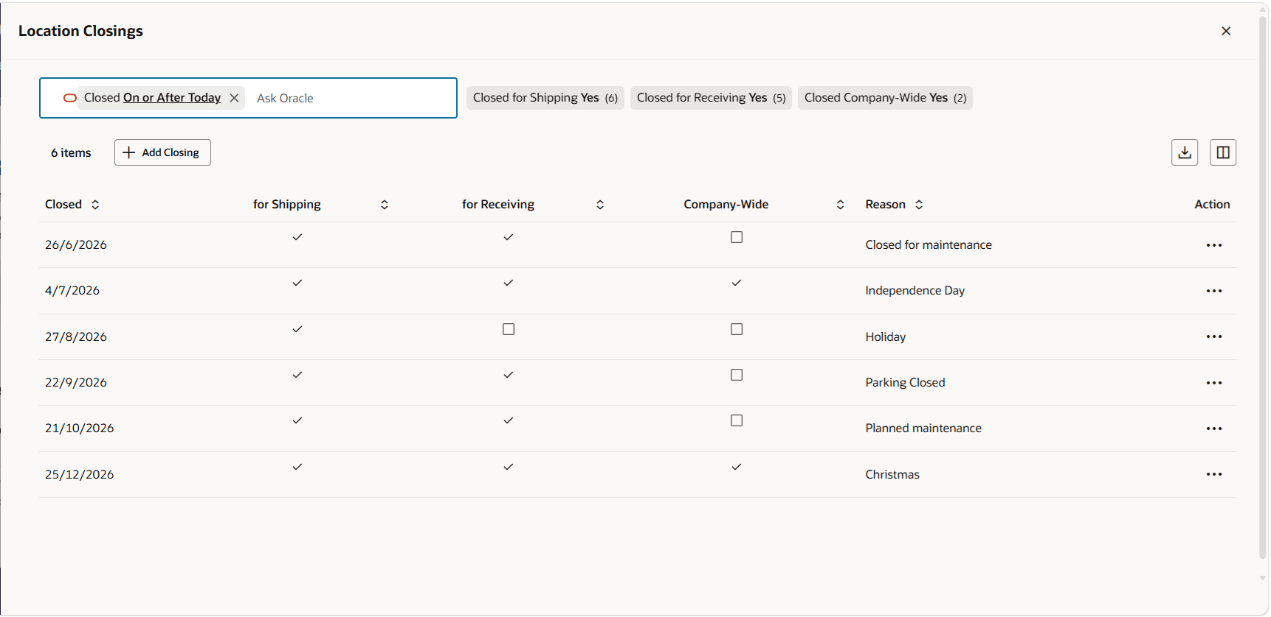
Table 3-16 Table 3-16Information on the Location Closings table
| Information | Description |
|---|---|
| Closed Date | Shows calendar date for the closing. |
| Closed for Sales | Displays whether the selected location is closed for sales on the Closed Date. This is applicable to only store locations. |
| Closed for Shipping | Displays whether the selected location is closed for shipping on the Closed Date. |
| Closed for Receiving | Displays whether the selected location is closed for receiving on the Closed Date. |
| Company-Wide | Displays whether the row represents a company-wide closing or a location-specific closing. If the location has an exception for that date, the applicable activity displays as not closed. |
| Reason | Contains description explaining the closing. |
| Actions | The Actions menu for a record includes Edit, Translate, and Delete. The Delete action is available only for location-specific closings. Company-wide closings cannot be deleted from this page.To remove an exception, update the row so that all applicable activities are marked as closed. |
Creating a Location Closing
To create a location closing, follow these steps:
In the Location Closings page, click Add Closing. The New Location Closing drawer appears.
Figure 3-55 Figure 3-55New Location Closing Drawer
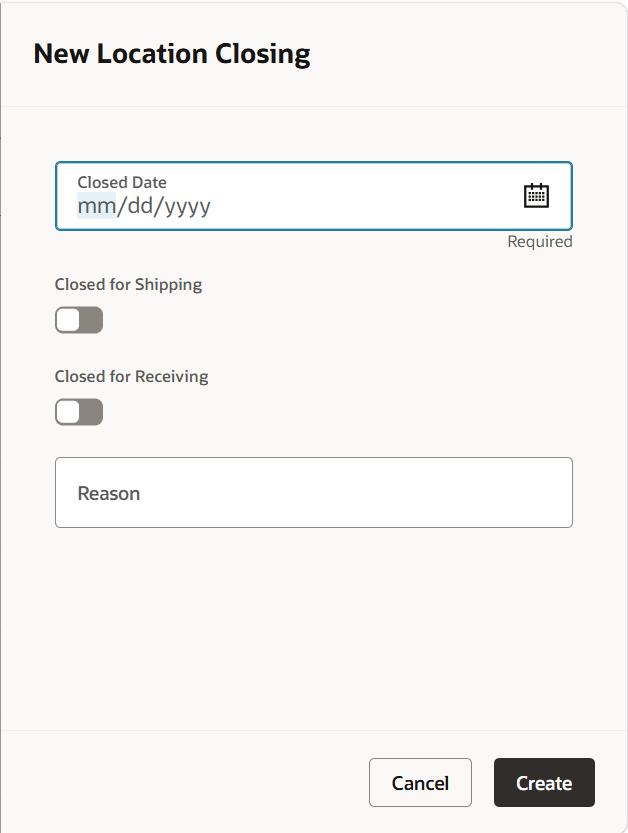
In the Closed Date field, enter a date or select one using the calendar.
Set the applicable closure indicators:
Use Closed for Sales for company store locations.
Use Closed for Shipping to indicate whether shipping is closed.
Use Closed for Receiving to indicate whether receiving is closed.
In the Reason field, enter a description for the closing.
Click Create to save the closing and close the drawer or click Cancel to discard the entries.
The closed date must not already exist for the selected location. You also cannot create a location closing for a date that is already defined as a company-wide closing. If either validation fails, an error message is displayed in the drawer.
Editing a Location Closing
To edit a closing, follow the steps below.
To edit a closing, select Edit from the Actions menu or double-click the row in the Location Closings table. The closure indicators and Reason field become editable inline.
Note: The Closed Date and Company-Wide fields cannot be edited. For company-wide records, the Reason is also read-only.
When editing a company-wide closing, changing an activity from closed to open creates or updates a company closing exception for the selected location. If all activities are changed back to closed, the exception is removed.
When editing a location-specific closing, at least one applicable closure type must remain selected.
Edit the closings as necessary. Then choose one of the following options.
Click Save to save the changes and close the drawer.
Click Cancel to reject all entries and close the drawer.
Location Closings for a Warehouse
From the Virtual Warehouses section, select Location Closings from the overflow menu on the virtual warehouse card whose closings you want to view or manage.
Figure 3-56 Location Closings Option
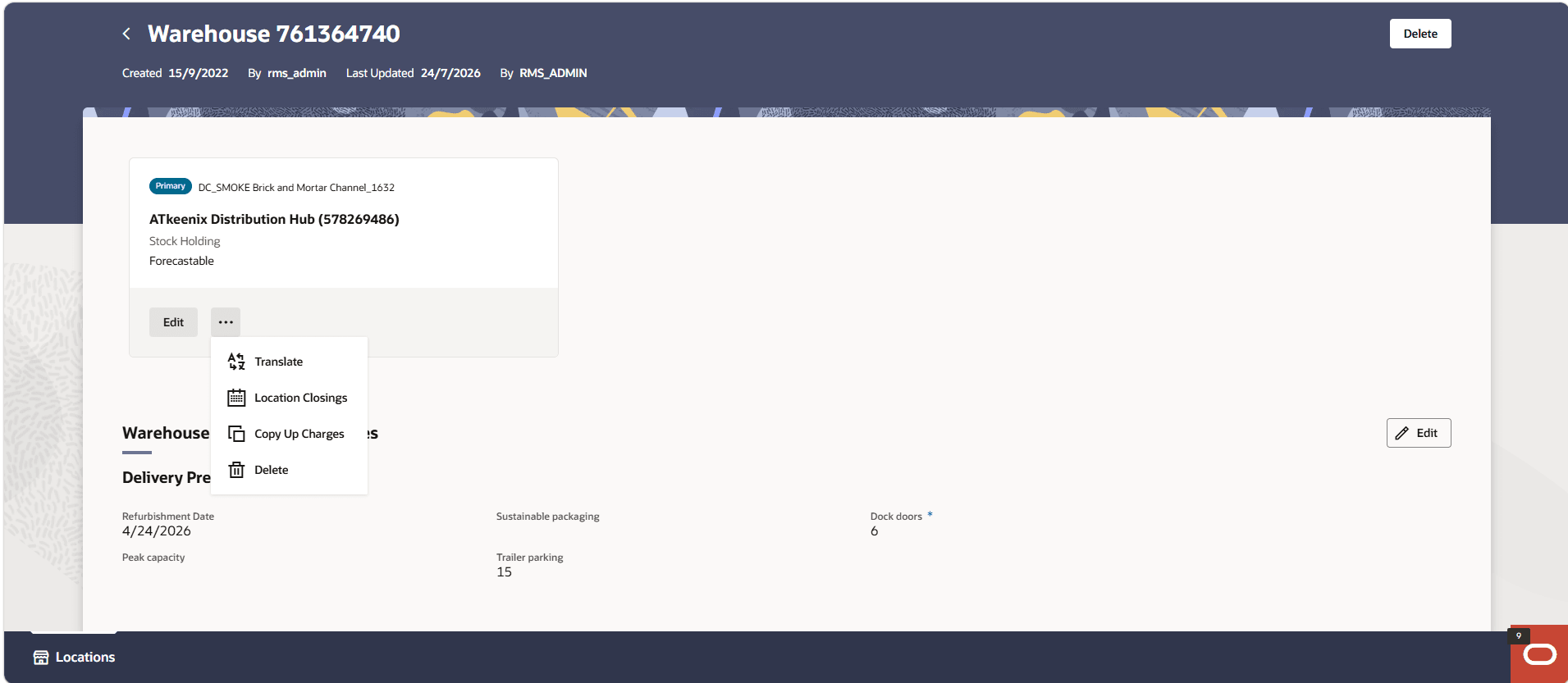
For procedures, see Manage Location Closings.