Store Information
The basic store definition is provided in the Store section, such as the store name, channel, contact information, and regular store hours. If information has already been entered in the Store section, it will display in a read-only format upon entering the page. To edit the information, click the Edit button in the upper right corner of the section. This will display the Store section in an input state where the fields are enabled for entry and edit. After changes are made to return to the read-only state, click the Update button to save changes or the Cancel button to discard all edits.
Figure 3-22 Store – Read-only State
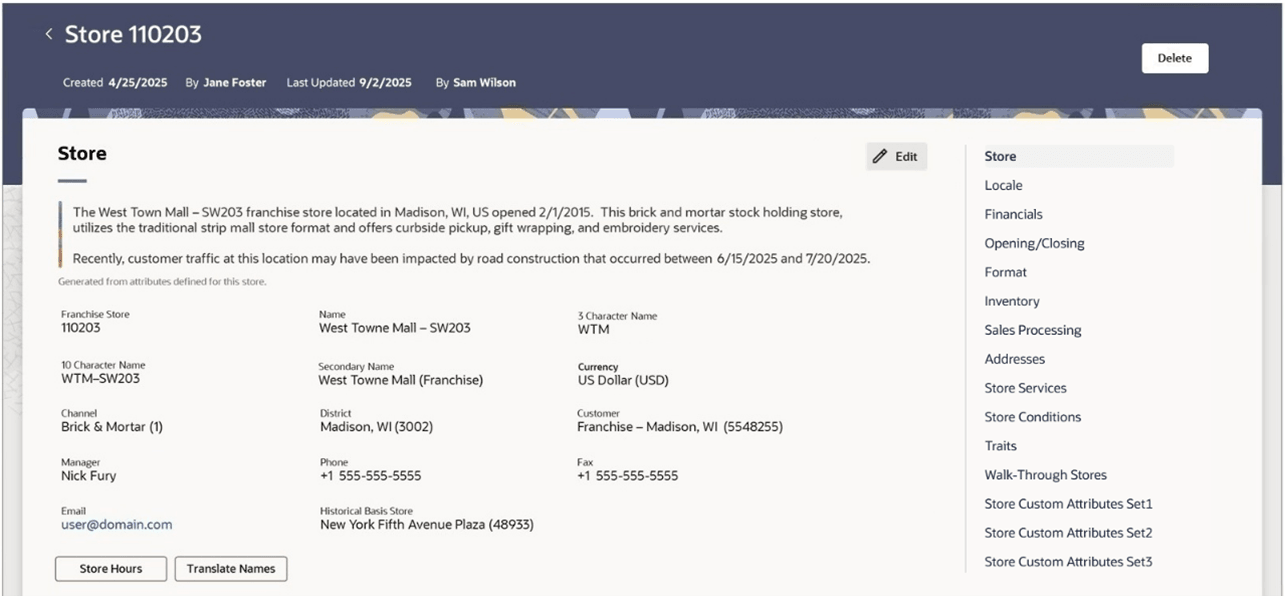
Figure 3-23 Store – Input State
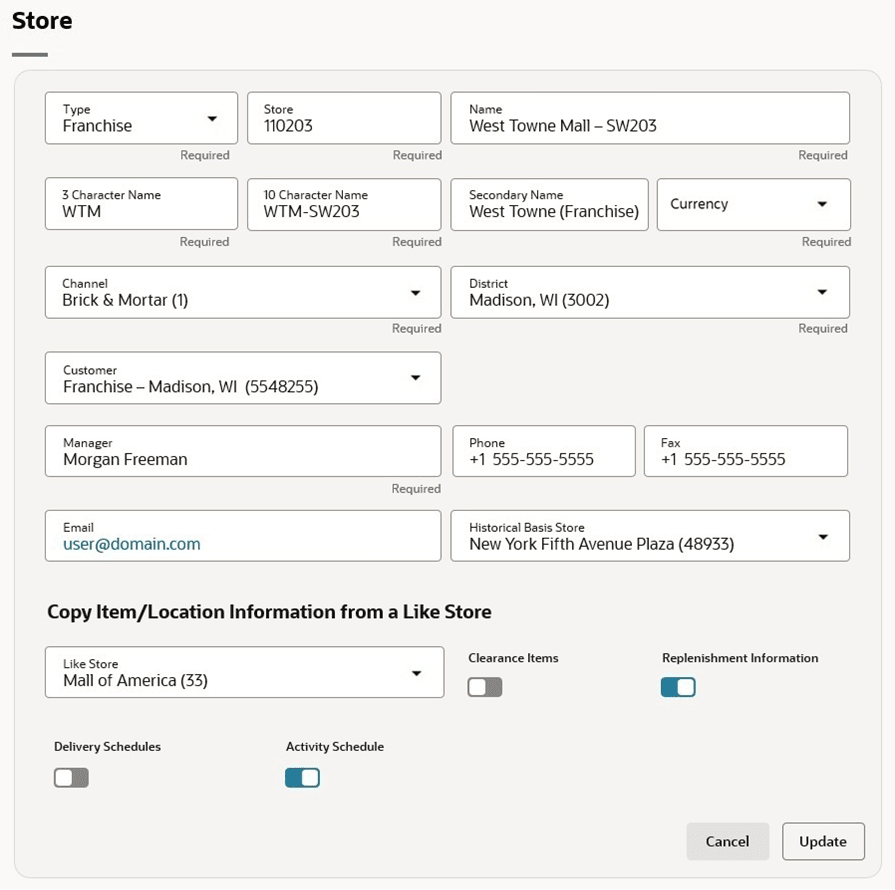
Table 3-3 Store - Fields and Description
| Fields | Description |
|---|---|
| Type |
Select the store type from the list. Possible store types are:
|
| Store |
The Store field next to the store type enables. Enter a unique ID for the store. This field is a required field. |
| Store Name |
Enter a unique description for the store. This field is a required field. |
| 3 Character Name |
Enter up to 3 character abbreviation for the store. This field is a required field. |
| 10 Character Name |
Enter up to 10 character abbreviation for the store. This field is a required field. |
| Secondary Name | Enter the secondary name for the store. |
| Currency |
Enter, select or search for the currency code. This field is a required field. |
| Channel |
Enter, select or search for the channel of business to which the store belongs. This field is a required field. |
| District |
Enter, select or search for the district ID. This field is a required field. |
| Manager | Enter the name of the store manager. |
| Phone | Enter the phone number. |
| Fax | Enter the fax number. |
| Enter the email address. | |
| Historical Basis Store | Enter, select or search for the store number. This field is used to copy the store's history when defining allocations for new stores.The Historical Basis Store allows you to create a store with the same assortment of items as another store. Also, you can choose to copy replenishment information, delivery schedules, and dates when closed as well as items on clearance from the existing store to the new store. |
| Like Store | Enter, select, or search for the store number. Information from this store is copied to the new store, such as item/location relationships and, optionally, the store's delivery schedule, clearance items, and replenishment settings. |
| Delivery Schedule | Select Delivery Schedule to copy delivery schedules from the Like Store. |
| Activity Schedule | Select Activity Schedule to copy the activity schedule from the Like Store. |
| Clearance Item | Select Clearance Items to copy items on clearance from the Like Store. |
| Replenishment Information | Select the Replenishment Information to copy the replenishment information from the Like Store. |