Order Administration Enhancements
Order Administration: Item Number Length Expansion
With this update, a significant improvement has been made to the Order Administration system to increase the Item Number and Retail Reference Number. This change was essential to align with other Oracle applications, such as Oracle Retail Merchandising Foundation Cloud Service, Oracle Retail Customer Engagement, Xstore Point of Service, and Order Orchestration Cloud Service, which support longer field lengths.
-
The Item Number has been increased from 12 to 25 characters.
-
The Retail Reference Number has been increased from 15 to 25 numeric digits.
The fields and labels have been expanded across the entire system infrastructure, including database, programs, integrations, APIs, and screens, to accommodate the increased character limit.
This product enhancement, while substantial, is still a work in progress, particularly around reports and less frequently used features. This update addressed core functionalities and user-facing elements. Additional enhancements around this functionality are in active development.
Note:
Note: The following should be considered before using the expanded field lengths due to known technical limitations:
-
The Retail Reference Number should not exceed 18 numeric digits. If using Oracle Retail Merchandising Foundation Cloud Service, do not exceed this length in the Item ID field.
-
The Item Number should not exceed 12 characters if it is configured with SKUs selected. If using Order Orchestration Cloud Service, do not exceed this length in the Item Number field for SKUs as a proper matching record may not be found.
Order Administration: Partial Brokered Line Quantity Updates
With this update, enhancements have continued to support partial brokered line quantity updates between Order Administration and Order Orchestration.
Note:
Order Administration has known limitations when partially updating a line quantity. Perform an evaluation as to how this will impact your business before enabling partial quantity updates in Order Orchestration.
When partially shipping a line on a Delivery or Retail Pickup order, the full line quantity will be sent as intransit to Order Orchestration. Partial line quantity updates are not supported.
Delay Reservation, Backorder and Soldout Processing of Partial Unfulfillable Units
This enhancement improves the tracking of quantities for Brokered Backorders (Direct Delivery) and Ship For Pickup orders, that are assigned to Order Orchestration for brokering, with partial unfulfillable units on a single order detail line.
-
The “Allow Partial Quantity Updates” preference must be enabled in Order Orchestration to partially fulfill units of a line.
-
This only applies to ship-for-pickup orders when the Use OROB for Ship for Pickup Fulfillment Assignment (M34) system control value is set to ALWAYS.
The system now processes each order line through reservation and backorder processing logic only when all units are in a closed state, ensuring accurate inventory management and order fulfillment. Each time a new real-time status is received from Order Orchestration, the system updates the tracked quantity for backorder processing. For example, if an order has 5 units, and 1 unit is marked as unfulfillable today, and 3 more tomorrow, the system tracks and processes these quantities accordingly.
Note:
Reservation and backorder processing refers to the process of evaluating the soldout controls and available inventory for the items. If not immediately sold out based on the settings, the system either reserves immediately or backorders the remaining amount and reserve once inventory is received.
-
Full Quantity: If the entire quantity is unfulfillable or canceled by the fulfilling system, Order Administration processes the backorder immediately.
-
Partial Quantity: Each time a status update is received from Order Orchestration, the system checks whether there are open quantities waiting for fulfillment. If all units are unfulfillable, canceled, in transit, received, or fulfilled, the partial unfulfilled quantity can be processed. Otherwise, it will be tracked for later processing.
-
Open Status: For open units (new_order, accepted, polled, picked, pick on hold), the partial quantity is tracked for backorder processing, and the "printed quantity" remains for these units.
Once all units are in a completed status (unfulfillable, canceled, in transit, received, or fulfilled), the system immediately processes any quantities that Order Orchestration could not fulfill. The system updates the order status, and only the unfulfillable quantity is adjusted, whether it is sold out.
WARNING:
Known Limitation: In rare cases, if a Ship for Pickup order (M34=ALWAYS) cannot be fulfilled by the assigned sourcing location and the status goes to ‘unfulfillable’, Order Administration may reserve it and ship it to the store as soon as the stock becomes available. However, note that under this condition the order status remains as 'unfulfillable' in Order Orchestration and the pickup store will not be aware of the product being on its way.
Additionally, if Payment at POS for Ship for Pickup Orders (L60) system control value is Yes, no authorization will be required at pick generation and the deposit will be suppressed. However, if set to No, an authorization is required, and a deposit occurs.
Ship for Pickup Orders – Creation, Shipment and Voiding Pick Tickets
Several improvements have been made to the Ship for Pickup order fulfillment process out of Order Administration, allowing for more robust handling of partial reservation, shipping and voiding of pick tickets. These enhancements only apply to ship-for-pickup orders when Use OROB for Ship for Pickup Fulfillment Assignment (M34) system control value is set to NEVER.
-
The OROB_MESSAGE_VERSION property has been updated to 25.2 and cannot be changed.
-
The Order Orchestration Get Organization API is called to determine if Allow Partial Quantity is enabled for the organization associated to the system defined in the Originating System Code (K50) system control value.
-
The Use Split Order (L56) system control value is used to determine if pick tickets must be fully shipped.
-
A broker status of Pick on Hold (M) has been introduced to track the picked quantity already sent to Order Orchestration but then voided in Order Management. The quantity could be reserved or backordered but would not have a printed quantity on the line.
-
A cancel can be performed for the units in this status just as when it was in a Picking (F) status, which will send a canceled status update to Order Orchestration.
-
Split Order and Partial Quantity settings are used to determine the behavior allowed during the creation, shipment and voiding of pick tickets for a ship-for-pickup order.
-
When Split Order is No, all original pick ticket lines and quantities associated to a single Order Orchestration request id must be fully shipped, backordered or have a pick reprinted.
-
When Split Order is Yes and
-
Partial Quantity is No, all quantities for a single pick detail line associated to a single Order Orchestration request id must be fully shipped, backordered or have a pick reprinted.
-
Partial Quantity is Yes, lines and quantities can be partially shipped even for a single Order Orchestration request id.
-
Pick Ticket Generation
When generating a Ship for Pickup order's pick ticket, the system will now search for any previous pick records in the ORDER_BROKER table for the order detail line that are in a Pick on Hold (M) status. These enhancements ensure efficient handling of partial reservation and pick ticket generation and provide better visibility throughout the picking process.
-
When no match is found, a new record is created, and a new order request is sent to Order Orchestration followed by a picked status update.
-
The pick ticket number is now passed in a pick_reference attribute with each request to ensure no duplicate records are created in Order Orchestration.
-
-
When a match is found, the system compares the new pick quantity with the quantity on the existing record(s). When the pick generation process identifies a mismatch in quantities between the new pick detail and the existing record in the ORDER_BROKER table, it takes specific actions to ensure data integrity and accurate order fulfillment.
-
If the new pick detail quantity matches, the status is updated back to Picking (F) and processing continues. No updates are sent to Order Orchestration.
-
If the new pick detail quantity is less, a new ORDER_BROKER record is created with the same order, order ship to, order detail line number, broker request id, broker line number and with a status of Pick on Hold (M) and the unpicked quantity (original quantity minus the new pick detail quantity).
-
Additionally, the existing record is updated with the pick detail quantity, the status is set to Picking (F) and sends a picked status update to Order Orchestration with the quantity which causes the lines to split in Order Orchestration and return back the new broker line number to update the record.
-
-
If the new pick detail quantity is greater, the status is updated back to Picking (F). A new record is created for the quantity greater than the pick detail, and a new order request is sent to Order Orchestration followed by a picked status update.
-
Pick Ticket Void
When voiding a Ship for Pickup order's pick ticket through CWPickIn API, Reprint or Void Pick Slips (WVRP) or Void Pick Batch (WSVP), the system now updates the existing record in the ORDER_BROKER table for the order detail line that are in a Picking (F) status to a Pick on Hold (M) status when applicable. These enhancements ensure efficient handling of partial voids and shipments and provide better visibility throughout the picking process.
-
When a pick ticket is voided, the system searches for a matching record in the ORDER_BROKER table based on order, ship-to, order detail line number, pick detail quantity, and status of Picking (F).
-
For void and unreserve actions, the system generates a new pre-pick for the unshipped quantity, unreserved the line quantity, and updates the status to Pick on Hold (M).
-
In the case of void or void and keep reservation, a new pre-pick is generated, and the status is also updated to Pick on Hold (M), but the line quantity remains reserved.
-
Void and reprint actions result in an immediate new pick ticket generation, keeping the line quantity printed and reserved, and the status remains as Picking (F).
Updates are not triggered to Order Orchestration for voided pick tickets, ensuring the original pick quantity remains as "picked". See the Pick Ticket Generation section above for how the subsequent picks now consider the records in a Pick on Hold (M) status.
Pick Ticket Shipments
When a Ship for Pickup order's pick ticket is confirmed (shipped), the system now searches for records in the ORDER_BROKER table for the order detail line that are in a Picking (F) status. These enhancements ensure efficient handling of partial shipments and provide better visibility throughout the shipping process.
The system compares the shipped quantity with the original pick detail quantity to determine if a partial shipment occurred and take specific action.
-
When the shipped quantity matches the pick detail quantity, the system matches against the warehouse assigned as the fulfilling location on the ORDER_BROKER record. If more than 1 record matches, the first record sequentially is selected, and a status update of Intransit is sent to Order Orchestration. The ORDER_BROKER record is updated accordingly, and processing continues. There could be more than 1 record if multiple picks were generated for the same order line and quantity.
-
When the shipped quantity is less than the pick detail quantity, a new ORDER_BROKER record is created with the same order, order ship to, order detail line number, warehouse, broker request id, broker line number for the unshipped quantity (pick detail quantity minus the shipped quantity) with a status of Pick on Hold (M).
-
A new pre-pick is generated for the unshipped quantity, keeping the line quantity reserved but removing the printed quantity.
-
Additionally, the existing record is updated with the shipped quantity. The status is set to Intransit (T) and an intransit status update is sent to Order Orchestration with the quantity, which causes the lines to split in Order Orchestration and return back the new broker line number to update the record.
-
Partial Shipments can be triggered through CWPickIn API using transaction_type set to B for Partial Backorders regardless of the auto_bill setting. If the auto_bill flag in the CWPickIn message is set to Y, the system automatically bills the replacement pick ticket that includes the shipped items; otherwise, the replacement pick ticket bills when you receive a subsequent CWPickIn message or confirm shipment by any other means.
CWPickIn has additional validation to evaluate each pick detail line individually to determine if it has been shipped in full or not. If partial shipments are not allowed and any lines are not shipped in full, Pick In Error (WPIE) records are written for each pick detail line in error and the entire pick will stay in Manifest status.
Ship for Pickup Orders – Cancelation
Several improvements have been made to the Ship for Pickup order cancelation process out of Order Administration, allowing for more controlled and flexible handling. These enhancements only apply to ship-for-pickup orders when Use OROB for Ship for Pickup Fulfillment Assignment (M34) system control value is set to NEVER.
Line-level cancel actions are now restricted under certain conditions once any units have been sent to Order Orchestration:
-
When Split Order is No, the "Cancel" action is allowed only when the line has not been sent to Order Orchestration. If the Printed Quantity > 0 or the ORDER_BROKER record status is Picking (F), cancel is restricted.
-
When Split Order is Yes, the "Cancel" action is allowed for the full quantity, when the Printed Quantity = 0 and the ORDER_BROKER record is in Pick On Hold (M) status.
-
If Partial Quantity is No, only the full open line quantity cancellation is allowed for the detail line.
-
If Partial Quantity is Yes, partial cancellations are allowed for the detail line only through the cancelOutOrderDetail API. This is not available through Order Summary.
-
Exceptions are made if there is no printed quantity and no relevant order_broker record, or if it's in Error (E) status, allowing partial or full cancellations regardless of settings.
The cancelOutOrderDetail API returns a new error code, 'shipforpickup.cancel.not.allowed', for scenarios where cancellations are restricted.
Brokered Order Line Activity Screen
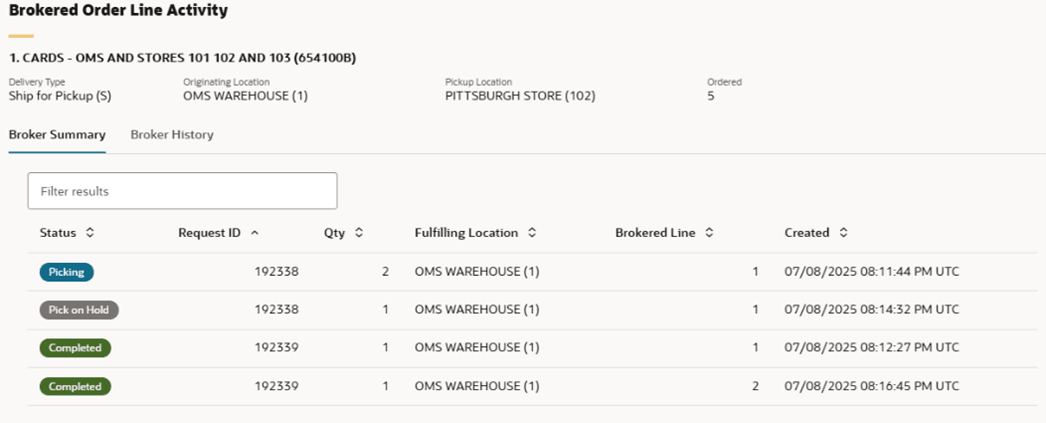
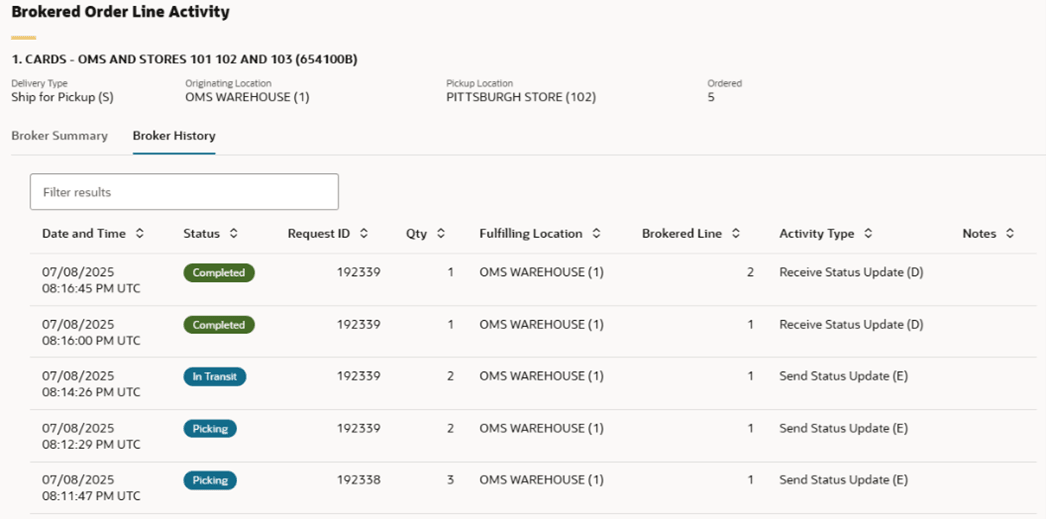
The Brokered Order Line Activity screen available through Modern View Order Summary has been redesigned to allow a user to quickly identify and communicate the fulfillment status for an order line while still giving an option to drill down into the detailed history for traceability and troubleshooting.
The existing modal window is replaced with a drawer, providing a more intuitive and accessible layout for viewing order details.
-
The drawer features two tabs: 'Broker Summary' and 'Broker History'. The 'Broker Summary' tab offers a concise overview of order statuses and fulfilling locations, while the 'Broker History' tab provides a detailed history of order updates.
-
The Broker Summary tab displays a separate record for each Order Orchestration Request ID, Broker Line Number and Status combination.
-
The Broker History tab displays a separate record for each change in status, sourcing location or partial quantity update for the specific order detail line.
-
-
The new design includes additional fields such as 'Request ID', 'Brokered Line', and 'Created' date/time, offering more context for customer service representatives (CSRs).
-
Both tabs include search and filter capabilities, allowing CSRs to quickly find specific order details. The search function supports exact matches and stacked search criteria.
-
Statuses are visually represented with color-coded badges, making it easier to identify the progress of each order at a glance.
Order Administration: Tax Compliance
Tax for Suppressed Refunds
When retailers utilize the Order Administration tax engine for tax assessment, managing tax reporting for returns and refunds can be complex. The tax associated with Xstore returns/refunds needs to be manually tracked and adjusted using the Retail Data Store when compiling tax data from Order Administration. This is because Xstore, as the system issuing the refund, typically includes the tax in its own tax reporting.
To simplify this process, this update introduces a Suppress Refund (SUPPRESS_REFUND) field in the Invoice Payment Method table. This field will be set based on the corresponding field in the Order Payment Method table when an invoice is created. By doing so, retailers will have an accurate historical record of whether a credit invoice was suppressed from billing, indicating that the associated tax should also be excluded from tax reporting.
This enhancement ensures that retailers can easily identify and manage tax-exempt returns, improving the accuracy and efficiency of their tax reporting processes. It provides a straightforward solution to a complex tax compliance challenge, ultimately saving retailers time and effort in their financial operations.
Additionally, Order Administration no longer calls out to Vertex for a tax calculation when suppress refunds is set to Y. This was an unnecessary invoice request during credit invoice generation, potentially leading to understated tax liability.
Tax Response Data XML Inclusion
Retailers can now define XML Inclusion/Exclusion rules to control the presence of tax response data at the order and/or invoice levels. The tax response data stored can be quite extensive, containing detailed tax jurisdiction information. With this enhancement, retailers can now control whether to include this data in the CWEmailOut and CWOrderOut APIs.
New logic has been added to the EMAIL_OUT and ORDER_IN Integration Layer Processes (IJCT) to support XML Inclusion/Exclusion for tax response data.
Two new entries, “InvoiceTaxResponse” and “ShipToTaxResponse”, have been introduced in the EMAIL_OUT > XML Inclusion screen. The 'Include' value set to 'Y' by default.
-
The “ShipToTaxResponse” element is included within the Order Ship To element when data exists in the order_ship_to_tax_response table and version 15.0 or higher is selected for the EMAIL_OUT job, and the element is selected in XML Inclusion.
-
The “InvoiceTaxResponse” element is included within the Invoice Ship To element when data is present in the invoice_ship_to_tax_response table, version 15.0 or higher is selected, and the element is selected for inclusion.
One new entry, “TaxResponse”, has been introduced in the ORDER_IN > XML Inclusion screen. The 'Include' value set to 'Y' by default.
-
The “TaxResponse” element will be included within the Order Ship To element when data exists in the order_ship_to_tax_response table and version 15.0 or higher is selected, and the element is selected in XML Inclusion.
Order Administration: Advance Capture for Online Banking Payments
With this update, a new Advance Capture for Online Banking payment method is now available for External Payment Services, which allows retailer to capture (or settle) payment at the time the authorization is obtained, instead of when the order is fulfilled. Online Banking payments, aka Electronic Funds Transfer (EFT), are advance captured by an external system prior to submitting with an order, to Order Administration via the Order API. Because the payment was already captured, deposit processing will not send debit transactions to the External Payment Service payment processor; however, credit transactions will be submitted and processed as normal.
-
Online Banking payments are not eligible:
-
for subsequent authorizations
-
to be associated with Deferred or Installment Billing Plans since they are prepaid
-
to be associated with Store Pickup or Ship for Pickup orders when paid for in POS
-
Charge Sequence Hierarchy Changes
The Default Charge Sequence is used to indicate the sequence in which the system should charge multiple payment methods on an order. Online Banking payments are sequenced between Cash/Check and Stored Value Card as they are prepaid. Additionally, to simplify the hierarchy, fixed charge sequences have been defined for catchall payments.
| Payment Method | Pay Category | Default Charge Sequence | Comments |
|---|---|---|---|
|
Cash or Check |
Cash/Check |
1 |
Rewards and Coupons also fall into this category. |
|
Online Banking |
Credit Card |
2 |
|
|
Stored Value Card (non-catchall) |
Credit Card |
3 |
|
|
Credit Card (non-catchall) |
Credit Card |
4 |
Card types other than Stored Value Card and Online Banking |
|
Stored Value Card (Catchall) |
Credit Card |
5 |
|
|
Credit Card (Catchall) |
Credit Card |
6 |
There is no change to how the Default Charge Sequence is evaluated.
-
A lower charge sequence indicates to utilize that payment method first during shipment and billing.
-
A higher charge sequence indicates to utilize that payment method first during refund processing.
-
For example, when performing a partial cancel on a multi-line order with 2 payments, (Online Banking and a 'catch all' Credit Card), the authorization is relieved from the Credit Card payment first (since the charge sequence value is higher), then any remaining overpayment against the Online Banking payment results in an Online Banking Refund Credit.
-
For example, when performing a partial cancel on a multi-line order with 2 payments, (Online Banking and Cash/Check), the funds associated with the Online Banking payment are refunded first (since the charge sequence value is higher) as an Online Banking Refund Credit, and then any remaining overpayment against the Cash/Check payment results in a separate Check Refund Credit.
-
Online Banking Payment Configuration
Online Banking payments are supported using an External Payment Service. Therefore, payment configuration is completed using the Classic View, Work with Pay Types (WPAY) screen.
-
The defined code for the External Payment Service is entered into the Deposit Service field of the pay type, and the Authorization Service is left blank (Online Banking payment will never attempt an authorization).
-
Consider creating a separate External Payment (WASV) authorization service record if the settings will be different from other payment services.
When creating a new Online Banking payment, select a Category of ‘Credit Card’ and a Card Type of ‘Online Banking’ from the respective drop downs. While the Online Banking payment is configured as a ‘Credit Card’ Category, it shares characteristics of cash/check payments since they are prepaid, and as a result, the following fields are available to be defined:
-
Balance due dollar limit
-
Balance due percentage limit
-
Refund check minimum
-
Refund check maximum
Note:
The Hold Days field is not evaluated for Online Banking payments. Unlike a cash/check payment that may require a set number of days to clear the bank, Online Banking payments are fully captured prior to accepting the order.
Submitting an Order with an Online Banking Payment
Since Online Banking payments are advance captured by an external system, these payments are only supported on orders submitted thru the Order API (CWOrderIn v15.0 and above).
When submitting an order with an Online Banking payment, the following fields are required in the Payment object:
| Attribute | Comment |
|---|---|
|
auth_amount |
Must be populated with the amount that has been authorized and captured. |
|
transaction_id |
Necessary to perform a reference refund when a credit transaction is generated due to a return, discount, cancellation, etc. |
|
payment_captured |
Must be set to ‘Y’ indicating that the Online Banking payment has already been captured. |
If any of these fields are missing, blank or not set properly, for a payment defined as Online Banking, the order is created in Error status. When an Online Banking payment is in error, the Online Banking payment will be automatically deactivated, and the retailer will need to determine whether a refund is required or not. To resolve the order, a new payment will be required, or the order will need to be rejected.
Note:
When an Online Banking payment is automatically deactivated due to payment error, a refund will NOT be generated. If it is deemed that a refund is required, it must be managed outside of Order Administration.
The Order API also evaluates the Online Banking balance due configuration, determining whether the order should be placed on Balance Due hold if the payments do not match the order total.
All the same payment validations that occur when submitting an order via the Order API also occur when resubmitting an order in error status and when unlocking an order.
See the Pickup Journey Payment Types Expanded section for additional details related to pickup orders with Online Banking payments.
Creating Online Banking Overpayment Refunds
Since Online Banking payments are advance captured by an external system (prepaid), whenever the payment exceeds the order total, a refund record is created for the difference.
-
All Online Banking overpayment refunds are created in a Held status by default, regardless of the Refund check maximum configuration for the payment.
If the order is in open status, the overpayment refund credit invoice is not generated until the hold is released. Prior to invoice generation, changes to the order will adjust the existing refund record to allow flexibility of maintaining the order and adding replacement items without requiring additional when the refund covers the delta. At the point the invoice is generated, the refund is no longer be adjusted.
If the order status changes to closed while an existing overpayment refund is still held, (due to fulfillment, cancellation, and so on) the overpayment refund credit invoice is automatically generated, but the refund record will remain Held.
Return credit invoices for Online Banking payments follow the existing workflow for all other payments, which create the invoice automatically as soon as the return is processed.
Order Summary Changes for Online Banking
Add Payment Form
Online Banking payments are excluded from displaying anywhere a payment can be added to an order, including Order Entry (Add Payment), Order Summary (Add Payment), Manage Rejected Deposits (Replace Payment Method) and Customer Membership (Replace Payment Method).
When displaying an order that includes an active Online Banking Payment, without a catchall payment, a warning message is presented to indicate that another payment is required if the order total is increased.
Payment Information
To better represent the status for prepaid payments, the Payment Information section in Order Summary has been enhanced to include two additional columns (Amount Collected and Charge Sequence), and the Amount Billed column has been renamed to Amount Invoiced. Additionally, the Expiration Date data has been moved to display below the payment description for each payment that includes an expiration date.
-
Prepaid payments (such as cash/check and Online Banking) display the associated payment amount in the Amount to Charge and Amount Collected fields from the point the payment is added to the order. The Amount Invoiced is populated at the point the payment is invoiced.
-
Whereas non-prepaid payments (such as credit cards and gift cards that are not catchall payments) display the associated payment amount in the Amount to Charge from the point the payment is added to the order. The Amount Invoiced and Amount Collected is populated at the point the payment is invoiced.
When viewing Payment Method Details for an Online Banking payment, the following entries display, noting the amount that was prepaid:
-
immediately after order accept:
-
the Transactions section displays an ‘Authorized and Captured’ entry
-
the Activity section displays an ‘Advance Captured (E)’ entry
-
-
after deposit processing runs to perform updates (debit invoices are NOT sent to the payment processor and are NOT included in the Auto Deposit Confirmation Report that is generated):
-
the Transactions section displays a ‘Deposit-Purchase’ entry in a ‘Confirmed’ status for the Online Banking Invoice Payment amount
Invoice Totals
When an overpayment refund credit invoice is generated for an Online Banking payment, the amount is shown in a new field labeled ‘Refund Overpayment’ within the Invoice Totals section. (This type of credit would be generated when the payment exceeds the order total due to initial overpayment or due to a full/partial cancellation or sellout.)
Note:
The ‘Refund Overpayment’ label is only included on overpayment refund credit invoice for Online Banking Payments. The label will not be present on any debit invoices or Online Banking credit invoices stemming from returns, post shipment discounts or negative additional charges.
Refund Screens and Processing
The Work with Refunds (WREF) screen was enhanced to add two new columns ‘Advance Captured’ and ‘Deactivated’, populated with Yes/No values which can be used to filter results. These columns allow a retailer to proactively identify refunds associated with an original payment that was advance captured and has a pending liability and to easily identify refunds that need to be changed to a new payment to avoid a failure during deposit processing. Additionally, the existing ‘Type’ column was renamed to ‘Current Type’ for clarity.
A new option was added to the Process Refund (MREF) screen to selectively Generate Advance Capture Credits when processing refunds. Advance Capture refund credits can also be processed when Processing Refunds by Order (MRFO) or running a new periodic function to Generate Advance Capture Credits (REFACCR).
When an Advance Capture Credit is processed by any of these jobs, an Advance Capture Credit Register is generated, which includes an entry for each Advance Capture refund credit processed by the job as well as summary totals.
Deposit Reports
The Auto Deposit Confirmation Report, generated during deposit processing (SDEP), does not include debit invoices as those are not sent to the payment processor, however, credit invoices are included.
The Deposit History Detail (PDHD) and Deposit History Summary (PDHS) reports were modified to accurately account for Online Banking debit transactions that occurred outside of Order Administration prior to order accept based on the Authorization History details and to exclude the Online Banking debit transaction from CC Deposit History written during fulfillment. The changes were factored into both the PDF and Excel versions of the reports.
Rejected Deposits
The Manage Rejected Deposit screen in Modern View was enhanced to support Online Banking payments. The changes include a new ‘Payment Category’ field which is populated with the Card Type value of the payment (that is, Online Banking, Credit or Debit, Stored Value Card, Wallet, and so on). This label and value as displayed for all payments.
Additionally, when the reject invoice payment is associated with an Online Banking payment:
-
a warning message is displayed noting that it is an Online Banking payment, and the payment method cannot be replaced.
-
a value of ‘Advance Capture’ is displayed in the Payment Information section.
-
the Edit Expiration Date button is not displayed in the Payment Information section.
-
the Prepaid Payment Details section is not displayed.
Web Service Changes
Order Administration has created new Inbound and Outbound API versions to include new attributes to support Online Banking.
-
CWOrderIn v15.0 added:
-
payment_captured to the Payment element. New attribute representing whether the Online Banking payment has already been captured.
-
-
CWInvoiceOut v9.0 added:
-
ipm_suppress_refund to the InvoicePaymentMethods element. New attribute to identify invoices associated with Online Banking payments that had the opm_suppress_refund field set to true at the point the invoice generated, resulting in the refund credit invoice transaction not being sent to the payment processor.
-
ipm_advance_capture to the InvoicePaymentMethods element. New attribute to identify invoice payments that are configured as Advance Capture to downstream systems.
-
ipm_refund_reason to the InvoicePaymentMethods element. New attribute to identify whether a credit is the result of a return transaction or an overpayment.
-
ins_refund to the InvoiceShipTo element. New attribute to identify the amount associated with an Advance Captured Overpayment Refund Credit.
-
-
External Payment Service v5.0 updated:
-
authorizationHistory element to now be populated for a refund (/return). This was previously only included for other request types.
-
transaction_id to the authorizationHistory element. New attribute used to perform a refund against an Online Banking payment will always be included if populated with the original order payment method and is not limited to Online Banking payments.
-
Order Administration: Pickup Journey Payment Types Expanded
With this update, payment options have been expanded for Store Pickup and Ship for Pickup orders, providing customers with a broader range of choices. Depending on whether payment is processed through our Order Administration system or at the Point of Sale, you can now enjoy the convenience of using various payment methods, ensuring a more flexible and personalized shopping experience.
Collect Payment in Order Administration
Cash/Check, Stored Value Card, Credit Card and Online Banking payments can be added to Store Pickup orders during initial creation or while in Error when the Collect Payment at POS for Store Pickup (M16) system control value is disabled.
The CWOrderIn API and Modern View Order Entry have been optimized to detect and handle insufficient payment scenarios on a Store Pickup order. The store pickup order requires sufficient approved authorizations to cover the balance otherwise cannot proceed, providing immediate feedback to users. All necessary authorizations and pricing calculations are performed upfront, ensuring that payment validation is based on accurate and final order totals.
-
The system includes the Insufficient authorized payment on Store Pickup order (S0) error in the Remote Order Errors Report and in the Error Details window in Modern View, providing better visibility and tracking for customers and support staff.
-
The system displays “This Store Pickup order requires sufficient approved authorizations to cover the balance to submit.” at the Payment step in Modern View Order Entry if an authorization is not successful during the order submit action. This may occur when:
-
Online authorization (B89) system control value is not enabled, and a credit card or stored value card did not call out for authorization when associated to a merchant account.
-
The Authorization Response window is not configured to display for the payment selected.
-
The order only had cash and the amount to charge did not cover the balance.
-
An Online Banking payment that is deactivated, or the amount is greater than the order total, generates a refund overpayment at the time the order is canceled or fulfilled. This applies to both Store Pickup and Ship for Pickup orders.
Collect Payment in Point of Sale
When the 'Collect Payment at POS' setting is enabled for Store Pickup (M16) or Ship for Pickup (L60) orders, Online Banking payments will not be accepted. This restriction ensures compliance with specific payment collection requirements for these order types. The online banking payment will be immediately deactivated by the system, and the order will be placed in Error if there is not a valid credit card payment included. A valid credit card payment must be added through Modern View Order Summary and resubmitted to successfully create the order in open status and continue processing.
-
Any online banking payments that are automatically deactivated will be refunded as an overpayment once the Store Pickup or Ship for Pickup order are canceled or fulfilled.
-
It is not recommended to delete an order in error with an online banking payment because the refund will not be generated.
For additional information on Online Banking payments, see Advance Capture for Online Banking Payments.
Order Administration: External Payment Service Level 2 and 3 Discounting
With this update, the External Payment Service has been expanded to provide a more comprehensive dataset for transactions that qualify for Level 2 or Level 3 discounting on processing fees.
Data, when available, is included in the cardLevelDiscount element from the Invoice Header, Ship To and Detail records.
-
For an authorization only request, there will not be any Invoice records so attributes derived from an invoice will not have a value.
-
For authorization+capture, capture and refund requests, attributes are derived from the Invoice Header, Ship to and Detail records.
-
It is recommended to have Capture Addresses for Invoice (J24) system control value set to Y. Otherwise, the system retrieves from the Order Ship To, Customer Ship To or the Customer Sold To record which could be modified during maintenance.
-
Additional name, address, freight, tax and harmonized code attributes have been added to allow a better customization to your Payment Service Provider based on the specific business needs.
-
The following existing attributes have been modified to correct where the data is derived from in the 4.0 and 5.0 versions: billToCustomerName, shippingDetails.address.streetAddress, purchaseOrderRef, shipFromZip, freightTaxAmount and the saleLineItem element.
-
Refer to the Order Administration Web Services Guide for a full list of Level 2 and Level 3 fields available in version 5.0. It is recommended to adopt External Payment Service version 5.0 in the Work with Authorization Service (WASV) screen if using the cardLevelDiscount element to take advantage of the latest dataset.
Order Administration: External Application Client Management
With this update, the Manage External Application Access screen now calls Oracle Retail Home APIs, instead of IDCS (Oracle Identity Cloud Service) or OCI IAM (Oracle Cloud Infrastructure Identity and Access Management) APIs, to generate new application clients and secrets, regenerate a secret for an existing client and assign or unassign a scope to an existing client. This enhancement streamlines the client management process and improves security by centralizing client-related operations.
Note:
Oracle Retail Home version 25.1.301.0 or above is required.
Order Administration continues to communicate directly to IDCS or OCI IAM for retrieving new clients and new user creation.
Enhancements to the Manage External Application Access screen provide a more streamlined and efficient user experience:
-
Simplified Navigation: An ellipsis (…) has been added to the header bar, providing quick access to various options. The 'Generate Client' option has been moved under this ellipsis for easier management.
-
Update Clients Button: A new "Update Clients" button has been introduced, which performs multiple essential processes. It retrieves new Parent/Child clients from IDCS or OCI IAM, deletes obsolete clients, and synchronizes scopes between IDCS or OCI IAM and Order Administration. If any discrepancies are found, the scopes are automatically updated to match, ensuring consistency. This synchronization process is particularly useful when scopes are manually assigned or unassigned through the Retail Home UI, as it helps to quickly rectify any resulting inconsistencies.
-
User Notifications: Upon successfully submitting the "Update Clients" process, a snackbar notification appears, informing the user that the application clients are updating. Similarly, when the update is in progress or completed, respective snackbar messages are displayed.
-
Background Processing: The update process runs in the background, ensuring that it continues even if the user navigates away from the tab or logs out. This allows for uninterrupted client management.
The ability to generate an ‘Xoffice On Prem’ client is no longer available within Order Administration. Instead, within the Manage OAuth Client option in Retail Home, create the Client using the ‘Xoffice OnPrem Omni App’ template, if not already created. Once created in Retail Home, click Update Clients to update the clients and assign web service access.
Order Administration: Oracle Digital Assistant (ODA)
With this update, Order Administration is now integrated with Oracle Digital Assistant (ODA). The Oracle Digital Assistant (ODA) is an AI-powered platform that enables users to interact with various business applications and services through natural conversations via chat interfaces. This integration provides users with an intuitive and conversational self-service alternative to find information, workflows, and assistance in a single, unified approach, enhancing the overall self-service experience.
ODA leverages the existing Order Administration Guides to provide a response to user requests or questions.
If ODA cannot resolve your request, consult the documentation or log a service request to get additional support.
Enabling ODA
A new CUSTOMER property (oms.oda.cloud.service.enabled) in Customer Properties (PROP) controls the visibility of the ODA widget in Modern View. If this property is set to ‘true’, the ODA icon is displayed, otherwise it is not. If there is an issue accessing ODA, customers are advised to log a service request (SR), so that Oracle can provide a resolution.
 at the bottom left of any Modern View screen. This is not available
through Classic View screens.
at the bottom left of any Modern View screen. This is not available
through Classic View screens.
Order Administration: Payment Configuration Error Handling
This enhancement aims to improve the user experience when accessing the Payment Configurations page in Modern View by providing informative error messages during communication failures. Previously, if there are issues with EFTConnect configurations or communication errors, the page may get stuck on a loading window, causing confusion for users.
User-friendly error messages are now displayed, providing clear instructions on how to address the underlying issues with EFTConnect configurations or communication.
Order Administration: Order Ship to Messages
A User Defined message type is now available through the Messages window in Modern View Order Entry and Order Summary for each Ship To.
Additionally, the User Defined message type (U) is included in the Order Maintenance APIs for Get, Add, Edit Order Messages.
Order Administration: Job Monitor for Batch Jobs
With this update, a new job monitoring feature is now available to track and alert when a job enters the Message Wait (MSG) status in the job queue. The system periodically evaluates all jobs in the queue to identify those that have ended in error (MSG) and trigger an email alert or perform a specified action type such as running a periodic function like JOBCLN to resolve the job status.
A new job named “JOB_MSG” has been added to the Work with Job Monitor (WJMO) screen, specifically designed to monitor jobs in the Message Wait (MSG) status.
When configured for email alerts, you will continue to get the email until no jobs are in MSG based on the configured intervals. Only a single email is sent regardless of how many jobs are in MSG.
This enhancement improves the visibility and management of jobs that encounter the message wait status, allowing administrators to take prompt action and ensure smooth job processing.
Order Administration: Web Service Enhancements
With this update, Order Administration has made several web service enhancements. The following is a complete list with reference back to the specific feature changes:
-
CWOrderIn 15.0
-
Advance Capture for Online Banking Payments Web Service Changes
-
-
CWOrderOut 15.0
-
Tax Compliance Tax Response Data XML Inclusion
-
-
CWEmailOut 15.0
-
Tax Compliance Tax Response Data XML Inclusion
-
-
CWInvoiceOut 9.0
-
Advance Capture for Online Banking Payments Web Service Changes
-
-
External Payment Service (EPS) 4.0 and 5.0
-
Advance Capture for Online Banking Payments Web Service Changes
-
-
getOrderMessages, createOrderMessages and editOrderMessages Order Maintenance APIs