13 Integration with Oracle Digital Assistant
Overview
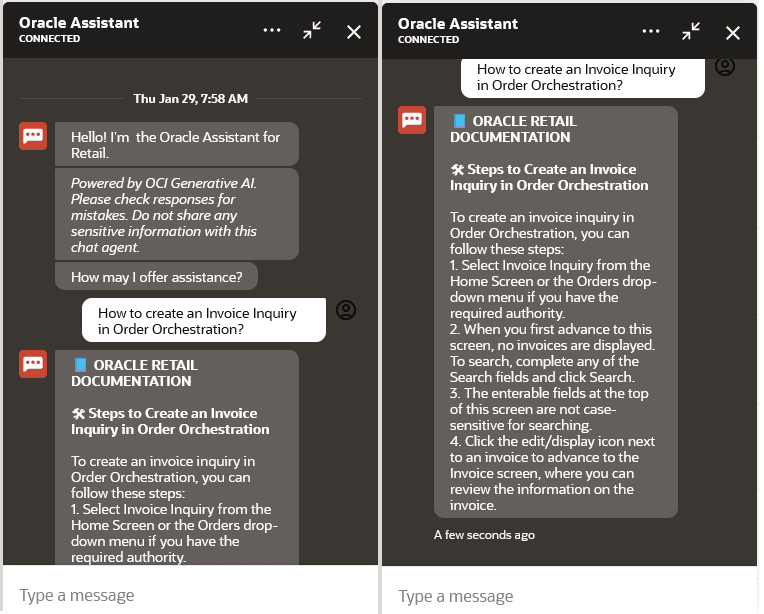
The Oracle Retail Order Orchestration Cloud Service is integrated with the Oracle Digital Assistant. The Oracle Digital Assistant (ODA) is an AI-powered platform that enables users to interact with various business applications and services through natural conversations via chat interfaces. ODA is being used to bring together information, workflows, and assistance from multiple documentation sources into a single, unified experience.
With ODA, end users can:
-
Get Answers Quickly: Ask questions and receive timely, accurate responses to common queries about applications, policies, or business processes.
-
Personalized Experience: Receive tailored information and notifications based on your role, preferences, and recent activity.
-
Simple Interaction: Use natural language (typing or speaking) to communicate. ODA is designed to understand common phrases and conversational requests.
Digital assistance is not a replacement for a web application but a channel that allows the user to converse and query areas related to Order Orchestration Cloud Service (OOCS).
Accessing Oracle Digital Assistant
Access the Oracle Digital Assistant (ODA) window by clicking the
global conversation icon  at the bottom left of any Order Orchestration Cloud
Service Modern View screen.
at the bottom left of any Order Orchestration Cloud
Service Modern View screen.
Note:
The ODA access icon is not displayed in Order Orchestration Classic View screens.
ODA Chat Window and Components
Clicking the ODA icon opens the ODA window.
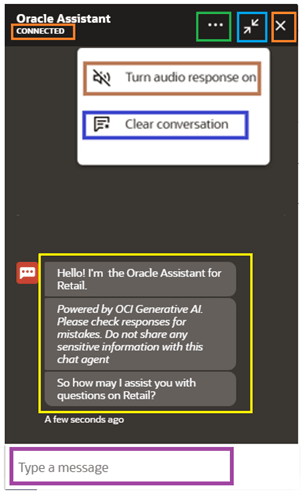
The following widget options are available:
| ICON | DESCRIPTION |
|---|---|
|
<Connection Status> |
This label section displays the connection status of ODA and can have the following value:
|
|
|
Shows the available options listed below:
|
|
|
Minimizes the Chat Window without clearing the conversation. |
|
|
Closes the Chat Window and clears the conversations. This button is disabled
when ODA is in Connecting or Disconnected status. Use
the |
|
|
Greeting and Disclaimer text from ODA displayed by default when the chat window is opened. Note: This is a sample. Order Orchestration does not own the format and the contents in this section. The text and format depends on ODA settings and can be different in the actual application. |
|
|
Question input box: User can enter their questions here to get a response from ODA. |
|
|
Enter button. Appears only when if there is a text entered in the Input box above. This button is disabled when ODA is in Connecting status. You can use the keyboard ‘Enter’ button alternatively to submit the message to ODA. |




 window to minimize the chat window.


Enter a question and click the  button
or Enter on the keyboard to submit the question to ODA. A response
to the question is returned in the chat window.
button
or Enter on the keyboard to submit the question to ODA. A response
to the question is returned in the chat window.
Note:
ODA must be enabled by your administrator before it can be used in Modern View.Enabling ODA in Order Orchestration Cloud Service Modern View
Properties in the Classic View Tenant-Admin and Tenant (retailer information) screens control whether the ODA chat widget is displayed in Modern View. If the Use Oracle Digital Assistant property is selected and the Oracle Digital Assistant URL is defined , the ODA icon is displayed, otherwise it is not. A user’s permissions determine where the properties are set.
This property is unselected by Default.
Note:
The user must exit Modern View (that is, log off or navigate back to Classic View) in order to see a property change take effect.
Using ODA Effectively
For the best experience using ODA and getting better responses to your queries, certain common-to-all AI based chatbot system guidelines can be followed.
-
Try to state your request or question as a clear and complete statement, with as much as context possible and some hint about what ODA should have in its response for a successful response scenario.
-
Use phrases like “List out”, “Provide details on”, and so on in your prompts/queries to suggest your desired response depth or format to some extent.
-
For example:
-
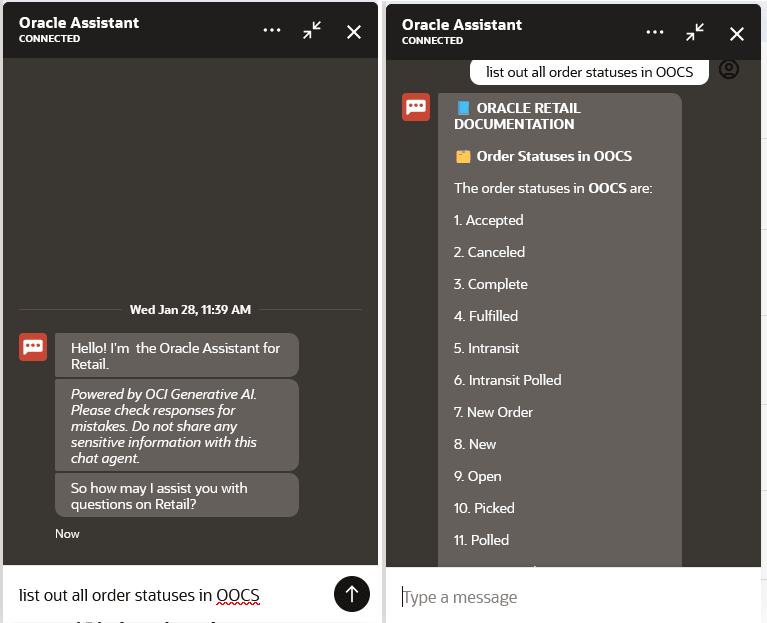
A request statement like “List out all the order statuses in OOCS” is better structured, has more context for looking into “OOCS” “Order” “Statuses”.
This request/question is also informing that a successful response scenario would be to present all the “OOCS” “Order” “Statuses”. in a listed format.
-
On the other hand, asking something abstract like “Order status” to ODA might not always yield desirable response since this is a rather incomplete statement that gives not much context as well anything on the output format or success criteria.
-
-
-
Follow the prompt responses or suggestions from ODA as they appear, and modify your request/question to ODA if the desired response is not received.
Note:
If ODA cannot resolve your request or provide a helpful response, consult the documentation or log a service request to get additional support. In addition, confirm the ODA is showing the ‘Connected‘ status in the window.
ODA Sample Queries
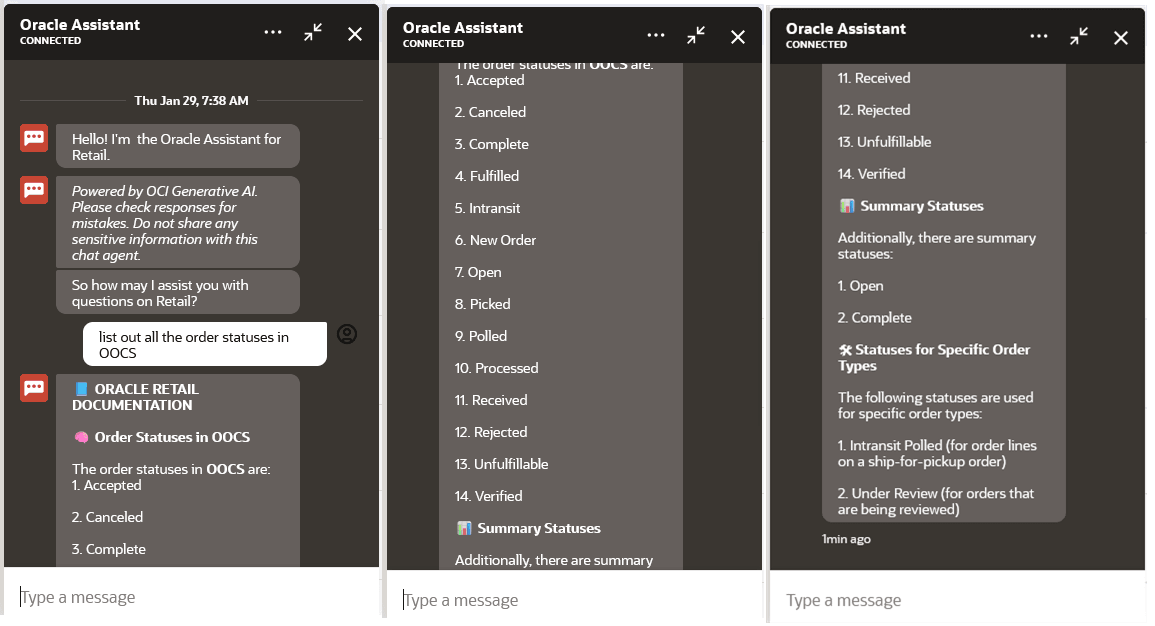
Sample Conversation 1: <Finding all the Order statuses in Order Orchestration>
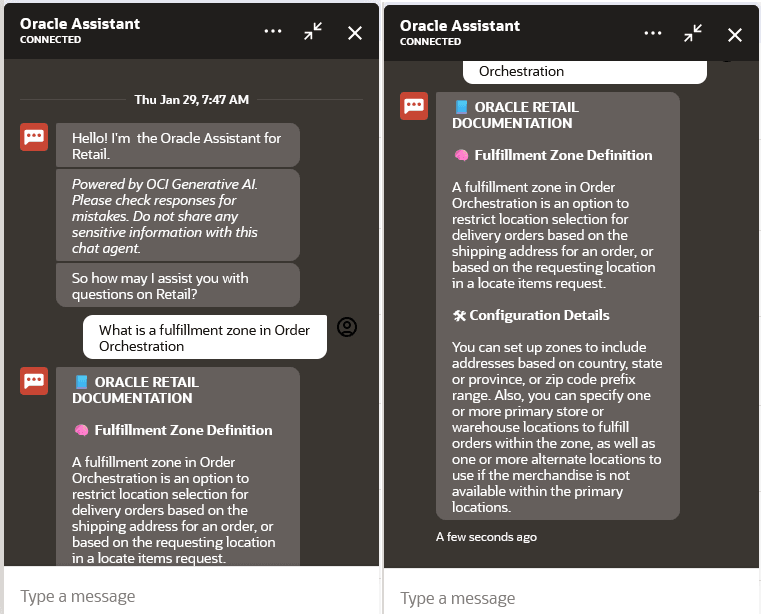
Sample Conversation 2: <Finding out information about fulfillment zones>
User: “What is a fulfillment zone in Order Orchestration”
ODA:
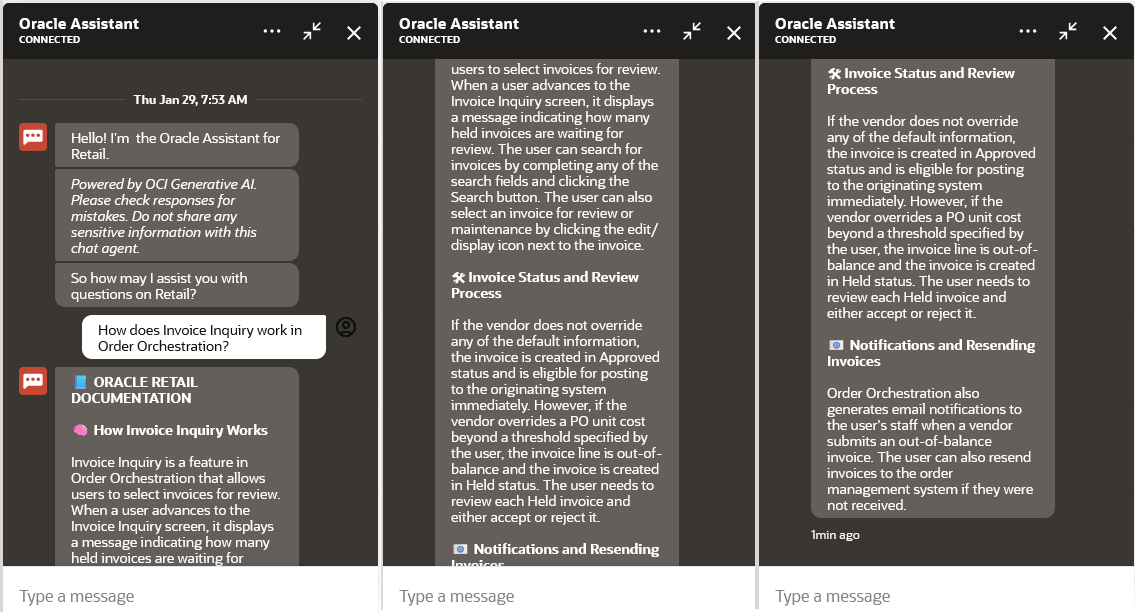
Sample Conversation 3: <Finding out about the workings of Invoice Inquiry>
User: “How does Invoice Inquiry work in Order Orchestration?”
ODA:
User: How to create an Order Inquiry in Order Orchestration?
ODA: