7 Notifications
Use notifications to determine the status of different RPAS CE activities, such as Online Administration Tasks, workspace or segment build completions or failures, commit completions or failures, approvals and rejections, and other submitted actions.
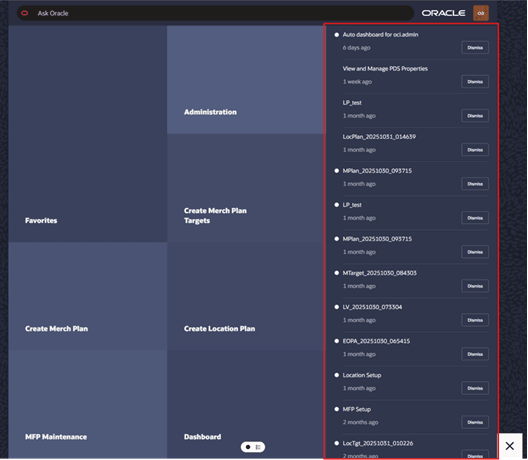
Notifications are available through the Oracle Home Experience. Select the Oracle icon at the lower-right corner to open Product Map and Suggestions List. Where configured, the Notifications panel displays in the Oracle Home Experience and shows notifications addressed to the current user.
The Notifications panel can show notification summary information, such as the notification title or description, elapsed time, unread indicator, and available actions such as Dismiss. Users can review recent notifications while continuing to work in the current RPAS CE page or workspace.
To view and manage more notification details, open Administration from the Oracle Home Experience and select Notifications Detail. The Notifications Detail page provides the full notification list and available notification actions, such as reviewing notification details, dismissing notifications, marking notifications as read or unread, deleting notifications, refreshing the list, or detaching the table where available.
You only see notifications that are addressed to you.
Note:
For shared workspaces, Commit notifications for completion or failure are sent to the workspace owner and all users with whom the workspace is shared. Regardless of which user commits the workspace, only the user who commits the workspace will receive the Snackbar and Toast notifications for that Commit.
Table 7-1 Notification Severity
| Notification | Severity |
|---|---|
|
Administrative Task Completed |
Important |
|
Administrative Task Failed |
Critical |
|
Workspace Built |
Important |
|
Workspace Build Failed |
Critical |
|
Workspace Committed |
Normal |
|
Workspace Commit Failed |
Critical |
Notifications Panel
The Notifications panel is available from the Oracle Home Experience where configured. Select the Oracle icon at the lower-right corner to open Product Map and Suggestions List. The Notifications panel displays recent notifications addressed to the current user.
Use the Notifications panel to review recent activity status. Select Dismiss to dismiss a notification where the action is available.
To see the full list of notifications, open Administration and select Notifications Detail.
Figure 7-1 Notification Panel
Notifications Tab
When you click See All in the Notifications Drawer, it opens a Notifications tab. The Notifications tab lists all notifications, all unread notifications, critical, important, and normal notifications. You can select the desired tile to view the indicated notifications.
The actions that can be performed on the list of Notifications are Mark a notification as Read, Mark a Notification as Unread, Delete a Notification, and Refresh the Notifications list. You can perform these actions either by clicking the Actions menu and then the desired event or by directly clicking the shortcut buttons available.
You can select all the notifications using shortcut Ctrl+A and then perform delete actions to delete all notifications.
Figure 7-2 Notifications Tab List of Actions
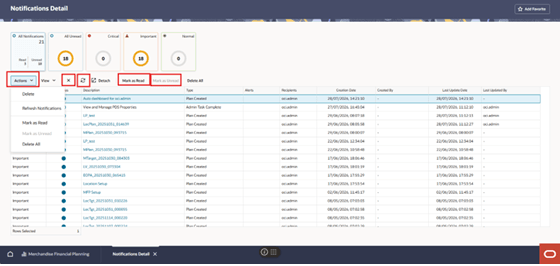
You can also Detach the Notifications list table for more visibility. Click Detach or click View Menu -> Detach.
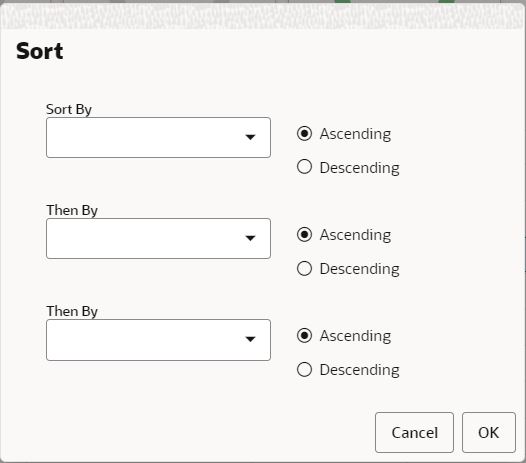
Sort the notifications list by clicking View Menu -> Sort. It opens a Sort window where you can enter Sort By, Then By and Then By to sort your notifications list. Sort can be performed in Ascending or Descending on each option.
Figure 7-3 Sort Notifications Window
Snackbar and Toast Notifications
When an activity is started, changed, or completed, you see a Snackbar notification at the bottom or a Toast notification at the top right of the screen that informs you of the activity or status. The notification also provides you with links for actions such as Edit, Open, Dismiss, and so on, based on the type of notification. Table 7-2 lists all the Snackbar and Toast notifications.
The failed task and error message displays more details about the error or failure. On the Snackbar or Toast message, click More Details to find the reason for failure or error along with the corrective action. You can manage your notifications by enabling or disabling them through the User Preference module. You can also mute Snackbar notifications by selecting Mute from the message dialog. For additional information refer to the section, User Preference.
Table 7-2 Snackbar and Toast Notifications
| Notification | Description |
|---|---|
|
Plan creation initiated |
[Plan] is being prepared. You will receive a notification when this is complete. |
|
Plan opened |
[Plan] opened. |
|
Plan renamed |
[Plan] has been renamed to [Plan] |
|
Plan deleted |
[Plan] has been deleted |
|
Plan build successful |
[Plan] is ready. |
|
Plan build failed |
[Plan] build failed. |
|
Calculate successful |
Calculation complete for [Plan] |
|
Commit successful |
Commit complete for [Plan]. |
|
Nothing to calculate |
Nothing to Calculate in [Plan]. |
|
Refresh successful |
Refresh Complete for [Plan]. |
|
Seed successful |
[Plan] seeded successfully. |
|
Seed failed |
[Plan] was not seeded. Contact your administrator to verify the seed source is valid. |
|
Commit initiated after custom menu is successful |
Commit is initiated by the successful run of a custom menu. |
|
Admin task submitted |
[Task] has been submitted. You will receive a notification when this is complete. |
|
Plan tab/window closed |
[Plan] closed. |
|
Internet Slow Connection |
Your internet connection is experiencing increased latency. This may make this application feel less responsive. |
|
Connection Restored |
Your internet connection latency is back to a normal level. |
|
Format Save Successful |
Format has been successfully saved for user / group / template {0} |
|
Format Delete Successful |
Format has been successfully deleted for user / group / template {0} |