2 User Interface
This chapter introduces you to the user interface for the workspace and describes the screen components labeled in Figure 2-1.
Figure 2-1 User Interface
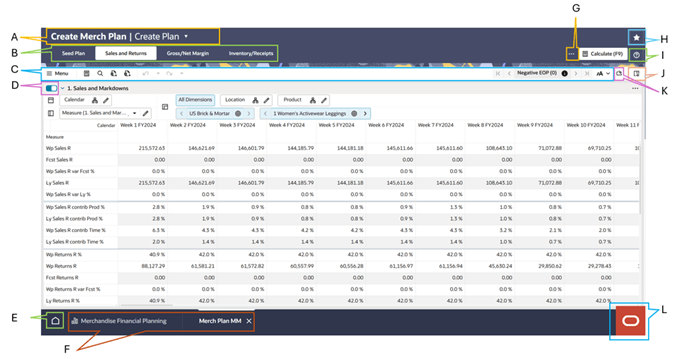
Key for Figure 2-1:
A. Mega Menu - Shows the current task and workflow step; select it to open navigation for other available tasks, tabs, and steps.
B. Task Tabs - Displays the tabs available for the currently selected task.
C. Global Menu and Quick Access Toolbar - The Global Menu provides commands such as Actions, Edit, View, and Format. The Quick Access Toolbar is the adjacent row of commonly used shortcut icons, such as search, calculate, exception navigation, import/export, and undo/redo.
D. Dimension Panel Lock Control - Locks the Dimension Panel; when unlocked, the panel can auto-collapse.
E. Home Icon - Returns the user to the Retail Home page.
F. Workspace and Dashboard Tabs - Shows the open workspaces and dashboards and lets the user switch between them.
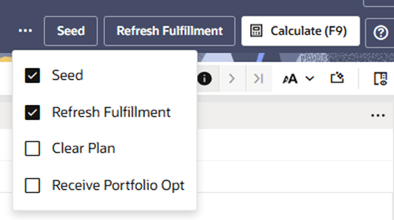
G. Application Actions Dropdown - Shows all available Application Actions for the current context. Users select the checkbox beside an action to make it a Favorite Application Action, which displays in the header. Up to three favorites can appear there; all actions remain available in the dropdown.
H. Workspace Favorite Toggle - Marks the current workspace as a favorite or removes it from favorites.
I. Contextual Help - The planner can use Contextual Help to access the various documentations relevant to their business process.
J. Manage View Icon - Opens or closes the View Management Drawer.
K. Explainability Icon - Shows or hides the Gen AI Explanation pane.
L. O tag - Opens Product Map and Suggestion List.
Oracle Home Experience
RPAS CE uses the Oracle Home Experience for the refreshed user interface. Select the O-tag (Oracle icon) at the lower-right corner to open Product Map and Suggestions List.
After Product Map and Suggestions List are open, use the Close icon at the lower-right corner to close them and return focus to the current RPAS workspace.
The Oracle Home Experience is the broader refreshed RPAS CE user interface experience. It includes Product Map, Suggestions List, Ask Oracle Smart Search, the User Menu, Notifications, Favorites, Digital Assistant features where configured, and the related RPAS UI changes described in this chapter.
Ask Oracle Smart Search
Ask Oracle Smart Search lets users type in the Ask Oracle search field to find available applications, pages, tasks, settings, administration areas, reports, dashboards, or other configured content.
Search results are permission-aware. Users only see results that are available to them through Workflow Manager setup and security permissions.
The search field can display hints or suggestions to help users start searching. If the user does not know the exact label, Ask Oracle Smart Search can still help locate matching configured navigation entries when labels and alternate labels are available.

Product Map
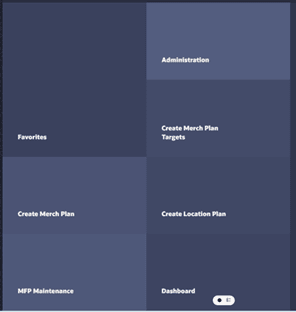
Product Map is a structured navigation view in the Oracle Home Experience. It presents available work areas, applications, features, or tasks in a grouped hierarchy so users can browse configured content without relying only on search.
Configured RPAS applications, tasks, settings, administration areas, reports, dashboards, and static content can be available through Product Map based on Workflow Manager setup and user permissions.
Product Map is especially useful for new or infrequent users because it exposes the available navigation structure. Items in Product Map remain permission-filtered.
Suggestions List
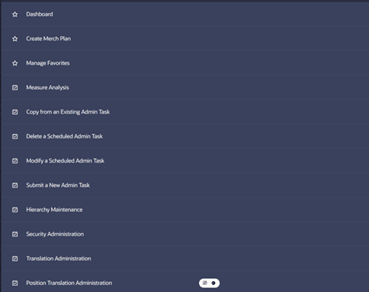
Suggestions List is the list-based navigation view in the Oracle Home Experience. It can show suggested, frequent, recent, or default navigation entries, depending on implementation and available usage data.
Users can select an item from Suggestions List to open the related application, page, task, setting, or other configured content. Suggestions List is permission-aware and does not show entries the user cannot access.
Where Default Home View is configured, users can choose the preferred starting view for the Oracle Home Experience, such as Product Map or Suggestions List.
Home and Application Launch
Retail Home has a Home tab entry point. Selecting Retail Home opens the Retail Home tab. If the Retail Home tab is already open, selecting it returns to the existing tab. Additional configured applications, such as APCS or MFP2 where applicable, launch from Home instead of requiring separate product tiles.
User Menu
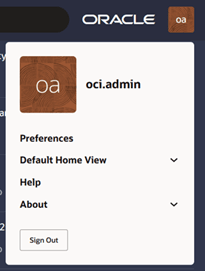
The User Menu is available from the user profile area in the O-tag (Oracle Icon). Depending on configuration, it can include Preferences, Default Home View, Help, Favorites, About, Notifications, and Sign Out.
Use Preferences to open the User Preference module. Use Help to access application help or configured help content. Use About to view RPAS version information. Use Sign Out to end the application session.
Favorites
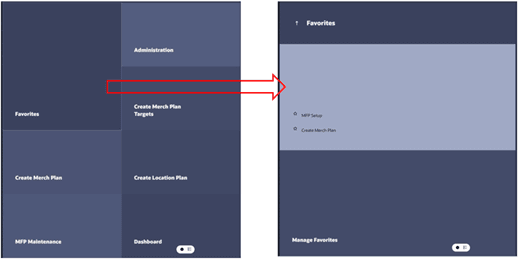
Favorites is accessed from the O-tag (Oracle Icon). Selecting Favorites opens the Favorites tab.
If adding or managing favorites is not supported for an implementation, RPAS CE does not show an enabled favorite-management action that appears to work but is unsupported.
Notifications
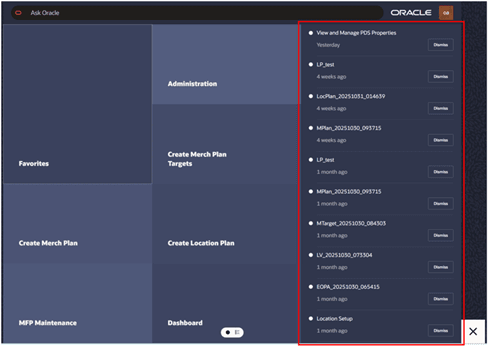
Notifications are available through the O-tag (Oracle Icon). It can show unread indicators, such as badge or toast behavior, where enabled.
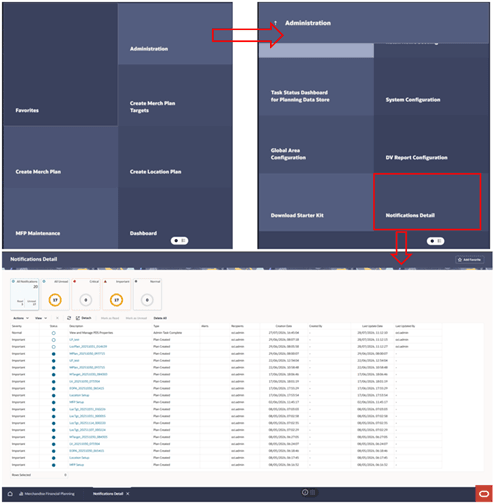
To open the Notifications Detail, select Administration via O-tag and click Notification Detail.
Digital Assistant
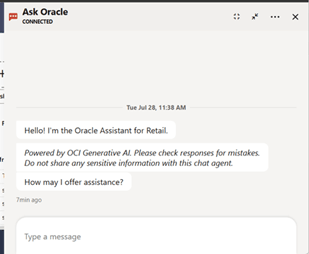
Digital Assistant is available from the Oracle Home Experience where configured. To open Digital Assistant, move the mouse pointer over the Oracle icon at the lower-right corner of the page. A chat icon appears next to the Oracle icon. Select the chat icon to open the Digital Assistant drawer.

The Digital Assistant drawer provides guided or conversational assistance for supported tasks. Users can enter questions or requests in the drawer and review the responses without leaving the current RPAS CE page or workspace.
Administration
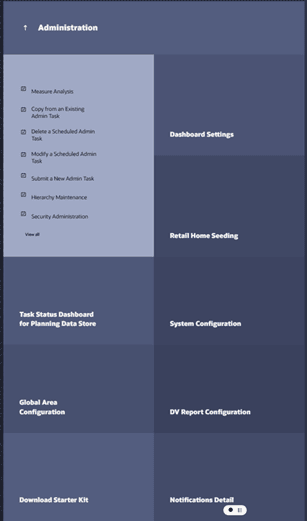
Administration is available from the Oracle Home Experience where configured. Open Product Map or Suggestions List from the Oracle icon, and select Administration to view the administration landing area.
The Administration landing area displays administrative tasks and configuration areas that are available to the user. The entries shown depend on the user's security permissions.
The left side of the Administration landing area can include administration task links such as Measure Analysis, Copy from an Existing Admin Task, Delete a Scheduled Admin Task, Modify a Scheduled Admin Task, Submit a New Admin Task, Hierarchy Maintenance, and Security Administration. Select View All to display the full list of available administration tasks.
The Administration landing area can also display grouped tiles for administration and configuration areas, such as Dashboard Settings, Retail Home Seeding, Task Status Dashboard for Planning Data Store, System Configuration, Global Area Configuration, DV Report Configuration, Download Starter Kit, and Notifications Detail.
Select an administration task link or tile to open the corresponding administration page, task, or configuration area. If an administration item is not configured or the user does not have access to it, the item is not shown.
Mega Menu
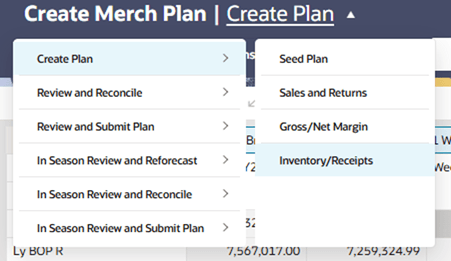
The Mega Menu provides RPAS workflow navigation using the configured task, domain tab, and workflow step structure.
Users can navigate directly to allowed entries, including non-sequential workflow steps, when permitted by configuration and security. The Mega Menu is not the security boundary; RPAS permissions and configuration continue to determine which content a user can access.
The Mega Menu automatically closes when the user clicks outside the menu or moves the pointer out of the menu area. Long Mega Menu labels wrap to the next line when needed instead of being truncated.
The active workspace remains visible behind the Mega Menu so users can return focus to the current workspace after selecting a workflow entry or closing the menu.
Once a task or workspace is open, you can use the Mega Menu to access the different workflow steps for each task.
Figure 2-2 Mega Menu
Quick Access Toolbar
The Quick Access toolbar contains Menu, Calculate, Find, Export, Import Positions, Download DPM Import File Template, Undo, Redo, Real Time Alert Exceptions List, Text Size, Filter, and Manage Views. These are all described in this section.
Figure 2-3 Quick Access Toolbar

Menu
Menu contains the following menu options:
-
Action menu
-
Edit menu
-
View menu
-
Format menu
Figure 2-4 Quick Access Toolbar Menu Options
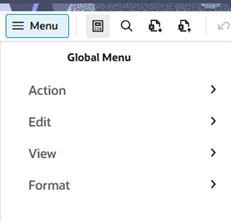
Table 2-1 lists the options within each menu.
Table 2-1 Toolbar Menu Options
| Menu | Submenu | Lower Submenu |
|---|---|---|
|
Action |
Calculate (F9) |
- |
|
Commit |
- |
|
|
Refresh (Alt + F5) |
- |
|
|
Refresh Attributes |
- |
|
|
Find (Ctrl + F) |
- |
|
|
Export |
- |
|
|
Import |
- |
|
|
Get New/Updated Attributes |
- |
|
|
Load Comments |
- |
|
|
Edit |
Undo (Ctrl + Z) |
- |
|
Find (Ctrl + F) |
- |
|
|
Unlock All Cells |
- |
|
|
Unlock All Measures |
- |
|
|
Unlock All Positions |
- |
|
|
Unlock All |
- |
|
|
View |
Synchronize Z-Axis |
- |
|
Restore Layout |
||
|
View Layout |
||
|
Format Edit Styles and Exceptions |
- |
|
|
Edit Styles and Exceptions |
- |
|
|
Save Format |
Only For Me |
|
|
For My Group: Group Name |
||
|
Workspace Template |
||
|
Restore Format |
From Template |
|
|
From My Group: Group Name |
||
|
Delete Format |
Only For Me |
|
|
For My Group: Group Name |
||
|
Workspace Template |
Action Menu
This section describes the Action Menu options.
Figure 2-5 Action Menu
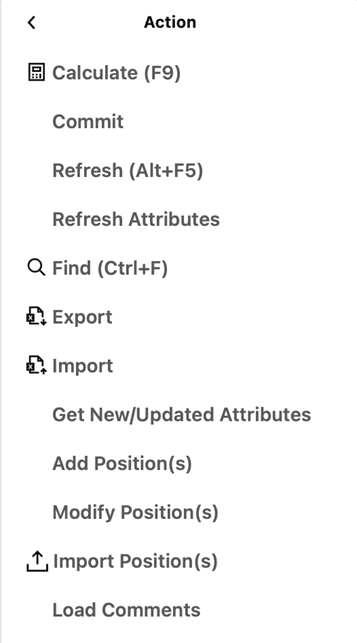
Table 2-2 Action Menu Options
| Menu Option | Description |
|---|---|
|
Calculate (F9) |
After you edit the cells within the workspace, use the Calculate menu to calculate and update the associated cells within the workspace. |
|
Commit |
Use to commit the changes to the master domain. After the changes are committed, all other users with access to the workbook will see the changes as well. |
|
Refresh (Alt + F5) |
Use to update a workspace with the data that is currently stored in the domain. This allows you to work with the most current data without having to rebuild the workspace. Workspaces can be refreshed with a single refresh rule group or multiple ones. Make sure to switch on the FnLock key if present on your keyboard in order to use this shortcut. Note: Depending on system configuration, the Refresh option may be disabled when no valid refresh rules are available for the workspace. |
|
Refresh Attributes |
Use to update the attribute values displayed in the pivot table. Manually trigger this action to get the latest attribute values in order to plan more accurately. This action is separate from the Refresh action. |
|
Find (Ctrl + F) |
Use to search for a string within the rows and columns of the current view. The search does not include the data within the cells of the view. |
|
Export |
Use to export the data from view to excel or text file. |
|
Import |
Allows you to transfer large amounts of data to a pivot table using an Excel spreadsheet. You can upload writable measures using a template without the assistance of an Administrator. |
|
Get New/Updated Attributes |
Newly created or updated attributes and attribute values using Placeholder Maintenance will be made available for use throughout the workspaces. |
|
Load Comments |
Loads existing workspace. |
|
Modify Positions |
Use to modify or delete the already created placeholder positions using the Placeholder Maintenance functionality. |
|
Import Positions |
Use to manually import a list of placeholder positions that you have already entered into an Excel file format. |
Edit Menu Options
This section describes the Edit Menu options.
Figure 2-6 Edit Menu
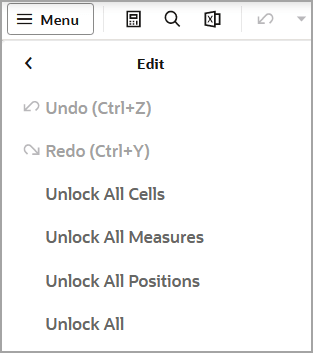
Table 2-3 Edit Menu Options
| Menu Option | Description |
|---|---|
|
Undo (Ctrl + Z) |
Use to undo the last action performed within the workspace (not just the current view). |
|
Redo (Ctrl + Y) |
Use to redo the last action undone within the workspace (not just the current view). |
|
Unlock All Cells |
Use to unlock all the locked cells on the current view. |
|
Unlock All Measures |
Use to unlock all the locked measures on the current view. |
|
Unlock All Positions |
Use to unlock all the locked positions on the current view. |
|
Unlock All |
Use to unlock all the locked cells, measures and positions simultaneously on the current view. |
View Menu
This section describes the View Menu options.
Figure 2-7 View Menu
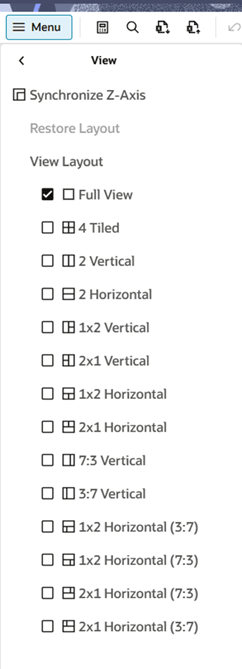
Table 2-4 View Menu Options
| Menu Option | Description |
|---|---|
|
Synchronize Z Axis |
Use to simultaneously scroll through the page edge of multiple views. It is useful when you want to compare multiple views containing the same page or slice dimension. |
|
Restore Layout |
Use to restore view layout size to default. Restore Layout will be enabled only when you resize the view manually. |
|
View Layout |
Select a view layout from the options available to see a single or multiple views at a time. |
Format Menu
This section describes the Format Menu options.
Figure 2-8 Format Menu
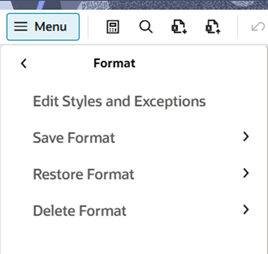
Table 2-5 Format Menu Options
| Menu Option | Sub-Menu | Description |
|---|---|---|
|
Edit Styles & Exceptions |
Opens the Format window. Here, you can set and clear formats that apply to measures or dimensions. You can make changes to single or multiple measures and dimensions and apply those changes across one, many, or all views in the workspace. For more information, see Formatting. |
|
|
Save Format |
Only For Me |
Save the format only for my use. |
|
For My Group: Group Name |
Save the format for my group. All the users in the group are able to see and edit the formatting. |
|
|
Workspace Template |
Save format to the workspace template. |
|
|
Restore Format |
From Template |
Restores my current formatting to the saved workspace template format. |
|
For My Group: Group Name |
Restores my current formatting to my group's saved format. |
|
|
Delete Format |
Only For Me |
Deletes the format only for me. |
|
For My Group: Group Name |
Deletes the format for all the users in my group. |
|
|
Workspace Template |
Deletes the saved format for workspace template. |
Calculate
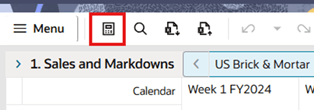
After you edit the cells within the workbook, use the Calculate button to calculate and update the associated cells within the workspace. You can also access this option from the Action menu.
Figure 2-9 Calculate Button
Find
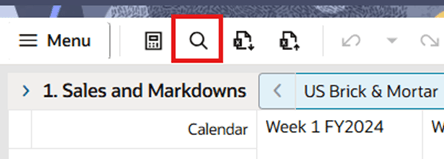
You can use the Find button to find any specific string within rows and columns of the current view. You can also choose to search the string in all open views or current view of the workspace or all dimensions or specific dimensions available in the current view.
Figure 2-10 Find Button
Export
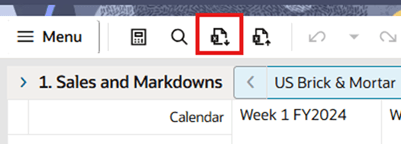
You can use the Export functionality to export slices of data to a text file or to a Microsoft Excel file by using different format and export options. You can print data to an Excel spreadsheet using the Print option in the Export window.
Figure 2-11 Export Button
Importing Positions
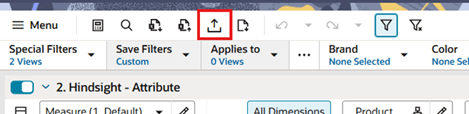
Import Positions is used to manually import a list of Placeholder positions that you have already entered in an Excel (.xslx) file format. It loads the positions listed in the file to the Add Product window for validation and highlights errors for corrections that are required. This facilitates the easy and quick bulk creation of placeholder positions.
Figure 2-12 Import Positions
Downloading DPM Import Template File
Click Download DPM Import File Template button to download the file template that you can use to populate an Excel file with placeholder positions and their information.
Figure 2-13 Download DPM Import Template File
Undo
You can use the Undo functionality to undo the list of actions performed within the workspace until the last calculate operation. All the actions performed are displayed in descending order in the Undo list, and you can choose to undo the latest action or the series of actions one step at a time or all the actions performed (until the last calculate operation) by choosing the first action (the last one in the list).
Figure 2-14 Undo Button
Redo
You can use the Redo functionality to redo the list of actions undone within the workspace previous to the last calc operation. All the actions undone are displayed in descending order in the Redo list, and you can choose to redo the latest action, the series of actions one step at a time, or all the actions undone (previous to the last calc operation) by selecting the first action (the last one in the list).
Figure 2-15 Redo
Note:
If either an Single Hierarchy Select (SHS) or a picklist measure has an NA value, the measure's cells will display an NA value after a worksheet load. When the user edits either the SHS or the picklist measure cell value, the previous value (in this case NA) will be displayed in the Undo list.
If either an SHS or a picklist measure does not have an NA value, the measure's cell will not display a value. (That is, the cell will be blank or have an empty string.) When the users edits either the SHS or the picklist measure, the previous value (that is, null/empty string) is displayed in the Undo list.
For a string measure, if there is no NA value, then the empty string is the NA value. For other types of measures (an int measure or a float measure), if there is no NA value, then the default value is 0.
Real Time Alerts Exceptions List
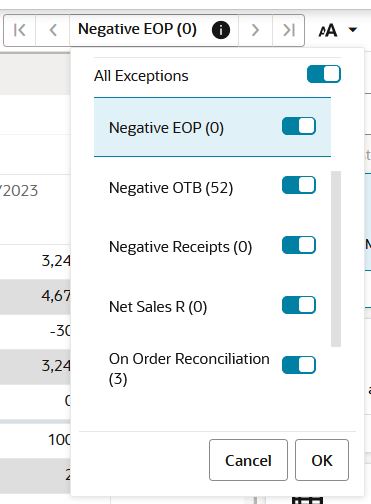
Real time alerts are interactive alerts that are displayed within a workspace. The alerts are then updated each time you edit data and click Calculate. You can see the alert count and other information about the alerts as required. Clicking > or < launches the alert navigation mode.
Figure 2-16 Real Time Alerts Exception List
Text Size
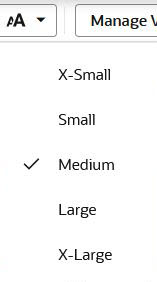
Once you open the workspace, click Text Size and select the text size in order to control how much data is displayed on the screen.
Figure 2-17 Text Size Options
Workspace Filters
You can use the Workspace Filter Icon to view/hide the workspace filters. You can choose to enable/apply the special filters and attribute filters in a view or selected views of the workspace.
Figure 2-18 Workspace Filters

Managing Views
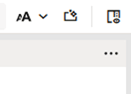
Click Manage Views icon  to display the view management drawer. It allows you to show or hide the view management drawer if you need more area to view the content. When a new workspace is built, the Manage Views drawer is collapsed and hidden by default.
Figure 2-19 View Management Drawer: Show
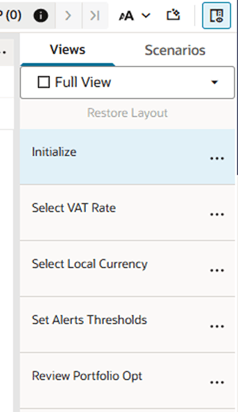
Figure 2-20 View Management Drawer: Hidden
Content Area
The content area appears on the center of your screen and includes the views associated with each step within the business workflow. It provides a spreadsheet-like view or a chart type view that displays multidimensional data selected at the dimension levels in Edit view. Each view includes a set of measures relevant to the step that help you view, analyze information, and make decisions.
Figure 2-21 shows the various components in the content area.
Figure 2-21 Content Area Components
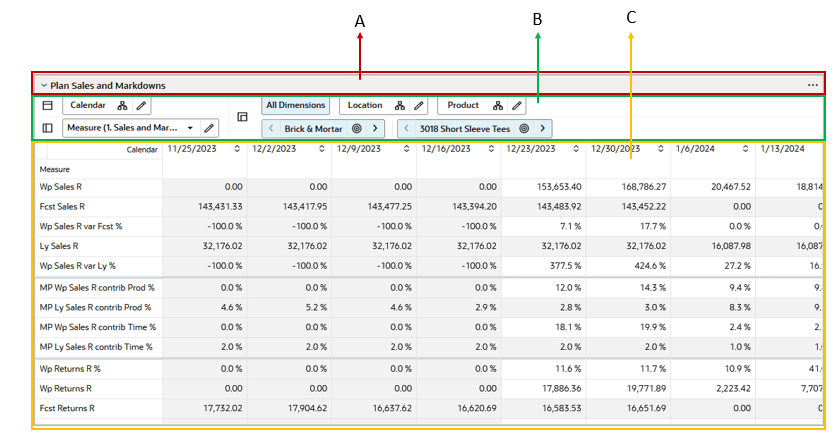
Table 2-6 describes the Content area.
Table 2-6 Content Area
| Legend | Area | Description |
|---|---|---|
|
A |
View Title Bar |
Displays the name of the View and Action menu (ellipsis icon) includes View-level actions such as Synchronize Z-axis, Switch to Chart, Edit, Expand, and Close View options. |
|
B |
Page Edge and Dimension Tiles Area |
Use to move or swap individual dimensions to view the information in a more effective manner. See Page Edge and Dimension Tiles Area. |
|
C |
View Area |
Displays the data either in a pivot table view or a graphical view with the help of different chart types. The data represented here is at the dimension levels and axes selected in the Page Edge and Dimension Tiles area. |
Action Menu in the Content Area
As shown in the following image, the view’s Action menu in the Content
Area includes the actions for the displayed views such as Synchronize
Z-axis, Switch to Chart, Edit View, Detach, and Close <View name> where <View name> is the current view.
Figure 2-22 Action Menu

Page Edge and Dimension Tiles Area
This area displays all the dimensions involved in the view. The information in the view is organized based on the dimension positions set up at the page edge, row, and column axes.
The RPASCE Client is designed to help you to work with the easy selection of dimension levels within the Edit view. You can manage the way the information is presented in a view. You can arrange and present the information in a layout you want by rotating or pivoting dimensions across the axes, changing the data roll ups and measure profiles and showing or hiding measures. You can view the information at a low level of detail or aggregate to view the information at summary levels.
When the workspace is built, the Page Edge and Dimension tile area is collapsed by default. You can expand it using the Expand/Collapse button (arrow icon) that is available from the top left side. Only the Page Edge scroll and Action menu display when the Page Edge and Dimension Tile area is collapsed.
Dimension Panels auto-collapse when the user moves the pointer out of the Dimension Panel area, unless the panel is locked.
Collapsed Dimension Panels do not auto-expand on hover. To expand a collapsed Dimension Panel, click the expand/collapse chevron or the Dimension Panel title.
The lock radio icon displays only when the Dimension Panel is expanded. Click the lock radio icon to lock the panel in the expanded state, and click it again to unlock the panel. Save Format saves the Dimension Panel lock state.
Figure 2-23 Page Edge and Dimension Tiles Area (Expanded and Locked)

Figure 2-24 Page Edge and Dimension Tiles Area (Collapsed)

Pivoting and Rotating Dimensions
In the View area, you can rotate or pivot the dimensions across the axes to display data in different orientations. You can pivot the dimensions in two ways.
-
Dimension Move: Moves a dimensional layer to another position on an axis. To perform a dimension move, in the Dimension Tile Area click and hold the dimension tile you want to move. Then, drag the tile next to the area you want and release the mouse.
Alternatively, you can move dimension by right- clicking the dimension tile. To move dimension tile, right- click on tile you want to move and select the destination axis option to which you require to move the dimension tile.
Figure 2-26 Dimension Move - Right- click Option
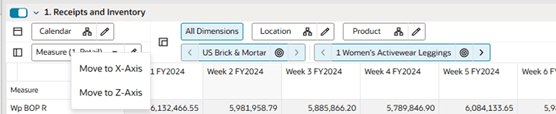
To move the dimension tile along the axis, right- click on the tile you want to move and select the move along axis option. This option will move the tile along the axis when two dimension tiles are placed at same axis.
-
Dimension Swap: Swaps a dimension with another dimension on the axis. To perform a dimension swap, in the Dimension Tile Area, click and hold the dimension tile you want to move. Then, drag the dimension tile over the one you want to swap it with and release the mouse.
Figure 2-27 Dimension Swap


Paging and Position Navigation
On the Page Edge area, you can select any position displayed and page through or navigate to the positions using the navigation icons (Previous, Next, Select Position) available below the dimension tiles. In the view, data relevant to each position is displayed in the content area when you navigate to a new position in a level.
Figure 2-28 Position Navigation
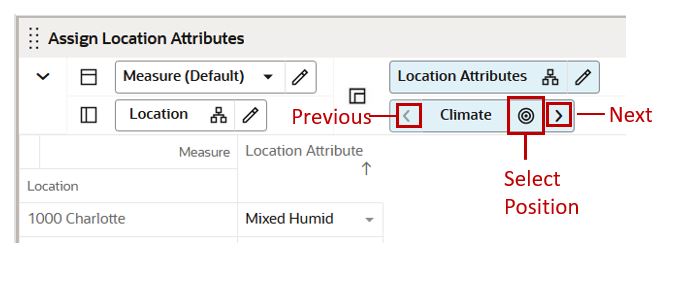
Use the Previous and Next icons to navigate to the previous and next position in the level that is selected. The position to which you navigate depends on the current position. When you navigate to a new position, all associated positions at the higher and lower visible levels of the same dimension are updated recursively.
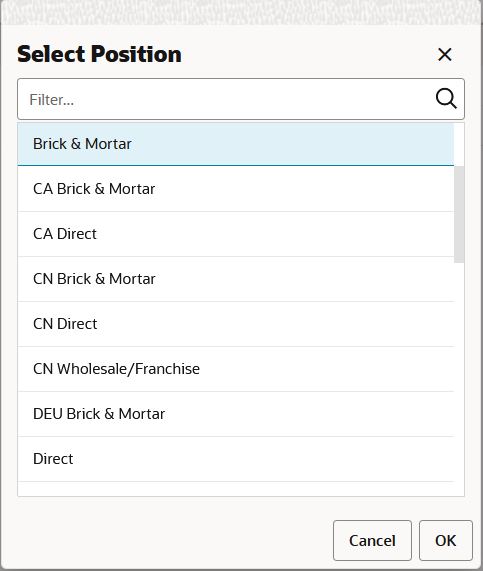
The Select Position icon opens a Select Position pop-up, which you can use to directly select the required position from the available list of positions.
Figure 2-29 Select Position
Edit View
Using the Edit View window, you can change the way data is presented to you by moving and reordering the dimension tiles, selecting the dimension levels for the data rollups, and selecting the measure profiles.
Synchronize Z-axis Scrolling
Synchronized Z-axis scrolling lets you simultaneously scroll through the z-axis of multiple views. When Synchronized Z-axis scrolling is enabled, all views that contain the same slice dimension scroll to the new slice position when one of those views is scrolled to a new position. When scrolling is disabled, scrolling through slice positions in one view does not affect the slice position display of other views.
Synchronized Z-axis scrolling works for all views within a single workspace, and it remains enabled as you move through the tasks and steps within that workspace. Synchronized Z-axis scrolling is useful when you want to compare multiple views containing the same page or slice dimension.
To enable synchronized Z-axis scrolling, click Synchronize Z-axis icon in the Z-axis and Dimension Tiles area, as shown in Figure 2-31.
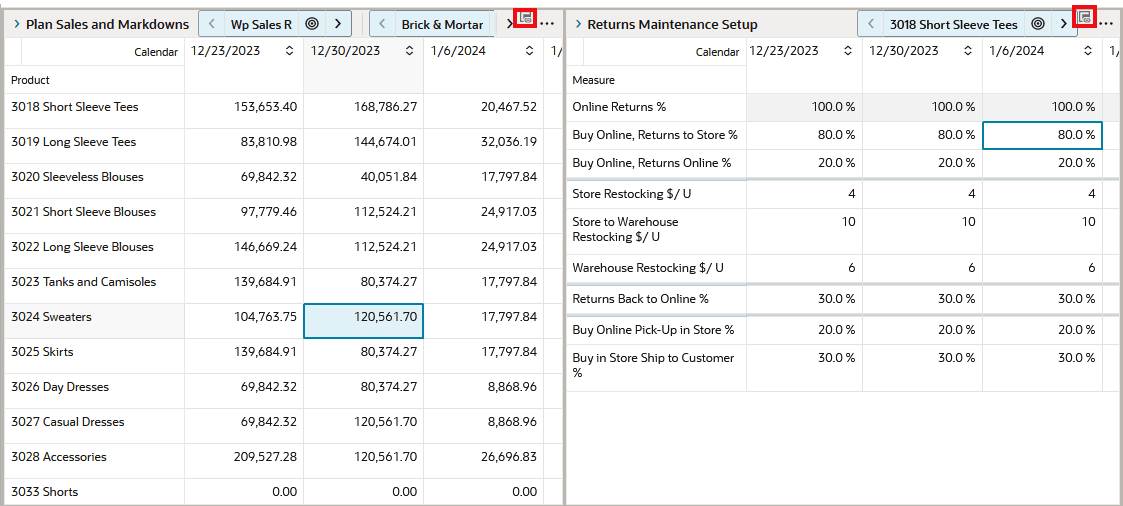
When the Page Edge and Dimension Tile area is collapsed, you can synchronize the Z-axis using the view's Action menu. In the collapsed Page Edge area, a synchronized view is displayed using the Z-axis synchronized icon, as shown in Figure 2-32.
Figure 2-30 Before Synchronizing Page Edge (Z-axis)
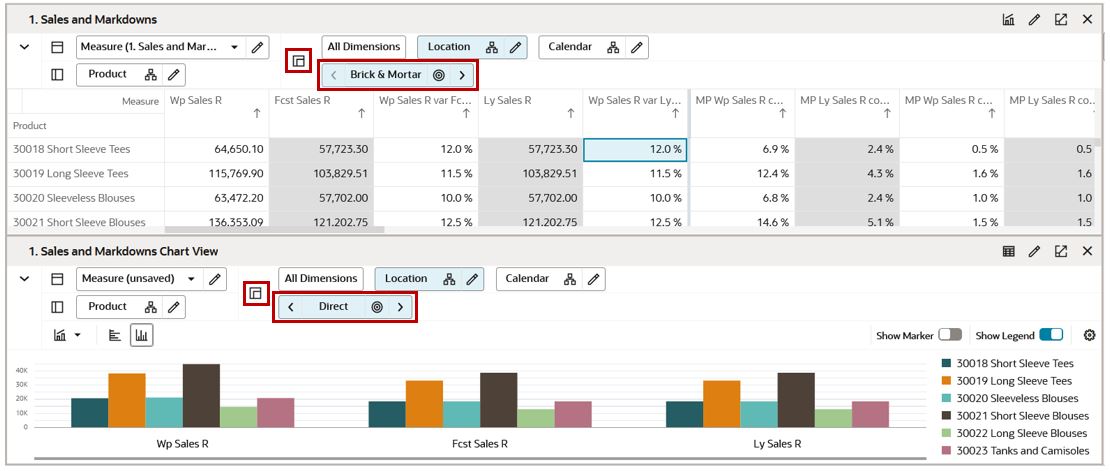
Figure 2-31 Enabling Synchronize Z-axis
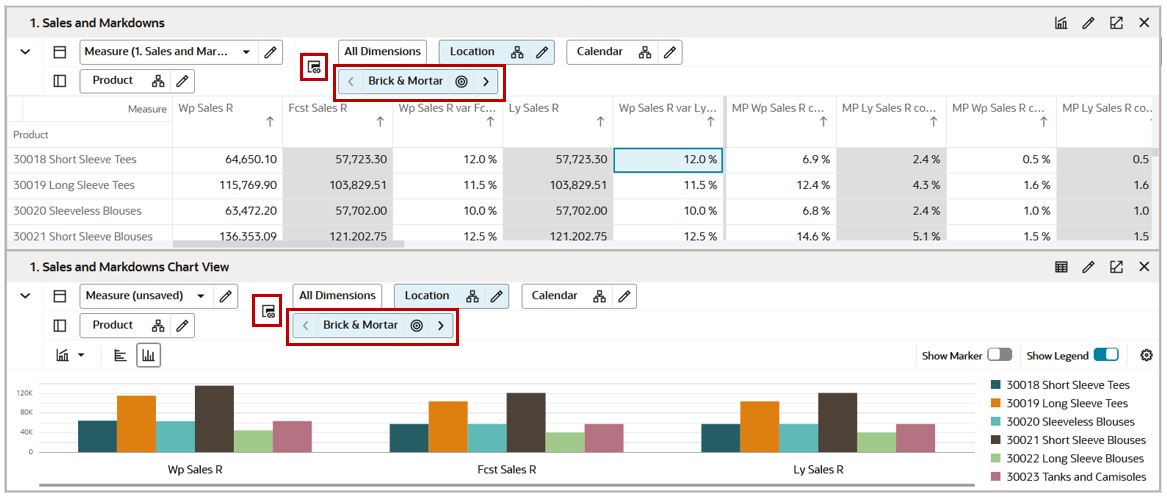
Figure 2-32 Z-axis Synchronized In the Collapsed Page Edge Area
View Management Drawer
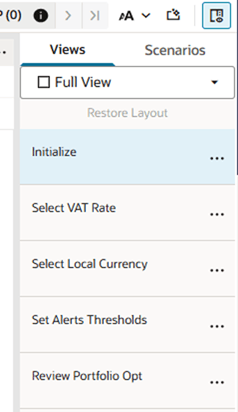
The View Management Drawer lists the views available for the current Workspace, domain tab, workflow step, configuration, and user permissions. Different tabs and steps can show different view lists.
Views already active in a Window Pane use a distinct visual treatment. Users can open or rearrange views from the View Management Drawer. To add a view as an additional pane, drag the view over an existing view or pane. RPAS CE displays an Add View target button. Drop the view on Add View to add the dragged view as a new pane, such as changing from one pane to a two-pane split. This adds the view to the workspace instead of replacing the existing target view.
Users can rearrange views in the drawer with drag-and-drop. Running Save Format saves the updated view order for the current user. Long view names wrap to the next line when needed.
The Scenarios tab remains available where configured and uses the same list design as the Views tab. If a filter is active for a view, the drawer displays a Filtered indication under that view name.
Figure 2-33 View Management Drawer
Application Actions
Application Actions are available from the Actions dropdown in the top-right area of the RPAS CE UI.
Users can mark frequently used Application Actions as favorites. A maximum of three Application Actions can appear as top-level actions in the header, while additional actions remain available from the Actions dropdown.
Calculate (F9) remains visible in the top-right area next to the Actions dropdown and Favorite Application Actions. The Actions dropdown continues to include actions that also appear as favorites.