9 Views
The view area includes the multidimensional pivot table or chart that displays information for the relevant task. Each task may include more than one view, and each view can appear in the contents area. The information in the view is organized based on the dimension positions set up at the x, y, and z axes.
RPASCE is designed to help you to work with the data within the view. You can manage the way the information is presented in a view. You can arrange and present the information in a layout the way you want by rotating or pivoting dimensions across the axes, changing the data roll ups, or showing or hiding measures. You can view the information at a low level of detail or aggregate to view the information at summary levels. For more information, see Editing Views.
You can also choose to present the information in many types of charts using the charting functionality.
Window Panes and View Management
The Workspace supports one to four Window Panes.
Each Window Pane displays one active view at a time. Users can arrange views side by side, resize panes by dragging vertical or horizontal dividers, and scroll inside a pane when content is larger than the visible area.
The Workspace always keeps at least one Window Pane open. When only one pane is open, the Close action is disabled.
Users can drag a view from the View Management Drawer into the Workspace. When fewer than four panes are active, RPAS CE can show an Add View target. Dropping a view on the Add View target adds a pane; dropping a view on an occupied pane replaces the current view; dropping outside a valid target cancels the drag action.
If four Window Panes are already active, the Add View target is disabled and no fifth pane can be added.
A view cannot be active in more than one Window Pane at the same time. To compare the same view in multiple panes, duplicate the view and assign the duplicate to another pane.
Save Format saves the latest pane setup for the user, including layout, number of panes, pane sizes, view order, and assigned views.
View Management Drawer
Use the View Management Drawer to select the visible views, add new views, modify or delete an existing view, and change the view layout. Click Manage Views to show or hide the View Management Drawer.
Note:
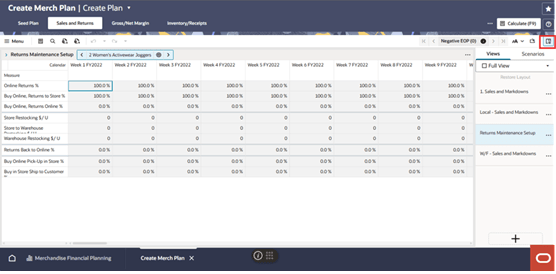
By default, the View Management Drawer is not displayed. Click the Manage Views icon to open the View Management Drawer.
Figure 9-1 Manage Views
Layouts
You can display your views in one of the following layouts:
-
Full View
-
Four-Tile View Layout
-
Two Vertical View Layout
-
(7:3) Vertical Layout (70:30)
-
(3:7) Vertical Layout (30:70)
-
Two Horizontal View Layout
-
1 x 2 Vertical Layout
-
2 x 1 Vertical Layout
-
1 x 2 Horizontal Layout
-
1 x 2 Horizontal (7:3) Layout
-
1 x 2 Horizontal (3:7) Layout
-
2 x 1 Horizontal Layout
-
2 x 1 Horizontal (7:3) Layout
-
2 x 1 Horizontal (3:7) Layout
Click the View Layout list to control the layout.
Figure 9-2 Four-Tile View Layout
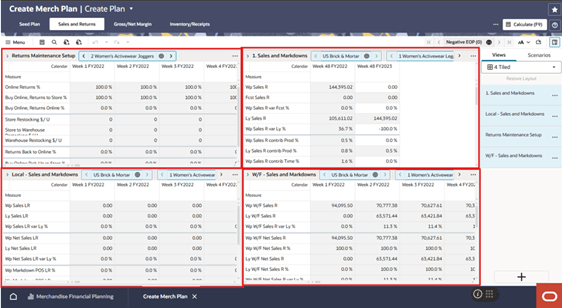
Figure 9-3 Two Vertical View Layout
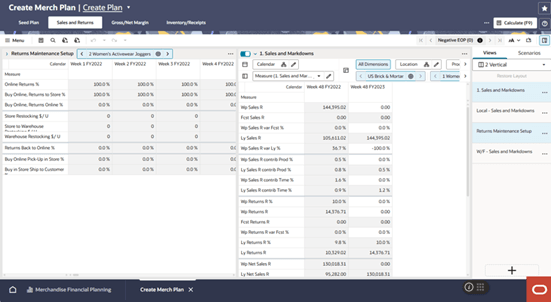
Figure 9-4 (7:3) Vertical Layout (70:30)
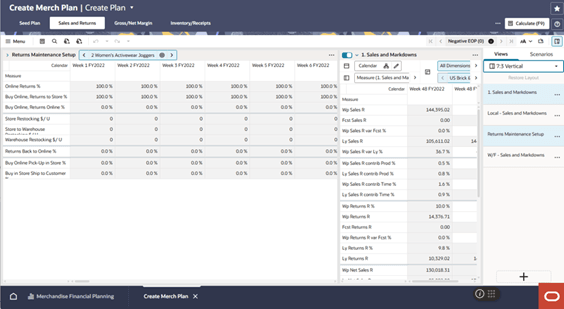
Figure 9-5 (3:7) Vertical Layout (30:70)
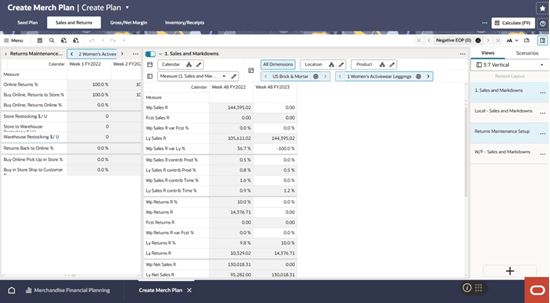
Figure 9-6 Two Horizontal View Layout
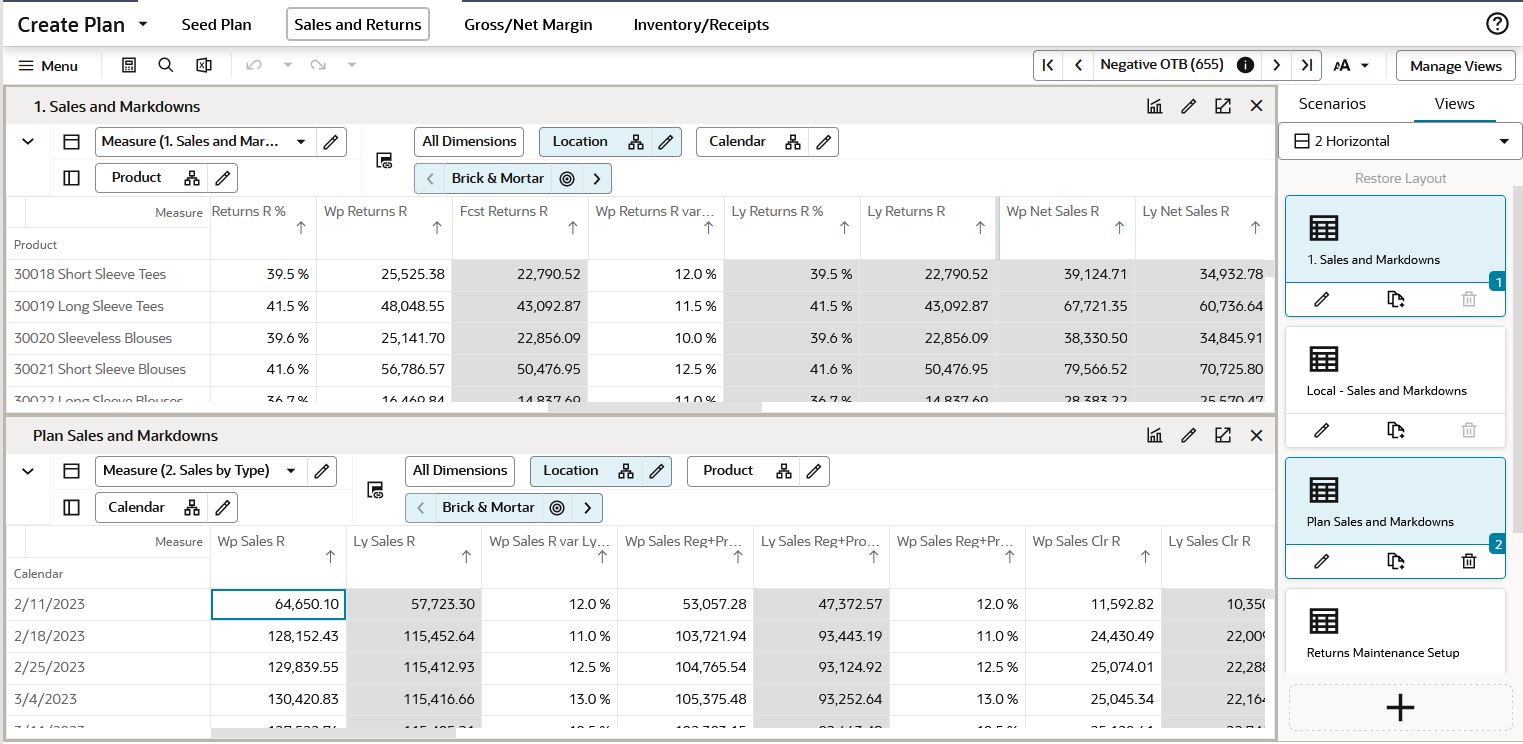
Figure 9-7 1 x 2 Vertical Layout
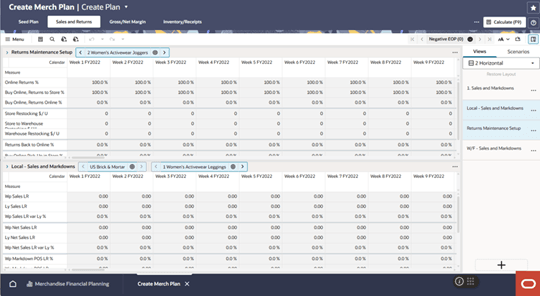
Figure 9-8 2 x 1 Vertical Layout
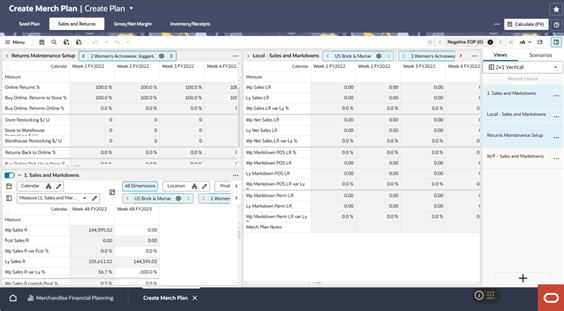
Figure 9-9 1 x 2 (3:7) Horizontal Layout
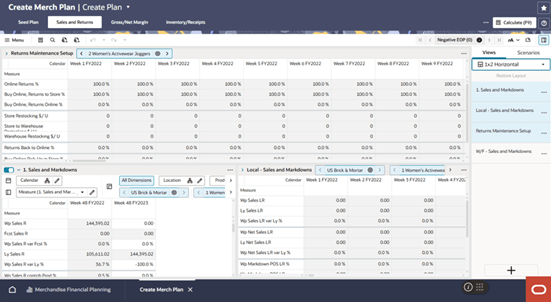
Figure 9-10 1 x 2 Horizontal (7:3) Layout
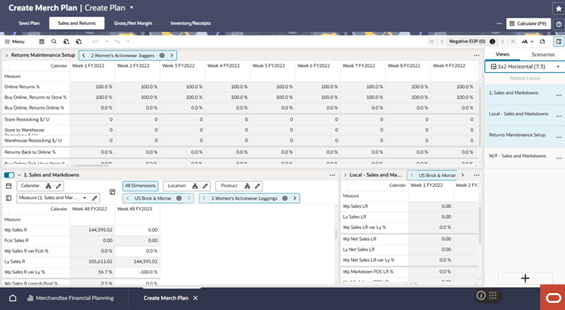
Figure 9-11 1 x 2 Horizontal (3:7) Layout
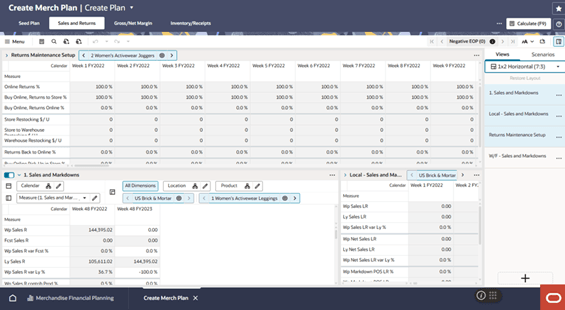
Figure 9-12 2 x 1 Horizontal Layout
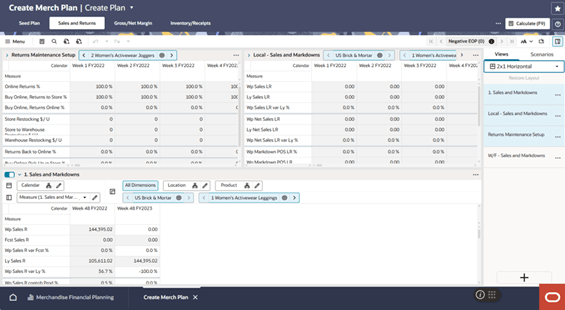
Figure 9-13 2 x 1 Horizontal (7:3) Layout
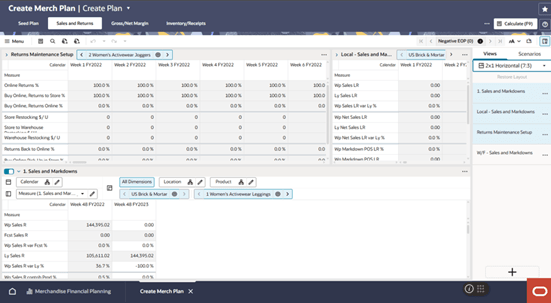
Figure 9-14 2 x 1 Horizontal (3:7) Layout
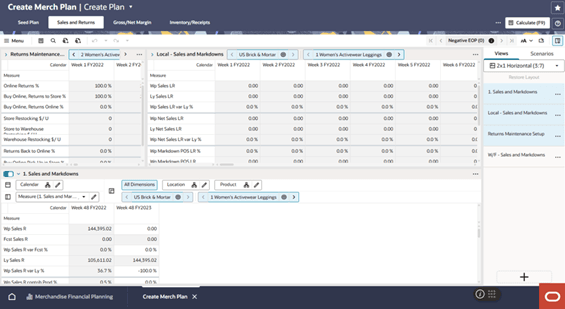
Re-Size View Layout
The view layout size can be adjusted manually to make the layout optimal for data review. Views can easily be adjusted when you select then hold and drag the vertical or horizontal dividing space between the views. When moving the horizontal diving space, the minimum height of each view can be no less than 20% of the width. When moving vertical diving space, the minimum height of each view can be no less than 15% of the width.
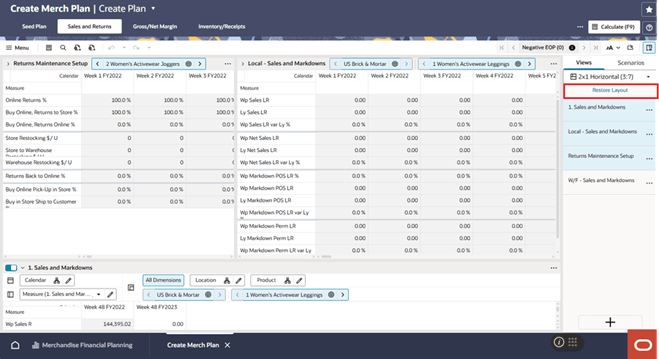
Use the Restore Layout link to reset views back to the default size of the selected view option. Restore Layout is accessed from Global menu Views option or directly from top of the view tile. Figure 9-15 shows the link for Restore Layout.
Figure 9-15 Restore Layout
View List
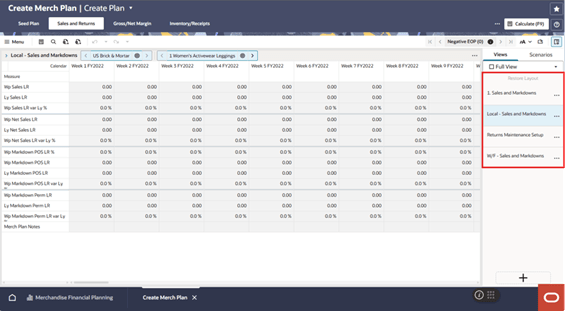
The available views are listed on the right side of the screen in the View Management Drawer, as shown in Figure 9-16.
Figure 9-16 View List
Creating a View
You can create a new view containing a new selection of measures in the form of a pivot table or many chart views.
-
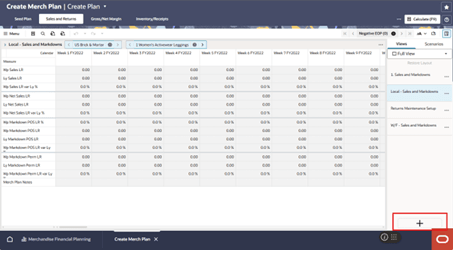
To create a new view, click Plus in the View Management Drawer.
Figure 9-17 Creating a View
-
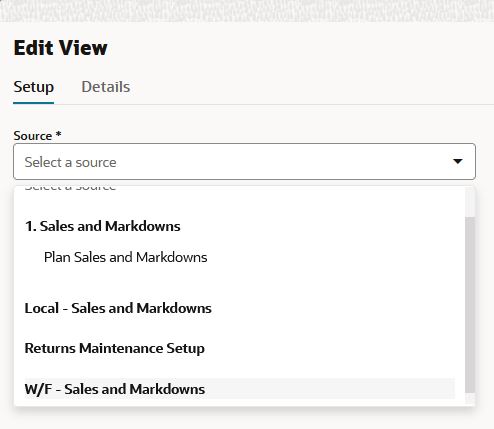
In Edit View, on the Setup tab, select a Source from the list. The options are limited to the other existing views in the View Management Drawer.
Figure 9-18 Edit View Setup Options
-
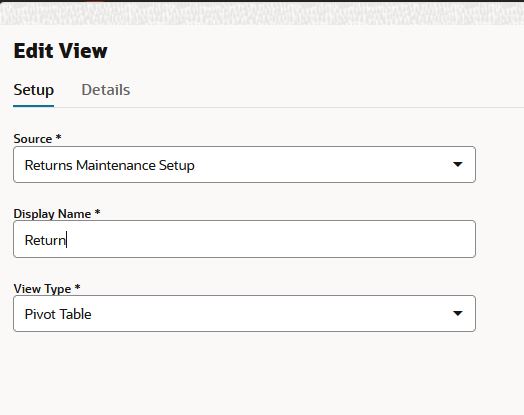
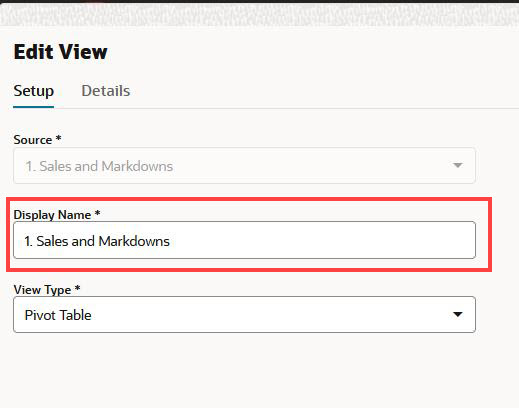
Enter a Display Name. If creating a chart view, consider using a similar name to the source view.
Figure 9-19 Display Name
-
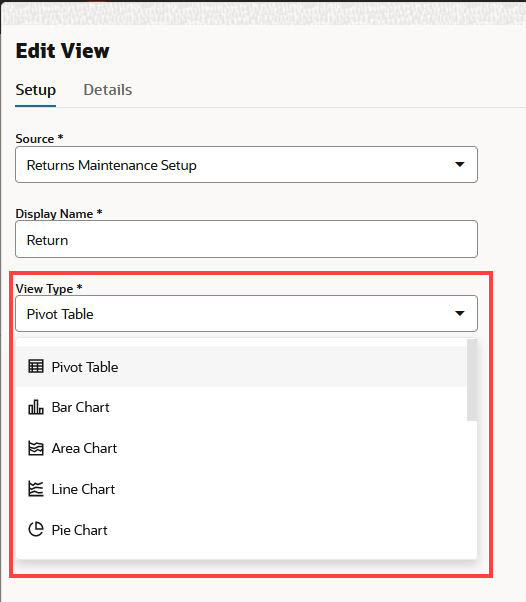
Select the type of view to be created, such as Pivot Table, Line Chart, Pie Chart, and so on.
Figure 9-20 Type of View
-
In the Edit View window, on the Details tab, you can do the following:
-
Assign dimensions to the x, y, and z axes
-
Select the levels and positions for the Calendar, Product, and Location Dimensions
-
Select the measures for the Measure Dimension
For more information on how to perform above steps, see Editing Views..
-
Modifying a View
To modify a view, complete the following steps:
-
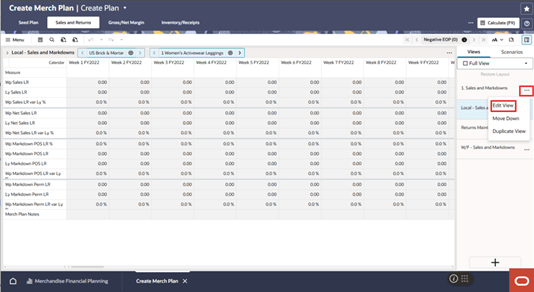
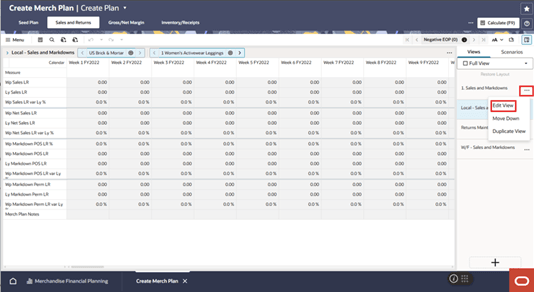
Click the Action menu icon and select Edit View on the View tile in the View Management Drawer.
Figure 9-21 Modifying a View
-
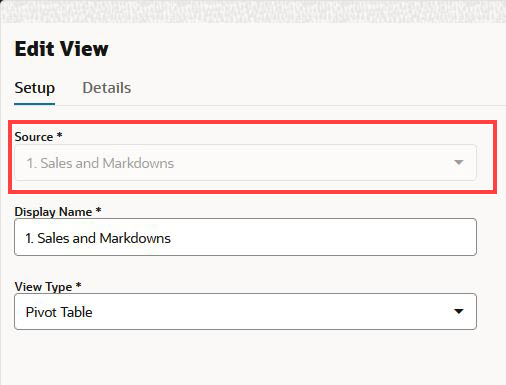
Follow the same steps as in "Creating a View", excluding selecting a Source. Since the view has already been created, the Source list is unavailable.
Figure 9-22 Edit View > Source Menu (unavailable)
Copying a View
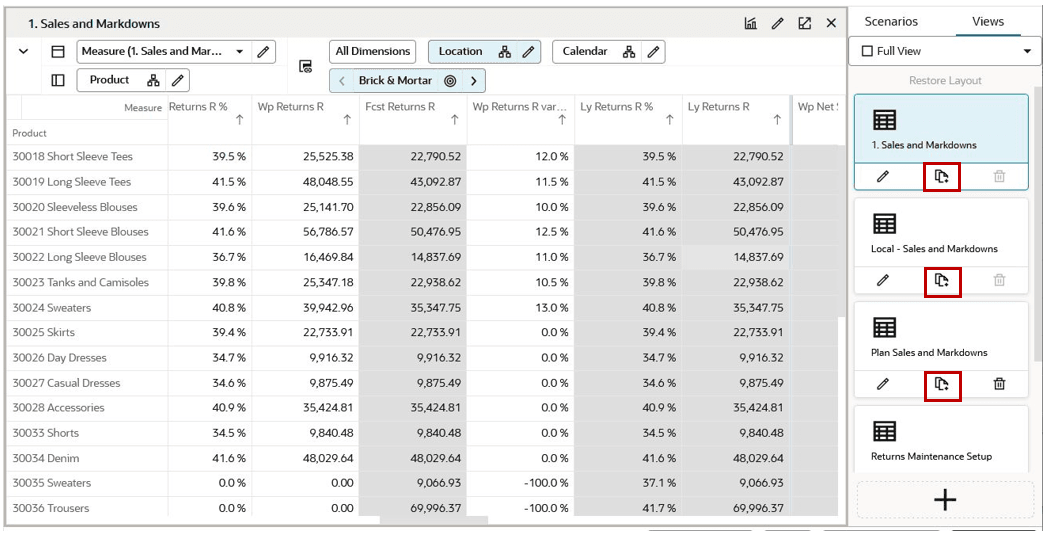
To make a copy or a duplicate of a view, you can click the Action Menu icon and select Duplicate View on the View tile in the View Management Drawer. It creates a duplicate of the view with the Display name of View Name> Copy 1. You can create a new view and use the original view as the source.
Click the Action Menu and select Duplicate View.
Figure 9-23 Copying a View
Changing the Order of the View
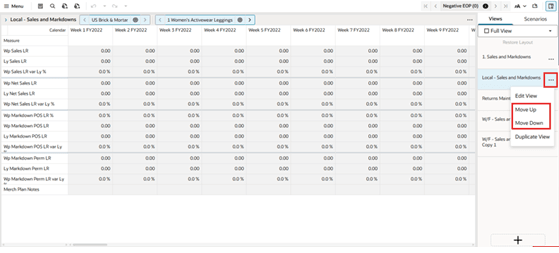
To change the order of the view in the Mange View Drawer, click the Action Menu icon and select Move Up or Move Down.
Figure 9-24 Move Up or Down a View
Deleting a View
To delete a view from the View Management Drawer, click the Action Menu icon and select Delete View on the View tile in the View Management Drawer.
Figure 9-25 Deleting a View
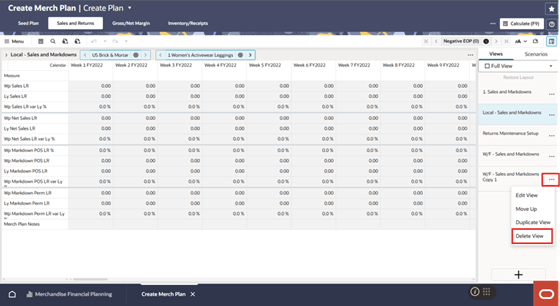
You cannot delete the views defined in the system task flow. For such views, the Delete View is not available in the Action Menu.
Working with Views
Views are associated with each step within the business workflow. Views are displayed as a spreadsheet-like or a chart type with the multidimensional data selected at the dimension levels in Edit view. Each view includes a set of measures relevant to the step that help you view and analyze information, and make decisions.
View Title Bar
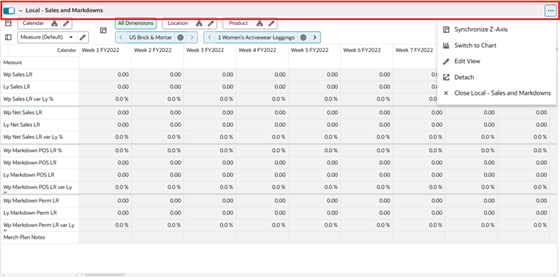
The View Title Bar contains the name of the view being displayed, dimension panel lock option, and the Action Menu icon. Clicking the Action icon  shows the available actions such as Synchronize Z-Axis, Switch to Chart, Switch to Pivot, Edit View, Detach and Close. While the Dimension Panel lock option
  prevents the dimension panel from auto-collapsing.
Figure 9-26 View Title Bar
Adding a View to a Layout
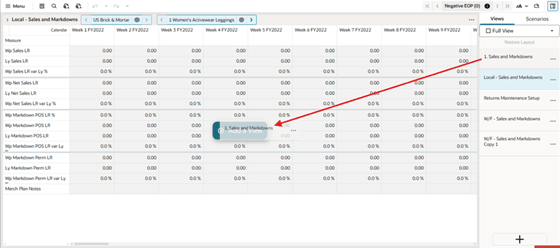
To add a view to a layout, click the view to replace the current active full view or drag the view from the View Management Drawer to a location on the layout. If the layout is 4 Tiled, 2 Horizontal, or 2 Vertical, you can drag multiple views to the different locations on the layout.
You can click the view you want to see to add it to a blank layout section. It will fill the sections sequentially. To see a different view later, drag and drop the view in the required section.
Figure 9-27 Adding a View to a Layout (Drag and Drop)
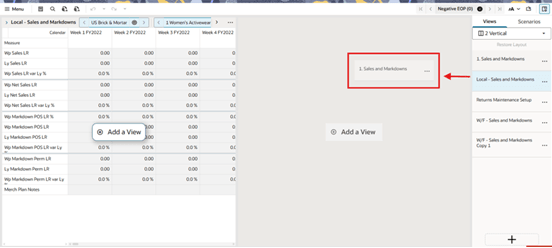
Or drop the view on the Add a View target to add the dragged view as a new pane, such as changing from one pane to a two-pane split.
Figure 9-28 Adding a View to a Layout Using the Add a View Target
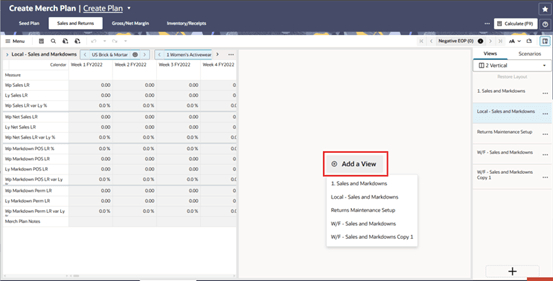
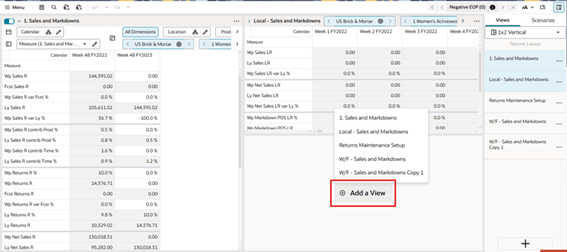
You can also add a view in a layout section by clicking the Add View button and selecting the required view from the list.
Figure 9-29 Add a View
Removing a View from a Layout
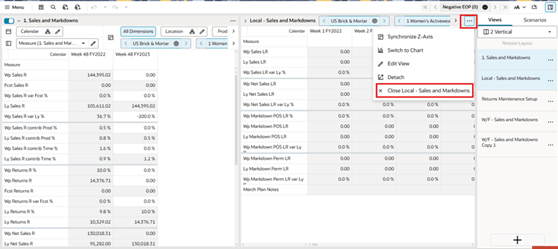
To remove a view from a layout, click the Action menu icon in the upper right corner of the view and then select Close.
Figure 9-30 Remove View from Layout
Moving a View
If a view is already displayed in the layout, drag that view from the View Management Drawer to any different location in the layout, then left click the location to drop the view.
In the example shown in Figure 9-31, to move the view Local - Sales and Markdowns from the layout location 3 to layout location 2, drag the view Local - Sales and Markdowns from the View Management Drawer to layout location 2.
Figure 9-31 Moving a View (Drag and Drop)
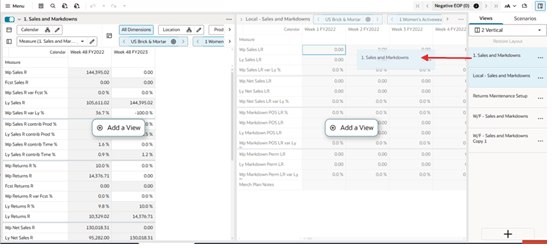
You can also click the Add View button in layout location 2 and select Local - Sales and Markdowns from the list in order to move the view from location 3 to location 2.
Figure 9-32 Moving a View (Add View Button)
Synchronize Z-axis Scrolling
Synchronized Z-axis Scrolling lets you simultaneously scroll through the z-axis of multiple views. When Synchronized Z-axis Scrolling is enabled, all views that contain the same slice dimension scroll to the new slice position when one of those views is scrolled to a new position. When scrolling is disabled, scrolling through slice positions in one view does not affect the slice position display of other views.
Synchronized Z-axis Scrolling works for all views within a single workspace, and it remains enabled as you move through the views, tasks, and steps within that workspace. When Synchronized Z-axis Scrolling is enabled, and if the same dimensions (one or all) exist on the page edge of another view, you will see the values for the current position on the synchronized dimension that is on page edge of this view. This means that the page edge of the current view is in sync with the page edge of the view on which you enabled page edge synchronization. The Page Edge and Dimension Tiles area is not visible.
Synchronized Z-axis Scrolling is useful when you want to compare multiple views containing the same page or slice dimension. Synchronized Z-axis Scrolling may be saved using formatting.
To enable Synchronized Z-axis Scrolling, click the Synchronize Z-axis icon in the Z-axis and Dimension Tiles area, as shown in Figure 9-35 and Figure 9-36.
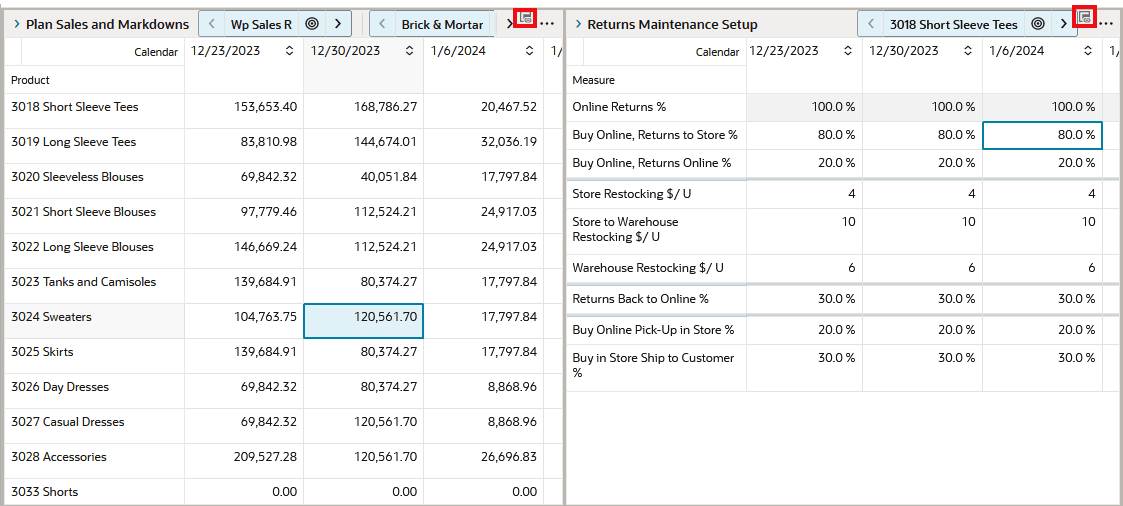
When the Page Edge and Dimension Tile Area is collapsed, you can synchronize Z-axis Scrolling using the Action menu on the view . In the collapsed Page Edge area, a synchronized view is displayed using the Z-axis Synchronized icon, as shown in Figure 9-37.
Figure 9-35 View Before Z-axis Synchronization
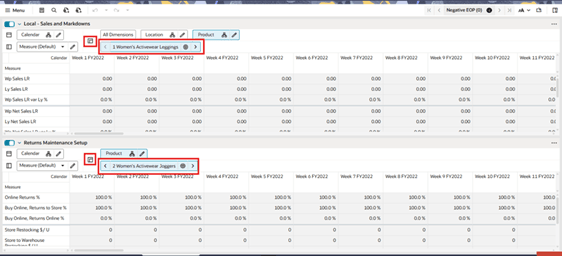
Figure 9-36 Enabling Z-axis Synchronization
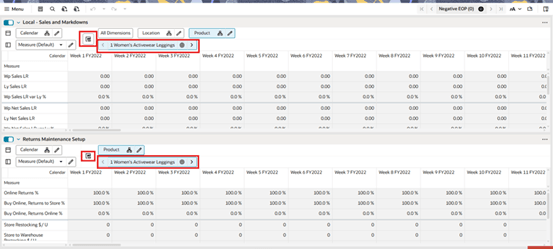
Figure 9-37 Z-axis Synchronized in a Collapsed Page Edge
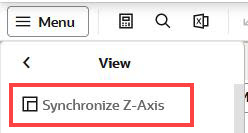
You can also enable Synchronize Z-axis by clicking Menu, and then View, and then Synchronize Z-axis, as shown in Figure 9-38.
Figure 9-38 Synchronize Z-axis from the View Menu
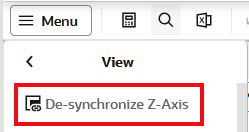
You can also disable Synchronize Z-axis by clicking Menu, and then View, and then De-synchronize Z-axis, as shown in Figure 9-39.
Figure 9-39 De-synchronize Z-axis from View Menu