1 Feature Summary
This chapter describes the feature enhancements in this release.
Noteworthy Enhancements
This guide outlines the information you need to know about new or improved functionality in the Oracle Retail Process Orchestration and Monitoring Cloud Service update and describes any tasks you might need to perform for the update. Each section includes a brief description of the feature, the steps you need to take to enable or begin using the feature, any tips or considerations that you should keep in mind, and the resources available to help you.
Column Definitions
-
Feature: Provides a description of the feature being delivered.
-
Module Impacted: Identifies the module associated with the feature, if any.
-
Scale: Identifies the size of the feature. Options are:
-
Small: These UI or process-based features are typically comprised of minor field, validation, or program changes. Therefore, the potential impact to users is minimal.
-
Medium: These UI or process-based features are typically comprised of field, validation, or program changes. Therefore, the potential impact to users is moderate.
-
Large: These UI or process-based features have more complex designs. Therefore, the potential impact to users is higher.
-
-
Delivered: Is the new feature available for use immediately after upgrade or must the feature be enabled or configured? If no, the feature is non-disruptive to end users and action is required (detailed steps below) to make the feature ready to use.
- Customer Action Required: You must take action before these features can be used. These features are delivered disabled and you choose if and when to enable them.
| Feature | Module Impacted | Scale | Delivered | Customer Action Required? |
|---|---|---|---|---|
| Ignore Any Running/Failed Jobs When Force Closing the Scheduler Day |
Batch Monitoring |
Small |
Yes |
No |
| Increased Timeout for RDS Jobs |
Schedule Maintenance |
Small |
Yes |
No |
Ignore Any Running/Failed Jobs When Force Closing the Scheduler Day
When a schedule is closed or restarted on the Batch Monitoring screen, a popup is now displayed where a user can set a toggle switch to ignore any running/failed jobs and force close the scheduler day.
Note:
This does not terminate any job already running on the application side.
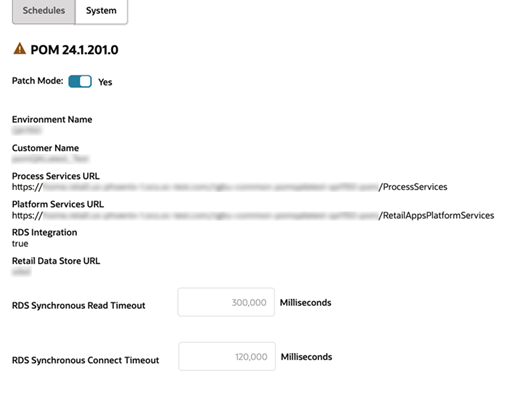
Increased Timeout for RDS Jobs
In POM, jobs set up with job type RDS run synchronously, unlike all other job types which run asynchronously.
There is therefore an execution time limit on RDS jobs. This is defined as the Read Timeout. The Read Timeout for RDS sync
jobs is increased in this release from 2 mins to 5 mins (300 seconds). You can also now configure both Read and Connect timeouts
for RDS jobs on the System tab of the System Configuration screen.
Although the two fields have no on-screen validation, the max Timeout for both is bound by the Load Balancer max configuration for ReST endpoints, which at this time is 300 seconds (5 mins).
Note:
This enhancement requires the latest POM 24.1.201.0 POM Agent to be deployed with the application that the RDS job is part of. However, if the batch schedule the RDS job is part of uses the POM Common Agent, then there is no such prerequisite.