1 Feature Summary
This chapter describes the feature enhancements in this release.
Noteworthy Enhancements
This guide outlines the information you need to know about new or improved functionality in the Oracle Retail Supplier Evaluation Cloud Service update and describes any tasks you might need to perform for the update. Each section includes a brief description of the feature, the steps you need to take to enable or begin using the feature, any tips or considerations that you should keep in mind, and the resources available to help you.
Note:
Where new fields, User Interface (UI) changes, or glossary entries are introduced as part of a change, the portal owner may need to apply their own translations of the core system text.Column Definitions
-
Feature: Provides a description of the feature being delivered.
-
Module Impacted: Identifies the module impacted associated with the feature, if any.
-
Scale: Identifies the size of the feature. Options are:
-
Small: These UI or process-based features are typically comprised of minor field, validation, or program changes. Therefore, the potential impact to users is minimal.
-
Large: These UI or process-based features have more complex designs. Therefore, the potential impact to users is higher.
-
-
Delivered: Is the new feature available for use immediately after upgrade or must the feature be enabled or configured? If no, the feature is non-disruptive to end users and action is required (detailed steps below) to make the feature ready to use.
- Customer Action Required: You must take action before these features can be used. These features are delivered disabled and you choose if and when to enable them.
Note:
An update to the generally-available documentation for this release is in progress.
Table 1-1 Noteworthy Enhancements
| Feature | Module Impacted | Scale | Delivered | Customer Action Required? |
|---|---|---|---|---|
|
All |
Large |
Yes |
No |
|
|
Workspace |
Small |
Yes |
Yes |
JET UI List Views
The JET UI Workspace user experience is extended in this release to provide navigation across all functional list views – for all modules and sub modules excluding the administration list views in the Admin area.
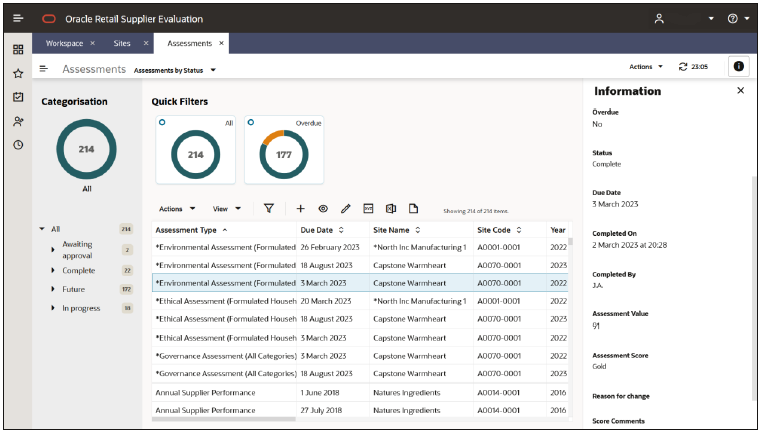
The new Workspace list view designs already implemented for Announcements and Assignments are enhanced to include:
-
A set of system-delivered list views is provided for each option in the Tasks menu - the Company, Supplier, Process, Library, and Reports modules. Each has a default view and may have alternative views.
-
The user may create and save their own personal views of custom columns and filter combinations.
A facility for migrating personal views from the legacy UI is available.
-
The categorized list view pattern comprises a left-hand category pane (grouping by a key attribute), a central grid of rows and columns (representing the records and their attributes), with a toolbar containing the actions and searches, plus a set of filter tiles, and a slide-out data panel.
-
The hierarchical list view pattern has the same features as a categorized view, but in place of the category pane it has a hierarchical tree of nested entities. This is used for example for Library Documents, where the hierarchy is the document folders, and for Process Activities, where the hierarchy is the parent processes.
-
The list view grid’s toolbar standardizes the options for managing the view and actioning its contents:
-
Actions menu - options for creating, updating, deleting records, applying workflow actions, and so on.
-
Manage Columns - for adding, removing, and moving columns within the grid.
-
Query by Example - for quick search filtering by column.
-
Query Builder - for more complex searching, by the construction of query statements.
-
Export options - for exporting the grid contents to an Excel, CSV, or XML data file.
-
Sorting - the contents of the grid can be re-sequenced by any of its columns, by clicking the heading.
-
-
The set of filter tiles will apply predefined filters to the grid. The tile may contain a drill-down segment or a metric to indicate the number of related rows.
-
The data panel slides out to show additional information related to the selected row.
Until the JET UI forms are implemented, opening a record from the list view will present it in the legacy UI. The more complex actions and wizards will also launch the legacy UI form.
As part of the navigation changes, in order to better differentiate between the lists of retailer and supplier users, the option to view supplier users from the Supplier/Company menu is renamed from Users to Supplier Users.
Delegate Functionality
A user may allow other users to access their Assignments, to action them on their behalf, such as to cover a period of absence. Designating a Team Manager and Delegates in the User record grants those users the ability to view Assignments by switching the user in the Assignments Due pane, refreshing the lists of Assignments accordingly. The selected user's Assignments are shown until switching to another user (the current user’s name always appears at the top of the list), or the Workspace session is restarted.
This feature is only available to internal/retailer users. It is not available to external/supplier users.
Post Release Tasks & Impact on Existing Installation
The following post release tasks and impact on an existing installation must be taken into account as part of this release.
System Text
The system text record for the Process Status column added to the Process Activity list views (item 34975623) is as follows:
activityProjectStatus=Process Status
The Character Length Validation change (item 34828323) introduces a new error message:
maximumBytes=Value of {0} is too long, must be {1} bytes or lessThe system text record for the new identity provider Synchronisation system parameter (item 34583511, 35223753, 35409416) is:
includeAllUsersInBcToIdcsSync=Include 'Login Disabled' Users in the Synchronisation
The system text records are added automatically during the release process. Any translation overrides must be added manually by the retailer administrator.
System Parameters
A new Include 'Login Disabled' Users in the Synchronisation system parameter is introduced to control the synchronization of User/External System accounts with the IDCS or OCI IAM identity management service (item 34583511, 35223753, 5409416). The default setting is to include all accounts in the synchronization, both active and disabled (the parameter is checked). This can be changed, as required by the system administrator.
Enabling Identity Management Notifications
As an IDCS or OCI IAM Administrator, verify that Notifications are enabled in the corresponding Stage / Production tenant.
Enabling User Roles
If they do not already exist, configure the Power User, Account Administrator, Assistant Technologist, and Site Inspector user roles, and assign to the appropriate users.
The instructions for downloading and uploading the amended Permissions spreadsheet are as follows:
-
Log in as an Oracle Authorized Administrator user and go to Company > Admin > Roles & Permissions.
-
Open the Permissions page.
-
Download the active spreadsheet by selecting the row with true in the Active Permissions column, click Download Selected, and save locally.
-
Edit the downloaded spreadsheet, make the changes described above, then save the spreadsheet.
-
Upload the edited spreadsheet by clicking Upload Permissions, select the spreadsheet, and click Ok.
-
Apply the changes by selecting the uploaded spreadsheet row, click Process Selected, and then click Ok to confirm.
Enabling Artwork with SSO
Artwork is not a core Supplier Evaluation module, but a third-party add-on application. This process enables the integration with the third-party Artwork application, where it is used.
For existing installations that use the Artwork module, in order to configure single sign on (SSO) between Supplier Evaluation and the Artwork solution (using IDCS or OCI IAM authentication), the following steps must be taken by the Customer or their Partner:
-
Ensure the MYARTWORK external system has been created in Supplier Evaluation PROD and STAGE.
-
Raise an SR service requesting for creation of the Artwork Application for PROD and STAGE. The call back URLs and IDCS or OCI IAM URLs must be provided in the SR.
-
Once created, you will be able to gather the Client ID and Client Secret from IDCS or OCI IAM.
Refer to the Artwork chapter in the Oracle Retail Supplier Evaluation Cloud Service Administration Guide for the full process for enabling Artwork with SSO.