2 Supplier Management
Note:
Depending on your system configuration, Supplier records may be displayed in either the Classic interface or the new JET user interface. While the core functionality remains largely the same, the layout, navigation, and some features may differ. See the Oracle Retail Supplier Evaluation Workspace User Guide for more information on JET UI forms.
New functionality is introduced in the JET interface and may not be available in the Classic interface.
To work with suppliers, select the Suppliers option from the Supplier drop-down list. The Suppliers tab opens. This page shows the list of available suppliers.
Figure 2-1 Suppliers Page
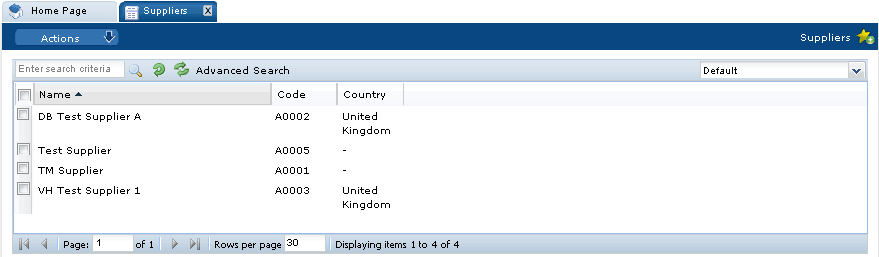
The list shows the suppliers in order by supplier name. For each supplier, the supplier code and country are also shown.
The following actions are available:
-
New Supplier: For more information, see Registration.
-
New Partner: For more information, see Partner Supplier.
Note:
The New Partner action is only available in the JET UI Supplier list view. -
New Alert: For more information, see Alerts Management.
To see the details for a specific supplier, double-click the row. A tab opens with the details. You can also select the View or Edit actions.
Figure 2-2 Supplier Details
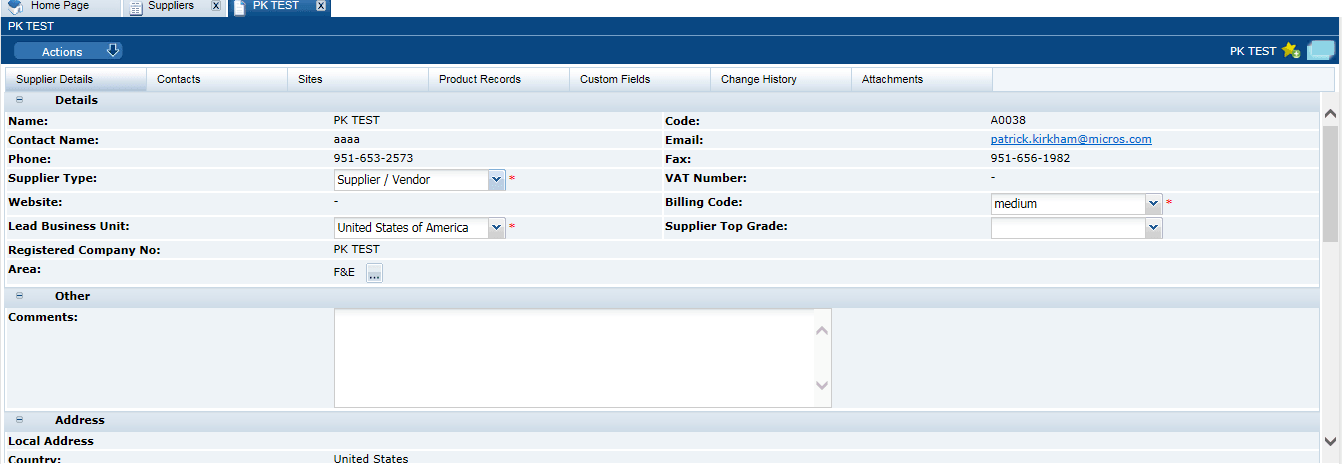
The following subtabs are available. Select a subtab to see the information for the supplier:
-
Supplier Details
-
Contacts: List of contacts for the supplier.
-
Sites: List of the supplier's site locations.
-
Linked Suppliers: If enabled, the number of linked suppliers is shown in parentheses on the subtab.
-
Custom Fields
-
Change History
-
Attachments: List of documents attached to the supplier.