58 Reporting
Oracle Retail Xstore POS provides a wide variety of reports to help you monitor and analyze your store's operations and sales. They are accessed outside of a sale via the global navigation menu button found on the home screen. The user can enter the report name in the search field or drill down to the desired report by selecting "Reporting". All Xstore POS reports are available on Desktop, Handheld, Thin Client, and Tablet devices. The information in this guide will help you understand what reports are available and how to access the reports you need.
Note:
See Oracle Retail Xstore Point of Service Reports Guide for more information on report options and details of individual reports.
This chapter contains the following sections:
Report Menu Configuration and Security
The reports available on the Reporting menu found by selecting the Global Navigation menu outside of a sale, are based on your business needs. The order in which the reports are displayed may also be customized. Because each Oracle Retail Xstore POS menu is configurable, the menu options and locations shown on your system may be different than the options shown throughout this guide.
Controlling access to company information on reports is a significant issue and Oracle Retail Xstore POS addresses that requirement through system security privileges. Access to reports can be controlled at an individual associate level or at a group level.
Figure 58-1 Reporting Menu
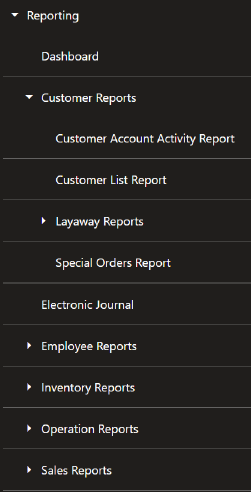
Table 58-1 Xstore POS Reports
| Report Category | Sub-Menu Options | |
|---|---|---|
|
Dashboard |
||
|
Customer Reports |
Customer Account Activity Report |
|
|
Customer List Report |
||
|
Layaway Reports |
Layaway Account Activity Report |
|
|
Layaway Aging Report |
||
|
Special Orders Report |
||
|
Electronic Journal |
||
|
Employee Reports |
Employee Productivity Report |
|
|
Employee Schedule Reports |
Employee Performance |
|
|
Employee Schedule Detail Report |
||
|
Employee Time Off Summary Report |
||
|
Associate Tasks |
||
|
Time and Attendance Reports |
Open Timecard Report |
|
|
Payroll Detail by Employee |
||
|
Payroll Summary |
||
|
Posted Timecard |
||
|
Inventory Reports |
Inventory Movement |
|
|
Inventory Movement History Report |
||
|
Inventory Movement Pending Report |
||
|
Inventory Stock Cost |
||
|
Item List Report |
||
|
Receiving Exception Report |
||
|
Receiving Report |
||
|
Replenishment Open Product Requests Report |
||
|
Replenishment Product Request Report |
||
|
Restock report |
||
|
Shipping Exception Report |
||
|
Shipping Manifest Report |
||
|
Operation Reports |
Price Change Report |
|
|
Saved Reports |
||
|
Store Locations Report |
||
|
Till Reports |
Cash Drawer Audit Report |
|
|
Cash Drawer Report |
||
|
Paid In/ Paid Out |
||
|
Sales Reports |
Airport Sales Tax Report |
|
|
Flash Sales |
||
|
Journal report |
||
|
Retail Reports |
Best Sellers |
|
|
Cancelled Transaction Report |
||
|
Credit Card Report |
||
|
Daily Sales & Cash Report |
||
|
Daily Sales Report |
||
|
Gift Certificate Report |
||
|
Line Void report |
||
|
No Sale Report |
||
|
Post Void Transaction Report |
||
|
Price Override Report |
||
|
Restock Report |
||
|
Returned Merchandise Report |
||
|
Sales Overview Report |
||
|
Sales by Hour Analysis Report |
||
|
Sales by Hour Report |
||
|
Sales Goals Report |
||
|
Suspended Transaction Report |
||
|
Tax Exemption Report |
||
How to Access Reports on Xstore POS
Xstore POS reports are accessed when outside of a sale.
To access Xstore reports, follow the steps below.
-
From the Home Screen, select the Global Navigation menu.
-
Select Reporting.
-
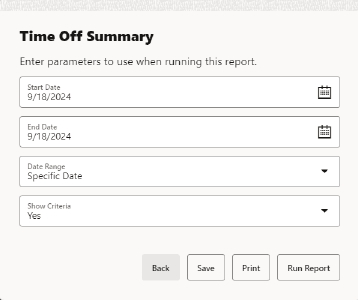
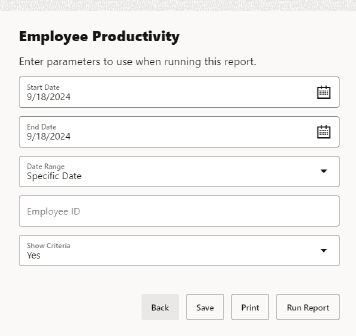
Select a report from the list. The system displays the Report Parameter screen where applicable. Enter the search criteria.
Figure 58-2 Report Parameters
-
Select Run Report or, select Save or Print.
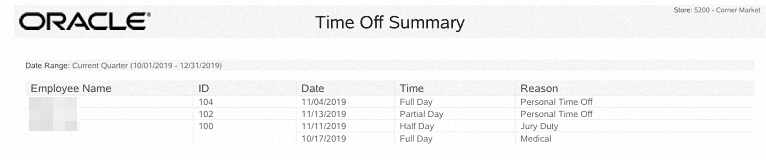
The report is displayed in the PDF viewer of your device, for example Apple devices use iBooks or PDF Reader depending on their default viewer.
When using an Android device, select Download. Open the PDF report from the Downloads folder to view it.
Figure 58-3 Time Off Summary Report
Saving a Report
After running a report, it can be saved so that the data can be reviewed later. The system automatically stores your saved report in a location based on the system's configuration and your login ID.
Note:
Only you can view the reports you have saved. No one else has access to your saved reports.
-
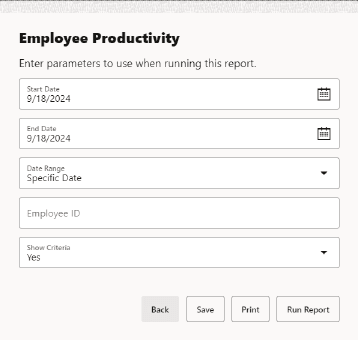
Select the Save option on the criteria selection form to rerun or view a report later.
This option is also available when viewing a report using the Save menu option.
Figure 58-4 Criteria Selection Form
-
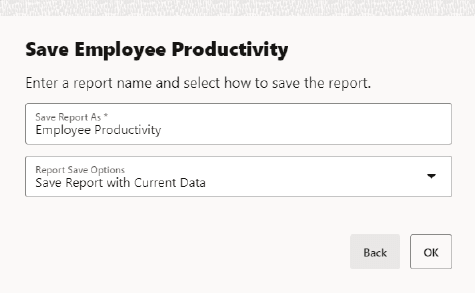
The system displays the Save Form for the report.
Figure 58-5 Save Form Window
-
Edit or accept the report name in the Save Report As field.
-
Select one of the two options in the Report Save Options field:
-
Save Report With Current Data: The next time you view this report, it will be exactly the same as it was when originally generated.
-
Save Report Parameters: The next time you view this report, it will be based on the same selection criteria (parameters). If you use a relative date parameter, the actual data retrieved is updated using current information.
-
Select OK to save the report.
-
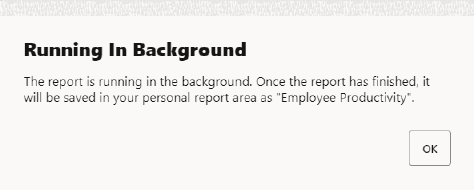
The Report Criteria Saved or Running in Background prompt displays, select OK.
Figure 58-6 Saved Report Confirmation Report - Report Running
View Saved Reports
-
Select Reporting from the Global Navigation menu, login with your associate credentials, and then select Operation Reports, and then select Saved Reports.
-
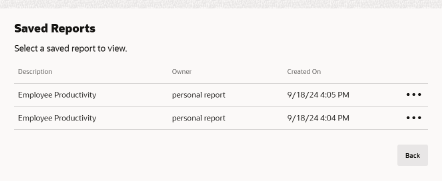
Select the report you want to see. If necessary, scroll to see additional saved reports.
Figure 58-7 List of Your Saved Reports
-
To view a saved report, select the View option to display the report on the screen.
-
To delete a saved report, select the Delete option on the list of saved reports and select Yes to confirm that you want to delete the selected report.
-
-
After you are finished viewing or deleting the report, select the Back option to return to the saved reports list.
Report Printing
Multiple Printers
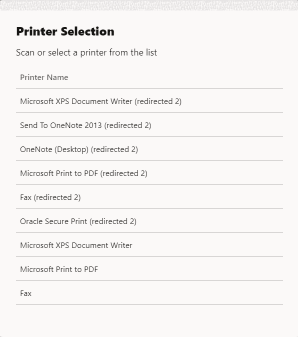
Printing to A4/report printers is done for luxury receipts, BIP reports, and tax-free invoice printing. Stores that have multiple A4/report printers can select a printer from a list of available printers or scan a QR Code and the report or invoice prints to that selected printer. If only one printer is available, the report prints directly to that printer and no selection is required.
Figure 58-8 Multiple Printer List
QR Code
In addition to selecting a printer from a list, you can scan a QR code placed on the front of the printer to select that printer.
-
Select Print to print a report.
-
From the list of printers displayed, select the barcode icon to open the device camera.
-
Scan the QR code on the front of the printer.
When a QR code is valid and the A4/report printer is configured, Xstore will send the data to the scanned printer. The printer list closes automatically.
Note:
Retailers are responsible for creating QR codes for printers and placing them on the appropriate printers. They are also responsible for configuring available printers.
Report Printing Options
An option to print a page range may be available for some reports. The reports that support this feature are determined by the Home Office. If a report supports printing a specified page range, you will be prompted to enter the page(s).
-
After generating a report, and with the report displayed, select the Print option.
Figure 58-9 Print Report
-
If prompted, type the page, pages, or page range to be printed. For example, at the prompt, type 1-3,6,7-9,12 to print only those pages and select OK to print the report.
Using the Dashboard
The goal of the dashboard is to automatically show timely sales data information collected from various areas within the organization-in one place. The data shown on the screen is an analysis as to how your business is operating; using graphics, summaries, and lists to display the information.
Information shown on the Dashboard includes:
-
Sales Performance - WTD, MTD, and YTD values as a running totals section, up to and including the current day's sales
-
Net Sales for the Top 5 Departments from today
-
The top 5 best-selling items from today
-
The top 5 performers from today
-
Store Goals performance data
In addition to the information displayed on the page, menu options are provided to allow you to view and print the Flash Sales report, the Daily Sales report, the Best Sellers report, and the Associate Tasks report.
To view the dashboard, select the Dashboard option from the Reporting menu found by selecting the Global Navigation menu.
Dashboard Information
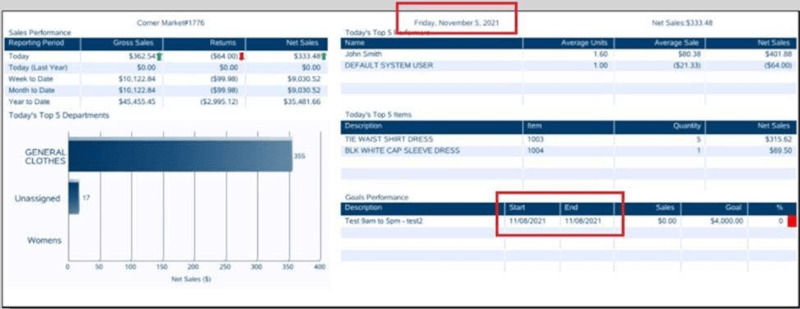
The Dashboard screen is divided into several informational areas as shown in the figure below:
Figure 58-10 Dashboard Screen
Dates
Generally, when a store is closed each night, the system date (current calendar date) and the business date will be the same. In cases of 24/7 trading, when the store is not closed for the night and reopened the next morning, the system date and business date will not be the same date. The business date remains unchanged, and the system date reflects the current calendar date.
For example, the date shown on the top of the report (dashboard) is Friday December 5, 2024. This is the business date.
The date highlighted in the Goals Performance area shows the start and end dates as 8 December. This reflects the system date, that is, when the report was run.
Sales Performance
This section shows the Gross Sales, Returns, and Net Sales for Today, a year ago (Today - last year), Week-to-Date, Month-to-Date, and Year-to-Date. The data displayed in this section is a running totals section. This information shows the current day's sales in near real time, so these values change depending on when the Dashboard is displayed.
Note:
Additional 'sales data is available on the Flash Sales and other Sales reports.
Top 5 Departments
This section shows a graph representing the top 5 department sales. One axis of the graph shows the Net Sales dollars, and the other shows the Department ID.
Top 5 Performers
This section shows the top 5 sales associates from today, listed in descending order, based on Net Sales dollars. In addition to Net Sales dollars, the Units per Transaction (UPT), and Average Sale dollars are also displayed.
Note:
How the UPT and Average Sale data are calculated:
Units per transaction = total units sold/# of transactions
Average Sale = Net Sales/# of transactions