62 Store Console
The Store Console provides authorized store managers and supervisors with a centralized view of register activity across the store. Similar to the Self Checkout Console, the Store Console helps users monitor what is happening at the register level, including standard registers, tablets, handhelds, and Self Checkout registers. Each register is represented with an icon that identifies the register type. This helps users quickly distinguish between Self Checkout, fixed registers, tablets, and handhelds when monitoring store activity. The Store Console is intended to give managers visibility into register status, assistance requests, and alerts so they can respond quickly to store operations. Users access the Store Console from a separate Store Console URL.
Note:
See the Oracle Retail Point of Service Self Checkout User Guide for specific instructions around the Self Checkout Console.Store Console Login
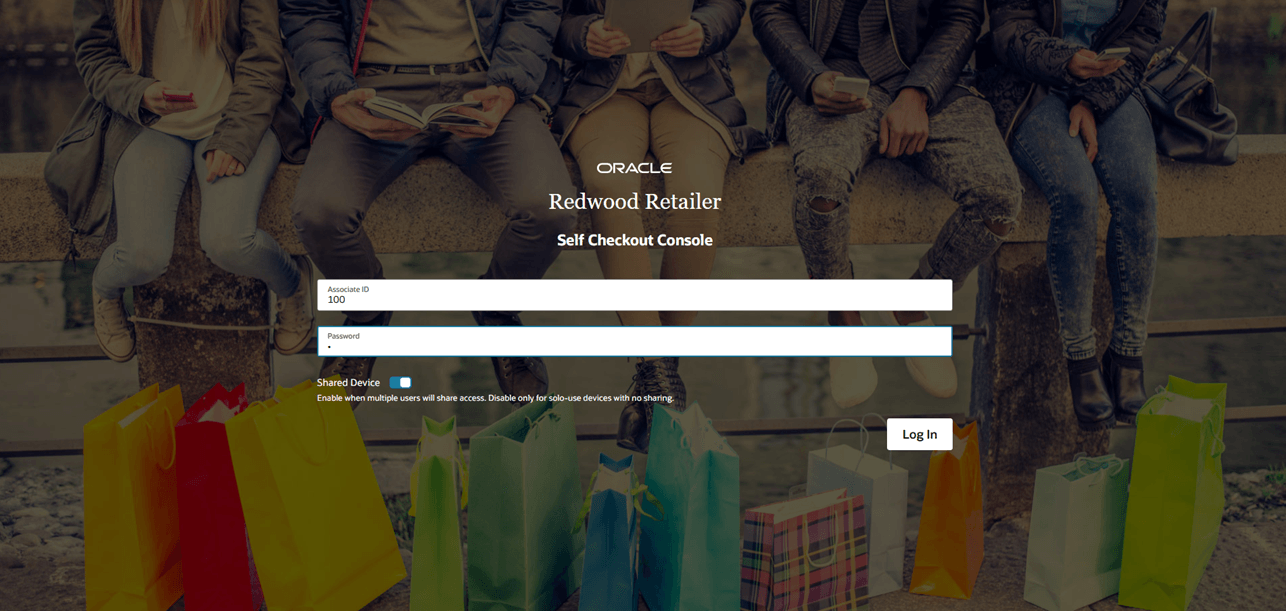
Use the Store Console login page to access the console.
- Select Login.The Store Console appears.
Figure 62-1 Store Console Login
Header
This area displays the following information:
- Console Title
- Store Status: Open / Closed
- Store Name
- Store Number
- User Login Initials
Select the Initials of the current logged in user to display the About Application and Logout options.
Filters
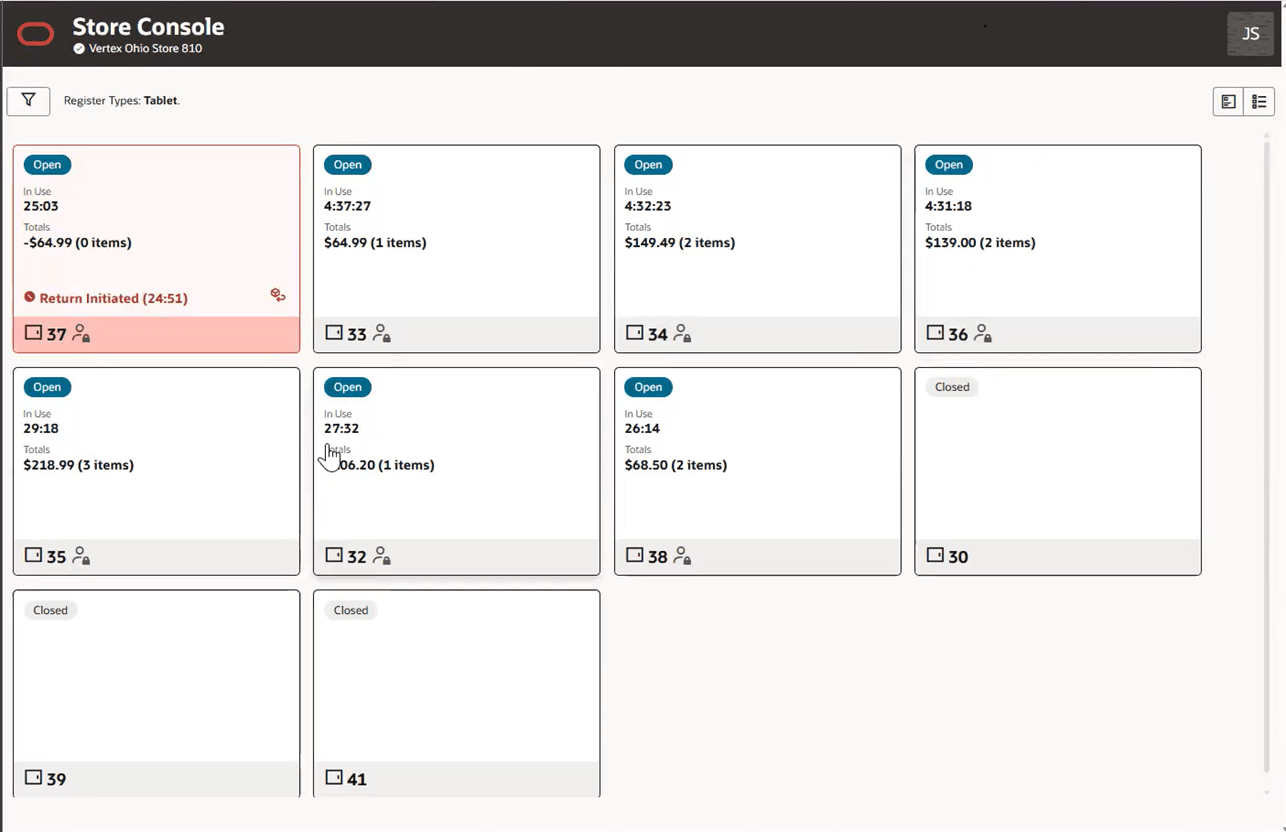
The Store Console allows users to filter the console view so they can focus on specific registers or groups of registers. Users can filter by register type, such as Self Checkout, standard register, tablet, or handheld.
Figure 62-2 Filters
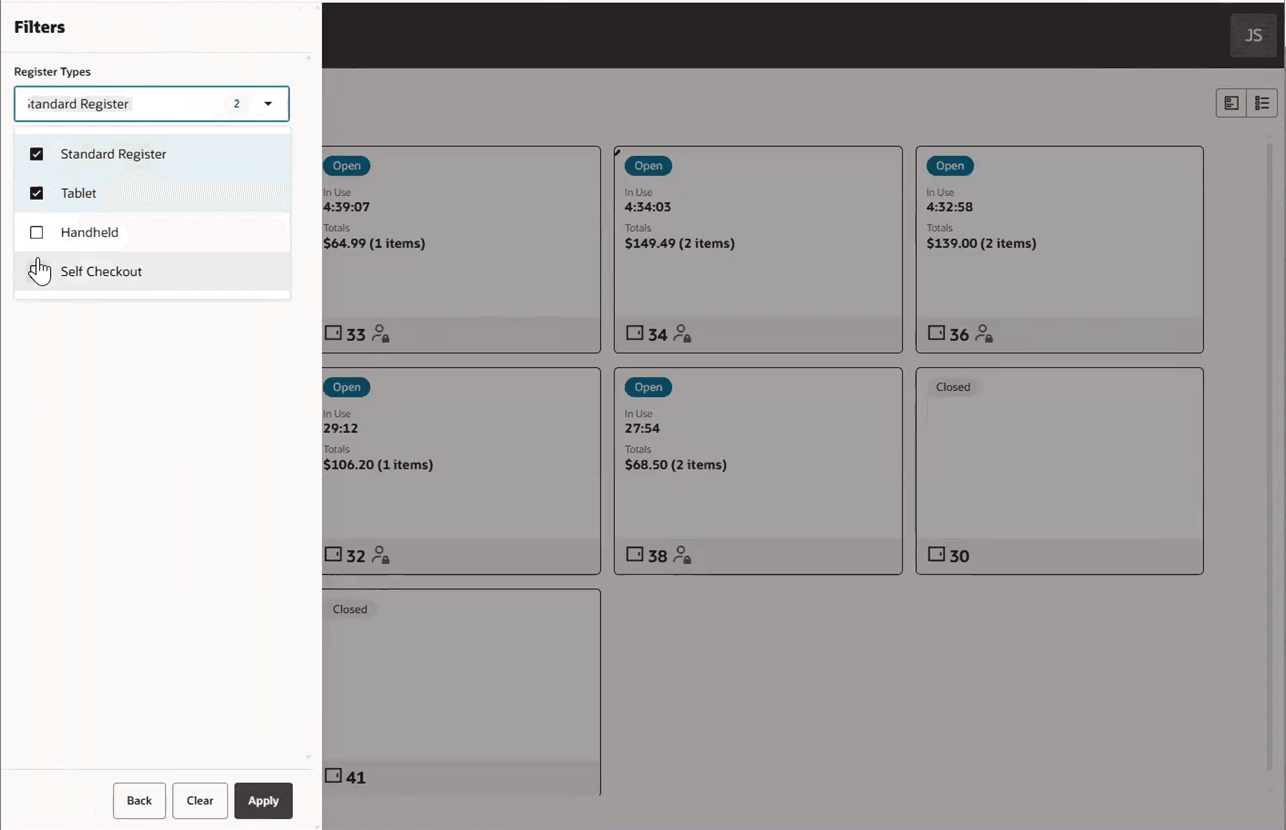
Figure 62-3 Filter Applied
Card View
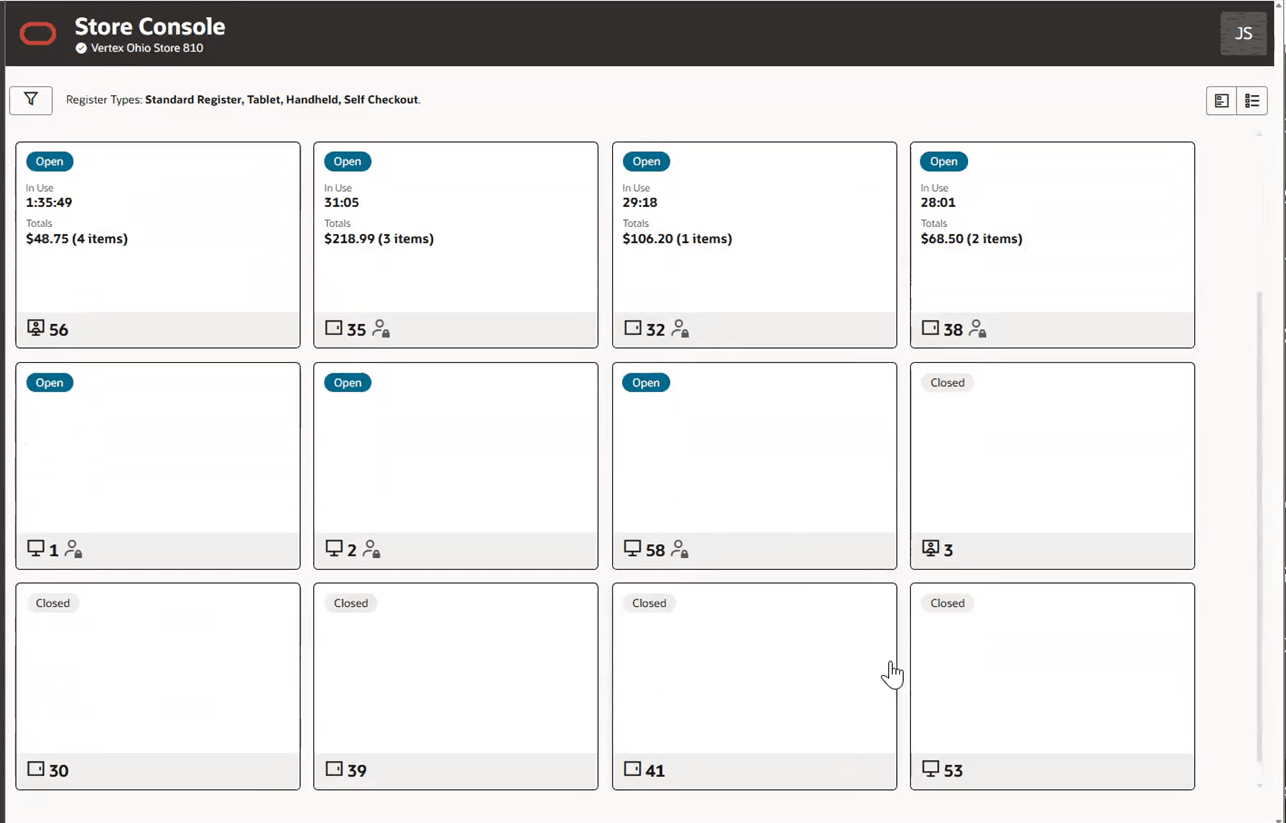
When a user logs in to the Store Console, Card View is the default view. Each register displays as a register card that provides key information about the register and any activity or issues that may require attention.
Each register card may include the following information:
- A badge indicating the register status, such as Open, Deactivated, or Closed
- The register type, such as Self Checkout, standard register, tablet, or handheld .
- The running transaction session length, when a transaction is active.
- A totals area that displays:
-
A running cart total in the store local currency - this is the amount the customer will pay which includes taxes.
For country-specific configurations, the running cart total reflects the tax, fiscal, and receipt rules applied to the Self Checkout transaction before payment.
-
- An icon indicating when an associate is logged in.
- The register number.
- An icon indicating when an associate is logged in.
- A register message, when applicable. Retailers can configure their own custom messages as needed.
A register message is displayed at a time when applicable. The order of messages is:
- Assistance
- Hardware Issue
- Pending Action
The register cards will have the following colors depending on the activity/issues for the register:
- Red - High Alert - example Assistance required
- Orange - Medium Alert - example Hardware issues
- Blue - Low Alert or Informational
- White - Registers that are open or closed but do not require assistance or have a hardware issue
Figure 62-4 Store Console - Card View
Switching from card view to table view clears all selected registers.
Selecting a register card will open the Register Details Drawer.
Table View
In Table View the registers are always displayed by register number (Ascending). Medium or small screens (tablets and handhelds) display this information in a list layout rather than a table.
Figure 62-5 Store Console - Table View
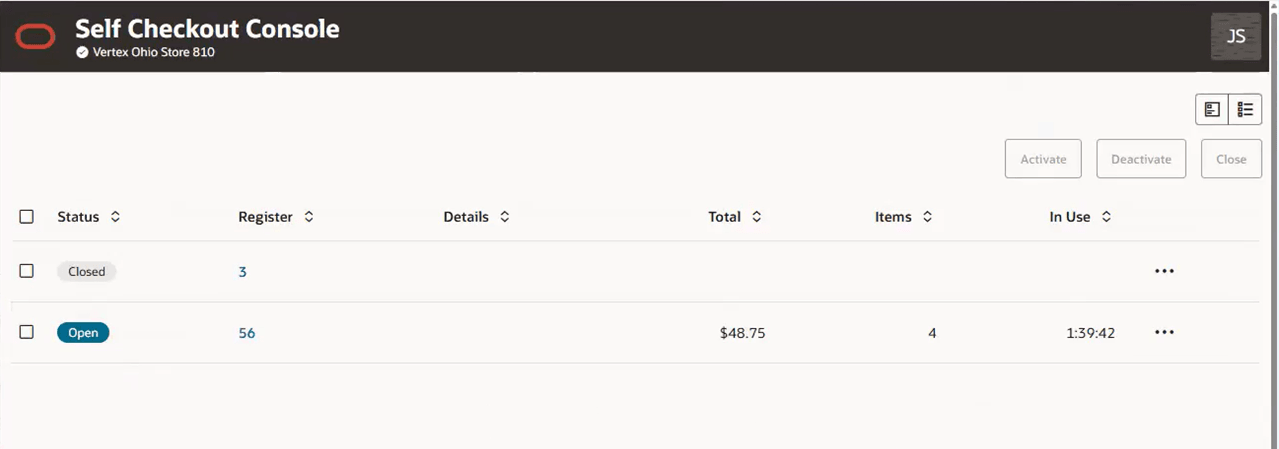
Select the Table View icon to switch from Card View located in the Selection Panel.
The Table View presents the same data as the Card View in a table format or list view when displayed on smaller screens. Select a column label to sort ascending or descending when a table is presented.
Every row has a check box to select each specific register to perform an action. Click the horizontal ellipsis to Pause or view the Register Details Drawer for that register.
Register Details Drawer
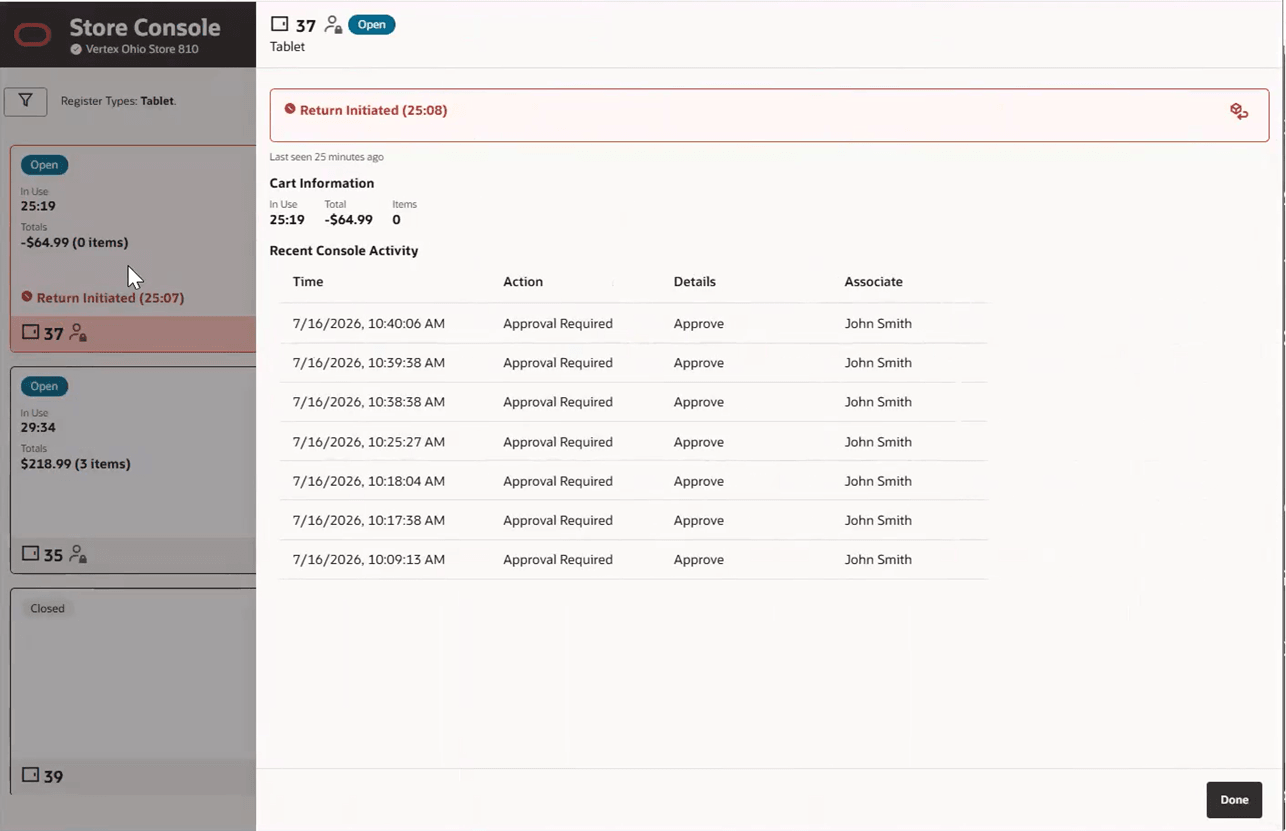
To view the Register Details, select a register card or select the register number in table view or from the ellipsis in table view, select Register Details.
Register Details include:
- Register Number
- Open, Deactivated or Closed Badge
- Messages - Register-related messages display with an elapsed-time indicator showing how long the action has been in progress. In card view and table view only the most important message displays.
- Cart Information - Displays the running transaction length, running cart total, and running items count. A “Last Seen” timestamp shows when a workstation last communicated with the system and automatically hiding inactive workstations after a configurable threshold (24 hours by default). The value is displayed as a relative elapsed time. For example, Last Seen, Seen just now or Last seen 15 minutes ago. The Last Seen value is intended for informational purposes only and does not indicate workstation status or availability.
- Recent Console Activity - Displays the console activities taken per register and the effect that each action had on the register. Only those actions performed on the console are displayed. Any actions, for example, opening a register that are performed on the physical register and not on the console will not display in this activity list.
This information includes:
- Date - Time/Date Stamp
- Action - The type of action performed on the register
- Result - The resolution of the action
- Associate - The User Name of the Associate who performed the action
Figure 62-6 Register Detail Drawer
Store Console Versus Self Checkout Console
The Store Console and Self Checkout Console are separate consoles with separate access permissions. The Store Console provides a broader view of register activity across the store, while the Self Checkout Console remains focused on Self Checkout register monitoring and functionality.